
Cancel or downgrade your STOQ plan
Downgrading and cancelling are different actions. Downgrading, including moving to the Free plan, is something you do inside STOQ. Cancelling your STOQ subscription entirely means uninstalling the app from your Shopify admin, since STOQ has no separate "cancel subscription" button of its own.
If you only want STOQ to stop showing on your storefront, you don't need to downgrade or uninstall. Turn off the STOQ app embed instead: in Shopify admin go to Online Store > Themes > Customize > Theme settings > App embeds, turn STOQ off, and Save. This removes the Notify me and Preorder buttons from your storefront immediately, keeps STOQ installed with your plan, data, and settings intact, and is fully reversible. It's set per theme. See Enable STOQ on your theme.
Downgrade to a lower or Free plan
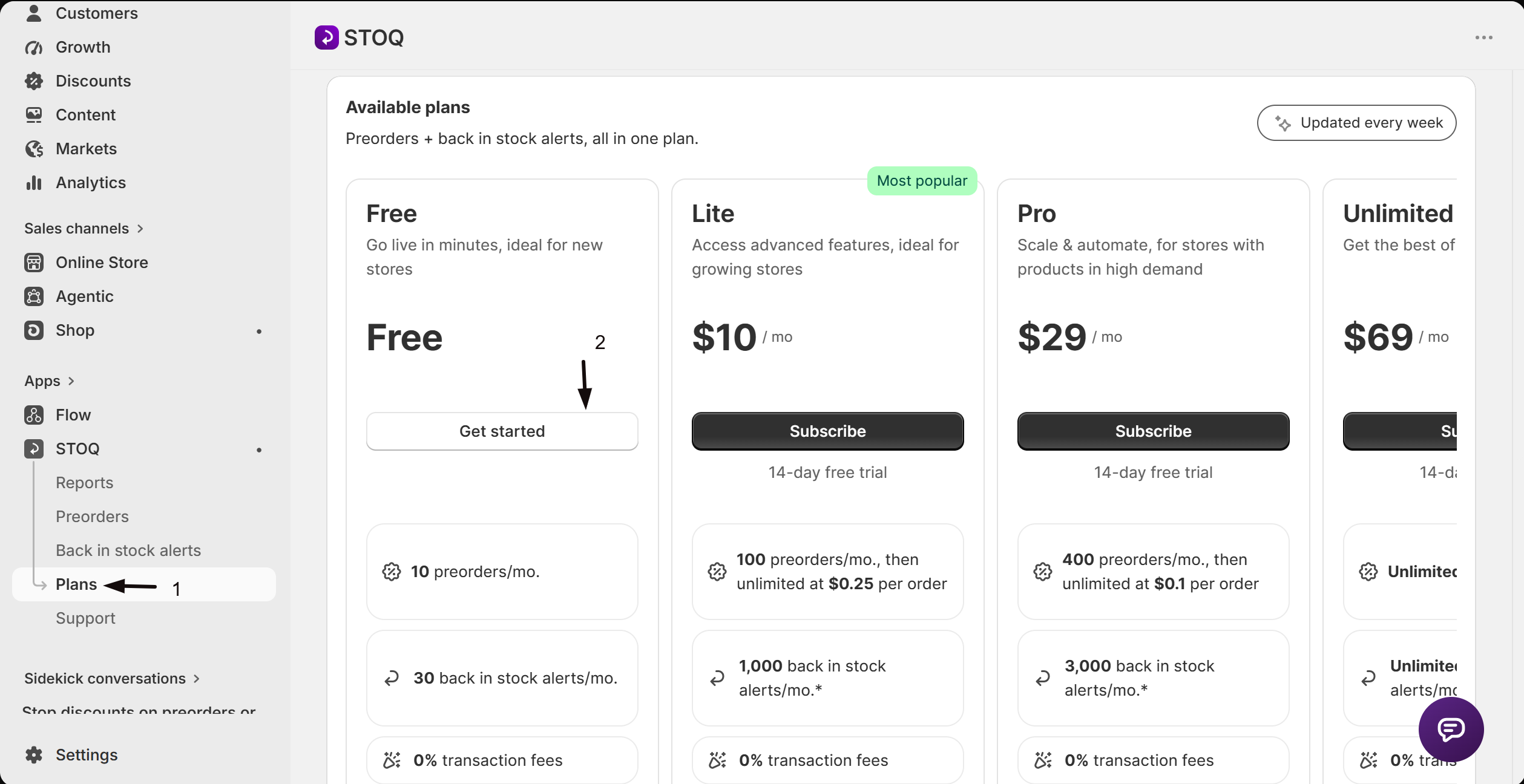
Open Plans
In the left menu of the STOQ app, click Plans.
Choose the lower plan
On the plan card for the plan you want to move to, click Subscribe, or click Get started on the Free plan card.
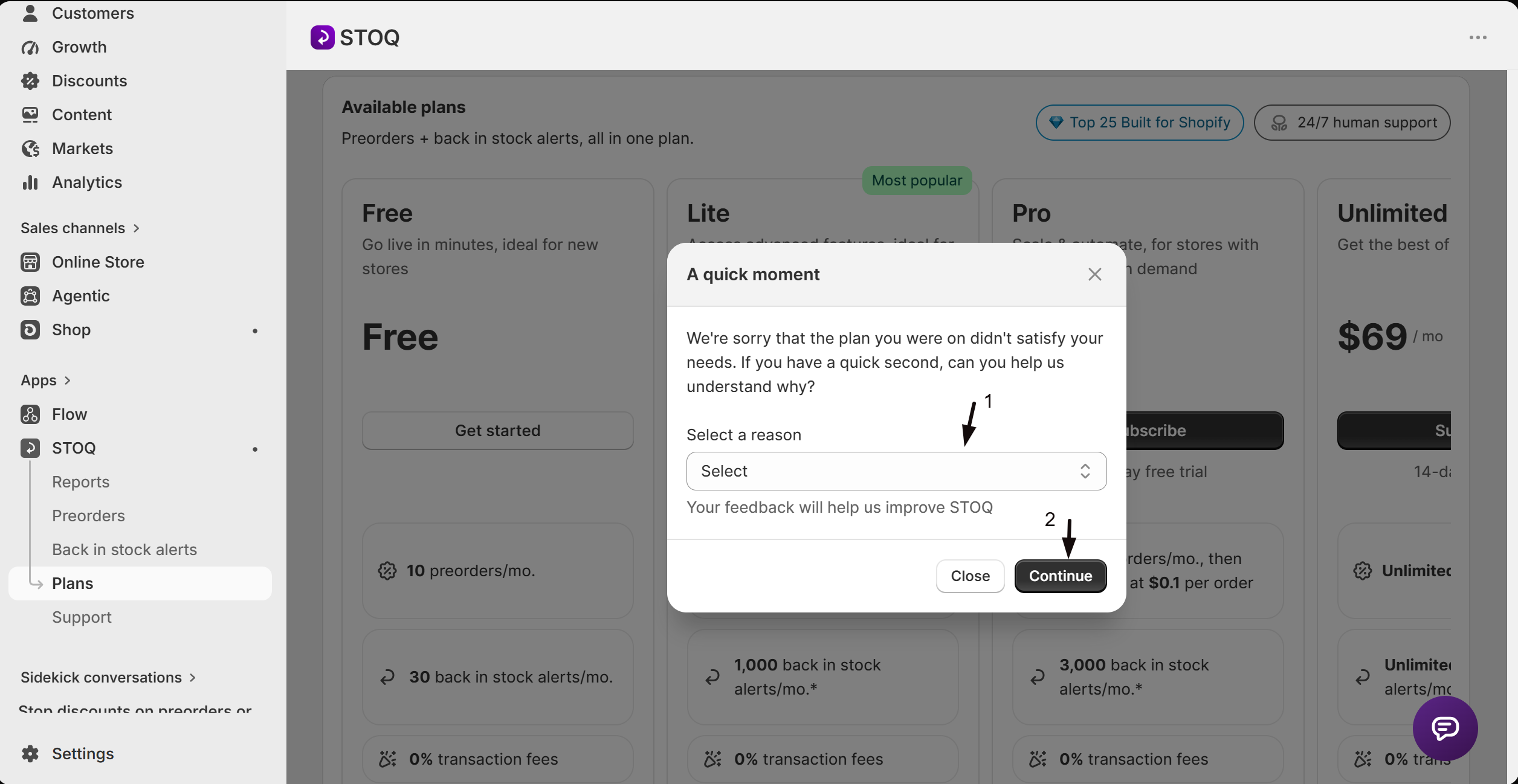
Answer the quick survey, if it appears
Moving down from a paid plan opens A quick moment, a short modal asking why.
- Choose an option from the Select a reason dropdown.
- Click Continue.
Approve the change in Shopify, if you're moving to another paid plan
Moving to a lower paid plan redirects you to Shopify to approve the new charge, the same as an upgrade; approve it to finish. Moving to the Free plan applies immediately, with no Shopify approval screen.
What changes when you downgrade
Paid-only back in stock features lock as soon as the new plan takes effect, including SMS alerts, removing the Powered by STOQ branding, sending through Klaviyo or Shopify Flow, multi-language and location targeting, batched sending, and custom HTML email templates. Your monthly notification limit also drops to the new plan's limit, current limits and prices always show on the plan cards on the Plans page. Existing signups, reports, and settings aren't deleted, only what you can do with them changes.
On the Free plan, going over the monthly notification limit pauses sending until the next calendar month or until you upgrade, it isn't billed as an overage the way Lite and Pro are. See Plans and billing for how limits and overage fees work.
Cancel your STOQ subscription entirely
Cancelling takes two steps, in this order: downgrade to the Free plan first, then uninstall. Uninstalling on its own can still leave you with a charge, so don't skip the downgrade.
Downgrade to the Free plan
Follow Downgrade to a lower or Free plan above and select the Free plan. Do this before uninstalling.
Uninstall STOQ
Use either route below. Both do the same thing.
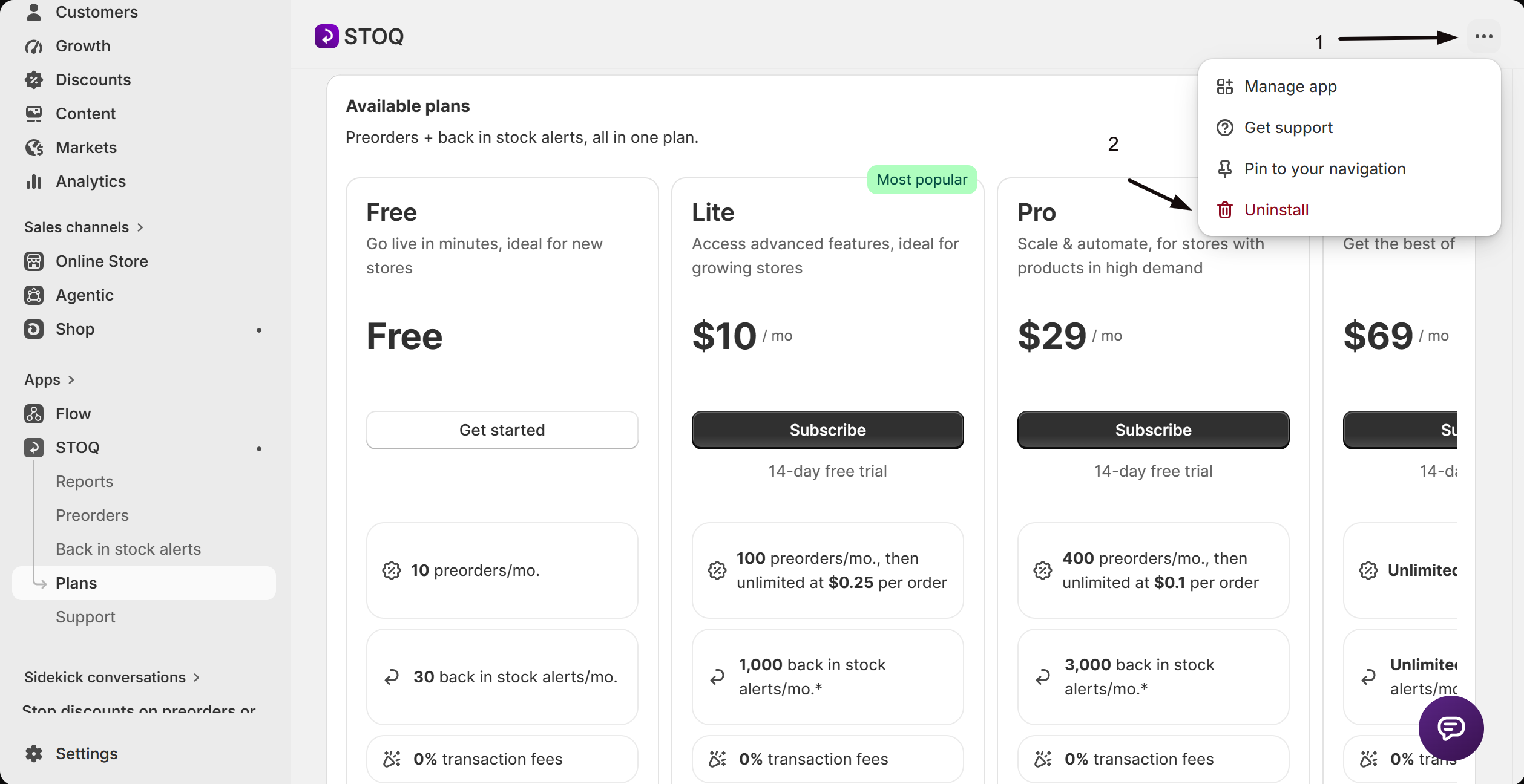
Uninstall from inside STOQ
- Open any page of the STOQ app.
- Click the three dots in the top right.
- Click Uninstall.
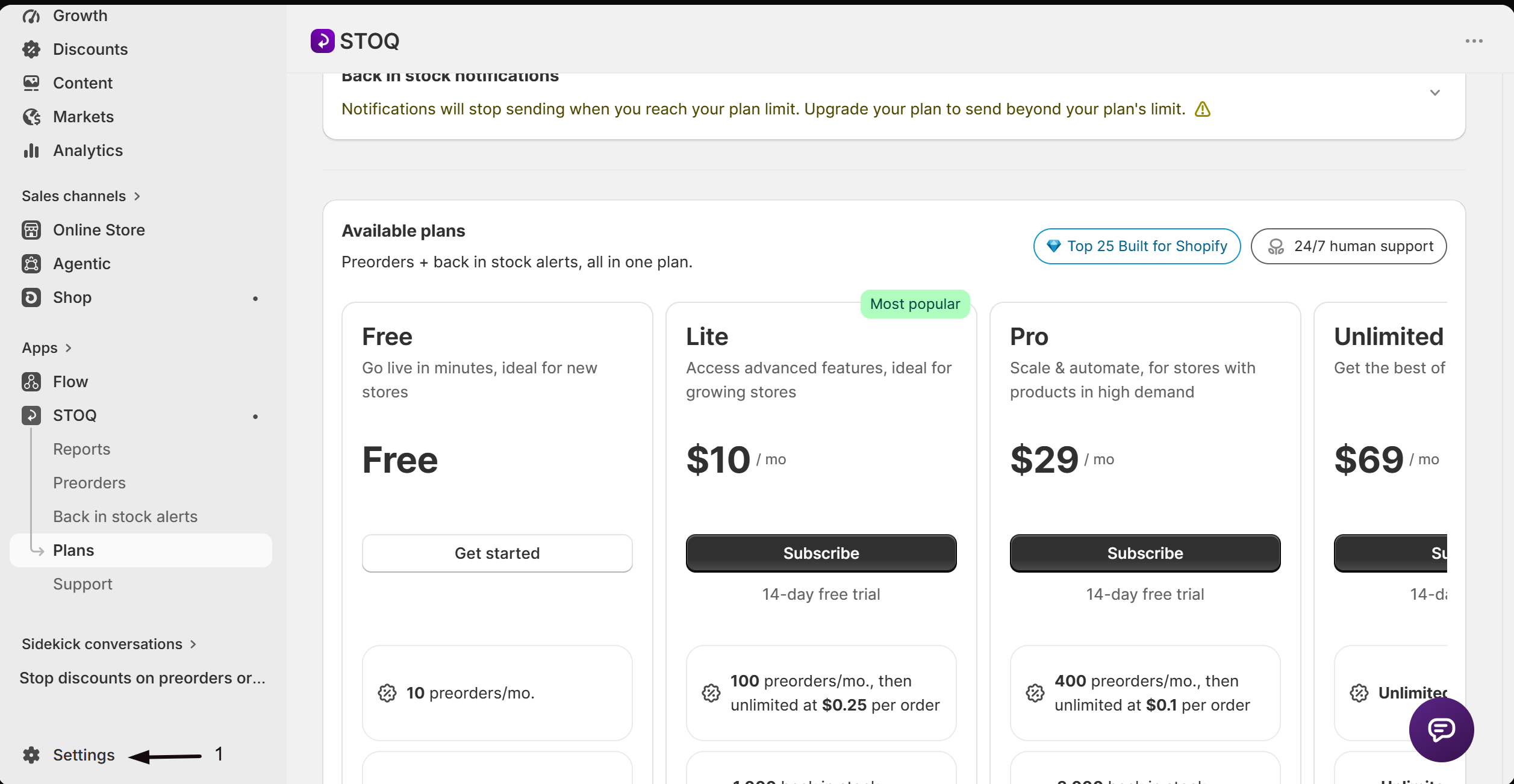
Uninstall from your Shopify admin
In your Shopify admin, click Settings at the bottom left.
Click Apps in the left bar.
Find STOQ in the list and click the three dots to its right.
Click Uninstall.
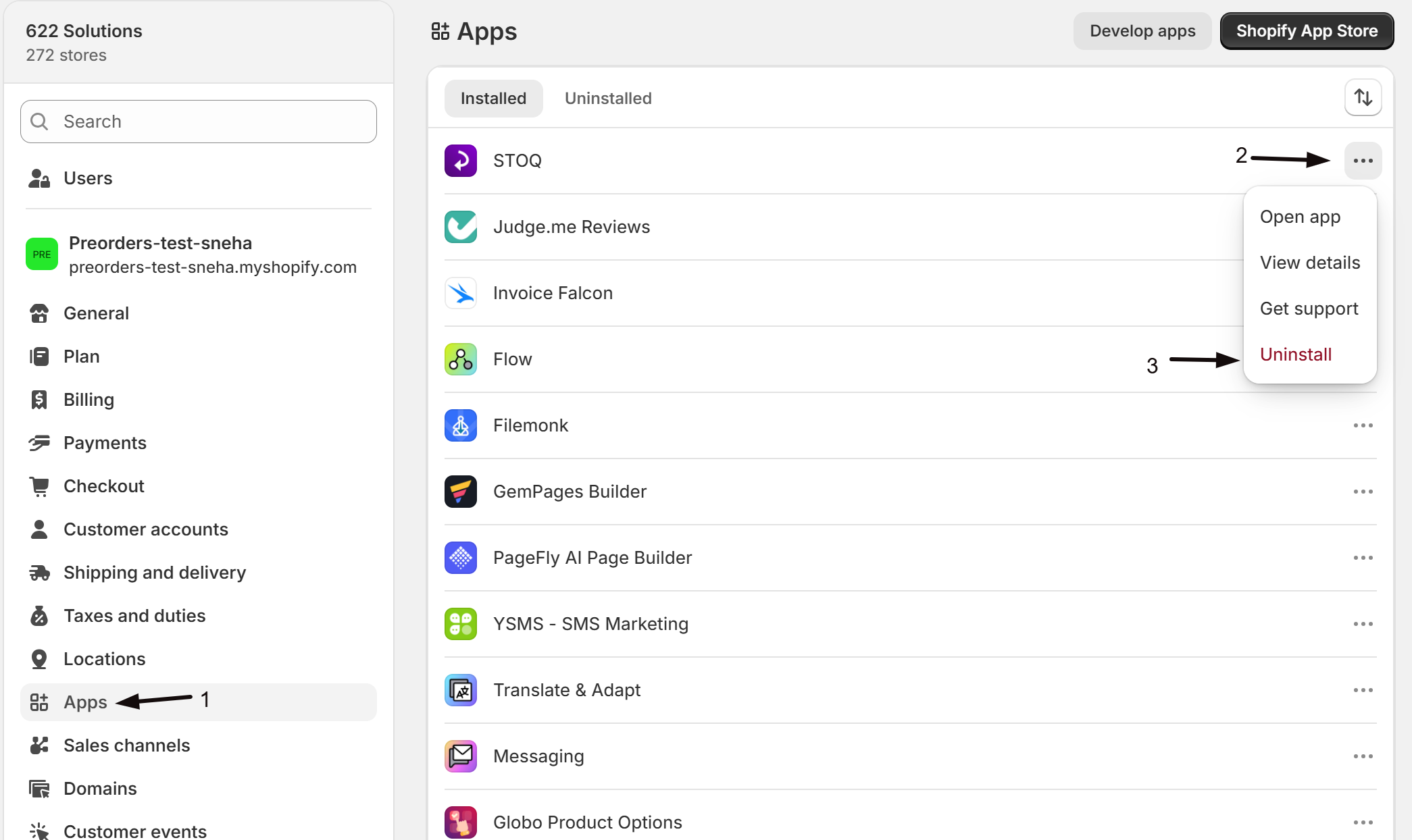
Once STOQ is uninstalled, no further STOQ charges appear on your Shopify bill.
Downgrade to the Free plan before you uninstall. Uninstalling while still on a paid plan can leave a charge on your Shopify bill.
Uninstalling also removes the Notify me and Preorder buttons from your storefront right away, since STOQ can no longer run. If you only want to stop paying, downgrading to Free is enough on its own: you keep collecting signups and sending alerts at no cost.
FAQ
Do I need to uninstall if I just want to pause STOQ for now?
No. If your stock is back and you only want to stop STOQ temporarily, you don't have to uninstall:
- Back in stock alerts: the Notify me button hides itself once a product is back in stock, so it stops showing on its own. To switch it off entirely, turn the Notify me widget off or disable the STOQ theme app embed.
- Preorders: an out-of-stock offer's Preorder button hides automatically while stock lasts, so the storefront returns to a regular Add to cart button. To stop it selling preorders again when the product next hits zero, turn the offer off.
Uninstalling removes your preorder selling plans and configuration, so keep it for when you're leaving STOQ for good. Your Shopify store data stays put and you can reinstall anytime.
Do I lose my back in stock data if I downgrade to the Free plan?
No. Your signups, reports, and settings stay in place. Only paid-only features, like SMS alerts and marketing integrations, stop working until you upgrade again.
Will downgrading affect alerts already scheduled to send?
An alert already queued when you downgrade still sends. New alerts follow the new plan's limits and locked features from that point on.
Can I reinstall STOQ later after uninstalling?
Yes. Reinstalling STOQ from the Shopify App Store starts a new subscription; it doesn't automatically restore your previous plan or resume the old charge.
Is there a STOQ button to cancel my subscription without uninstalling?
Downgrading to the Free plan from Plans keeps STOQ running with no subscription fee, which is enough if you just want to stop paying. To remove STOQ completely, downgrade to Free and then uninstall.
Why do I need to downgrade before uninstalling?
Uninstalling while you're still on a paid plan can leave a charge on your Shopify bill. Moving to the Free plan first clears the paid subscription, so uninstalling afterwards leaves nothing outstanding.
I uninstalled without downgrading first, what now?
Check your Shopify bill for a remaining STOQ charge. If one appears and you don't expect it, contact STOQ support with your store domain and they can look into it. See Get help from STOQ.
Related guides
Plans and billing
How plan limits, overage fees, and billing cycles work.
Back in stock overview
What the Back in stock product covers and how the pieces fit together.
Set up SMS alerts
A paid-only feature that locks if you downgrade to the Free plan.
Set up back in stock alerts
The end-to-end guide to turning on back in stock alerts for your store.
