Let customers join your mailing list
Add a marketing consent checkbox to your Notify me signup form so customers can opt in to your mailing list.
Last updated
Use this guide to add a marketing consent checkbox to your “Notify me” signup form, so customers can opt in to your marketing emails and texts at the same time they sign up for a back in stock alert. By the end, you’ll be growing your mailing list from the same form customers already use to request restock alerts.
Before you begin
Section titled “Before you begin”| You’ll need | Why |
|---|---|
| A paid plan | The Get marketing consent toggle is disabled on the free plan |
| Access to the Back in stock alerts page | This is where the Mailing list controls live |
Choose your setup
Section titled “Choose your setup”Once Get marketing consent is on, decide whether the checkbox should start checked or empty:
- Enroll customers by default, checked: the checkbox is pre-checked when the form loads, so a customer must actively uncheck it to opt out. This grows your list faster, but pre-checking consent is a legal and business decision, and you’re responsible for using wording and a default that meets the marketing consent rules that apply to your region.
- Enroll customers by default, unchecked: the checkbox starts empty, so a customer must actively check it to opt in. This is the more conservative option.
What customers will see
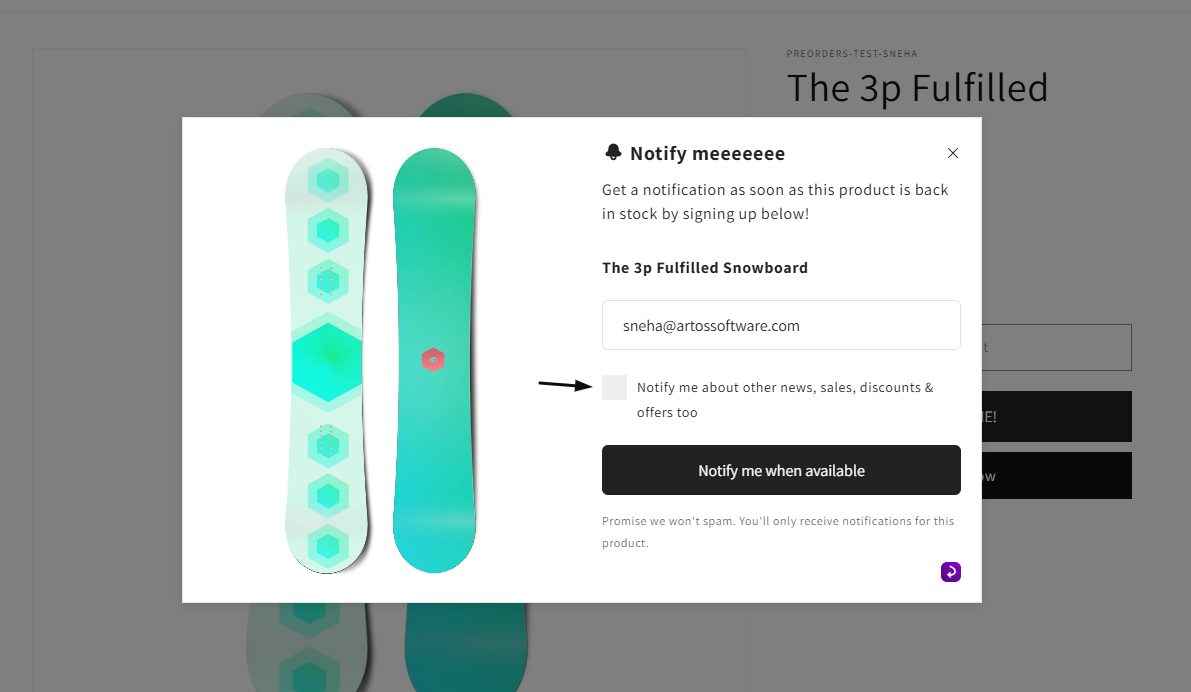
Section titled “What customers will see”When this section is enabled, customers see a checkbox and your consent label on the “Notify me” form, right above the submit button, shown for both email and SMS signups.
- If Enroll customers by default is on, the box appears pre-checked; the customer can uncheck it before submitting.
- If it’s off, the box appears empty; the customer must check it themselves to opt in.
- Whatever state the checkbox is in when the customer submits the form is recorded as their marketing consent for that signup.
Set it up
Section titled “Set it up”On a phone, this menu is collapsed. In the Shopify mobile app, tap the STOQ logo at the top of the screen to open it, then choose the section named below. There is no hamburger icon. See Finding the STOQ menu.
-
Open the Mailing list controls
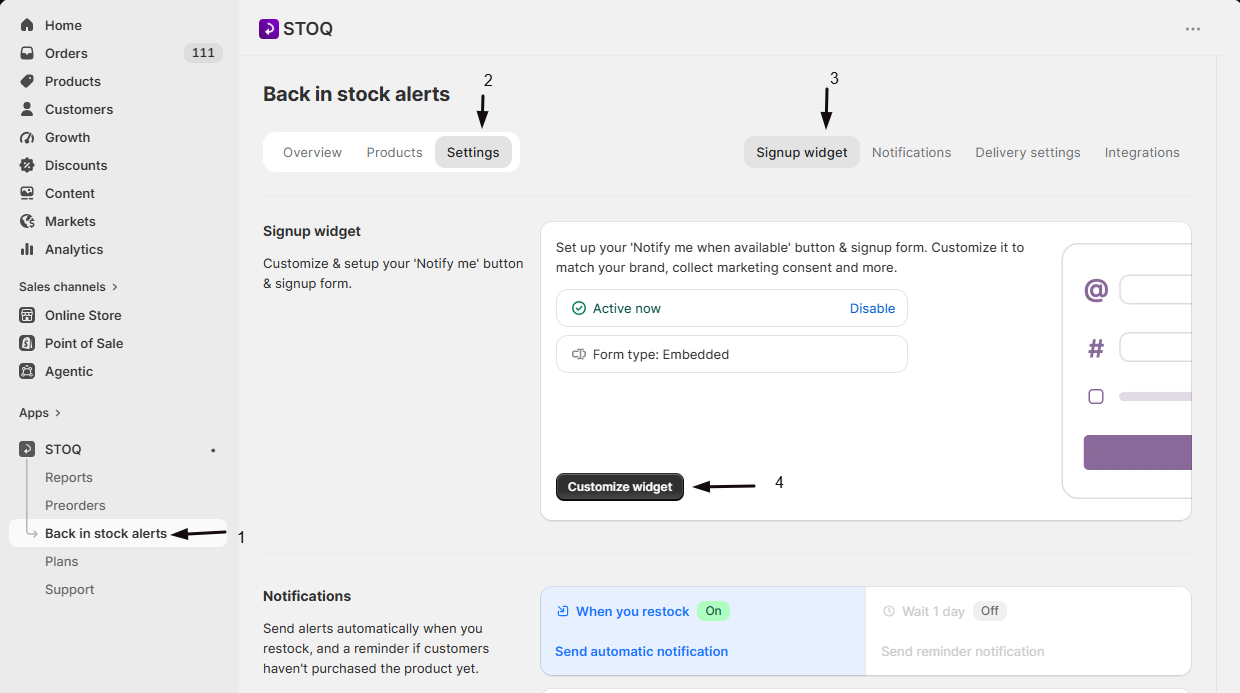
- In the left menu bar of the STOQ app, click Back in stock alerts.
- Click the Settings tab.
- Open the Signup widget sub-tab and click Customize widget.
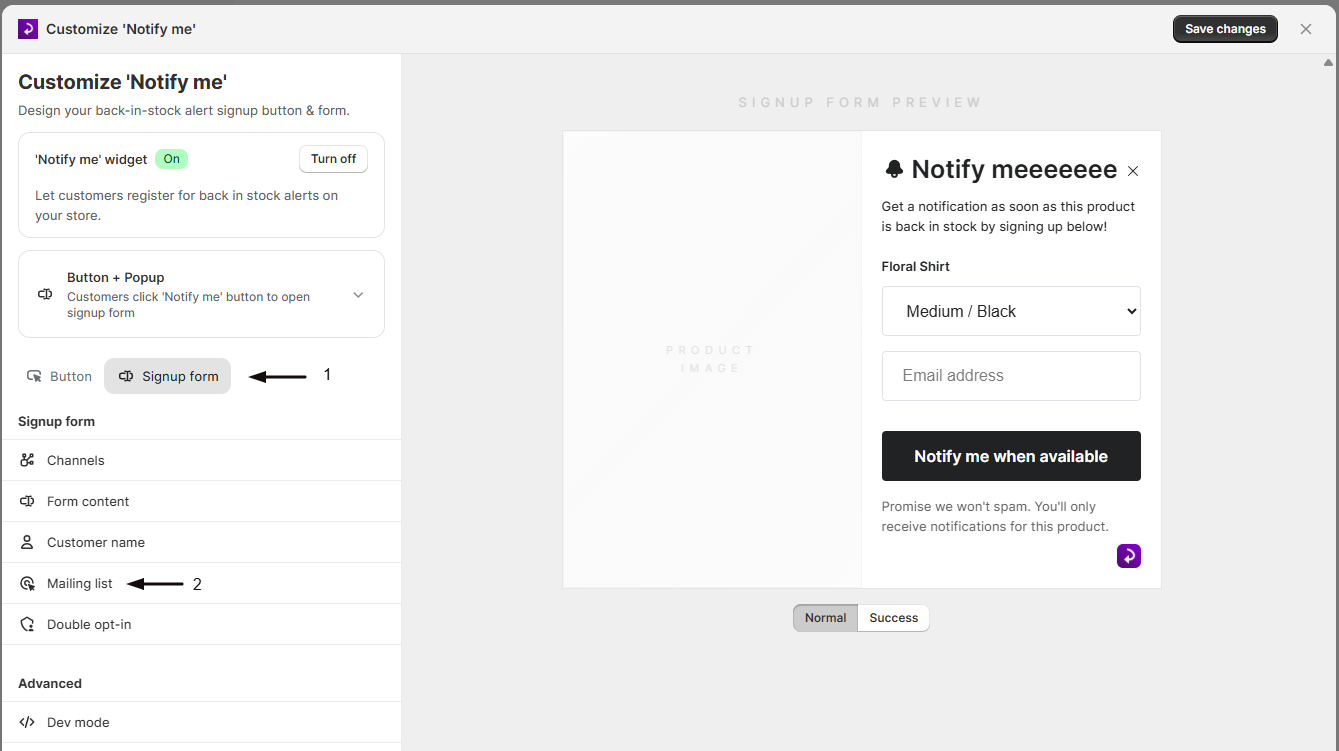
- In the editor, open the Signup form tab.
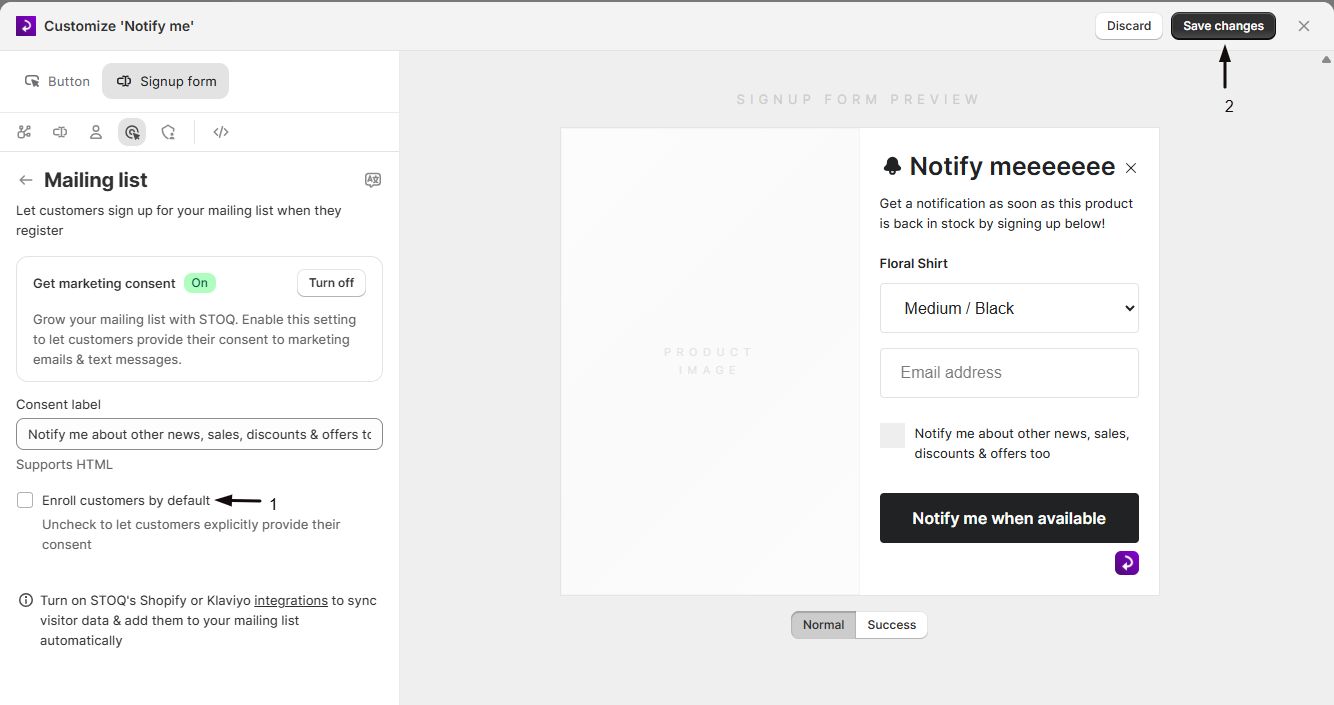
- Click Mailing list in the sidebar.
-
Turn on Get marketing consent
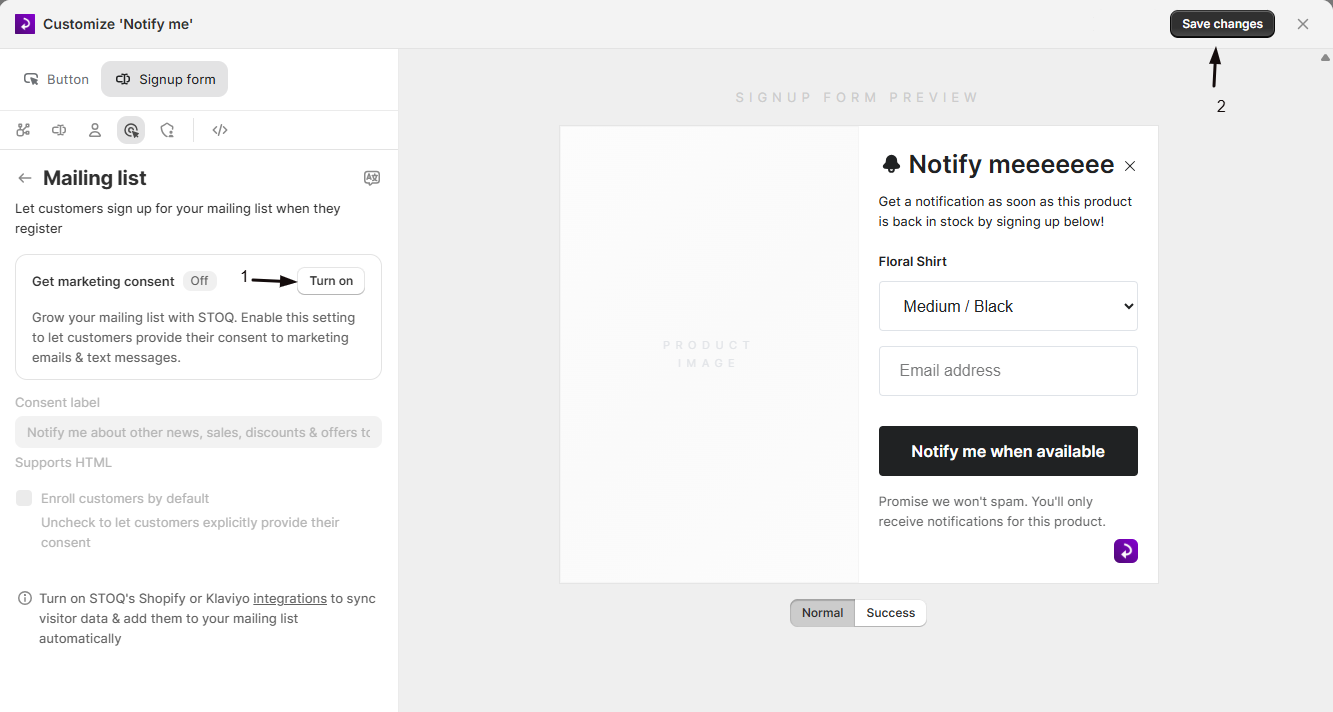
Toggle Get marketing consent on. This adds a consent checkbox to the “Notify me” signup form on your storefront, above the submit button.
-
Set the Consent label
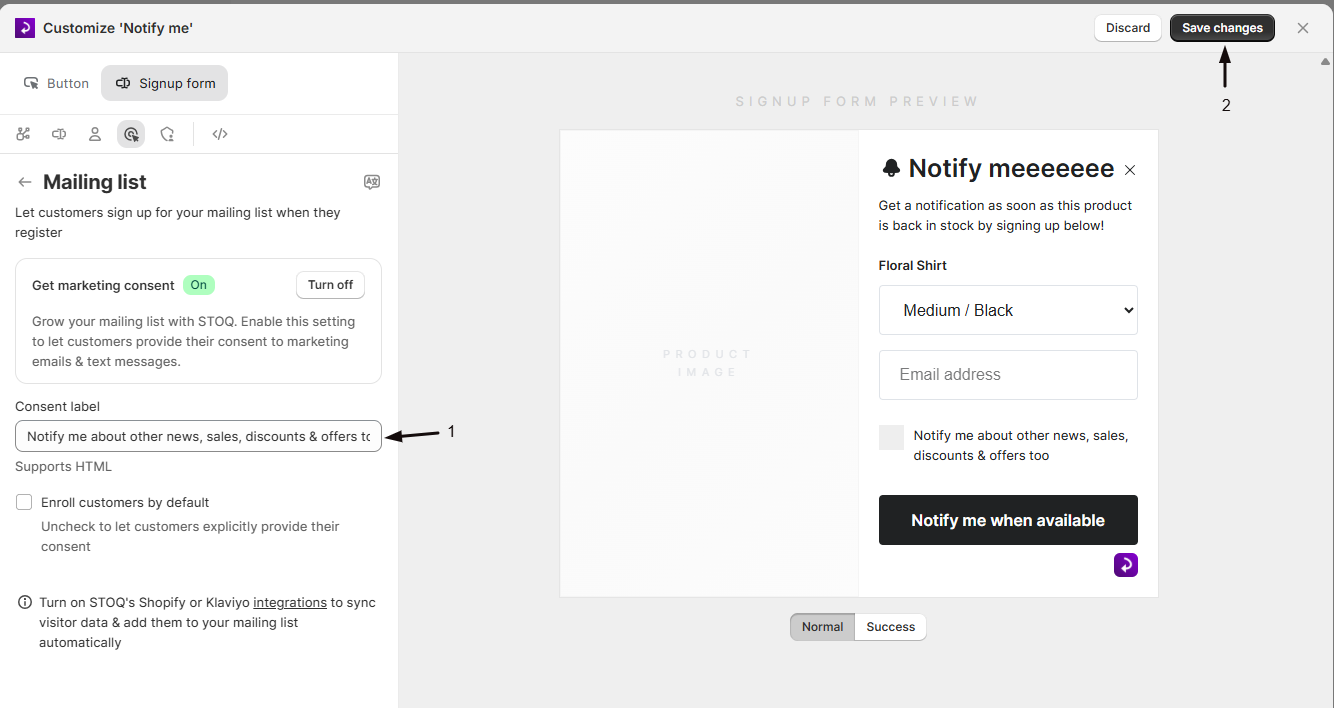
Enter the text shown next to the checkbox, for example “Notify me about other news, sales, discounts & offers too!” This field supports HTML, so you can add links or basic formatting.
-
Choose whether customers are enrolled by default
Check Enroll customers by default to have the checkbox pre-checked, or leave it unchecked so customers must actively opt in. See Choose your setup above.
Where consent data goes
Section titled “Where consent data goes”A customer’s checkbox state is saved with their signup and used wherever your store syncs customer marketing consent:
- If you sync customers to Shopify, checking the box updates that customer’s email and/or SMS marketing consent in Shopify.
- If you sync customers to Klaviyo, Omnisend, or Mailchimp, the profile is created or updated either way, but it’s marked as subscribed to marketing only when the customer opted in. A customer who left the box unchecked still syncs as a profile, just not as a subscribed one. In Klaviyo, that’s the profile’s email (and SMS) subscription status.
The sync itself happens regardless of consent; the checkbox only controls the subscribed state. See Sync signups to marketing tools.
Check your setup
Section titled “Check your setup”- Open a product page for an out-of-stock product on your live storefront (or in preview) and open the “Notify me” form.
- Confirm the consent checkbox appears with your Consent label text, above the submit button.
- Confirm the checkbox’s initial state (checked or unchecked) matches your Enroll customers by default setting.
- Submit the form and check that the signup appears in your customer list with the expected marketing consent state.
- If you have a sync integration turned on, confirm the customer’s consent status updated in that platform.
Troubleshooting
Section titled “Troubleshooting”The consent checkbox isn't appearing on your storefront
Confirm Get marketing consent is toggled on under Signup form -> Mailing list in the widget editor.
Get marketing consent is greyed out and you can't turn it on
This is a paid-plan feature. Upgrade your plan to enable it.
The checkbox isn't checked or unchecked the way you expect
Check that Enroll customers by default matches the behavior you want.
A customer's consent isn't showing up in Shopify, Klaviyo, Omnisend, or Mailchimp
Turn on the relevant sync integration under Back in stock alerts -> Settings -> Integrations. Without one turned on, consent is recorded in STOQ but isn’t pushed anywhere else.
Does unchecking this box stop a customer from getting their back in stock alert?
No. The back in stock alert is always sent to everyone who signs up, regardless of this checkbox. The checkbox only controls whether you also have their consent to send marketing emails or texts.
Where does the consent someone gives actually end up?
It’s saved with their signup in STOQ. If you’ve turned on syncing to Shopify, Klaviyo, Omnisend, or Mailchimp, their consent status is reflected there too.
Can I use HTML in the Consent label, like a link to my privacy policy?
Yes, the Consent label field supports HTML, so you can add a link or basic formatting.
Does this checkbox show up for both email and SMS signups?
Yes, when enabled it appears on the shared “Notify me” form regardless of whether the customer is signing up by email or SMS.
Can I translate the consent label for other languages?
Yes. Click the language icon next to the Mailing list heading at the top of this panel (its tooltip reads “Edit translations for other languages”) to open the translator and add translations of the consent label for your store’s other languages.
If I use Klaviyo, what happens to a customer who opts in?
STOQ syncs them to Klaviyo as a profile and marks that profile as subscribed to marketing (its email, and SMS if collected, subscription status). A customer who leaves the box unchecked still syncs as a profile, but not as a subscribed one. The sync happens whether or not they consent; consent only sets the subscribed state. See Sync signups to marketing tools.
Does double opt-in apply to this consent checkbox?
No. Double opt-in confirms the back in stock signup itself: an email customer clicks a confirmation link before joining the waitlist and receiving restock alerts. The marketing-consent checkbox is separate and records marketing opt-in when the form is submitted. See Require double opt-in.
How do I check a signup synced correctly to Klaviyo?
Turn on the Klaviyo sync and marketing consent, submit a test signup with the box ticked, then find the profile in Klaviyo and confirm its marketing subscription status. See Find synced profiles in Klaviyo.
Related guides
Section titled “Related guides”Thanks for letting us know.
Still stuck? Ask Quinn or chat with support