Send alerts while your store is password protected
Choose whether STOQ holds back in stock alerts while your storefront has a password, or sends them anyway.
Last updated
Use this guide if your Shopify storefront has a password and you want to control whether back in stock alerts go out. By default STOQ holds alerts while the password is on, so customers don’t land on a password page they can’t get past. If customers already know your password, you can send alerts anyway.
Before you begin
Section titled “Before you begin”- The hold only applies while a storefront password is on in Shopify. Stores without a password send alerts as normal and don’t need to change anything.
- The setting is off by default. If your store has a password today, alerts and reminders are paused until you remove the password or turn this on.
Choose your setup
Section titled “Choose your setup”| Your store | What to do |
|---|---|
| Password on while you prepare to launch | Leave the setting off. Alerts wait until the store is open. |
| Password on for good, and customers know it (for example a members-only or wholesale store) | Turn the setting on so alerts send as normal. |
| No password | Nothing. Alerts send as normal. |
What customers will see
Section titled “What customers will see”- Setting off (default): customers who signed up get no alert while the password is on. They stay on the waitlist and aren’t removed or blocked.
- Setting on: customers get alerts as usual. Clicking the product link takes them to your password page first, so they need the password to buy.
What STOQ holds
Section titled “What STOQ holds”While the password is on and the setting is off, STOQ holds:
- Automatic restock alerts.
- Alerts started by the STOQ action in Shopify Flow.
- Reminder emails.
Alerts you send manually from STOQ, for one customer or in bulk, aren’t held. They go out even while the password is on.
Signups keep working. Customers can still join the waitlist from your storefront.
Set it up
Section titled “Set it up”On a phone, this menu is collapsed. In the Shopify mobile app, tap the STOQ logo at the top of the screen to open it, then choose the section named below. There is no hamburger icon. See Finding the STOQ menu.
-
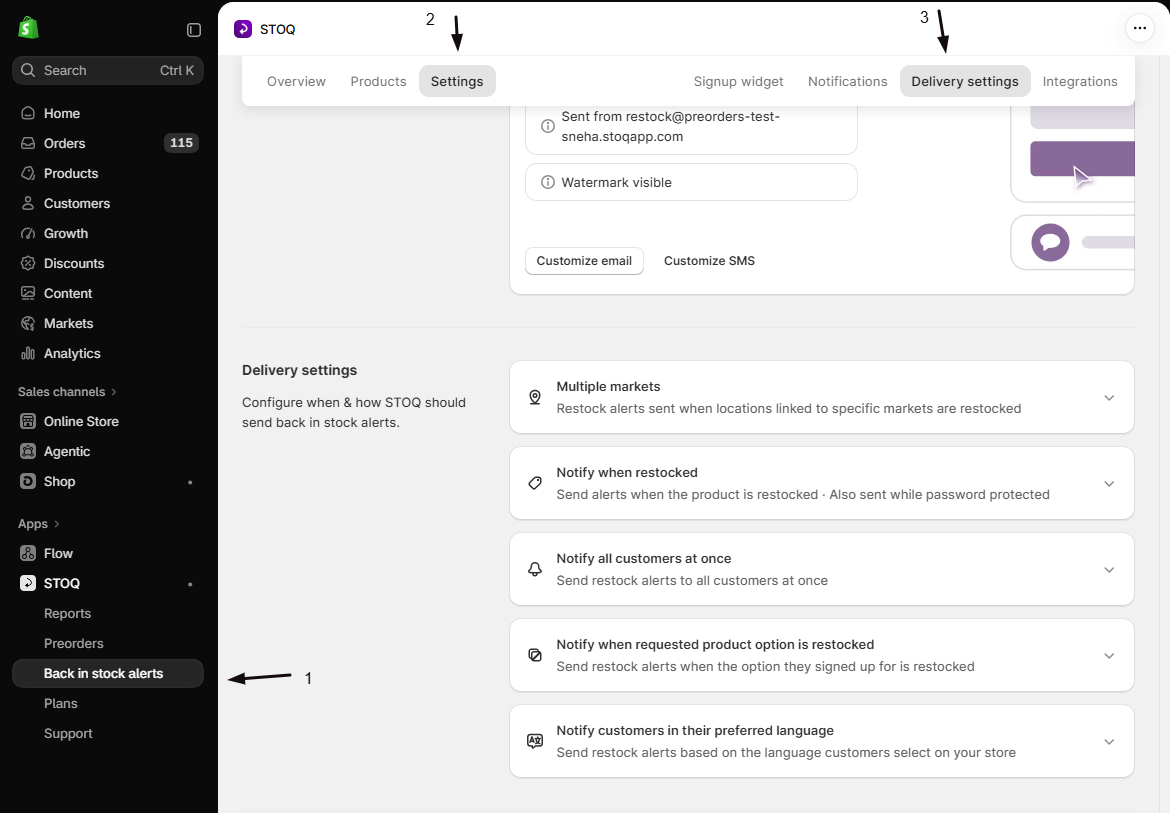
Open Delivery settings
- In the left menu bar of the STOQ app, click Back in stock alerts.
- Click the Settings tab.
- Open the Delivery settings sub-tab.
-
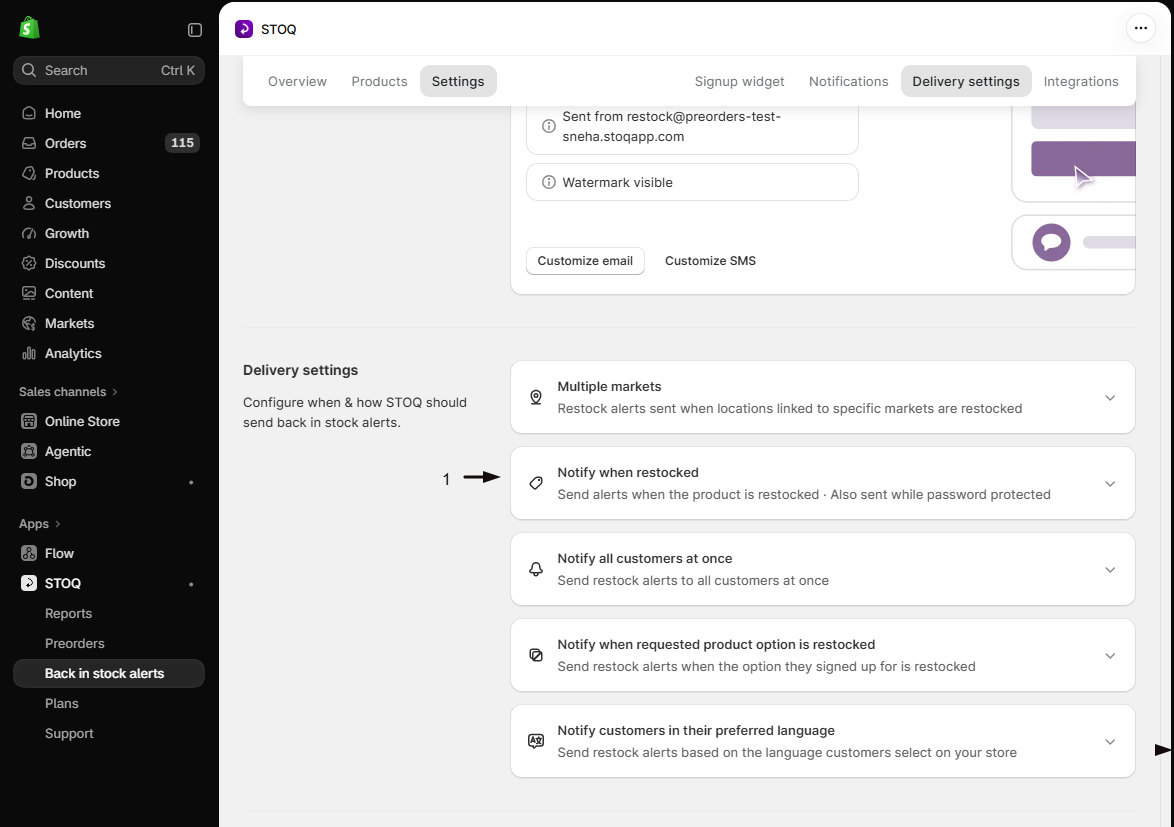
Expand the restock card
Click the card titled Notify when restocked to expand it. If you’ve turned on the publish trigger, the card is titled Notify when published or restocked.
-
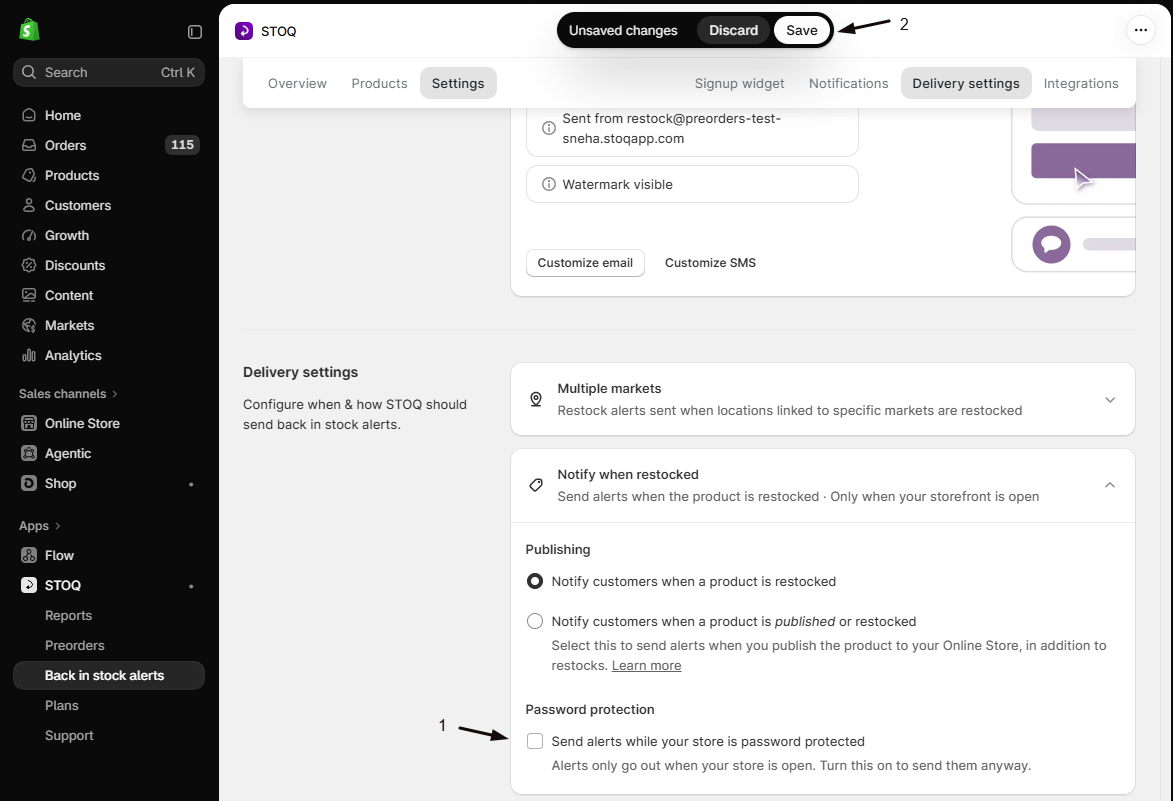
Tick the checkbox
Under Password protection, tick Send alerts while your store is password protected.
-
Save
Click Save in the save bar at the top of the page.
To hold alerts again, untick the checkbox and click Save.
Check your setup
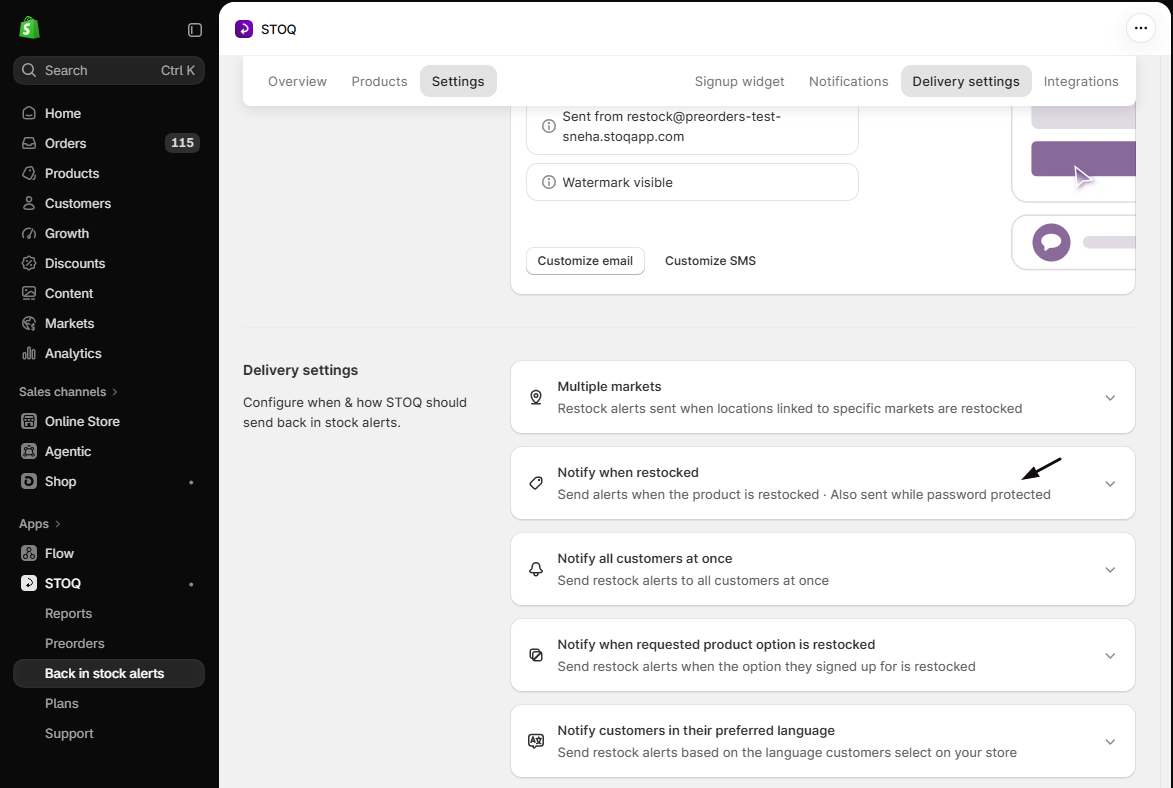
Section titled “Check your setup”- Collapse the Notify when restocked card. Its summary line shows Also sent while password protected when the setting is on, or Only when your storefront is open when it’s off.
- To test sending, sign up for a product with your own email, then restock it. See Test your setup.
When you remove the password
Section titled “When you remove the password”STOQ doesn’t replay restocks that happened while the password was on. After you remove it:
- Waiting customers are notified the next time each product restocks.
- Products that are already in stock won’t alert their waitlist on their own. Send those alerts manually once the store is open.
- Pending reminders go out on STOQ’s next reminder run.
Troubleshooting
Section titled “Troubleshooting”Alerts stopped sending and my store has a password
This is the default hold. Either remove the storefront password in Shopify, or tick Send alerts while your store is password protected and click Save.
I removed the password but customers still weren't notified
The products may already be in stock, so there’s no new restock to trigger an alert. Send the alerts manually.
Do customers who signed up while my store had a password lose their place?
No. Holding alerts doesn’t remove or block any signup. Every customer stays on the waitlist until they’re notified.
I'm launching a new store and collected signups before launch. What happens when I go live?
After you remove the password, alerts go out as each product restocks. A product that was already in stock at launch won’t alert its waitlist on its own, so send those alerts manually once the store is open.
I removed my store password. Will the alerts that were held send now?
Not automatically. Waiting customers are notified on the product’s next restock. To notify them now, send the alerts manually.
Can customers still sign up while the password is on?
Yes. The setting only controls sending. Signups are saved as normal.
Do the Notify me buttons still show while the password is on?
Yes. A storefront password only holds alert sending, not the storefront widgets. The Notify me button, and on preorder products the Preorder button, still render while the password is on, so customers can still sign up. Only the sending of alerts is paused.
My store doesn't have a password. Do I need to change anything?
No. The hold only applies while a storefront password is on.
Related guides
Section titled “Related guides”Thanks for letting us know.
Still stuck? Ask Quinn or chat with support