Turn off email alerts
Stop sending back in stock alerts by email, and understand what it does to your signup form.
Last updated
If you no longer want to send back in stock alerts by email, turn Email alerts off. Turning it off also removes the email field from the signup form, so customers can no longer register by email for that store.
Turn off email alerts
Section titled “Turn off email alerts”On a phone, this menu is collapsed. In the Shopify mobile app, tap the STOQ logo at the top of the screen to open it, then choose the section named below. There is no hamburger icon. See Finding the STOQ menu.
-
Open the signup form channels
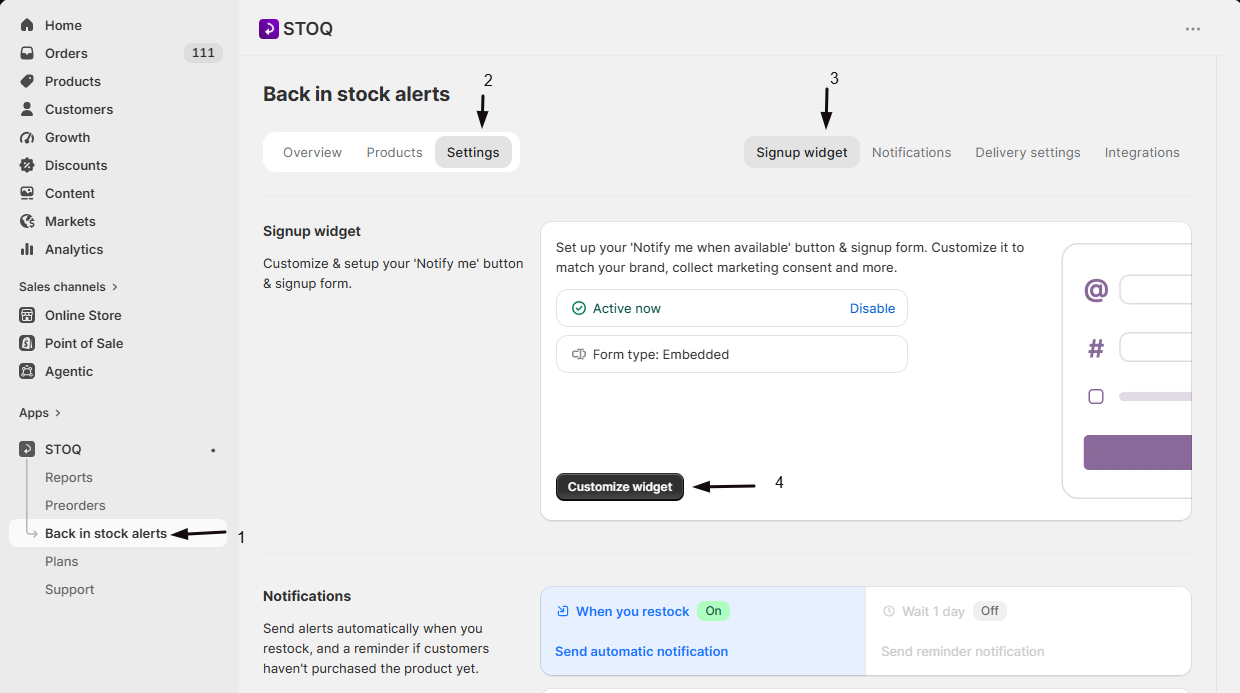
- In the left menu bar of the STOQ app, click Back in stock alerts.
- Click the Settings tab, then open the Signup widget sub-tab.
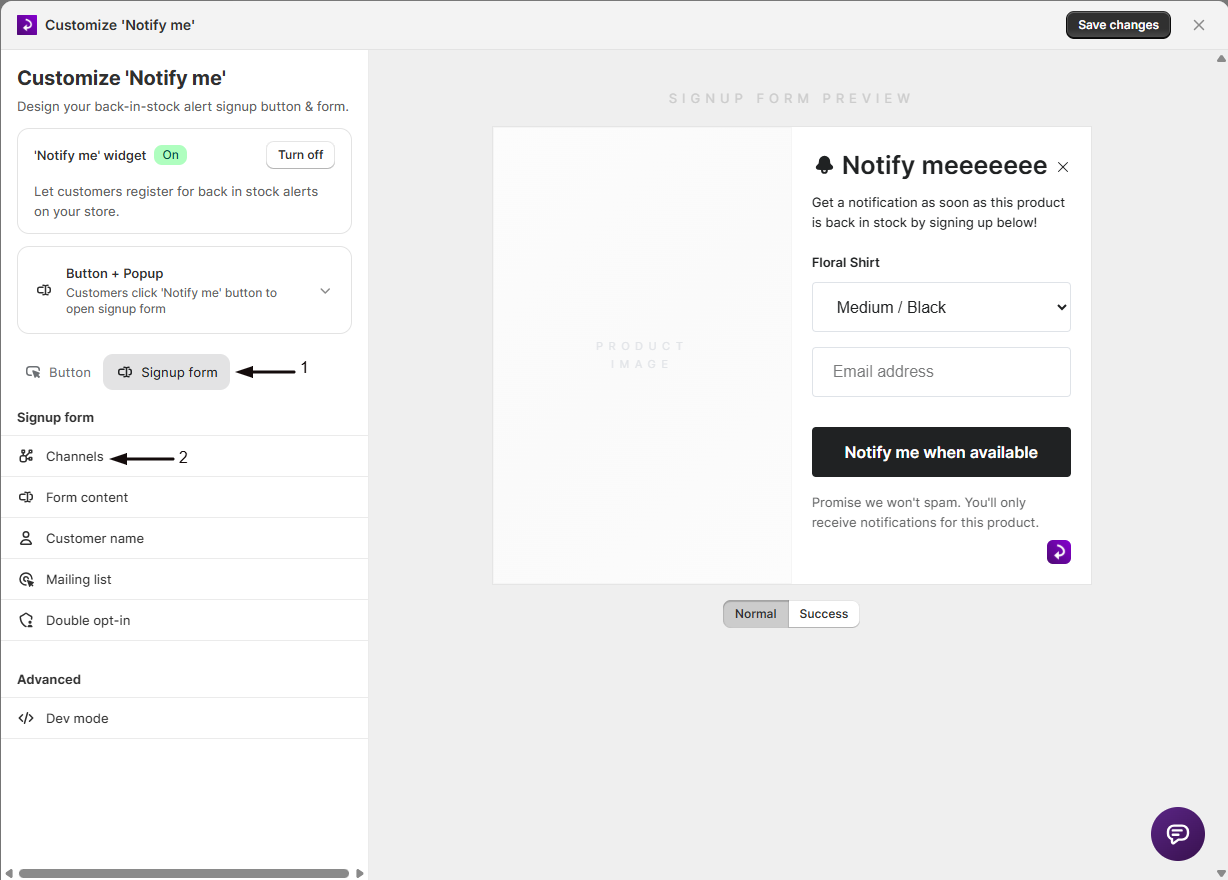
- Click Customize widget, open the Signup form tab, and click Channels in the sidebar.
-
Switch Email alerts off
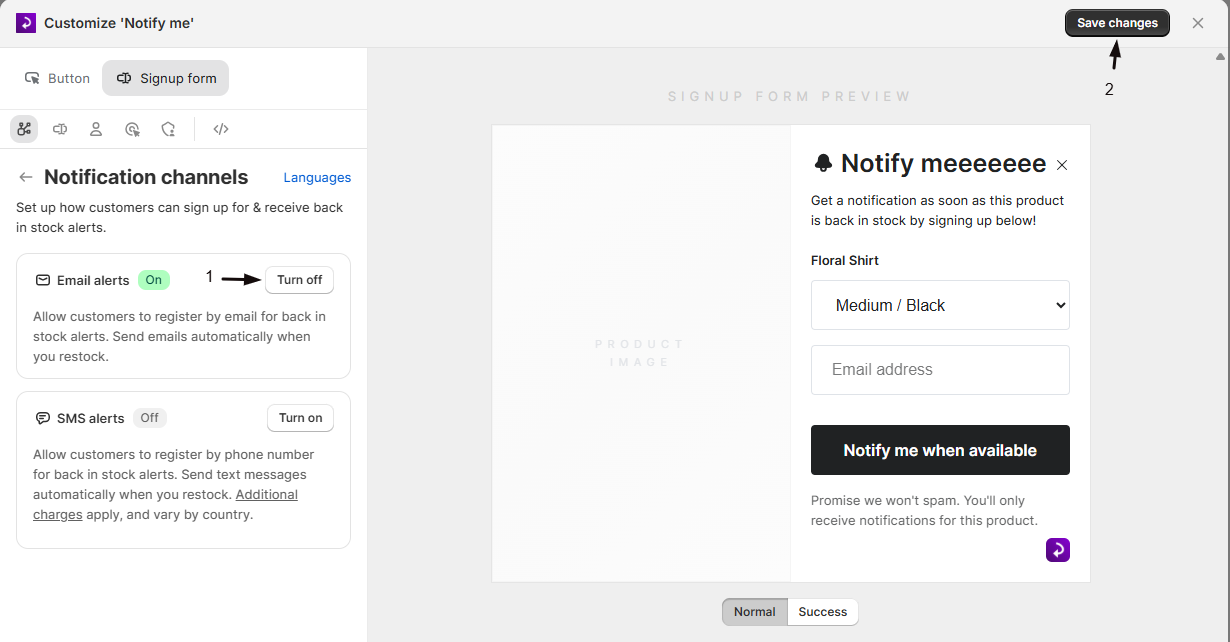
Turn off the Email alerts toggle. It’s on by default.
-
Save
Save your changes. New signups can no longer register by email, and no further email alerts are sent.
Good to know
Section titled “Good to know”Existing waitlist customers who signed up by email stay on the list, but they won’t receive further emails while the channel is off. Turn Email alerts back on any time from the same toggle and sending resumes for everyone still on the waitlist.
Does this delete my existing waitlist?
No. Signups stay on the waitlist. Turning the channel off only stops emails going out, and stops new customers registering by email.
Can I use SMS only?
Yes. Turn Email alerts off and SMS alerts on, so the form collects phone numbers instead. See Set up SMS alerts.
I want to keep sending, just from somewhere else
Don’t turn the channel off. Instead keep Email alerts on and change the sending platform, for example to Klaviyo. See Send back in stock alerts through Klaviyo.
I only want to pause the reminder, not the alert
Turn off the reminder step instead of the whole channel. See Send reminder emails.
Related guides
Section titled “Related guides”Thanks for letting us know.
Still stuck? Ask Quinn or chat with support