Translate your alert emails and SMS
Write per-language content for the back in stock email and SMS templates, and send translated product and variant titles automatically.
Last updated
Use this guide to write your own translated subject, body, and button text for the back in stock email and SMS, in each language your store supports, instead of relying on your store’s default-language wording for every customer. By the end, a customer whose alert sends in French, for example, sees content you wrote in French rather than an untranslated fallback.
Before you begin
Section titled “Before you begin”| You’ll need | Why |
|---|---|
| Multi-language support turned on | Without it, there’s no language to select and translate into. See Send alerts in multiple languages. |
| A paid plan | Required to save translated content; Save changes is disabled on the free plan. |
Open the notification translator
Section titled “Open the notification translator”-
Open Manage languages
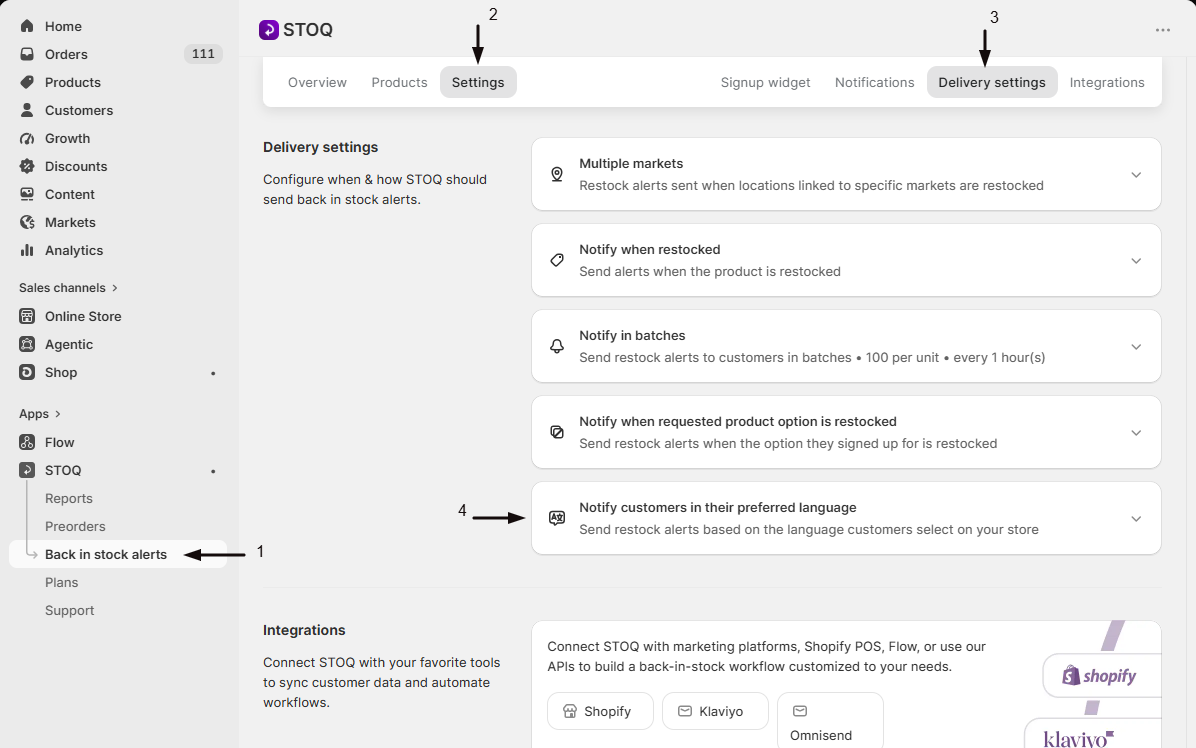
- In the left menu of the STOQ app, click Back in Stock alerts.
- Click the Settings tab.
- Open the Delivery settings sub-tab.
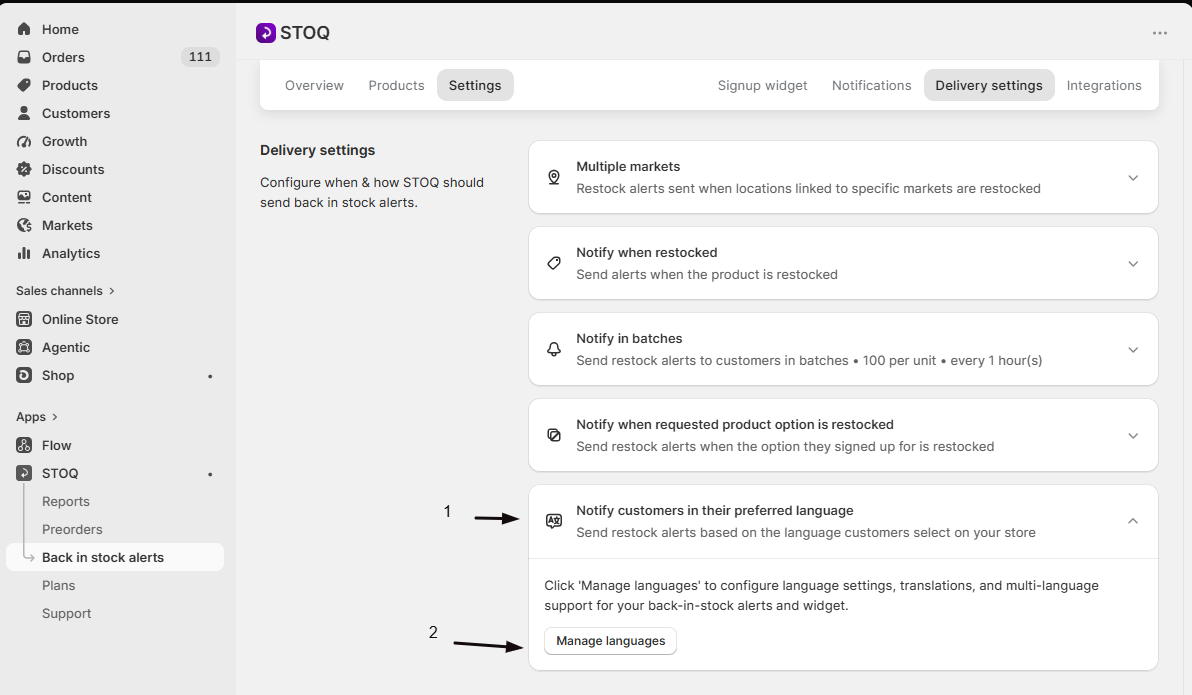
- In the Languages card, click the chevron to expand it, then click Manage languages.
-
Open the notification templates
On the Languages page, under Multi-language, find the Notification templates card and click Edit translations. This opens the notification translator, titled Languages for notifications (you’ll see it called Email translations on the button that takes you back to Settings).
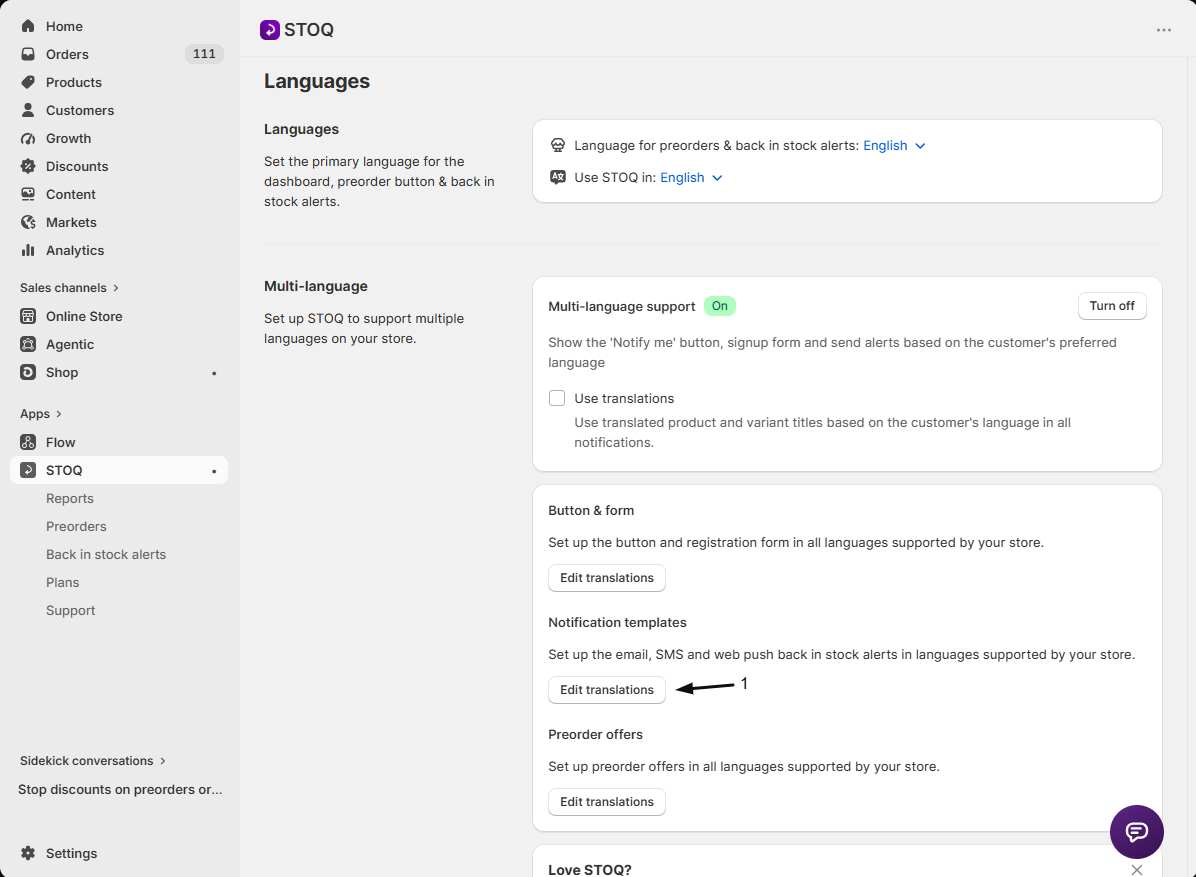
If Multi-language support is off, this page shows a “Multi-language support disabled” banner with an Enable multi-language support button instead of the template form. Turn the toggle on first, as described in Send alerts in multiple languages.
Translate a notification
Section titled “Translate a notification”-
Choose the language and notification
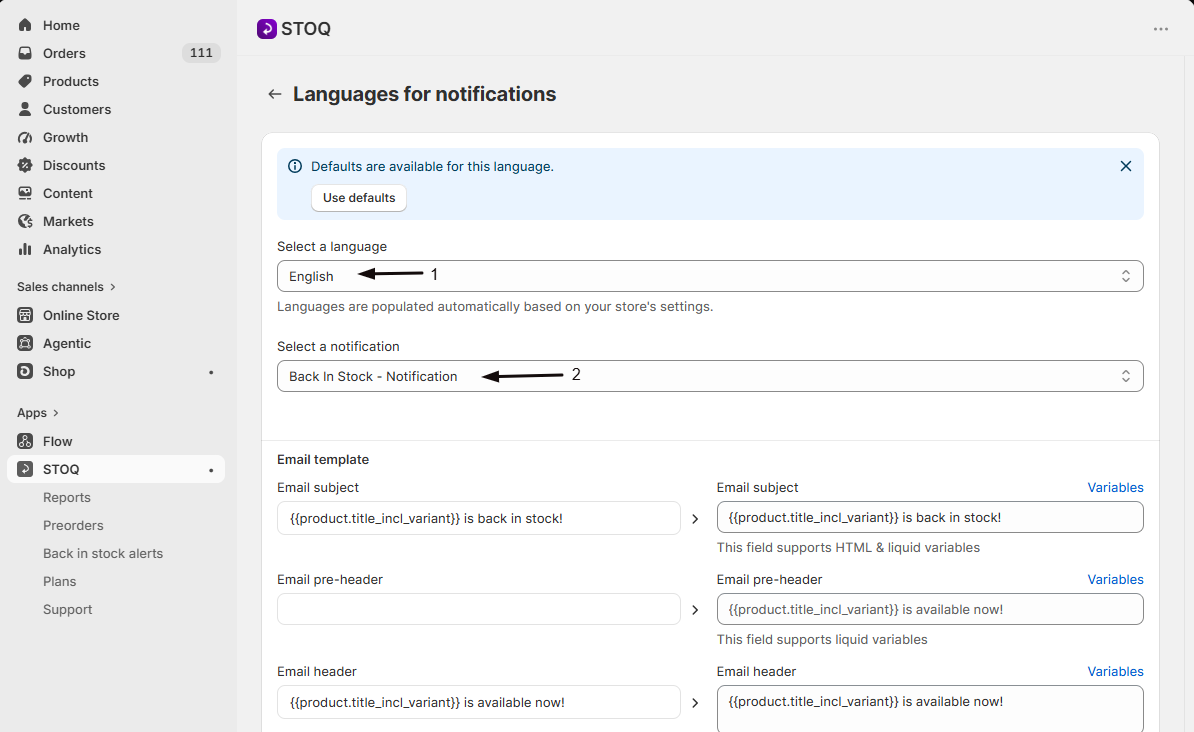
- Use the Select a language dropdown to choose the language to translate into. Languages are populated automatically based on your store’s settings.
- Use the Select a notification dropdown to choose which restock notification to translate, for example “Back In Stock - Notification” for the initial alert, or “Back In Stock - Reminder Notification 1” if you’ve set up a reminder.
-
Edit the email content
Under Email template, each field shows your default-language text above it for reference, with the translated version below it to edit: Email subject, Email pre-header, Email header, Email description, Email alert footer, Reviews section title, Button text, and Unsubscribe text. Click Variables next to a field to see the Liquid variables it supports, such as
{{product.title}}and{{customer.name}}.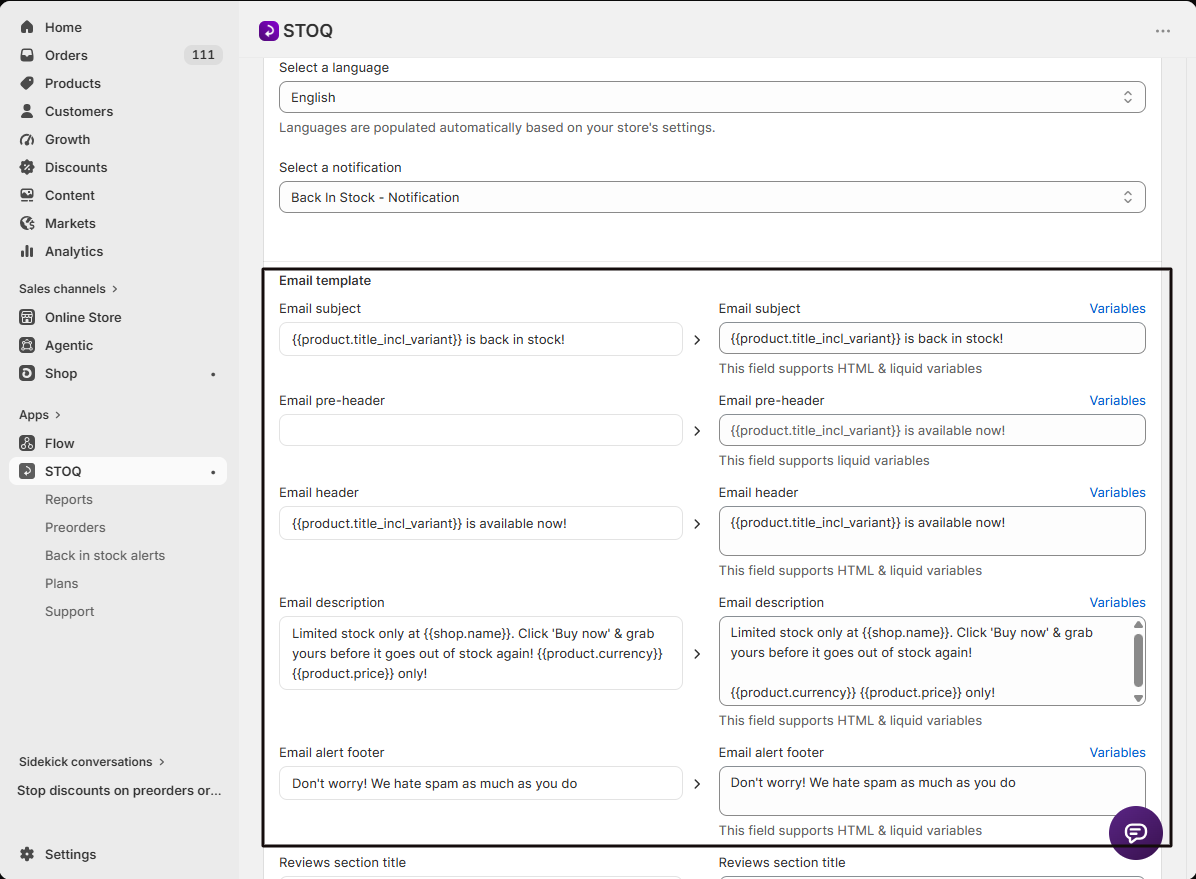
-
Edit the SMS content
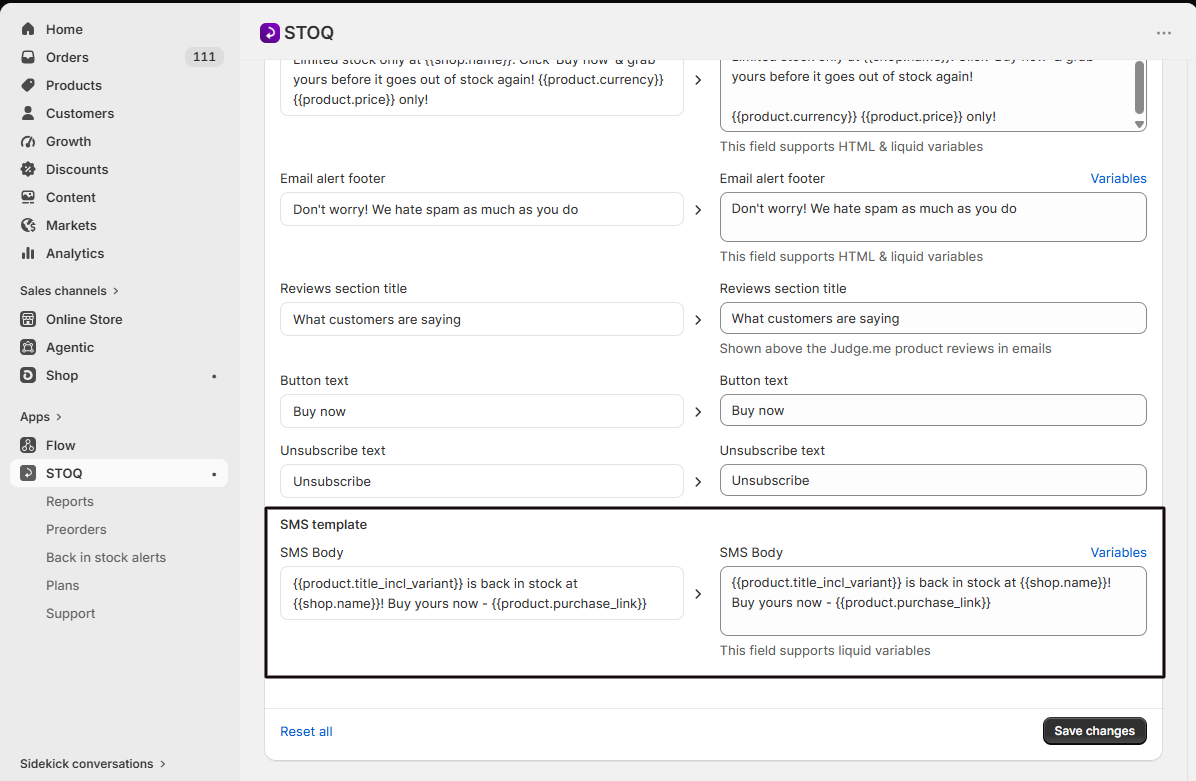
Under SMS template, edit the SMS Body field the same way.
-
Save
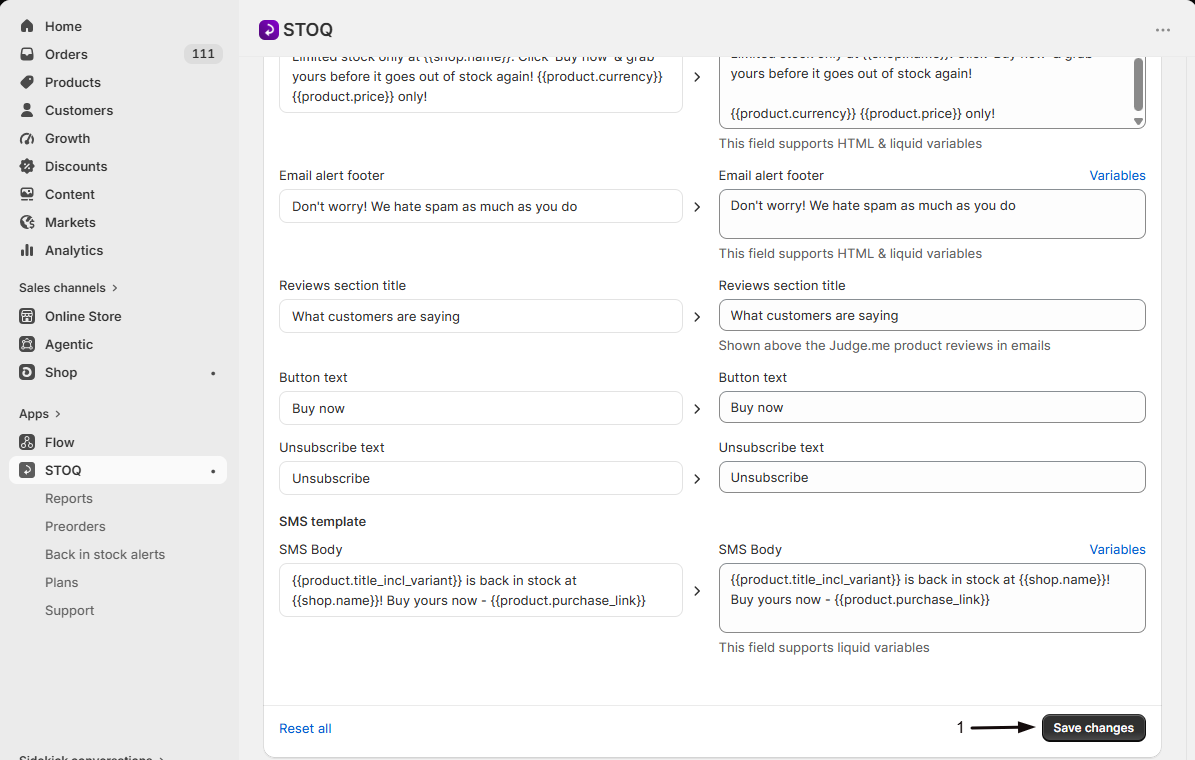
Click Save changes. This saves only the notification and language you have selected, so repeat the steps for each reminder and each language you support.
A field showing “No translation set, using default” as its help text hasn’t been translated yet, STOQ will use your default-language text for it until you fill it in. Required fields (subject, header, description, button text, unsubscribe text) show an inline error if you clear them completely.
If a language already has STOQ-provided default translations, a banner reading “Defaults are available for this language” appears with a Use defaults button, click it to fill every field in that language with STOQ’s built-in translation. Reset all, at the bottom of the page, does the same thing and overwrites any custom wording you’ve already saved for that language.
Send translated product and variant titles
Section titled “Send translated product and variant titles”Separately from the wording above, STOQ can also translate the product and variant name that appears in the alert (wherever your template uses a variable like {{product.title}}), based on your store’s own Shopify translations.
-
Turn on Use translations
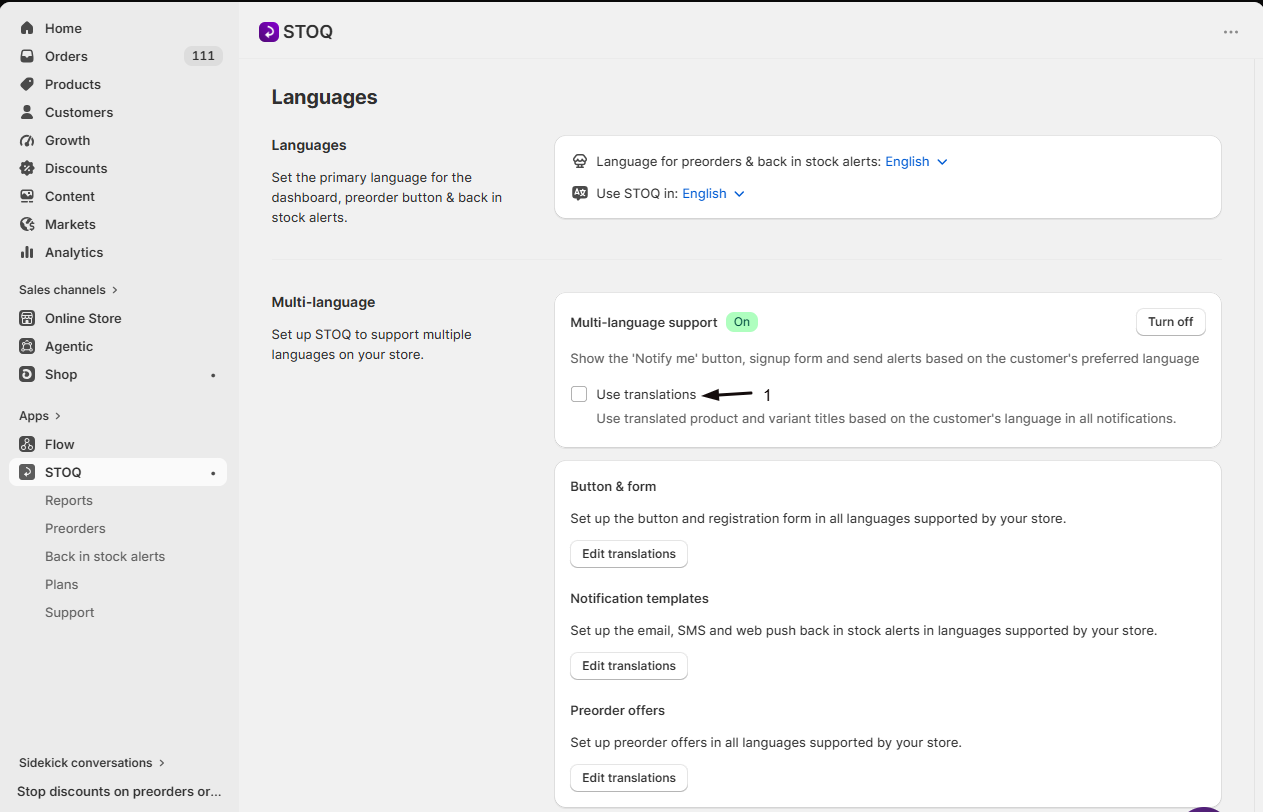
On the Languages page, under Multi-language, with Multi-language support turned on, check Use translations. This uses translated product and variant titles, based on the customer’s language, in all notifications.
Check your setup
Section titled “Check your setup”Switch to each language you’ve translated in the Select a language dropdown and read through the fields to confirm nothing still shows “No translation set, using default” that you meant to write. For a full end-to-end check, including confirming a customer actually receives the alert in the right language, follow the storefront test in Send alerts in multiple languages.
Troubleshooting
Section titled “Troubleshooting”- If Manage languages shows “Multi-language support disabled”: turn on Multi-language support first, see Send alerts in multiple languages.
- If Use translations won’t turn on: you likely declined the translations permission request. Click Try again on the banner and approve the request.
- If Save changes is greyed out: this feature requires a paid plan.
Does Use translations translate the wording I wrote in the templates?
No. Use translations only swaps in a translated product or variant title wherever your template uses a variable like {{product.title}}. Your subject, header, description, and other written text come from what you enter per language in the notification translator.
What happens if I leave a field blank for a language?
STOQ uses your default-language text for that field only. You don’t need to translate every field before saving; any field left as “No translation set, using default” just falls back.
Can I translate the reminder notification separately from the first alert?
Yes. Each notification in your sequence, the initial alert and any reminder, appears as its own option in the Select a notification dropdown with its own set of translatable fields.
Does changing a translation affect alerts already sent?
No. A translation change only applies to notifications sent after you save; anything already delivered to a customer keeps the content it was sent with.
Where do the available languages come from?
They’re populated automatically based on your store’s own language settings, you don’t add languages from inside this translator.
Related guides
Section titled “Related guides”Thanks for letting us know.
Still stuck? Ask Quinn or chat with support