Send alerts in multiple languages
Send back in stock alerts and widget text in each customer's browsing language.
Last updated
Use this guide if you want STOQ to send restock alerts and show the Notify me widget in each customer’s own browsing language, instead of your store’s default language for everyone. By the end, a customer who signs up while browsing in French sees the widget and later receives their alert in French, even if your store’s default language is English.
Before you begin
Section titled “Before you begin”This setting only picks which language STOQ uses, it doesn’t create the wording. Before turning it on, add translations for the languages your customers use in Manage languages (reached from the same Languages card covered below). If no translation exists for a customer’s language, STOQ falls back to your store’s default language.
Choose your setup
Section titled “Choose your setup”The Languages card has two modes:
- Preferred language on: STOQ sends the restock alert in the language the customer was browsing your store in, the same language their signup was captured in, rather than always using your store’s default language.
- Preferred language off (default): STOQ always sends alerts in your store’s default language, regardless of what language a customer signed up under.
This one setting covers both surfaces at once, the Notify me widget customers see on your storefront and the alert they later receive by email or SMS. You don’t configure the widget and the alert language separately.
What customers will see
Section titled “What customers will see”With preferred-language notifications on, a customer browsing your store in French sees the widget in French, signs up, and later receives their restock alert in French, even if your store’s default language is English.
With preferred-language notifications off, every customer sees the widget and receives alerts in your store’s default language, no matter what language they were browsing in.
Set it up
Section titled “Set it up”On a phone, this menu is collapsed. In the Shopify mobile app, tap the STOQ logo at the top of the screen to open it, then choose the section named below. There is no hamburger icon. See Finding the STOQ menu.
-
Open the Languages card
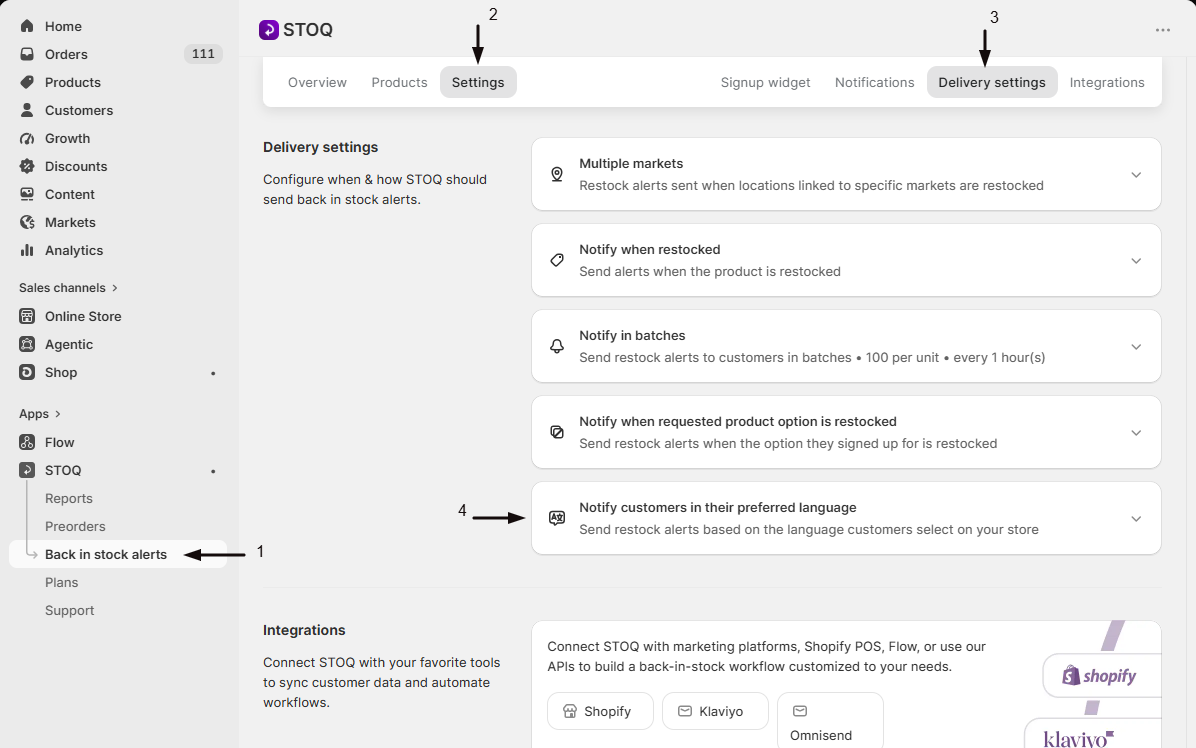
- In the left menu bar of the STOQ app, click Back in Stock alerts.
- Click the Settings tab.
- Open the Delivery settings sub-tab.
- Find the Languages card near your other delivery settings.
-
Check the current mode
The card’s heading tells you which mode is active: “Notify customers in their preferred language” or “Notify customers in default language: [your store’s default language]”.
-
Open Manage languages
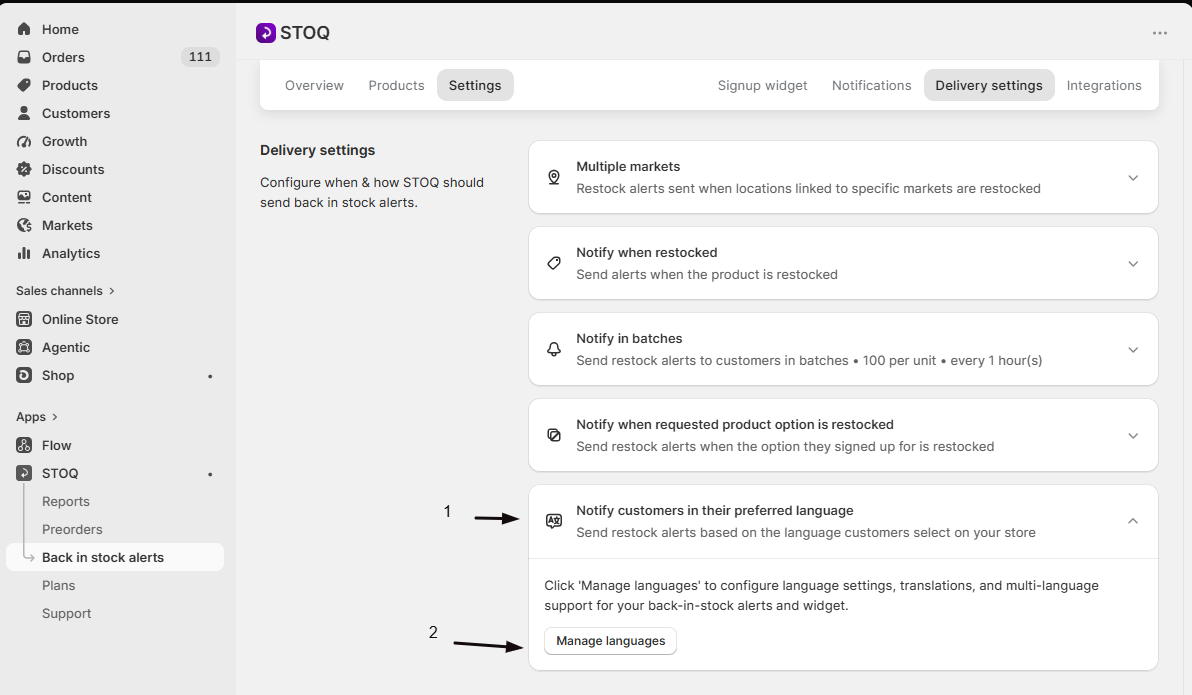
- Expand the Languages card.
- Select Manage languages, where the underlying language and translation options live.
-
Turn preferred-language notifications on or off
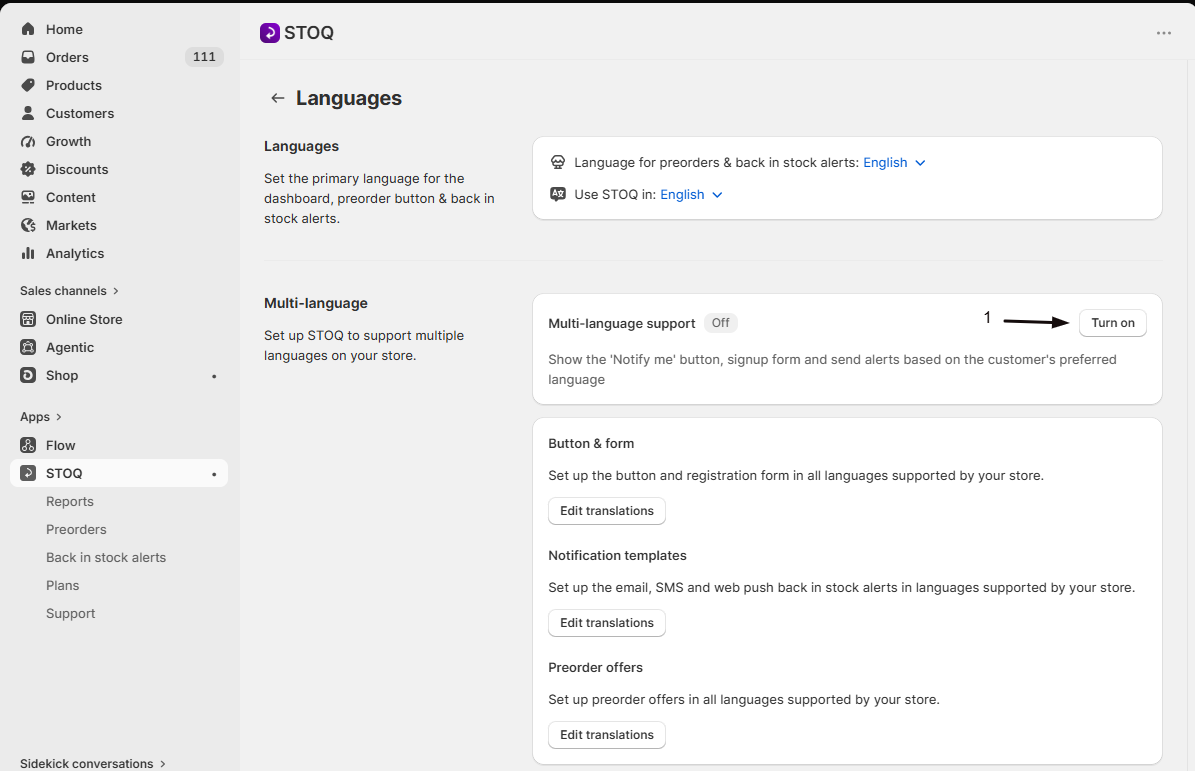
- Turn the Multi-language support toggle on to notify each customer in their preferred language, or off to use your store’s default language for everyone.
- Save to apply the change.
Check your setup
Section titled “Check your setup”In Manage languages, confirm a translation exists for the language you want to test. Then, in an incognito window, browse your store in that language and sign up for a restock alert on an out-of-stock product. Confirm the Notify me widget appeared in that language, and once the item restocks, confirm the alert arrives in the same language.
Troubleshooting
Section titled “Troubleshooting”Alerts aren't showing up in the language you expect
Check Manage languages first. This setting only controls which language STOQ picks, not the wording used for it, so confirm a translation exists for that language.
A customer signed up in Spanish but got an English alert
Confirm preferred-language notifications are turned on in Delivery settings, and that a Spanish translation actually exists for your alert content. Without a translation, STOQ can’t send in that language.
You haven't set up translations for a language
STOQ falls back to your store’s default language for both the widget and the alert, whether or not this setting is on.
Do I need a paid plan to use this?
No. This setting isn’t gated by plan. It’s controlled from the Languages card and Manage languages in Delivery settings, with no upgrade prompt.
If I turn this on, does it change the language for customers who already signed up?
No. The language used for an alert is based on the language the customer was browsing in at the time they signed up. Turning this setting on affects future sign-ups and their alerts, not past sign-ups.
Can I set different languages for email vs. SMS?
No. This is one setting that applies the same way across channels: whichever channel a customer used to sign up, their alert follows the same preferred-language logic.
Related guides
Section titled “Related guides”Thanks for letting us know.
Still stuck? Ask Quinn or chat with support