Track back in stock notifications after they're sent
Check delivery status, see why an alert went out, and follow bulk sends in progress.
Last updated
Once STOQ sends a back in stock alert, you can trace exactly what happened to it: which channel it went out on, whether it was delivered and opened, what triggered it, and whether the customer went on to order. Use this guide to check any of that from Reports.
Open Notifications sent
Section titled “Open Notifications sent”-
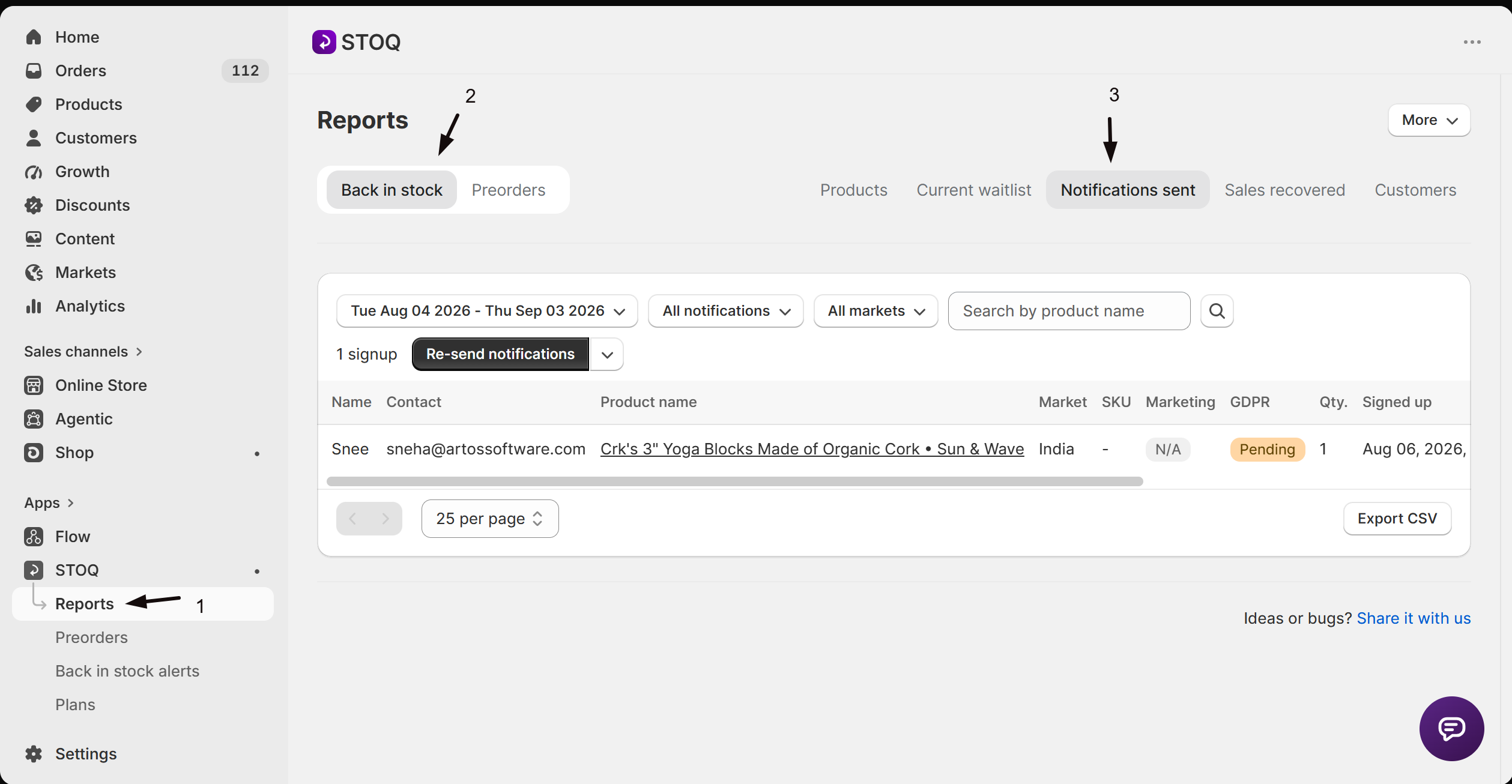
Open the Notifications sent tab
- In the left menu of the STOQ app, click Reports.
- Click the Back in stock tab at the top.
- Click the Notifications sent sub-tab.
Every row here is a customer who’s already been sent an alert.
See why a notification was sent and its delivery status
Section titled “See why a notification was sent and its delivery status”-
Open a notification’s history
- On the Notifications sent tab, find the customer’s row.
- Click the small arrow button next to Re-send.
- Click Why was this sent?.
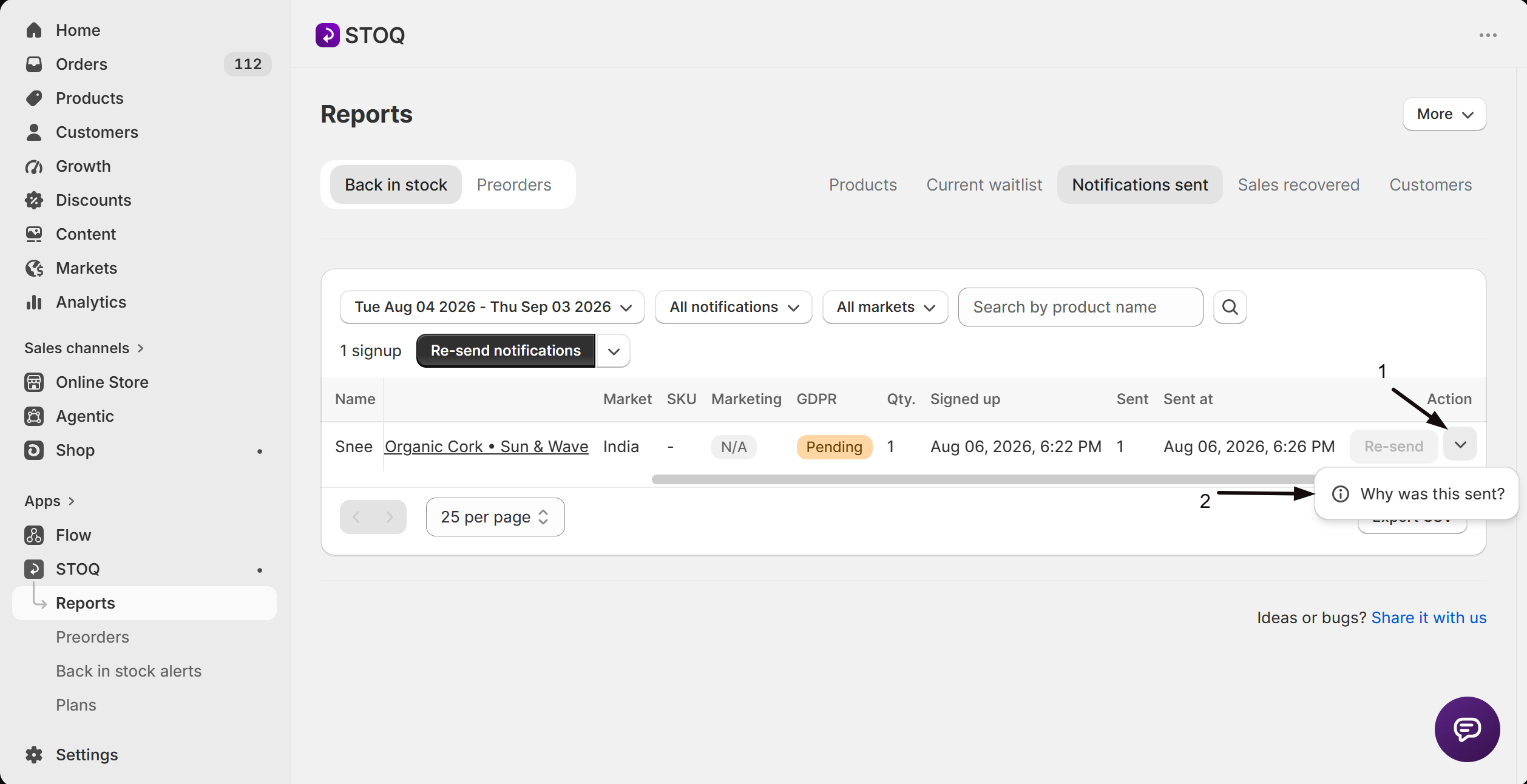
A Notification history panel opens, listing every time this customer was sent an alert for this product, oldest first. Each entry shows:
- What triggered it: Auto restock (inventory replenished and matched your restock rules), Bulk send or Bulk re-send (you sent to a filtered group from the dashboard), Flow automation (a Shopify Flow workflow), or Manual send (you clicked Send or Re-send on that one row). An entry that’s a later reminder in a multi-step sequence shows Follow-up reminder instead, with a Stage badge marking its position in the sequence.
- When it was sent.
- Delivery status per channel, as a badge for each channel used: Email or SMS, each followed by its status. Email can show Sent, Delivered, Opened, Clicked, or Bounced. SMS can show Sent, Delivered, or Clicked.
If history hasn’t loaded yet you’ll see a spinner; if the customer has no prior notifications for this product, it says No notification history available.
Find customers who haven’t ordered yet
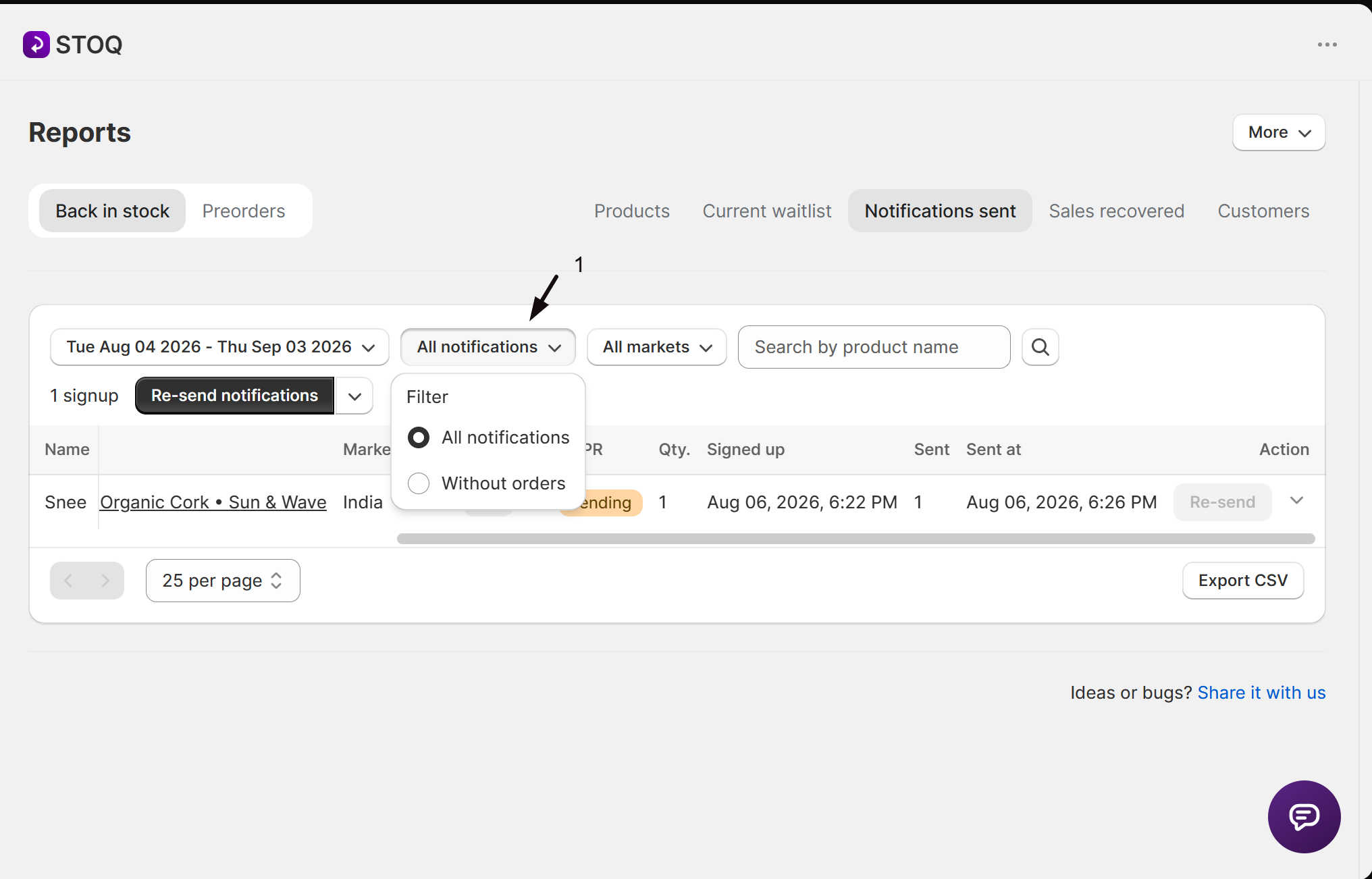
Section titled “Find customers who haven’t ordered yet”On the Notifications sent tab, use the dropdown showing All notifications or Without orders to filter the list. Switch it to Without orders to see only customers who received an alert but haven’t placed an order since, a useful list for manual follow-up. Combine it with the date range and product name search to narrow it further.
Track bulk sends in Sending History
Section titled “Track bulk sends in Sending History”A batch appears in Sending History whenever STOQ sends alerts to a group of customers at once: an auto restock rule firing for a product, or you clicking Send notifications or Re-send notifications (or the email or SMS-only options in the dropdown next to it) from the Current waitlist or Notifications sent tab.
-
Open Sending History
- In the left menu of the STOQ app, click Reports.
- Click the More button in the top right.
- Click Track sends.
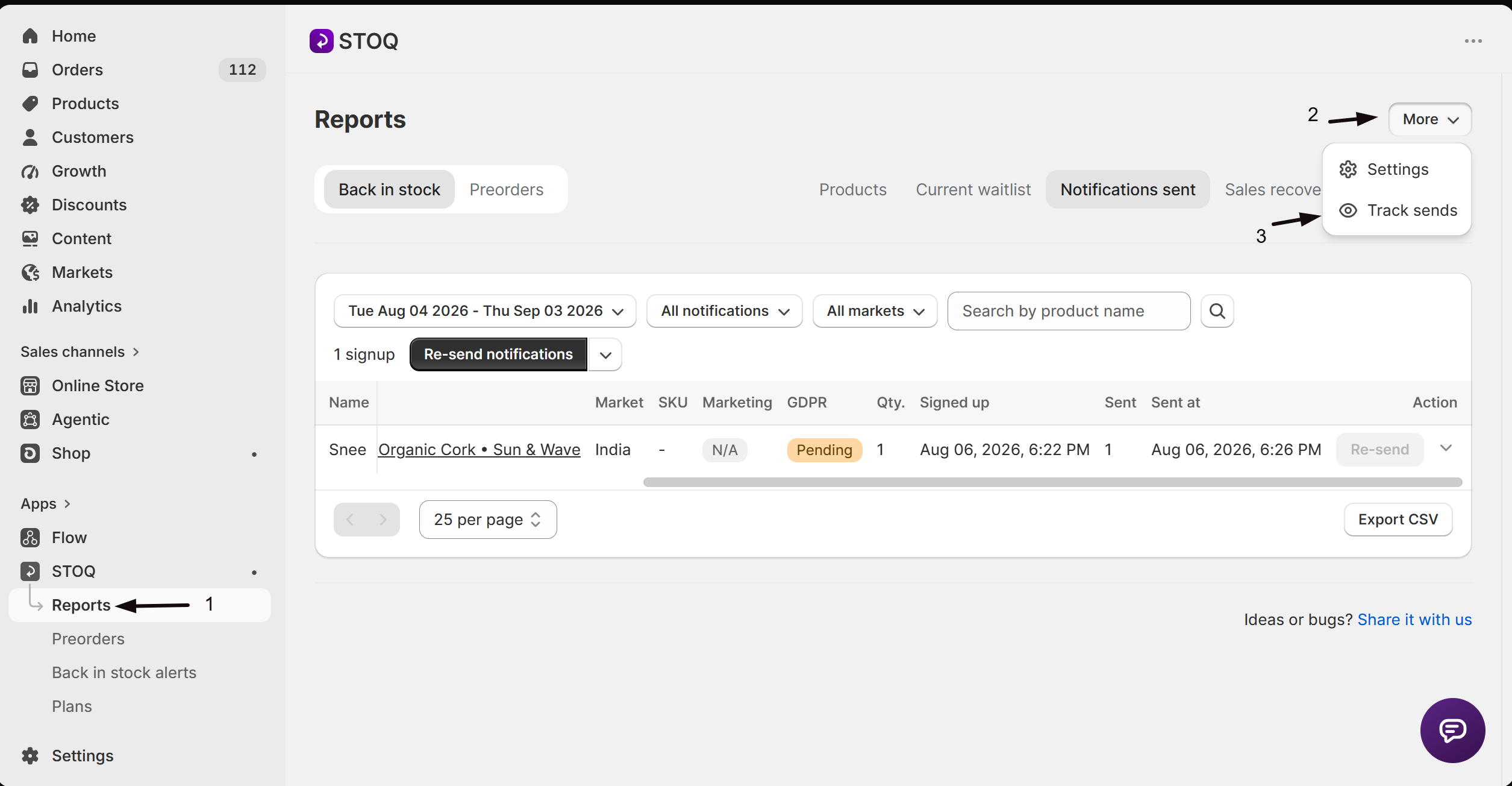
This opens the Bulk requests page at /sending_history. Each row is one batch, with columns for Product, Location, Source (Sent from dashboard for a bulk send or re-send, Automatic alerts for an auto restock trigger), Status, a Progress bar, Sent / Total counts, and Started At. Click Refresh to update the list while a batch is still processing.
Right after you click Send or Re-send notifications in bulk, a Notifications queued banner appears with a Track progress button that jumps straight here.
Troubleshooting
Section titled “Troubleshooting”A contact shows a warning icon next to their email on Notifications sent
Hover it:
- One prior bounce shows a caution icon, meaning future alerts to that address might not land.
- Two or more bounces shows a critical icon, meaning STOQ has stopped emailing that address entirely.
A channel's status stays at Sent and never shows Delivered, Opened, or Clicked
That’s often normal. Not every inbox or carrier reports delivery, opens, or clicks back to STOQ.
You don't see Why was this sent? on a row
It only appears on the Notifications sent tab, and only once that customer has actually been notified. It’s not available on Current waitlist.
A bulk send isn't showing up, or isn't progressing, in Sending History
Click Refresh. Single-row manual sends aren’t logged here, only bulk sends and auto restock triggers are.
What's the difference between Bulk send and Auto restock as a trigger source?
Auto restock means the alert fired automatically because inventory came back and matched your restock rules. Bulk send or Bulk re-send means you sent to a filtered group yourself from the dashboard. Manual send means you clicked Send or Re-send on a single customer’s row.
Does the Sending History page track every notification?
No, only bulk batches: auto restock triggers and dashboard bulk sends or re-sends. A single manual send from one row in Notifications sent or Current waitlist doesn’t appear there.
Can I use Without orders to find who to follow up with?
Yes. Switching the Notifications sent filter to Without orders shows only customers who were notified but haven’t placed an order since, so you can reach out to them directly or plan a re-send.
Why does a notification's history show Follow-up reminder instead of the original trigger?
Follow-up reminder appears when that entry is a later step in a multi-step reminder sequence. The Stage badge on it shows where it falls in the sequence.
Does checking delivery status or Sending History affect what the customer sees?
No. All of this is internal tracking for you, customers never see delivery status, trigger source, or the Sending History page.
Related guides
Section titled “Related guides”Thanks for letting us know.
Still stuck? Ask Quinn or chat with support