Set up the Notify me button and popup in multiple languages
Translate the 'Notify me' button and signup popup text into your store's other languages.
Last updated
Use this guide to translate the text on your Notify me button and signup popup, so customers browsing your store in another language see that text translated instead of your default-language wording. By the end, a customer browsing in a language you’ve translated sees the button, popup, and its messages in that language.
Before you begin
Section titled “Before you begin”| Requirement | Detail |
|---|---|
| A paid STOQ plan | The Multi-language support toggle and the Save changes button in the translator are disabled on the free plan |
| Languages added in Shopify | The language picker in STOQ is populated from your Shopify store’s languages (Shopify admin > Settings > Languages); only languages you’ve added there appear |
This guide covers the button and popup text only. For which language STOQ picks for a customer’s alert (their browsing language vs. your store’s default), see Send alerts in multiple languages.
Set it up
Section titled “Set it up”On a phone, this menu is collapsed. In the Shopify mobile app, tap the STOQ logo at the top of the screen to open it, then choose the section named below. There is no hamburger icon. See Finding the STOQ menu.
Turn on multi-language support
Section titled “Turn on multi-language support”-
Open Manage languages
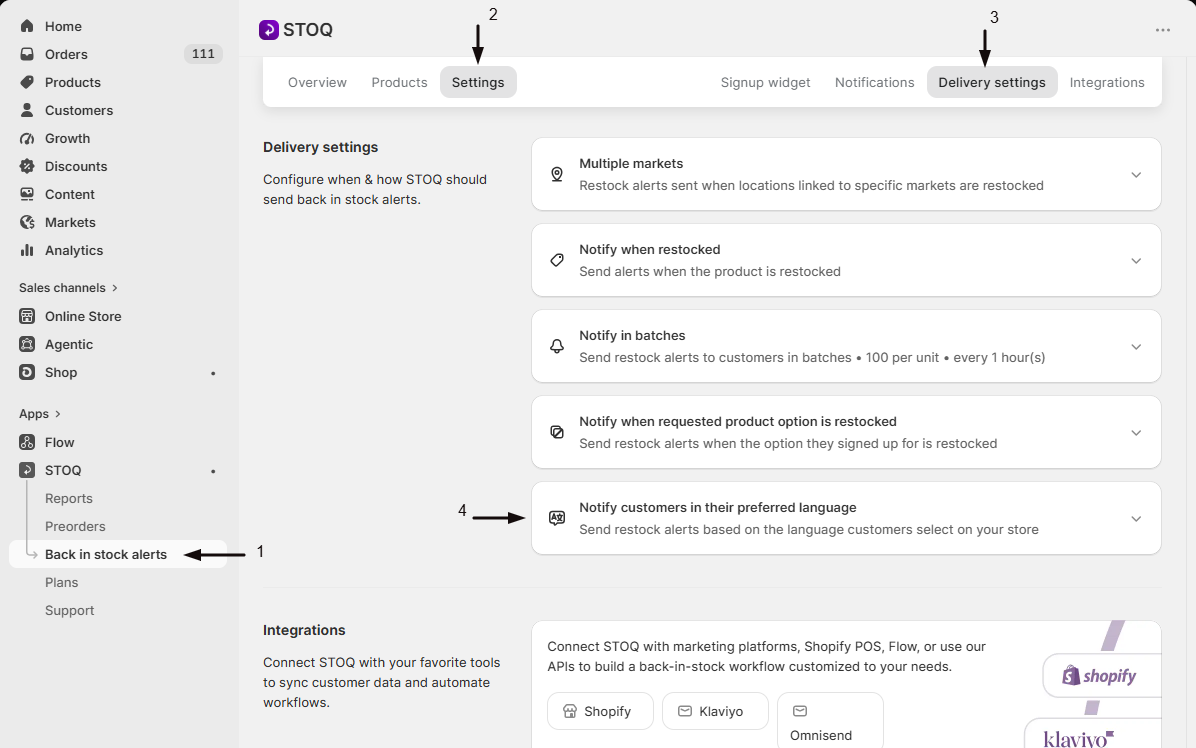
- In the left menu bar of the STOQ app, click Back in stock alerts.
- Click the Settings tab.
- Open the Delivery settings sub-tab.
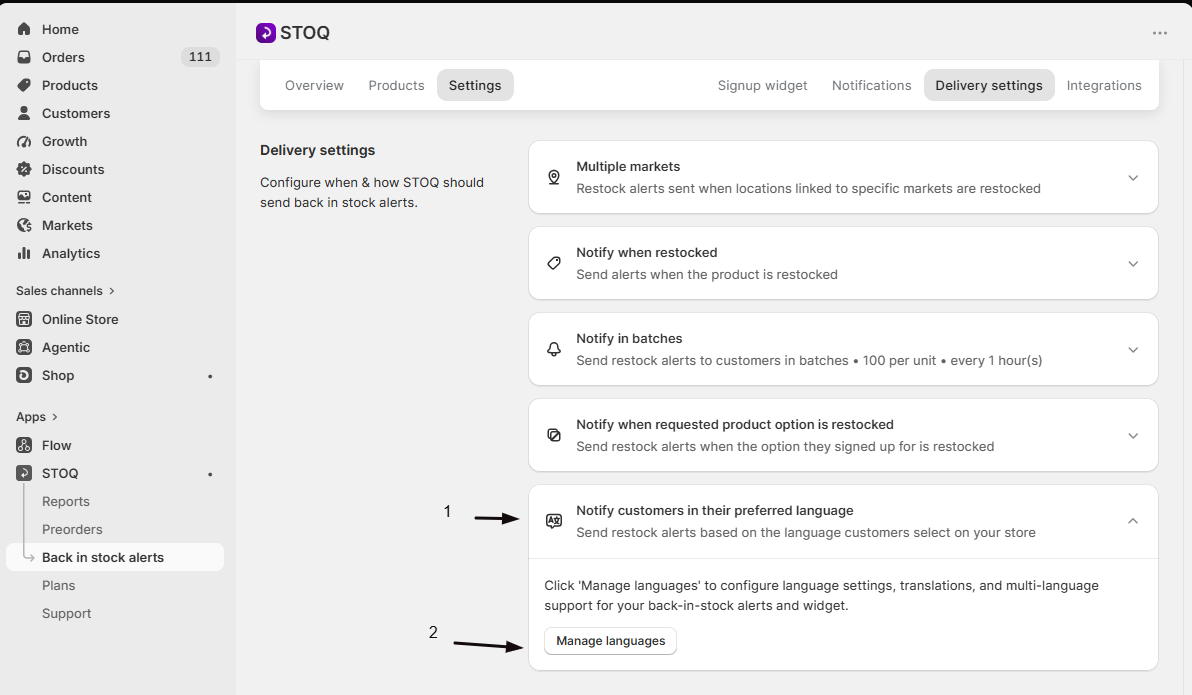
- Find the Languages card, expand it, and click Manage languages.
-
Turn on Multi-language support
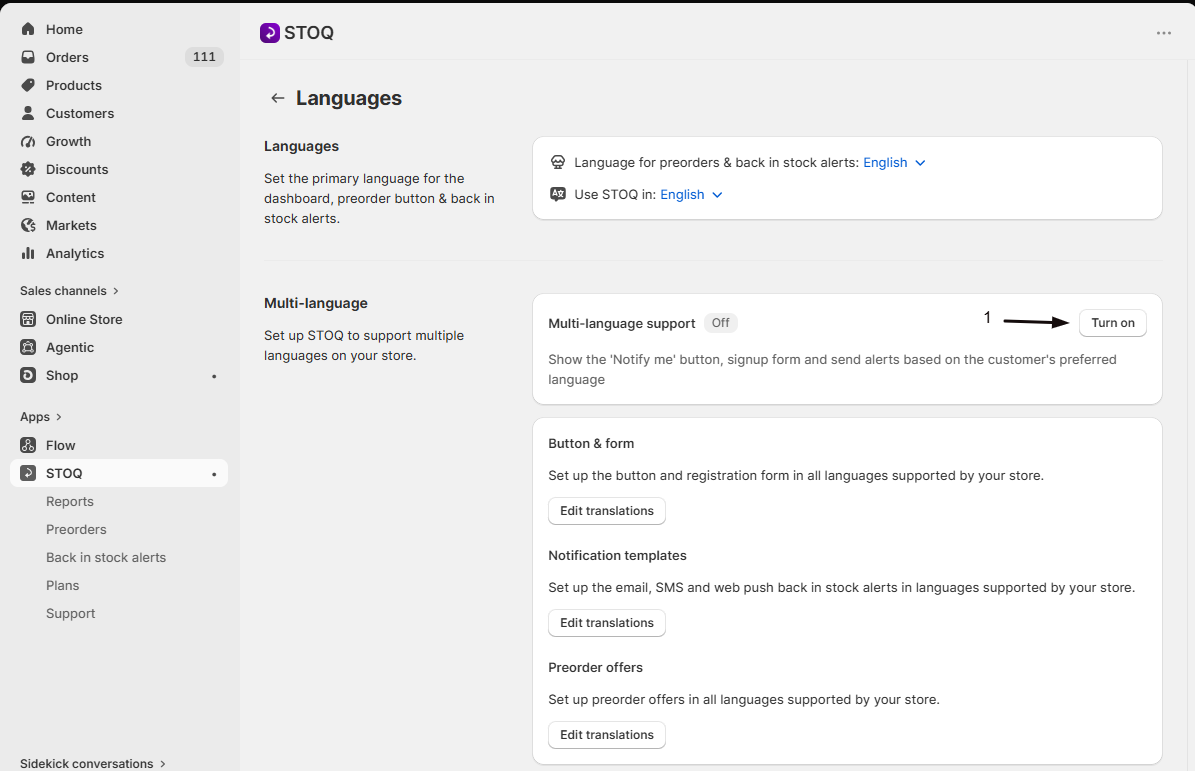
In the Multi-language section, turn on the Multi-language support toggle. This shows the Notify me button, the signup form, and alerts based on each customer’s preferred language. The toggle is disabled on the free plan, with an Unlock link to upgrade.
-
Save
Save your changes to apply the setting.
Translate the button and popup text
Section titled “Translate the button and popup text”Reach the translator two ways: from Manage languages, in the Button & form card, click Edit translations; or from the widget editor itself, click the language icon next to Button position & style (in the Button tab) or Form content (in the Signup form tab). Both open the same Button & popup translations page.
-
Open the Button & popup translations page
- In the left menu bar of the STOQ app, click Back in stock alerts.
- Click the Settings tab.
- Open the Delivery settings sub-tab.
- Expand the Languages card and click Manage languages.
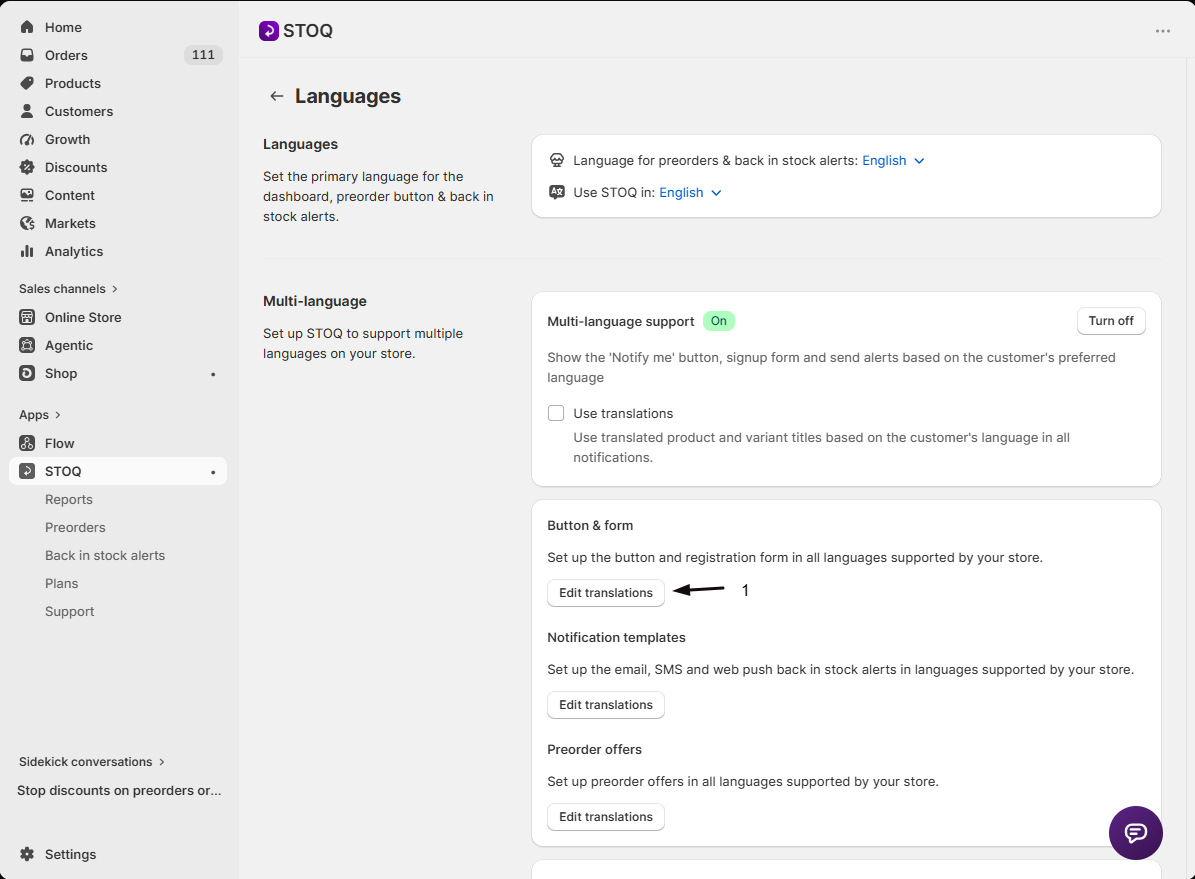
- In the Multi-language section, find the Button & form card and click Edit translations.
-
Select the language
In the Language dropdown, pick the language you want to translate. It’s disabled if multi-language support is off.
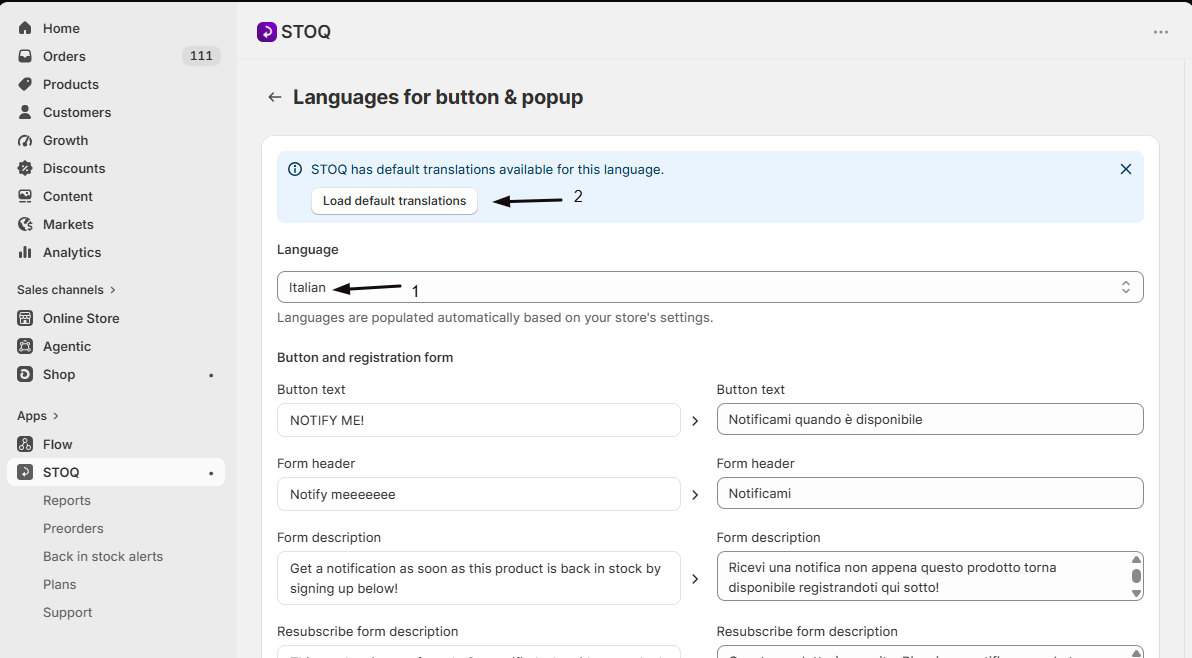
If STOQ has a built-in translation for this language, a banner offers Load default translations to pre-fill every field, which you can then edit. If a translation for that language already exists, a Reset all button reloads those defaults over anything you’ve customized.
-
Translate the button and form fields
Each field shows your current default-language text on the left and an editable translation field on the right. A field showing “no translation set, using default” falls back to the default-language text on the storefront until you fill it in.
Field What it controls Button text Text on the Notify me button Form header Heading at the top of the signup popup Form description Description text below the header Form button text The popup’s submit button Form terms message Terms text under the submit button; supports HTML Form email field placeholder and Form email error message The email field’s placeholder and validation error Form phone number field placeholder and Form phone number error message The SMS field’s placeholder and validation error Form duplicate registration error message Shown if a customer tries to sign up twice for the same product Form empty registration error message Shown if a customer submits without required info Form successful registration message Shown after a customer signs up Form email suggestion message Suggestion shown for a likely-mistyped email address Resubscribe form description Text shown in the quick-resubscribe flow Some fields only appear if you’ve turned on the matching feature elsewhere: Form customer Name and its error message need customer names turned on, Form mailing/subscriber list label needs mailing list opt-in turned on, and Form quantity field label needs quantity selection turned on in the signup form.
-
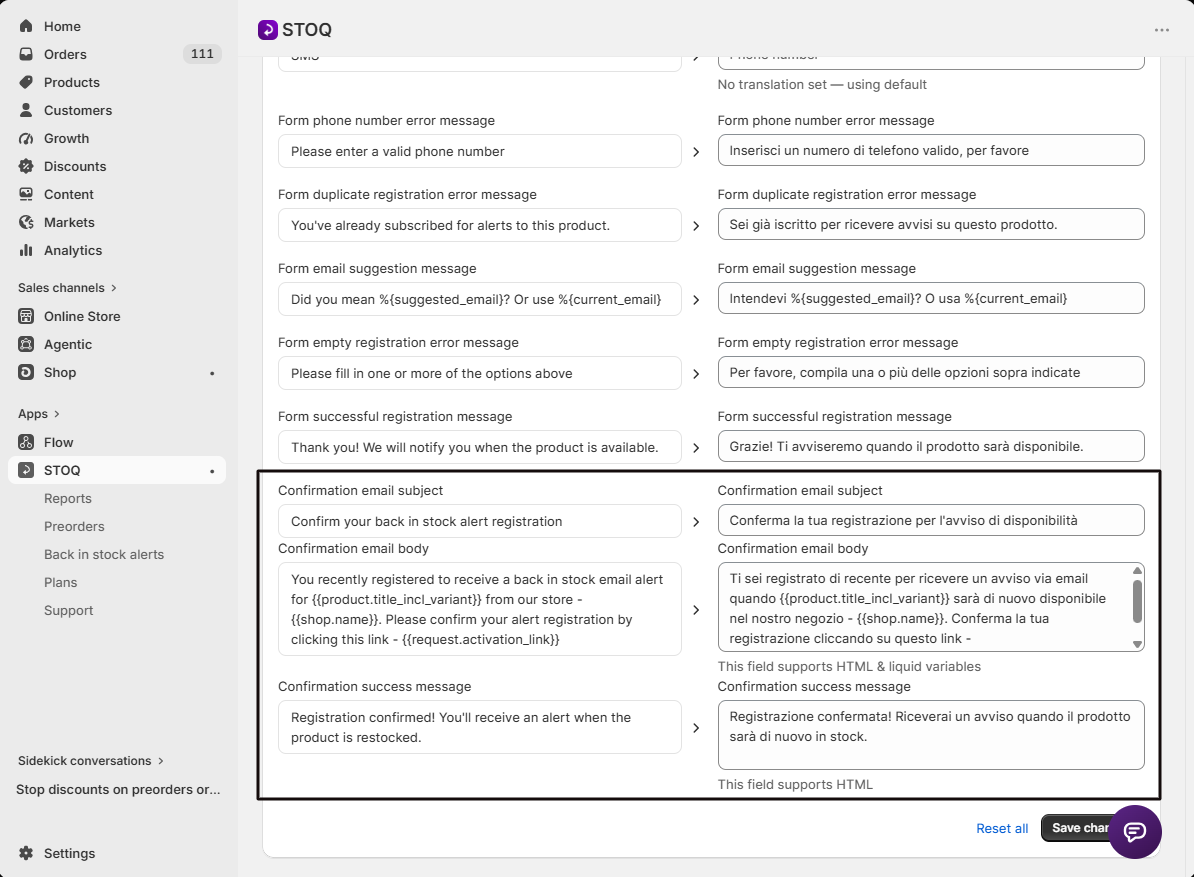
Translate the confirmation email (double opt-in only)
If double opt-in is turned on, three extra fields appear: Confirmation email subject, Confirmation email body (supports HTML and liquid variables), and Confirmation success message.
-
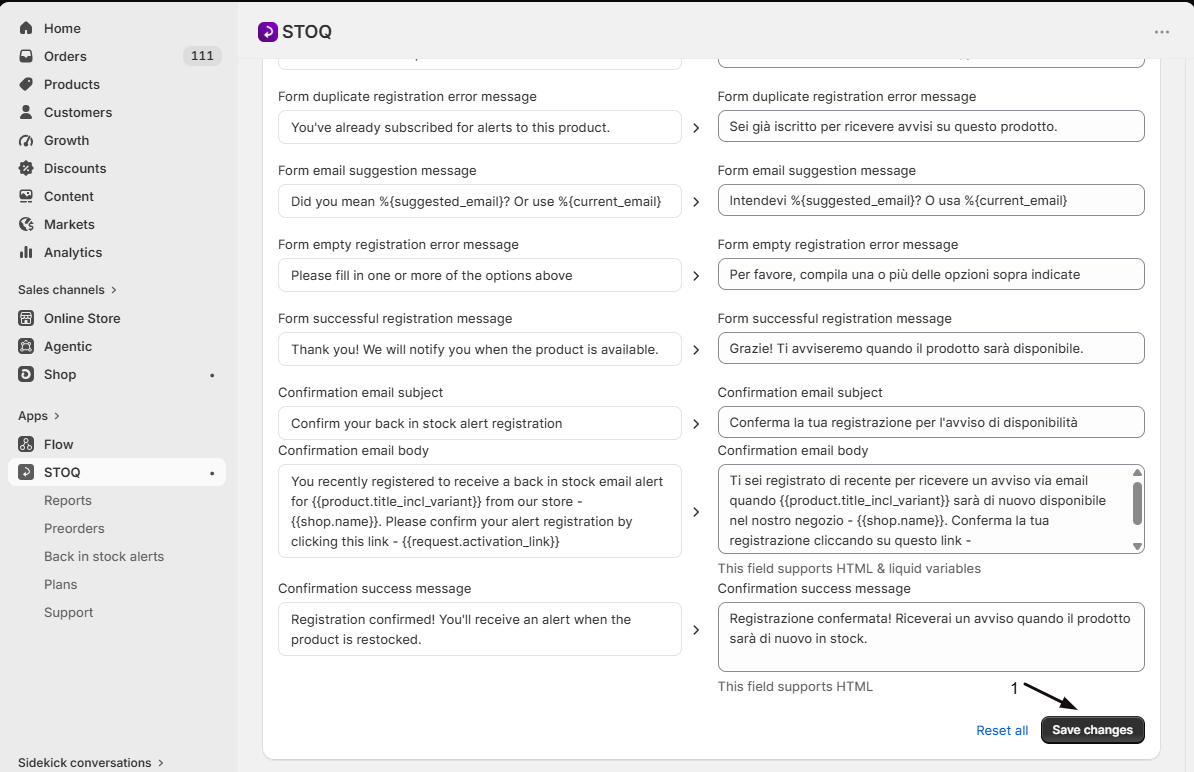
Save changes
Click Save changes. This button is disabled on the free plan.
What customers will see
Section titled “What customers will see”A customer browsing your store in a language you’ve translated sees the Notify me button and popup in that language, including field placeholders, error messages, and the success message. Any field you leave untranslated falls back to your default-language text, so the storefront always has something to display.
Check your setup
Section titled “Check your setup”- Open your storefront in a browser set to the language you translated, or use a Shopify preview with that language selected.
- Open an out-of-stock product page and confirm the Notify me button and popup show your translated text.
- Submit the form with an error (for example, leave a required field empty) and confirm the error message is translated too.
Troubleshooting
Section titled “Troubleshooting”The Multi-language support toggle or Save changes button is disabled
You’re on the free plan. Upgrade to a paid plan to enable them.
The Language dropdown is empty or missing a language
STOQ only lists languages you’ve added in Shopify admin under Settings > Languages. Add the language there, then reload the translator.
A field still shows your default-language text after saving
That field is showing “no translation set, using default”. Enter a translation for it, or click Load default translations if STOQ has a built-in translation for that language.
Does this also translate the restock alert email or SMS?
No. This page only covers the button and popup. Alert content is translated separately using the Notification templates card in Manage languages.
What happens if I don't translate a field?
It falls back to your default-language text, so the storefront always shows something rather than a blank field.
Does turning on Multi-language support change what past signups see?
No. It only affects what future visitors see on the storefront and which language future alerts use, based on the language they’re browsing in.
Can I set different translations per product?
No. The button and popup translations set here apply to every product’s Notify me button and signup form; there’s no per-product override.
Related guides
Section titled “Related guides”Thanks for letting us know.
Still stuck? Ask Quinn or chat with support