Switch to STOQ from another back in stock app
Move your waitlist from a competing app into STOQ, then turn on the Notify me widget and alerts.
Last updated
Use this guide if you’re replacing another back in stock app with STOQ. You export your existing waitlist as a CSV, import it into STOQ so those customers keep their place in line, then turn on STOQ’s Notify me widget and delivery channels so future signups and alerts run through STOQ.
Before you begin
Section titled “Before you begin”| Requirement | Detail |
|---|---|
| App installed | STOQ is installed on your Shopify store |
| Your old waitlist exported | A spreadsheet of pending requests from your previous app, with at least each customer’s email and the product or variant they want |
| Admin access | Go to STOQ → Back in stock alerts in your Shopify admin |
What customers will see
Section titled “What customers will see”Importing doesn’t email anyone. Each imported row just joins the waitlist for its product or variant, the same as if the customer had signed up directly on your store. Once you turn on STOQ’s widget, new visitors to an out-of-stock product see STOQ’s “Notify me” button in place of your old app’s, and both imported and new customers get their restock alert through STOQ.
Set it up
Section titled “Set it up”-
Export your waitlist from your old app
Export your pending back in stock requests to a spreadsheet. STOQ doesn’t connect to other back in stock apps directly, so you move the data yourself. At minimum, keep each customer’s email or phone number and the product or variant they’re waiting on.
-
Import your waitlist into STOQ
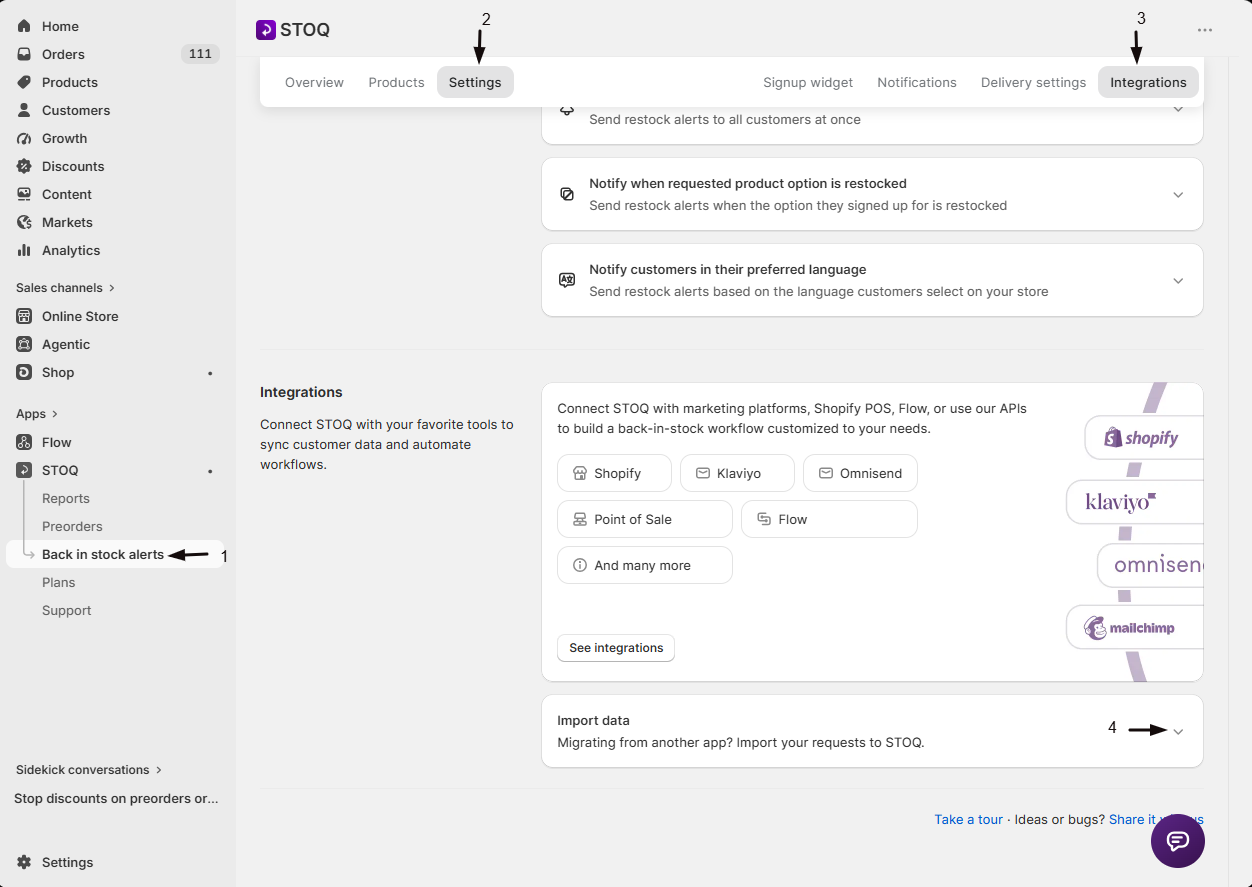
- In the STOQ admin, go to Back in stock alerts.
- Click the Settings tab.
- Open the Integrations sub-tab.
- Find the Import data card and click it to expand the instructions.
- Click Upload CSV and choose your exported CSV. You don’t need to reformat it: it just needs a product SKU or variant ID column and an email or phone column.
- Match your columns to STOQ’s fields in the mapping step, fix anything that didn’t match automatically, and start the import.
If you’d rather start from a ready-made file, the Import data card also links an optional STOQ Import Template.
For the full column reference and troubleshooting, see Import your waitlist from another app.
-
Turn on the Notify me widget
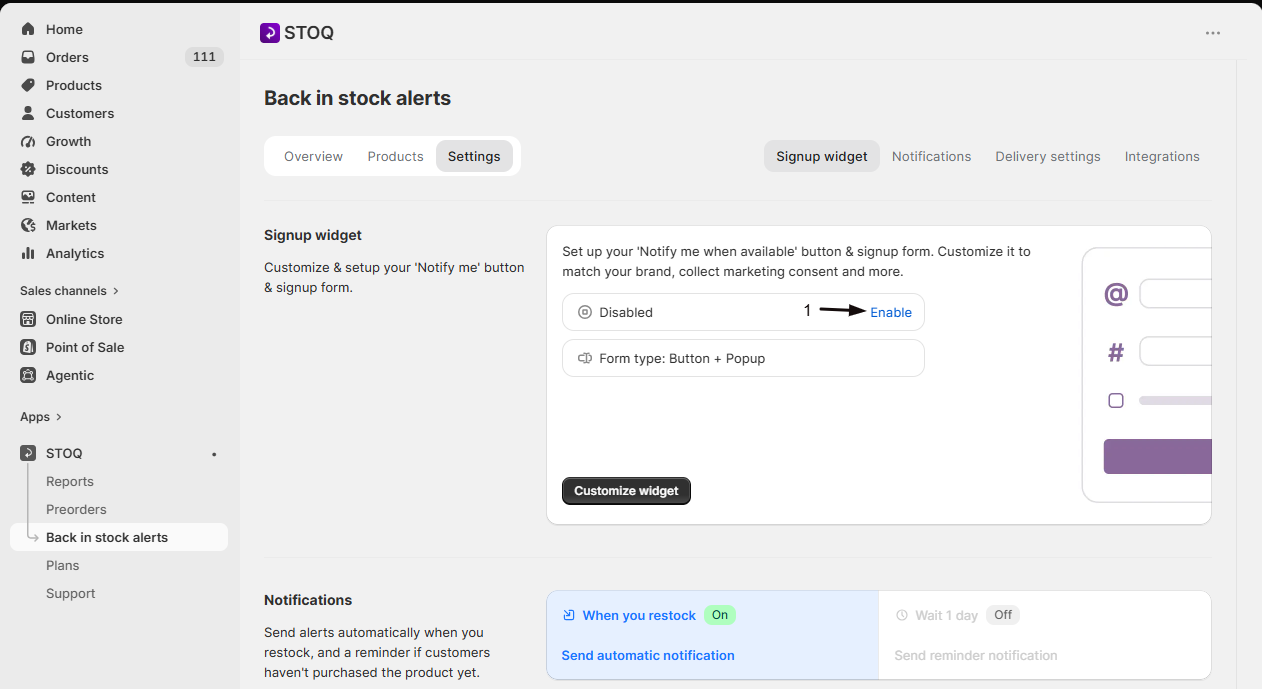
In the Signup widget sub-tab, click Enable on the widget status card so STOQ’s “Notify me” button starts showing on your out-of-stock products. If your theme needs STOQ’s app embed activated, a Turn on app embed badge appears next to the page title; click it to turn the embed on.
-
Connect a delivery channel
In the Notifications sub-tab, connect at least one way to reach customers: email is on by default, SMS requires setup. Without a working channel, signups (including your imported ones) are collected but no alert is ever sent.
For the full first-time setup walkthrough, including product eligibility and a test signup, see Set up alerts.
Check your setup
Section titled “Check your setup”- STOQ emails a status update to your report email address when the import finishes; you can also click View imports on the Import data card to check its status.
- Confirm imported customers appear on the waitlist for the right product, on the Products tab.
- Visit a live out-of-stock product page and confirm STOQ’s “Notify me” button appears, and your old app’s does not.
- Submit a test signup with your own email or phone number to confirm new requests still work.
Do imported customers get an alert right away?
No. Importing only recreates the pending requests on the waitlist. Alerts go out later, when the product restocks and meets your delivery settings, the same as for anyone who signs up directly on your store.
Will customers who are already on both waitlists get duplicate alerts?
No. If a customer is already on STOQ’s waitlist for a variant, a later import for that same variant is skipped, so re-uploading or importing overlapping lists won’t create duplicates.
Do I need to cancel my old app before importing?
No, importing doesn’t depend on your old app’s status. But leave both widgets active at once only briefly, since customers would see two “Notify me” buttons until you disable the old one.
Can I keep importing after I've already started using STOQ?
Yes. You can upload additional CSVs at any time, for example to catch customers you missed the first export, and each import is listed with its own status under View imports.
Which apps can I export a waitlist from?
Any app, as long as it can export your pending requests to a spreadsheet. STOQ doesn’t integrate with other back in stock apps to pull the data automatically, so you export your requests as a CSV, upload it, and match its columns to STOQ’s fields.
Related guides
Section titled “Related guides”Thanks for letting us know.
Still stuck? Ask Quinn or chat with support