Send reminder emails to recover sales
Follow up with customers who got a restock alert but haven't purchased yet, while the product is still in stock.
Last updated
A reminder is a follow-up notification sent a set number of days after your restock alert, only to customers who still haven’t purchased the product and only while it’s still in stock. Use it to recover sales from customers who missed or ignored the first alert.
Before you begin
Section titled “Before you begin”| Requirement | Detail |
|---|---|
| Restock alerts turned on | The reminder sends after the initial restock notification, so that notification must be enabled first. See Set up back in stock alerts. |
Turn on the reminder
Section titled “Turn on the reminder”On a phone, this menu is collapsed. In the Shopify mobile app, tap the STOQ logo at the top of the screen to open it, then choose the section named below. There is no hamburger icon. See Finding the STOQ menu.
-
Open the Notifications sub-tab
- In the left menu bar of the STOQ app, click Back in stock alerts.
- Click the Settings tab.
- Open the Notifications sub-tab.

-
Select the reminder
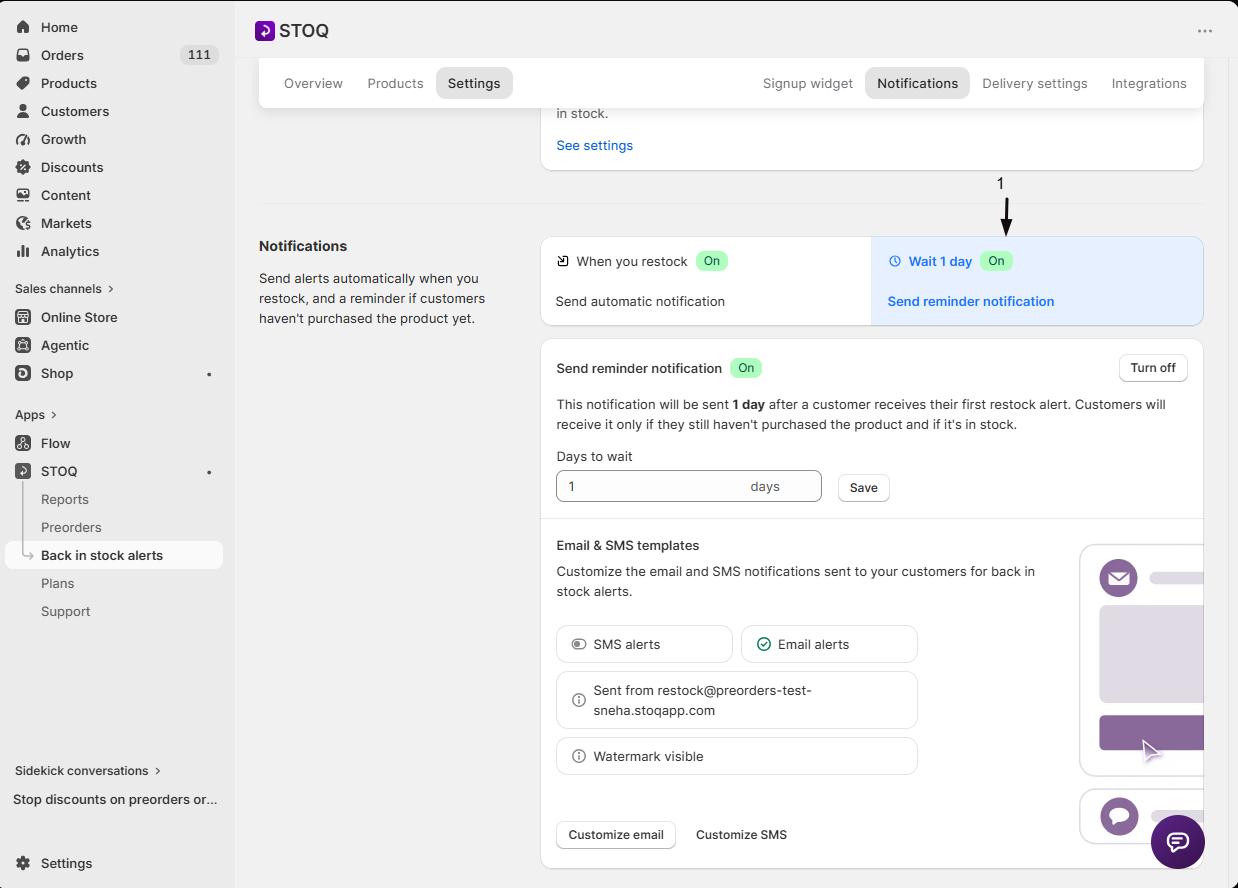
Under the notification sequence, click the stage below When you restock, labeled Wait 1 day by default.
-
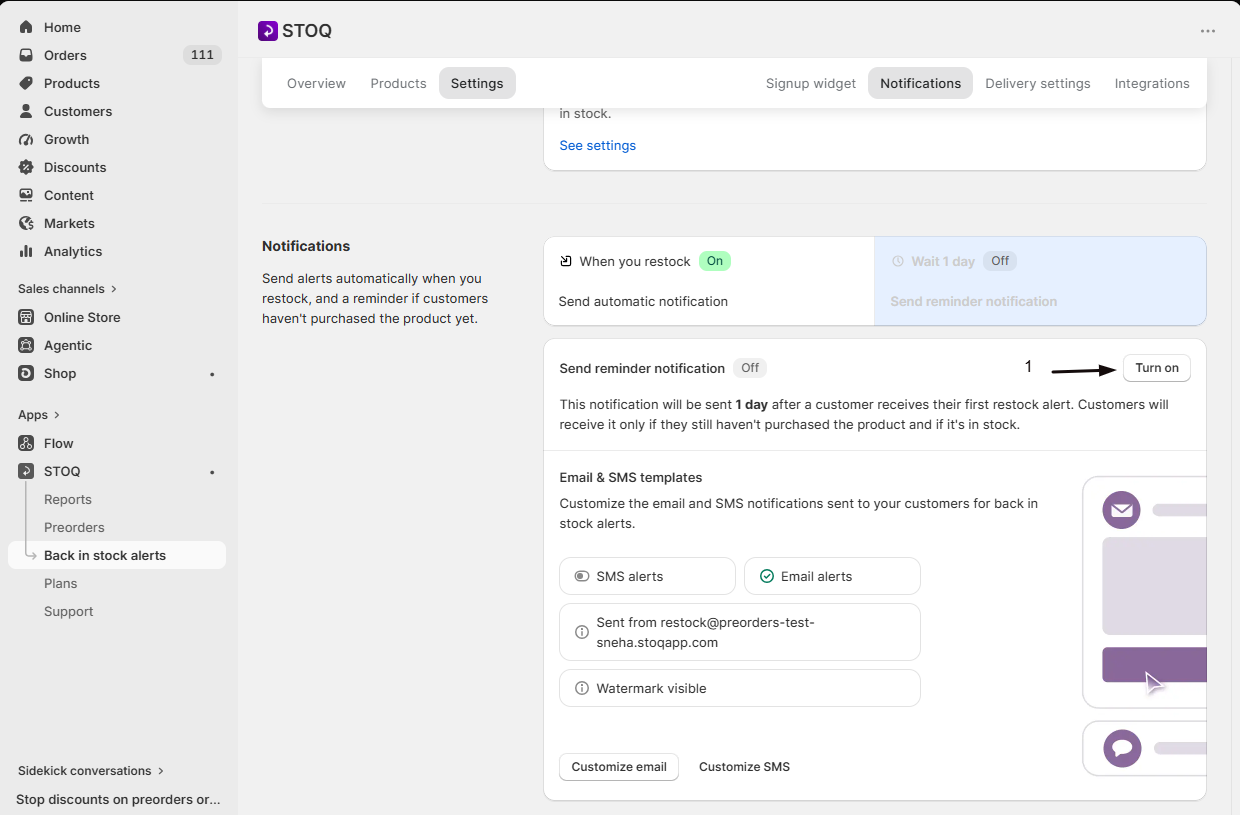
Switch on Send reminder notification
Turn on the Send reminder notification toggle. This adds the reminder to your active sequence, it now sends automatically after the restock alert.
Set Days to wait
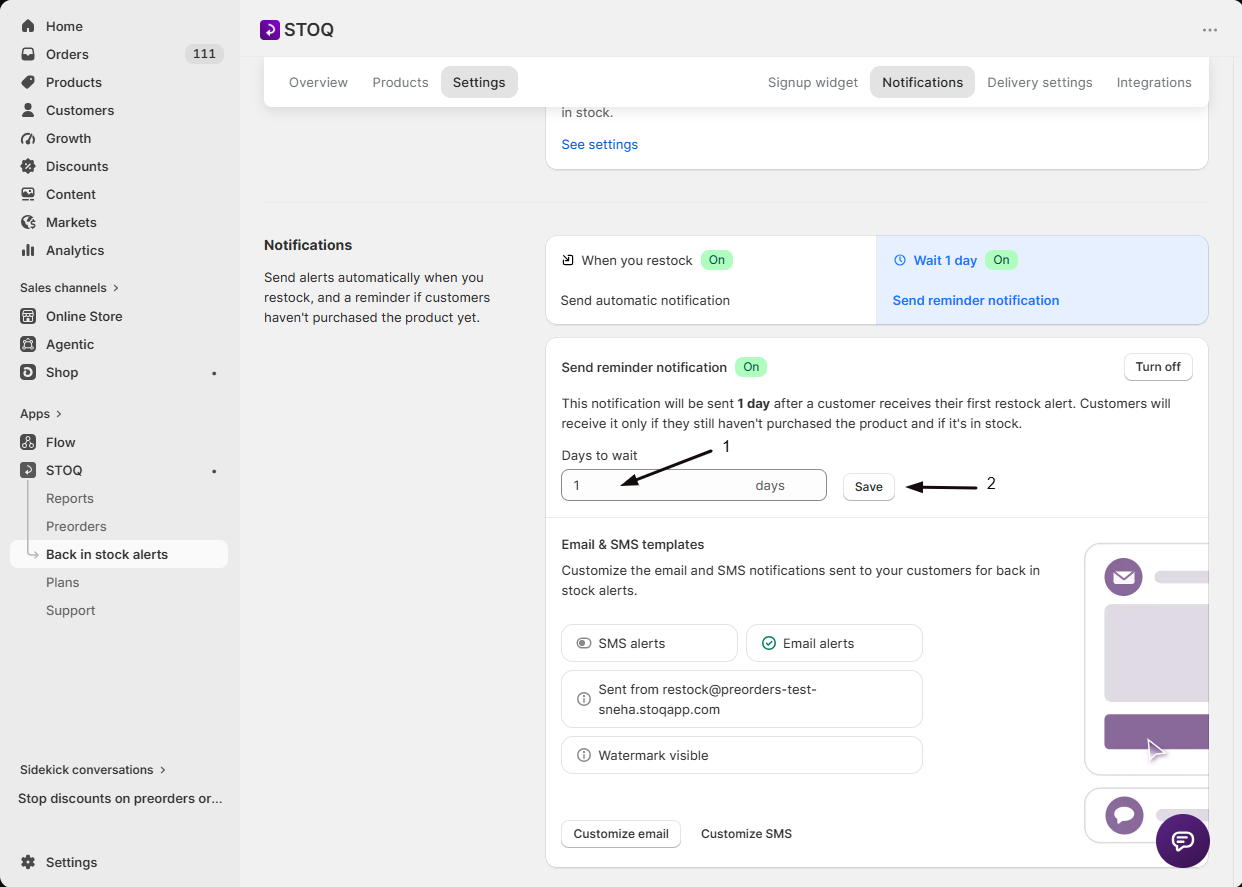
Section titled “Set Days to wait”With the reminder turned on, enter a value in the Days to wait field and click Save. A Reminder settings saved confirmation appears.
This sets how many days after a customer receives their first restock alert the reminder goes out. It only reaches customers who still haven’t purchased the product and only while it remains in stock, so it never nags someone who already bought or reappears once the item sells out again.
If your sequence has more than one reminder, each later one only sends to a customer who received the reminder before it.
Customize the reminder’s content
Section titled “Customize the reminder’s content”The reminder has its own email and SMS content, separate from the restock alert, so you can write different subject lines and copy to nudge a customer who didn’t convert the first time.
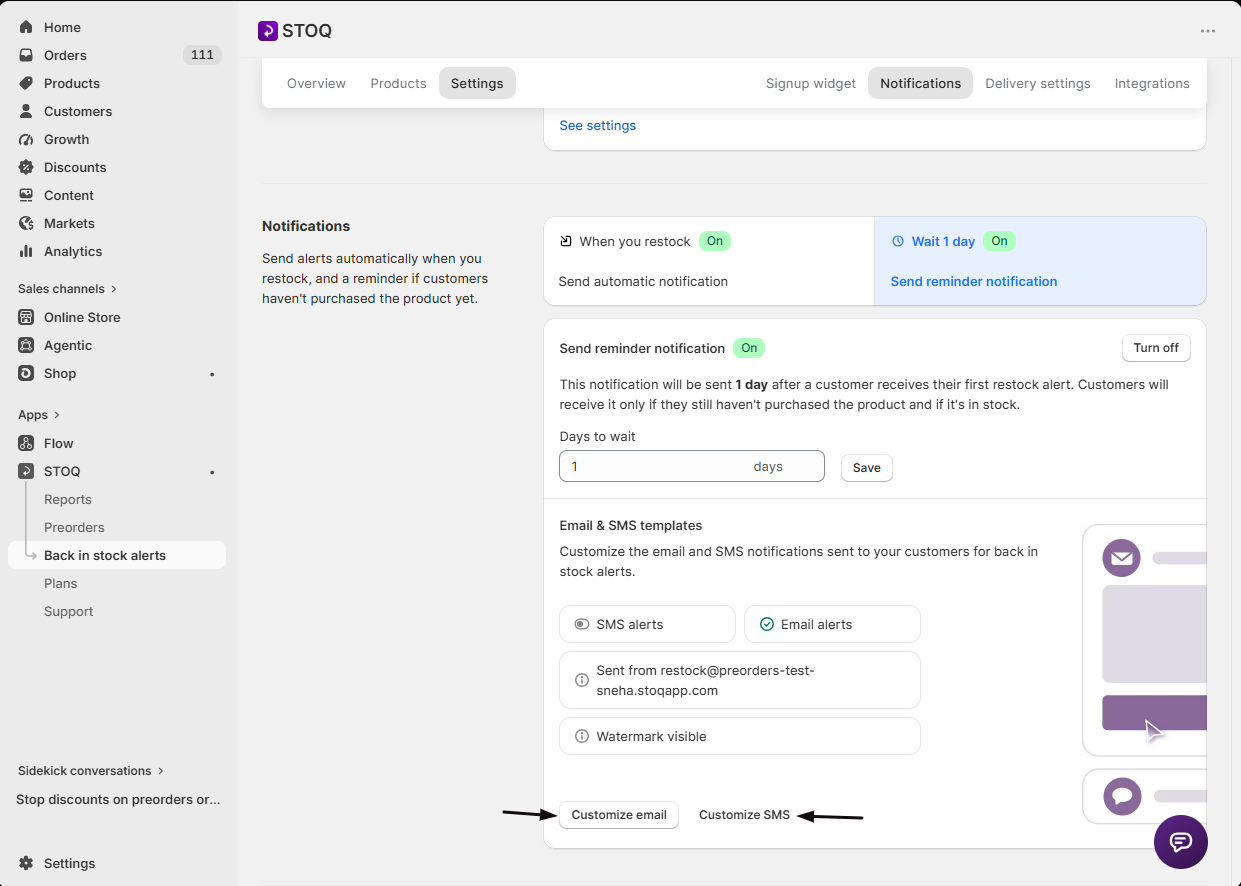
With the reminder selected in the notification sequence, click Customize email or Customize SMS to open its editor. See Customize the back in stock email notification and Set up SMS alerts for what you can edit.
Check your setup
Section titled “Check your setup”- Sign up for a back in stock alert on your storefront.
- Restock the product so the first alert sends.
- Without purchasing, wait for (or use a test send from) the reminder’s template editor to confirm its content looks right.
Will the reminder send to a customer who already bought the product?
No. It only sends to customers who still haven’t purchased while the product remains in stock.
What happens if the product sells out again before the reminder is due?
The reminder only sends while the product is in stock, so it’s skipped if it sells out again before the wait period ends.
Does the reminder use the same email design as the restock alert?
No. Each notification in the sequence, the restock alert and any reminders, has its own separate email and SMS template, so you can customize them independently.
Can I change how many days the reminder waits after it's already on?
Yes. Select the reminder, update Days to wait, and click Save. The new wait time applies to reminders sent from then on.
Why aren't reminders sending while my store has a password?
STOQ holds reminders, like restock alerts, while your storefront is password protected, because customers can’t buy from the password page. They go out on STOQ’s next reminder run after you remove the password. To send them anyway, tick Send alerts while your store is password protected. See Send alerts while your store is password protected.
Related guides
Section titled “Related guides”Thanks for letting us know.
Still stuck? Ask Quinn or chat with support