Delivery settings
Where alert timing, location and market filtering, product-status triggers, variant behavior, and alert language all live.
Last updated
Use this guide to find and configure the five controls that decide when and how STOQ sends back in stock alerts, beyond the alert content itself. By the end, you’ll know what each control does, where to open it, and how it changes what customers see.
Before you begin
Section titled “Before you begin”- Location and market-based alerts, the publish trigger, batching, and any-variant notifications each require a paid plan. On a free plan the control is disabled and shows an Upgrade link, and the default behavior stays in effect. Language is available on every plan.
Choose your setup
Section titled “Choose your setup”Delivery settings brings together five controls in one place, each with its own summary row you can expand to change its settings:
Plus two settings covered elsewhere:
- Minimum restock quantity: how many units a restock needs to reach before any alert goes out. This lives under Notifications, not Delivery settings, but it works alongside everything here.
- Language: described below, since it doesn’t yet have its own article.
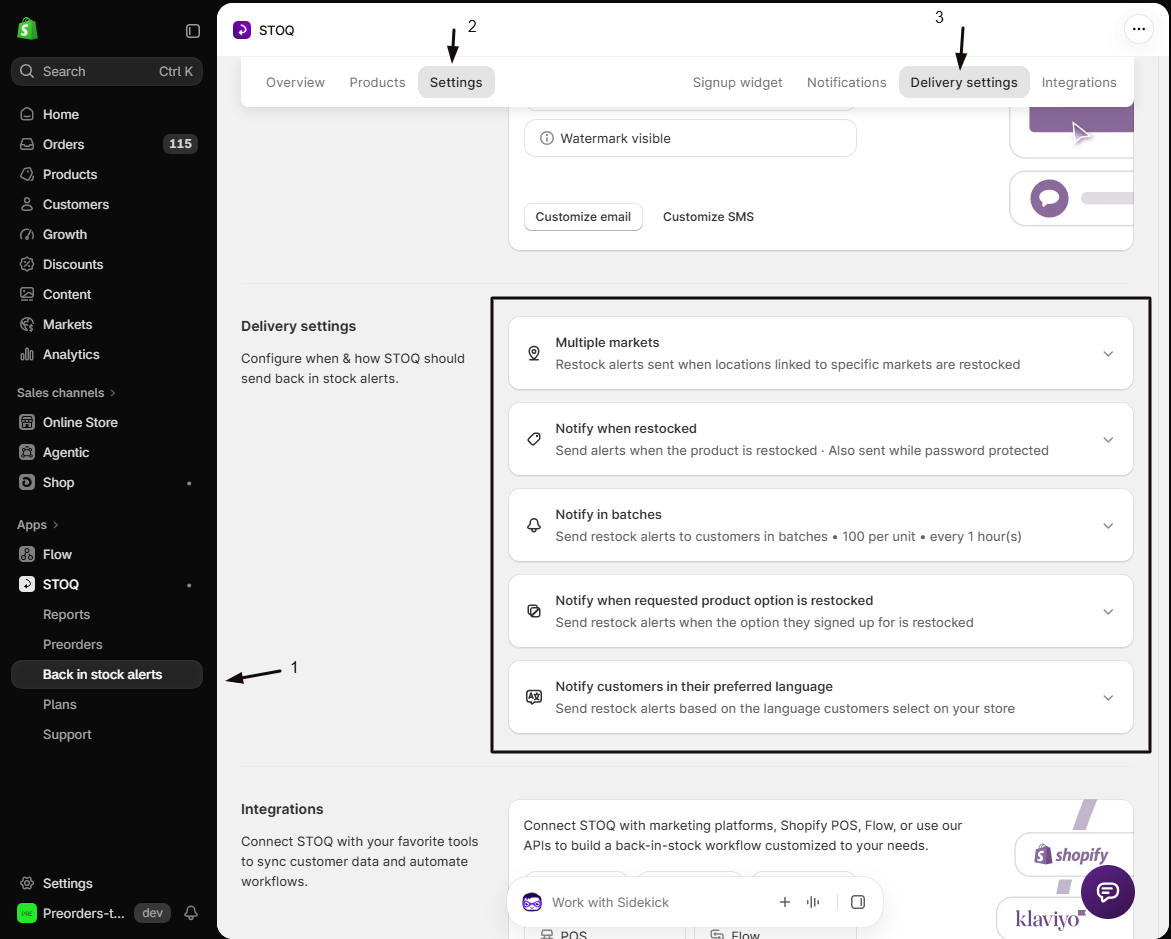
Market setup: single market or multiple markets
Section titled “Market setup: single market or multiple markets”This is the location and market filtering control. Choose the setup that matches how you sell:
- Single market: you sell in one country/market using one or more Shopify locations to manage inventory. Turn on Location-based alerts to send alerts only when specific locations restock; leave it off and alerts send for a restock at any location.
- Multiple markets: you use Shopify Markets to sell in multiple countries. Turn on the market-based option to send alerts only to customers in the market where the restocked location actually sells, instead of notifying every signup regardless of market.
If your store has more than one Shopify Market but is still set to “Single market,” STOQ shows a nudge suggesting you switch, since customers in every market are currently being notified for any location’s restock.
Notify when published or restocked
Section titled “Notify when published or restocked”By default, STOQ only sends alerts when a product restocks (inventory goes from zero/unavailable to available). Turning this on adds a second trigger: STOQ also alerts signed-up customers as soon as you publish the product to your Online Store, even if you haven’t touched its inventory.
The minimum restock quantity still applies here: STOQ checks the variant’s available quantity against your minimum before sending, whether the trigger was a publish event or a restock.
Send alerts while your store is password protected
Section titled “Send alerts while your store is password protected”If your storefront has a password, STOQ holds back in stock alerts and reminders by default, because customers can’t buy from the password page. Signups stay on the waitlist. If customers already know your password, tick Send alerts while your store is password protected under Password protection in the Notify when restocked card. See Send alerts while your store is password protected.
Notify in batches
Section titled “Notify in batches”By default STOQ notifies your entire waitlist the moment a product restocks. Turning on batching instead spreads alerts across multiple sends over time, giving your first batch of customers a head start to purchase before the next batch is notified. You choose:
- Batch sizing: either a multiplier per unit of stock restocked (for example, a multiplier of 10 with 5 units restocked notifies 50 signups per batch) or a fixed number of notifications per batch regardless of how much inventory came back.
- Interval between batches: 1, 2, or 3 hours.
Notify when any product option is restocked
Section titled “Notify when any product option is restocked”By default, a customer signed up for one variant (say, a specific size or color) is only alerted when that exact variant restocks. Turning this on instead notifies them when any variant/option of the product restocks, useful for products where the specific option isn’t essential to the purchase decision.
When enabled, you also choose which products it applies to:
- All products, or
- Selected products only, using a product picker.
Language
Section titled “Language”STOQ sends alerts in either your store’s single default language, or in each customer’s own preferred language:
- Default language only: every alert goes out in your store’s configured default language, shown in the summary row (for example, “Notify customers in default language: English”).
- Notify customers in their preferred language: STOQ sends the alert in whichever language the customer had selected on your storefront when they signed up.
This card doesn’t hold the language settings directly: select Manage languages to go to the full language and translation settings, where you configure which languages are available and their translations.
What customers will see
Section titled “What customers will see”None of the settings in this section change what an alert looks like: they change whether, when, and to whom it’s sent:
- Market/location filtering: a customer only gets an alert if the location (and, for multiple markets, the market) that restocked is one you’ve included.
- Publish trigger: customers may get an alert as soon as a product goes live on your Online Store, before you’ve restocked anything.
- Batching: some customers in the waitlist receive their alert before others, spaced out by the interval you chose.
- Any-variant: a customer may get notified even though the specific option they picked hasn’t restocked, only a different option on the same product has.
- Language: the alert itself arrives in the store’s default language or the customer’s own preferred language, depending on your setting.
Set it up
Section titled “Set it up”On a phone, this menu is collapsed. In the Shopify mobile app, tap the STOQ logo at the top of the screen to open it, then choose the section named below. There is no hamburger icon. See Finding the STOQ menu.
-
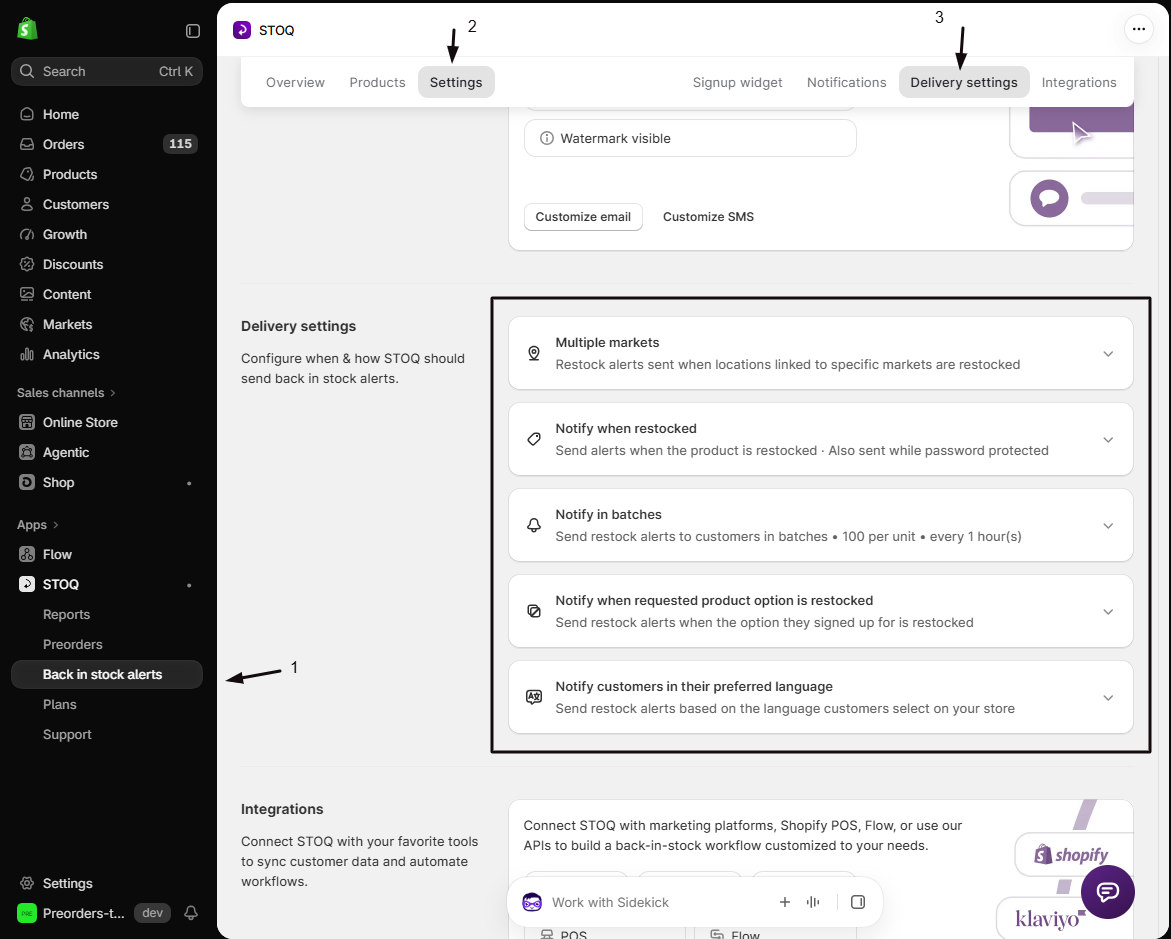
Open Back in stock alerts
In the left menu bar of the STOQ app, click Back in stock alerts.
-
Open the Delivery settings sub-tab
- Click the Settings tab.
- Open the Delivery settings sub-tab (it sits alongside Signup widget, Notifications, and Integrations as one of four settings sub-tabs).
-
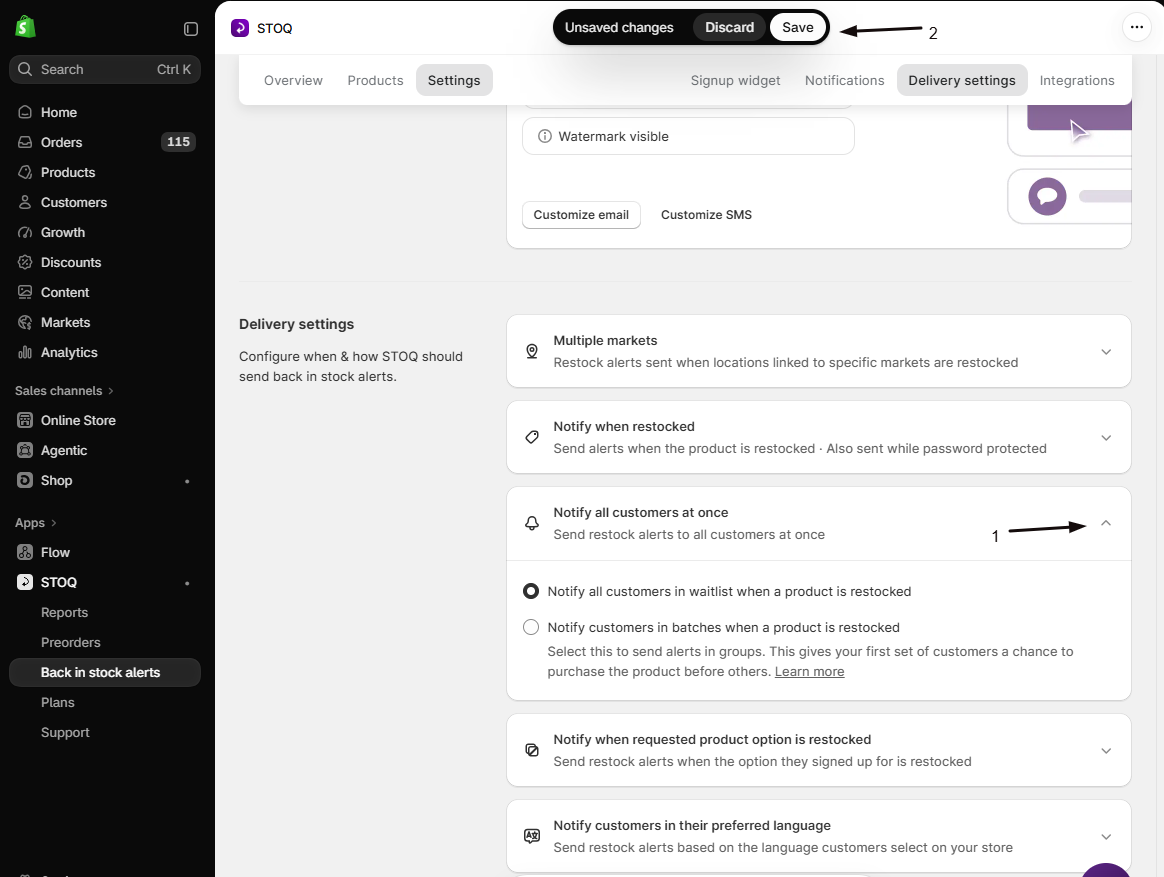
Expand a control
Each row (Single market/Multiple markets, Notify when published or restocked, Notify in batches, Notify when any product option is restocked, and Language) shows a one-line summary of its current state.
- Click a row to expand it and change its settings.
- Save.
Check your setup
Section titled “Check your setup”After you save a change, close the row: its one-line summary updates to reflect the new state, for example the Market setup row switches from “Single market” to “Multiple markets,” or the Language row shows the language you chose. If you turned on location or market filtering, restock a test product only at an included location and confirm signed-up customers there receive the alert. If you turned on batching, restock a product and confirm only part of your waitlist is notified in the first send.
Troubleshooting
Section titled “Troubleshooting”A control shows a disabled toggle with an Upgrade link
It requires a paid plan. Upgrading unlocks it immediately.
STOQ shows a nudge suggesting you switch to Multiple markets
Your store has more than one Shopify Market but is still set to Single market, so customers in every market are being notified regardless of which market’s location restocked. Switch to Multiple markets to fix it.
Customers in a specific market still aren't being filtered correctly after switching to Multiple markets
Check that you’ve linked the relevant locations to that market. Turning the market option on isn’t enough by itself.
Notify when any product option is restocked seems to be affecting products you didn't mean to include
Check whether you selected All products instead of Selected products only when you configured it.
Alerts stopped sending while your store has a password
STOQ holds alerts and reminders while your storefront is password protected. Remove the password in Shopify, or tick Send alerts while your store is password protected and click Save. See Send alerts while your store is password protected.
Do I need to configure every option in this section?
No. Each control has a sensible default: no location filtering (alerts for any location), notify only on restock (not publish), no batching (notify everyone at once), and notify only for the exact variant requested. You only need to open a row if you want different behavior.
Will alerts look different depending on these settings?
No. None of these settings change what an alert looks like, only whether, when, and to whom it’s sent. The alert content itself is configured elsewhere.
If I turn on 'Notify when published or restocked,' will it re-notify existing signups on every future restock too?
Yes. Turning this on adds publish as an additional trigger: restocks still trigger alerts as before. It doesn’t replace the restock trigger, it adds to it.
How does batching interact with the minimum restock quantity?
They’re independent checks. The minimum quantity setting decides whether an alert fires at all for a given restock; if it does, batching decides how many of the waitlisted customers get notified per send and how long STOQ waits between sends. See Minimum restock quantity for the quantity-check details.
Where do I actually set up different languages for alerts?
Select Manage languages inside the Language card on the Delivery settings page (Back in stock alerts → Settings → Delivery settings). That takes you to the dedicated language and translation settings, separate from this summary card.
Related guides
Section titled “Related guides”Thanks for letting us know.
Still stuck? Ask Quinn or chat with support