Show a restock note under the button
Style the optional note that appears below the 'Notify me' button when you've added a restock message for a variant.
Last updated
Use this guide to add and style the optional restock note that can appear below the ‘Notify me’ button, for example, “Back in stock March 15” or “Restocking soon.” By the end, customers will see the note in your chosen colors and border radius on any product page where the button is eligible to show.
Before you begin
Section titled “Before you begin”| Requirement | Detail |
|---|---|
| Per-product customization is turned on | This turns on when you first set a variant’s button visibility or template on the Products tab, see below. The restock note only reaches your storefront once this is on |
| A restock note is set on the variant | Add a Restock message for the specific variant on the Products tab of the Back in stock alerts page; variants without a note show nothing |
| The ‘Notify me’ widget is enabled | The master ‘Notify me’ widget toggle on the Back in stock alerts page must be on |
What customers will see
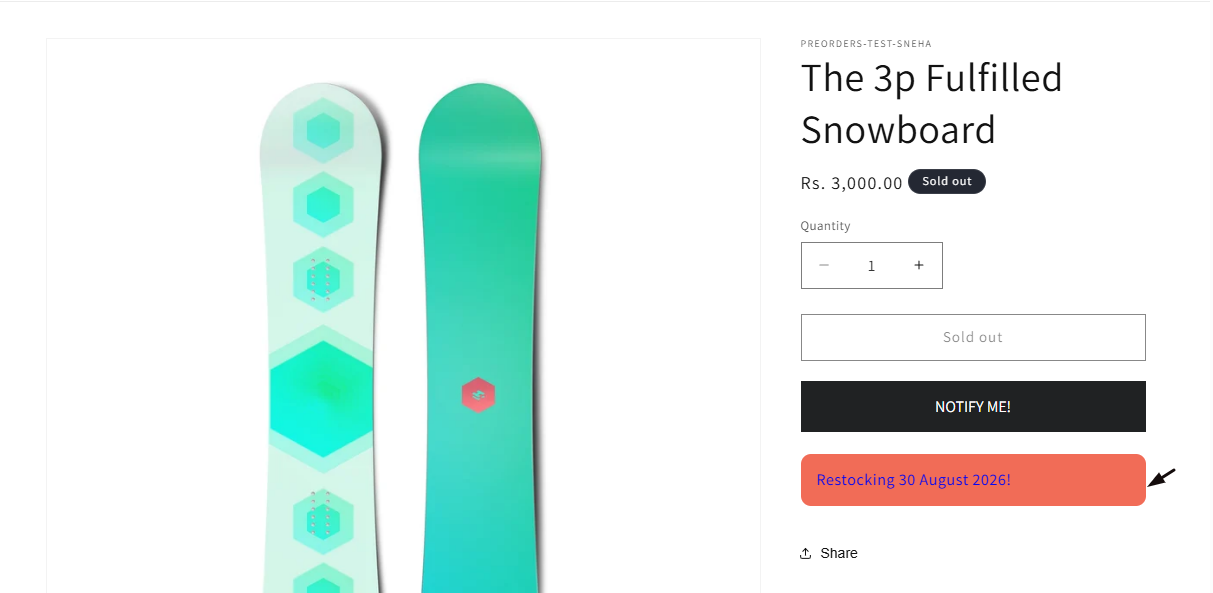
Section titled “What customers will see”When a variant has a restock message set, STOQ inserts a small styled box directly after the ‘Notify me’ button (or, on integrated add-to-cart buttons, after that button) showing the note’s text in your configured colors and border radius.
The note only appears when all of the following are true:
- Per-product customization has been turned on (this happens the first time you change a variant’s button visibility or template on the Products tab).
- The specific variant being viewed has a restock message saved.
- The variant currently qualifies to show the ‘Notify me’ button, for example, it’s out of stock, notify me has been explicitly turned on for it, or, when those settings are enabled, it’s a preorder or any variant of the product is out of stock.
If a variant doesn’t meet these conditions, for example, it’s back in stock and doesn’t otherwise qualify, no note is shown, even if a message was previously saved for it.
Set it up
Section titled “Set it up”On a phone, this menu is collapsed. In the Shopify mobile app, tap the STOQ logo at the top of the screen to open it, then choose the section named below. There is no hamburger icon. See Finding the STOQ menu.
Add a restock message to a variant
Section titled “Add a restock message to a variant”The note’s text isn’t set in the styling section below. It’s set per variant on the Products tab of the Back in stock alerts page. That’s a different surface from the Products item inside the widget editor’s Button sidebar, which only controls shop-wide button-visibility rules, see Notify me product eligibility.
-
Go to the Products tab
- In the left menu bar of the STOQ app, click Back in stock alerts.
- Click the Products tab.
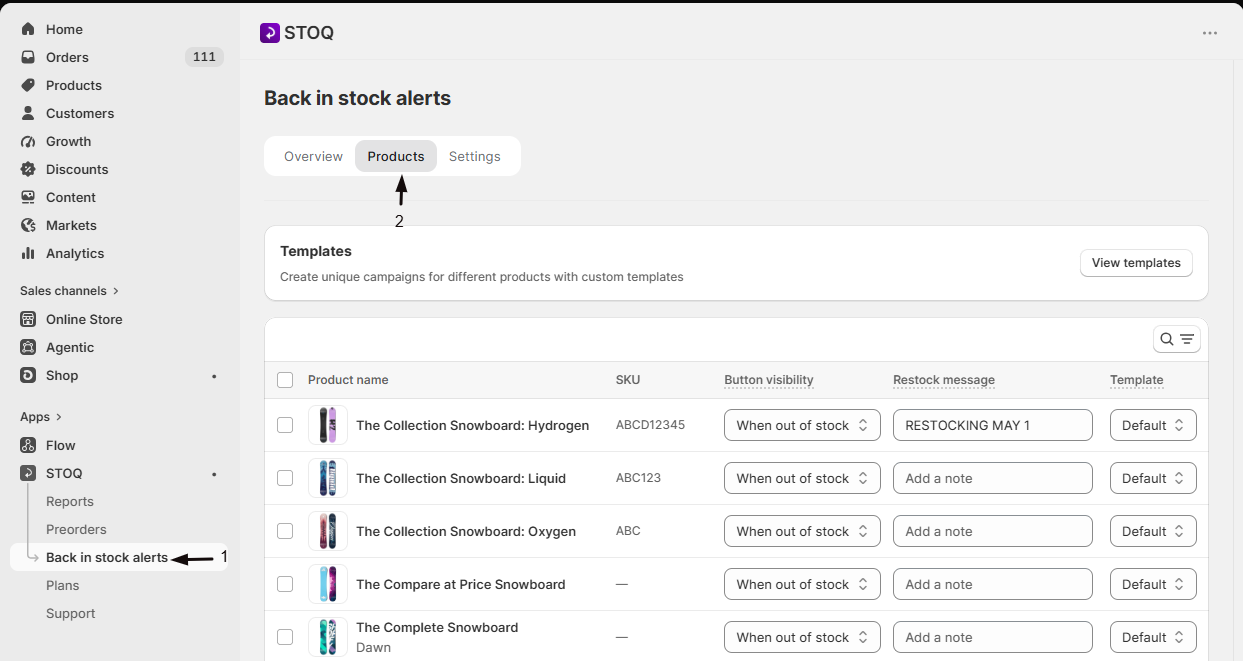
-
Find the variant
Locate the product and variant you want to add a note to in the product/variant list. To update notes you’ve already written, click the Search and filter button at the top right of the table, click the Restock message filter, and type part of the old note in Message contains. See Filter the product list.
-
Enter a Restock message
In the Restock message field for that variant, type a short note, for example, “Back in stock March 15” or “Restocking soon.”
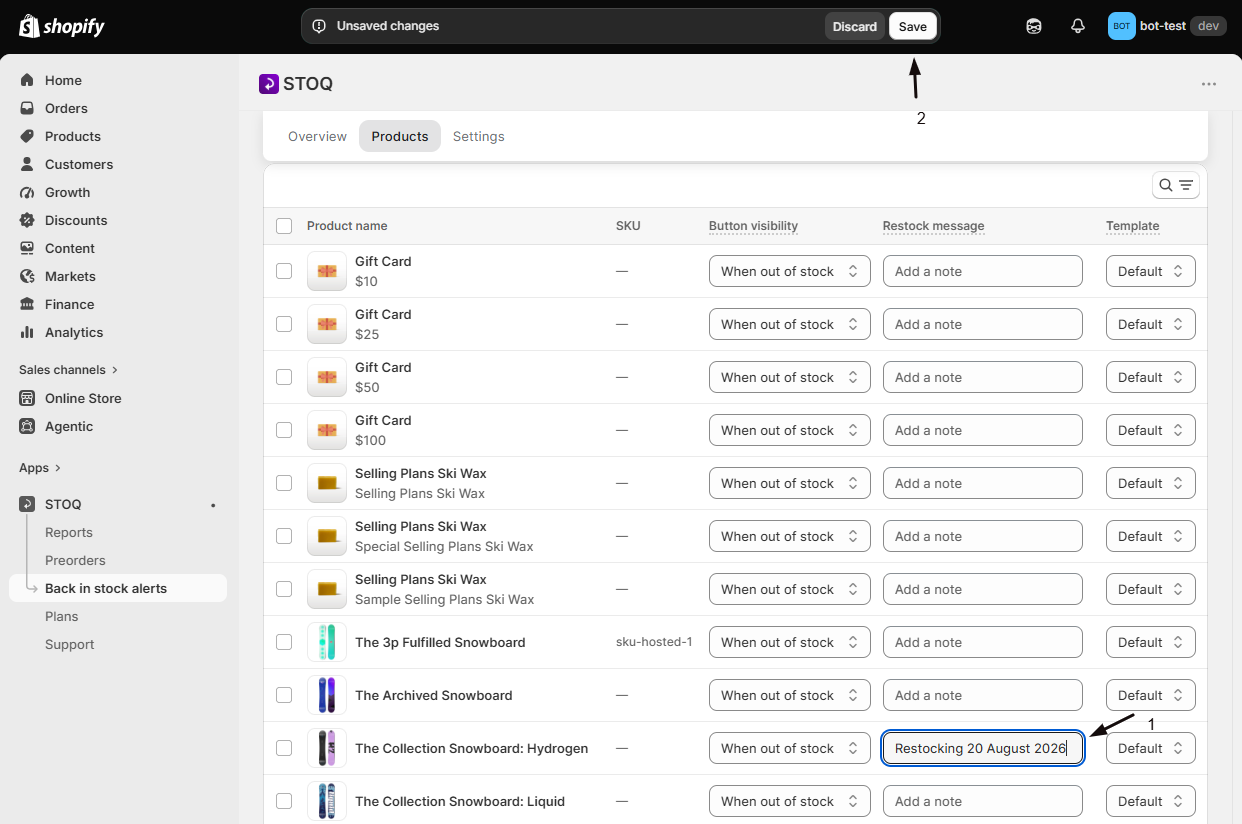
-
Turn on per-product customization if prompted
Restock messages save either way, but if this is the first per-product change you’re making, changing that variant’s button visibility or template will show a one-time confirmation dialog before turning per-product customization on. Until it’s on, saved restock messages are stored but not shown on your storefront.
-
Save your changes
Save the Products tab. The note is now associated with that variant.
Style the note
Section titled “Style the note”-
Open the widget editor
- In the left menu bar of the STOQ app, click Back in stock alerts.
- Click the Settings tab.
- Open the Signup widget sub-tab.
- Click Customize widget.
Or, on the Products tab of Back in stock alerts, click Preview restock note in the Templates card to open the editor straight on the restock note.
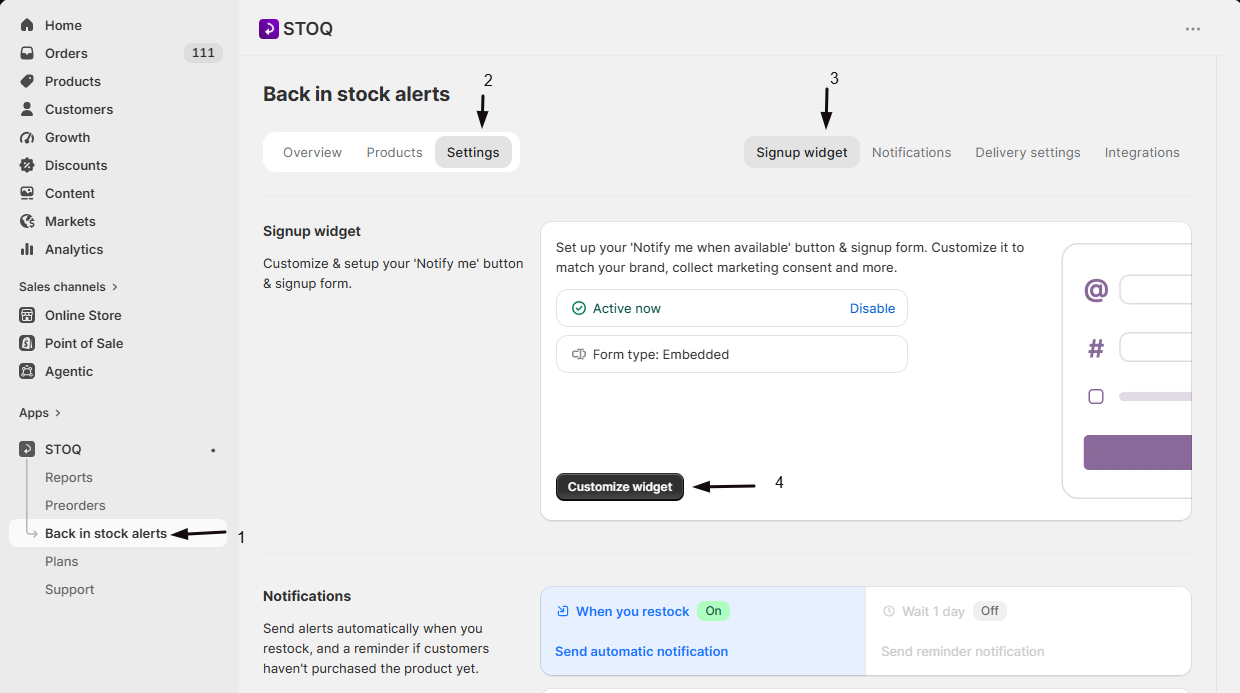
-
Select Restock note
On the Button tab, click Restock note in the sidebar. A live preview shows an example note (“Back in stock March 15”) below the button on a sample product page. To preview your own wording, open Preview text below the settings and type it in. This only changes the preview; each variant’s real note is set on the Products tab.
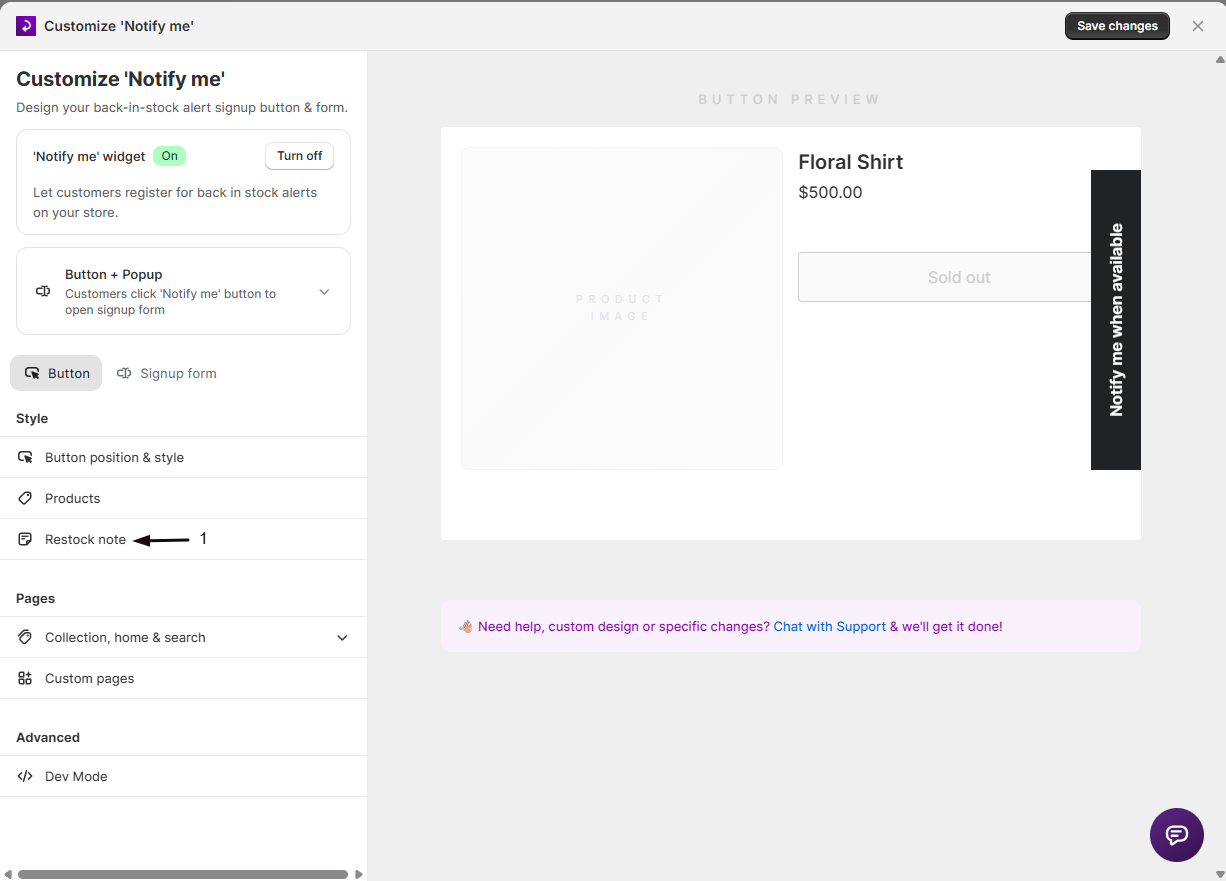
-
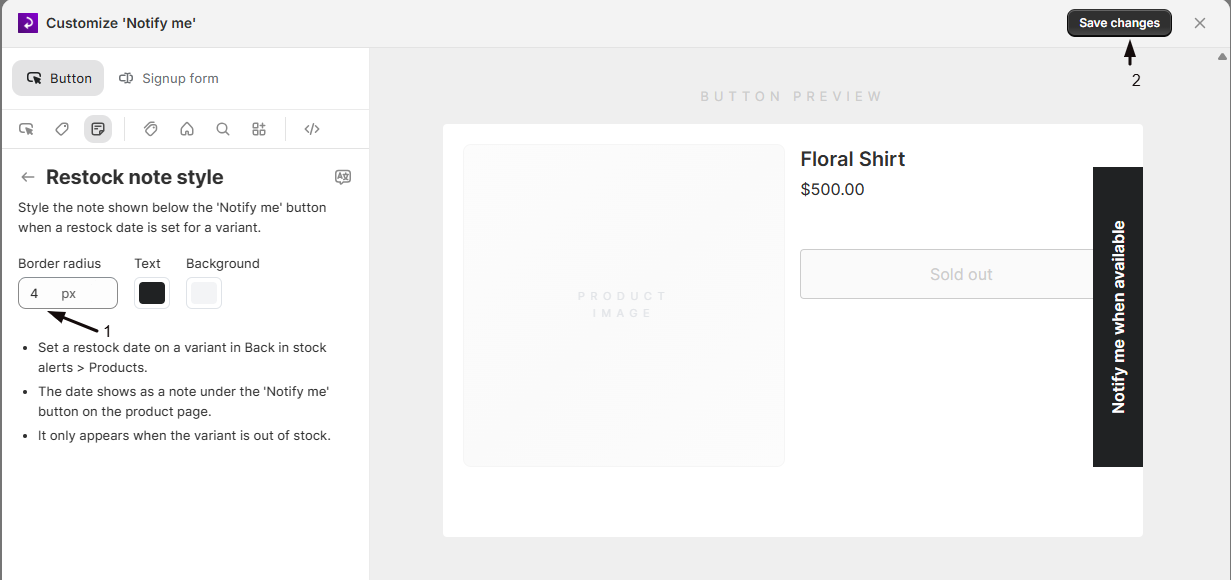
Set the border radius
Enter a value in pixels in the Border radius field to round the corners of the note’s background box. Default is 4px.
-
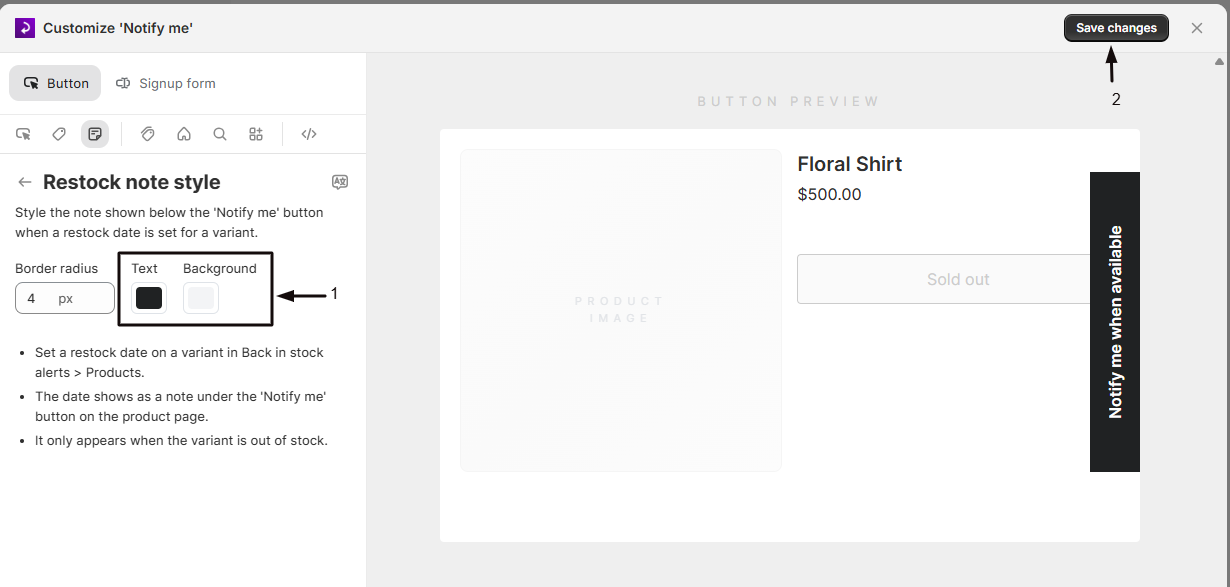
Set the text color
Under Appearance, click the Text colour swatch to choose the note’s text color, or enter a hex code directly. Default is #202223.
-
Set the background color
Click the Background colour swatch to choose the note box’s background color, or enter a hex code directly. Default is #f3f4f6.
Check your setup
Section titled “Check your setup”-
On the Products tab of the Back in stock alerts page, confirm the variant has a Restock message saved and that per-product customization is on, confirming the prompt if you’re asked to enable it while editing the variant.
-
Save your changes on both the Products tab and the Restock note style section.
-
Visit the product page for that variant on your live storefront, while the variant still qualifies to show the button.
-
Confirm the note appears below the button with your configured text, colors, and border radius.
Troubleshooting
Section titled “Troubleshooting”You added a Restock message but nothing shows on your storefront
Confirm per-product customization is turned on for your shop, either by completing the enable prompt or by checking for a “Disable per-product overrides” link on the Products tab, which only shows once it’s on.
The note still doesn't show after that
Confirm the message is saved for the exact variant you’re viewing, not a different variant of the same product.
The variant no longer qualifies to show the button
A note won’t render for a variant that’s back in stock and doesn’t otherwise meet the button’s display rules, even with a saved message.
Your color or border radius changes aren't showing up
Confirm you saved the widget editor and are viewing an eligible variant on a live (not cached) storefront page.
Everything is set correctly but the note still doesn't appear
Where the note sits on the page depends on your theme’s markup, and some themes need a specific CSS selector before STOQ can place it. If you’ve already confirmed the message is saved for the right variant, per-product customization is on, and the variant is eligible, you can place it yourself with a selector from your theme (see the FAQ on moving the note), or STOQ support can set it for you. Open the purple chat icon in the bottom-right of the STOQ app and choose Talk to a human.
Limitations
Section titled “Limitations”The border radius, text color, and background color set in the styling section apply to every restock note across your shop. Only the note’s text is set individually, per variant, on the Products tab.
Does the restock note automatically show a real restock date?
No. STOQ doesn’t calculate or track a restock date automatically: the Restock message is free text you type yourself. You can enter a specific date (“Back in stock March 15”), a vague estimate (“Restocking soon”), or clear the field to show nothing.
Do I need to enable anything else just to add a note?
You can type a Restock message on the Products tab at any time, it saves either way. But it only reaches your storefront once per-product customization is turned on for your shop, which happens the first time you change a variant’s button visibility or template, showing a one-time confirmation dialog. Until then, saved messages sit unused.
What happens if I forget to remove the note after the variant restocks?
The note keeps showing as long as the variant still qualifies to show the ‘Notify me’ button and the message field isn’t cleared. Since STOQ doesn’t detect or update the date automatically, remember to update or clear the Restock message field once the variant is actually back in stock.
Does the restock note appear on collection or search pages too?
It can, if you’ve enabled the ‘Notify me’ button on those pages and the variant has a saved message: the note is inserted near the same button or add-to-cart element wherever it renders. See ‘Notify me’ button on store pages.
Can I move where the note is inserted relative to the button?
Yes, with Dev mode on. By default the note shows below the ‘Notify me’ button. Turn on Dev mode (see Advanced placement and custom CSS), then open the Restock note section: a Restock note settings box appears at the bottom. Enter a CSS selector from your theme in Custom position selector, choose where the note goes relative to it in Insertion type, and save.
Related guides
Section titled “Related guides”Thanks for letting us know.
Still stuck? Ask Quinn or chat with support