Manage your customers
Search, export, and delete back in stock customers, and manage a customer's pending requests.
Last updated
The Customers tab lists everyone who’s ever signed up for a Back in Stock alert. From there you can search, export, or delete customers in bulk, or open one customer to see their pending requests and manage their subscription.
Open the Customers tab
Section titled “Open the Customers tab”-
Open the Customers tab
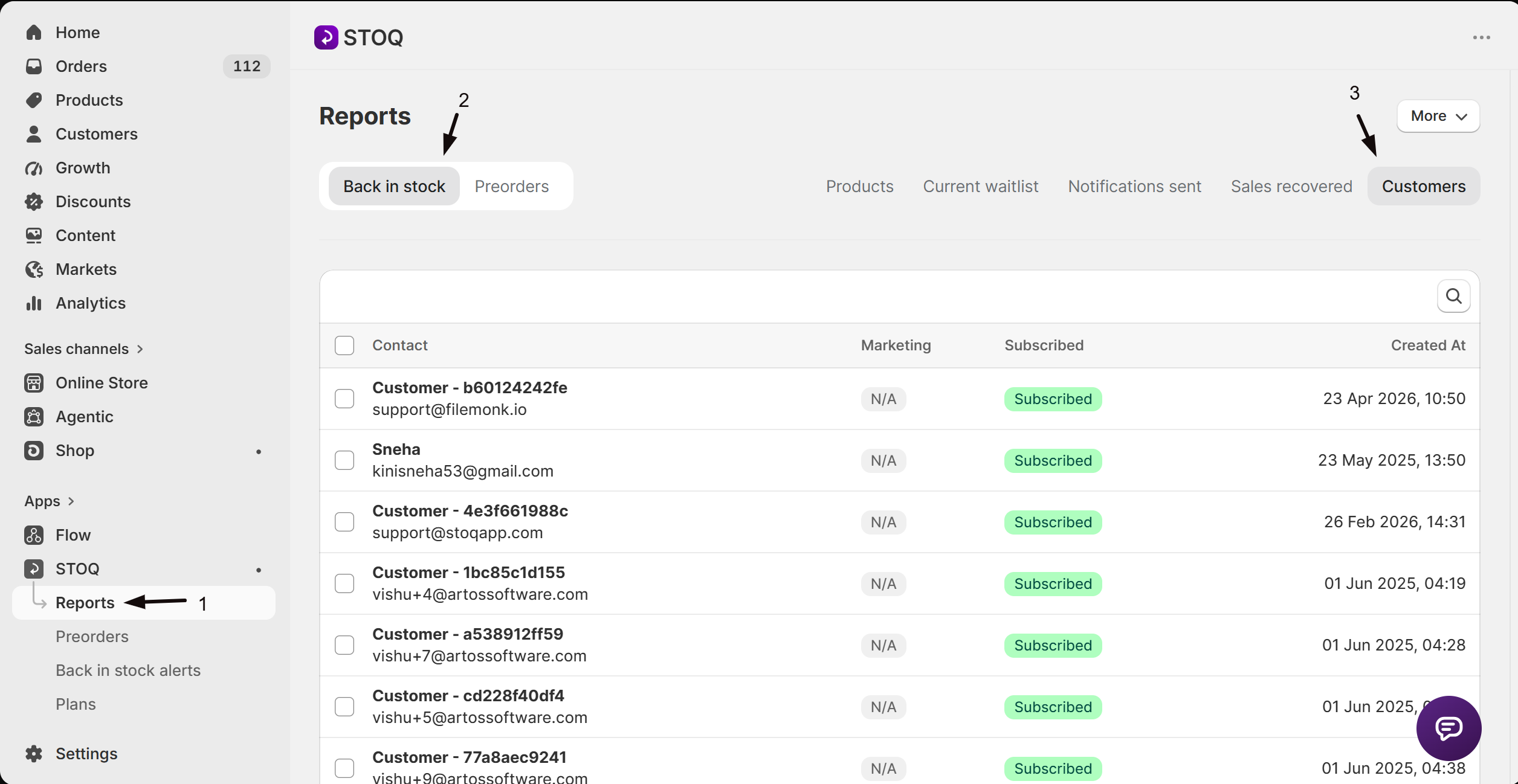
- In the left menu of the STOQ app, click Reports.
- Click the Back in stock tab at the top.
- Click the Customers sub-tab.
What the list shows
Section titled “What the list shows”Each row is one customer, with their Contact (name and email or phone), Marketing consent, whether they’re Subscribed, and when they were Created At.
| Column | What you’ll see |
|---|---|
| Contact | The customer’s name if STOQ has one, otherwise “Customer - {id}”, with their email or phone underneath. Click it to open the customer’s detail page. |
| Marketing | N/A if your store doesn’t collect marketing consent, Consent given if the customer agreed to receive promos and newsletters, or Did not consent if they didn’t. |
| Subscribed | Subscribed or Unsubscribed from back in stock notifications. |
| Created At | When the customer record was created. |
Search, export, and delete customers
Section titled “Search, export, and delete customers”- Search by email or phone number using the search field above the list.
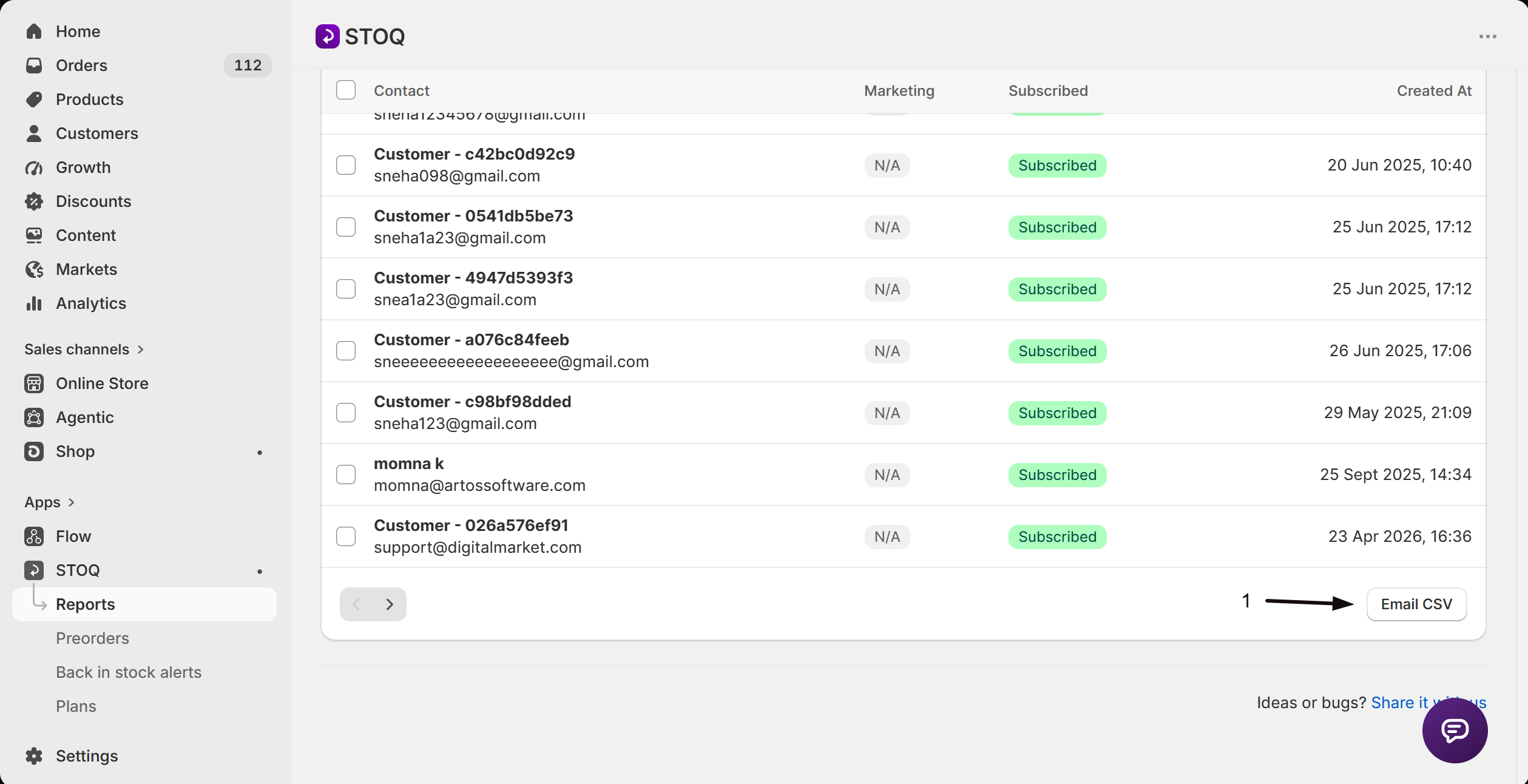
- Email CSV exports the full customer list. It’s emailed to your report address rather than downloaded, and requires a paid plan, if you’re on the free plan an upgrade prompt appears next to the button instead.
- To delete customers, select one or more rows with the checkboxes, then click Delete customers. STOQ asks you to confirm, then deletes the selected customers, this also deletes any preorders, requests, notifications, and analytics linked to them in STOQ. It does not delete their Shopify customer record or their Shopify orders.
Open a customer’s detail page
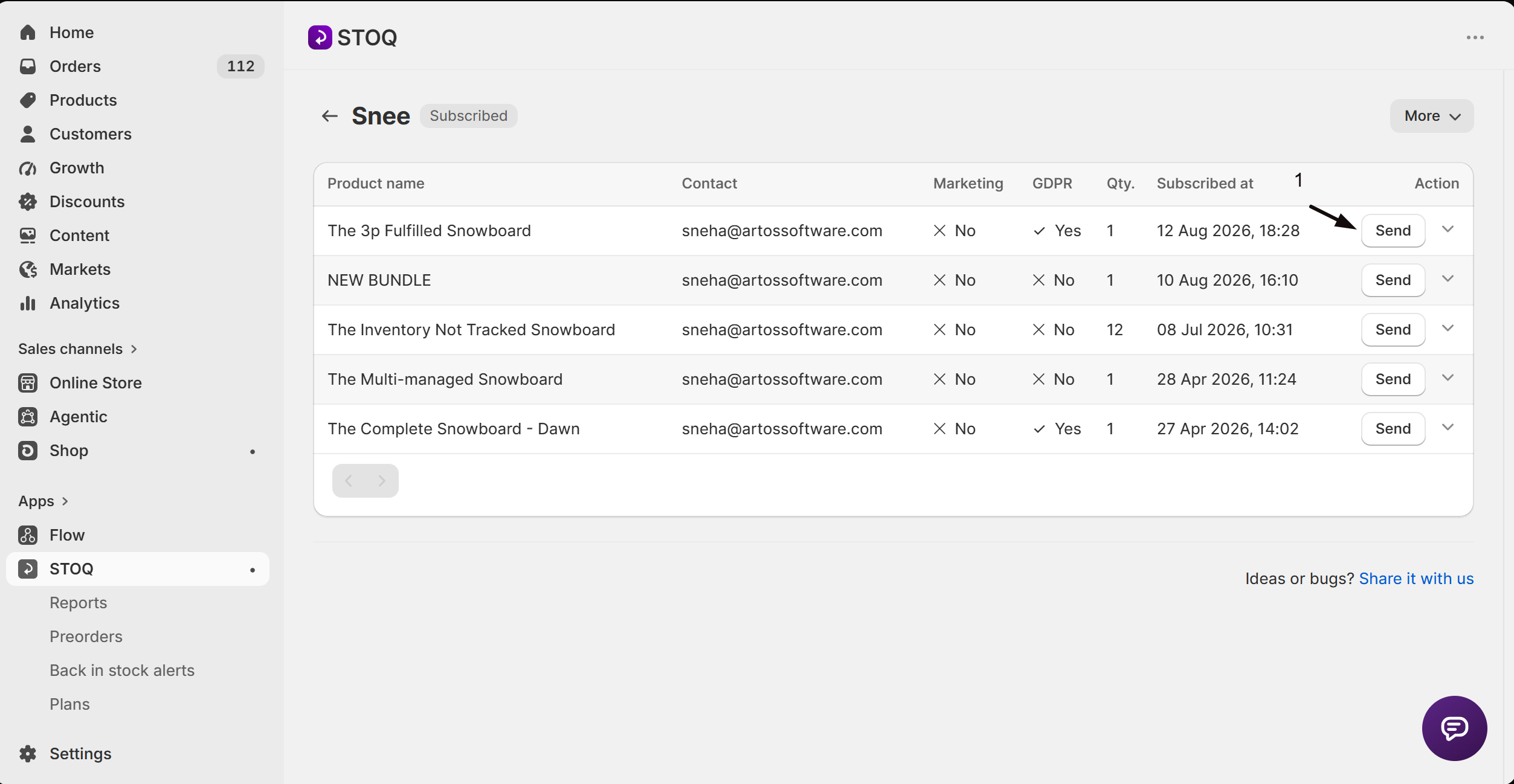
Section titled “Open a customer’s detail page”Click a customer’s name or contact to open their detail page. The title shows a Subscribed or Unsubscribed badge next to their name.
This page lists only that customer’s current pending requests, waitlist signups STOQ hasn’t sent an alert for yet. It is not a history of alerts already sent; for that, see Track back in stock notifications. Each row shows the Product name, Contact, Marketing consent, GDPR confirmation, Qty. requested, and when the customer Subscribed at, plus two actions:
- Send manually sends that alert right now.
- The delete icon removes that one pending request, without affecting the customer’s other requests.
The More menu
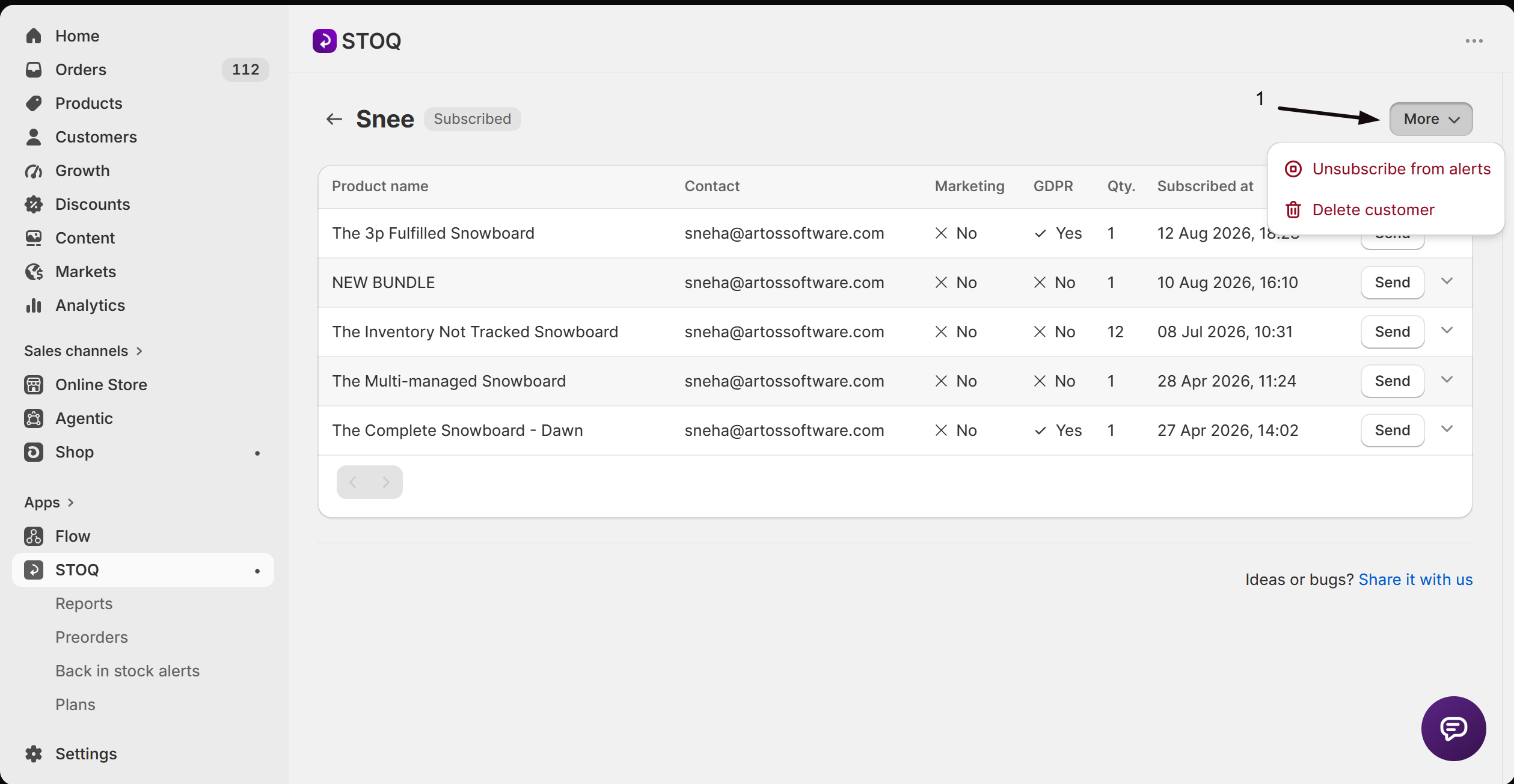
Section titled “The More menu”Click More at the top of the page for two actions:
- Subscribe to alerts or Unsubscribe from alerts: change whether the customer gets alerts, applied across all their waitlist entries. See Unsubscribe or resubscribe a customer.
- Delete customer opens a confirmation modal, then deletes the customer along with their preorders, requests, notifications, and analytics in STOQ. Their Shopify customer record and orders aren’t affected.
Troubleshooting
Section titled “Troubleshooting”A manual send fails
STOQ shows a banner reading “There were errors sending the notification” with the reasons listed. Use its See settings action to check your delivery setup, or Contact support if you’re stuck.
Email CSV is greyed out
Exporting requires a paid plan. Upgrade to enable it.
A customer's Marketing column always shows N/A
Your store isn’t collecting marketing consent. Turn on Get marketing consent in your signup widget settings to start collecting it for new signups.
You can't find a customer by name
Search only matches email or phone number, not name.
A customer's detail page looks empty but you know they signed up
The page only lists pending requests. If they’ve already been notified, look them up on Track back in stock notifications instead.
What exactly gets deleted when I delete a customer?
STOQ deletes that customer’s preorders, requests, notifications, and analytics inside STOQ. Their Shopify customer record and past Shopify orders are untouched, both from the bulk Delete customers action and from Delete customer on the detail page.
Why does the Marketing column show N/A for everyone?
Your store isn’t set up to collect marketing consent, so there’s nothing to show. Turn on Get marketing consent in your signup widget settings, once it’s on, new signups show Consent given or Did not consent.
Does unsubscribing a customer only affect one product?
No. Subscribing or unsubscribing from the More menu applies across all of that customer’s waitlist entries at once, you can’t unsubscribe them from just one product.
Why don't I see a customer's past alerts on their detail page?
The detail page only lists pending requests, ones STOQ hasn’t notified yet. Already-sent alerts live on the Notifications sent tab, see Track back in stock notifications.
Can I resend an alert to a customer from here?
Yes, for a request that’s still pending, click Send on its row to send the alert now. For an alert that’s already been sent, re-send it from Notifications sent instead.
Is Email CSV instant?
No. STOQ emails the file to your report address, it can take a few minutes to arrive, and it requires a paid plan.
Why do I see signups from test@example.com or other fake addresses?
Those signups were created before STOQ started blocking test, placeholder and disposable email addresses. New signups from these addresses are rejected, but existing ones aren’t removed automatically. To remove them, search for the address, select the rows, and click Delete customers.
Related guides
Section titled “Related guides”Thanks for letting us know.
Still stuck? Ask Quinn or chat with support