
Send a signup thank-you
Send customers a confirmation as soon as they sign up for a back in stock alert, before the product is back. The thank-you reassures them their request was received and confirms you'll notify them when the item returns. It's separate from the restock alert itself, which sends later when you add inventory.
Before you begin
| Requirement | Detail |
|---|---|
| A working delivery channel | The thank-you sends over email and SMS, using the same channels as your alerts. Email is on by default; SMS needs setup. See Turn on email and SMS channels. |
| The Notify me widget live | Customers reach the thank-you by signing up on your storefront. See Set up back in stock alerts. |
Turn on the thank-you
On a phone, this menu is collapsed. In the Shopify mobile app, tap the STOQ logo at the top of the screen to open it, then choose the section named below. There is no hamburger icon. See Finding the STOQ menu.
Open the Signup widget sub-tab
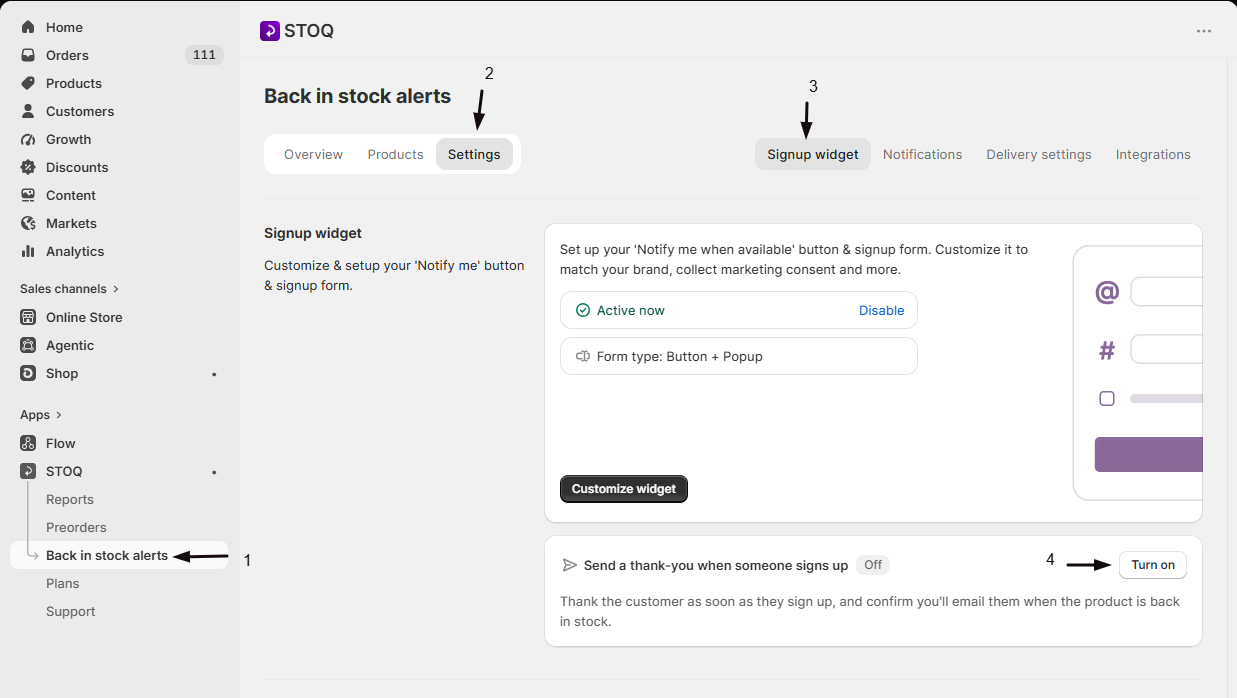
- In the left menu bar of the STOQ app, click Back in stock alerts.
- Click the Settings tab.
- Open the Signup widget sub-tab.
Switch on the thank-you
Turn on the Send a thank-you when someone signs up toggle.
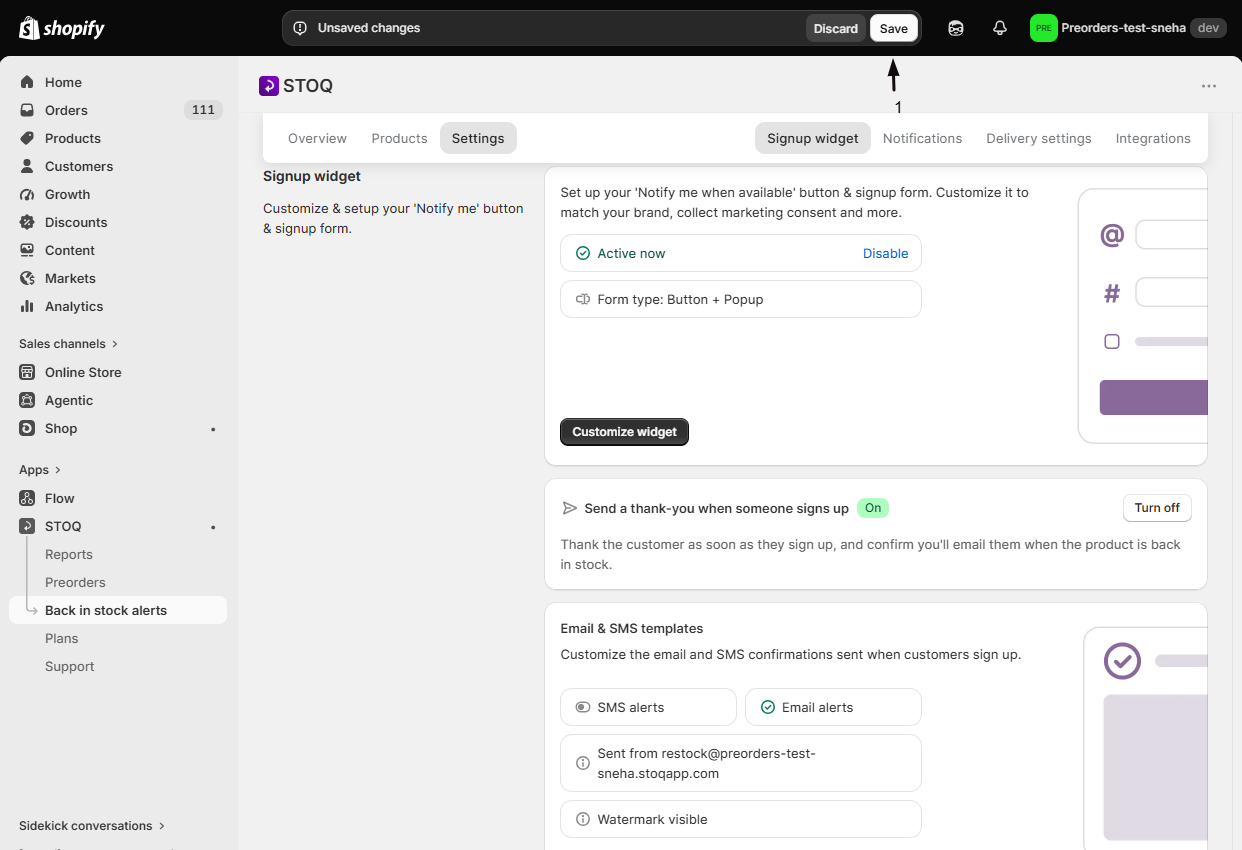
Save
Click Save. The toggle only takes effect once you save, so the thank-you starts sending to new signups from that point on.
Customize the content
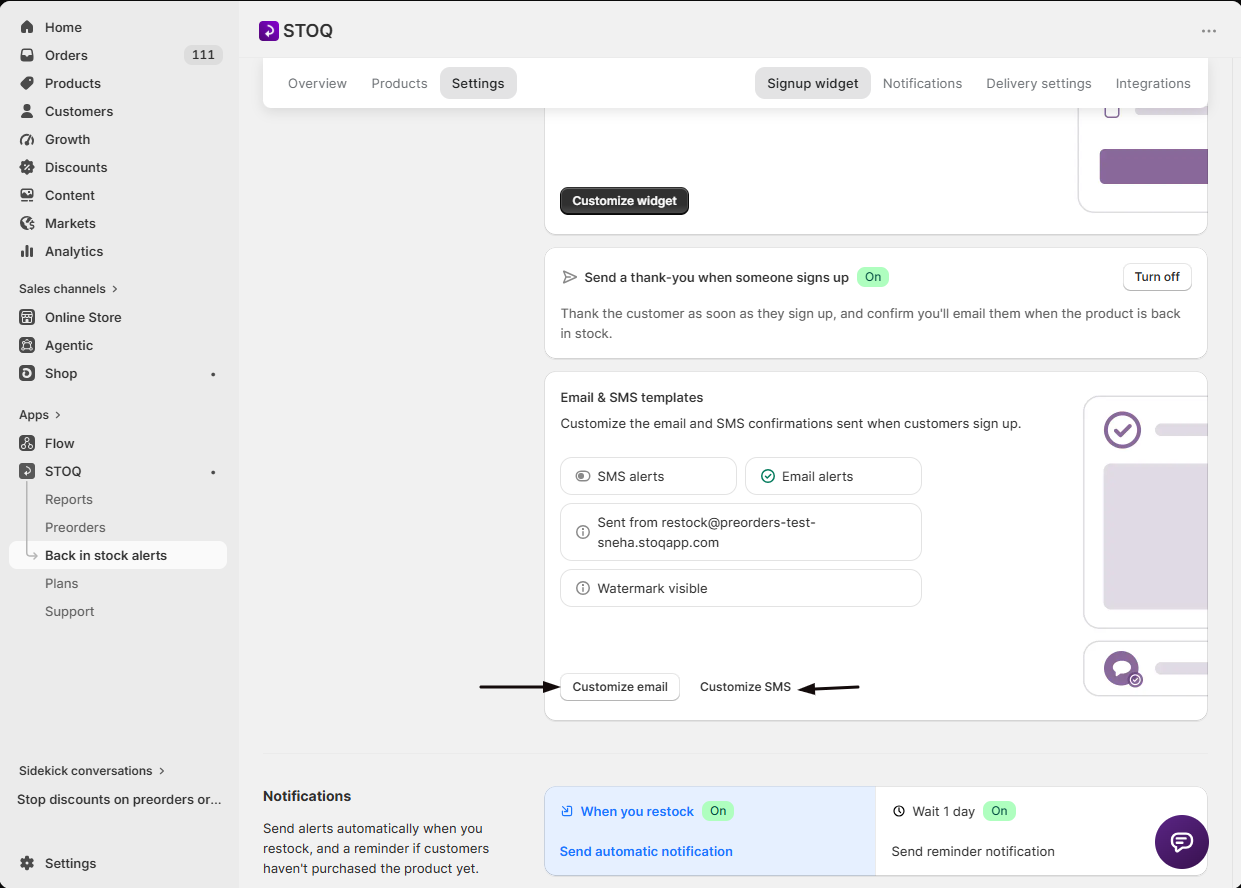
With the thank-you on, the card expands (click See settings if it's collapsed) to show its template. Click Customize email or Customize SMS to open the editor. The thank-you has its own content, separate from the restock alert, so you can write a short "we've got you on the list" message here and save the product details for the alert that sends when stock returns.
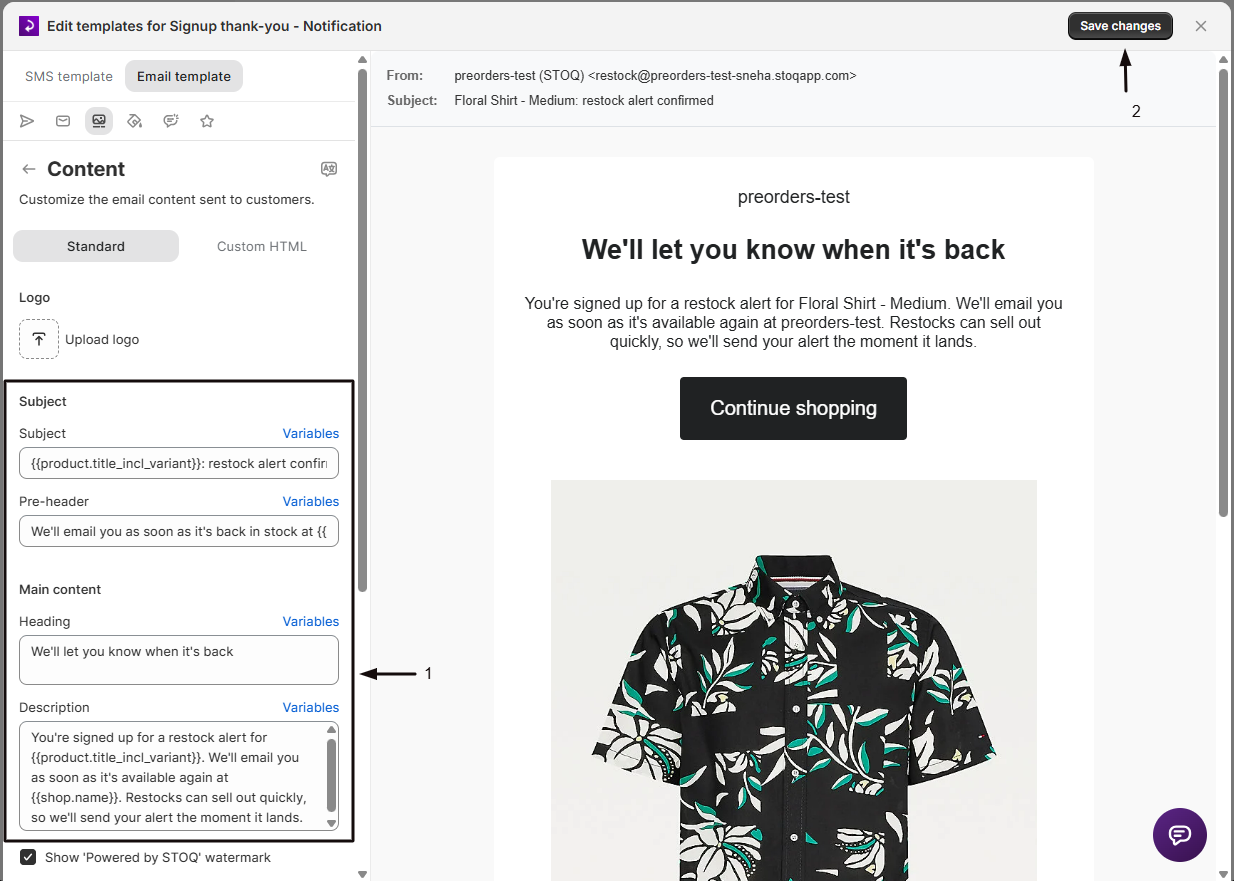
In the email editor you can edit:
- the Subject line and preheader,
- the Header and body copy, including variables such as the product title and customer name,
- the Button text, its corner radius, and its text and background colors,
- the email's colors and overall styling.
The SMS version has its own separate content, so you can tailor the message for each channel.
The email button takes the customer to your store's homepage (the Continue shopping destination), and this notification has no option to change where it goes. The customer signed up while the product was still out of stock, so there's no product or checkout link to send them to yet. For the same reason, keep a product title variable in the SMS so the customer knows which item they signed up for.
Send it through Klaviyo or Postscript
If you route your back in stock messages through Klaviyo (email) or Postscript (SMS), the thank-you follows the same setup: STOQ fires the signup event to your provider and your flow sends the message. When a provider is connected, the editor shows a banner with a Customize email or Customize SMS link to complete the handoff. See Sync back in stock signups to Klaviyo and Connect Postscript for back in stock SMS alerts.
Verify it worked
- On your storefront, sign up for a back in stock alert on an out-of-stock product using an email address (and phone number, if SMS is on) you control.
- Check that the thank-you arrives shortly after you submit the form.
- Confirm the copy reads the way you set it in the editor.
You can also use the test send in the template editor to preview the content without a real signup.
FAQ
How is this different from double opt-in?
Double opt-in asks the customer to confirm their signup before STOQ adds them to the waitlist, so it gates whether they're subscribed. The thank-you doesn't ask for anything, it's a courtesy confirmation that the signup was received. You can use either, both, or neither. See Require double opt-in.
When does the thank-you send?
As soon as the customer submits the signup form, while the product is still out of stock. The restock alert is a separate message that sends later, when you add inventory.
Does it send over both email and SMS?
It uses whichever channels you have on. Email sends by default; SMS sends too if you've set up SMS alerts. Each channel has its own content in the editor.
Will turning it on message people who already signed up?
No. The thank-you only sends to new signups made after you turn it on and save.
Can I turn it off later?
Yes. Switch the Send a thank-you when someone signs up toggle off in the Signup widget sub-tab and click Save. Existing signups and your restock alerts are unaffected.
Related articles
Require double opt-in
Ask customers to confirm their signup before joining the waitlist.
Turn on email and SMS channels
Choose how STOQ reaches customers with signups and alerts.
Customize the back in stock email notification
Edit the restock alert that sends when the product is back.
Send reminder emails to recover sales
Follow up with customers who got the alert but haven't bought yet.
