Track signups and preorders with Meta Pixel
Send a Meta Pixel event when a customer signs up for a back in stock alert or adds a preorder to cart.
Last updated
Use this guide if you run Facebook or Instagram ads and want your back in stock signups and preorder add-to-carts to show up in Meta. Once it’s on, STOQ sends standard Meta Pixel events from your storefront with no custom code, so you can build Custom Audiences and optimize campaigns around them.
Before you begin
Section titled “Before you begin”| Requirement | Detail |
|---|---|
| A paid plan | The Turn on button is disabled on the free plan. |
| Your Meta Pixel ID | The numeric ID of your pixel from Meta Events Manager. STOQ sends nothing until you enter it. |
| STOQ app embed turned on | Events come from STOQ’s storefront code, so the app embed must be on in your live theme. See Enable STOQ on your theme. |
What STOQ sends to Meta
Section titled “What STOQ sends to Meta”| Event | When it fires | What’s included |
|---|---|---|
Lead |
A customer submits the Notify me signup form on your storefront, as a popup or an on-page form. | The product and variant, plus the email, phone number, and name the customer entered, for advanced matching. Meta’s pixel hashes these in the browser before they’re sent. |
AddToCart |
A customer adds a preorder item to cart on your storefront. | The product, variant, and price. No customer details, since none are known at add-to-cart. |
STOQ doesn’t send purchases or page views. Purchases are tracked at checkout by Shopify’s own Meta integration, if you use it, so STOQ covers the signup steps before checkout.
What customers will see
Section titled “What customers will see”Nothing changes for customers. The Notify me button, the signup form, and the Preorder button all look and work the same. If your theme already loads Meta’s pixel script, STOQ reuses it; otherwise STOQ loads Meta’s pixel script the first time an event fires.
Find your Meta Pixel ID
Section titled “Find your Meta Pixel ID”- In Meta Events Manager, open Data sources.
- Select your pixel and copy its ID. Copy only the number, for example
123456789012345, not the pixel code snippet.
Set it up
Section titled “Set it up”On a phone, this menu is collapsed. In the Shopify mobile app, tap the STOQ logo at the top of the screen to open it, then choose the section named below. There is no hamburger icon. See Finding the STOQ menu.
-
Open the Meta Pixel integration
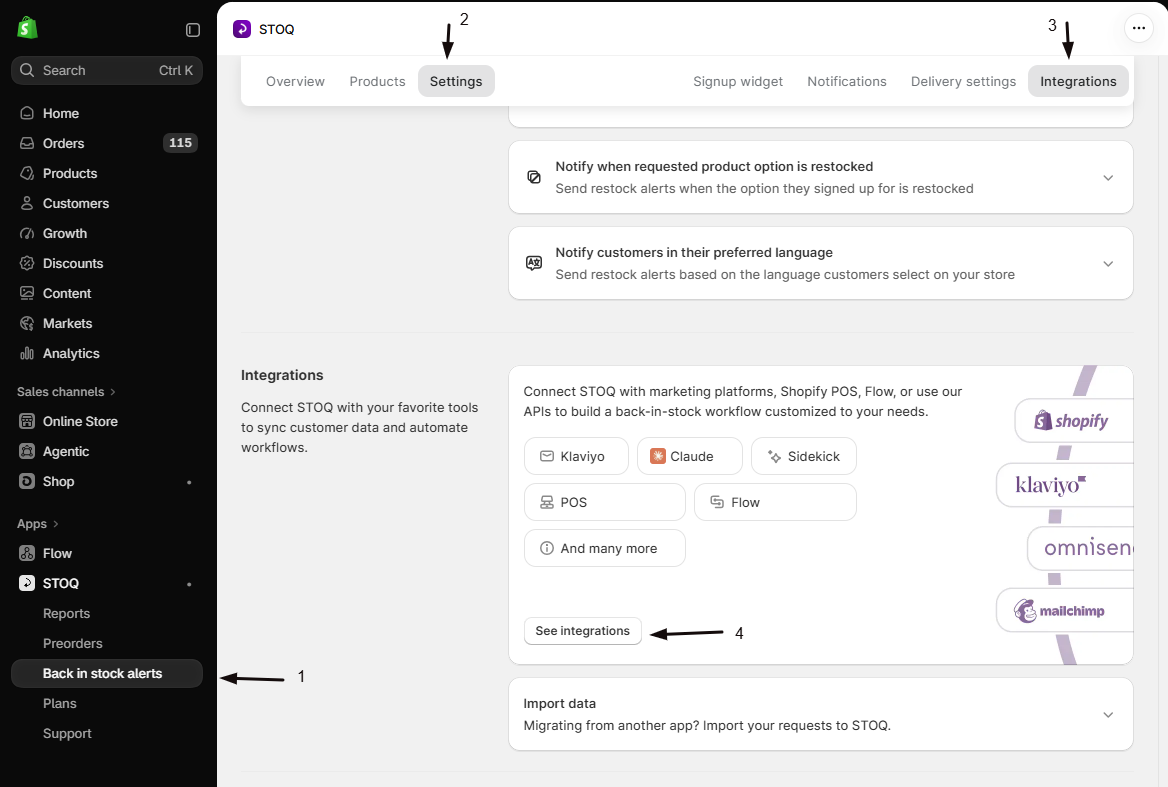
- In the left menu bar of the STOQ app, click Back in stock alerts.
- Click the Settings tab, then open the Integrations sub-tab.
- Click See integrations to open the full Integrations page.
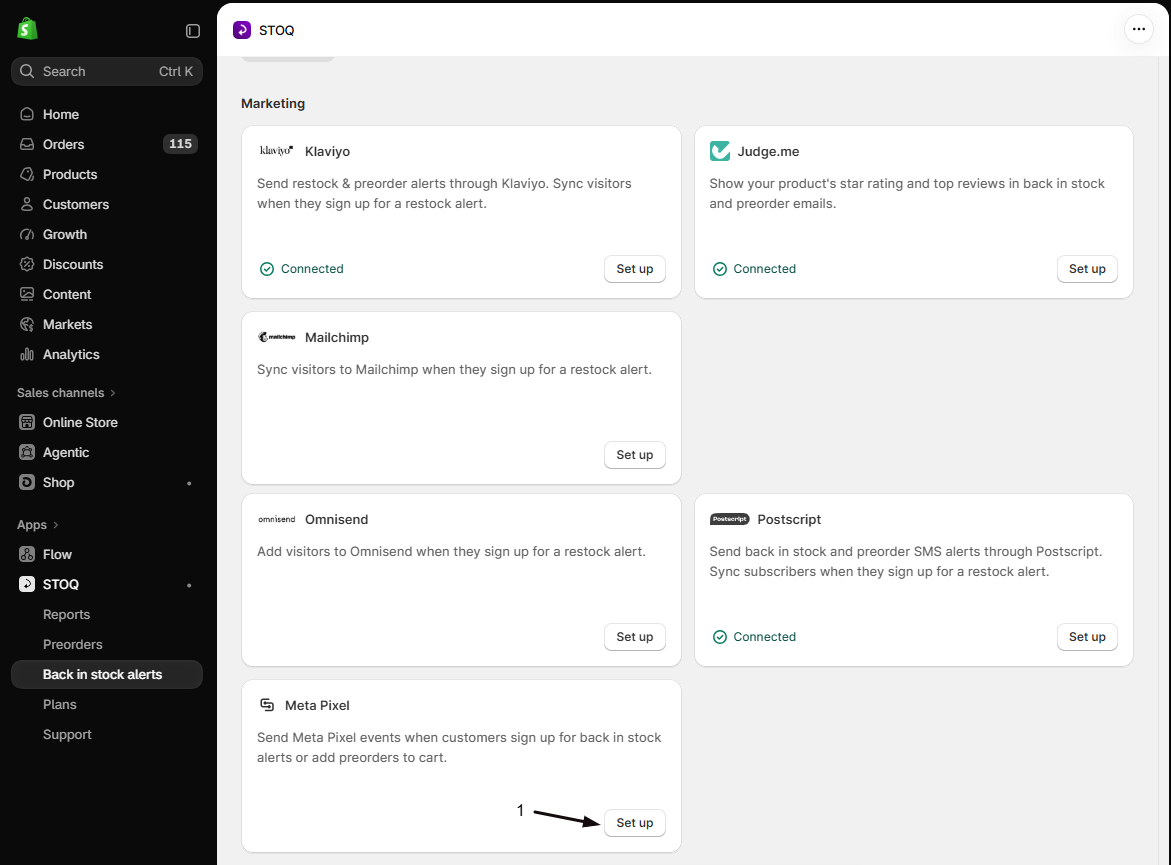
- In the Marketing section, find the Meta Pixel card and click Set up.
-
Turn on tracking
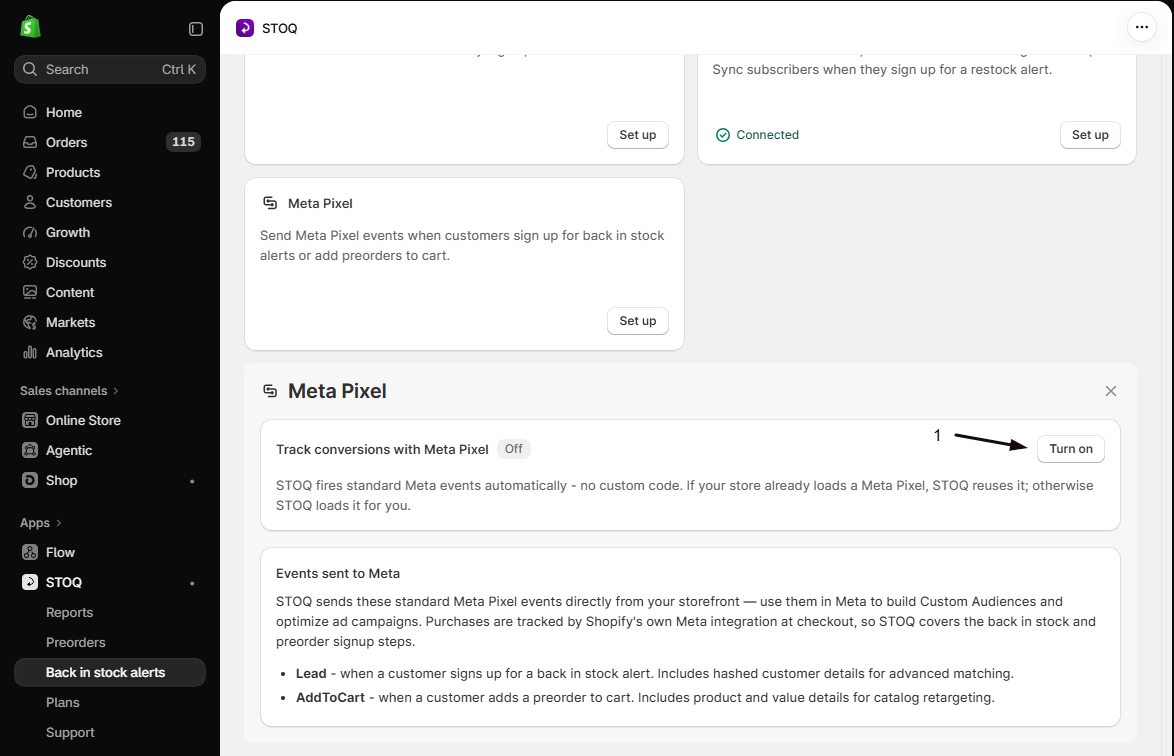
The Meta Pixel setup panel opens below the cards. In the Track conversions with Meta Pixel section, click Turn on. The badge changes to On and the Meta Pixel ID field appears.
-
Enter your Meta Pixel ID
Paste the numeric ID into the Meta Pixel ID field.
-
Save
Click Save in the save bar at the top of the page.
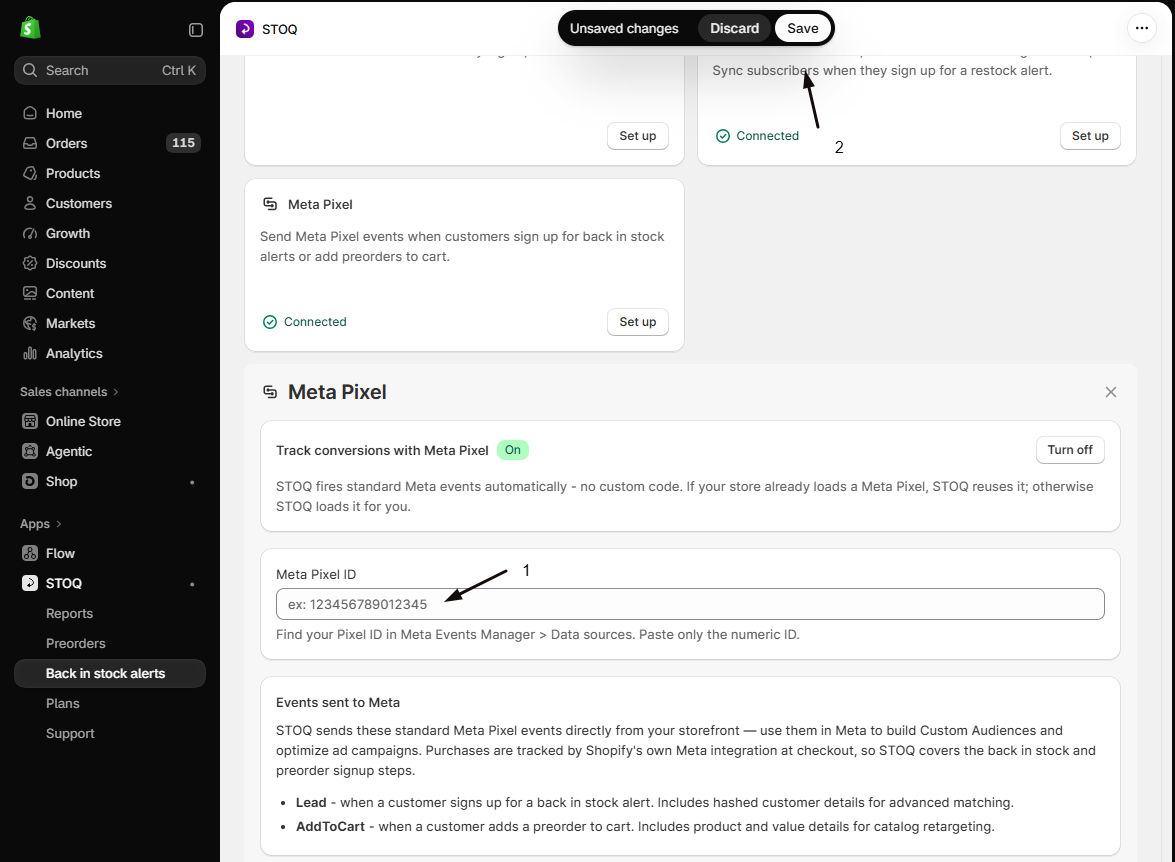
This one setting covers both products. The same Meta Pixel ID is used for back in stock signups and preorder add-to-carts, so there’s no separate preorder setup. The panel’s Events sent to Meta list shows the two events STOQ sends.
Check your setup
Section titled “Check your setup”- Open your storefront in a private browser window with ad blockers turned off. If a cookie banner appears, accept tracking.
- Sign up for a back in stock alert on an out-of-stock product using a test email. See Test your setup.
- Add a preorder product to your cart. See Test your offer.
- In Meta Events Manager, open your pixel and confirm a
Leadand anAddToCartevent arrived.
Troubleshooting
Section titled “Troubleshooting”No events arrive in Meta
Check these in order:
- The Meta Pixel ID field is filled in and saved. With tracking turned on but no ID, the card still shows Connected, but STOQ sends nothing.
- The ID is only the number, with no spaces, letters, or pixel code.
- The STOQ app embed is on in your live theme. See Enable STOQ on your theme.
- You tested in a browser without an ad blocker and accepted tracking in your cookie banner.
Events show up under a different pixel, or not under mine
STOQ sends events only to the ID in the Meta Pixel ID field, even if your theme loads a different pixel. Copy the right ID from Meta Events Manager, paste it into Meta Pixel ID, and click Save.
Meta shows fewer Leads than signups in STOQ
Events are sent from the customer’s browser, so they’re skipped when a visitor declines tracking in your cookie banner or uses an ad blocker. Signups added through Shopify POS, the API, or a CSV import don’t send a Lead either, because they don’t come through the storefront signup form. Your STOQ reports still count every signup.
The Turn on button is greyed out
Meta Pixel tracking needs a paid plan. Click Upgrade below the toggle to choose a plan.
Tracking turned itself off
Moving to the free plan turns Meta Pixel tracking off. Your Meta Pixel ID is kept. After you upgrade, click Set up on the Meta Pixel card, click Turn on, check that your ID is still in the Meta Pixel ID field, then click Save.
Do I need to add any code to my theme?
No. Turn it on and enter your Meta Pixel ID, and STOQ sends the events from its own storefront code. You only need the STOQ app embed turned on.
My store already has a Meta Pixel. Will STOQ add a second one?
Not if you enter the same pixel ID. If your theme already loads Meta’s pixel script, STOQ reuses it; otherwise STOQ loads Meta’s script itself. Either way, STOQ sends only its own Lead and AddToCart events to the ID you enter and never sends page views, so your existing page view tracking isn’t duplicated. You still need to enter your Meta Pixel ID in STOQ.
Does STOQ send Purchase events?
No. Purchases are tracked at checkout by Shopify’s own Meta integration, if you use it. STOQ covers the steps before that: the back in stock signup and the preorder add-to-cart.
Will this send events for customers already on my waitlist?
No. Events fire at the moment a customer signs up or adds a preorder to cart, starting when you turn tracking on and save. Past signups and orders aren’t sent to Meta.
What customer data does STOQ share with Meta?
Only for Lead events: the email, phone number, and name the customer entered in the signup form, for advanced matching. Meta’s pixel hashes these in the browser before sending. AddToCart events carry product and price details only. If a visitor hasn’t allowed tracking in your cookie banner, STOQ sends nothing for them.
Do I set this up separately for preorders?
No. The Meta Pixel card on the Integrations page is one setting for your whole store. Turning it on sends Lead events for back in stock signups and AddToCart events for preorders.
Related guides
Section titled “Related guides”Thanks for letting us know.
Still stuck? Ask Quinn or chat with support