Enable STOQ on your theme
Turn on the app embed so the Notify me and Preorder buttons appear on your storefront, and keep it working across themes.
Last updated
STOQ runs on your storefront through a Shopify app embed, a theme extension that shows the “Notify me” and “Preorder” buttons wherever you’ve turned them on. If you take preorders, it also runs on every page of your store to keep preorder items in the cart correct (see Why STOQ runs on every page when you take preorders). If the app embed is off, the buttons don’t appear even though everything else is set up. This is the first thing to check when buttons are missing.
Before you begin
Section titled “Before you begin”- STOQ must be installed.
- You (or your staff) need the Themes permission in Shopify.
- The app embed is enabled per theme. It doesn’t carry over when you switch or duplicate themes, so enable it on each theme where you want STOQ buttons, including a draft theme you want to preview before publishing.
Check the status from STOQ
Section titled “Check the status from STOQ”When the app embed is off on your live theme, STOQ tells you in two places:
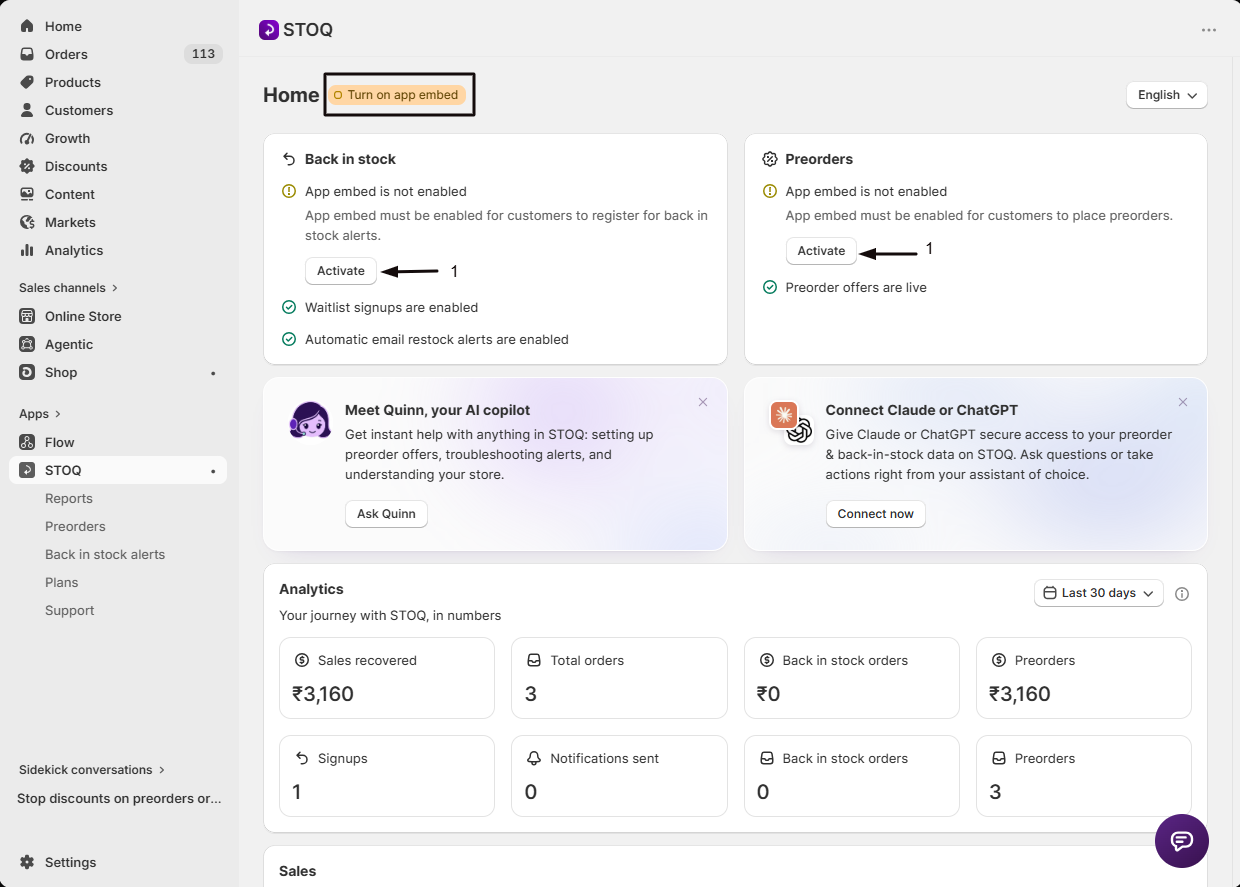
- A Turn on app embed badge next to the page title on STOQ pages.
- On the Home page, the Status card shows an App embed row reading Off with a Turn on app embed button. When it’s on, click Details on the card to see the row read On.
Turn it on from STOQ
Section titled “Turn it on from STOQ”-
Open the guide
Click the Turn on app embed badge next to the title of any STOQ page. The same guide also opens when you click Turn on app embed in the Status card on the Home page.
-
Open the theme editor
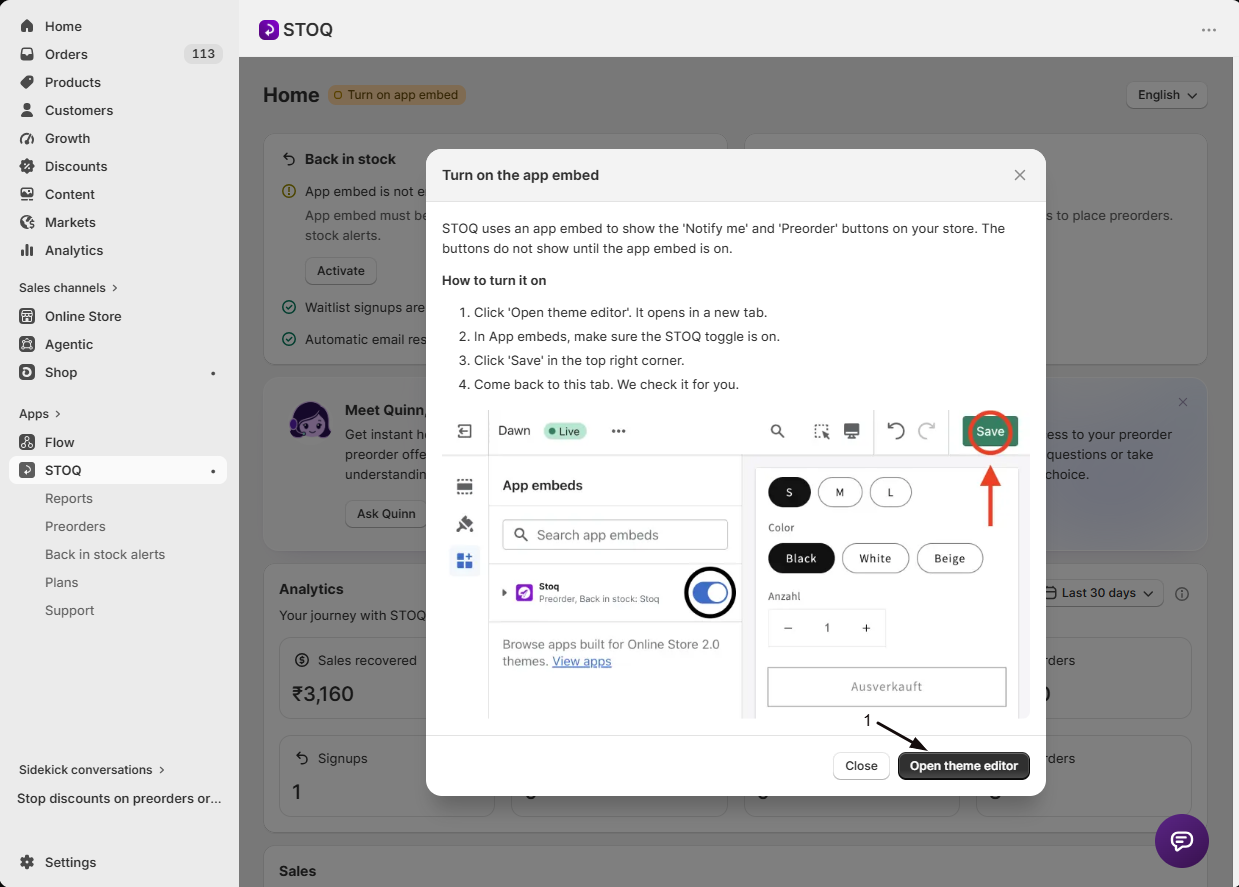
In the Turn on the app embed window, click Open theme editor. The Shopify theme editor opens your live theme in a new tab, with the App embeds panel already open.
-
Turn on STOQ and save
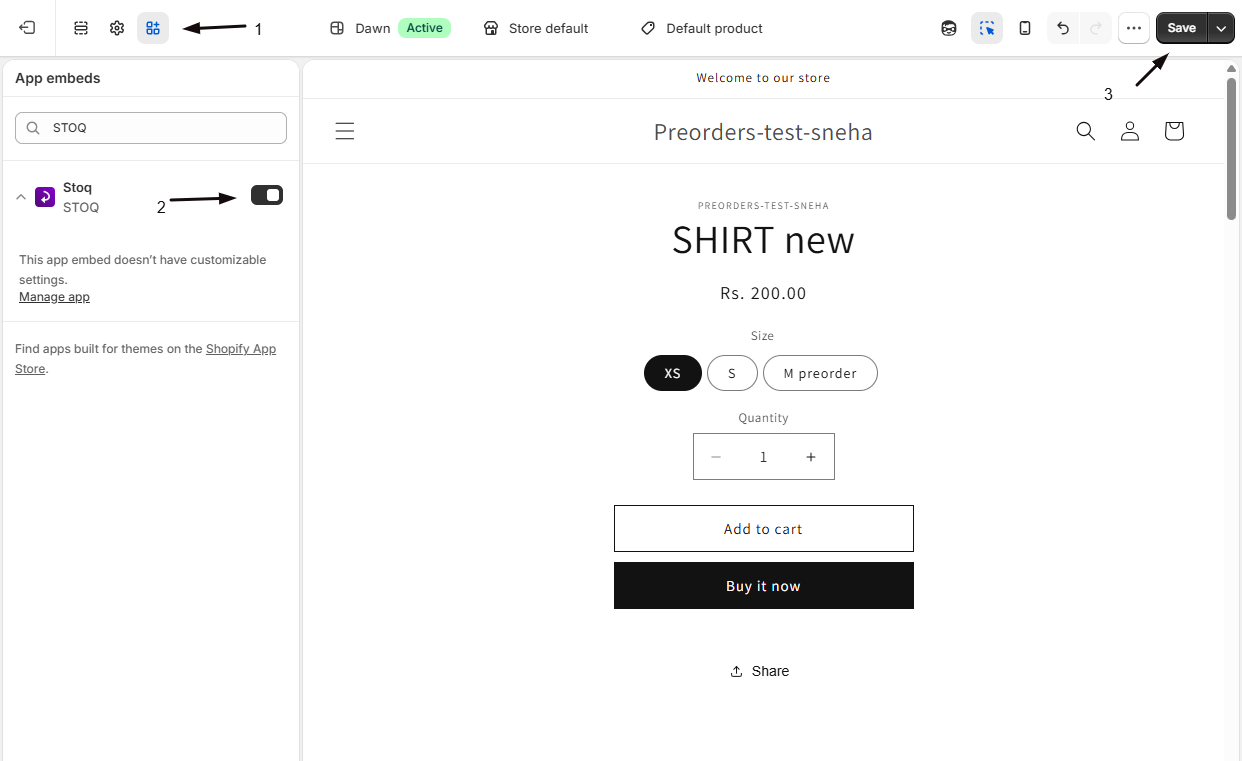
In App embeds, make sure the STOQ toggle is on, then click Save in the top right corner of the theme editor.
-
Go back to the STOQ tab
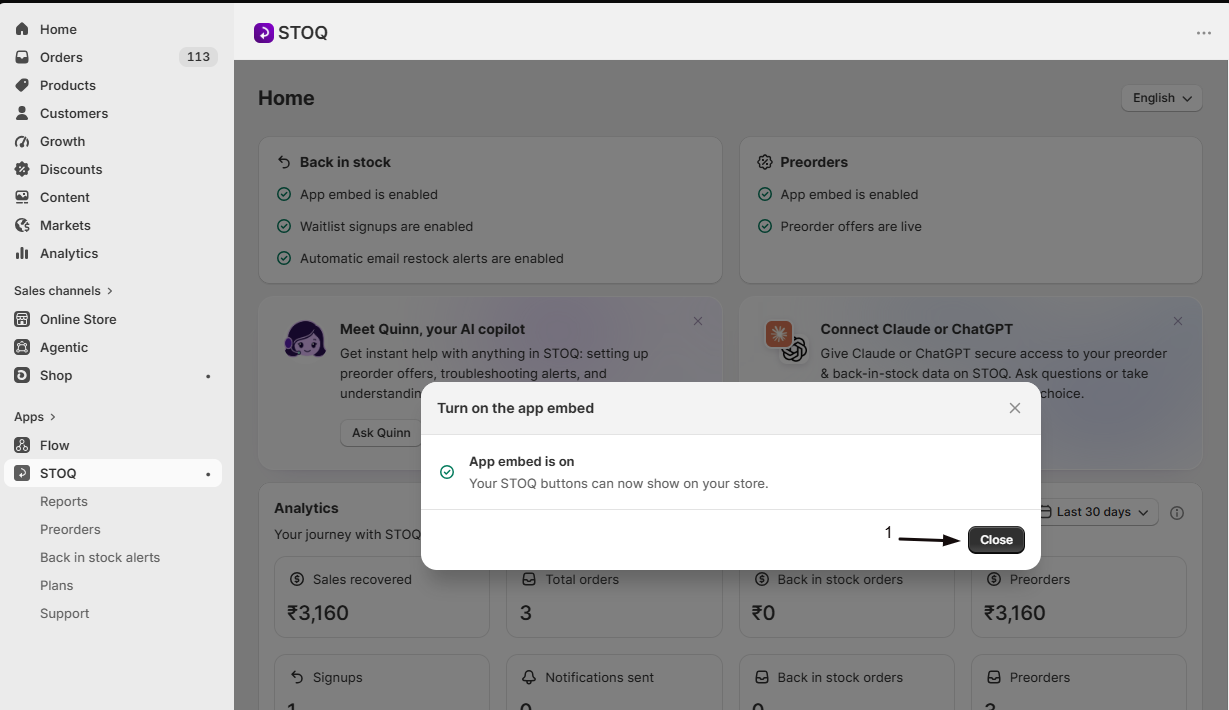
Switch back to the STOQ tab. The window shows Waiting for you to save in the theme editor and checks every few seconds. Once it confirms, it shows App embed is on and closes itself, and the badge goes away. You don’t need to refresh. To check right away, click Check now.
Enable it manually in Shopify
Section titled “Enable it manually in Shopify”-
Open your live theme
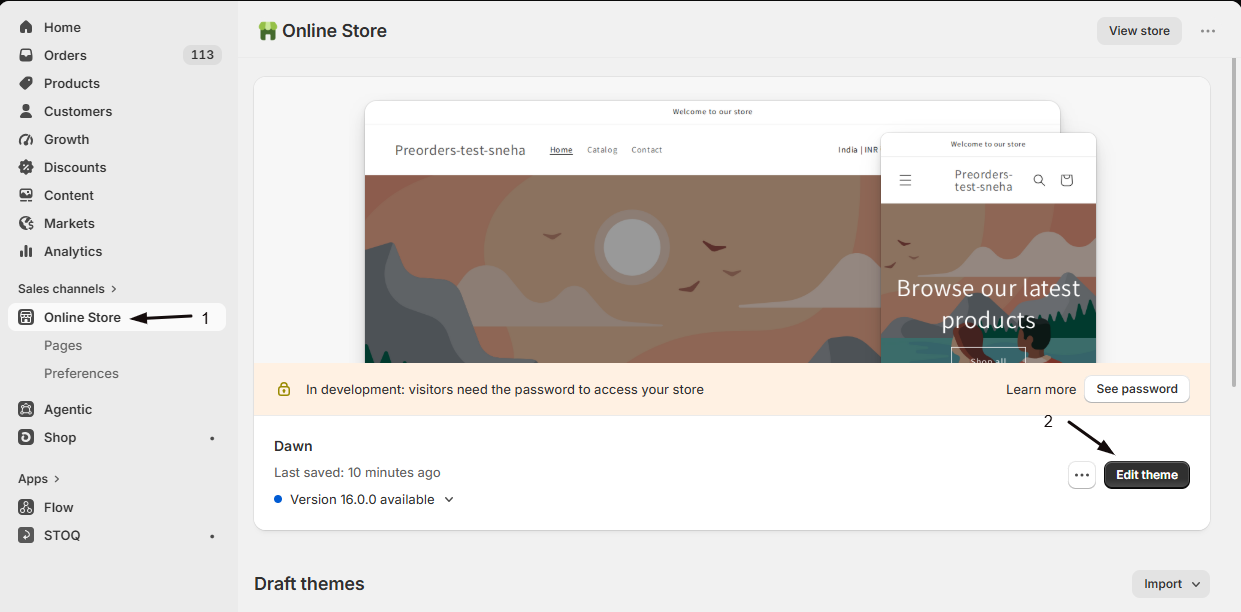
In your Shopify admin, click Online Store in the left menu bar to open the Themes page, then click Edit theme on your live theme.
-
Open App embeds
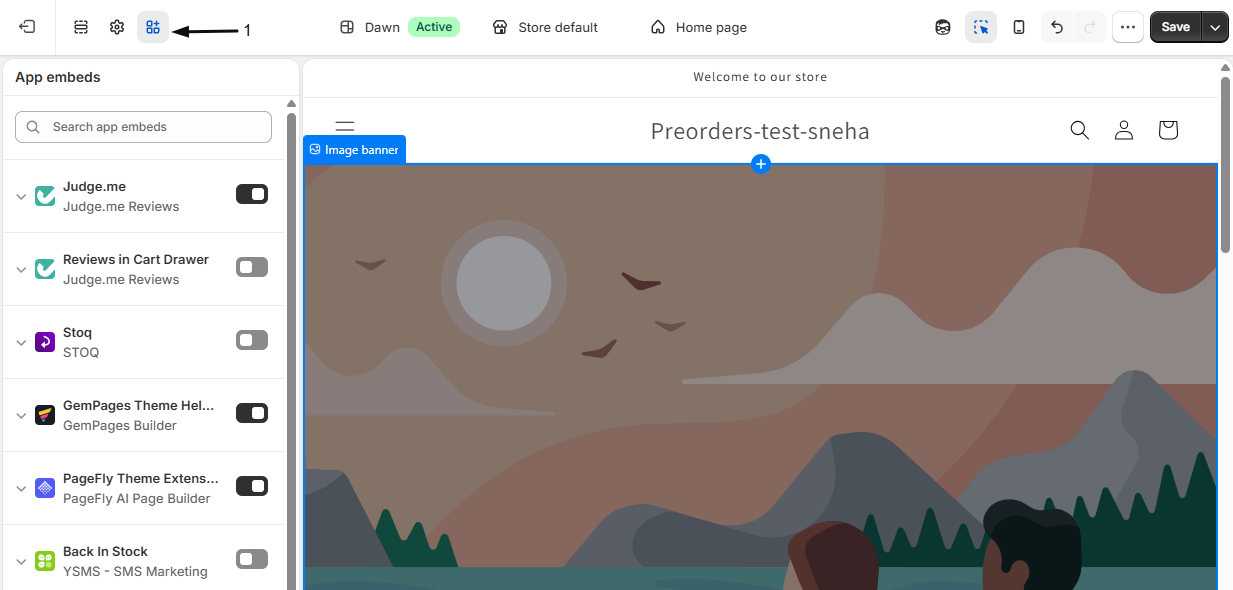
In the top-left of the editor, click the third icon, the blocks icon, to open the App embeds panel.
-
Turn on STOQ and save
Find STOQ in the list, toggle it on, and click Save in the top right. Refresh your storefront to confirm the buttons appear.
Which themes work
Section titled “Which themes work”All Online Store 2.0 themes support the app embed and are recommended. Vintage (Online Store 1.0) themes generally don’t support app embeds; on those, the App embeds section may be missing and STOQ may need an alternative placement. Heavily customized themes can also interfere with button placement.
Troubleshooting
Section titled “Troubleshooting”The buttons don't appear on my storefront
The most common cause is the app embed being off. Enable it in Online Store > Edit theme > App embeds, save, and hard-refresh the page (Ctrl+Shift+R or Cmd+Shift+R).
There's no App embeds section or no STOQ toggle
You may be on a vintage theme that doesn’t support app embeds, or the install didn’t finish. Switch to an Online Store 2.0 theme, or reinstall STOQ.
The buttons disappeared after I switched themes
The app embed is per-theme and doesn’t carry over. Enable STOQ on the new live theme.
The guide says it could not confirm the app embed
STOQ keeps checking for about 5 minutes after you open the theme editor. If it can’t confirm by then, it asks you to check again. Go back to the theme editor tab and make sure:
- The STOQ toggle in App embeds is on.
- You clicked Save, and you saved your live theme, not a draft.
Then click Check again in the STOQ window. If you closed the theme editor tab, click Open theme editor again.
The Home card says the app embed could not be checked
STOQ couldn’t read your live theme, so it doesn’t know whether the embed is on, and the badge next to the page title doesn’t show. Click Check on the card’s App embed row to open the guide, or check it yourself using the steps in Enable it manually in Shopify above. If the card keeps showing this, contact support.
Buttons still missing with the embed on
Confirm the feature is on (signups collecting for back in stock, or an active preorder offer for that product) and that the product’s status actually calls for the button. See Where the Notify me button shows and Troubleshoot the preorder button.
Why STOQ runs on every page when you take preorders
Section titled “Why STOQ runs on every page when you take preorders”The Notify me and Preorder switches for the home, collection and search pages only decide whether a button shows there. When you have live preorder offers (or offers that recently ended), STOQ also does two jobs on every page of your store, whether or not a button shows:
- It keeps preorder terms on items added from anywhere. Shoppers don’t only add to cart from the product page. They also use quick add on collection and search pages, featured products on the home page, cart drawers, and upsell or cart apps. When a preorder item is added from any of these, STOQ attaches its preorder terms so the order still comes through as a preorder.
- It checks the cart before checkout. STOQ adds preorder terms to items that are missing them, takes the terms off items whose offer has ended, and removes items that can no longer be bought.
Without these two jobs, preorder items can slip through checkout as regular orders, without the preorder terms, payment schedule or fulfillment hold you set up. That’s why we recommend keeping the app embed on, and why there’s no setting to limit STOQ to product pages while you take preorders.
Does the app embed slow my store down?
It loads in the background, so it doesn’t block your page from showing. If you take preorders, it runs on every page, not only product pages, so it can keep preorder terms on items added from anywhere and check the cart before checkout (see Why STOQ runs on every page when you take preorders). Turning off a page’s Notify me or Preorder button hides the button there but doesn’t stop these checks. We’re working on making what STOQ adds to each page smaller.
Can I limit STOQ to product pages only?
Not while you take preorders. The cart protections above need STOQ on every page where shoppers can add to cart. You can still hide the Notify me or Preorder buttons on the home, collection and search pages.
Does disabling the embed delete my data?
No. It stops the buttons showing and turns off the preorder cart checks described above. Your waitlist, offers, settings, and history stay intact.
Why is there a Turn on app embed badge next to my page title?
It means STOQ checked your live theme and the app embed is off, so customers can’t see your Notify me or Preorder buttons. Click the badge to open the guide and turn it on.
Do I need to refresh STOQ after I save in the theme editor?
No. Keep the STOQ tab open. It checks every few seconds and confirms by itself once you click Save in the theme editor.
I turned the app embed off, but STOQ still says it's on. Why?
STOQ reuses an “on” result for up to 10 minutes. After that, reload STOQ and the badge comes back.
Can I preview the button on a draft or unpublished theme?
Yes. The app embed is per-theme, so enable STOQ on the draft theme too: in Shopify admin go to Online Store, click Edit theme on the draft theme, open App embeds, turn STOQ on, and Save. Use the theme editor’s page selector to preview an out-of-stock product. When you publish that theme, the embed stays on.
Related guides
Section titled “Related guides”Thanks for letting us know.
Still stuck? Ask Quinn or chat with support