Set a minimum restock quantity
Require a restock to reach a set unit count before STOQ sends alerts.
Last updated
STOQ can wait until a restock brings a variant’s inventory up to a minimum number of units before it sends any “back in stock” alert. This keeps a one-unit correction or a single return from Shopify from notifying your entire waitlist for a product you don’t actually consider “back in stock” yet.
Before you begin
Section titled “Before you begin”This setting only affects the automatic restock notification, the first alert customers get after a product restocks. It doesn’t apply to later reminder notifications, which use their own “days to wait” settings.
What customers see
Section titled “What customers see”Customers see nothing different because of this setting, it only controls whether and when STOQ sends the alert, not the alert’s content. If a restock doesn’t meet your minimum, waitlisted customers simply don’t receive an alert yet and remain on the list.
Set it up
Section titled “Set it up”On a phone, this menu is collapsed. In the Shopify mobile app, tap the STOQ logo at the top of the screen to open it, then choose the section named below. There is no hamburger icon. See Finding the STOQ menu.
The minimum restock quantity lives in Back in stock alerts > Settings tab > Notifications, inside the settings for the automatic notification (the Send automatic notification toggle).
-
Open the Notifications sub-tab
- In the left menu bar of the STOQ app, click Back in stock alerts.
- Click the Settings tab.
- Open the Notifications sub-tab.

-
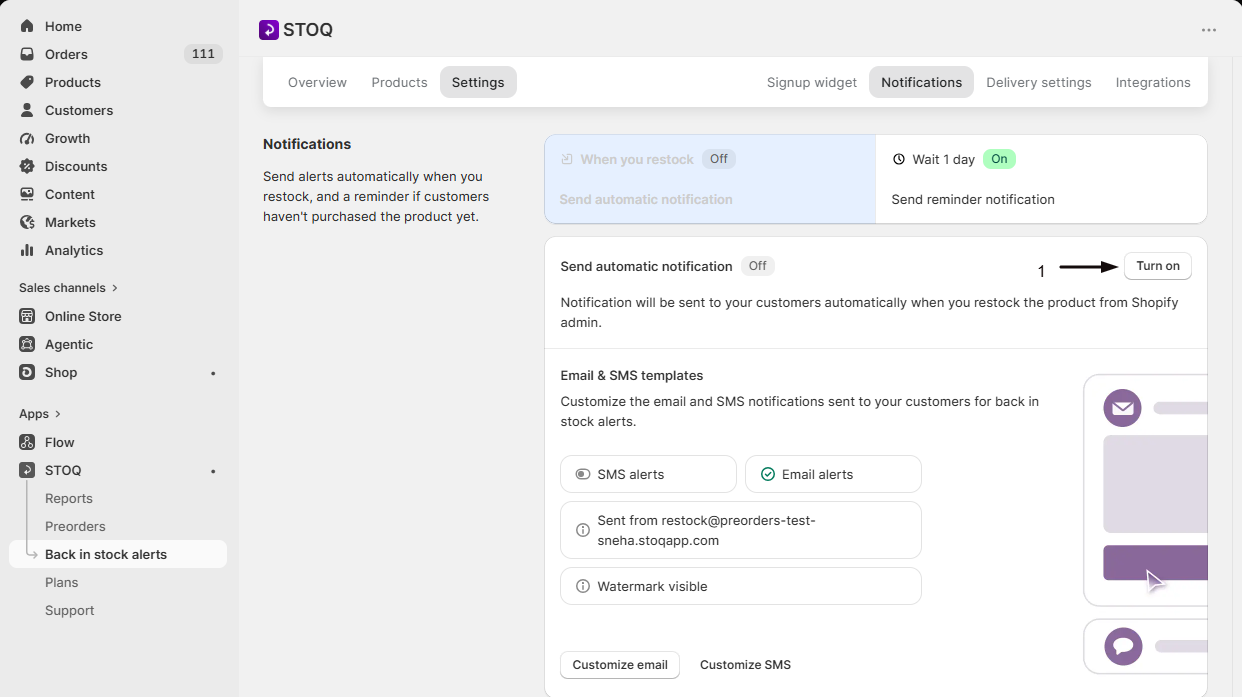
Select the automatic notification
In the notification sequence, select the first stage, the automatic notification that fires when a product restocks (as opposed to a numbered reminder stage).
-
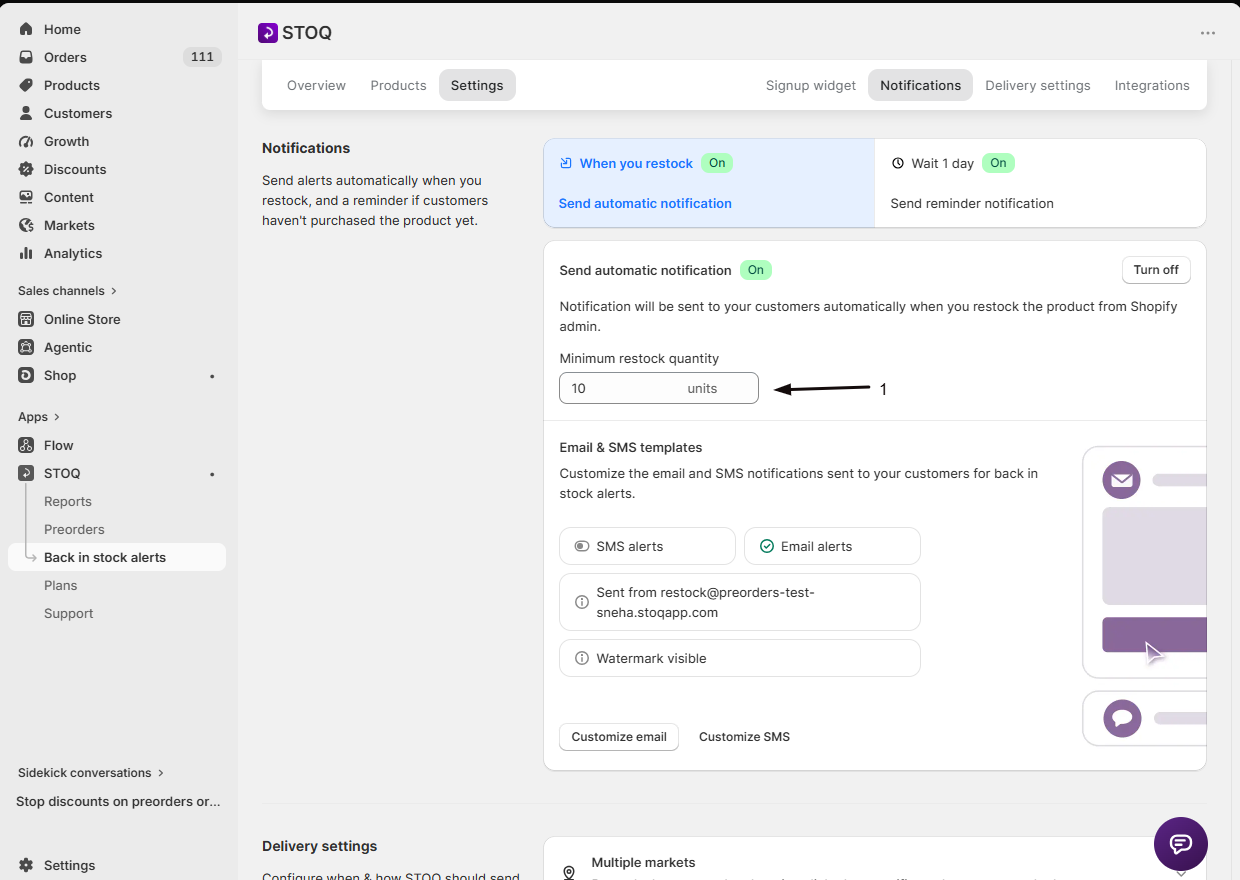
Set the minimum quantity
With Send automatic notification turned on, find the Minimum restock quantity field and enter the number of units.
-
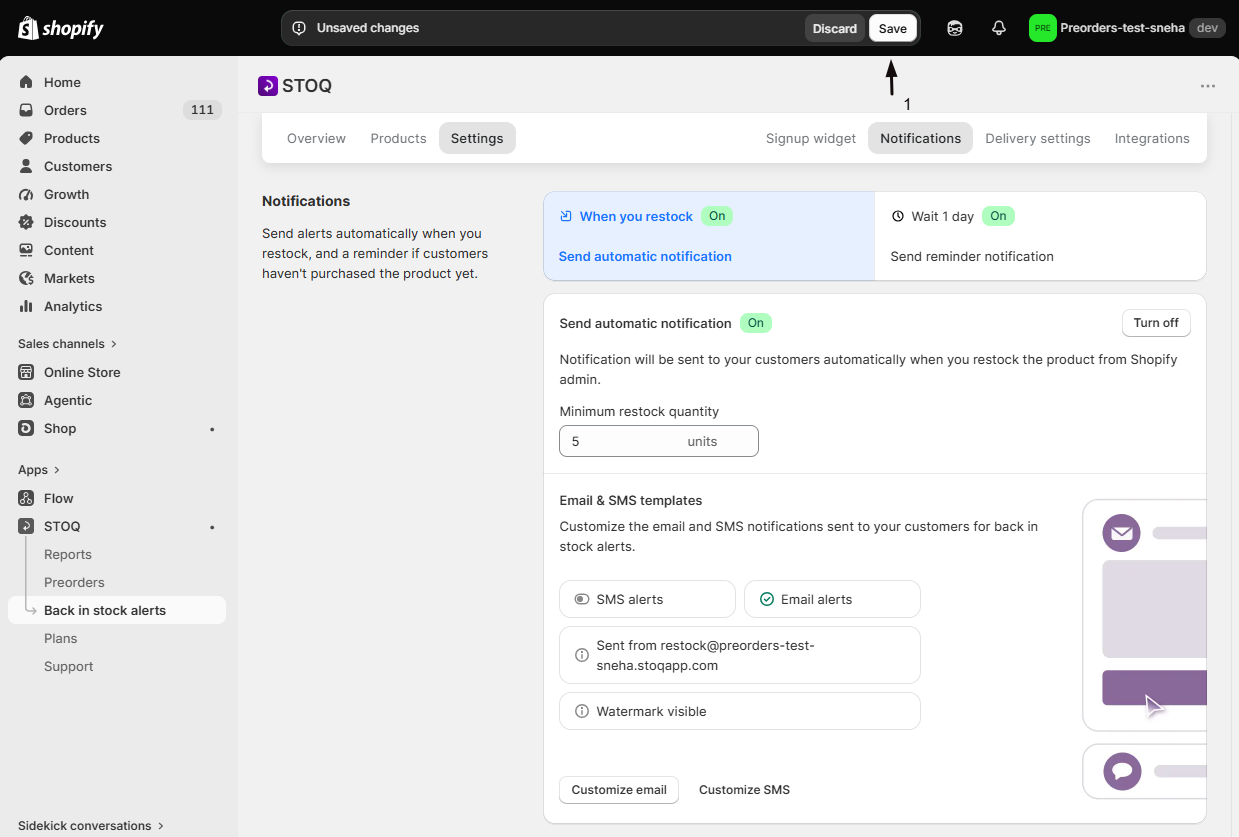
Save
Save your changes from the Notifications sub-tab.
How the minimum quantity is applied
Section titled “How the minimum quantity is applied”- The field accepts whole numbers of 1 or greater; STOQ defaults it to 1 unit.
- STOQ checks available inventory against this number in two places:
- When inventory changes: every time a variant’s stock is updated in Shopify, STOQ checks whether the new available quantity at that location meets or exceeds your minimum before queuing an alert. Whether that location counts at all depends on your location settings.
- Right before sending: STOQ checks the quantity again immediately before the alert actually goes out, using the live inventory at send time. If inventory dropped back below your minimum in the meantime (for example, another customer bought the last few units first), the alert is skipped for that restock event and the signups stay on the waitlist for the next qualifying restock.
- If you use Notify when published or restocked, the same minimum quantity check applies there too: STOQ checks the variant’s quantity against your minimum before queuing an alert, whether the trigger was a publish event or a restock.
Check your setup
Section titled “Check your setup”- Set Minimum restock quantity to a number higher than your current test variant’s stock.
- Restock the variant to just under that number and confirm no alert is queued.
- Restock it to meet or exceed the number and confirm the alert sends. See Test back in stock alerts for a full walkthrough of test signups and triggering a send.
Troubleshooting
Section titled “Troubleshooting”You restocked past your minimum but no alert went out
STOQ re-checks the quantity right before sending, not just when the restock happened. If inventory dropped back below your minimum between the restock and the send, for example other orders came in first, the alert is skipped for that event and re-evaluated the next time inventory changes.
Alerts aren't sending for a location you expect to count
Confirm that location actually contributes to the variant’s available inventory. See Sales channels for back in stock alerts.
Alerts aren't sending at all
Confirm the product and variant are active and published, and that Send automatic notification is turned on with a Minimum restock quantity set. See Product eligibility for back in stock alerts.
Limitations
Section titled “Limitations”- This is a single, store-wide setting under the Notifications sub-tab. You can’t set a different minimum quantity per product or variant.
- Manually sending or resending notifications from the notifications report, using Notify or bulk Notify/resend, skips the minimum quantity check entirely, since those are deliberate actions regardless of current stock level.
What happens if I set this to 1?
Any restock that brings a variant’s available quantity to 1 or more will qualify, this is effectively “no minimum,” and it’s also STOQ’s default.
Does this affect reminder notifications too?
No. Reminder notifications (the numbered stages after the initial alert) are controlled by their own “days to wait” settings, not by the minimum restock quantity.
If I raise the minimum, does it remove customers already on the waitlist?
No. Existing signups stay on the waitlist. They just don’t receive an alert until a restock meets or exceeds your new minimum.
Does manually notifying a customer respect this minimum?
No. Manual and bulk Notify/resend actions from the notifications report send regardless of current inventory level: the minimum quantity check only applies to automatic sends triggered by inventory or product updates.
Does this setting apply if I use 'Notify when published or restocked'?
Yes. In that mode, STOQ still checks the variant’s available quantity against your minimum before queuing an alert, whether the trigger was the product being published or a later restock.
Is this only available on paid plans?
The minimum quantity field itself isn’t gated by plan, it’s available whenever the automatic notification is turned on. Other delivery options near it on the same page, like location-based or market-based alert filtering, may require a paid plan.
Related guides
Section titled “Related guides”Thanks for letting us know.
Still stuck? Ask Quinn or chat with support