Send alerts in batches
Stagger back in stock alerts into batches so a limited restock doesn't sell out instantly.
Last updated
Use this guide if a limited restock tends to sell out before your whole waitlist gets a chance to buy. Batched delivery spreads back in stock alerts out over time instead of sending them all at once, so each group of waitlisted customers gets a real window to purchase before the next group is notified.
Before you begin
Section titled “Before you begin”Choose your setup
Section titled “Choose your setup”Batched delivery has two settings to decide on: how many customers are in each batch, and how long to wait between batches.
Batch size: per unit of stock or fixed
Section titled “Batch size: per unit of stock or fixed”- Per unit of stock (multiplier): batch size scales with the restock. You set a Notification multiplier, and STOQ multiplies it by the number of units restocked, for example a multiplier of 10 with 5 units restocked notifies the first 50 signups. Use this when your restock quantities vary and you want batch size to scale with them.
- Fixed batch size: every batch is the same size regardless of how much inventory came back. You set Notifications per batch directly, for example 100, and STOQ sends to exactly that many waitlisted signups per batch, whether the restock is 5 units or 500. Use this when you want predictable batch sizes.
Interval between batches
Section titled “Interval between batches”Choose 1, 2, or 3 hours between batches. A shorter interval gets your whole waitlist notified faster; a longer one gives each batch more time to buy before the next group is alerted about a product that might sell out.
What customers will see
Section titled “What customers will see”Customers experience batching as a staggered alert, not a different-looking one: the email or SMS content is the same whether batching is on or off. What changes is timing:
- Customers in the first batch get notified as soon as the restock triggers a send.
- Customers in later batches get notified only after the configured interval has passed, and only if there’s still inventory available. STOQ checks stock again before each later batch, same as with any restock alert.
- A customer has no way to see or control which batch they’re in: it’s simply the order they’re waiting in the signup queue.
Set it up
Section titled “Set it up”On a phone, this menu is collapsed. In the Shopify mobile app, tap the STOQ logo at the top of the screen to open it, then choose the section named below. There is no hamburger icon. See Finding the STOQ menu.
-
Open Delivery settings
- In the left menu bar of the STOQ app, click Back in stock alerts.
- Click the Settings tab.
- Open the Delivery settings sub-tab.
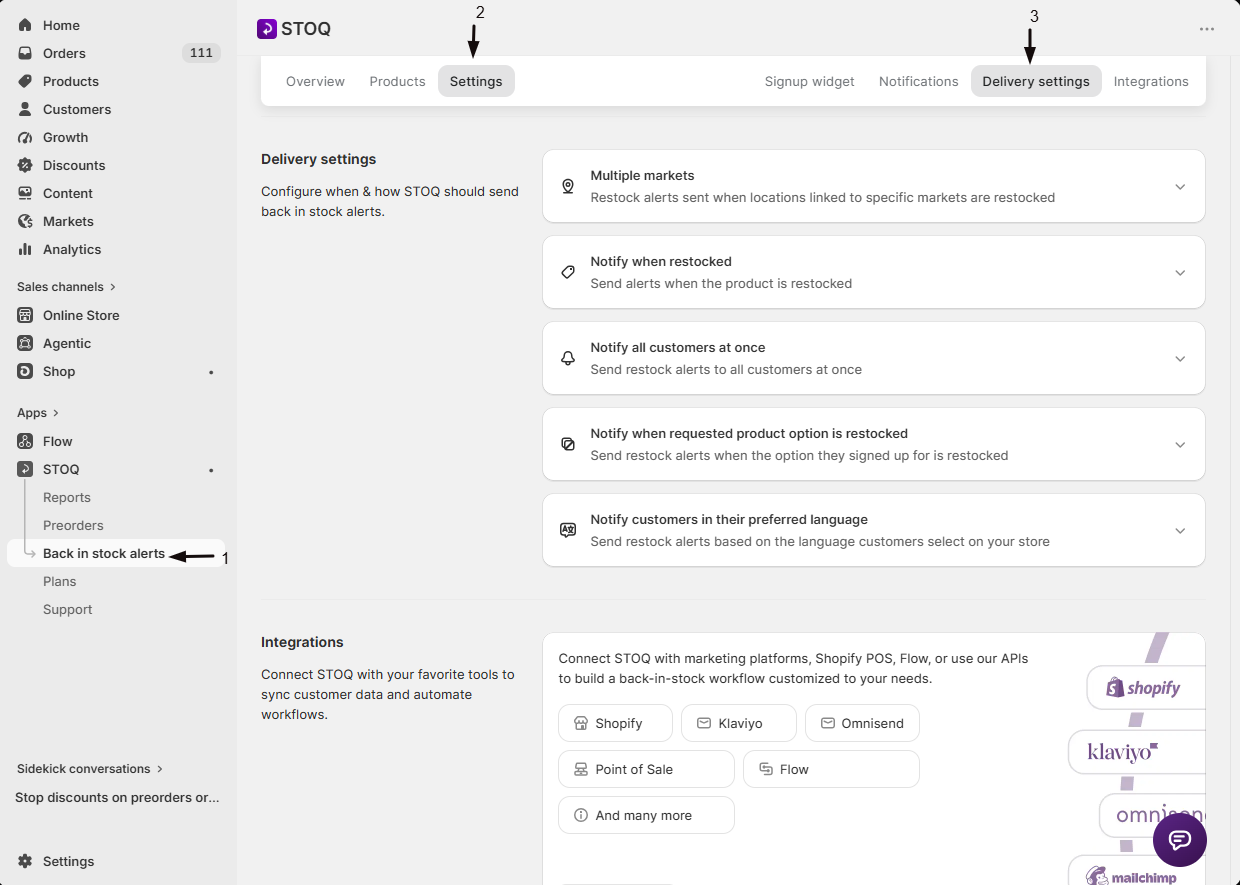
-
Turn on batching
Under the batching option, pick Notify customers in batches when a product is restocked instead of the default Notify all customers in waitlist when a product is restocked.
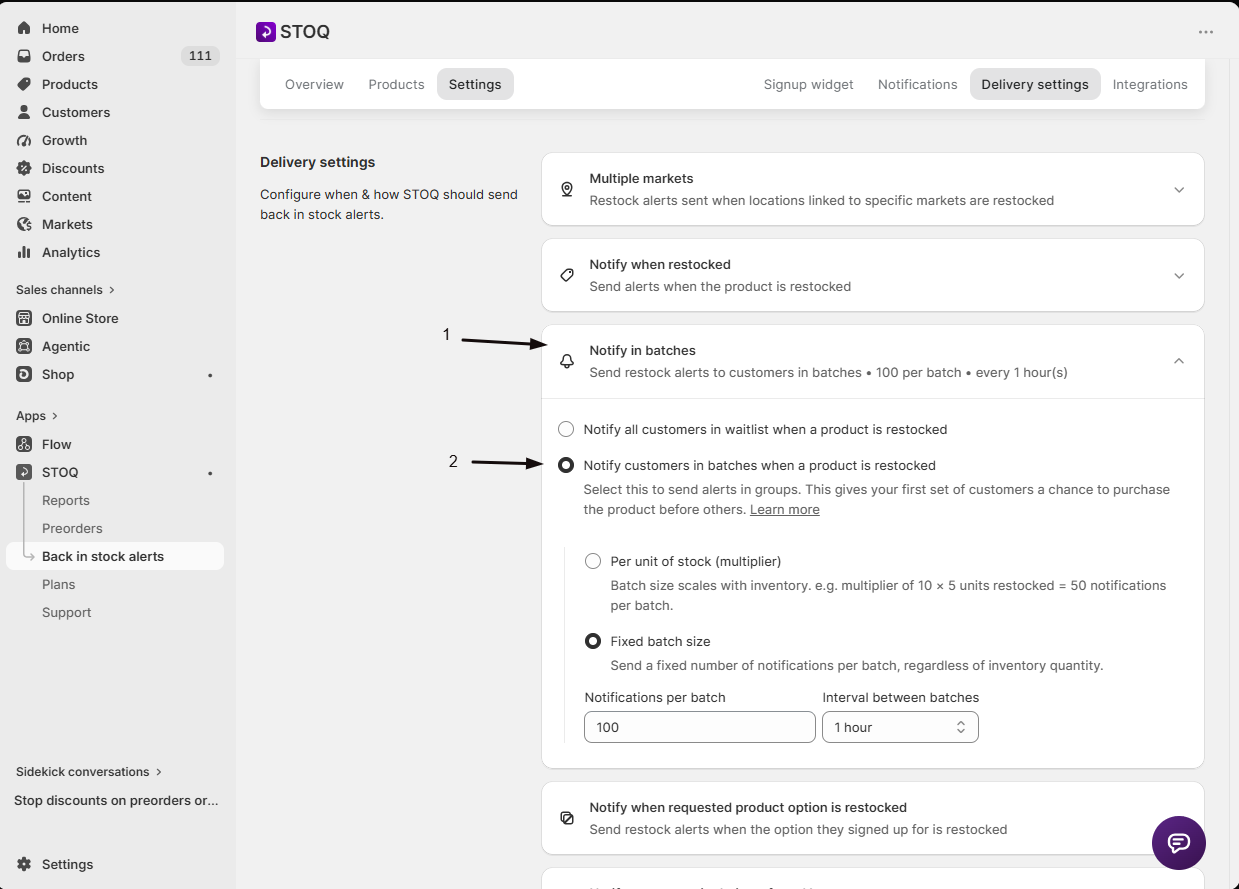
-
Set your batch size
Choose Per unit of stock (multiplier) or Fixed batch size, and set the matching number field. See Choose your setup above for which to pick.
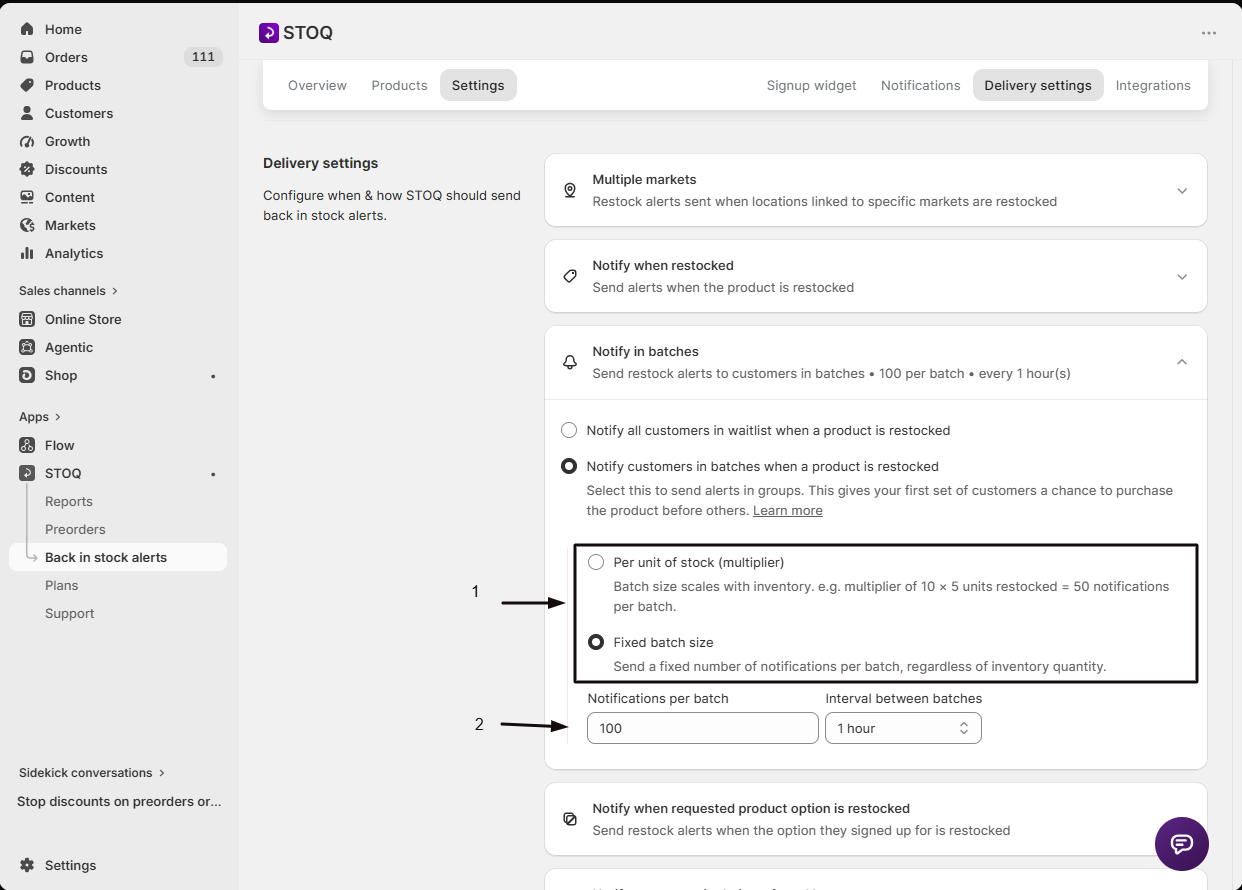
-
Set the interval
Choose Interval between batches: 1, 2, or 3 hours.
-
Save
Save your delivery settings. Batching is saved together with the rest of your delivery settings, including location filtering, minimum quantity, and market-based alerts.
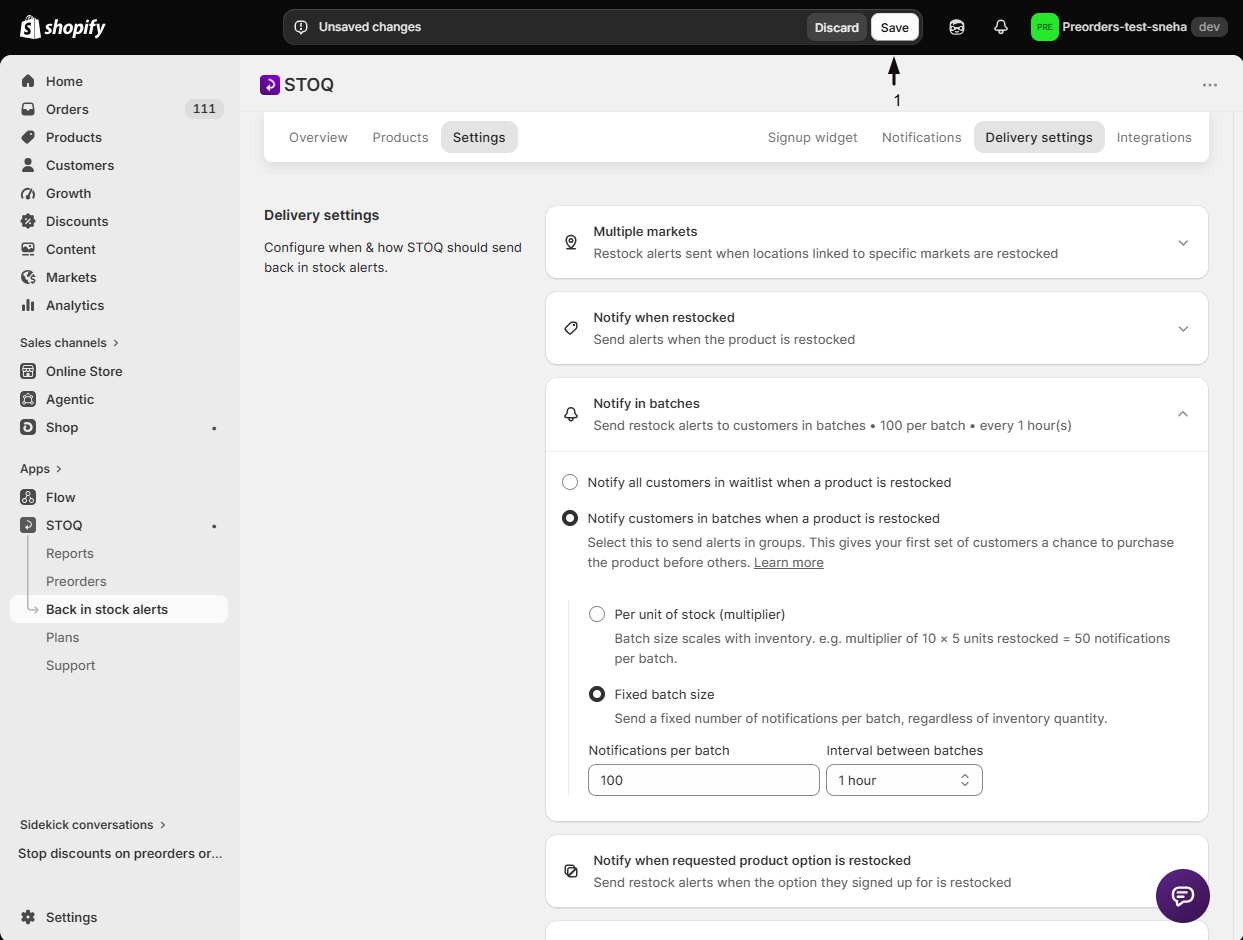
Check your setup
Section titled “Check your setup”After saving, the Delivery settings page shows a summary row for your batching configuration: it reads Notify in batches with a line like “Send restock alerts to customers in batches, 10 per unit, every 1 hour(s)”, or Notify all customers at once if batching is off. Confirm the numbers match what you just set, and click the row to expand it again if you need to change anything.
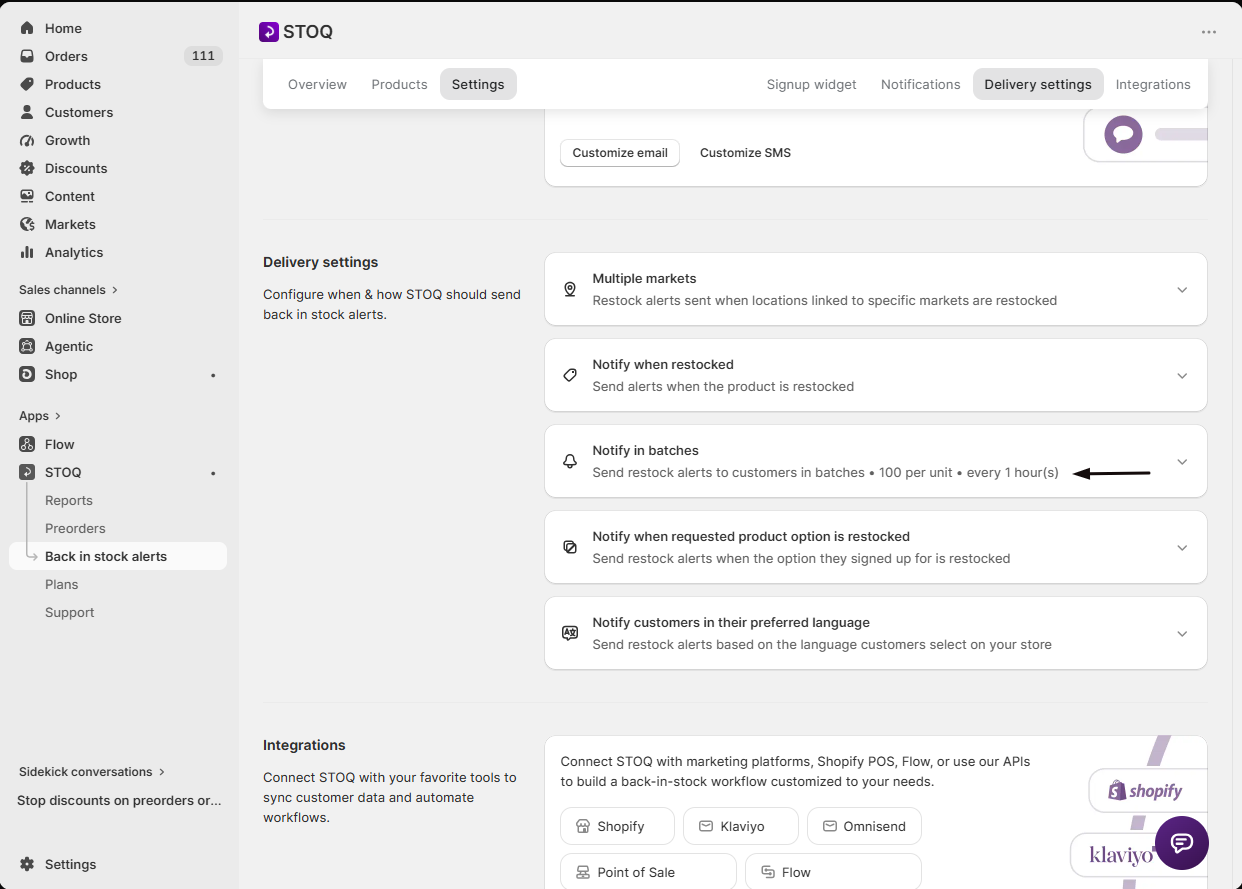
Once a real restock happens, open the notifications report for that product or variant. STOQ shows a note there confirming which mode was used: “Variant was recently restocked. Notifications are being sent in batches” when batching is on, or “…sent to all signups” when it’s off.
Troubleshooting
Section titled “Troubleshooting”The batching option is disabled
You’re on a free plan. Upgrade to unlock both batch-sizing methods and the interval control.
A settings change doesn't affect a send already in progress
STOQ re-reads your delivery settings periodically while a large send is running, so admin changes can take effect partway through. If you’re testing, change settings before triggering the restock you’re testing with.
A manual or bulk "Notify" action does not respect batching
That’s expected. Manual and bulk Notify or resend actions from the notifications report send immediately to everyone selected, regardless of your batching configuration.
Some waitlisted customers never got an alert for a restock
The restock likely sold out to an earlier batch first. Batching doesn’t reserve inventory, so later batches can miss out and stay on the waitlist for the next restock.
Limitations
Section titled “Limitations”Batching doesn’t change your minimum restock quantity setting. STOQ still checks minimum restock quantity before sending any alerts at all; batching only controls how the qualifying send is split up and paced once it’s decided to send.
Do I need a paid plan to use batched delivery?
Yes. On a free plan, the batching toggle is disabled and shows an Upgrade link. Upgrading unlocks both batch-sizing methods and the interval control.
If I restock only 1 unit with a multiplier of 10, how many customers get notified?
10, the multiplier (10) times the restocked quantity (1). STOQ always sends to at least 1 person in a batch, even if the calculated size comes out very small.
How long does it take to notify my whole waitlist once batching is on?
It depends on your waitlist size, your batch size, and your chosen interval. STOQ sends one batch, waits the selected interval (1, 2, or 3 hours), then sends the next batch, repeating until everyone waiting on that restock has been notified or the process is otherwise interrupted.
Will customers know or be able to choose which batch they're in?
No. A customer has no way to see or control which batch they’re in; it’s simply their position in the signup queue, and the email or SMS they receive looks the same either way.
Does turning on batching affect restocks I already sent alerts for?
No. Batching only changes how future qualifying restocks are paced; a restock that already finished sending alerts isn’t affected retroactively. If you change settings while a large send is currently in progress, STOQ re-reads them periodically, so the change can still take effect partway through that send.
Related guides
Section titled “Related guides”Thanks for letting us know.
Still stuck? Ask Quinn or chat with support