Automate with Shopify Flow
Use STOQ's back in stock triggers and waitlist action to build automated workflows in Shopify Flow.
Last updated
Connect Back in stock alerts to Shopify Flow so you can build automated workflows around waitlist signups and restocks, tagging customers, messaging another tool, or syncing data, without writing any code. STOQ fires triggers into Flow when a customer signs up, a variant restocks, or a customer is notified, and it gives you one action, Notify customers in waitlist, that a workflow can call to send the alerts itself. You build the rest of the workflow inside the Shopify Flow app.
Before you begin
Section titled “Before you begin”| Requirement | Detail |
|---|---|
| Shopify Flow installed | Flow is a free Shopify app from the Shopify App Store. Install it before you build a workflow. |
| STOQ app open in Shopify admin | Open it from Apps > STOQ in your Shopify admin. |
| Paid STOQ plan, only if you route the restock email through Flow | Turning on the triggers themselves works on a free plan. Selecting Shopify Flow as the email platform for your restock notification requires a paid plan. |
Choose your setup
Section titled “Choose your setup”There are two ways to use the integration, and you can use either or both:
- General automation: turn on the triggers you want and build any workflow in Shopify Flow, for example tagging a customer, posting to Slack, or syncing a signup to another tool. This works with STOQ’s built-in restock email untouched.
- Route the restock email itself through Flow: if you want a marketing tool, not STOQ, to design and send the actual back-in-stock email, turn on the Customer notified for email back in stock alert trigger and also select Shopify Flow as the email platform in Notifications. This needs a paid plan and only applies to the main restock alert, not preorder confirmations or reminder notifications.
What customers will see
Section titled “What customers will see”Turning on a trigger by itself changes nothing for the customer, it only sends event data into a workflow you build. What the customer notices depends on what your workflow does with that data: an internal Slack message or a tag on their customer record is invisible to them, but if you route the restock email through Flow to a marketing tool, the customer gets that tool’s email instead of STOQ’s built-in alert template.
Set it up
Section titled “Set it up”On a phone, this menu is collapsed. In the Shopify mobile app, tap the STOQ logo at the top of the screen to open it, then choose the section named below. There is no hamburger icon. See Finding the STOQ menu.
Turn on Flow triggers in STOQ
Section titled “Turn on Flow triggers in STOQ”-
Open the Shopify Flow integration
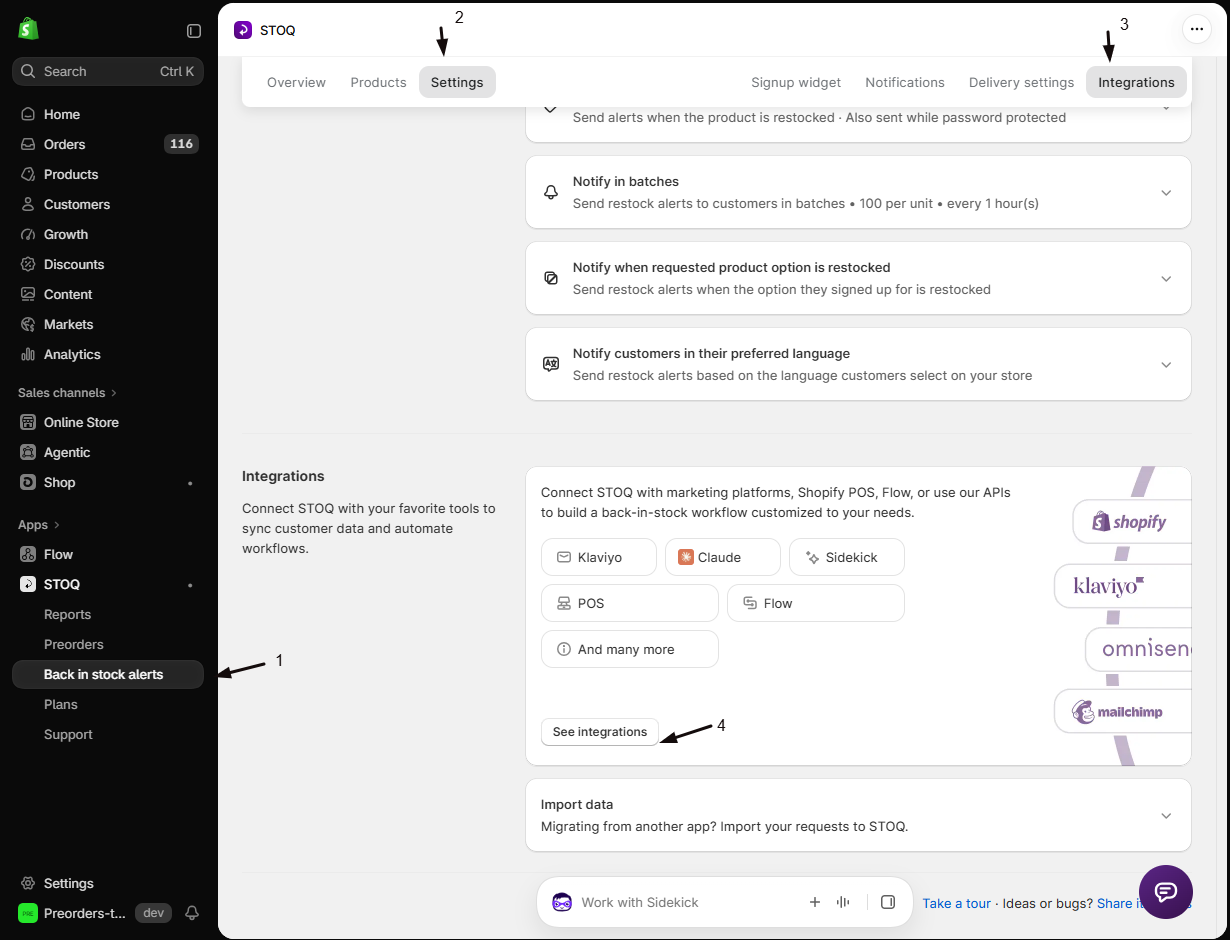
- In the left menu bar of the STOQ app, click Back in stock alerts.
- Click the Settings tab.
- Open the Integrations sub-tab.
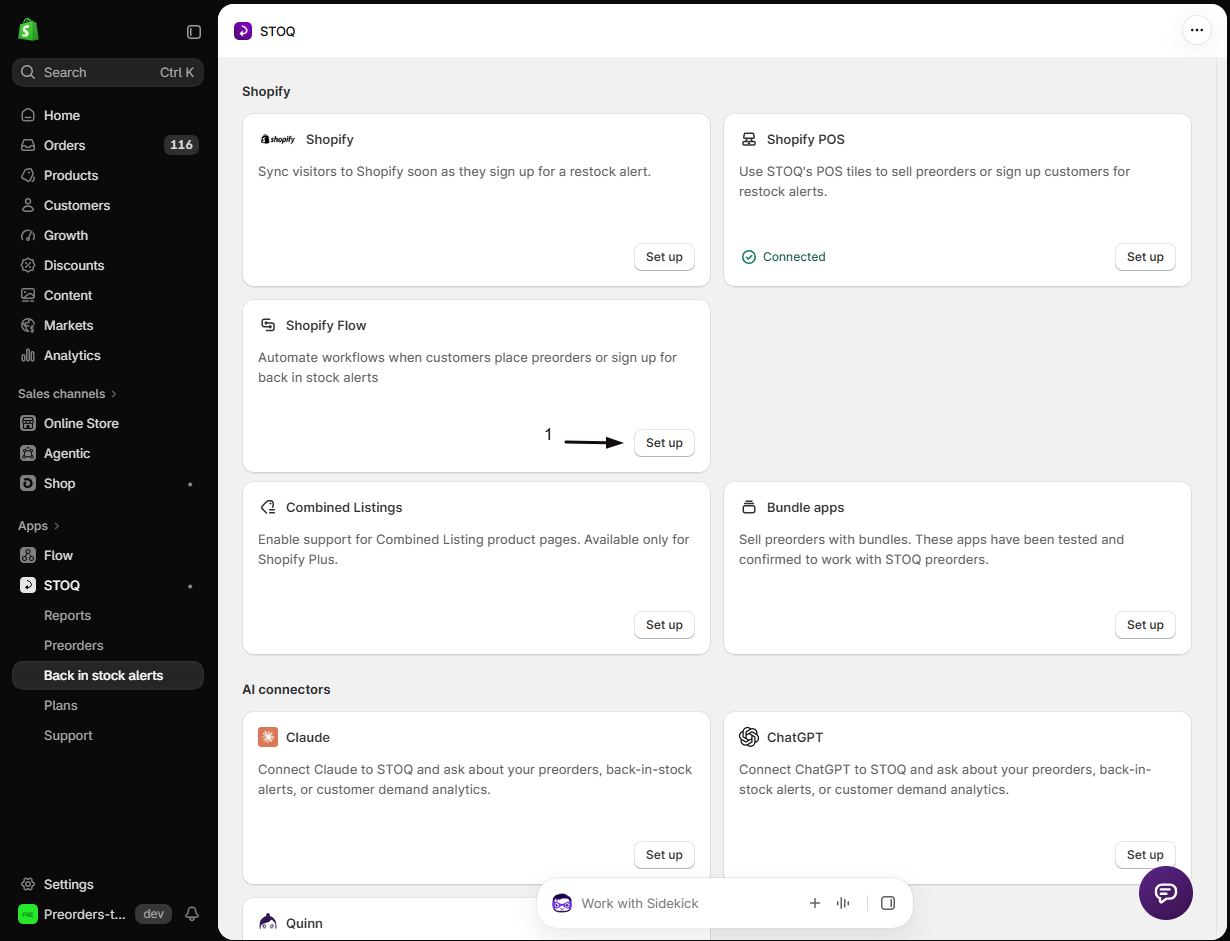
- Click See integrations to open the full Integrations page, then click Set up on the Shopify Flow card.
-
Turn on the Flow triggers switch
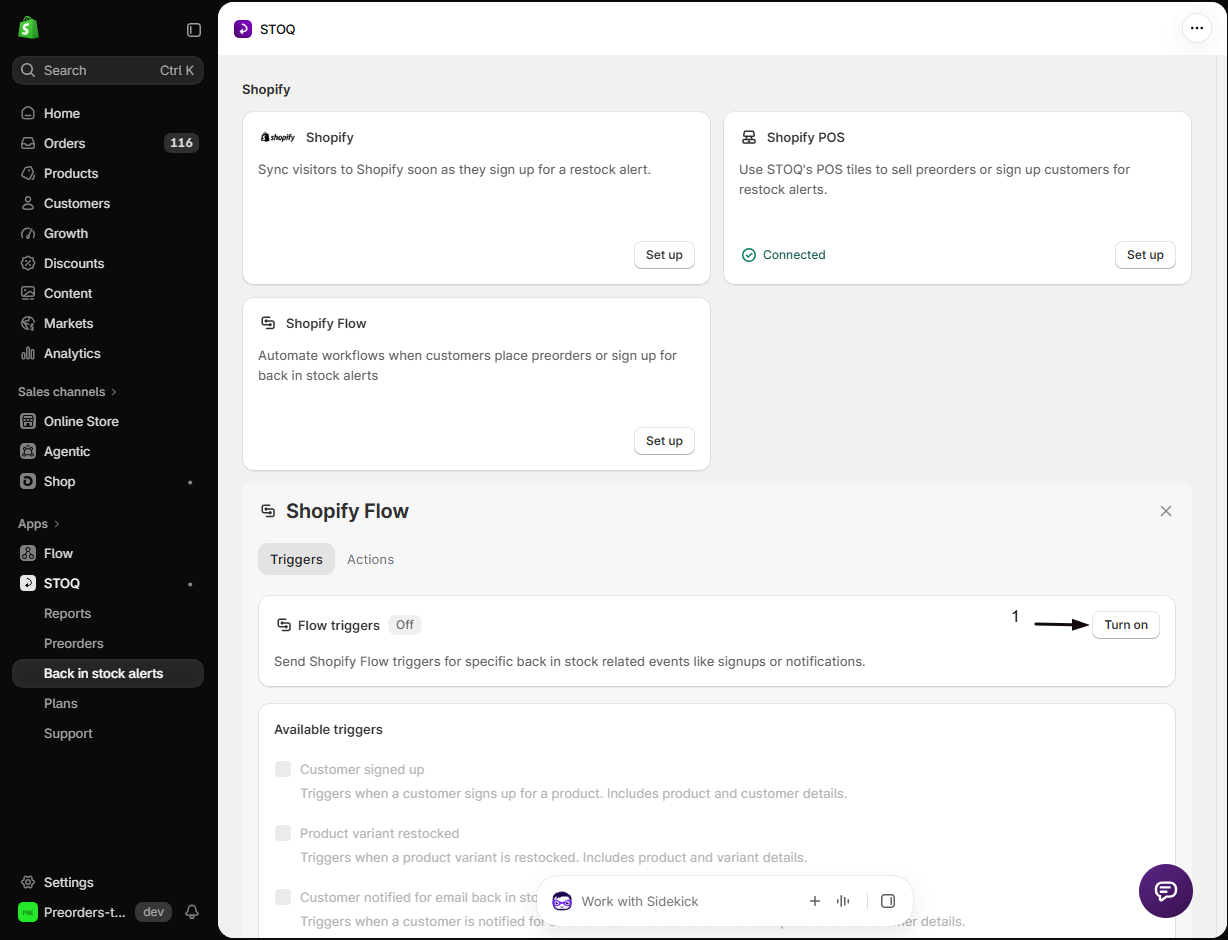
On the Triggers tab, toggle Flow triggers on. It’s enabled on a free plan too; an Upgrade prompt appears alongside it as a reminder that some Flow features need a paid plan.
-
Check the triggers you want to send
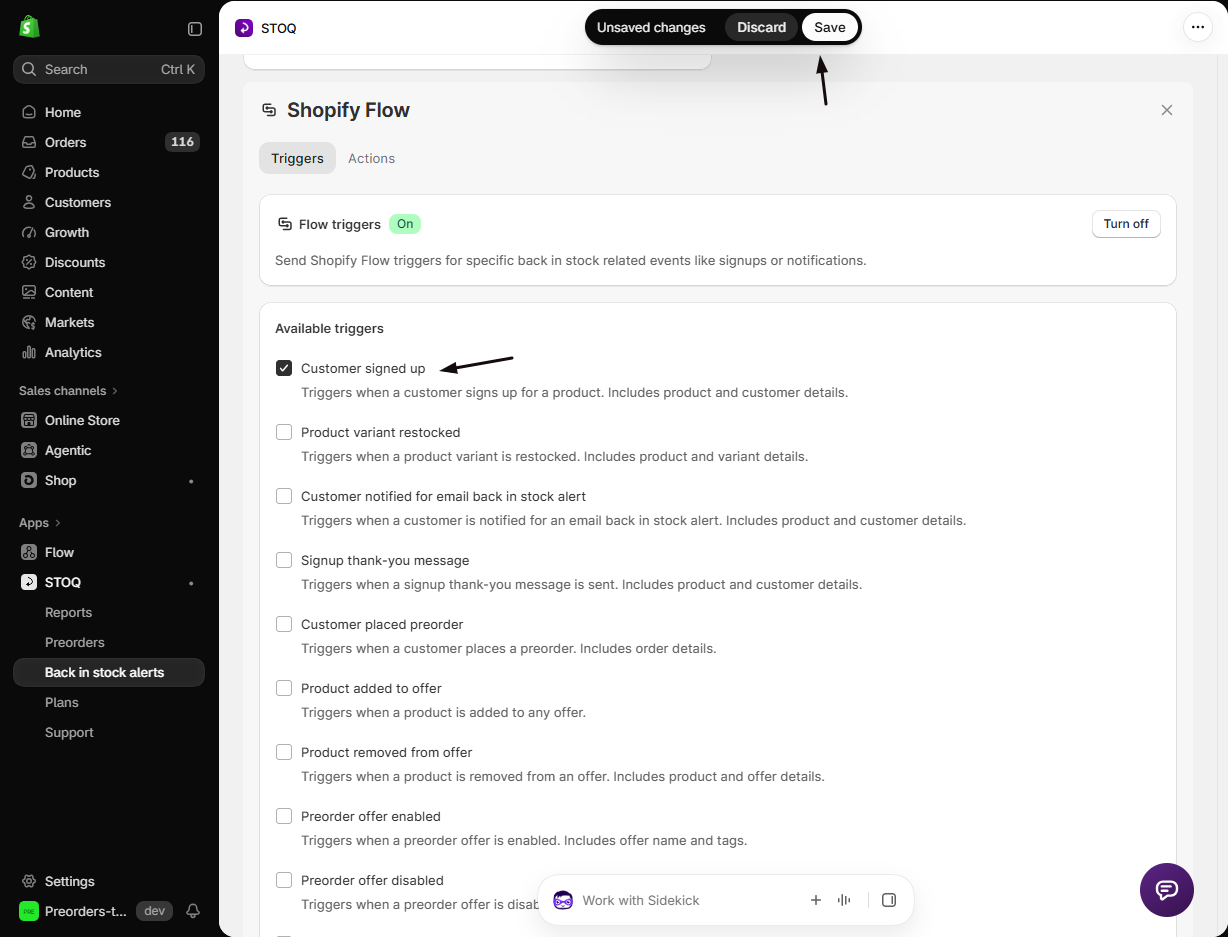
Under Available triggers, check the events you plan to use in a workflow. Each is disabled until the master Flow triggers switch above is on. See Available triggers below for what each includes.
-
Save
Click Save. STOQ starts sending the enabled triggers to Shopify Flow as those events happen.
Available triggers
Section titled “Available triggers”| Trigger label in STOQ | When it fires | Key payload fields |
|---|---|---|
| Customer signed up | A customer signs up for a product’s back-in-stock waitlist | Customer ID, name, email, phone, locale; product ID; variant name and ID; signed up at; market ID |
| Product variant restocked | A tracked product variant’s inventory is replenished | Product ID; variant ID; market IDs |
| Customer notified for email back in stock alert | A customer’s back-in-stock email alert is due and Shopify Flow is selected as the email platform, so your workflow sends the email instead of STOQ | The notified Shopify customer; customer ID, name, email, phone, locale; product ID; variant ID and name; market ID; notification type; checkout link, product page link, unsubscribe link |
Available actions
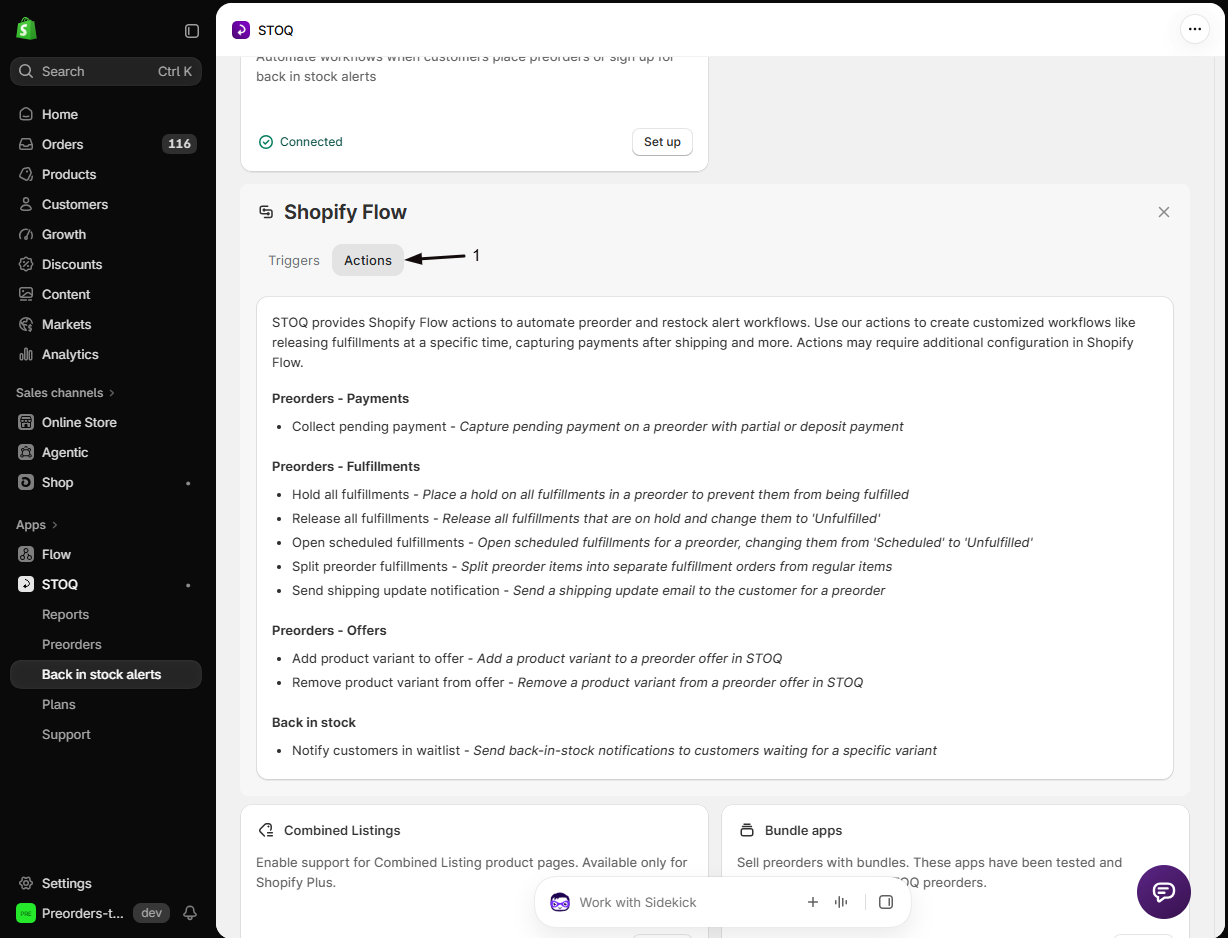
Section titled “Available actions”An action is something a Flow workflow tells STOQ to do, the opposite direction to a trigger. Actions need no setup in STOQ: you pick them while building a workflow in the Shopify Flow app. To see the full list, open the Shopify Flow card in STOQ and switch to the Actions tab.
Back in stock has one action.
| Action | What it does |
|---|---|
| Notify customers in waitlist | Sends back-in-stock alerts to every customer waiting on a variant, without waiting for a restock to be detected. |
It takes three fields in Flow:
| Field | Detail |
|---|---|
| Product Variant ID | Required. The numeric Shopify variant ID, for example 12345, or its full GID. |
| Channel filter (optional) | Enter email or sms to limit the send to that channel. Leave it empty to notify each customer on the channels they signed up for. |
| Market identifier (optional) | A market name or Shopify market ID, to notify only the customers in that market. Leave it empty for all markets. |
Three things to know before you use it:
- It doesn’t check inventory. The action notifies everyone waiting on the variant whether or not it’s actually back in stock, so add a Flow condition first if you only want it to run on a genuine restock.
- Only customers whose alert hasn’t been sent yet are notified. Customers already alerted for that variant are skipped, so running the workflow twice won’t message them again.
- Your plan’s notification limits still apply. If the waiting list is larger than your remaining allowance, the action stops without sending rather than sending part of the batch.
Build a workflow in Shopify Flow
Section titled “Build a workflow in Shopify Flow”-
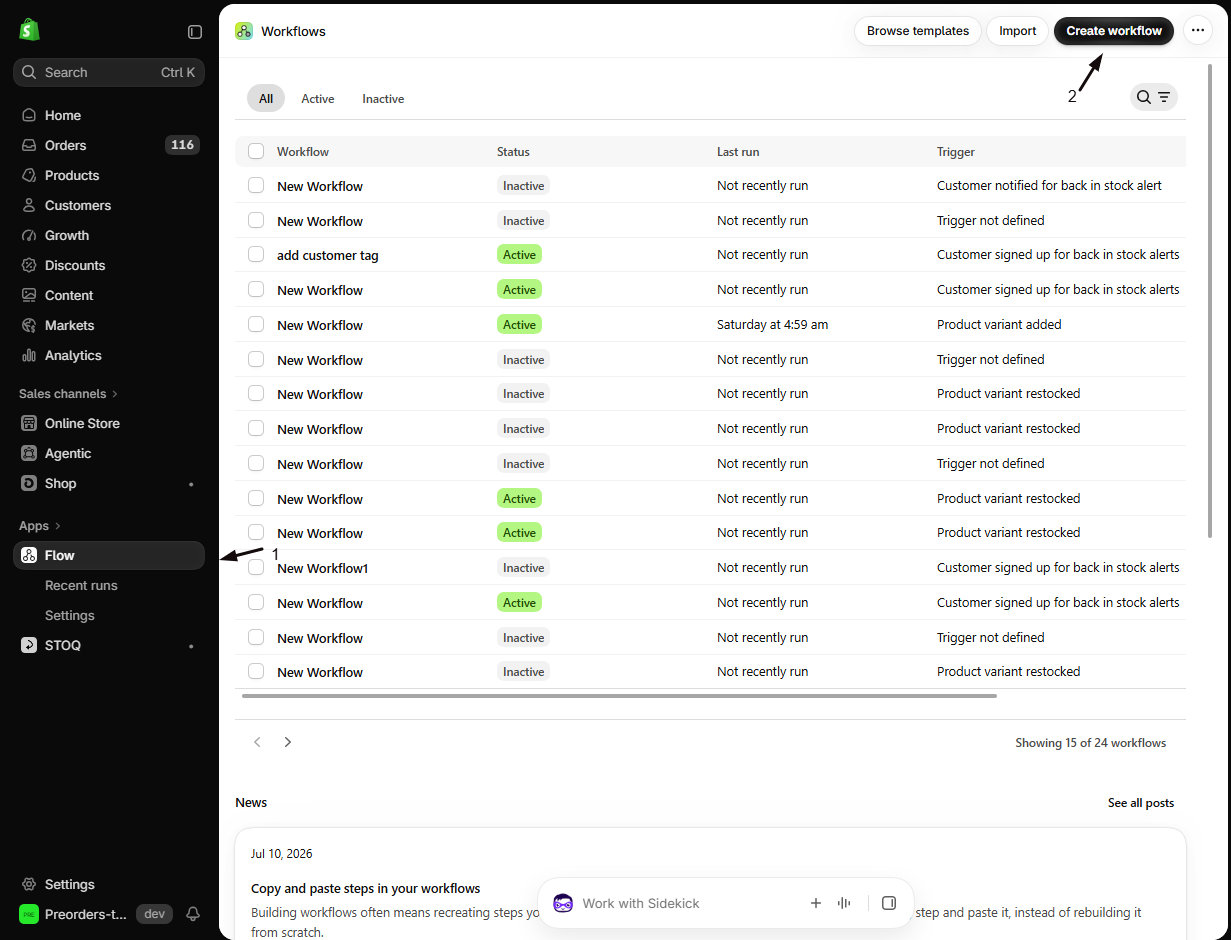
Open Shopify Flow
- In Shopify admin, go to Apps > Flow.
- Click Create workflow.
-
Select a trigger
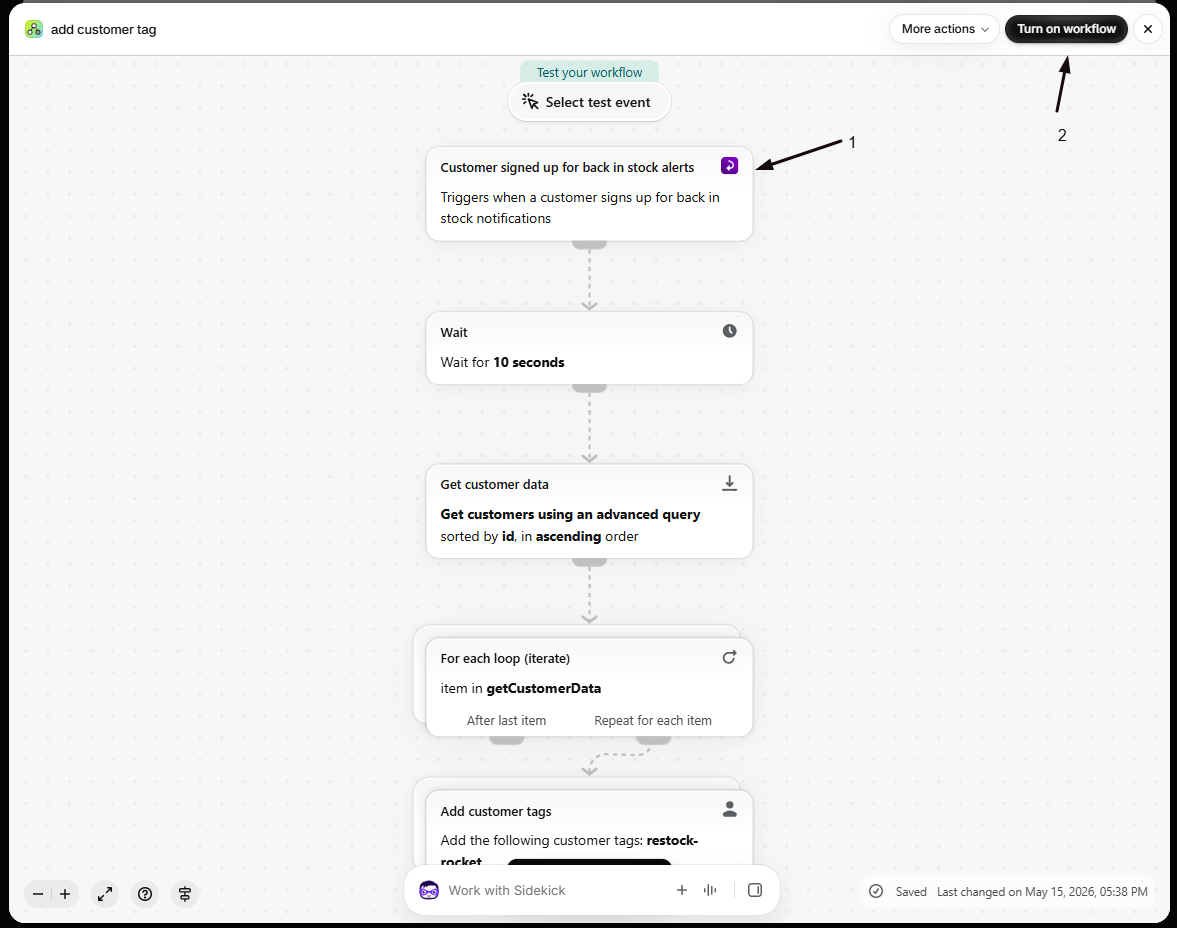
Choose STOQ from the app list, then pick the trigger that should start your workflow: Customer signed up for back in stock alerts, Product variant restocked, or Customer notified for back in stock alert.
-
Add conditions and actions
- Add any Shopify Flow conditions you need, for example filtering by product tag.
- Add an action from any app, including STOQ’s own Notify customers in waitlist action described above.
Shopify Flow surfaces the trigger’s payload fields as variables you can insert into the action.
-
Activate the workflow
Click Turn on workflow. From this point, every matching STOQ event fires the workflow automatically.
Example automations:
- Tag a customer when they join a waitlist: Trigger: Customer signed up (STOQ). Action: Add customer tag “notify-me” (Shopify).
- Post to Slack when a variant restocks: Trigger: Product variant restocked (STOQ). Action: Send Slack message with the product and variant name.
- Sync notified customers to another list: Trigger: Customer notified for email back in stock alert (STOQ). Action: an action from your marketing tool’s own Flow extension, using the customer and product fields from the trigger.
- Control exactly when a waitlist is alerted: Trigger: a Shopify inventory or scheduled-time trigger of your choice. Condition: whatever rule decides the moment is right, for example a minimum stock level. Action: Notify customers in waitlist (STOQ).
Route the restock email through Flow
Section titled “Route the restock email through Flow”Only needed if you want a marketing tool to design and send the restock email instead of STOQ.
-
Turn on the notification trigger
On the Shopify Flow card’s Triggers tab, check Customer notified for email back in stock alert and save, as described above.
-
Select Shopify Flow as the email platform
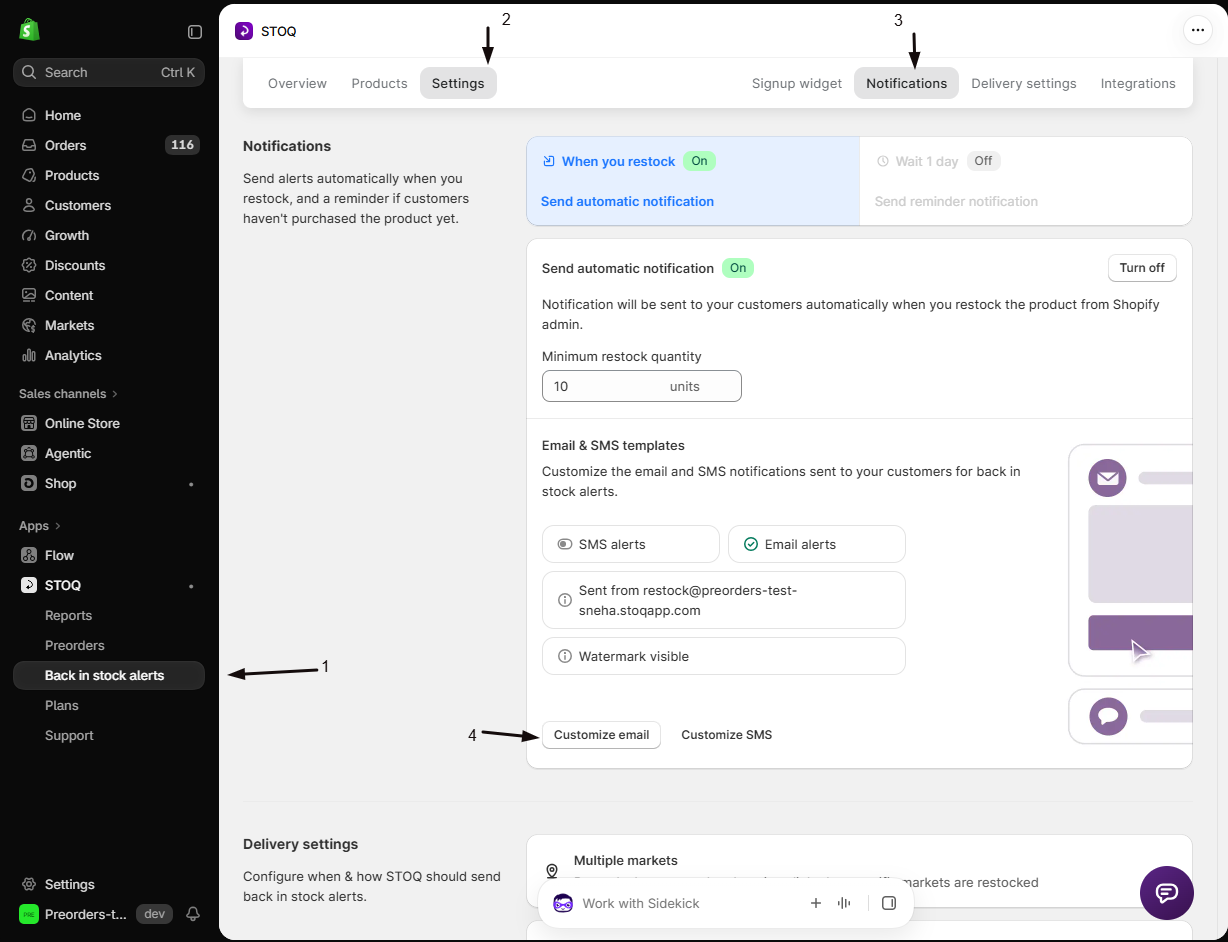
- In the left menu bar of the STOQ app, click Back in stock alerts.
- Click the Settings tab.
- Open the Notifications sub-tab.
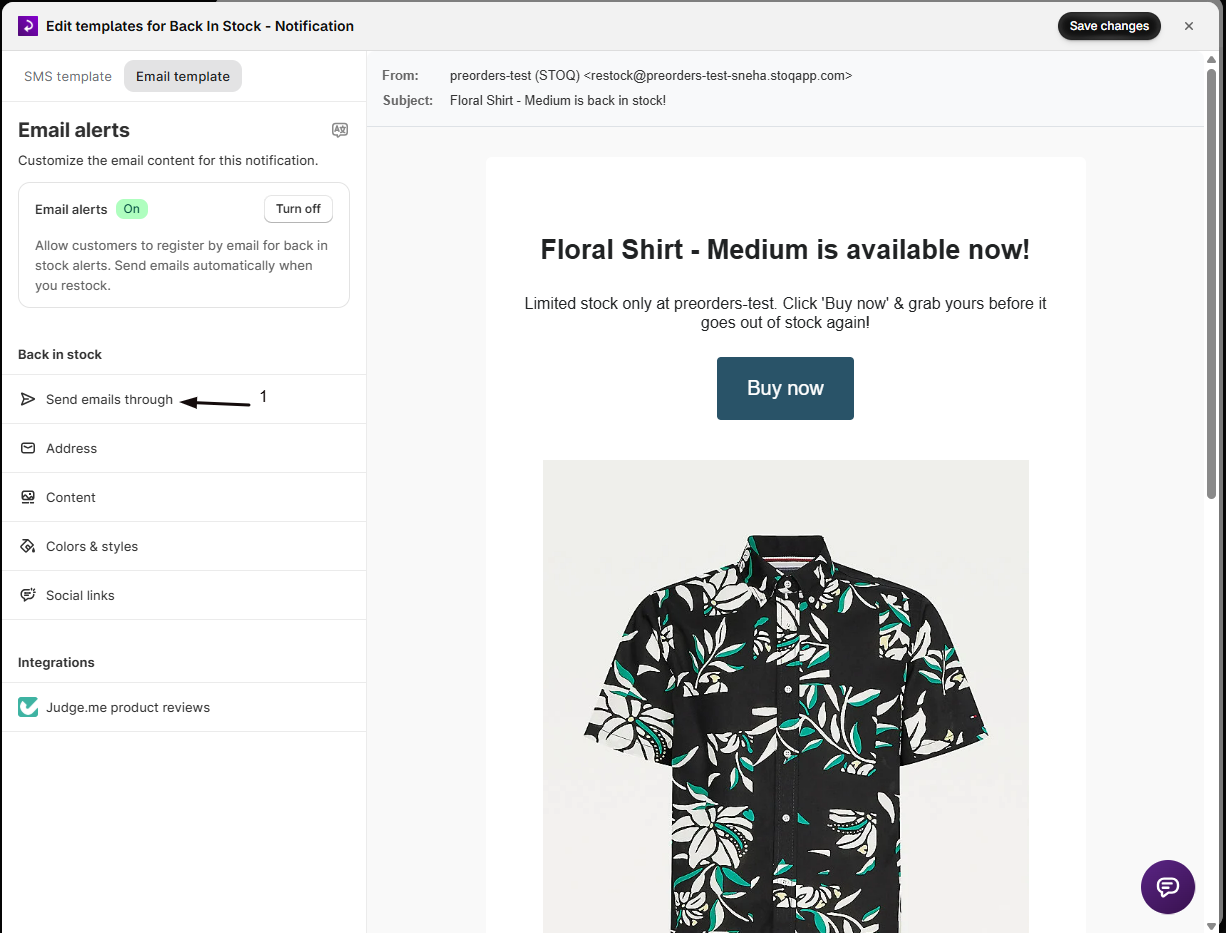
- Click Customize email on the restock notification card.
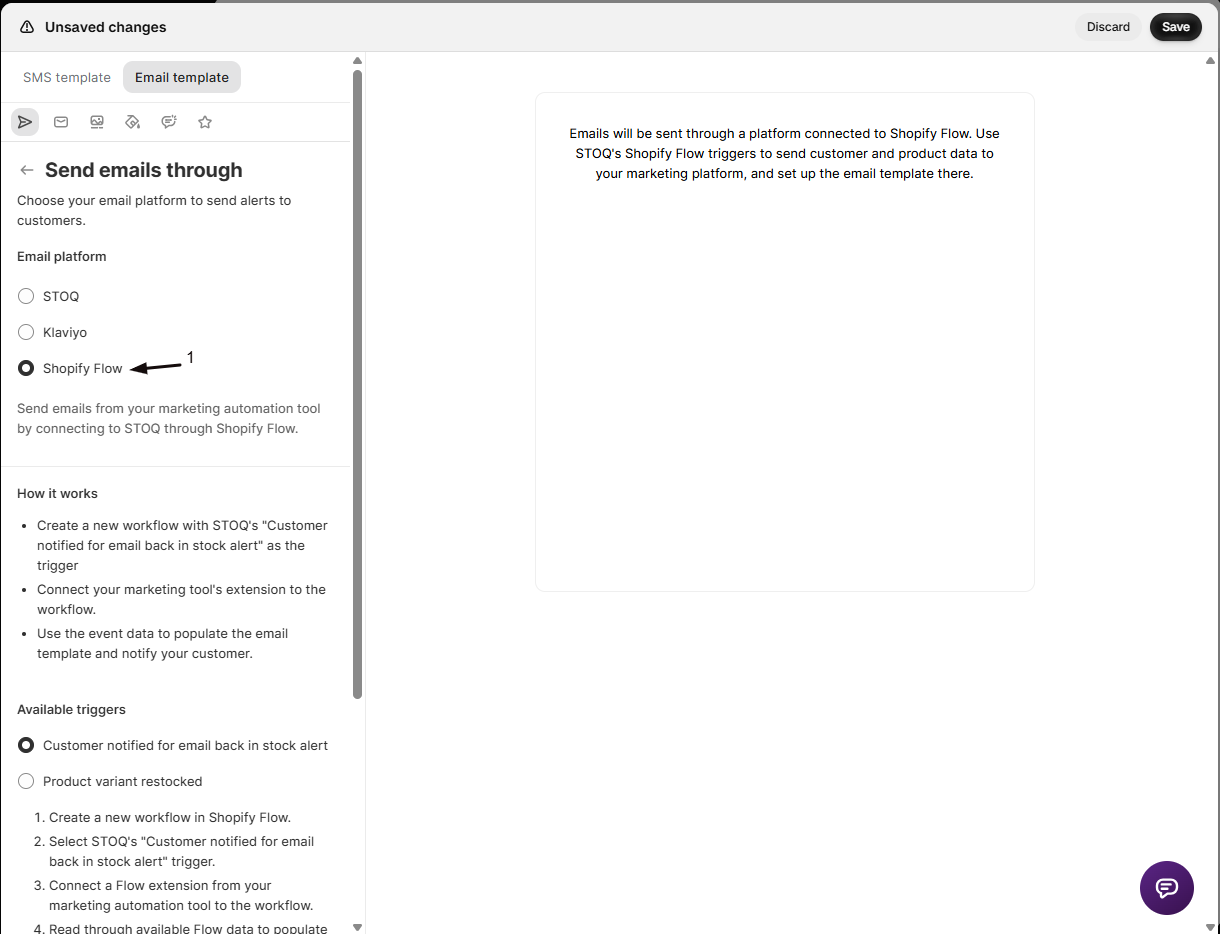
- Open Send emails through and select Shopify Flow.
-
Build the sending workflow in Shopify Flow
Create a workflow triggered by Customer notified for back in stock alert, then add an action from your marketing tool to actually send the message using the trigger’s fields, such as the checkout link, product page link, and unsubscribe link.
Once Shopify Flow is selected, most of STOQ’s own email content fields are disabled in the template editor, since the design and sending happen in your connected tool instead. See Customize the back in stock email notification.
When you switch the email platform to Shopify Flow and save, STOQ also turns on customer sync to Shopify, the Sync visitors with Shopify toggle on the Shopify card of the Integrations page. Flow needs a real Shopify customer to act on, so every Customer notified for back in stock alert trigger includes the notified Shopify customer. Your workflow can use that customer in Shopify customer actions, for example to tag them, with no extra setup.
If a customer isn’t in your Shopify Customers list yet when their alert goes out, including customers who signed up before you switched to Flow, STOQ adds them first and then fires the trigger. This still happens if you turn Sync visitors with Shopify off later.
Check your setup
Section titled “Check your setup”- In Shopify Flow, open your workflow and click Run history to see recent executions and any errors.
- Trigger a real event, for example sign up for your own test product’s waitlist or restock it, following Test your setup.
- Confirm the signup or notification appears in Reports > Back in Stock, and that your Shopify Flow workflow ran in its Run history.
- If you route the restock email through Flow, go to Customers in Shopify admin, search for your test email, and confirm the customer is there. That’s the customer your workflow receives from the trigger.
Troubleshooting
Section titled “Troubleshooting”A trigger isn't firing
Confirm the Flow triggers master switch is on and the specific trigger’s checkbox is checked on the Shopify Flow card, then check Shopify Flow’s Run history for your workflow to see whether Shopify received the event.
Customer notified for email back in stock alert doesn't fire
Check these in order:
- Shopify Flow is selected under Send emails through in the notification’s email editor. The trigger only fires when Flow is the email platform.
- The customer is in your Shopify Customers list. The trigger needs a Shopify customer, so STOQ adds the customer to Shopify just before firing it. If Shopify rejects that customer record, the trigger is skipped and that customer isn’t alerted. Contact STOQ support with the customer’s email.
The restock email still looks like STOQ's own template after selecting Shopify Flow
Confirm you selected Shopify Flow under Send emails through in the notification’s email editor, not just enabled the trigger. Both are required.
Shopify Flow isn't selectable as an email platform
It requires a paid plan.
Limitations
Section titled “Limitations”- Flow events are rate limited. Restocking a variant with a large waitlist can delay how quickly trigger events reach Shopify Flow.
- Routing the restock email through Flow only applies to the main back-in-stock alert. It isn’t available for preorder confirmation emails or for reminder notifications.
Do I need to build a Flow workflow before enabling a trigger?
No, you can turn on a trigger’s checkbox at any time. Nothing happens in Shopify Flow until you also build and activate a workflow that uses it as a trigger.
Does enabling Flow triggers replace my existing restock email?
No, not by itself. Enabling triggers just lets Shopify Flow receive events; your restock email keeps sending from STOQ as normal unless you also select Shopify Flow under Send emails through in the notification editor.
Can I use these triggers for SMS back-in-stock alerts too?
The “Customer notified for email back in stock alert” trigger only covers email notifications. SMS delivery through a third party is set up separately under Send SMS through, and it doesn’t currently offer a Shopify Flow option.
Can the notify action alert customers who were already notified?
No. It only sends to customers whose alert for that variant is still pending, so re-running a workflow won’t message anyone twice.
Can I use one trigger to start several different Flow workflows?
Yes. A single STOQ event, for example a variant restocking, can start as many separate Shopify Flow workflows as you’ve built with that trigger.
Why is Shopify Flow greyed out as an email platform option?
Selecting Shopify Flow as your notification’s email platform requires a paid plan. The trigger checkboxes on the Integrations page don’t have this requirement.
Related guides
Section titled “Related guides”Thanks for letting us know.
Still stuck? Ask Quinn or chat with support