Grant STOQ collaborator access in Klaviyo
Invite STOQ into your Klaviyo account so support can set up flows and troubleshoot the integration.
Last updated
If you’d like STOQ’s team to set up your Klaviyo flows or investigate a sending issue for you, you can invite STOQ as a user in your Klaviyo account. This is separate from connecting the Klaviyo app: the app connection syncs your data automatically, while collaborator access lets a person on STOQ’s team sign in and configure flows.
Before you begin
Section titled “Before you begin”- You need the Owner or Admin role on your Klaviyo account to invite users.
- Ask STOQ support for the exact collaborator email address to invite.
Invite STOQ
Section titled “Invite STOQ”-
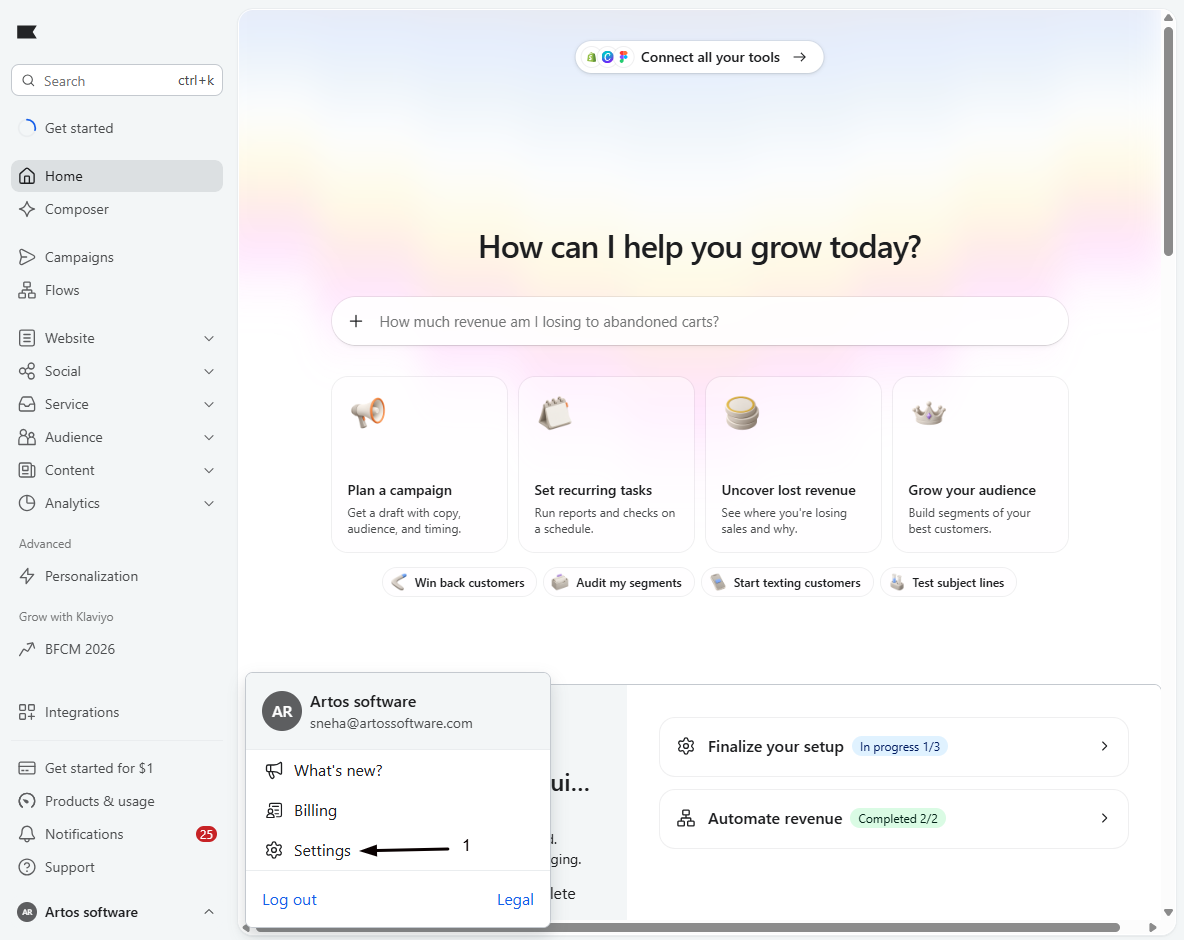
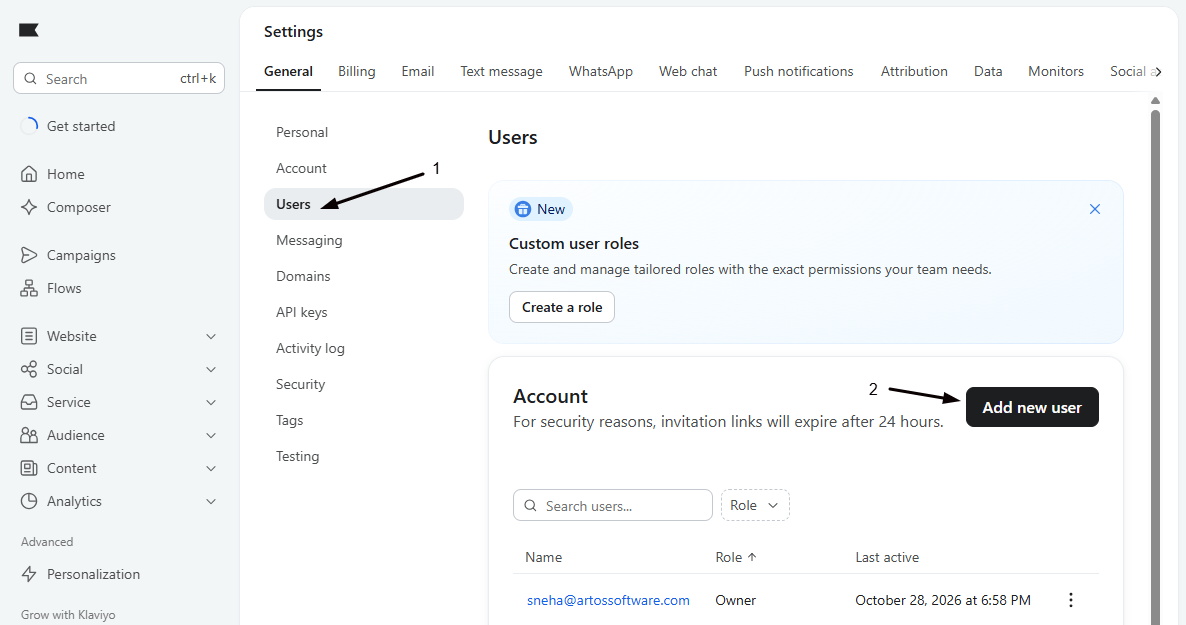
Open your Klaviyo users settings
In your Klaviyo dashboard, open your account Settings, then go to Users.
-
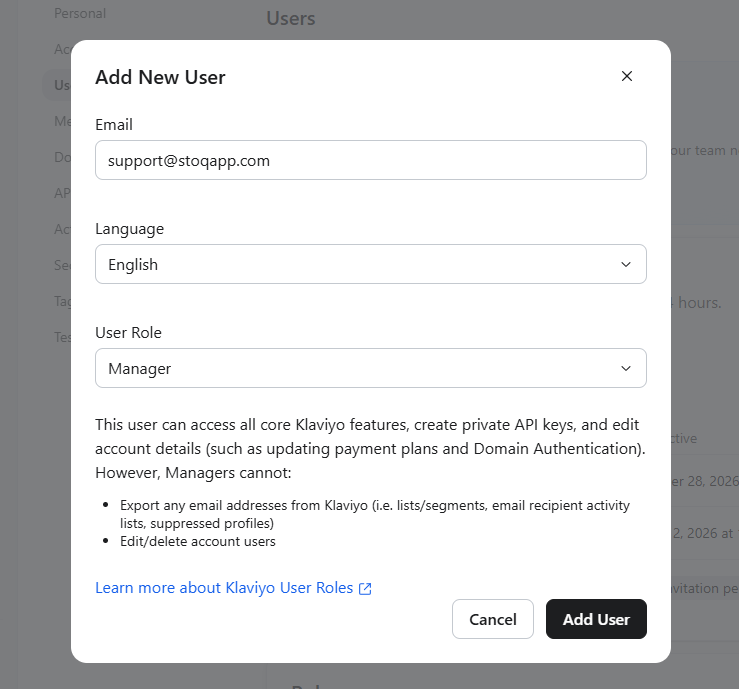
Add STOQ’s email
Click to add a user and enter the collaborator email STOQ support gave you.
-
Choose the Manager role
Set the role to Manager, which lets STOQ create flows, manage the integration, and view metrics. Use Analyst instead if you only want STOQ to review your account read-only.
-
Send the invite
Send the invitation. STOQ accepts it from their side, after which they appear as an active user in your Users list.
Remove access later
Section titled “Remove access later”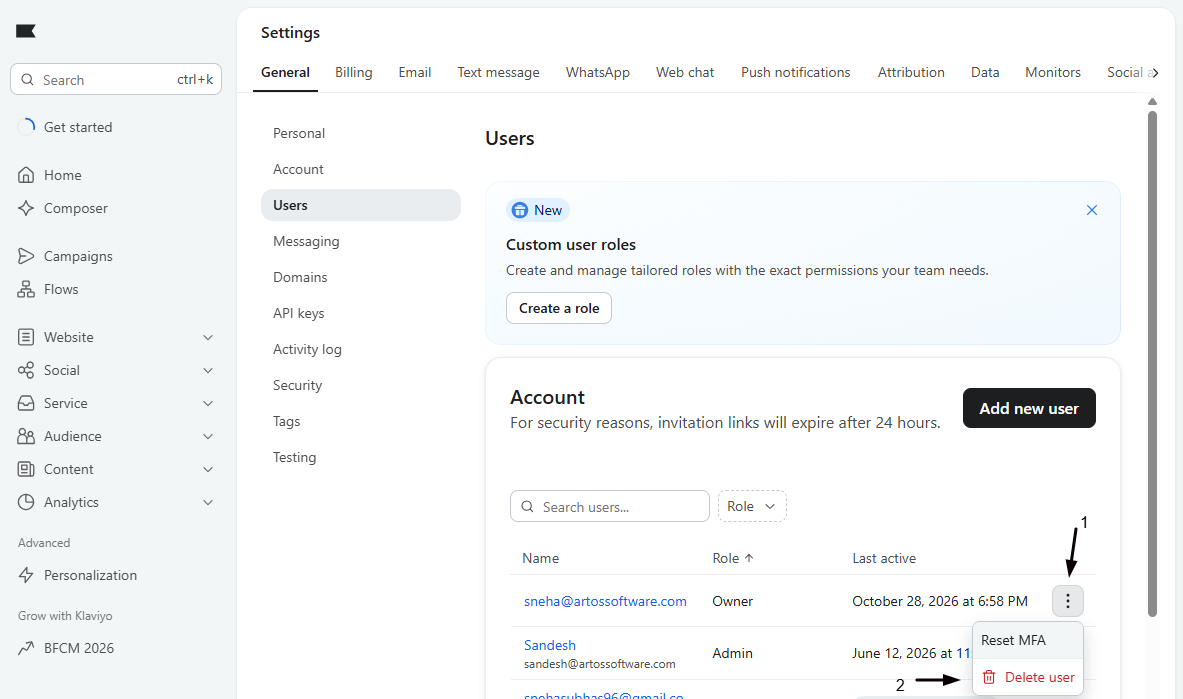
When the work is done, open Settings > Users in Klaviyo, find STOQ’s user, and remove it. Removing access doesn’t delete any flows, templates, or data STOQ set up.
Is this the same as connecting the Klaviyo app in STOQ?
No. The app connection (done from STOQ) syncs your signups and fires the metrics that trigger your flows. Collaborator access is a Klaviyo user invite so a STOQ team member can log in and build or fix flows for you.
Does granting access cost anything?
No. Adding a user to your Klaviyo account doesn’t add to your Klaviyo bill.
What role should I pick?
Manager for setup work, since it can create and edit flows. Analyst if you only want STOQ to look, not change anything.
STOQ can't see my account after I invited them
Confirm the invite went to the exact email STOQ gave you and that it was accepted. You can resend the invitation from Settings > Users.
Related guides
Section titled “Related guides”Thanks for letting us know.
Still stuck? Ask Quinn or chat with support