Export your reports to CSV
Download your Back in stock report data as a CSV file, emailed to your report address.
Last updated
Every Back in stock report tab can be exported to a CSV file, so you can work with your waitlist, notifications, sales, and customer data in a spreadsheet or hand it to another tool. STOQ emails the file to you rather than downloading it in the browser, which lets it handle large exports reliably.
Before you begin
Section titled “Before you begin”- Exporting reports requires a paid plan. On the free plan the export button is unavailable.
- STOQ emails the CSV to the Email address to receive reports set in report settings, so make sure that address is correct first. See Set up report notifications and data.
What you can export
Section titled “What you can export”Each of the five Back in stock report tabs has its own export, so you get exactly the view you’re looking at:
| Tab | What the CSV contains |
|---|---|
| Products | Waitlist demand, engagement, or revenue per product and variant |
| Current waitlist | Everyone still waiting for a restock alert |
| Notifications sent | Every alert STOQ has already sent |
| Sales recovered | Orders placed by customers who received an alert |
| Customers | Everyone who has ever signed up for an alert |
Any filters you’ve applied (date range, market, product, and so on) carry into the export, so you can narrow the data before exporting.
You can also export a single product’s or variant’s data: open its detail page from the Products tab and use the Export CSV button there to get just that item’s waitlist or notifications. See Manage a product’s waitlist.
Export a report
Section titled “Export a report”-
Open the report you want
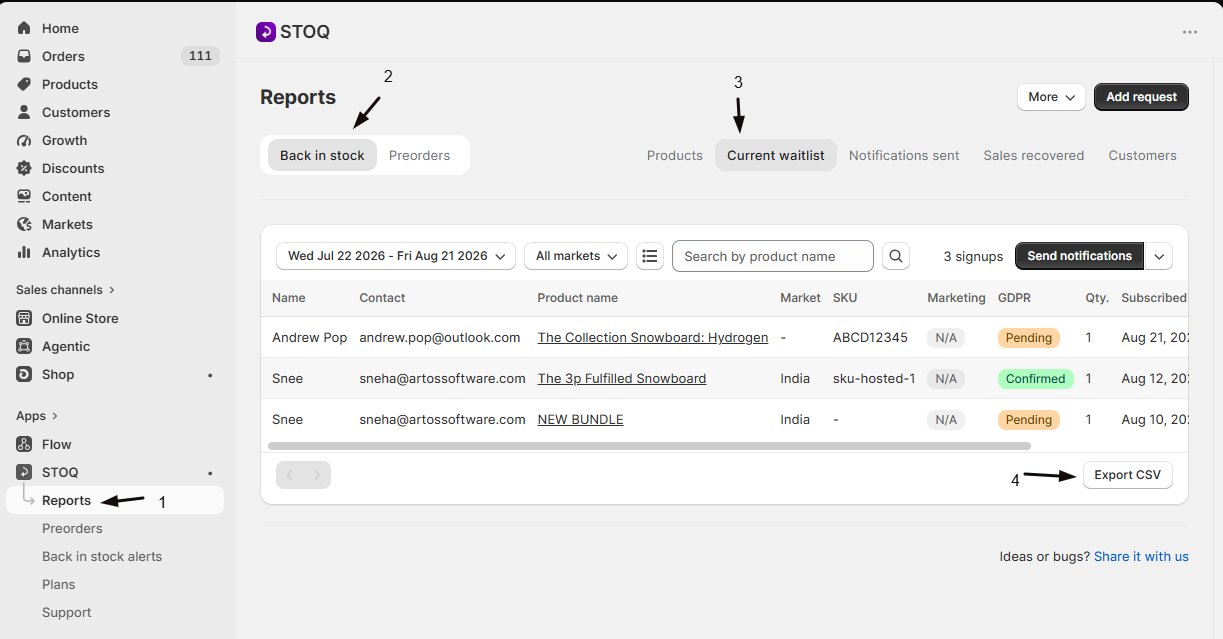
- In the left menu of the STOQ app, click Reports.
- Click the Back in stock tab at the top.
- Click the sub-tab you want to export: Products, Current waitlist, Notifications sent, Sales recovered, or Customers.
-
(Optional) Filter the data
Apply any date range or other filters so the export only includes the rows you need.
-
Export to CSV
Scroll to the bottom of the table. Below it is a footer row with the Previous and Next pagination arrows on the left, and the Export CSV button on the right. Click it, and STOQ queues the file and emails it to your report address.
On the Customers tab the same button reads Email CSV.
Check your export
Section titled “Check your export”Open the inbox for the Email address to receive reports set in report settings. The CSV arrives by email, usually within a few minutes. Large exports can take a little longer.
Troubleshooting
Section titled “Troubleshooting”You can't find the export button
It’s at the bottom of the table, not the top: scroll past the last row to the footer, and it sits on the right, level with the Previous and Next pagination arrows. On the Customers tab it reads Email CSV.
The export button is greyed out
Exporting requires a paid plan. On the free plan the button still shows but can’t be clicked, with an Upgrade button next to it.
There's no export button at all on the tab
The footer only appears when the table has rows in it. If your filters or date range return no results, the pagination and export button are hidden along with the table. Widen the date range or clear the filters, then look again.
The email never arrives
Check the address in Reports -> Settings -> Email address to receive reports, and look in your spam folder. See Set up report notifications and data.
The CSV is missing rows you expected
Filters apply to the export. Clear or widen the date range and other filters, then export again.
Product names look out of date in the file
Refresh your stored product data from Reports -> Settings -> Advanced -> Refresh stored data, then export again.
Why does the file get emailed instead of downloaded?
Emailing lets STOQ build large exports in the background without your browser timing out. The CSV is sent to the report email address in report settings.
Can I export more than one tab at once?
No. Each tab exports its own view, so export the tabs you need one at a time.
Do my filters apply to the export?
Yes. Whatever date range and filters are active on the tab carry into the CSV, so set them before you export.
Where do I change the address exports are sent to?
In Reports → Settings, under Email address to receive reports. See Set up report notifications and data.
Related guides
Section titled “Related guides”Thanks for letting us know.
Still stuck? Ask Quinn or chat with support