Require double opt-in
Require customers to confirm their back in stock signup by email before they're added to your waitlist.
Last updated
Use this guide if you want customers to confirm their back in stock signup by email before they’re added to your waitlist, instead of being subscribed the moment they submit the form. Some countries require this kind of confirmed consent for marketing-style communications, so merchants with a GDPR requirement often need to turn it on. By the end, new email signups will need to click a confirmation link before they can receive back in stock alerts.
Before you begin
Section titled “Before you begin”| Requirement | Detail |
|---|---|
| Location | Back in stock alerts → Settings tab → Signup widget sub-tab → Customize widget → Signup form tab → Double opt-in |
| Plan | The double opt-in toggle itself is available on all plans. Showing your own store domain in the confirmation link instead of the STOQ domain requires a paid plan. |
| Affects | Email channel signups only. SMS signups are confirmed automatically, with no confirmation text message. |
What customers will see
Section titled “What customers will see”- A customer submits the “Notify me” form with their email address.
- Instead of being immediately added to the waitlist, they receive a confirmation email with the subject and body you configured.
- The email contains a confirmation link. Clicking it opens a page that confirms the signup and shows your Confirmation success message. If the page shows a Confirm my alert button instead, the customer clicks it to finish. The link works for 90 days.
- Only after this confirmation does the signup count toward notifications: the customer will not receive a restock alert until they’ve confirmed.
Set it up
Section titled “Set it up”On a phone, this menu is collapsed. In the Shopify mobile app, tap the STOQ logo at the top of the screen to open it, then choose the section named below. There is no hamburger icon. See Finding the STOQ menu.
-
Open Double opt-in settings
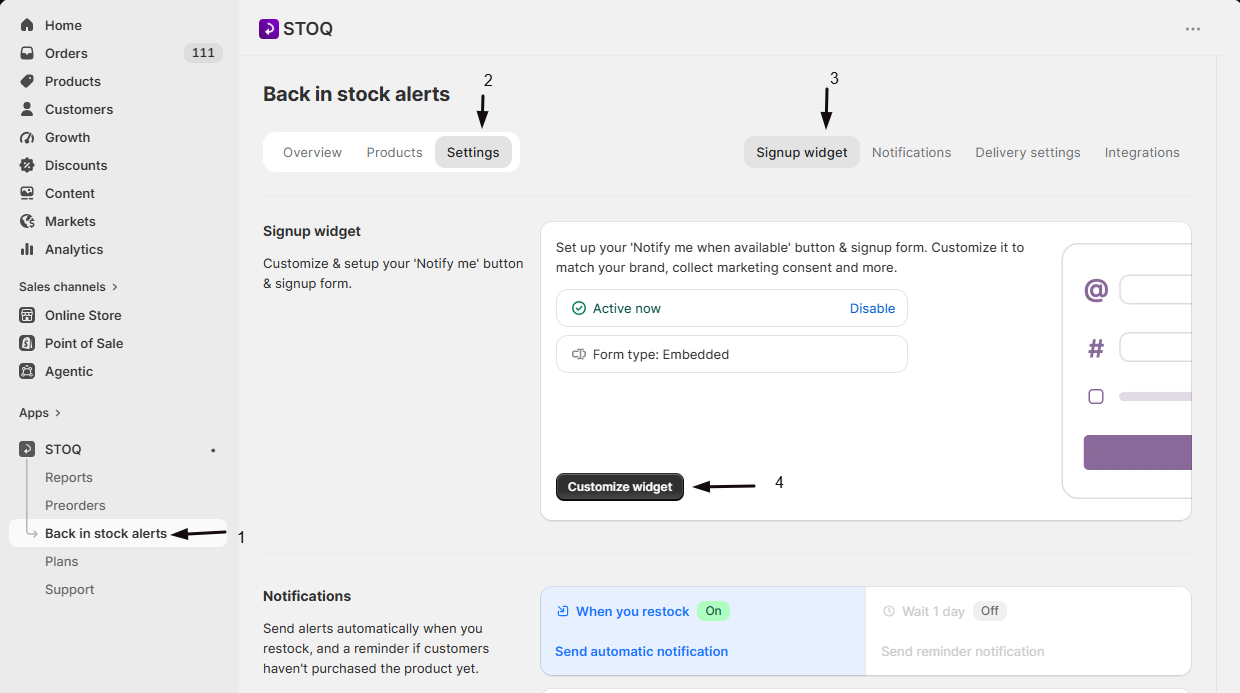
- In the left menu bar of the STOQ app, click Back in stock alerts.
- Click the Settings tab.
- Open the Signup widget sub-tab.
- Click Customize widget.
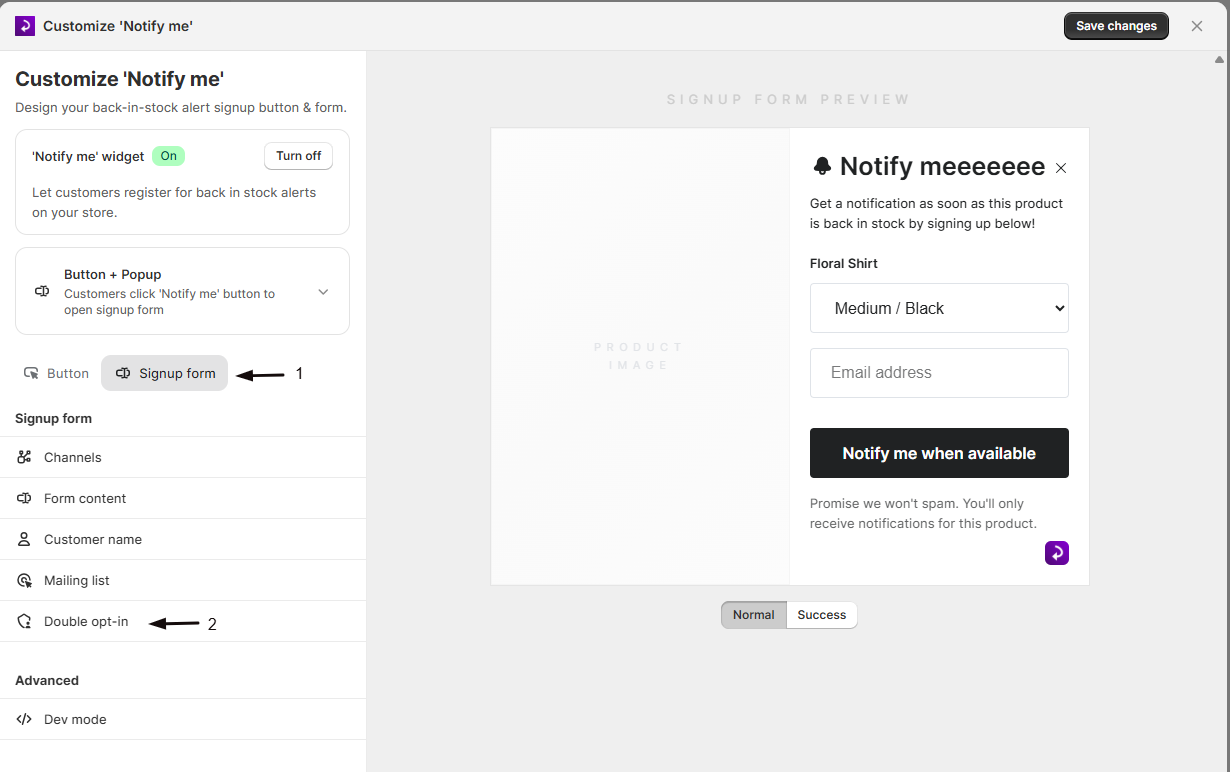
- Open the Signup form tab, then click Double opt-in in the sidebar.
-
Turn on the toggle
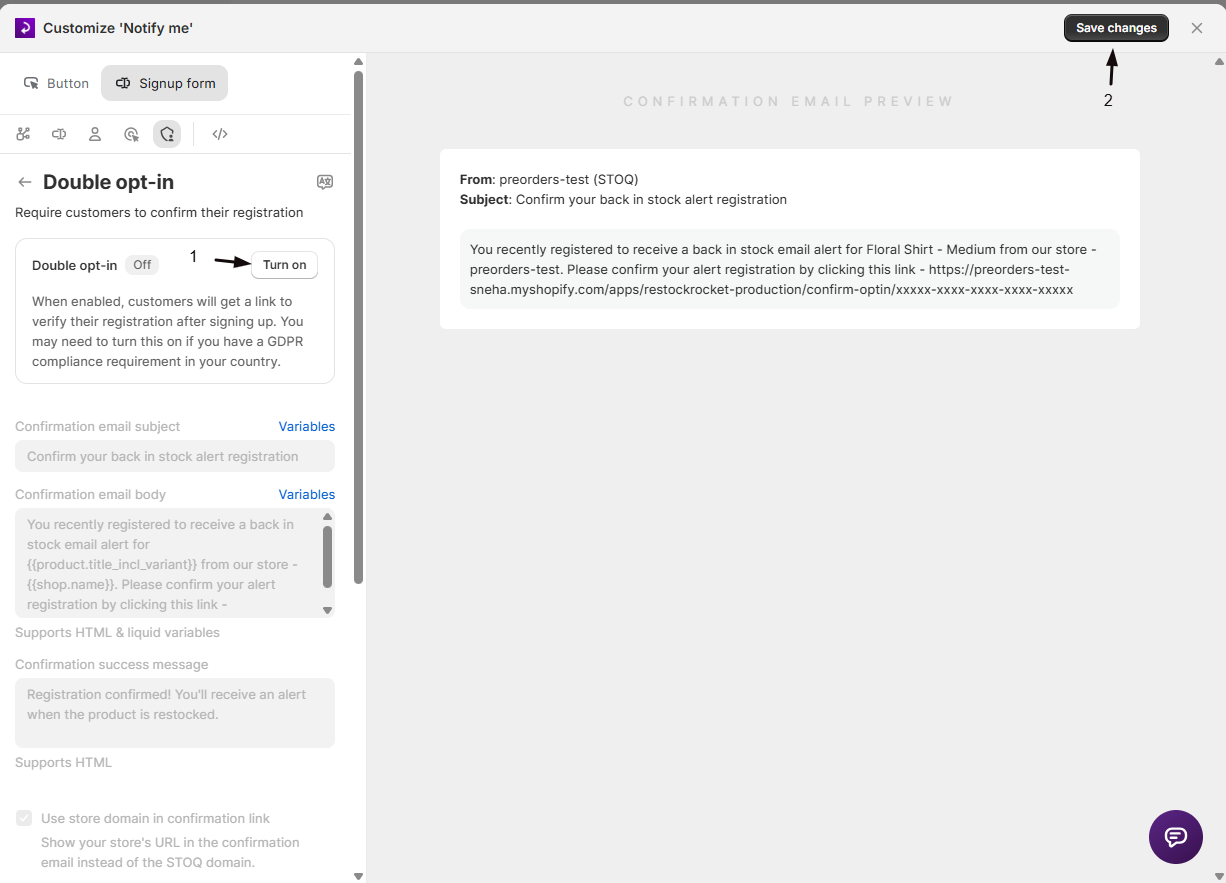
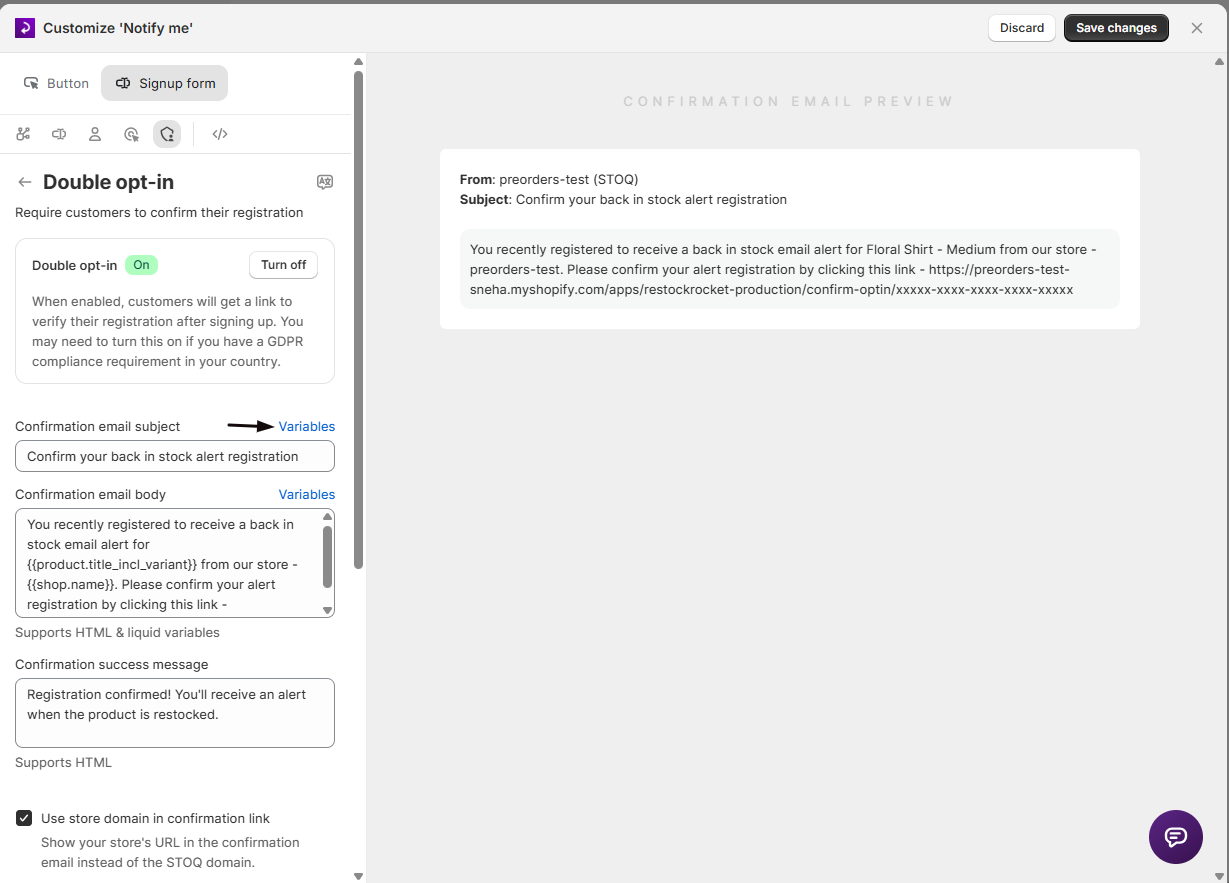
Turn on the Double opt-in toggle. This enables the confirmation step for new email signups.
-
Customize the confirmation email
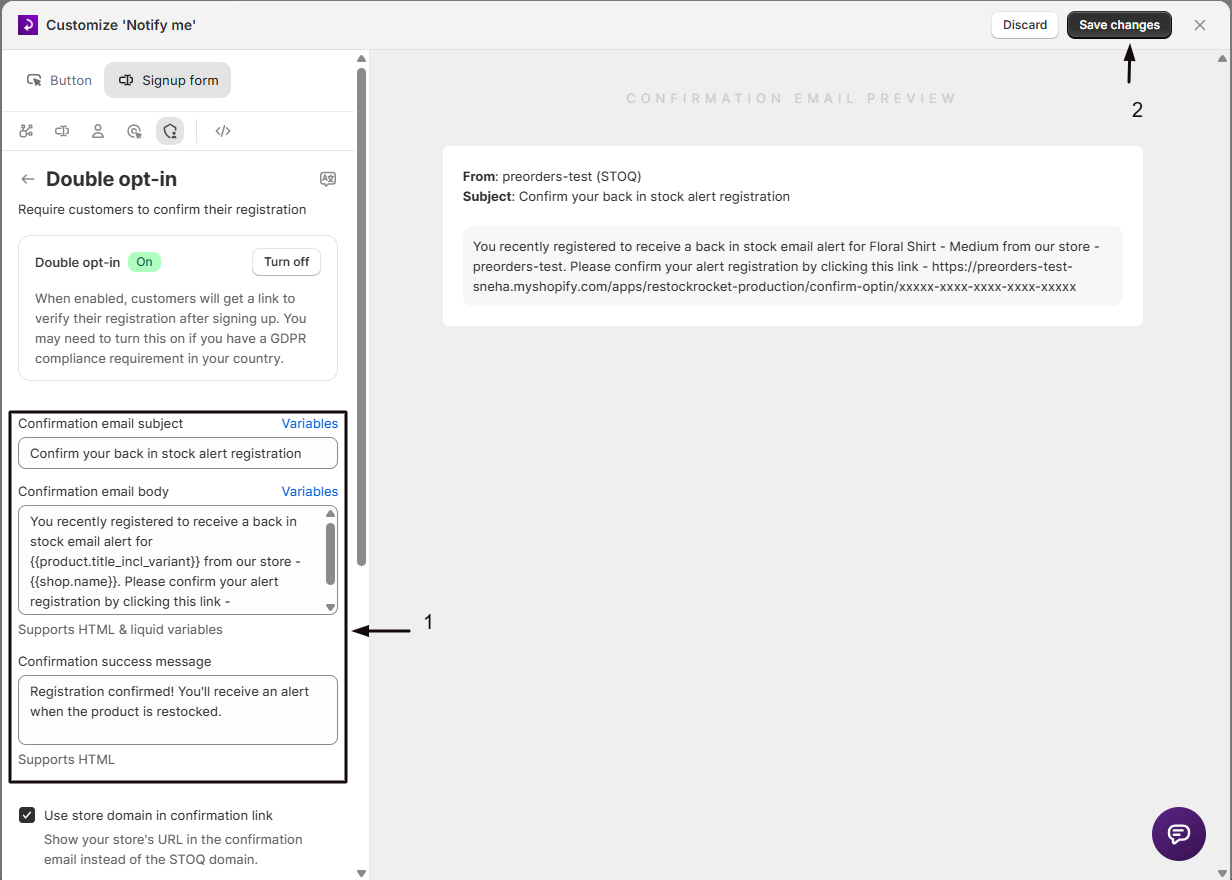
Edit the Confirmation email subject, Confirmation email body, and Confirmation success message fields. The subject and body support HTML and Liquid variables; the success message, shown after a customer clicks the confirmation link, supports HTML.
-
Insert variables (optional)
Click Variables next to the subject or body field to see the available Liquid variables: customer name, first name, last name, product name, store name, and the confirmation link itself.
-
Optionally use your store domain in the link
Turn on Use store domain in confirmation link to show your own store’s URL in the confirmation email instead of the default STOQ domain. This requires a paid plan, and your Shopify app proxy prefix, such as
/apps/or/a/, must match the one set in your Shopify admin.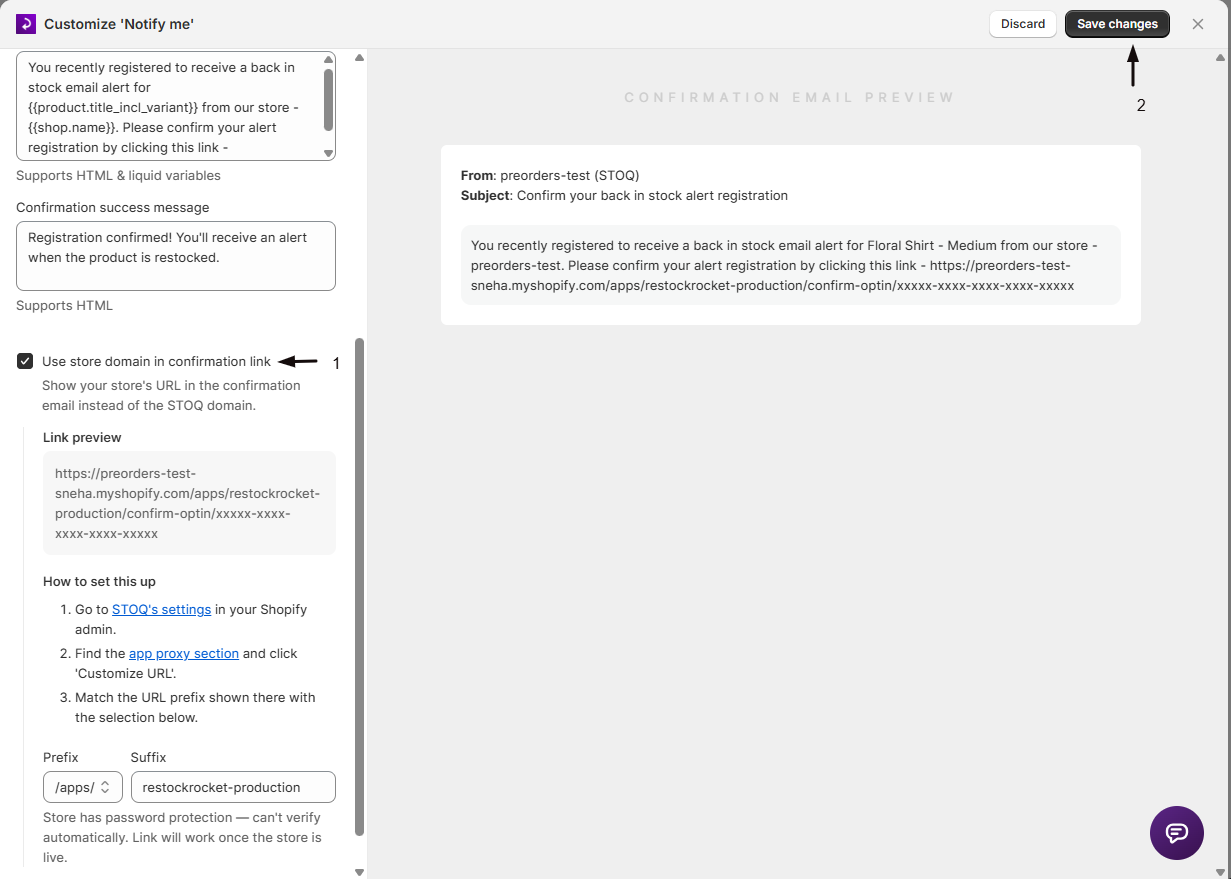
-
Save your changes
Save the form. New email signups from now on will require confirmation; existing signups keep their current confirmation status.
Check your setup
Section titled “Check your setup”-
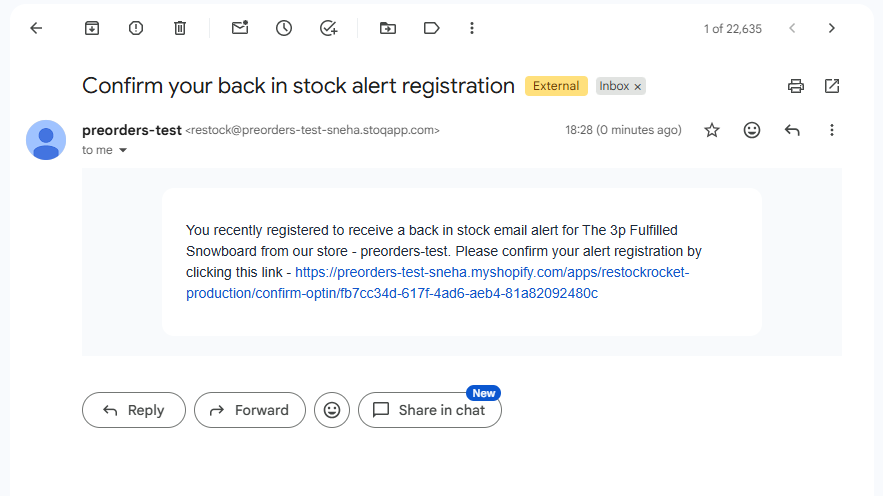
Submit a test signup with double opt-in turned on and confirm you receive the confirmation email at the address you used.
-
Check that the email subject, body, and any Liquid variables render as expected.
-
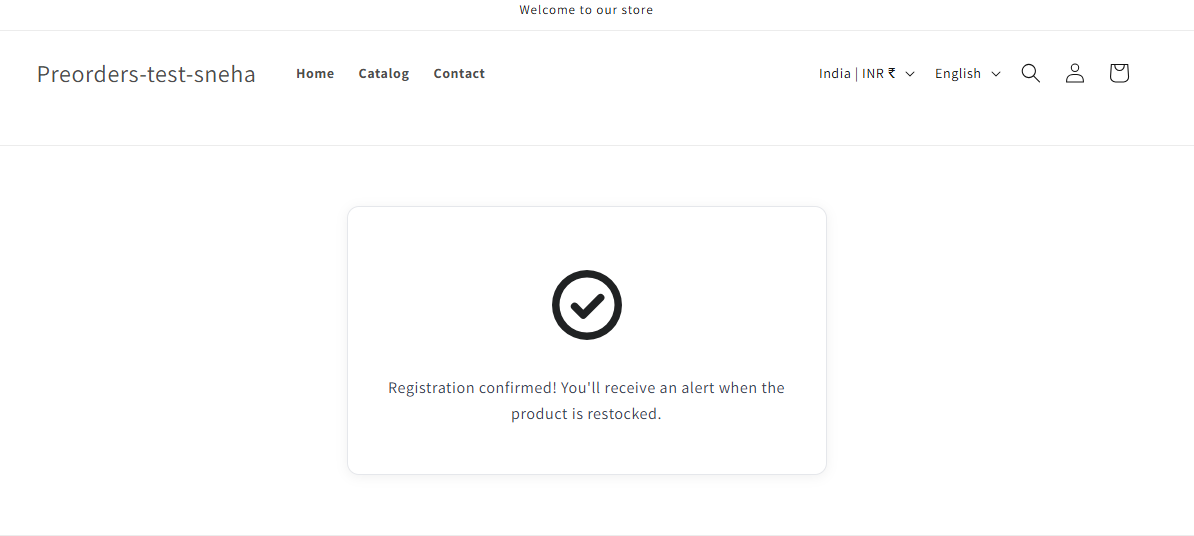
Click the confirmation link and confirm the success message displays.
-
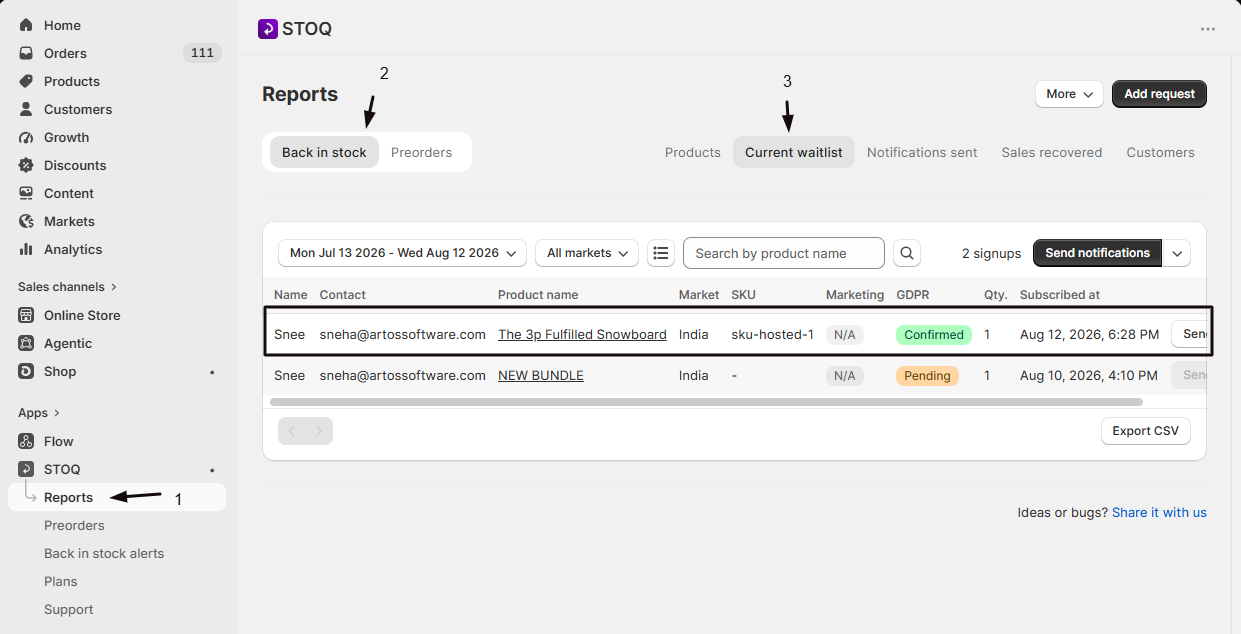
In your back in stock reports, confirm the signup now shows as confirmed rather than pending.
Troubleshooting
Section titled “Troubleshooting”The store domain option isn't available
Showing your own domain in the confirmation link requires a paid plan.
Confirmation links still point to the STOQ domain after turning on Use store domain in confirmation link
Your Shopify app proxy prefix doesn’t match. Check that the prefix in Double opt-in settings matches the one configured in your Shopify admin; STOQ checks that the prefix is reachable before treating the setting as valid.
A customer hasn't received a restock alert
Check their signup status in your reports, they may still be unconfirmed and need to click the confirmation link.
Customers aren't confirming on their own
Resend the confirmation email from your reports, at the product, variant, or store-wide level.
A customer's confirmation link no longer works
Confirmation links expire after 90 days. Resend the confirmation email from your reports so the customer gets a fresh link.
I just want to send a confirmation email when someone signs up. Is double opt-in the right feature?
Not if you only want to acknowledge the signup. Double opt-in requires the customer to click a confirmation link before they join the waitlist, and until they do they won’t get restock alerts. To send a confirmation without requiring customers to confirm, use the signup thank-you instead: it sends an acknowledgment as soon as someone signs up, without gating whether they join the waitlist or receive alerts.
Do I need to turn on double opt-in?
It depends on your store’s compliance requirements. Some countries and regions require confirmed consent (double opt-in) before you can send marketing-style communications. If you’re unsure, check your local regulations or consult legal counsel: STOQ provides the toggle but can’t advise on whether your store is required to use it.
Does double opt-in apply to SMS signups too?
No. Only email signups go through the confirmation step. SMS signups are automatically marked as confirmed when they’re created.
What happens if a customer never confirms?
Their signup stays pending and unconfirmed. They will not receive a back in stock notification until they click the confirmation link, even if the product restocks in the meantime.
What's the difference between the default confirmation link and using my store domain?
By default, the confirmation link points to a STOQ domain. On a paid plan, you can turn on the option to show your own store’s domain in the link instead, which requires matching your Shopify app proxy path prefix in the settings.
Will turning on double opt-in affect customers who already signed up?
No. It only applies to new signups created after the setting is turned on. Signups made before the change keep whatever confirmation status they already had.
Related guides
Section titled “Related guides”Thanks for letting us know.
Still stuck? Ask Quinn or chat with support