Manage a product's waitlist
The waitlist, notifications, and orders behind a single product or variant, wait time insights, and bulk actions.
Last updated
Click into any product or variant from the Products tab to see everyone waiting on it, everyone who’s already been notified, and the orders it’s recovered, plus tools to move, disable, or clean up that waitlist.
Before you begin
Section titled “Before you begin”The Waitlist distribution chart and Export CSV on this page both require a paid plan. On the free plan the chart shows a blurred preview and Export CSV is disabled.
Open a product’s or variant’s waitlist page
Section titled “Open a product’s or variant’s waitlist page”-
Open a product’s or variant’s waitlist page
- In the left menu of the STOQ app, click Reports.
- Click the Back in stock tab at the top.
- Click the Products sub-tab.
- Click a product’s name to open that product’s waitlist page, or click a variant’s name to open that single variant’s waitlist page instead.
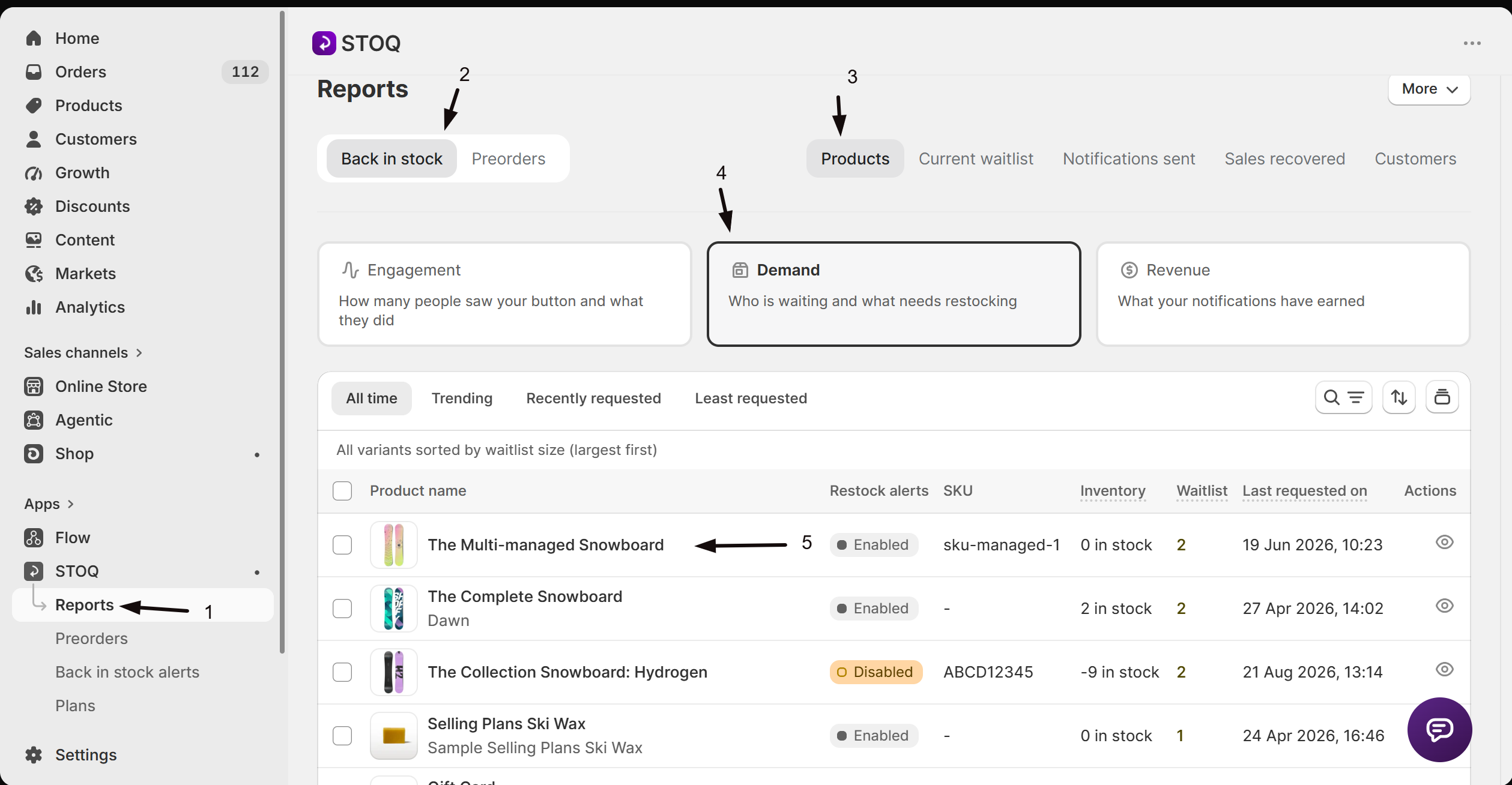
Everything below applies to both, noted where a variant page differs from a product page. Clicking Products in the page’s back link returns you to the Products sub-tab.
The three tabs
Section titled “The three tabs”The page has three tabs:
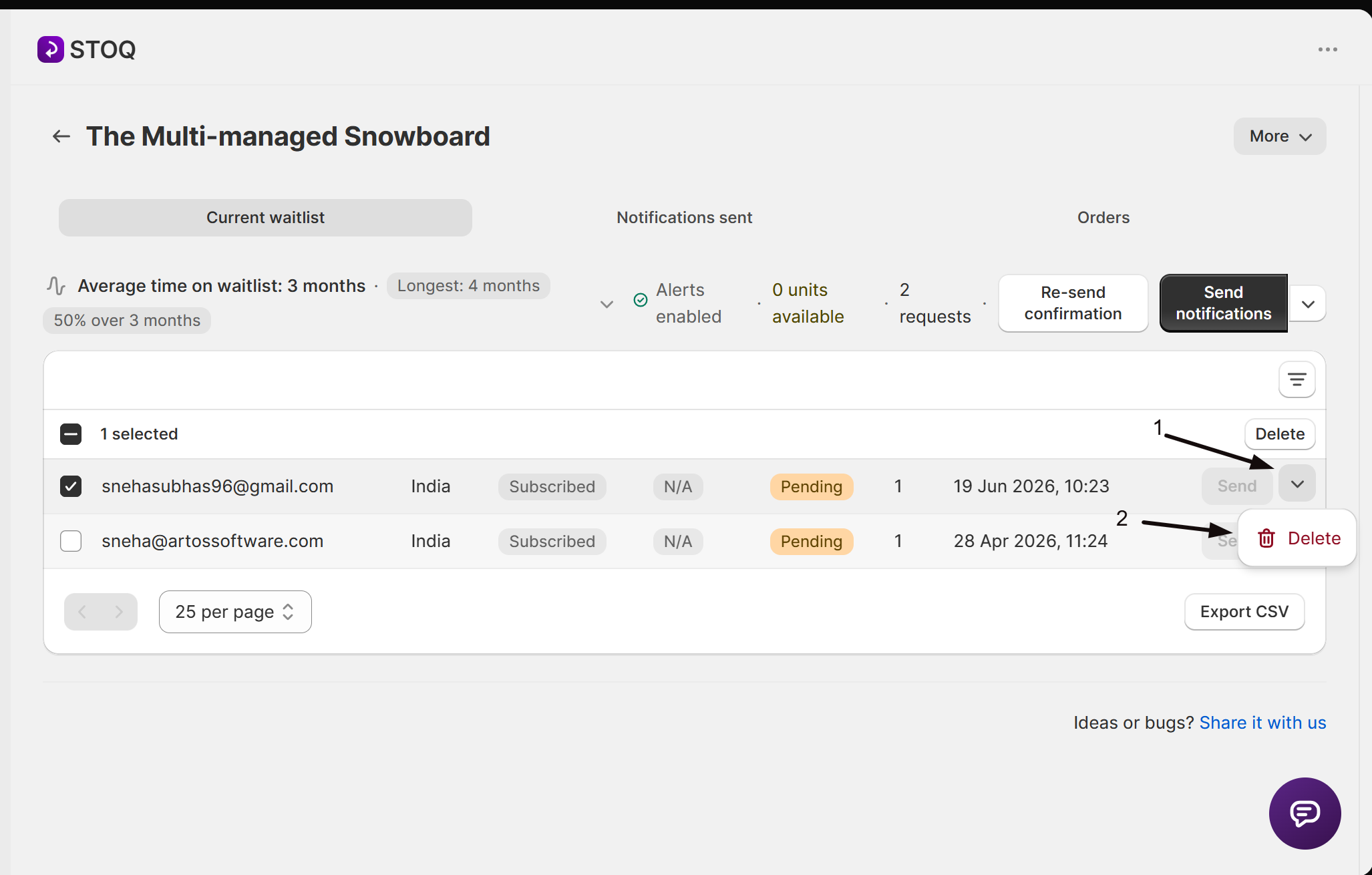
- Current waitlist: everyone still waiting for this product or variant, not yet notified.
- Notifications sent: everyone already notified for this product or variant.
- Orders: orders that included this product (or variant).
A product page’s Current waitlist and Notifications sent tables include a Variant column (since a product can have several), plus per row the customer’s Contact, Market, Subscription status, Marketing consent, GDPR confirmation (only if you require opt-in), and Qty. requested.
What happens to a signup after its alert
Section titled “What happens to a signup after its alert”When STOQ sends a customer their back in stock alert, the signup isn’t deleted. It moves from the Current waitlist tab to the Notifications sent tab, where it still counts in this page’s totals and in CSV exports.
A later restock doesn’t alert that customer again automatically. Automatic alerts only go to signups still on the Current waitlist tab, so once someone has been notified they won’t get another automatic alert if the product sells out and restocks. To hear about a future restock, the customer signs up again, which adds a fresh entry to the Current waitlist tab.
Two things can still send an already-notified customer another message, and neither is an automatic re-alert on a new restock:
- A follow-up reminder, if back in stock reminders are turned on. It shows as Follow-up reminder in the row’s Why was this sent? history.
- A manual re-send you trigger yourself from the Notifications sent tab.
If you set a product to Draft or Archived in Shopify, its signups stay on the waitlist and no automatic alerts go out while it’s in that state. STOQ only sends automatic alerts for products that are Active and published to the Online Store. You can still notify the waitlist yourself with a manual send.
See how long customers have waited
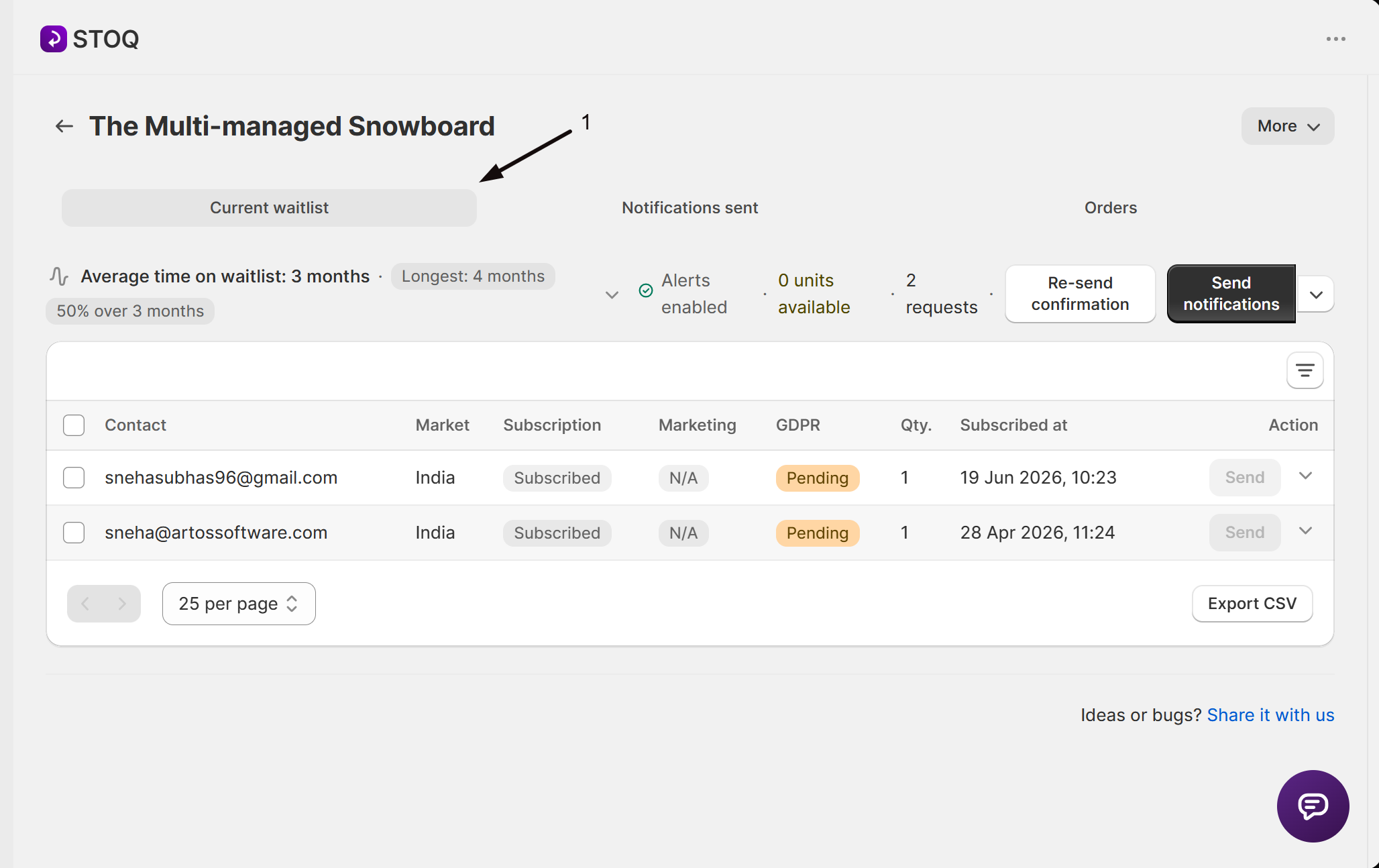
Section titled “See how long customers have waited”When the Current waitlist tab has signups and its date filter is set to All time, a line above the table shows Average time on waitlist: (time) next to a Longest: (time) badge. If a meaningful share of the waitlist has been waiting a while, a third badge shows the percentage waiting over 3 months.
Click that line, or the chevron next to it, to expand the Waitlist distribution card: a bar chart of how many customers fall into each wait time range, with a tooltip on hover. Click Hide to collapse it again. This stats line only appears with the date filter on All time; switching to a shorter range hides it.
Manage the waitlist
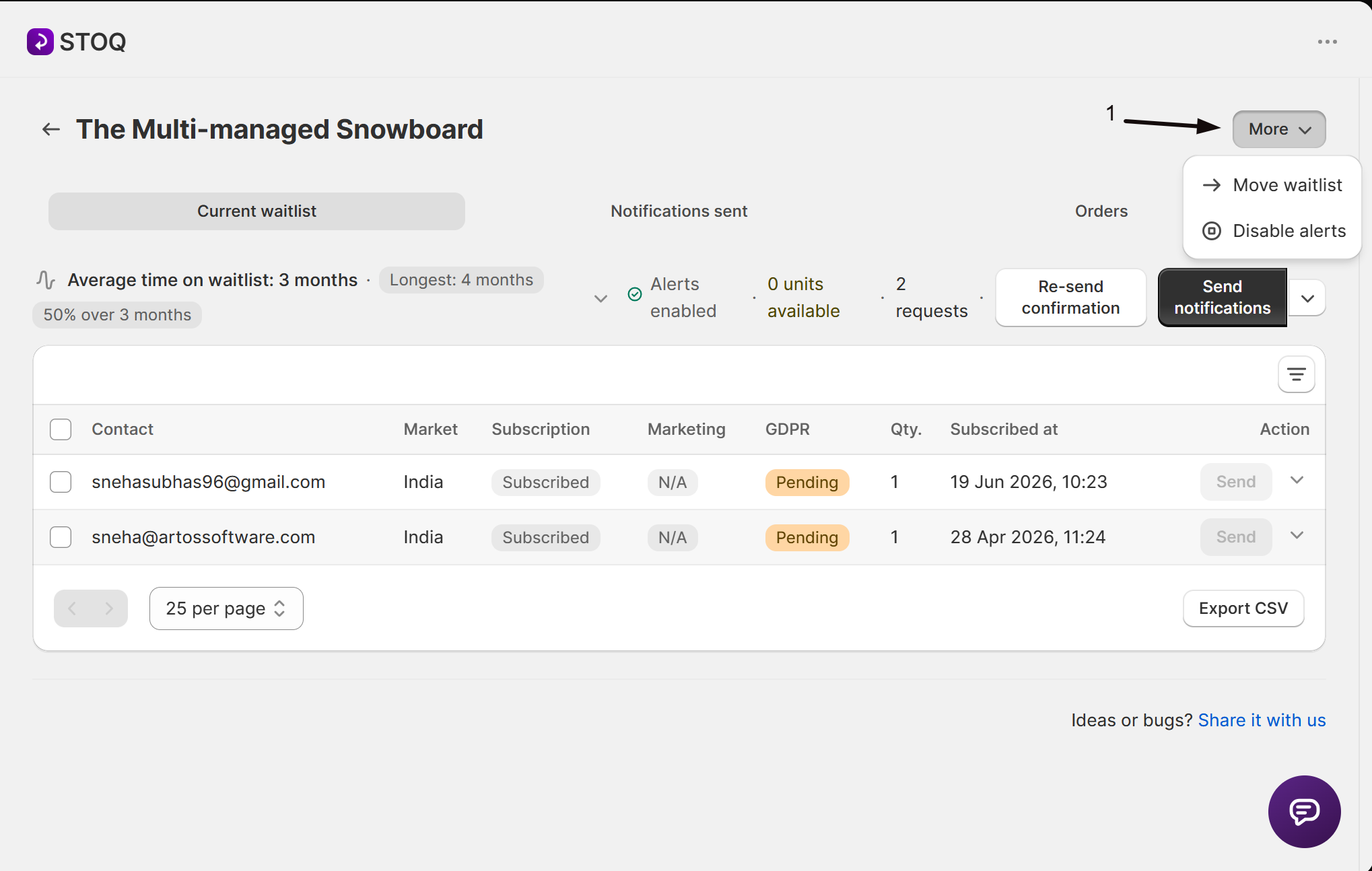
Section titled “Manage the waitlist”Click the More button in the page header for:
- Move waitlist: transfer every signup on this Current waitlist to a different single-variant product (already-notified customers aren’t moved). See Move signups to another product.
- Disable alerts / Enable alerts (variant pages only): stops or resumes automatic back in stock alerts for that specific variant when you restock. A status line near the top of the Current waitlist tab shows Alerts enabled or Alerts disabled for the variant you’re viewing. On a product page, each variant’s status shows instead as an Alerts status column with an Enabled or Disabled badge; open that specific variant’s page to toggle it.
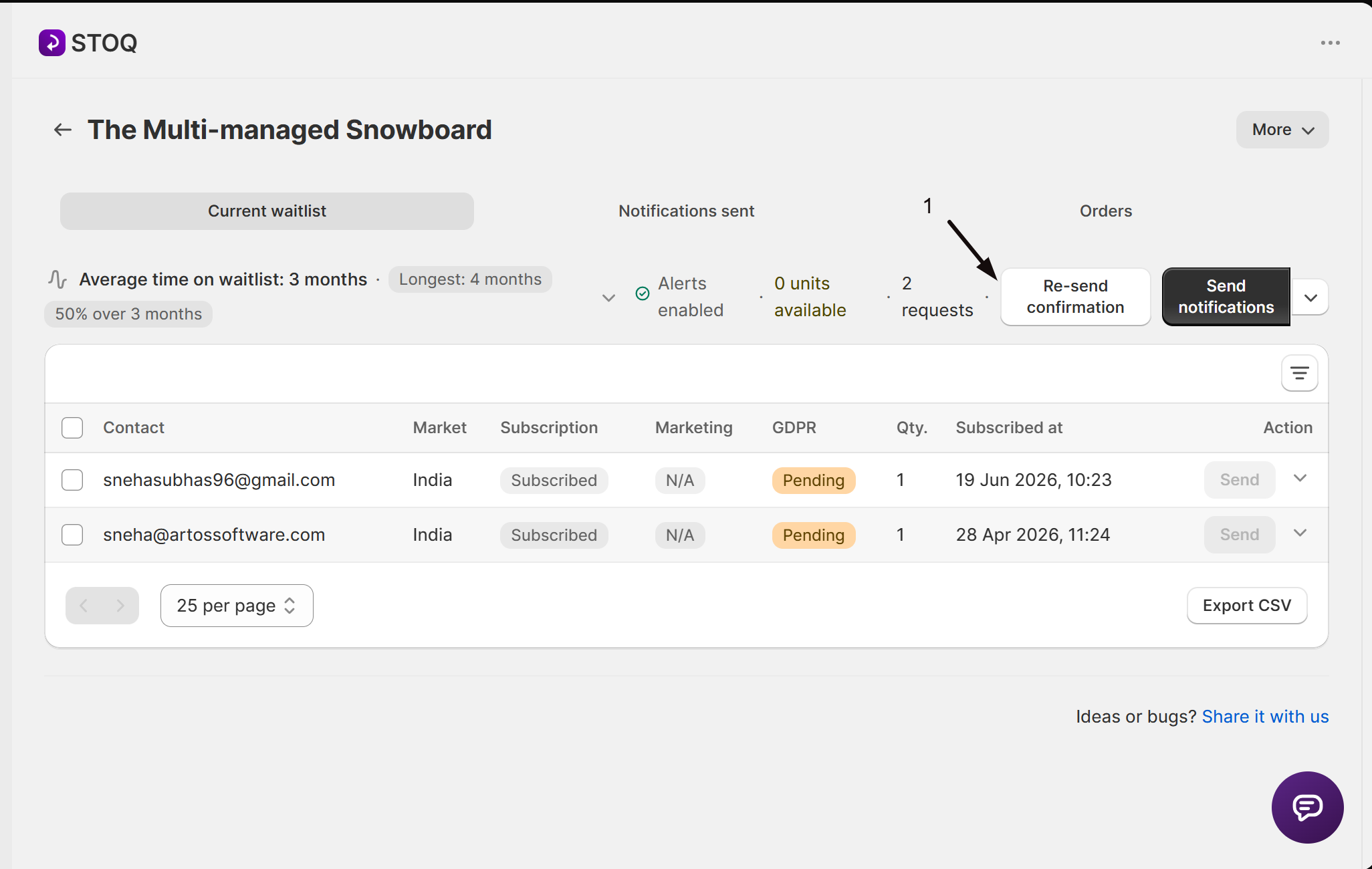
If you require GDPR opt-in, a Re-send confirmation button next to More re-sends the consent confirmation email to everyone on the Current waitlist tab whose confirmation is still Pending.
To remove signups you no longer want to track, select their checkboxes on the Current waitlist tab and click the bulk Delete action, or click the delete icon on a single row. Deleting is per signup and can’t be undone.
Track deliverability and notification history
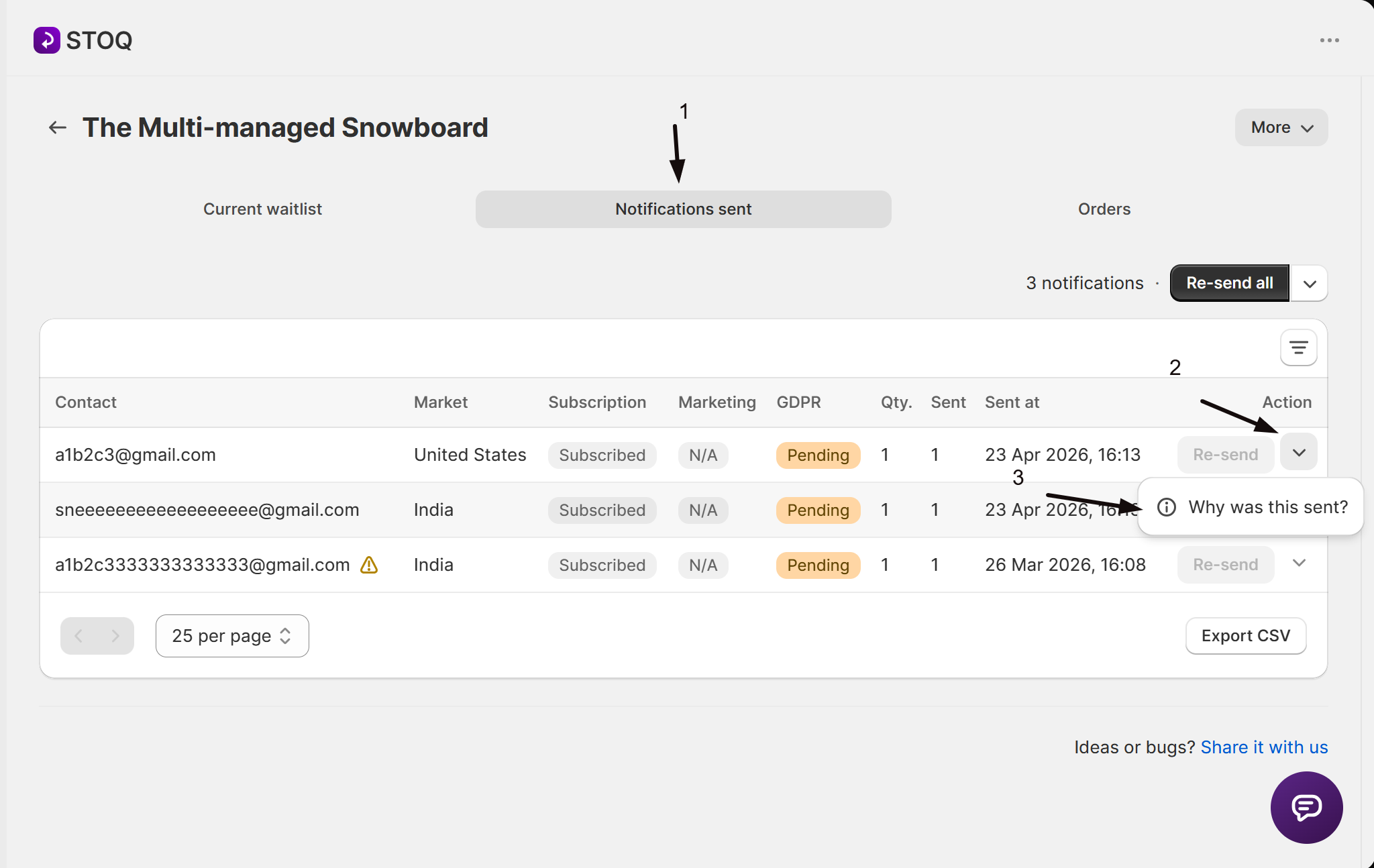
Section titled “Track deliverability and notification history”On the Notifications sent tab, click the Columns filter and check Signed up date to add a Signed up column showing when each customer originally joined the waitlist, alongside the Sent at date of their most recent alert.
In the Contact column, a warning icon marks a customer whose email has bounced once before (“Future notifications may not reach this customer”), and a critical icon marks one that’s bounced twice or more, meaning STOQ won’t send them further email notifications.
Click the chevron next to Re-send on a sent row, then Why was this sent?, to see that alert’s history: what triggered it (auto restock, bulk send, bulk re-send, Flow automation, or manual send) and its delivery status per channel (Pending, Sent, Delivered, Opened, Clicked, or Bounced).
Export the waitlist
Section titled “Export the waitlist”Export CSV, at the bottom of either table, emails a CSV of just this product or variant’s current tab, filtered to whatever date range and other filters you’ve applied, to the address set in report settings. It requires a paid plan.
What customers will see
Section titled “What customers will see”Turning off Disable alerts stops that variant’s customers from getting an automatic email or SMS when you restock, they stay on the waitlist but won’t hear from STOQ until you re-enable alerts or notify them manually. Moving a waitlist means those customers get notified about the destination product or variant instead of the original one.
Troubleshooting
Section titled “Troubleshooting”Disable alerts or Enable alerts is missing from the More menu
It’s only available from a variant’s own waitlist page. Open the specific variant, not the parent product.
Move waitlist gives an error after you pick a product
The destination resolved to more than one variant. Pick a product that has only a single variant, or move to that variant’s own listing instead.
A "Variant deleted" banner appears at the top of the page
The product or variant was removed from Shopify recently, so alerts can’t be sent to it. Use Move waitlist to transfer the signups to a product still listed in your store.
A customer's GDPR confirmation stays Pending
They haven’t confirmed their signup, so they won’t receive an alert even after a restock. Use Re-send confirmation to email them the confirmation link again, or see Notify me double opt-in.
Export CSV is greyed out
It requires a paid plan.
Does Move waitlist notify customers right away?
No. It only transfers outstanding signups to the destination product or variant, it doesn’t send anything. Send or wait for a restock on the destination to notify them.
Can I move a waitlist to a product that has several variants?
No. The destination has to resolve to a single variant. If the product you pick has more than one, STOQ shows an error asking you to choose one with just a single variant.
Does disabling alerts for a variant delete its waitlist?
No. Signups stay on the Current waitlist tab; they just won’t get an automatic alert when you restock until you click Enable alerts again or notify them manually.
Does disabling alerts on one variant affect the product's other variants?
No. Enable alerts and Disable alerts apply to the single variant you’re viewing only.
Why can't I see the full Waitlist distribution chart?
The chart requires a paid plan. On the free plan it shows a blurred preview with an upgrade prompt.
Will an already-notified customer be alerted again if the product restocks?
No. Automatic alerts only go to signups on the Current waitlist tab, so a customer who has already been notified isn’t alerted again on a later restock. To be told about a future restock, they sign up again, which adds a new entry to the Current waitlist tab.
A customer got more than one message for a single signup. Why?
Two things can send a second message without a new restock: a follow-up reminder, if back in stock reminders are turned on, and a manual re-send you trigger from the Notifications sent tab. Open the row’s Why was this sent? history to see which one it was.
Do alerts go out while a product is in draft or archived?
No automatic alerts go out. The signups stay on the waitlist, but STOQ only sends automatic alerts for products that are Active and published to the Online Store. You can still send manually.
Related guides
Section titled “Related guides”Thanks for letting us know.
Still stuck? Ask Quinn or chat with support