Customize your email templates in Klaviyo
Design your back in stock and preorder emails in Klaviyo's editor when Klaviyo is your provider.
Last updated
When you send through Klaviyo, you design the email in Klaviyo’s own editor rather than STOQ’s built-in one. STOQ passes the product details, customer data, and links on each event, and you drop them into the template as variables.
Before you begin
Section titled “Before you begin”| Requirement | Detail |
|---|---|
| A paid plan | The Klaviyo integration is a paid feature. |
| Klaviyo connected and a verified flow | Set Klaviyo as your provider and verify the flow. See Send back in stock alerts through Klaviyo. |
Open your flow’s email
Section titled “Open your flow’s email”-
Open the flow in Klaviyo
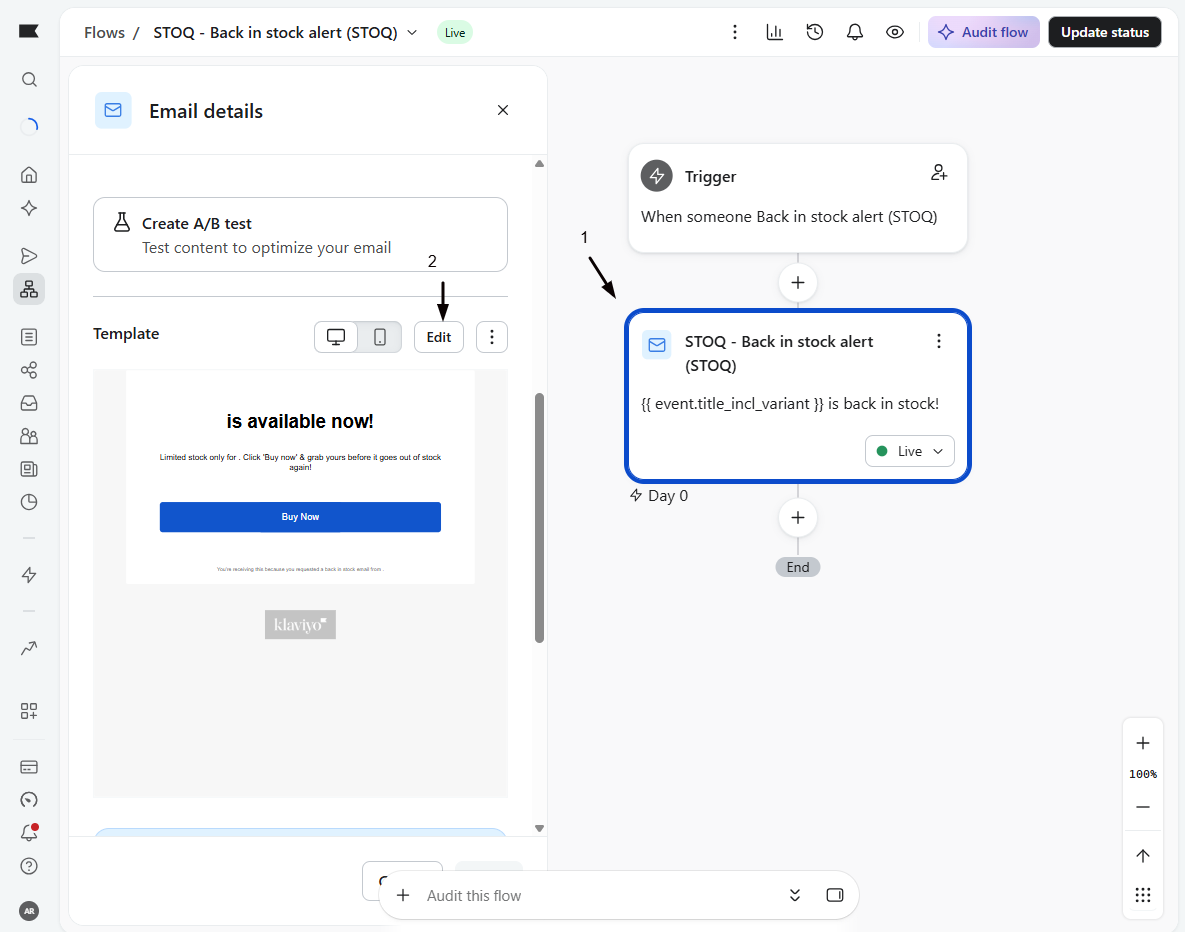
In your Klaviyo dashboard, open the flow triggered by the STOQ metric, for example Back in stock alert (STOQ) or Preorder confirmed (STOQ). If you used STOQ’s automatic setup, these flows already exist.
-
Edit the email
Click the Email action, then Edit Email to open the template designer.
Build the email
Section titled “Build the email”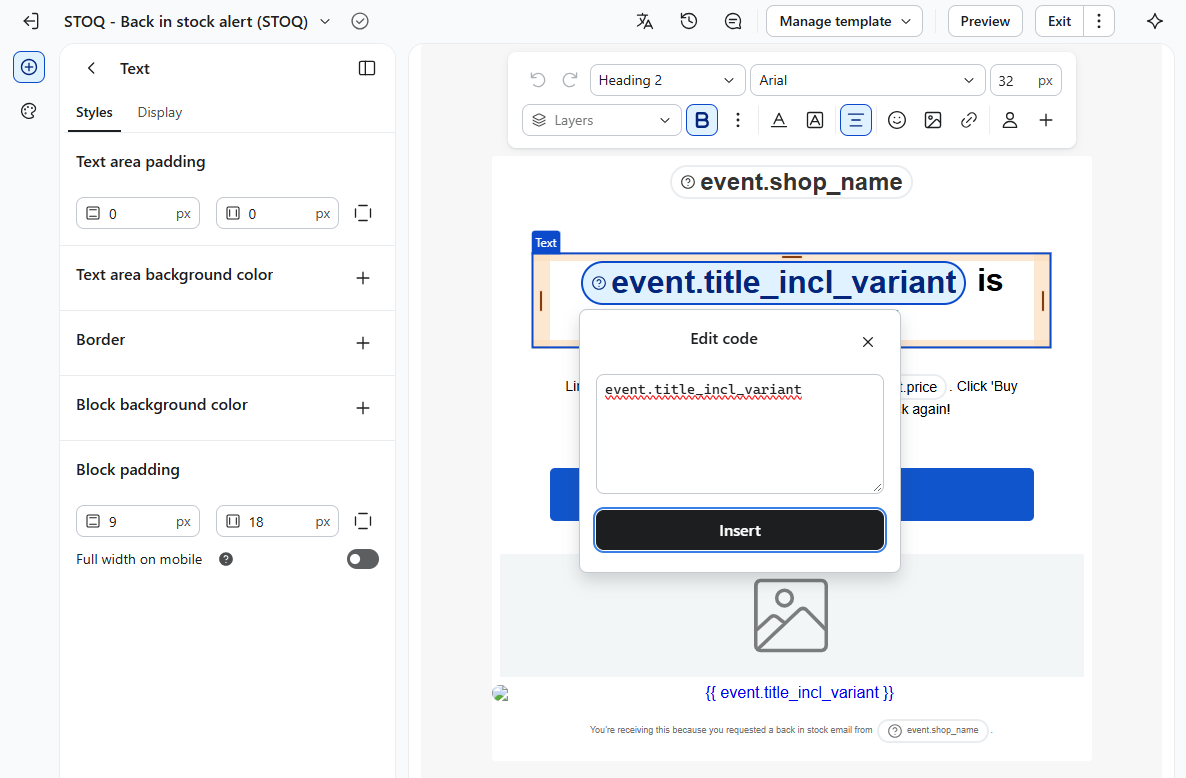
- Subject and preview text: insert variables with the format
{{ event.variable_name }}, for example{{ event.product_title }} is back in stock! - Product image: add an Image block with the source set to
{{ event.image_url }}. - Product details: add a Text block using variables like
{{ event.product_title }},{{ event.price }}, and{{ event.variant_title }}. - Call-to-action button: add a Button block with the URL set to
{{ event.checkout_link }}for direct checkout, or{{ event.product_page_link }}for the product page. - Unsubscribe link: add a text link to
{{ event.unsubscribe_link }}.
For the complete variable lists, see back in stock variables and preorder variables. Back in stock and preorder flows use different variables, so use the set that matches the flow.
Reusing your own or a Klaviyo template
Section titled “Reusing your own or a Klaviyo template”If you build the email from scratch with the variables above, you’re set. If you start from a template you already have, or from one of Klaviyo’s own back in stock templates, swap out anything that pulls product data from your Klaviyo catalog. STOQ sends the product details on the event instead of driving the flow through Klaviyo’s catalog, so a catalog lookup or product block has nothing to resolve: Klaviyo reports a catalog error and the details render blank.
Every value STOQ sends is an event. property. The quick check: if a variable or block isn’t an event. one, for example a catalog lookup like catalog_item.title or a dragged-in product block, it has no data from STOQ. Replace each with the matching event variable:
| Instead of a Klaviyo catalog value | Use |
|---|---|
Product title (e.g. catalog_item.title) |
{{ event.product_title }} |
| Variant title | {{ event.variant_title }} |
| Product image | {{ event.image_url }} |
| Price | {{ event.price }} |
| Product or checkout link | {{ event.product_page_link }} or {{ event.checkout_link }} |
See back in stock variables for the full list.
Test your template
Section titled “Test your template”-
Send a test event from STOQ
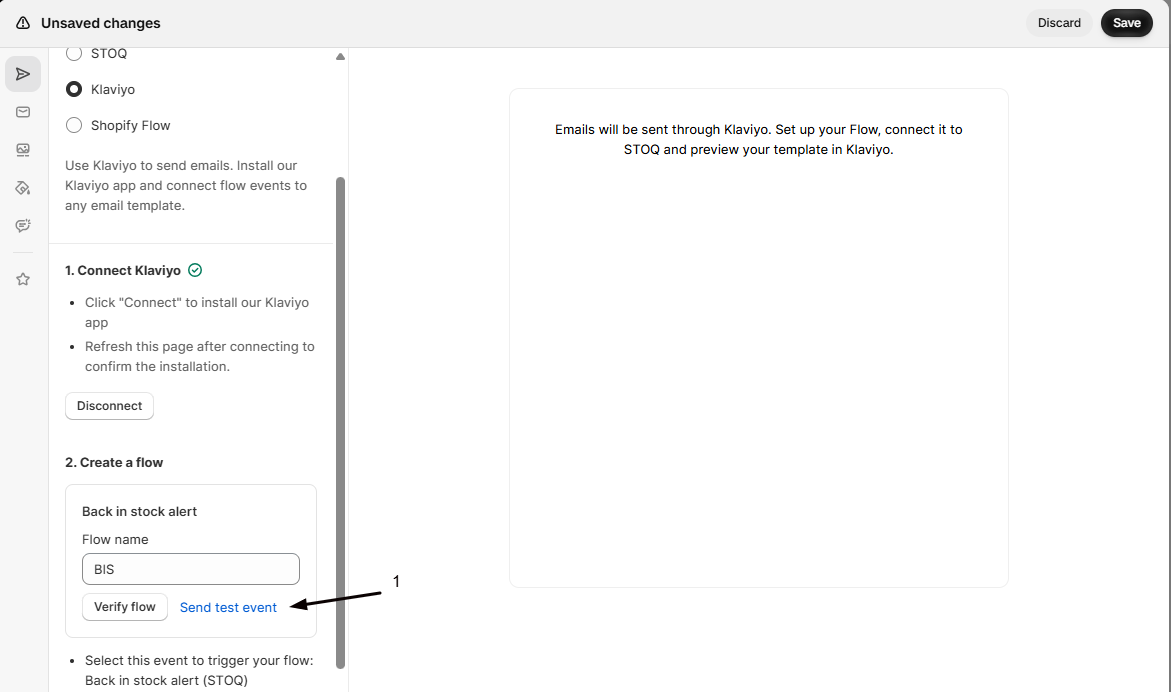
In STOQ, open the alert’s Customize email > Klaviyo settings and click Send test event. This pushes a test event into Klaviyo with real data.
-
Preview in Klaviyo
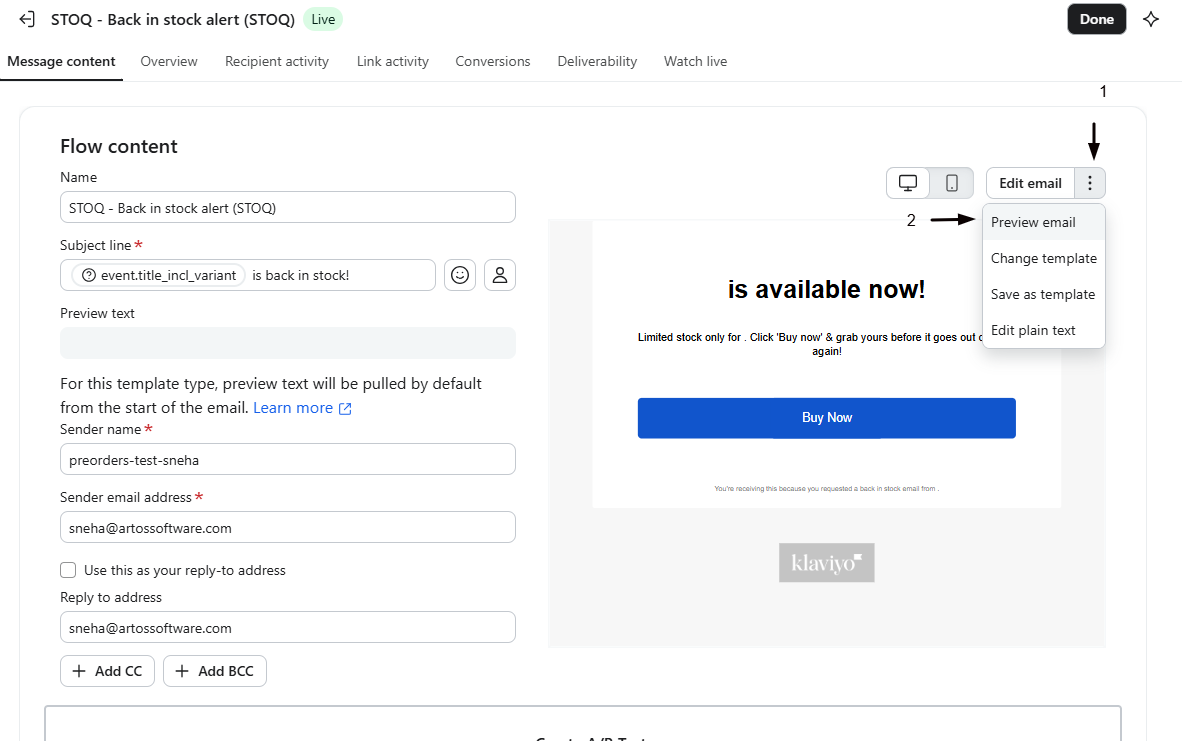
In the Klaviyo email editor, click Preview & Test to see the template populated, then send a test to yourself to confirm the final result.
Troubleshooting
Section titled “Troubleshooting”Klaviyo shows a catalog error, or the product name, image, or price is blank
Your template is pulling product data from Klaviyo’s catalog (a catalog lookup or a product block), but STOQ sends the details on the event rather than through the catalog, so the lookup has nothing to resolve. Replace the catalog variables and blocks with STOQ’s event. variables, see Reusing your own or a Klaviyo template. The same cause can make Klaviyo skip the send when the product reads as out of stock in its catalog, covered in Fix Klaviyo emails not sending.
Variables show as blank or as literal text
Check the variable path. Use {{ event.product_title }}, and send a test event so Klaviyo has real data to render. A misspelled property name prints as-is. If the blank is a catalog lookup like catalog_item.title, see the catalog error entry above.
The product image is missing
The product has no image in Shopify. Add one, or design the block to tolerate an empty image_url.
The email never triggers
The flow is likely in Draft. Set it to Live in Klaviyo. If the test event doesn’t reach Klaviyo at all, re-check the connection.
Can one template serve the alert and the reminder?
They’re separate flows on different metrics, but the event data is the same shape, so you can duplicate a template design across both.
Can I use conditional logic in the template?
Yes. Klaviyo supports template logic, for example {% if event.is_reminder %} for reminder-specific wording, or a language check for translated copy.
Do I need to update my template when STOQ adds a variable?
No. New properties are added to the event automatically, and your existing template keeps working.
Does STOQ's built-in editor still apply?
No. When Klaviyo is selected, all design happens in Klaviyo. STOQ’s built-in email editor is used only when STOQ sends the email.
Related guides
Section titled “Related guides”Thanks for letting us know.
Still stuck? Ask Quinn or chat with support