Sync signups to your Shopify customers
Add every back in stock signup to your Shopify Customers list, tagged, automatically.
Last updated
STOQ can add each customer who signs up for a back in stock alert to your Shopify Customers list, tagged, moments after they submit the “Notify me” form. Use this if you want signups visible and tagged in Shopify admin without exporting anything. No API key needed.
Before you begin
Section titled “Before you begin”The Shopify sync toggle requires a paid STOQ plan. On the free plan it’s disabled with an upgrade prompt.
Set it up
Section titled “Set it up”On a phone, this menu is collapsed. In the Shopify mobile app, tap the STOQ logo at the top of the screen to open it, then choose the section named below. There is no hamburger icon. See Finding the STOQ menu.
-
Open the Shopify integration
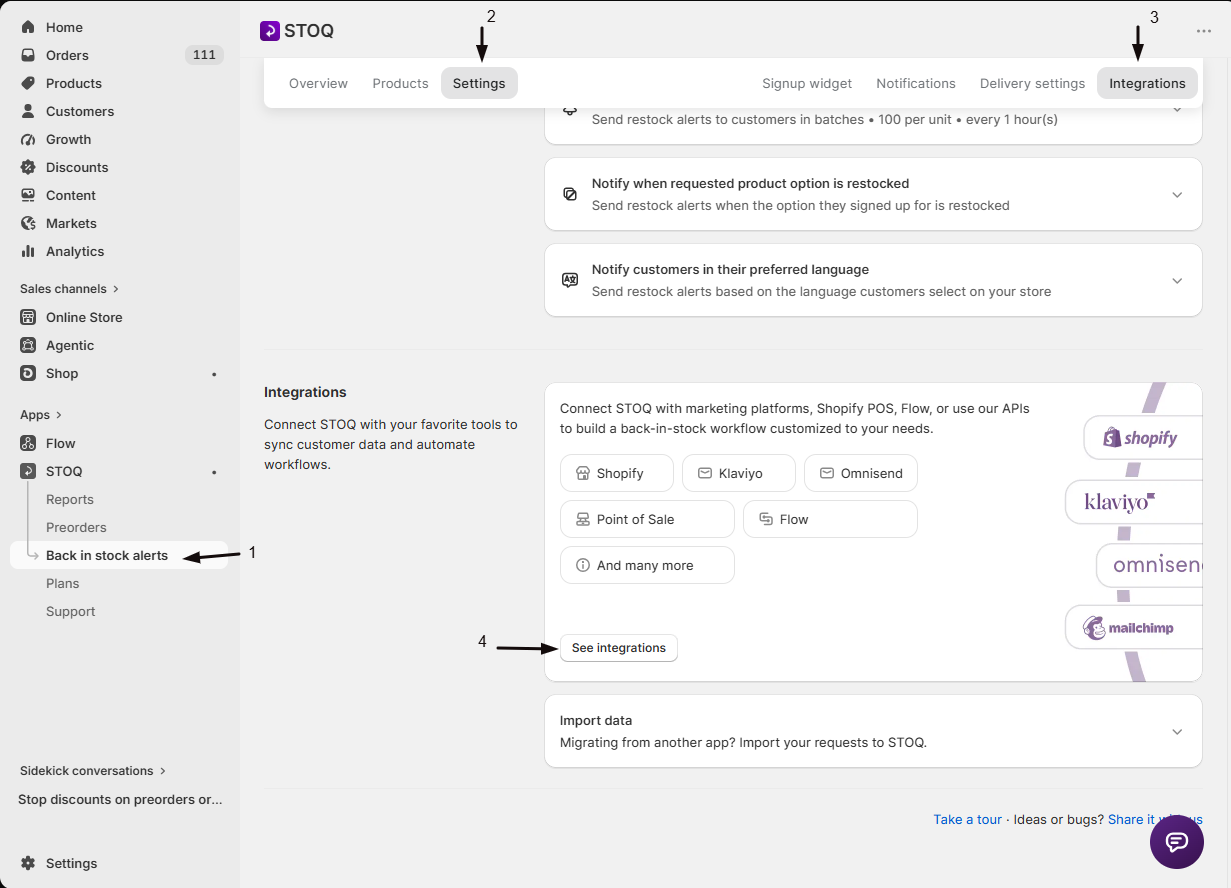
- In the left menu bar of the STOQ app, click Back in stock alerts.
- Click the Settings tab, then open the Integrations sub-tab.
- Click See integrations to open the full Integrations page.
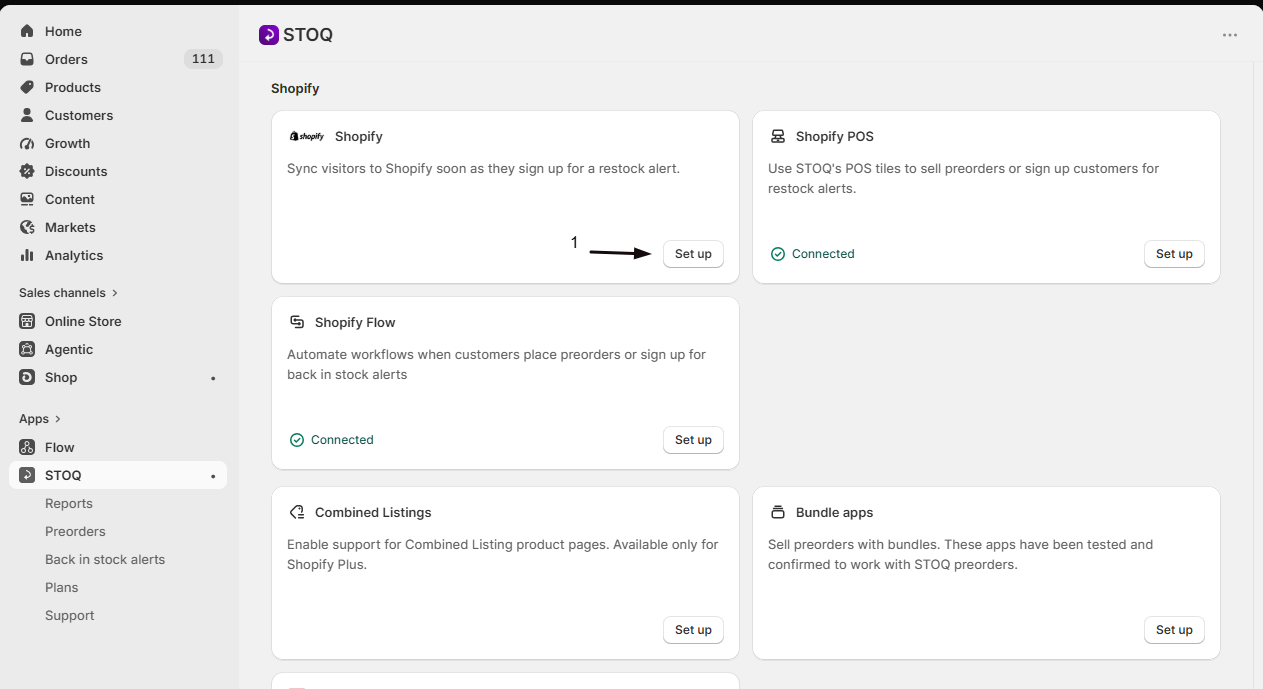
- Find the Shopify card and click Set up.
-
Turn on the sync toggle
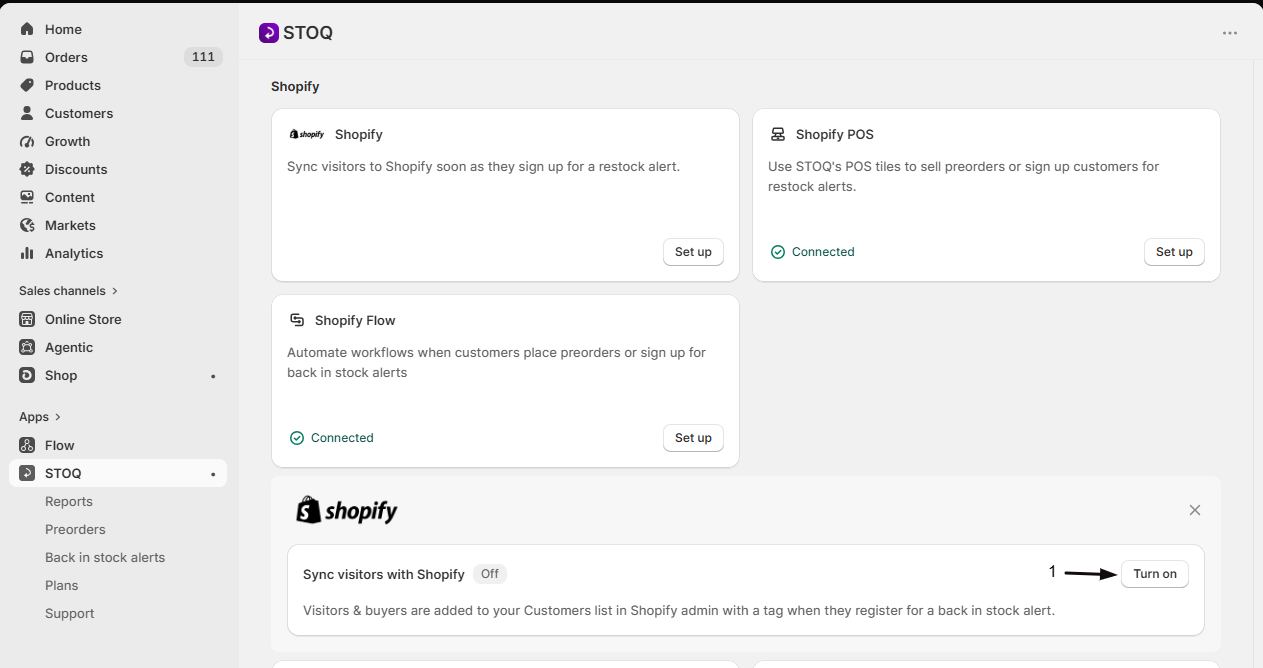
Enable Sync visitors with Shopify.
-
Set a profile tag (optional)
Enter a tag in the Profile tags field, for example
back-in-stock-signup. This tag is shared across Shopify, Klaviyo, Mailchimp, and Omnisend, so it’s the same value no matter which you turn on.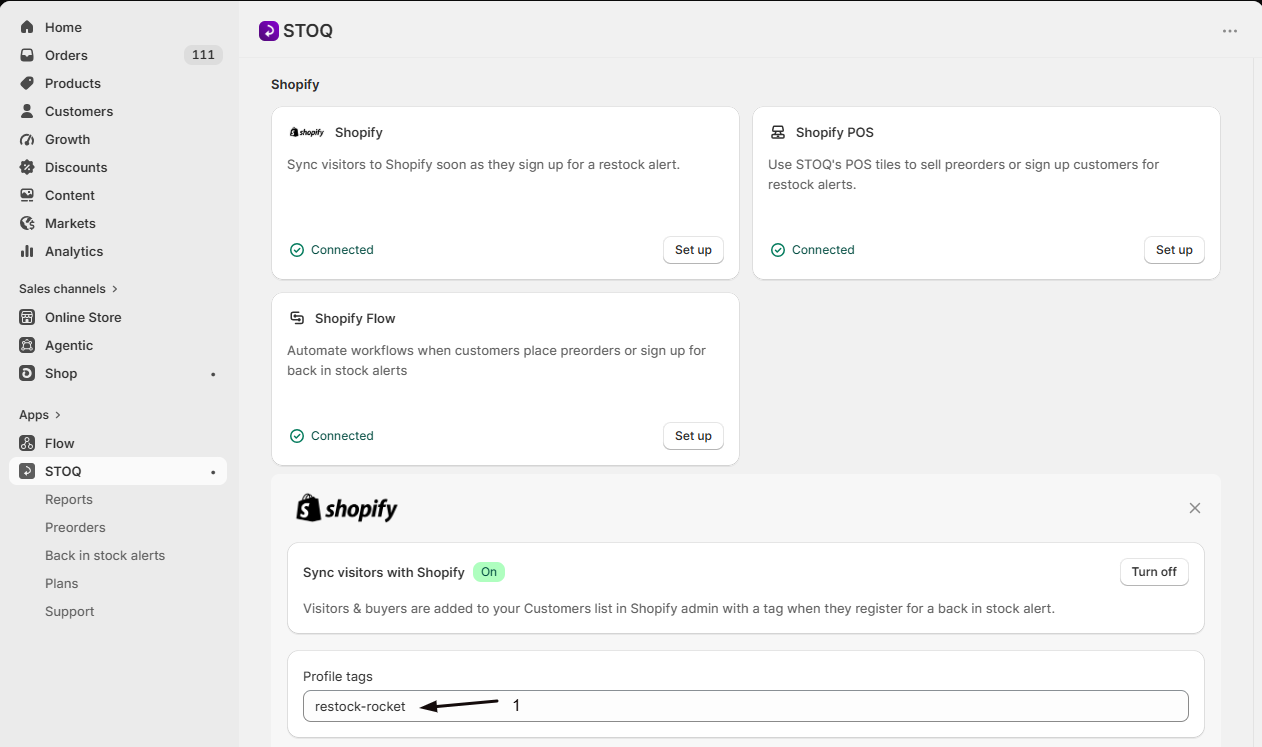
Visitors and buyers are added to your Shopify Customers list as soon as they register for an alert. If you also collect marketing consent on the signup form, the customer’s opt-in choice is recorded as their Shopify marketing consent.
Check your setup
Section titled “Check your setup”- Sign up for a restock alert yourself with a test email. See Test back in stock alerts.
- In Shopify admin, go to Customers, search for the test email, and confirm it’s there with your profile tag applied.
Does this sync my existing waitlist too?
No. Only new signups sync automatically, from the moment you turn the toggle on. Contact STOQ support to backfill existing customers. If you send back in stock emails through Shopify Flow, STOQ also adds each waiting customer to Shopify when their alert goes out.
Does a customer need to opt in to marketing first?
No. Every signup is added. Consent only affects whether the customer is recorded as accepting marketing.
The toggle is greyed out
It’s a paid-plan feature. Upgrade to unlock it.
Why did the toggle turn on by itself?
Selecting Shopify Flow as your back in stock email platform turns it on, because Flow needs a Shopify customer to act on. You can turn it off again. Alerts sent through Flow keep working, because STOQ adds each notified customer to Shopify just before firing the trigger. See Automate with Shopify Flow.
Related guides
Section titled “Related guides”Thanks for letting us know.
Still stuck? Ask Quinn or chat with support