Send back in stock alerts through Klaviyo
Route the restock email and SMS through your own Klaviyo flows instead of STOQ's built-in sender.
Last updated
Send your back in stock alerts from your own Klaviyo flows instead of STOQ’s built-in email and SMS. When a product restocks, STOQ fires a Klaviyo metric event instead of sending the alert itself, and your Klaviyo flow sends the branded message. This lets you control the design, timing, and branding of the alert in Klaviyo.

Before you begin
Section titled “Before you begin”| Requirement | Detail |
|---|---|
| Paid STOQ plan | Selecting Klaviyo as your email or SMS platform requires a paid plan. |
| Klaviyo connected | Connect your Klaviyo account first. See Sync back in stock signups to Klaviyo for the connection steps. |
Selecting Klaviyo as your email or SMS platform is a single shop-wide setting, so choosing it here also switches your preorder notifications to Klaviyo.
Choose your setup
Section titled “Choose your setup”Once Klaviyo is your sending platform, choose how the flow gets built:
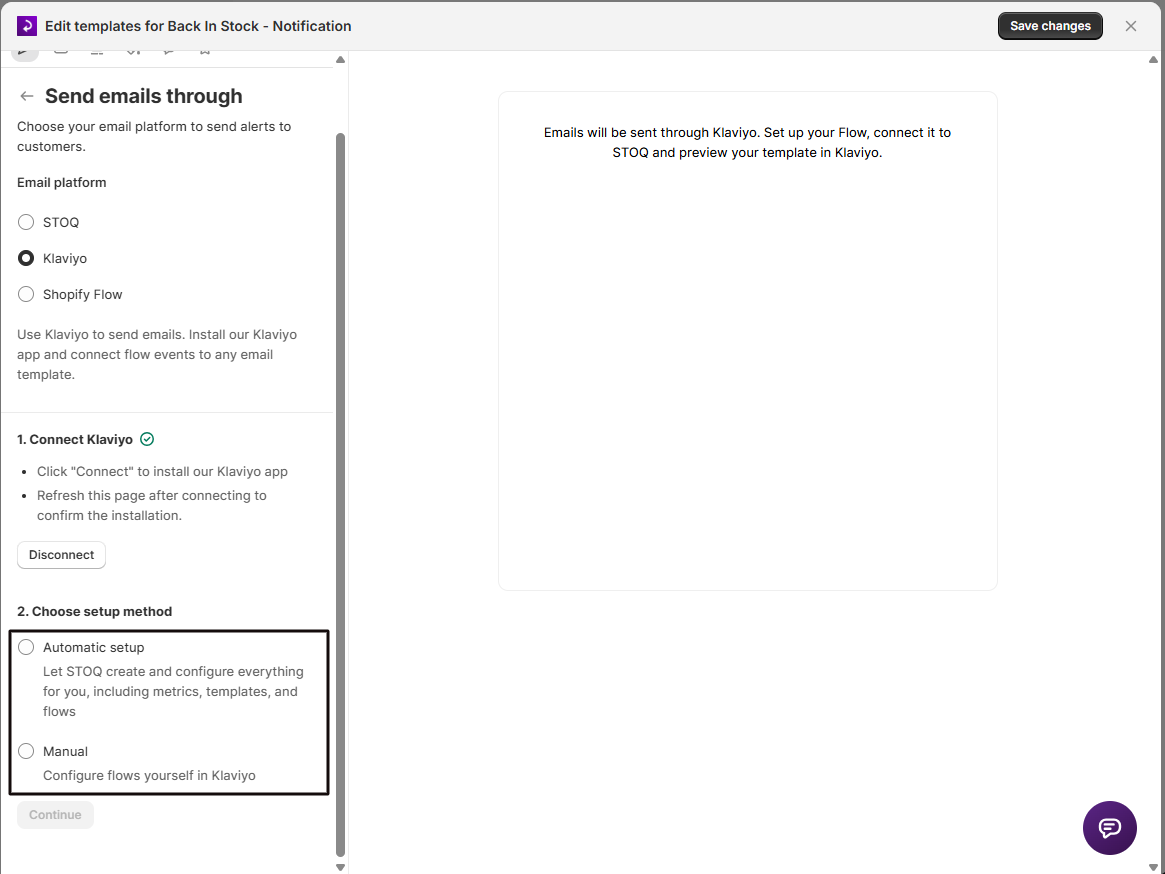
- Automatic setup: STOQ creates the template and flow in your Klaviyo account and activates it. Use this for the fastest path to a working flow.
- Manual setup: you create the flow yourself in Klaviyo, then enter its name in STOQ so it can verify it. Use this if you already have a flow or want to build from your own templates.
What customers will see
Section titled “What customers will see”STOQ no longer sends the alert itself; it fires a metric event and your Klaviyo flow sends the message. The flow controls the design, subject line, send timing, and unsubscribe handling. Each event includes product, customer, and shop details you can use to personalize it.
Set it up
Section titled “Set it up”On a phone, this menu is collapsed. In the Shopify mobile app, tap the STOQ logo at the top of the screen to open it, then choose the section named below. There is no hamburger icon. See Finding the STOQ menu.
-
Open the notification’s editor
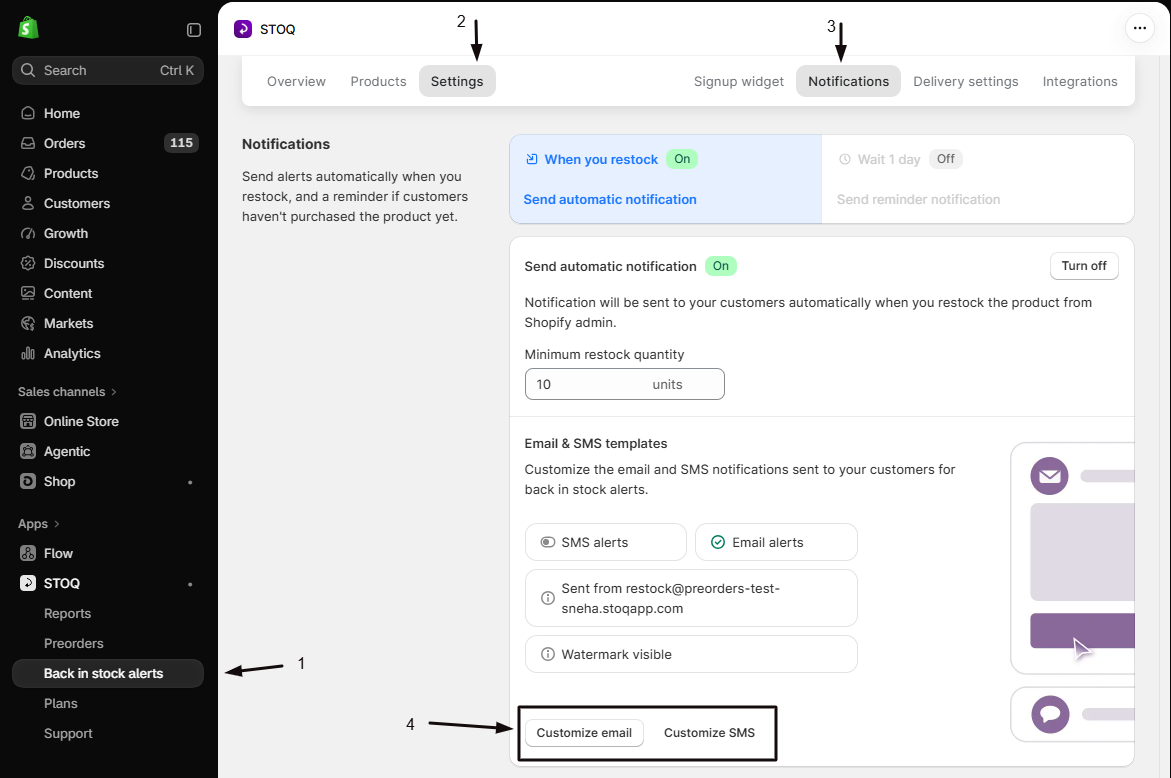
- In the left menu bar of the STOQ app, click Back in stock alerts.
- Click the Settings tab.
- Open the Notifications sub-tab.
- Under the notification sequence, select the alert you want to send through Klaviyo, the main restock alert or a reminder.
- Click Customize email or Customize SMS.
You can also start this from the Klaviyo card on the Integrations page by clicking Set up restock alerts.
-
Select Klaviyo as the platform
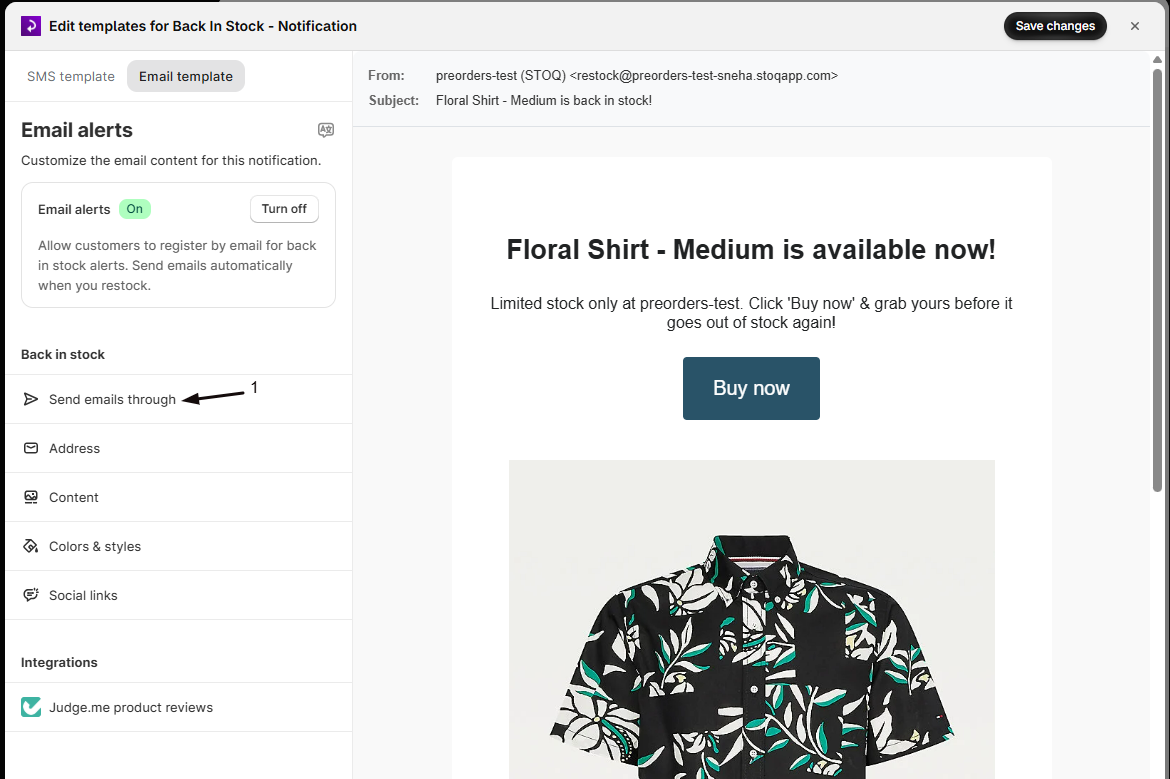
- In the editor, click the Send emails through (or Send SMS through) icon in the sidebar.
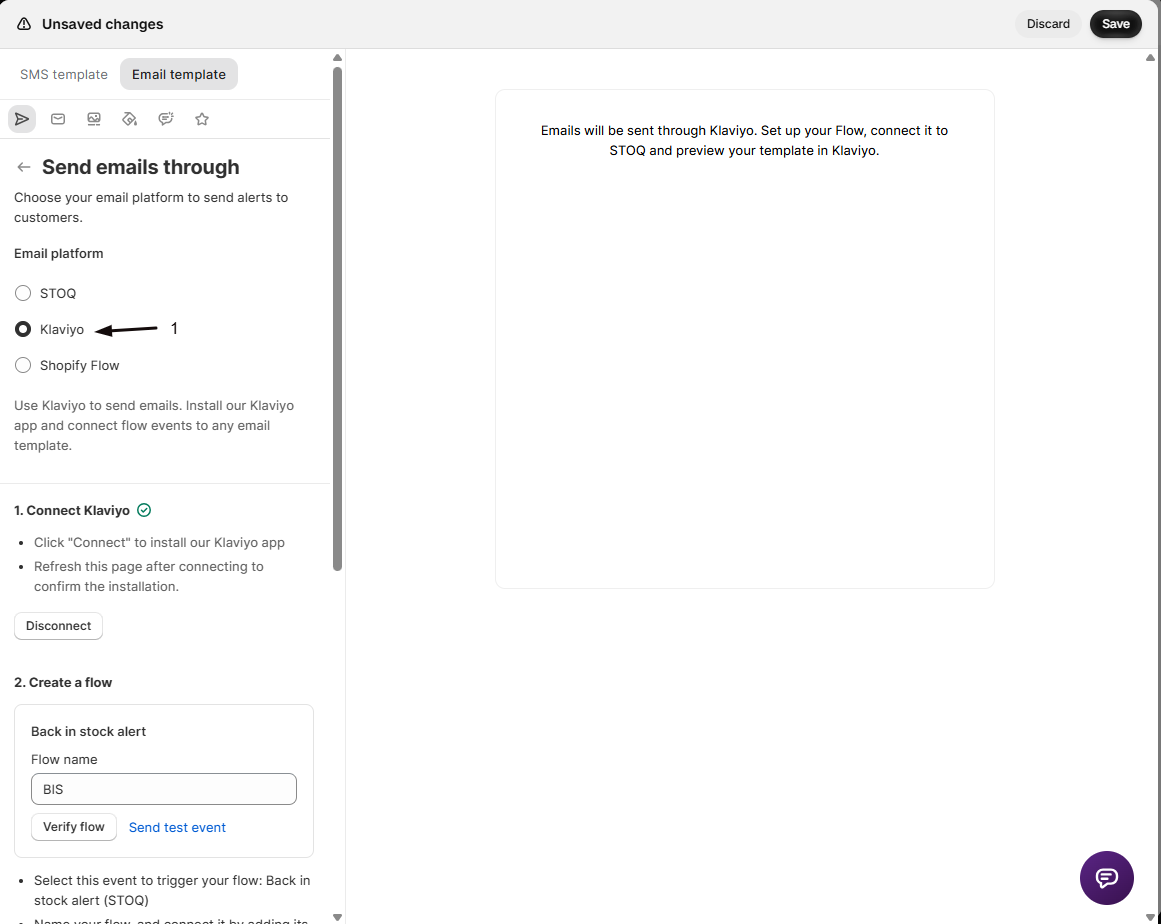
- Choose the Klaviyo radio button.
-
Connect Klaviyo if you haven’t already
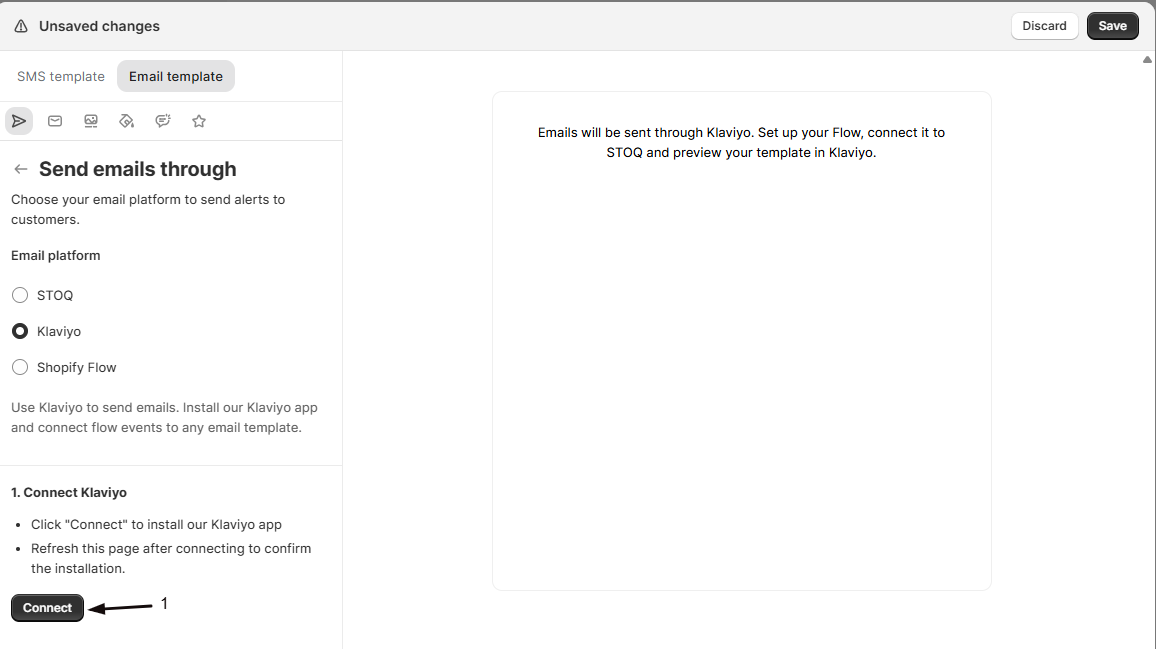
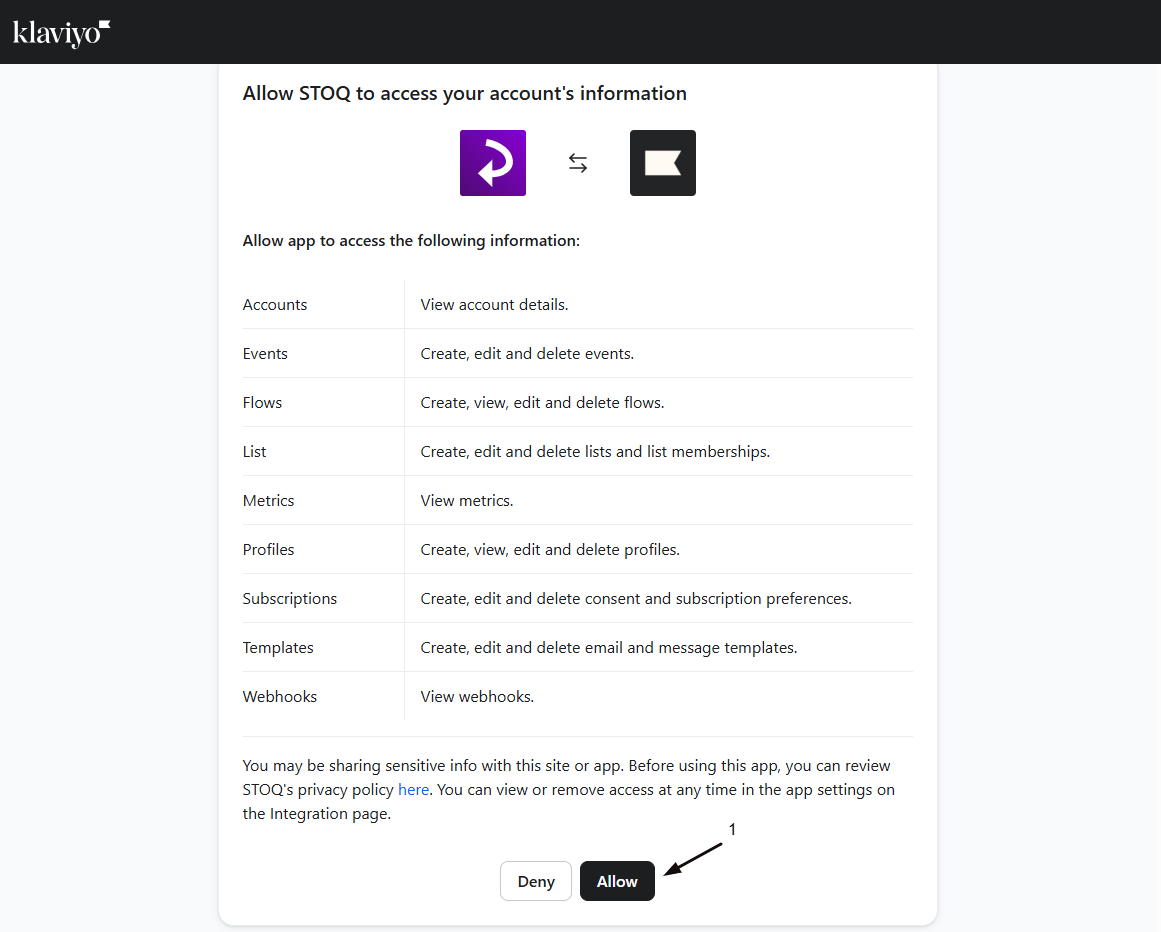
If Klaviyo isn’t connected yet, click Connect under 1. Connect Klaviyo, complete the Klaviyo authorization, and refresh the page. See Sync back in stock signups to Klaviyo.
-
Choose Automatic or Manual, then continue
- Select Automatic or Manual setup (see Choose your setup above).
- Click Continue.
-
Automatic setup: let STOQ build the flow
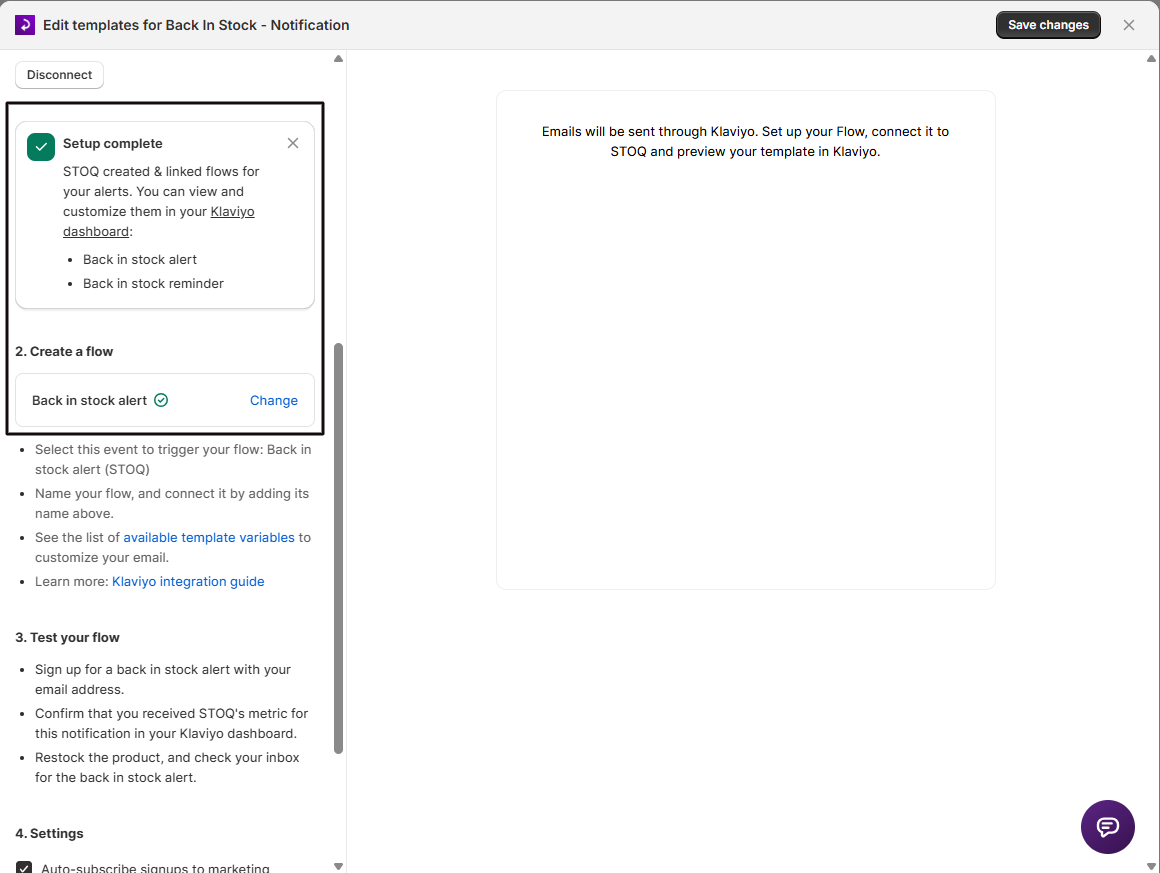
STOQ creates a template and flow named “STOQ - Back in stock alert (STOQ)” (or the matching name for a reminder) and activates it, showing status messages as it goes (Creating templates, Creating flows, Activating flows). This takes up to a minute. A success banner confirms when setup is complete. You can view and edit the flow in your Klaviyo dashboard.
-
Manual setup: create and verify the flow
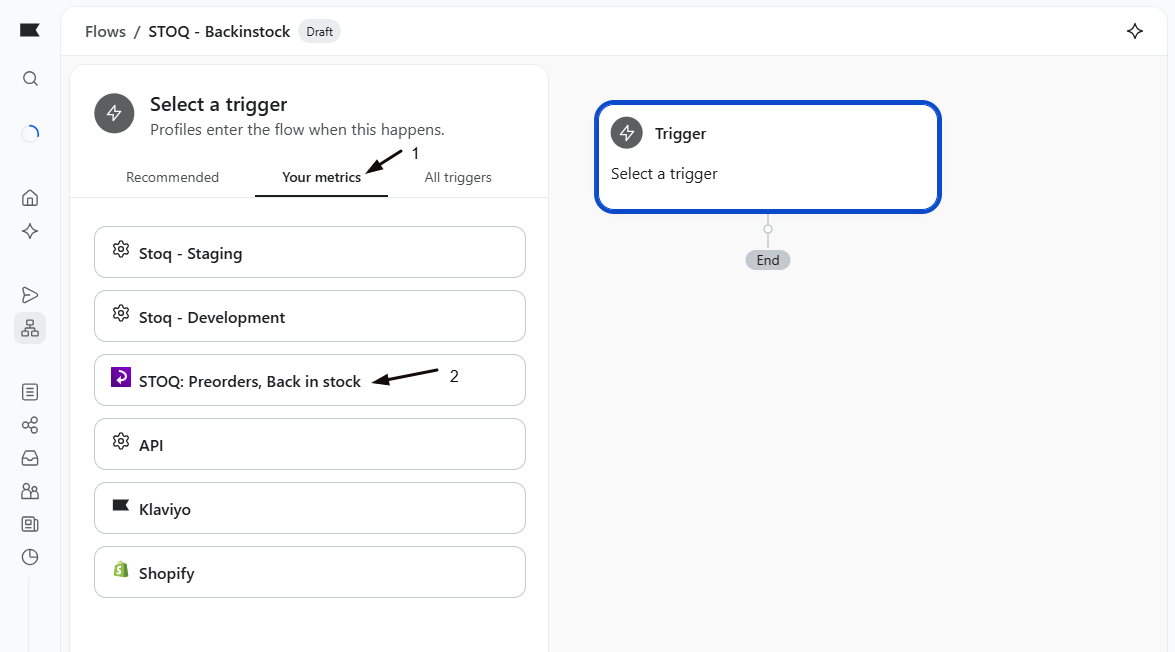
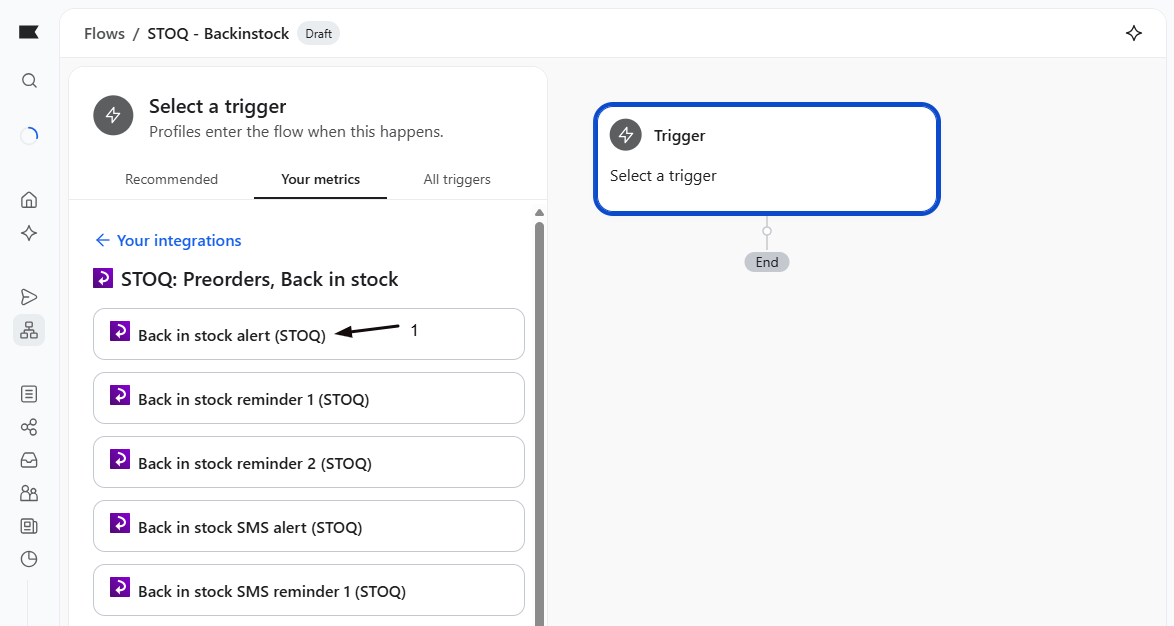
- In Klaviyo, create a new flow triggered by the metric Back in stock alert (STOQ) (or the matching reminder metric), and name it.
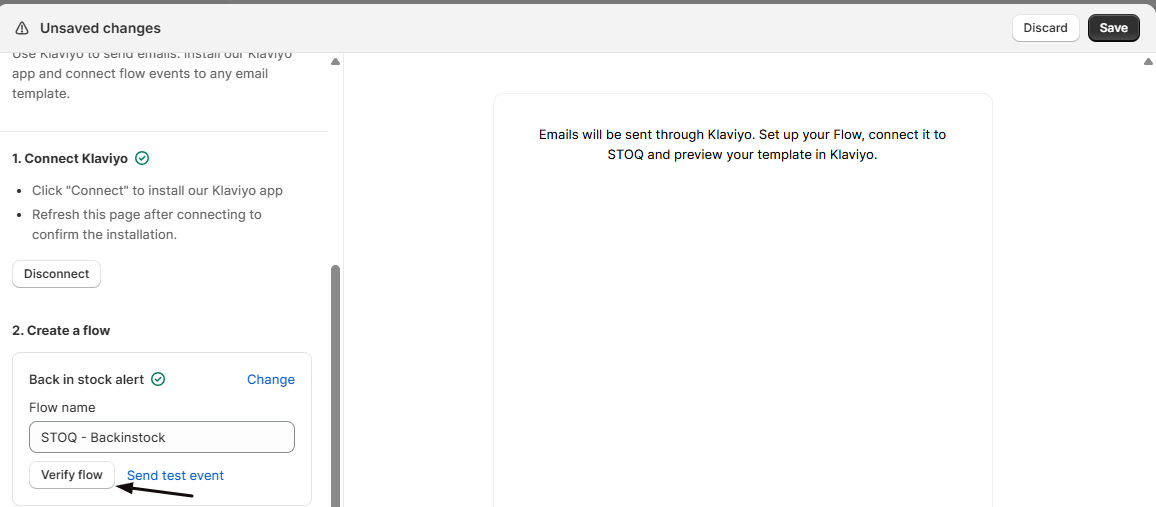
- Back in STOQ, in the 2. Create a flow section, enter that exact name in the Flow name field.
- Click Verify flow. A green checkmark appears once STOQ finds it.
- Click Send test event to push a sample event and confirm the trigger works.
-
Test end to end
- Sign up for a back in stock alert on your store with your own email or phone number.
- Restock the product.
- Check your Klaviyo dashboard to confirm the metric was received, then check your inbox or phone for the alert your Klaviyo flow sent.
Each notification in your sequence (the main alert and any reminders) has its own flow to set up and verify separately. If you use reminders, repeat this for each one you want to send through Klaviyo.
Auto-subscribe signups to marketing
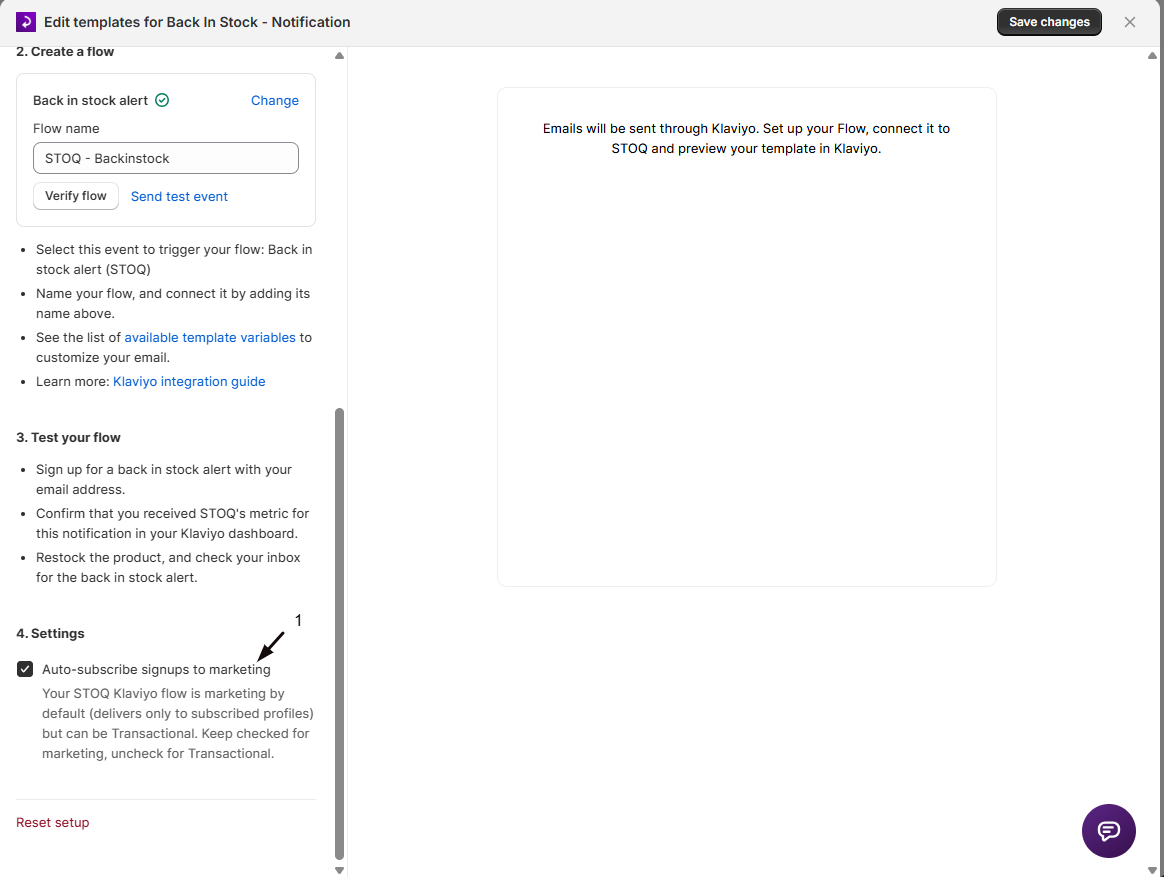
Section titled “Auto-subscribe signups to marketing”Under 4. Settings in the Send emails through panel, Auto-subscribe signups to marketing is on by default. It subscribes the Klaviyo profiles STOQ syncs to marketing, so your flow emails can be delivered to them. Leave it on for a standard marketing flow. Uncheck it only if your STOQ Klaviyo emails are set up as Transactional in Klaviyo, which don’t require a marketing subscription.
Metrics sent to Klaviyo
Section titled “Metrics sent to Klaviyo”Use these as flow triggers in Klaviyo:
| Metric name | When it fires |
|---|---|
| Customer signed up for alert (STOQ) | When a customer signs up for a back in stock alert |
| Back in stock alert (STOQ) | When a product comes back in stock |
| Back in stock reminder 1 (STOQ) | Each reminder notification (one metric per reminder position) |
Customer signed up for alert (STOQ) fires as soon as a customer registers, with no extra setup. The back in stock metrics need the matching notification enabled and Klaviyo selected as the platform.
Variables sent with each event
Section titled “Variables sent with each event”Each alert and reminder event includes the following, which you can insert in your flow to personalize it:
| Variable | Description |
|---|---|
| Product title, variant title | The restocked product and variant |
| Price, currency | The product’s price |
| Image URL | Product image |
| Product page link, checkout link | Links to the product page and checkout |
| Unsubscribe link | Unsubscribe link for the customer |
| Customer name, email | The customer’s details |
| Shop name, logo URL | Your store’s details |
| Is reminder | Whether this is a reminder rather than the first alert |
Check your setup
Section titled “Check your setup”- Open the Notifications sub-tab and confirm no “Klaviyo setup incomplete” banner is showing.
- Sign up with a test address and restock the product.
- In Klaviyo, go to Analytics → Metrics and confirm the metric received an event, then check that your flow sent the alert.
Troubleshooting
Section titled “Troubleshooting”"Klaviyo setup incomplete" banner on the Notifications sub-tab
The banner names the issue:
- “Connect your Klaviyo account to send email alerts”: the connection isn’t verified. Open Customize email, click Send emails through, and connect.
- “Set up email flow in Klaviyo”: the connection is fine, but that notification’s flow isn’t verified. Open Customize email → Send emails through → 2. Create a flow and verify the flow name.
The restock alert isn't sending through Klaviyo at all
Check these in order:
- No “Klaviyo setup incomplete” banner is showing.
- The connection checkmark under Customize email → Send emails through.
- The flow checkmark under 2. Create a flow.
- The Klaviyo radio button is selected.
- You’re on a paid plan.
STOQ can't find your flow during Manual setup
Check that the flow name matches exactly (it’s case-sensitive), and that the flow exists and has been saved in Klaviyo.
Automatic setup fails or STOQ can't create the flow
STOQ needs permission to read and write flows in Klaviyo. If you connected before STOQ requested that permission, disconnect and reconnect to grant it.
Does selecting Klaviyo for back in stock alerts also change my preorder emails?
Yes. The email and SMS platform is one setting for your whole shop. Selecting Klaviyo here also routes preorder notifications through Klaviyo.
What happens if a product restocks before my Klaviyo flow is verified?
STOQ blocks the alert rather than sending it another way. Customers with pending signups won’t be notified for that restock until you verify the flow.
Do reminder notifications also send through Klaviyo?
They can. Each reminder fires its own metric, for example Back in stock reminder 1 (STOQ), so you build and verify a separate flow for it, the same way as the main alert.
Do I still need to connect Klaviyo separately?
You need Klaviyo connected once for your shop. Connecting and syncing signups is covered in Sync back in stock signups to Klaviyo; this guide covers routing the alerts through it.
Related guides
Section titled “Related guides”Thanks for letting us know.
Still stuck? Ask Quinn or chat with support