Set your primary language or reset translations
Choose the default language for the Notify me widget and alerts, set the dashboard's language, and reset a language's wording back to STOQ's default.
Last updated
Use this guide to set the primary language STOQ uses for the Notify me widget, signup form and back in stock alerts, to change the language the STOQ admin dashboard displays in, or to wipe out your customized wording for a language and start over from STOQ’s default translation.
Before you begin
Section titled “Before you begin”| You’ll need | Why |
|---|---|
| Access to the Languages page | Reached from Back in stock alerts → Settings → Delivery settings → Languages card → Manage languages |
Resetting a language overwrites everything you’ve customized for it, button text, popup text, and alert content, with STOQ’s default wording. There’s no undo, so only do this if you’re sure.
This is a single shop-wide setting. If you also use Preorders, changing your primary language or resetting a language here also updates the preorder button text and preorder notification templates, not just Back in stock.
What customers will see
Section titled “What customers will see”Customers see the Notify me widget, signup form, and back in stock alert wording in whatever language you set as primary here, unless you’ve turned on preferred-language delivery. With that setting on, a customer instead sees the widget and receives alerts in the language they were browsing in when they signed up. See Send alerts in multiple languages for that setting.
Changing your primary language here doesn’t touch how STOQ looks to you in the admin, that’s controlled separately by Use STOQ in, covered below.
Set it up
Section titled “Set it up”On a phone, this menu is collapsed. In the Shopify mobile app, tap the STOQ logo at the top of the screen to open it, then choose the section named below. There is no hamburger icon. See Finding the STOQ menu.
-
Open the Languages page
- In the left menu bar of the STOQ app, click Back in stock alerts.
- Click the Settings tab.
- Open the Delivery settings sub-tab.
- Find the Languages card and expand it.
- Click Manage languages.
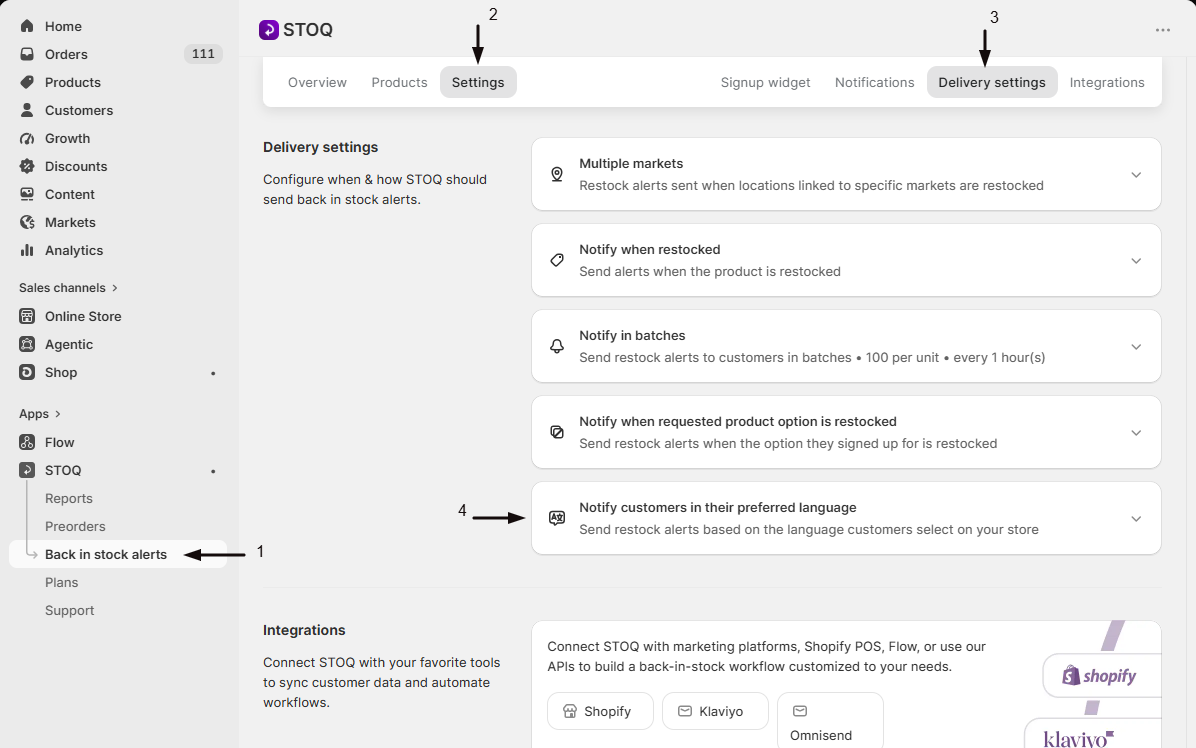
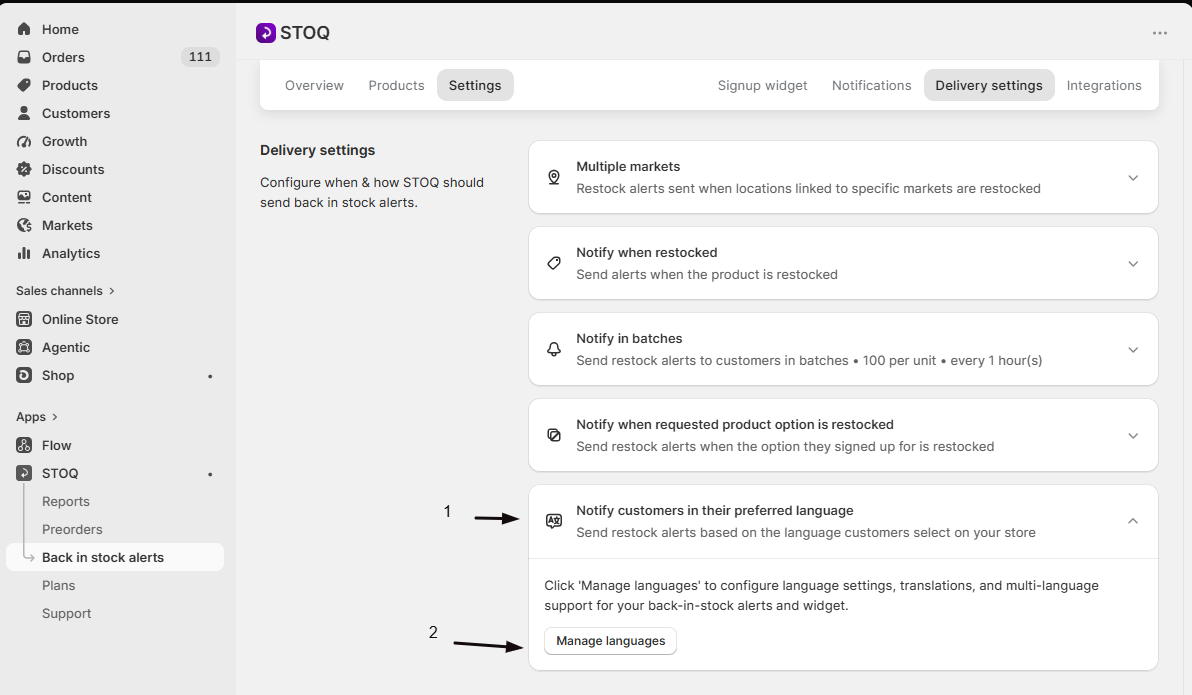
-
Set your primary language
- Next to Language for preorders & back in stock alerts, click the language shown to open the list.
- Select the language you want to use.
- In the confirmation prompt (“Are you sure? This will overwrite all content including button text, popup text and alerts.”), confirm to continue.
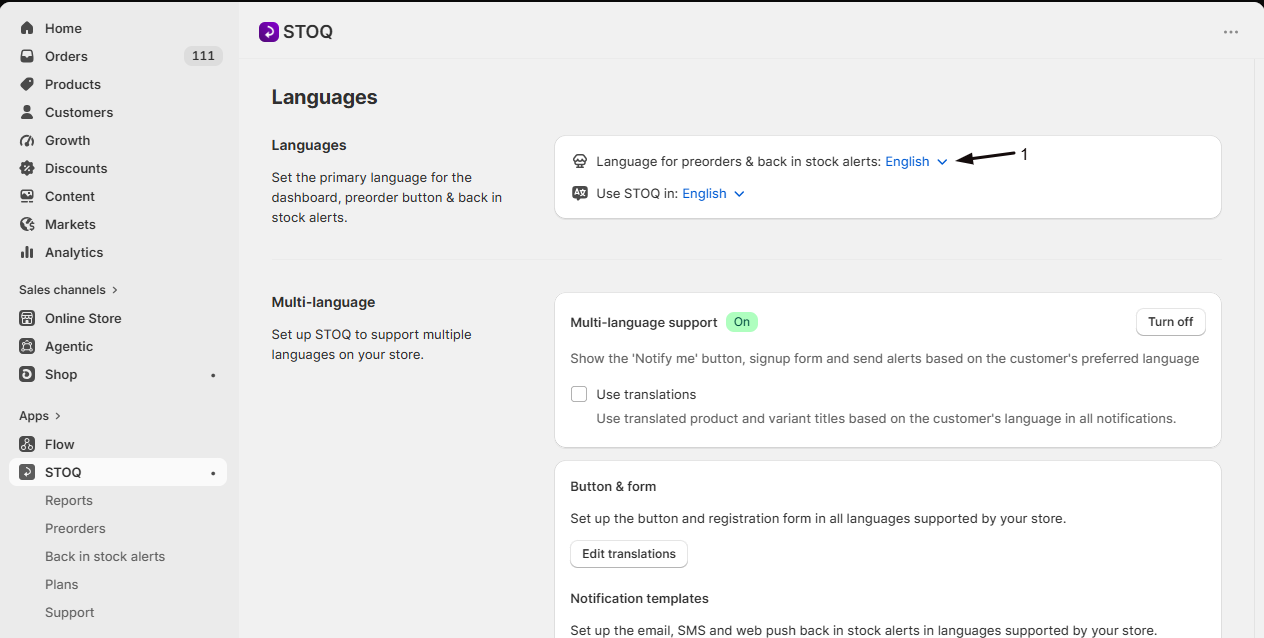
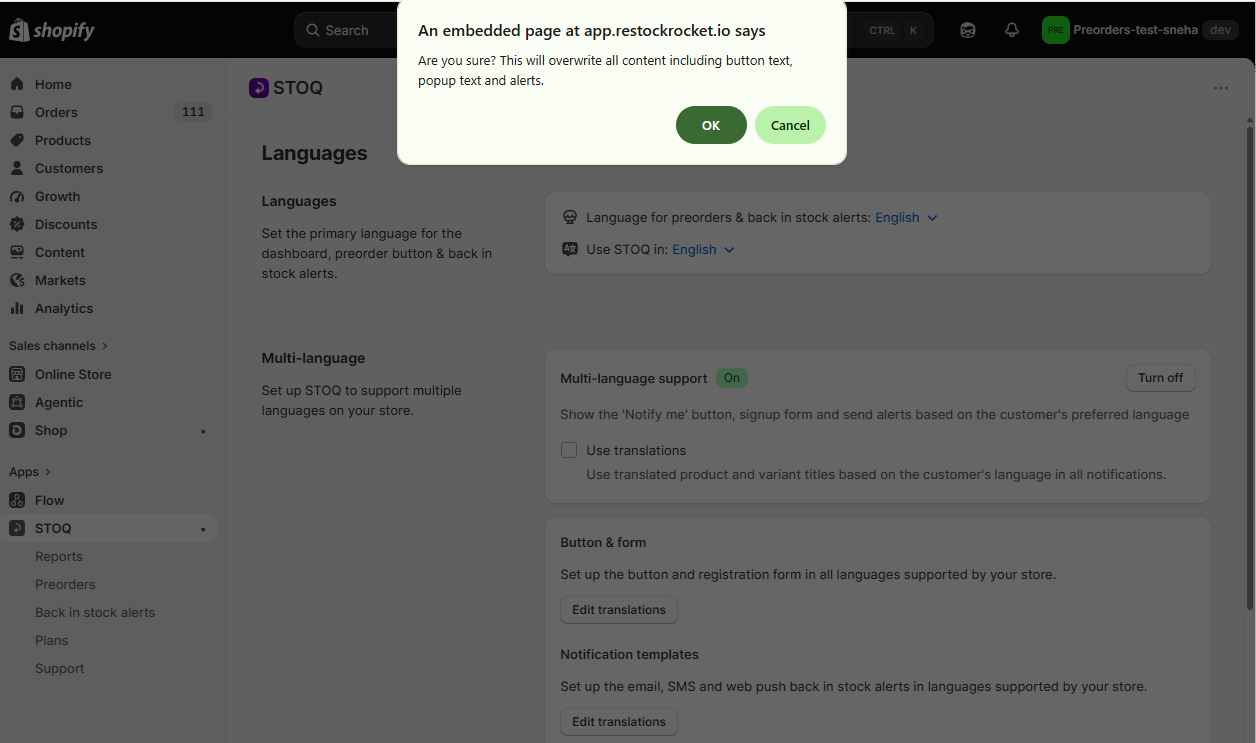
STOQ saves immediately, there’s no separate Save button for this. A “Language saved” message confirms it. This same action also resets that language’s wording to STOQ’s default, see below.
-
Reset translations for a language back to default
Selecting a language in Language for preorders & back in stock alerts always resets its button, form, and alert wording to STOQ’s default translation, whether or not it was already your primary language. If the language you want to reset is already selected as primary, switch to a different language first, confirm, then switch back to it and confirm again, each selection triggers the reset for that language.
-
Set the dashboard’s language (optional)
- Next to Use STOQ in, click the language shown to open the list.
- Select the language you want the STOQ admin dashboard to display in.
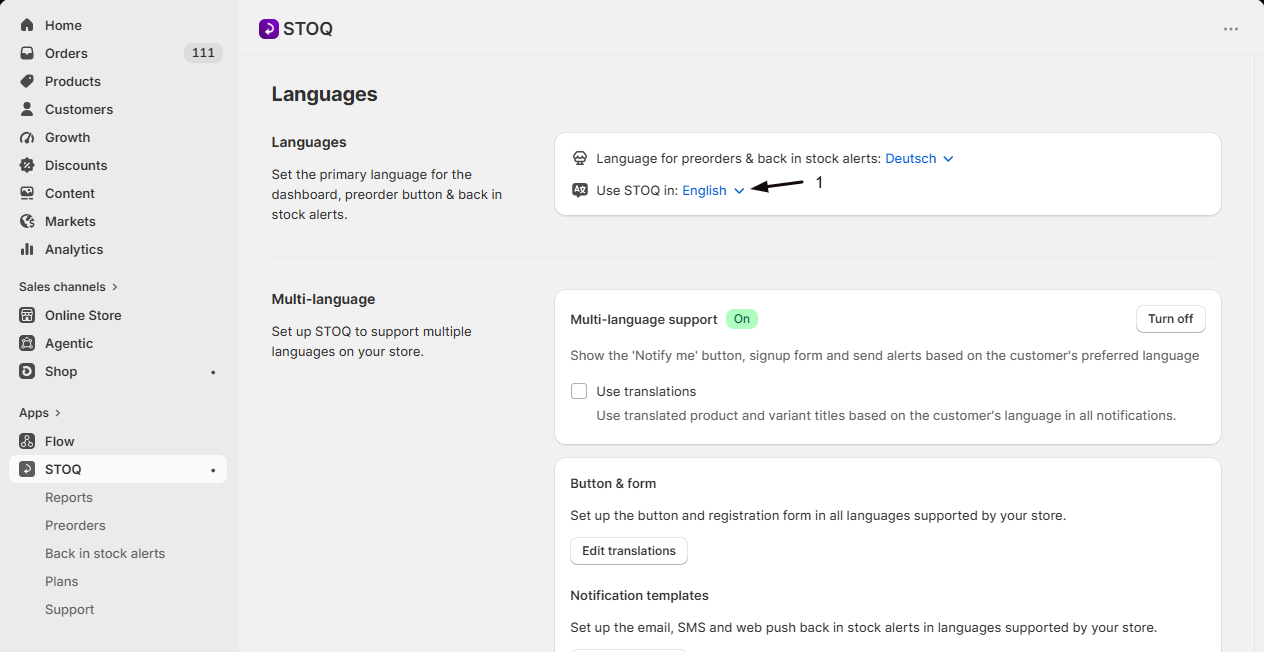
This only changes what language you see in the STOQ dashboard. It doesn’t affect the widget, signup form, or alerts, and it doesn’t overwrite any content. STOQ saves immediately and reloads the page in the new language.
Check your setup
Section titled “Check your setup”Reload the STOQ dashboard and confirm the language selector next to Language for preorders & back in stock alerts shows the language you picked. Then open your storefront in an incognito window, view a sold-out product, and confirm the Notify me widget text matches that language. If you reset a language’s wording, confirm any customizations you’d made to the button or popup text are gone and replaced with STOQ’s default wording.
Troubleshooting
Section titled “Troubleshooting”- If resetting didn’t seem to change anything: confirm you picked the language you meant to reset from Language for preorders & back in stock alerts, not from Use STOQ in, only the first control resets wording.
- If the storefront still shows old wording after a reset: check in an incognito window or clear your browser cache, cached pages can still show the previous text.
- If you reset the wrong language by mistake: there’s no undo. Re-enter your customized wording manually, or use the translator to edit the button and form text again.
Do I need a paid plan to change my primary language or reset a language?
No. Setting your primary language, resetting a language’s wording, and changing the dashboard language aren’t gated by plan.
Does changing my primary language affect customers who already signed up?
It depends on whether preferred-language delivery is on. With it off, all future alerts switch to your new primary language right away; alerts already sent aren’t affected. With it on, each customer’s alert language is set by what they were browsing in when they signed up, so changing your primary language doesn’t change theirs. See Send alerts in multiple languages.
Does resetting a language also affect my preorder button and emails?
Yes. Your primary language and its translations are one shop-wide setting, so resetting or changing it here also resets the preorder button text and preorder notification templates for that language.
What's the difference between the primary language and Use STOQ in?
Language for preorders & back in stock alerts controls what customers see on your storefront and in their alerts. Use STOQ in only changes the language of the STOQ admin dashboard for you, it has no effect on the storefront.
Can I reset just the button text without touching my emails?
No. Resetting a language restores all of it together, storefront button and popup text, plus email and SMS alert content, back to STOQ’s default wording for that language.
Related guides
Section titled “Related guides”Thanks for letting us know.
Still stuck? Ask Quinn or chat with support