Set up alerts
Turn on the 'Notify me' widget and send your first Back in Stock alert.
Last updated
This is the fastest path from a fresh install to a working Back in Stock alert: turn on the widget, make sure your theme is displaying it, confirm which products are eligible, and place one test signup. Each step links to a deeper article if you want to customize further.
Before you begin
Section titled “Before you begin”| Requirement | Detail |
|---|---|
| App installed | STOQ is installed on your Shopify store |
| Admin access | Go to STOQ → Back in stock alerts in your Shopify admin |
| At least one out-of-stock product | The button only appears on products/variants that are out of stock (or match your eligibility rules) |
What customers will see
Section titled “What customers will see”Once setup is complete, customers browsing an out-of-stock product see a “Notify me when available” button (or an embedded form, depending on your form type) in place of the disabled “Add to cart” button. Submitting the form joins them to that product’s waitlist. When the product is restocked, STOQ automatically sends the alert through your configured channels, with no manual step required on your end.
Set it up
Section titled “Set it up”-
Open Back in stock alerts
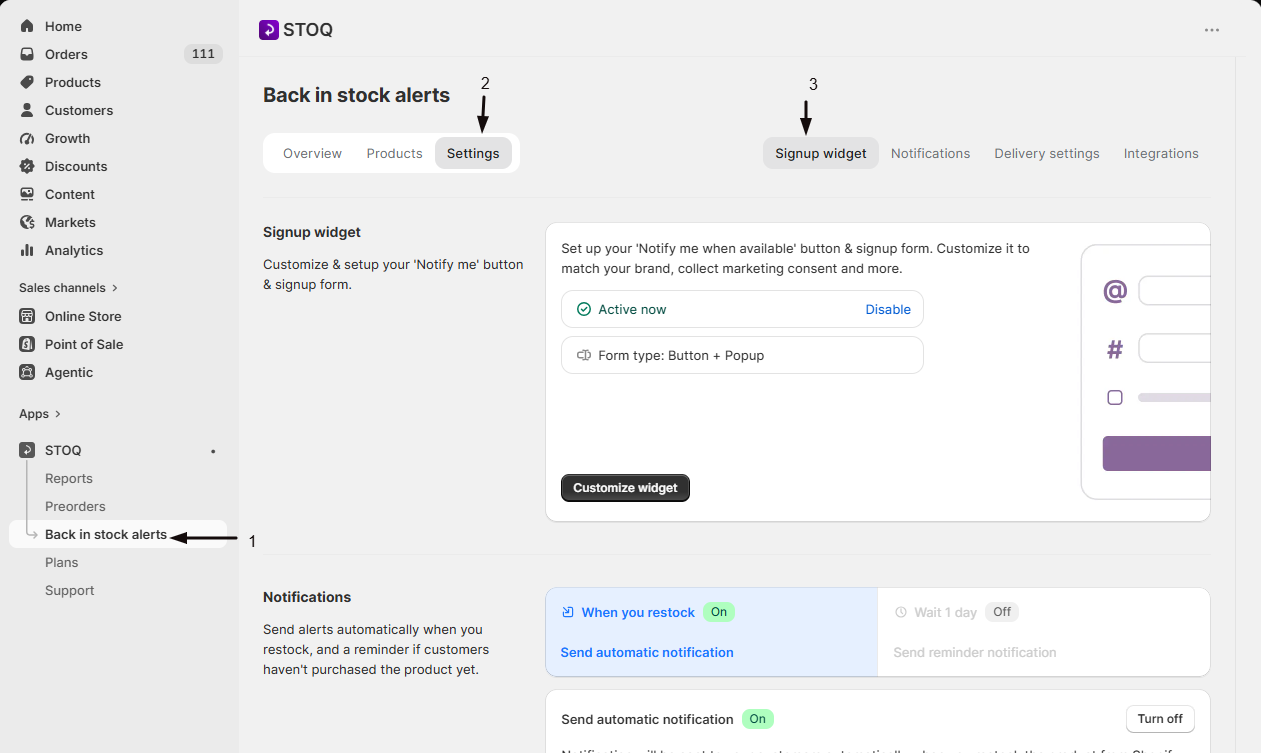
In the STOQ admin, go to Back in stock alerts. The page opens with three tabs: Overview, Products, and Settings. Settings is where setup happens, split into Signup widget, Notifications, Delivery settings, and Integrations sub-tabs.
-
Turn on the ‘Notify me’ widget
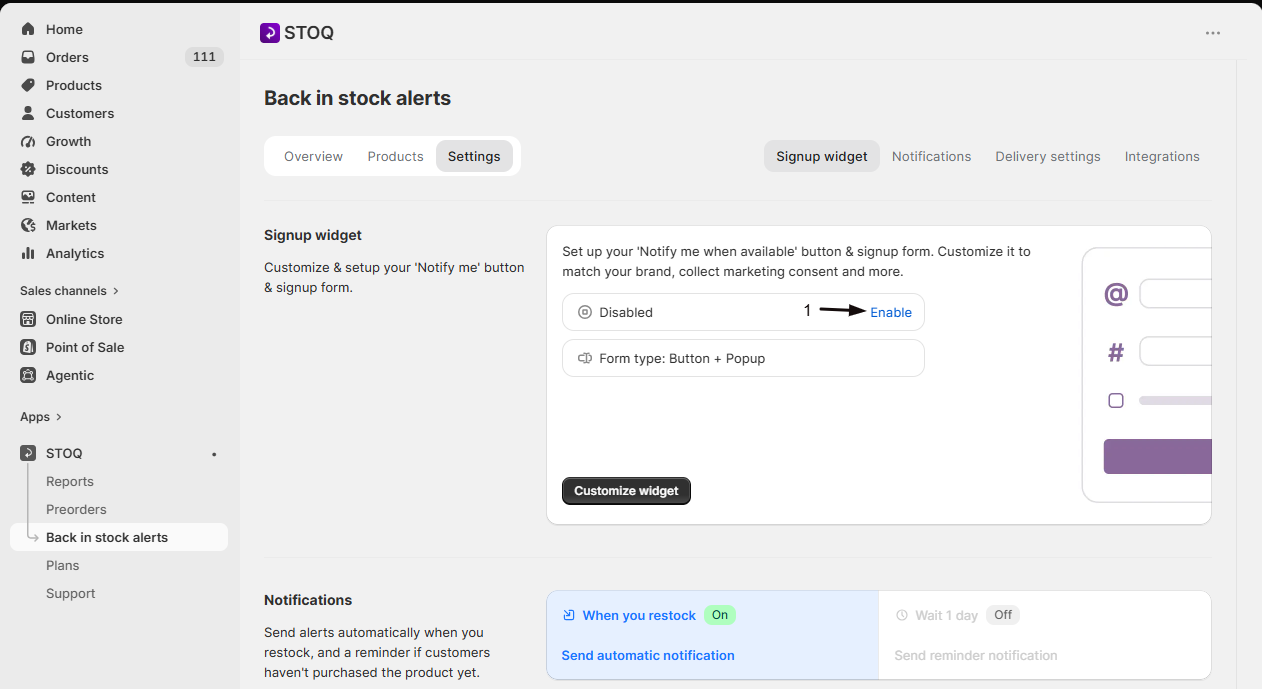
In the Signup widget sub-tab, find the widget status card. It shows whether the widget is Active now or Disabled, plus its current form type (Embedded or Button + Popup). Click Enable to turn it on. This single toggle controls whether the “Notify me” button can appear anywhere on your storefront at all: if it’s off, none of the design or eligibility settings below matter.
-
Enable STOQ’s app embed in your theme
If STOQ detects that its theme app embed isn’t active, a yellow Turn on app embed badge appears next to the page title. The widget will not appear on your store until the app embed is on.
- Click the Turn on app embed badge.
- In the window that opens, click Open theme editor.
- In App embeds, make sure the STOQ toggle is on, then click Save in the theme editor.
-
Confirm which products show the button
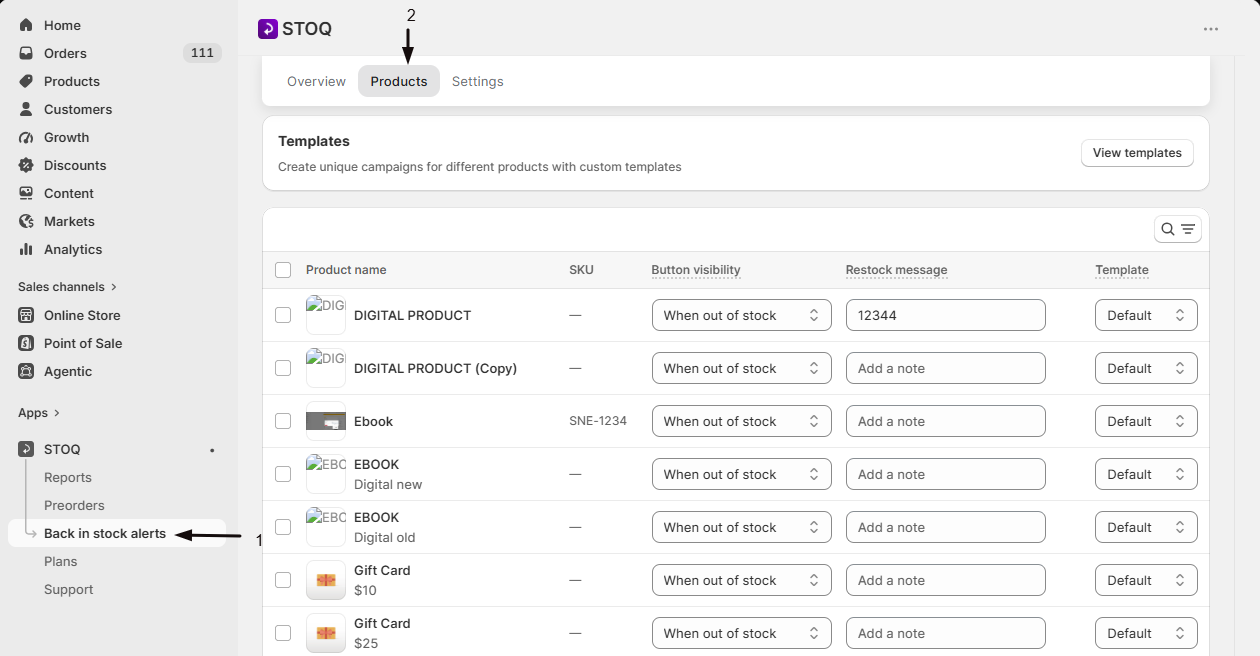
Switch to the Products tab to see which products/variants currently have the widget active, along with their signup counts. By default, STOQ shows the button on out-of-stock products/variants; product-level rules, such as tags or per-product overrides, can narrow or widen that. Review this list so you know what customers will actually see.
-
Customize the button and form (optional at this stage)
Click Customize widget on the Signup widget card to open the widget editor, where you can change the button’s text, colors, and position, and the signup form’s fields and messaging. This isn’t required to get your first alert working: see Design the Notify me button and Design the signup form when you’re ready to brand it.
-
Set up a delivery channel
In the Notifications sub-tab, connect at least one way to reach customers: email is on by default; SMS requires setup. Without a working channel, signups are collected but no alert is ever sent. See Back in Stock delivery channels.
-
Place a test signup
- Open your live storefront and navigate to an out-of-stock product page.
- Confirm the “Notify me” button appears.
- Click it.
- Submit the form with your own email or phone number.
- Confirm you receive a signup confirmation, if one is configured.
For a full walkthrough of triggering a restock and confirming the alert arrives, see Test Back in Stock alerts.
Check your setup
Section titled “Check your setup”- On the Signup widget card, confirm status reads Active now.
- Confirm the Turn on app embed badge is gone from next to the page title.
- Visit a live out-of-stock product page and confirm the button renders.
- Submit a real test signup and confirm it appears in your Products tab signup count (or in your customer/analytics data).
- Check the Overview tab after some activity: waitlist signups and notifications sent will populate there.
Troubleshooting
Section titled “Troubleshooting”The 'Notify me' button doesn't appear on your storefront
Check:
- The widget status reads Active now.
- The page title for a Turn on app embed badge.
- The product you’re viewing meets your eligibility rules on the Products tab.
The Turn on app embed badge won't go away after you enable it in the theme editor
Refresh the Back in stock alerts page, since the check can take a moment to reflect the update. If it persists, confirm you saved, not just previewed, the app embed change in the theme editor.
Customers sign up but never receive an alert
Make sure at least one delivery channel is connected and working in the Notifications sub-tab. Without one, signups are still collected but no alert is ever sent. See Back in Stock delivery channels.
Limitations
Section titled “Limitations”Some advanced settings further down in Settings, like batched delivery, market and location based alert rules, and SMS, require a paid plan. STOQ marks these with an upgrade prompt where they appear.
What's the difference between 'Embedded' and 'Button + Popup' form type?
Both are ways of showing the signup form to customers. Button + Popup shows a button that opens the form in a popup when clicked; Embedded places the form directly on the page without a separate button. You choose between them in the widget customizer, see Design the signup form.
Does disabling the widget delete existing signups?
No. Disabling the widget only stops new signups from being collected and stops the button from rendering on your storefront. Customers already on a waitlist keep their existing signups and will still be notified if delivery is otherwise working when the product restocks.
Can I test the alert without waiting for a real restock?
Yes, see Test Back in Stock alerts for how to simulate a restock (for example, by adjusting inventory on a test product) so you can confirm the whole flow, from signup to notification, without needing a real customer or real restock event.
Does turning on the widget affect my Preorders setup?
No. Back in Stock alerts and Preorders are separate features in STOQ with their own settings pages. Turning on the “Notify me” widget here doesn’t change any preorder configuration.
Related guides
Section titled “Related guides”Thanks for letting us know.
Still stuck? Ask Quinn or chat with support