Show the signup form on the page (no popup)
Switch the 'Notify me' signup experience from a button and popup to a form embedded directly on the product page.
Last updated
Use this guide to switch the signup experience from a Notify me button that opens a popup to the signup form embedded directly on the product page, with no button and no popup. By the end, customers on out-of-stock product pages will see the form itself, ready to fill in.
Before you begin
Section titled “Before you begin”| You’ll need | Why |
|---|---|
| A paid plan | The On page layout is disabled on free plans; only Button + Popup is available |
| Access to the Back in stock alerts section | You’ll open the editor from its Settings tab → Signup widget sub-tab |
What changes in On page mode
Section titled “What changes in On page mode”- The Notify me button and its popup are removed. The signup form itself sits directly on the product page instead.
- Show product image is turned off automatically and removed from Form content, since the on-page layout doesn’t display it.
- In the widget editor, the Button tab becomes the Products tab, and the Signup form tab becomes Form style.
- The Button position & style and Restock note sections disappear from the editor sidebar, since there’s no button to style.
Everything else, the header, description, fields, colors, terms message, and success message, works the same as in Button + Popup mode. See Design the signup form for those settings.
Set it up
Section titled “Set it up”On a phone, this menu is collapsed. In the Shopify mobile app, tap the STOQ logo at the top of the screen to open it, then choose the section named below. There is no hamburger icon. See Finding the STOQ menu.
-
Open the widget editor
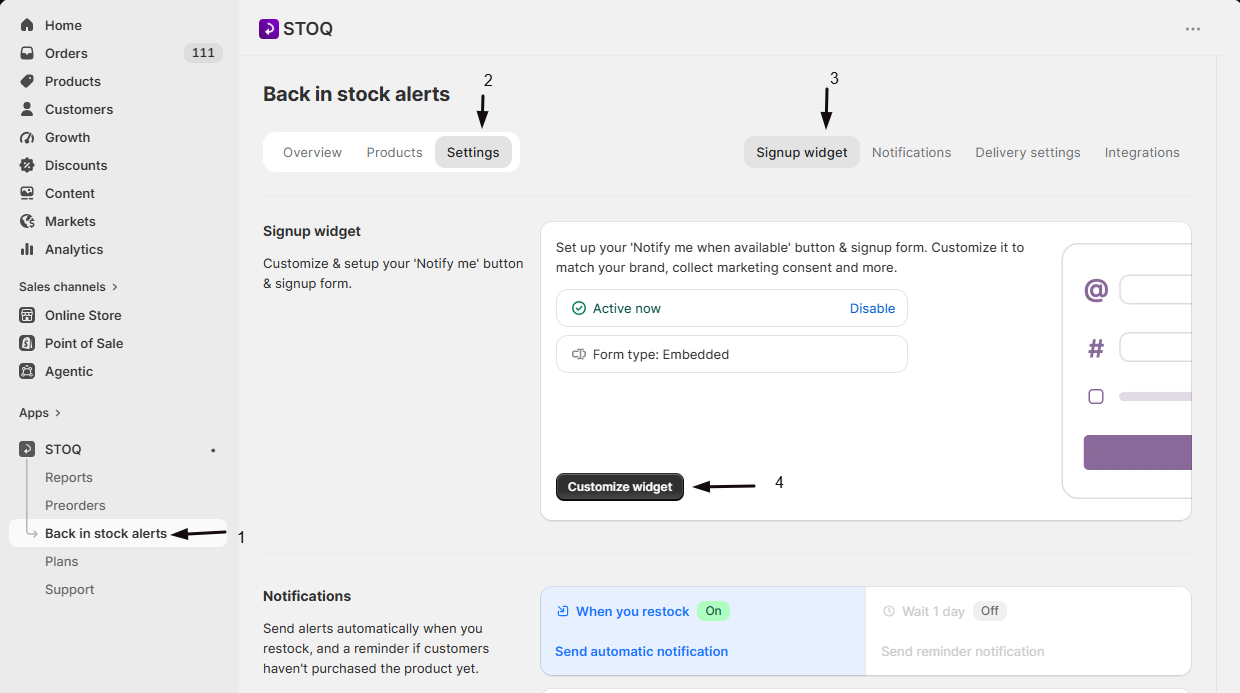
- In the left menu bar of the STOQ app, click Back in stock alerts.
- Click the Settings tab.
- Open the Signup widget sub-tab.
- Click Customize widget.
-
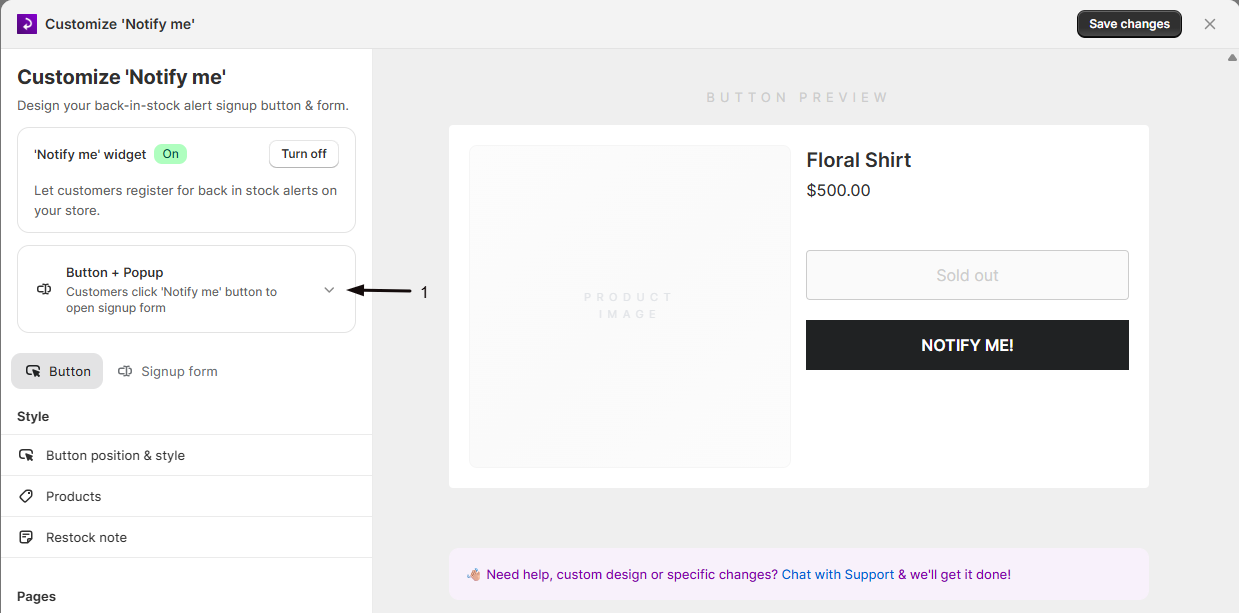
Expand the form-appearance summary
At the top of the editor, click the summary row showing Button + Popup to expand it.
-
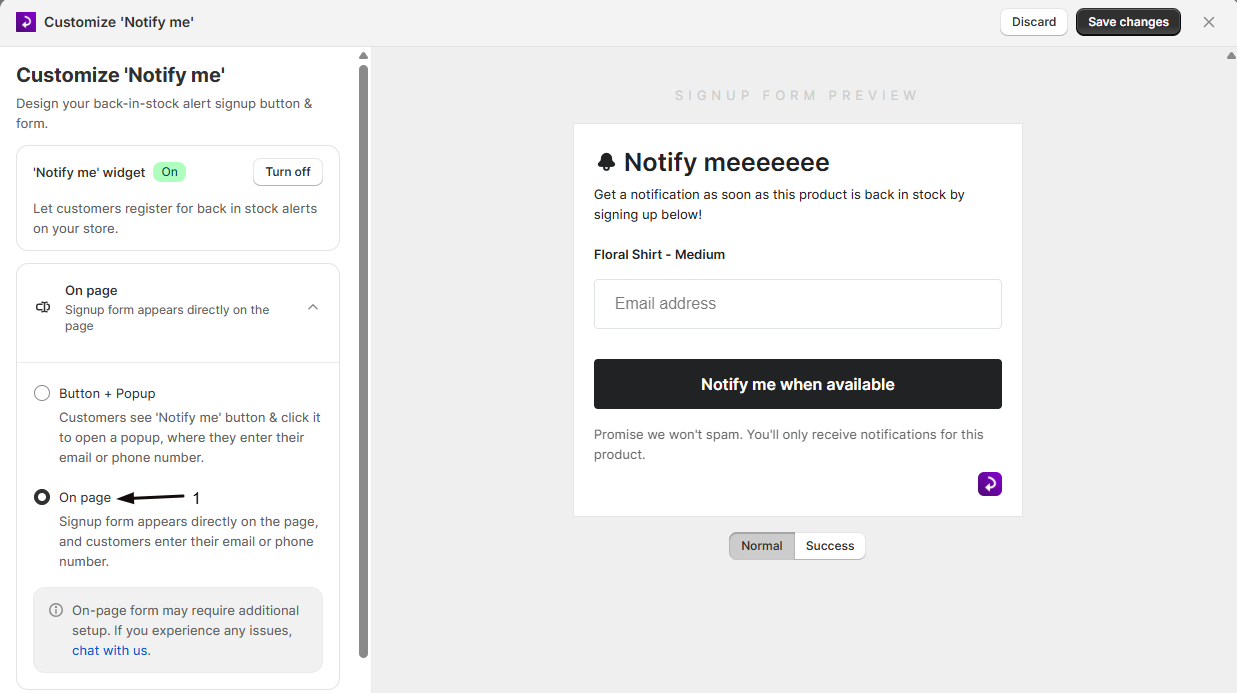
Select On page
Select the On page radio button. If it’s disabled, your plan doesn’t support it, upgrade to unlock it.
-
Review the setup note
STOQ shows a note that the on-page layout may require additional theme setup. If you run into issues after saving, click chat with us in that note to reach STOQ support.
-
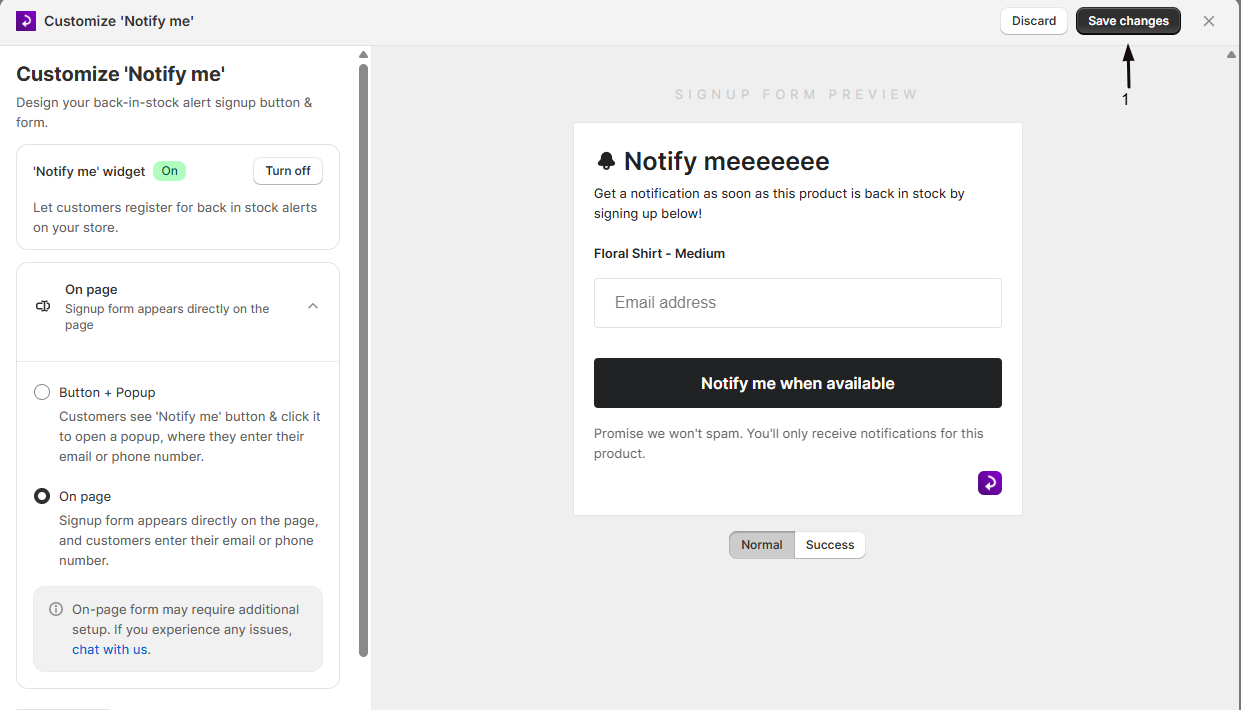
Save your changes
Save, then visit your storefront to confirm the form appears directly on the product page.
Check your setup
Section titled “Check your setup”- On the Back in stock alerts page, confirm the signup widget status card reads Form type: Embedded.
- Open an out-of-stock product page on your storefront and confirm the form appears directly on the page, with no button and no popup to click first.
- Submit the form once to confirm it works and your success message displays.
Troubleshooting
Section titled “Troubleshooting”On page is greyed out
It requires a paid plan. Upgrade your plan to unlock it.
The form doesn't appear on the product page after switching
Save your changes if you haven’t, then check the setup note in the editor, an on-page layout can need additional theme setup. Click chat with us in that note to get help from STOQ support.
Show product image is missing from Form content
That’s expected. On-page forms don’t support a product image, so the option is hidden automatically once On page is selected.
Button position & style and Restock note sections are gone from the sidebar
That’s expected. Both only apply to the Notify me button, which doesn’t exist in On page mode.
Will switching to On page lose my button style settings?
No. Your button text, colors, and position are kept, they’re just hidden while On page is selected. Switch back to Button + Popup and they reappear as you left them.
Does switching affect customers who already signed up?
No. Switching only changes how the signup form is presented to future visitors; existing signups aren’t affected.
Can I go back to Button + Popup later?
Yes. Open the same form-appearance summary in the widget editor and select Button + Popup at any time.
Why does STOQ warn that On page needs additional setup?
Some themes need extra adjustments to render an embedded form correctly on the product page. If the form doesn’t look right after saving, use the chat with us link in that note.
Related guides
Section titled “Related guides”Thanks for letting us know.
Still stuck? Ask Quinn or chat with support