Collect the customer name at signup
Add a name field to your 'Notify me' signup form so back in stock alerts can greet customers by name.
Last updated
Use this guide to add a name field to your “Notify me” signup form, so you can greet customers by name in your back in stock alerts. By the end, customers signing up for an alert will see a name field on the signup form, and that name will be available to personalize the emails and SMS you send them.
Before you begin
Section titled “Before you begin”| You’ll need | Why |
|---|---|
| A paid plan | The Collect customer’s name toggle is disabled on the free plan |
| Access to the Back in stock alerts page | This is where the Customer name controls live |
What customers will see
Section titled “What customers will see”When this section is enabled, customers see a name field at the top of the “Notify me” popup, before the email or phone number field.
- If the field is optional, customers can leave it blank and still sign up for alerts.
- If the field is mandatory and a customer leaves it blank, the form shows your Name error message and blocks submission.
The name a customer enters is saved to their customer record and made available as a “Customer name” variable in your back in stock email and SMS templates, so you can greet the customer by name.
Set it up
Section titled “Set it up”On a phone, this menu is collapsed. In the Shopify mobile app, tap the STOQ logo at the top of the screen to open it, then choose the section named below. There is no hamburger icon. See Finding the STOQ menu.
-
Open the Customer name controls
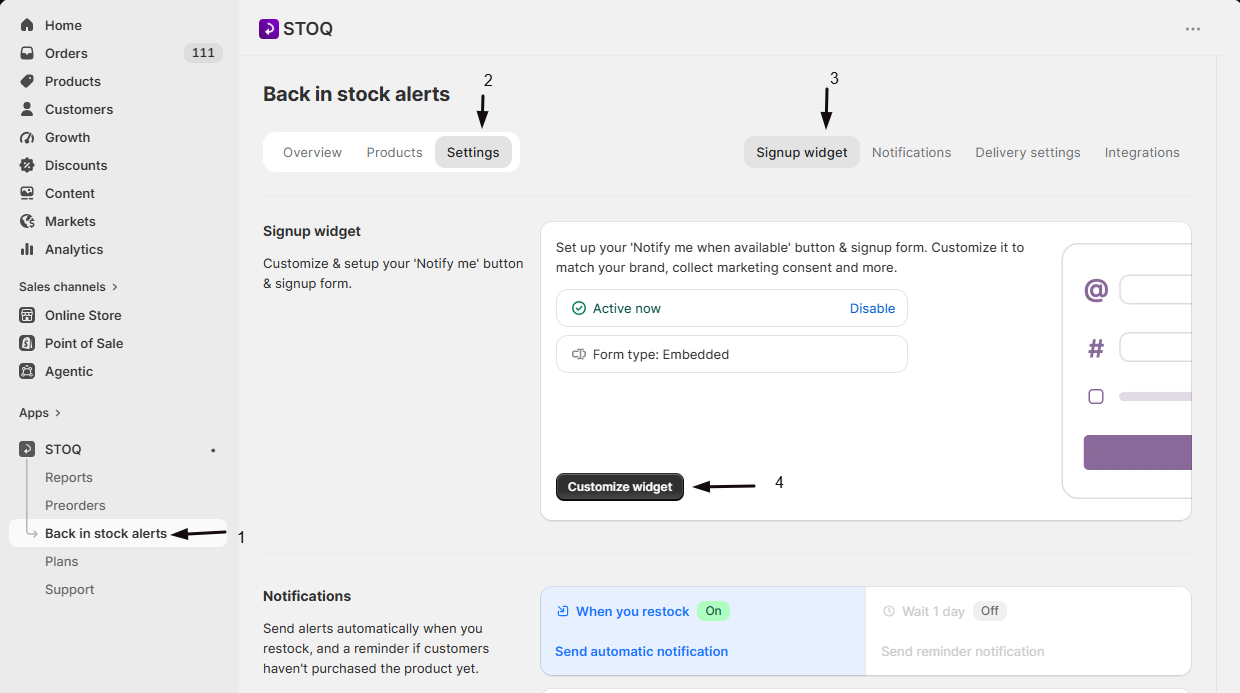
- In the left menu bar of the STOQ app, click Back in stock alerts.
- Click the Settings tab.
- Open the Signup widget sub-tab.
- Click Customize widget.
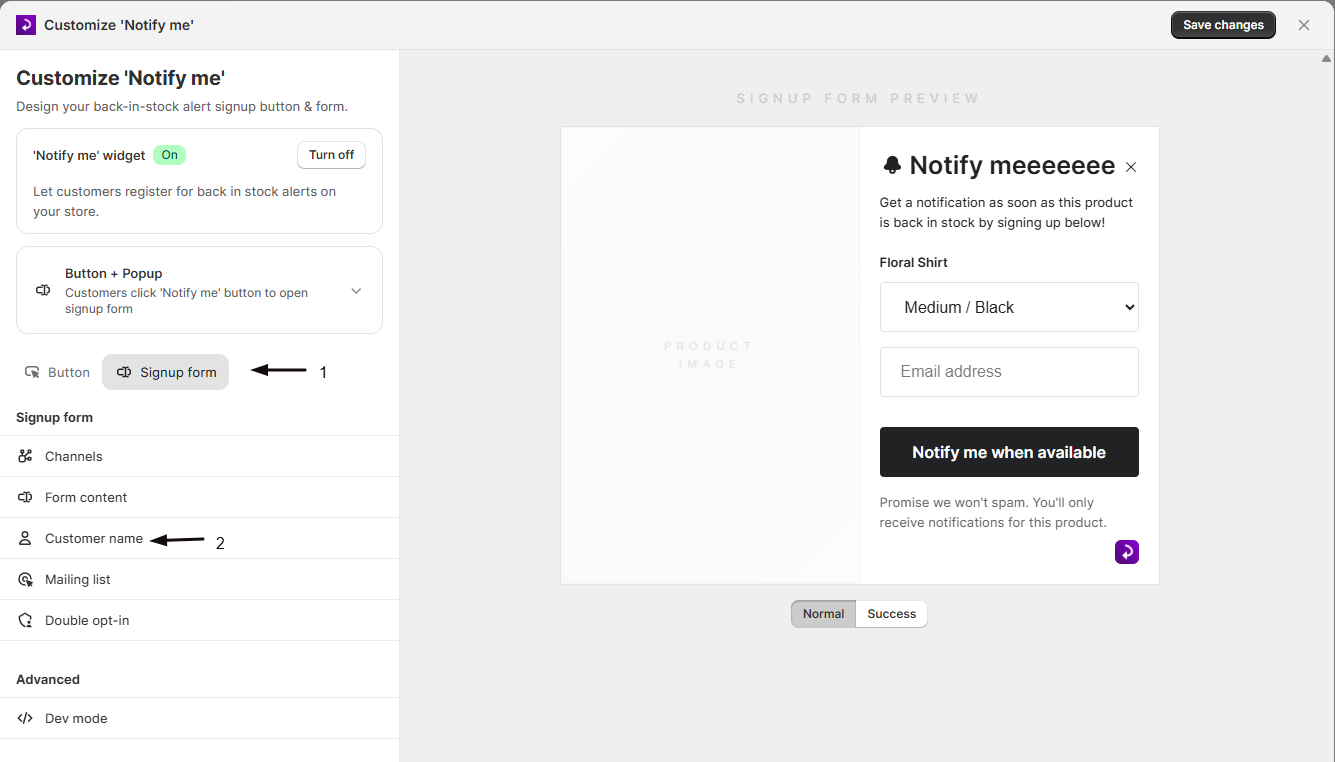
- Open the Signup form tab, then click Customer name in the sidebar.
-
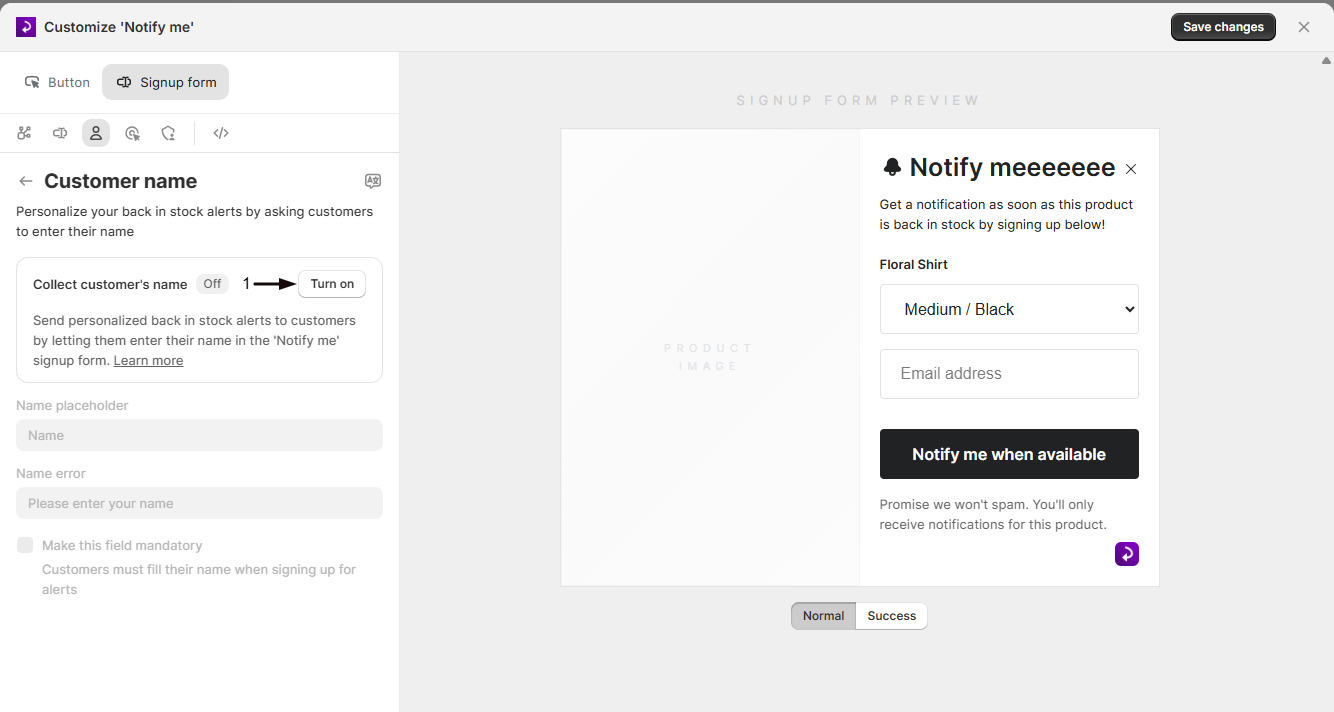
Turn on Collect customer’s name
Toggle Collect customer’s name on. This adds a name field to the “Notify me” signup form on your storefront, above the email/SMS fields.
-
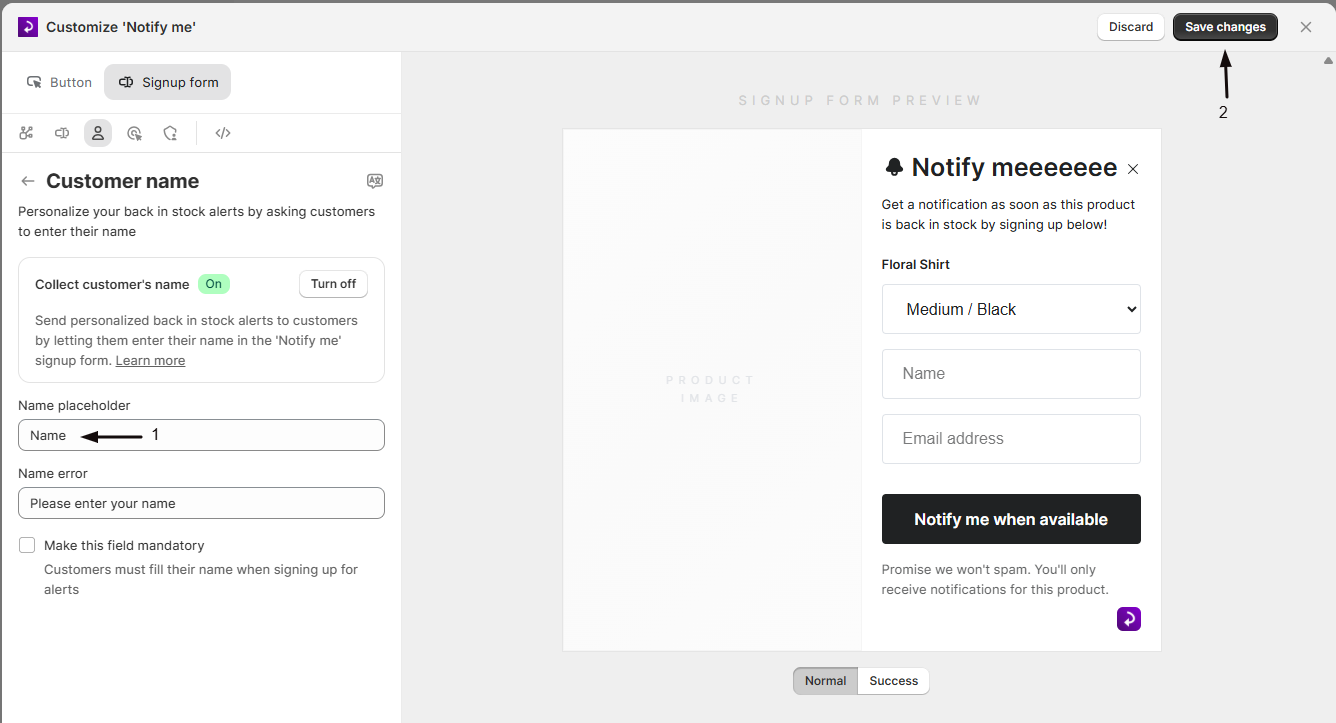
Set the Name placeholder
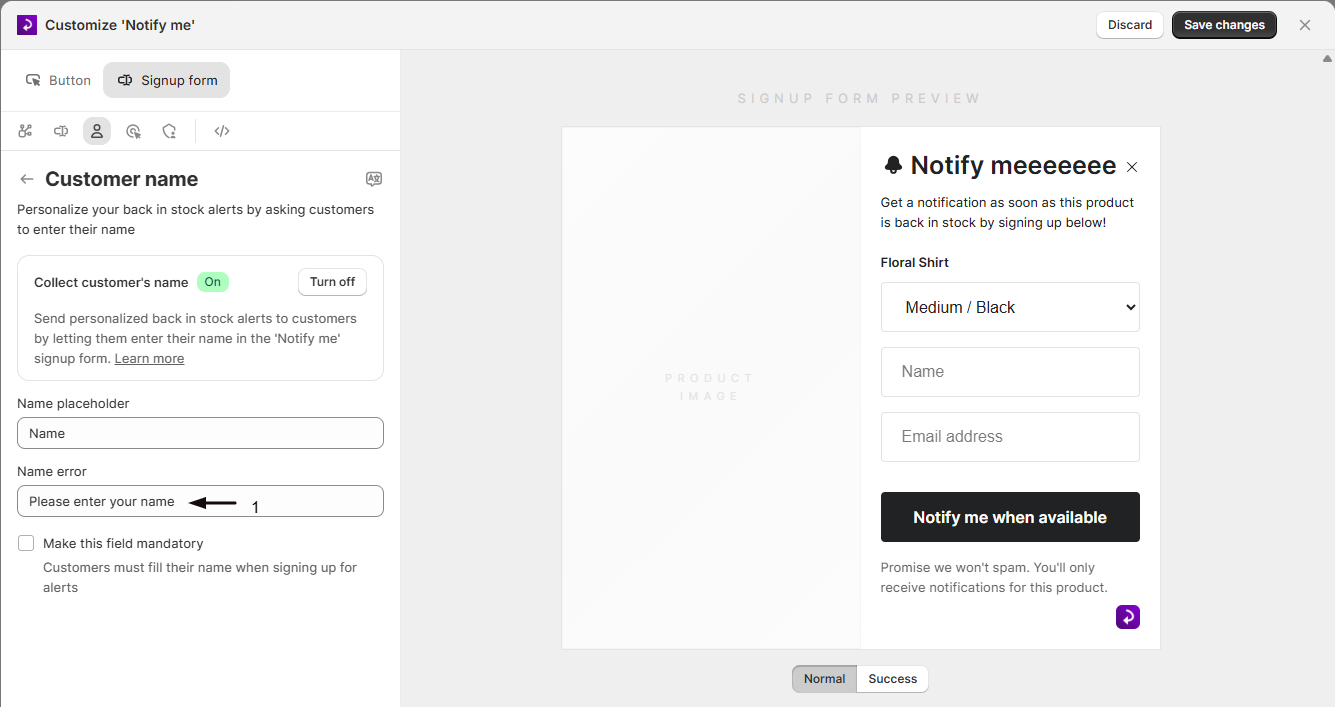
Enter the placeholder text shown inside the empty name field (for example, “Name”). This text is also used as the field’s accessible label for screen readers.
-
Set the Name error
Enter the message shown if a customer submits the form without a name while the field is marked mandatory (for example, “Please enter your name”).
-
Choose whether the field is mandatory
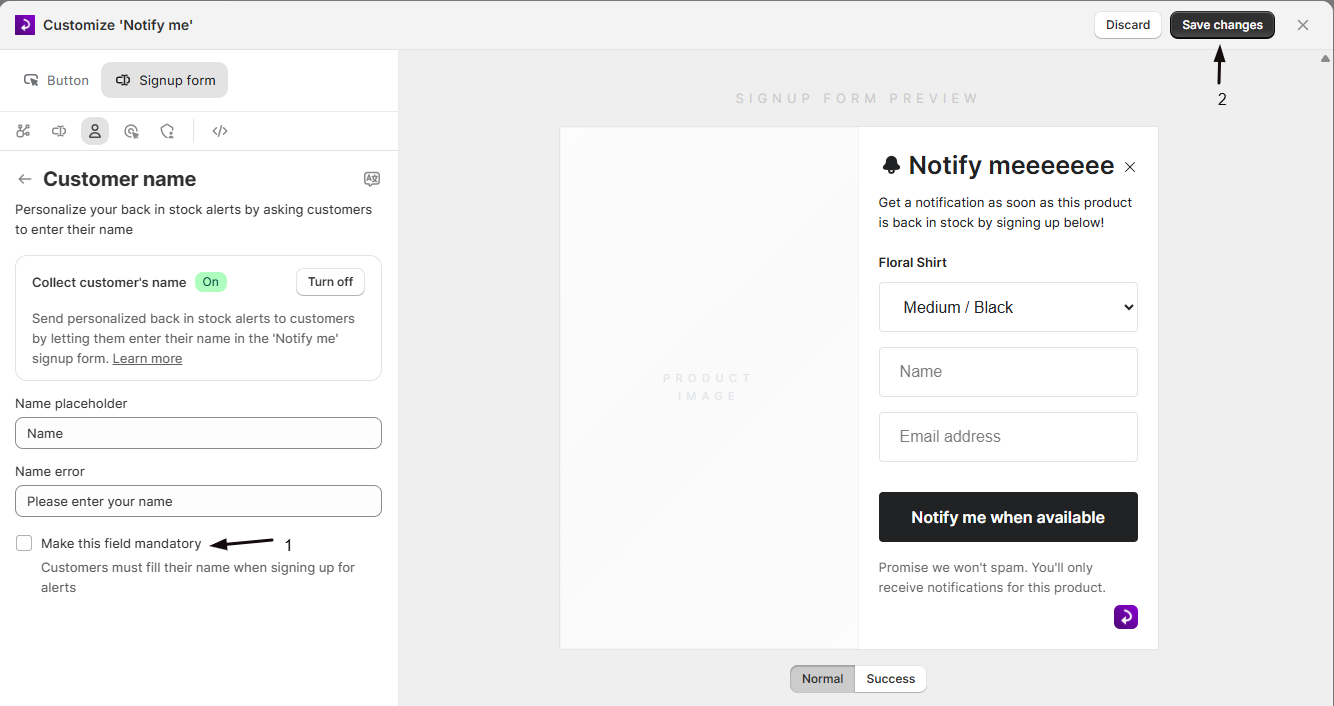
Check Make this field mandatory if customers must fill in their name before they can sign up for alerts. Leave it unchecked to make the name field optional: customers can submit the form without entering a name.
Check your setup
Section titled “Check your setup”- Open a product page for an out-of-stock product on your live storefront (or in preview) and open the “Notify me” form.
- Confirm a name field appears above the email/phone field, showing your placeholder text.
- If you made the field mandatory, try submitting without entering a name and confirm your error message appears.
- Submit the form with a name filled in, then check that the signup is recorded with that name in your customer list.
Troubleshooting
Section titled “Troubleshooting”The Collect customer's name toggle is disabled
This is a paid-plan feature. Upgrade your plan to turn it on.
The name field isn't blocking signups even though you want it required
Confirm you checked Make this field mandatory. Left unchecked, the field stays optional and customers can submit the form blank.
Customer names aren't showing up in your back in stock emails or SMS
The name is only shown if your template includes the “Customer name” variable. Check your built-in STOQ template or your Klaviyo/Postscript template.
The placeholder or error text isn't showing in a customer's language
Use the translation editor linked from this panel to add translations for your store’s other languages.
Is collecting a customer's name required?
No, by default the name field is optional even when enabled. Check Make this field mandatory if you want to require it before customers can submit the form.
Will the customer's name be used in the alert emails or SMS I send?
The name is captured with the signup and made available as a “Customer name” variable in your alert templates, including STOQ’s built-in email and SMS templates and, if you use them, Klaviyo or Postscript. Whether it’s actually shown to the customer depends on whether your template includes that variable.
Does this field appear for every signup form, including phone/SMS signups?
Yes. The name field is part of the shared “Notify me” signup form, so it appears regardless of whether the customer is signing up by email or SMS.
What happens to names I already collected if I turn this off?
Names already collected stay attached to those existing signups. Turning the toggle off just stops asking for a name on future signups.
Can I translate the name field's placeholder and error text for other languages?
Yes, use the translation editor (linked from this panel) to provide translations of the placeholder and error text for your store’s other languages.
Related guides
Section titled “Related guides”Thanks for letting us know.
Still stuck? Ask Quinn or chat with support