Use a custom HTML email template
Replace the standard back-in-stock email fields with your own HTML.
Last updated
Use this guide if you want full control over the restock email’s markup instead of the standard heading, description, and button fields. By the end, your own HTML controls the entire email body, populated with the customer’s and product’s details.
Before you begin
Section titled “Before you begin”A custom HTML template requires a paid plan. The Use HTML template checkbox is disabled with an upgrade prompt on the free plan.
What customers will see
Section titled “What customers will see”Your HTML fully replaces the standard heading, description, button, and colors for that notification’s email body. The subject line still comes from the Subject field on the Standard tab, not from your HTML. The email is still sent through STOQ’s regular delivery, so it’s translated automatically the same way the standard template is if you have multi-language support enabled.
The consent and unsubscribe footer
Section titled “The consent and unsubscribe footer”STOQ adds one small block below your HTML on every back in stock email: a short sentence telling the customer why they’re receiving it, and an unsubscribe link. It’s inserted just before your template’s closing </body> tag (or at the very end if there isn’t one), so it sits beneath your own content.
This block can’t be turned off. Mailbox providers treat an email with no visible unsubscribe link as spam, so STOQ always appends it for deliverability, custom HTML included. Clearing the Footer and Unsubscribe text fields on the standard template, or their translations, doesn’t remove it, because this is a separate appended block, not the editable footer.
You can still avoid a doubled-up unsubscribe link:
- If your HTML already has its own visible unsubscribe link (an anchor pointing to the customer’s unsubscribe URL, with real link text or an image with alt text), STOQ won’t add a second one, and only the consent sentence is appended.
- If it doesn’t, STOQ adds the link so the email always has one.
To include your own, use the {{product.unsubscribe_url}} variable from the Variables inserter as the link’s href.
Set it up
Section titled “Set it up”On a phone, this menu is collapsed. In the Shopify mobile app, tap the STOQ logo at the top of the screen to open it, then choose the section named below. There is no hamburger icon. See Finding the STOQ menu.
-
Open the email content editor
- In the left menu bar of the STOQ app, click Back in stock alerts.
- Click the Settings tab.
- Open the Notifications sub-tab.
- Under the notification sequence, select the first notification (sent when the product restocks) or a reminder notification if you’ve set one up.
- Choose Email template.
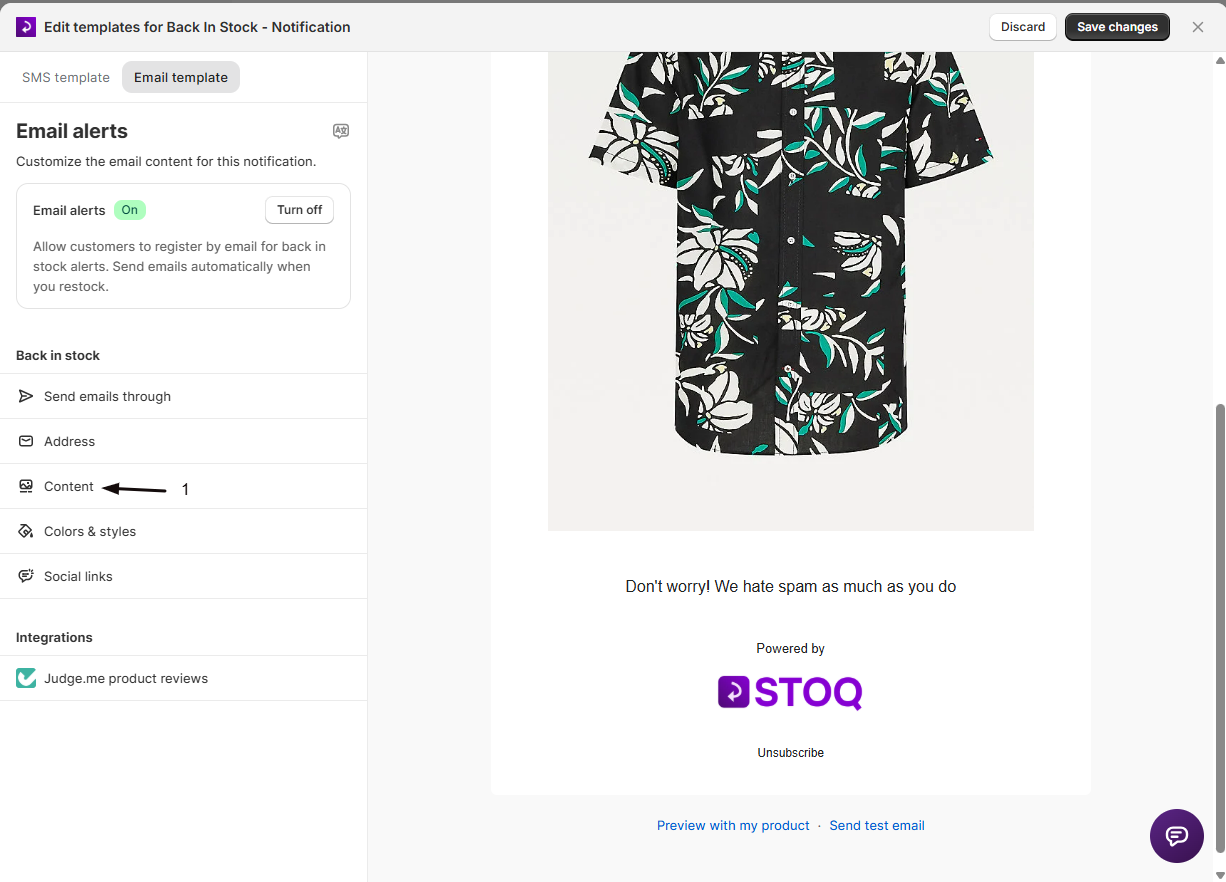
- In the editor’s icon sidebar, open Content.


-
Switch to the Custom HTML tab
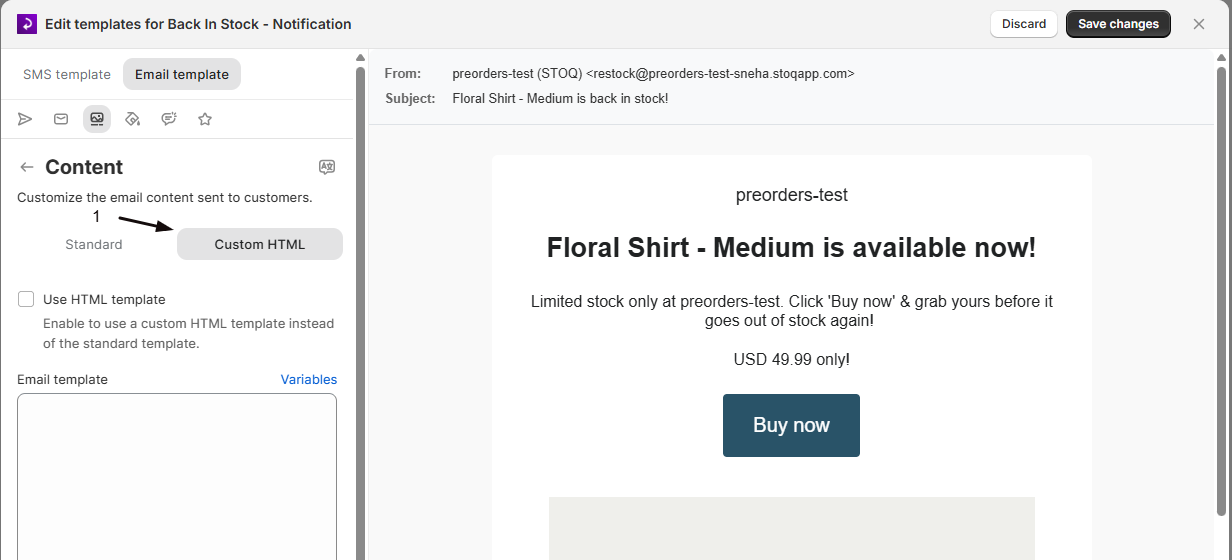
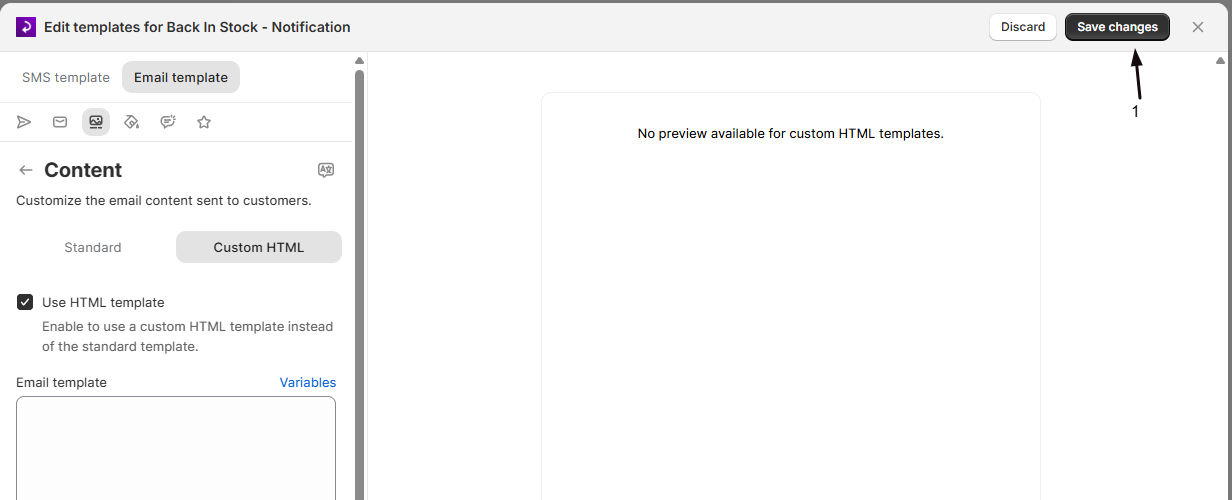
At the top of the Content panel, click the Custom HTML tab.
-
Turn on Use HTML template
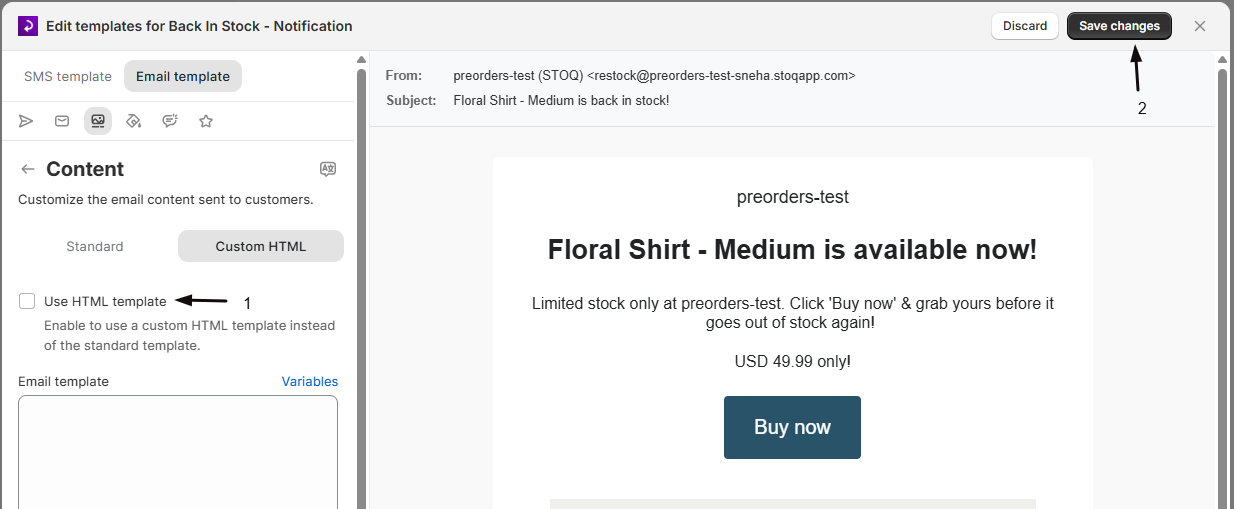
Switch on the Use HTML template checkbox. This enables the Email template field below it and replaces the standard fields as the source of the email body.
-
Write your HTML
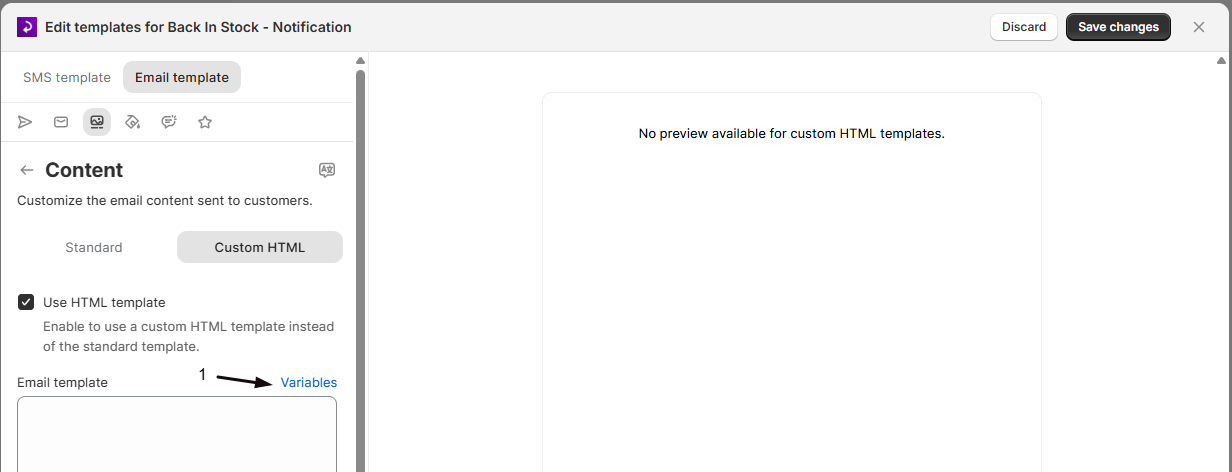
Enter your markup in the Email template field. To insert a placeholder for customer or product data, place your cursor where you want it and click Variables next to the field’s label, then click a variable to add it, such as product title, SKU, price, checkout link, or customer name. For the full list, see Variables you can use.
-
Save your changes
Click Save to publish your template.
Check your setup
Section titled “Check your setup”Custom HTML templates have no live preview and no test-email button. The preview panel just shows “No preview available for custom HTML templates.” To see the real email, sign up for one of your own out-of-stock products and send yourself the alert from the waitlist:
-
Sign up on an out-of-stock product
On your storefront, open a product or variant that’s out of stock and use its Notify me form to sign up with your own email address.
-
Send the alert to yourself from the waitlist
- In the left menu bar of the STOQ app, click Reports.
- Click the Back in stock tab, then open Current waitlist.
- Find your signup and click Send on its row. STOQ sends you the alert using your custom HTML.
-
Check formatting on a real device
Open the email on both desktop and mobile to confirm your markup renders as expected across clients.
Troubleshooting
Section titled “Troubleshooting”Use HTML template is disabled
This feature requires a paid plan. Upgrade to unlock the checkbox.
I don't see the Custom HTML tab
The tab only appears on the standard email template. If you’re sending this alert through a third-party platform such as Klaviyo or Shopify Flow, the email design is managed in that platform instead. See Back in Stock Email Delivery Channels.
Your HTML template won't save
STOQ doesn’t save HTML that can run code. Remove any <script>, <iframe>, <form>, <object> or <embed> tags, event attributes such as onclick=, and javascript: links, then click Save again. Formatting, images, styles and normal links are fine.
A variable shows the raw placeholder instead of real data
Double-check the variable was inserted with the Variables button rather than typed by hand, so the exact placeholder syntax matches.
Can I switch back to the standard fields later?
Yes. Turn off Use HTML template and the email reverts to using the standard heading, description, button, and color fields.
Does the custom HTML replace the subject line too?
No. The Subject field on the Standard tab still controls the subject line customers see in their inbox, even when the HTML template is turned on.
How do I preview or test my custom HTML?
Custom HTML templates aren’t rendered in the live preview panel, and there’s no test-email button for them. To check the real result, sign up for one of your own out-of-stock products, then send yourself the alert from Reports → Back in stock → Current waitlist by clicking Send on your signup.
Can I use this for reminder notifications too?
Yes. Each notification in your sequence has its own separate template, so you can turn on the custom HTML template for one notification and keep the standard fields on another.
Can I remove the footer STOQ adds below my custom HTML?
No. STOQ always appends a short consent sentence and an unsubscribe link below your HTML, because an email with no visible unsubscribe is treated as spam by mailbox providers. It isn’t a setting, and support can’t disable it either. You can keep it to just the consent sentence by including your own visible unsubscribe link in the HTML.
I cleared the footer in the standard editor but it still appears
That editable Footer is separate from the consent and unsubscribe block STOQ appends for compliance. Clearing the standard footer or its translations doesn’t remove the appended block, which always sits at the very bottom of the email.
My custom HTML shows two unsubscribe links
Your HTML has its own unsubscribe link and STOQ added one too. STOQ only skips its own link when it detects a visible unsubscribe anchor pointing to the customer’s unsubscribe URL. Make sure your link uses the {{product.unsubscribe_url}} variable, has visible text (or an image with alt text), and isn’t hidden with display:none.
Related guides
Section titled “Related guides”Thanks for letting us know.
Still stuck? Ask Quinn or chat with support