Alert when a product is published
Notify waitlisted customers as soon as you publish a product to your Online Store, not just when it restocks.
Last updated
By default, STOQ only sends a “back in stock” alert when a product’s inventory is restocked. Notify when published or restocked adds a second trigger: STOQ also sends the alert the moment you publish the product to your Online Store, even if you never touch its inventory. This is useful for pre-announced drops, where customers sign up to be notified before the product page even goes live.
Before you begin
Section titled “Before you begin”| You need | Why |
|---|---|
| A paid plan | The option is visible but disabled on free plans |
| A product that customers can sign up for before it’s live | The waitlist has to exist before you publish, so customers have something to be notified about |
Choose your setup
Section titled “Choose your setup”STOQ has two modes for the same automatic alert:
- Notify when restocked (default): the alert sends only when a product’s inventory is restocked.
- Notify when published or restocked: adds publishing to your Online Store as a second trigger, so waitlisted customers are notified the moment the product goes live, even before its inventory changes. Use this for pre-announced drops where customers sign up before the product page exists.
Turning the second mode off reverts to the default: alerts only fire on restock, never on publish.
What customers will see
Section titled “What customers will see”Customers who signed up for Notify me alerts on the product, while it was unavailable, unpublished, or otherwise not live, receive the same restock notification they’d normally get: the same email or SMS template, just triggered by you publishing the product instead of its inventory changing. There’s no separate “publish alert” template.
Only customers who signed up before the publish event are notified, since signups are tied to variants; this doesn’t retroactively notify anyone who joins the waitlist afterward.
Set it up
Section titled “Set it up”On a phone, this menu is collapsed. In the Shopify mobile app, tap the STOQ logo at the top of the screen to open it, then choose the section named below. There is no hamburger icon. See Finding the STOQ menu.
Notify when published or restocked lives on the Back in stock alerts left-menu item, on the Settings tab’s Delivery settings sub-tab, in its own Product status card.
-
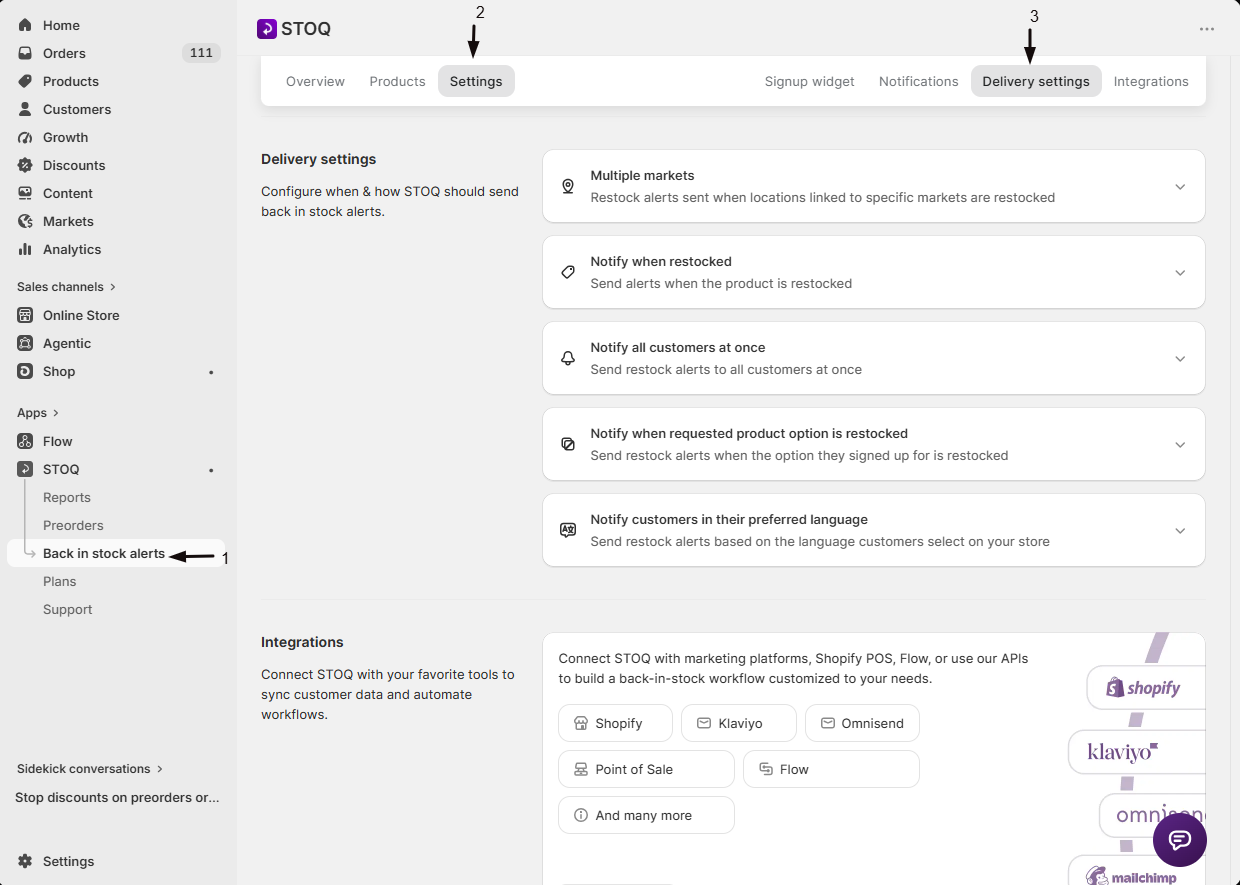
Open Delivery settings
- In the left menu bar of the STOQ app, click Back in stock alerts.
- Click the Settings tab.
- Open the Delivery settings sub-tab.
-
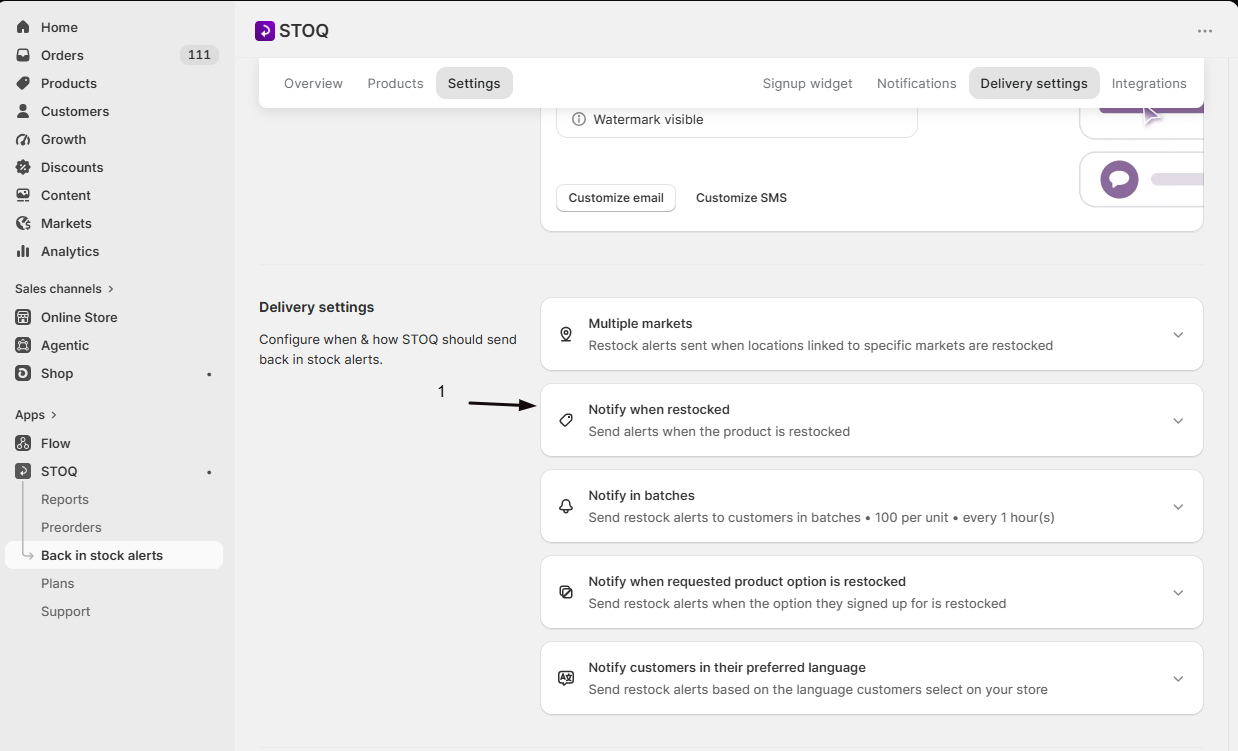
Open the Product status card
Find the card titled either Notify when restocked or Notify when published or restocked (the title reflects whichever mode is currently active) and expand it.
-
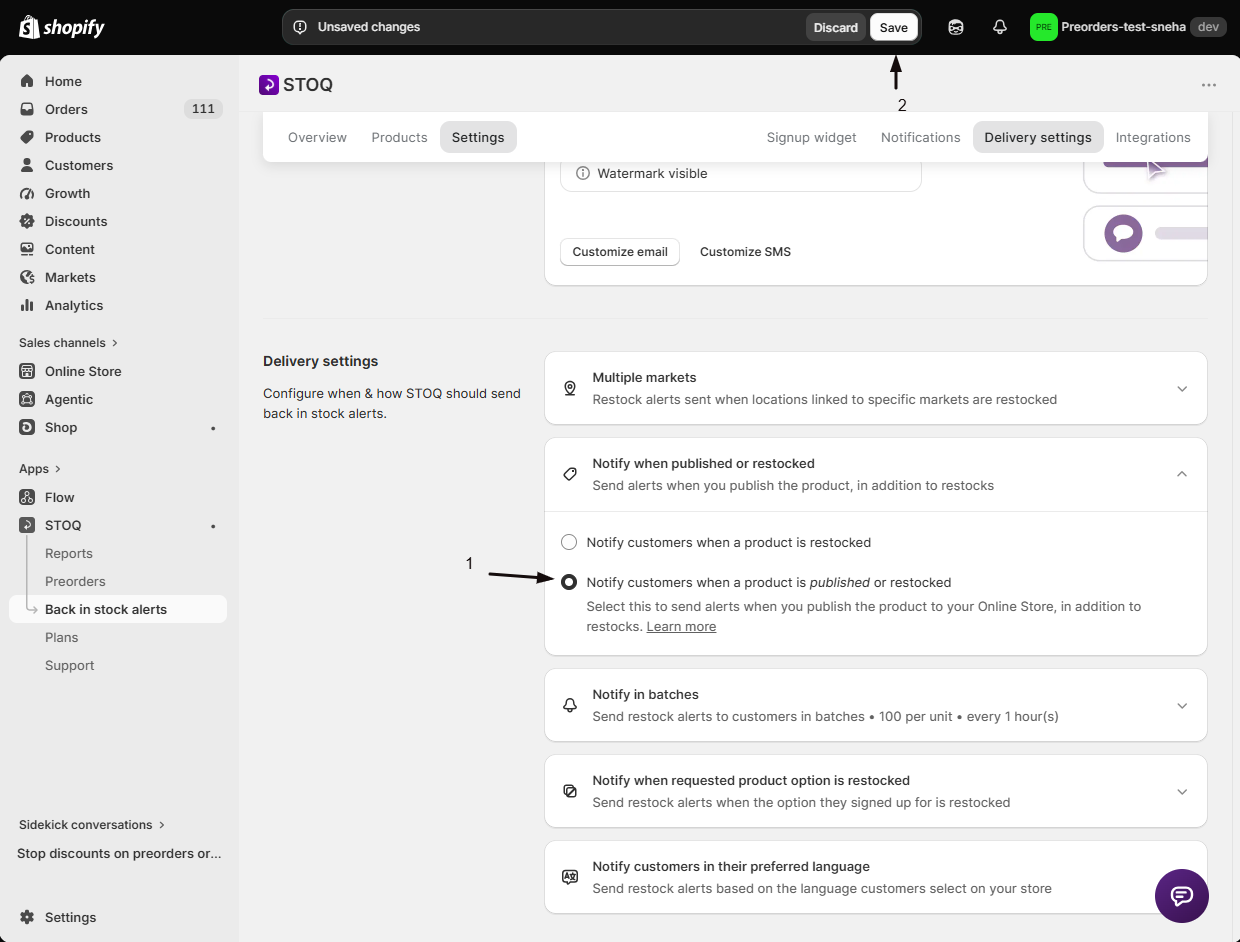
Choose the publish option
Select Notify customers when a product is published or restocked. If you’re on a free plan, this option is disabled: use the upgrade prompt next to it to unlock it.
-
Save
Save your delivery settings from the Delivery settings page. This setting is grouped with the other delivery settings such as market setup, batching, and language, so any changes to those save together.
With this option on, STOQ sends the alert when either event happens: the product is published to your Online Store sales channel, or its inventory is restocked. The same eligibility and quantity checks used for restocks apply on a publish event too: STOQ checks each variant’s available quantity against your minimum restock quantity and your location settings before queuing an alert. A publish event only creates alerts if the product is also active in Shopify; a product that’s published but archived or draft won’t trigger anything.
Check your setup
Section titled “Check your setup”- Turn on Notify customers when a product is published or restocked and save.
- On your test store, create or use a product that’s unpublished (or set to Draft) from the Online Store channel, and sign up for alerts on it using Test back in stock alerts.
- Publish the product to the Online Store channel and confirm the alert sends, without changing any inventory.
Troubleshooting
Section titled “Troubleshooting”Publishing a product doesn't trigger any alerts
Confirm the following:
- The product is active in Shopify (not archived or draft).
- Its available inventory meets your minimum restock quantity.
- There are pending signups on the affected variant.
The option is disabled
You’re on a free plan. Use the upgrade prompt next to it to unlock it.
Your waitlist gets re-notified unexpectedly
Any action Shopify reports as republishing or re-saving the product, even an unrelated edit, can register as a new publish event. Avoid re-saving a launched product from Draft to Active or Published unless you want to notify the waitlist again.
Some locations or markets seem excluded
A publish event only counts inventory at the locations and markets you’ve allowed in your location settings, the same as a restock event.
Do I need to do anything special with signups before I publish the product?
No extra step: customers just need to have signed up for “Notify me” alerts on the product or variant before you publish it. Their existing signup is what STOQ checks against when the publish event fires.
Does this replace the restock trigger, or add to it?
It adds to it. With this option on, STOQ still sends alerts on restock as usual: publishing the product is simply an additional way to trigger the same alert.
Does the minimum restock quantity setting still apply when the trigger is a publish, not a restock?
Yes. STOQ checks the variant’s available quantity against your minimum restock quantity the same way it does for a normal restock, regardless of which event triggered the check.
Can I limit publish alerts to certain locations or markets?
Yes, indirectly. Your existing location and market settings still apply: a publish event only counts inventory at locations you’ve allowed, the same as it would for a restock event.
What do customers see when a publish event triggers their alert?
The same notification they’d get for a restock: the same email or SMS template and content. Nothing on their end indicates whether a publish or a restock triggered it.
Related guides
Section titled “Related guides”Thanks for letting us know.
Still stuck? Ask Quinn or chat with support