Show the button on collection, home, and search pages
Add the Notify me button to collection pages, your home page, and search results, not just individual product pages.
Last updated
By default, the Notify me button only shows on product pages. Use this guide to also show it on list pages, your collection pages, home page, and search results, so customers can join the waitlist without clicking into the product first. By the end, an out-of-stock product’s card on those pages will show the same Notify me button and signup form as its product page.
Before you begin
Section titled “Before you begin”| Requirement | Why it matters |
|---|---|
| Notify me widget turned on | The list-page buttons only appear if the widget itself is enabled on the Back in Stock alerts page. |
| App embed enabled in your theme | The button can’t render anywhere in your store, including list pages, until the app embed block is turned on. |
| Products actually out of stock | The button only shows for products that are sold out (or, if you enable the setting below, that have at least one sold-out variant). |
Choose your setup
Section titled “Choose your setup”Each page type supports different options:
| Page | What you can configure |
|---|---|
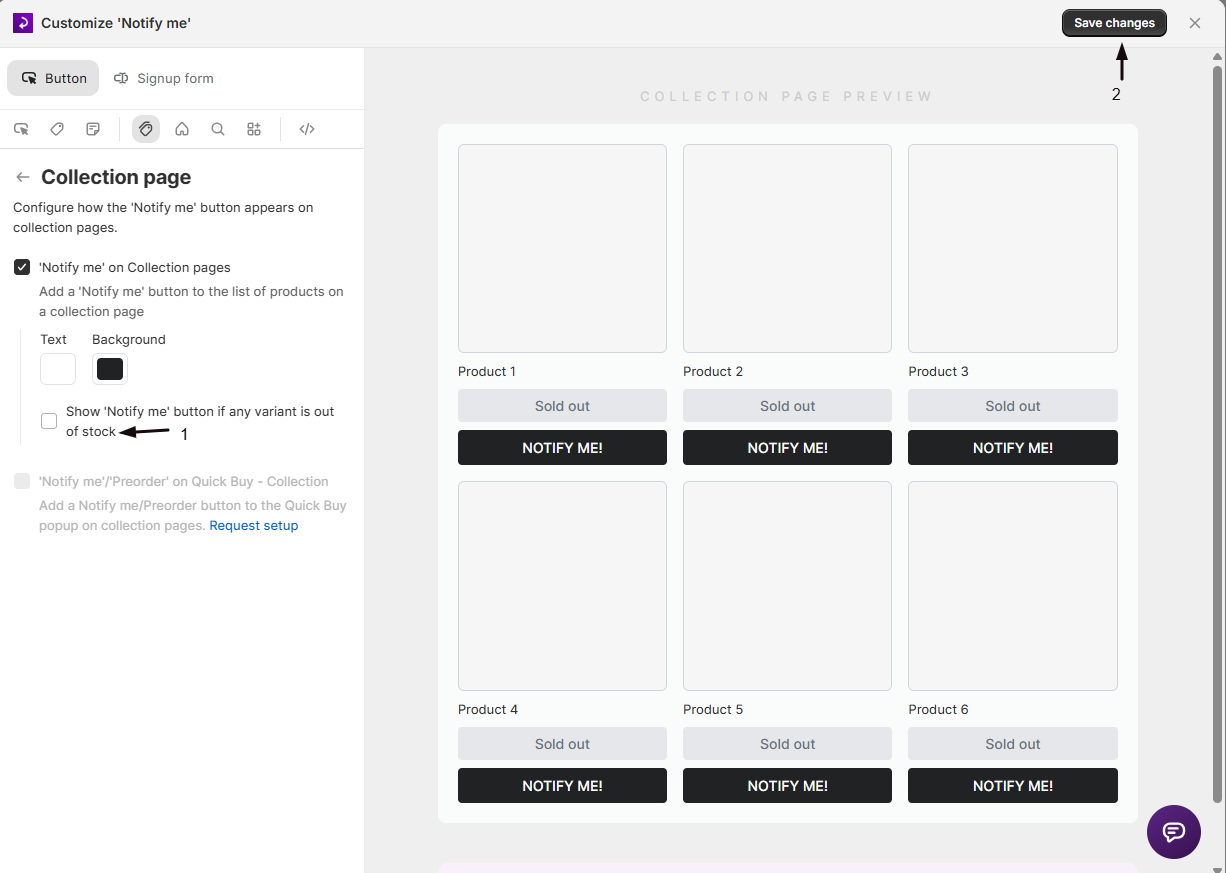
| Collection page | Turn the button on, set its text and background color, and choose whether it needs every variant sold out or just one |
| Home page | Turn the button on; it inherits your general button styling |
| Search page | Turn the button on; it inherits your general button styling |
If your theme shows products through a Quick Buy popup or a Featured products section instead of standard product cards, or you’ve built a custom page outside the standard templates, those need a different setup path, covered in Set it up below.
What customers will see
Section titled “What customers will see”When enabled, customers browsing a collection, your home page, or search results see the same “Notify me” button on each out-of-stock product’s card that they’d otherwise only see on the product page. Clicking it opens the same signup form used everywhere else in your store, so the customer doesn’t need to click into the product first to join the waitlist.
Set it up
Section titled “Set it up”On a phone, this menu is collapsed. In the Shopify mobile app, tap the STOQ logo at the top of the screen to open it, then choose the section named below. There is no hamburger icon. See Finding the STOQ menu.
-
Open the widget settings
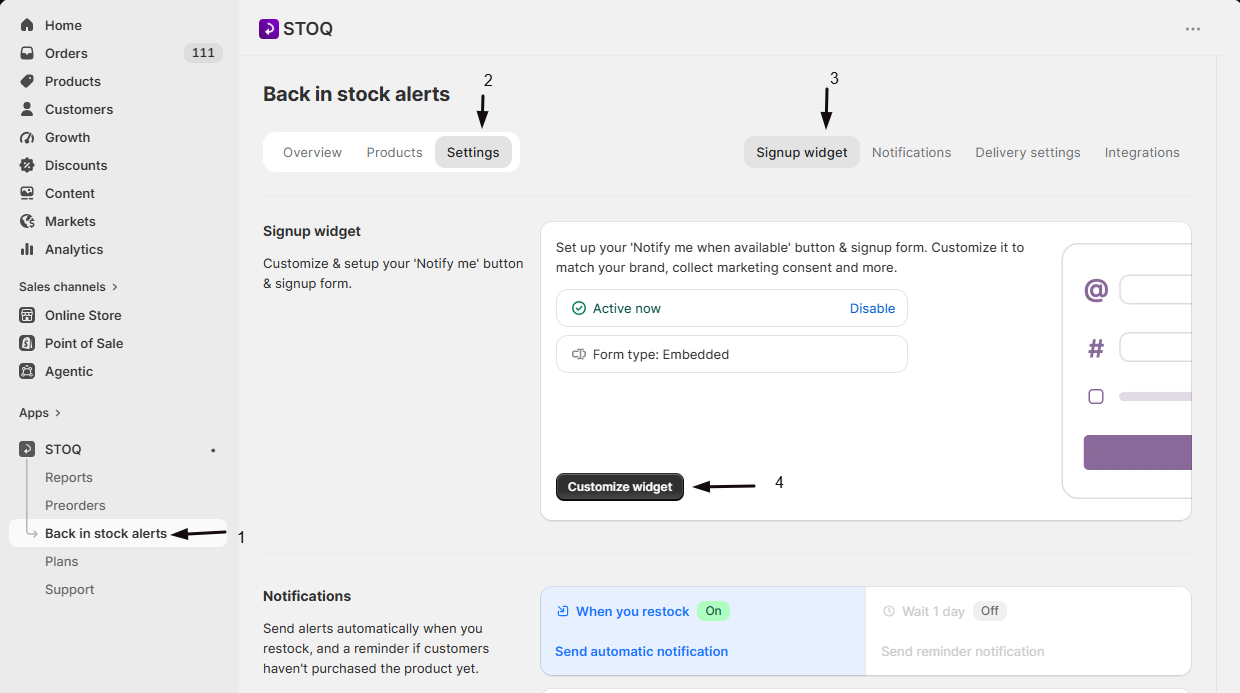
- In the left menu bar of the STOQ app, click Back in Stock alerts.
- Click the Settings tab.
- Open the Signup widget sub-tab.
- Click Customize widget.
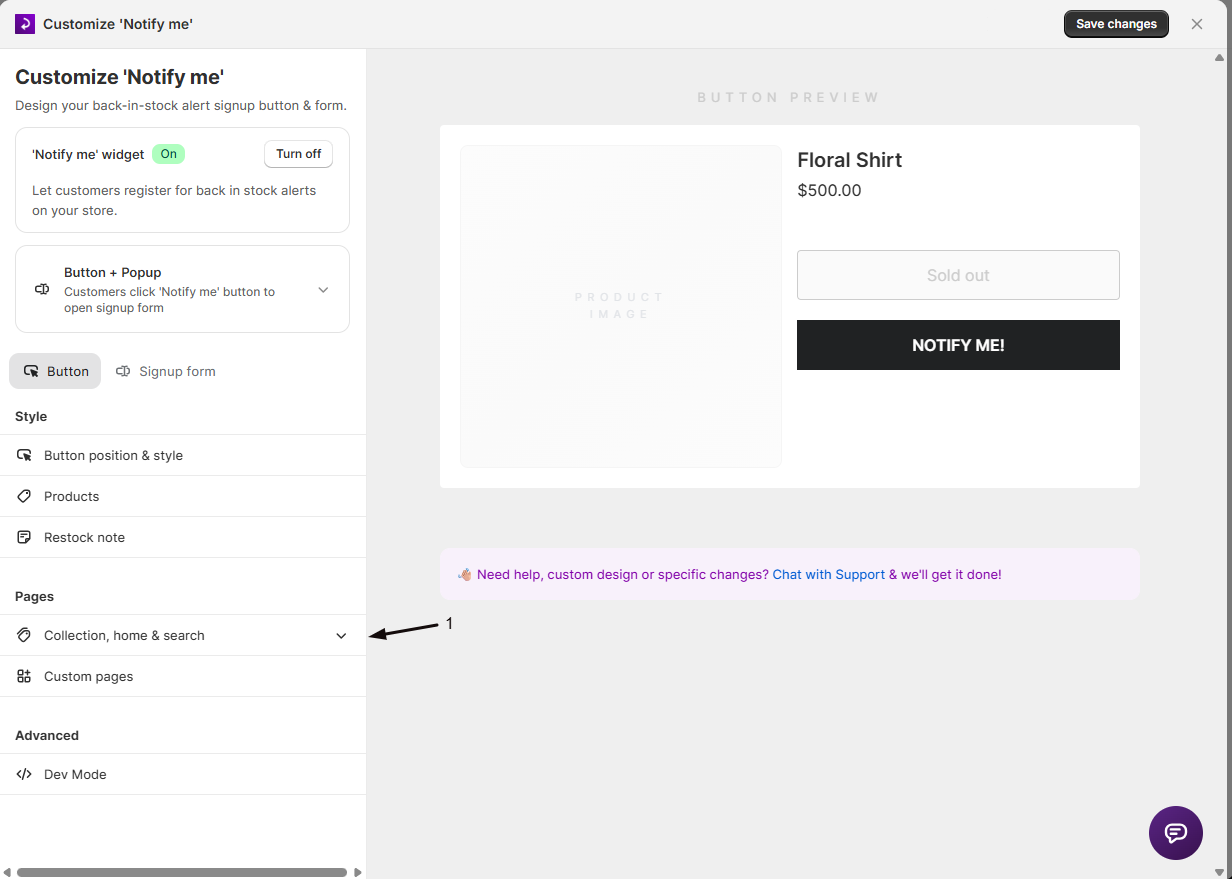
- On the Button tab, open the Pages section in the sidebar.
- Click Collection, Home, or Search to reach that panel, or click Custom pages for pages outside this list.
-
Turn on the button for a page type
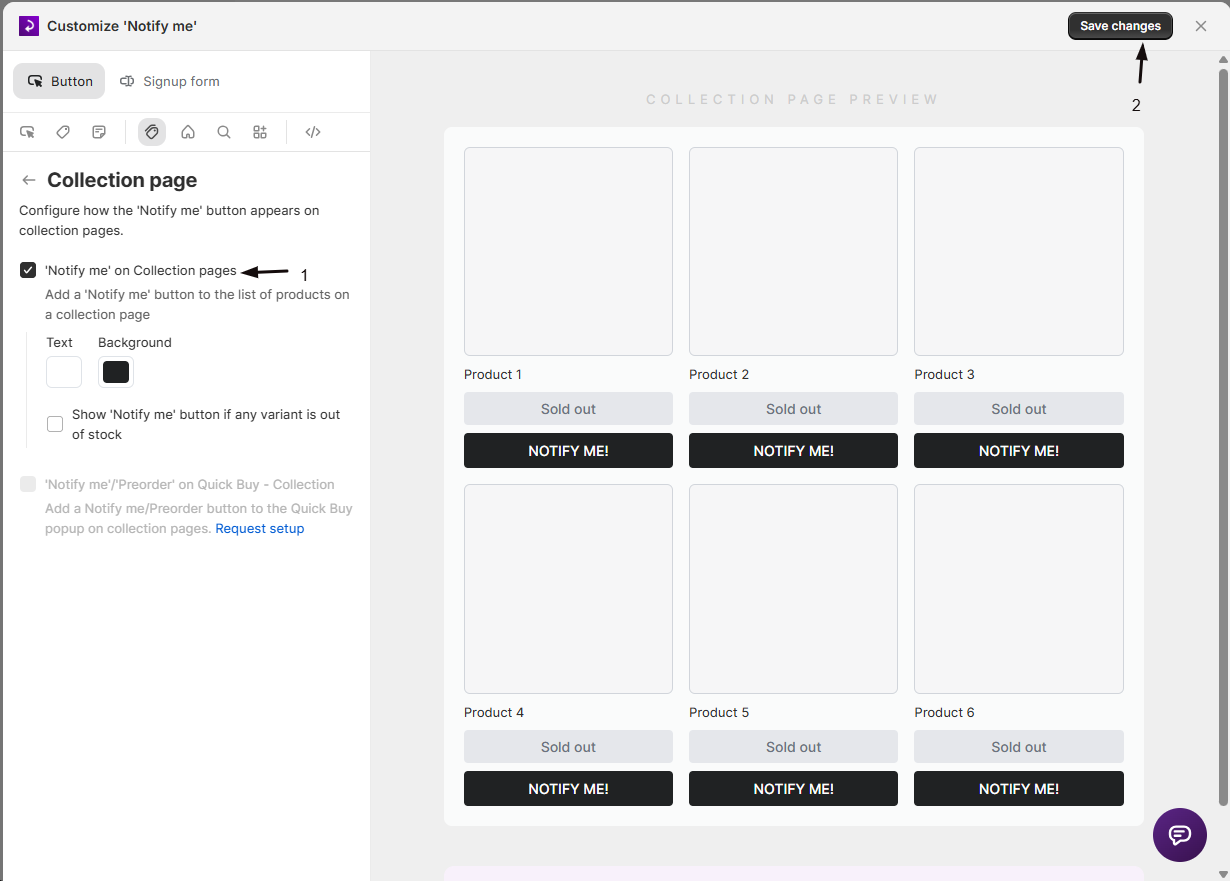
In the Collection page, Home page, or Search page panel, turn on the “Notify me” toggle for that page. Each page type is controlled independently: you can enable it on collection pages only, for example, and leave your home page and search results alone.
-
Set the button colors (collection page only)
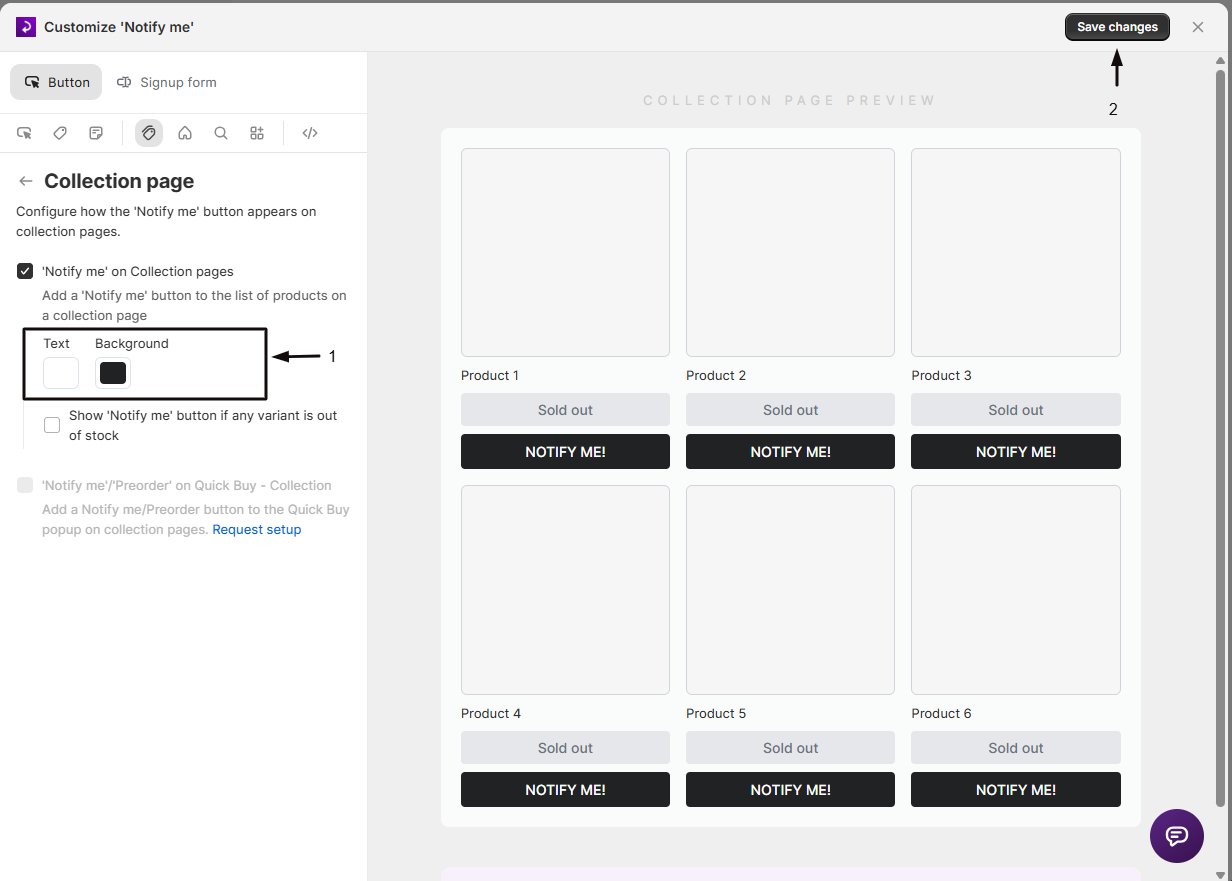
On the Collection page panel, pick a text color and a background color for the button as it appears in the collection’s product grid. The Home page and Search page panels don’t have color pickers of their own; the button inherits its appearance from your general button styling.
-
Decide how strict the out-of-stock check is (collection page only)
Still on the Collection page panel, turn on “Show ‘Notify me’ button if any variant is out of stock” to show the button as soon as a single variant sells out, even if other variants of that product are still purchasable. Leave it off, the default, to only show the button once every variant is sold out.
Set up Quick Buy or Featured product pages
Section titled “Set up Quick Buy or Featured product pages”Some themes show products through a Quick Buy popup (on collection, home, or search pages) or a Featured products section (on the home page) instead of a standard product card. Because these are theme-specific components, adding the Notify me button to them needs a custom integration built by our team.
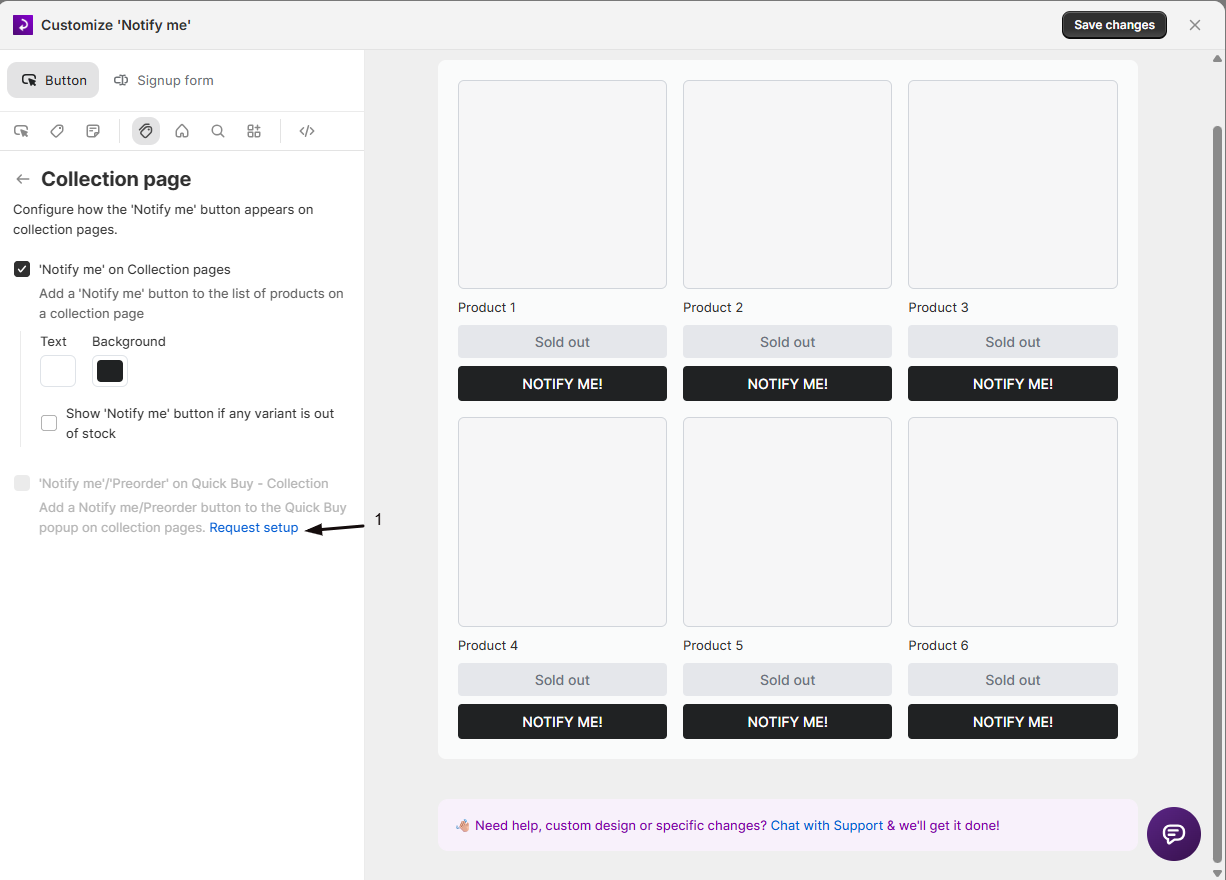
- Each page panel where this applies shows a row such as “‘Notify me’/‘Preorder’ on Quick Buy” with a Request setup button. This requires a paid plan.
- After you click Request setup, the row shows a Requested badge while we build the integration. Once it’s ready, the row becomes a checkbox you can turn on or off. You’ll get an email and a chat message when it’s done.
- Only request setup if your theme actually uses Quick Buy or Featured products; the integration won’t do anything if your theme doesn’t have that component.
Set up a custom page
Section titled “Set up a custom page”If you’ve built a custom page for your collections or products outside the standard theme templates, the Custom pages panel doesn’t have toggles of its own. It links you to chat with support so the team can set up a custom integration for that page.
Fine-tune button placement
Section titled “Fine-tune button placement”Check your setup
Section titled “Check your setup”- Visit a collection page, your home page, or a search results page, matching whichever you enabled, on your live store.
- Confirm at least one product shown is out of stock.
- Confirm the “Notify me” button appears on that product’s card and opens the signup form when clicked.
Troubleshooting
Section titled “Troubleshooting”The Notify me button doesn't appear on a list page
Confirm:
- The app embed is enabled in your theme.
- The widget itself is turned on in Back in Stock alerts -> Settings.
- The product is genuinely out of stock, or has an out-of-stock variant if you enabled that setting (the button only shows for those).
Your theme uses a Quick Buy popup or Featured products section instead of regular product cards
These need a custom integration. Click the Request setup button on the relevant page panel; this requires a paid plan.
You built a custom page for a curated set of products
The Custom pages panel doesn’t have self-serve toggles. Use its chat link to ask our team to set it up for your page.
The custom position selector fields aren't visible on your Collection, Home, or Search panel
They only appear when Dev mode is on. Turn it on in the editor, then the selector fields show on each page panel. Most merchants don’t need them, since the button places itself automatically. See Advanced placement and custom CSS.
You entered a custom position selector and the button stopped appearing
An incorrect CSS selector can prevent the button from rendering at all. Contact support to check it rather than guessing at a fix.
Can I use different button colors on the home page than on the collection page?
Not through the designer. Only the Collection page panel has its own text and background color pickers; the Home page and Search page panels use your general button styling instead.
What's the difference between the two out-of-stock checks?
By default, a product only gets a Notify me button on collection pages once every variant is sold out. Turning on “Show ‘Notify me’ button if any variant is out of stock” makes the button appear as soon as a single variant sells out, even if other variants of that product are still in stock.
Does turning this on change the Notify me button on my product pages?
No. This only adds the button to collection, home, and search pages; the product page button and its settings are unaffected.
What happens when a customer clicks Notify me from a collection, home, or search page?
It opens the same signup form customers see everywhere else in your store, so they can join the waitlist without clicking into the product first.
Related guides
Section titled “Related guides”Thanks for letting us know.
Still stuck? Ask Quinn or chat with support