Send back in stock alerts manually
Notify waitlisted customers about a restock yourself, in bulk or one at a time, instead of waiting for the automatic trigger.
Last updated
Use this guide if you want to notify waitlisted customers about a restock yourself, without waiting for STOQ’s automatic trigger to fire. By the end, customers will get their back in stock alert (email, SMS, or both) as soon as you choose to send it.
Before you begin
Section titled “Before you begin”A customer whose GDPR confirmation is still Pending won’t receive an alert no matter how you send it, since they haven’t confirmed their signup yet. Their row’s Send button stays greyed out until they confirm.
Choose your setup
Section titled “Choose your setup”STOQ gives you four ways to send manually:
- Current waitlist tab: send to everyone matching your current filters, or to one customer at a time.
- Products tab: select up to 10 variants and send to their entire waitlists at once.
- A product’s or variant’s own page: send to every signup, or to a specific number of them.
- Notifications sent tab: re-send to everyone matching your filters, or re-send to one customer.
What customers will see
Section titled “What customers will see”A manual send looks identical to an automatic one: the customer gets the same back in stock email or SMS, on whichever channel(s) you choose.
Send manually
Section titled “Send manually”-
From the Current waitlist tab
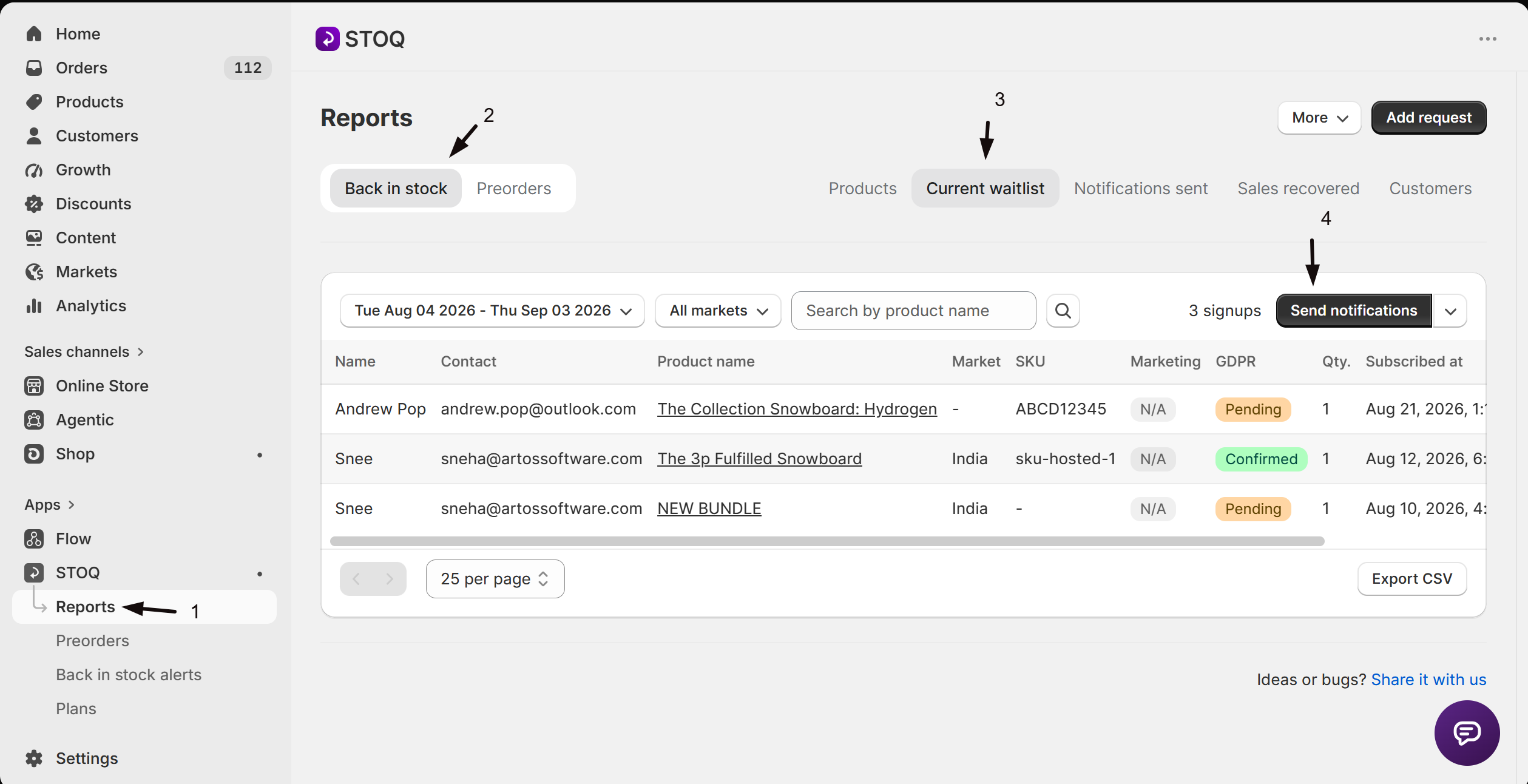
- In the left menu of the STOQ app, click Reports.
- Click the Back in stock tab at the top.
- Click the Current waitlist sub-tab.
To notify everyone matching your current filters, click Send notifications, or click the small arrow next to it and choose Send email or Send SMS to restrict the channel. A prompt asks “Are you sure you want to send?”; confirm it to proceed.
To notify just one customer, click Send on their row.
-
From the Products tab, in bulk
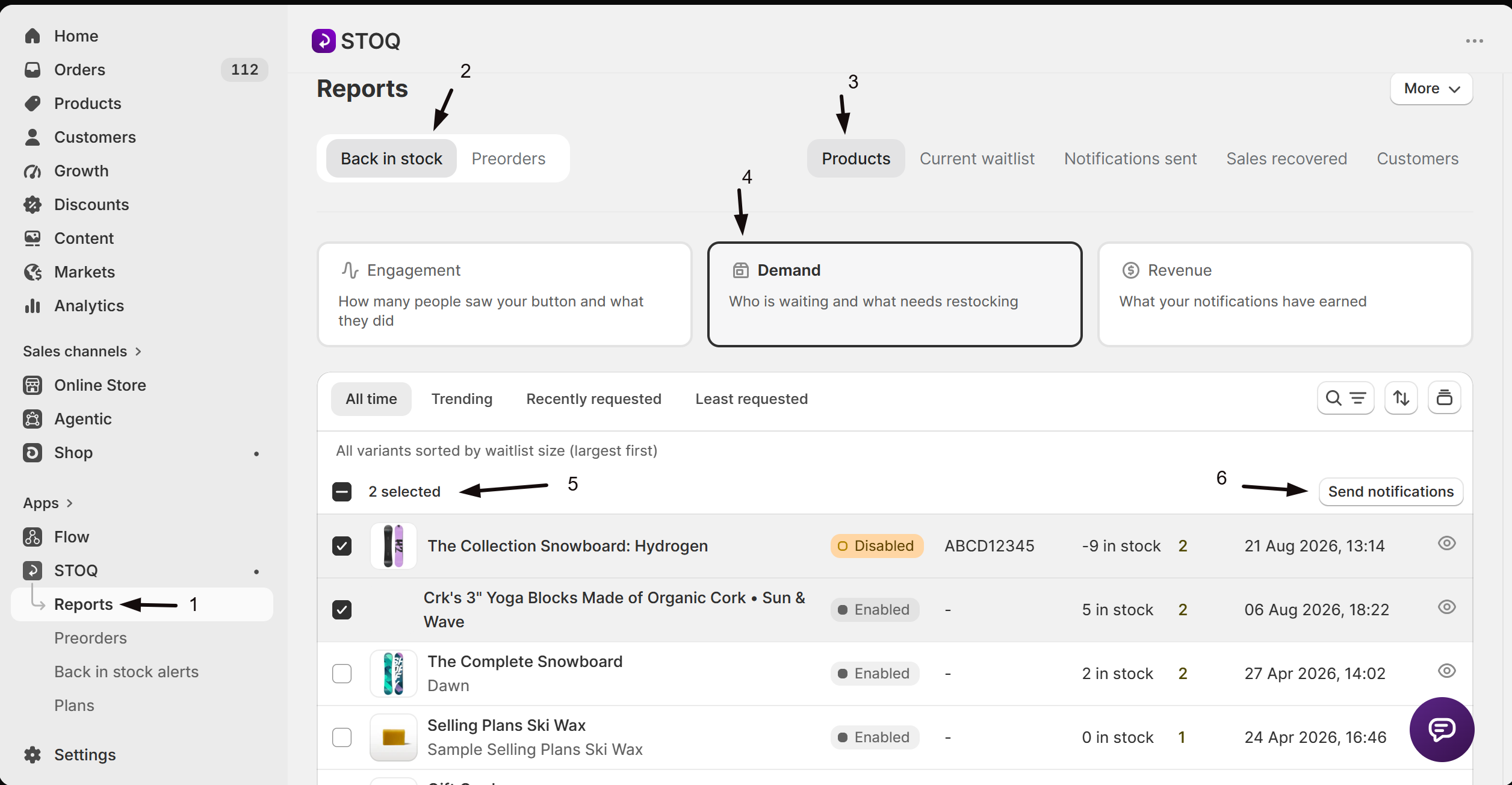
- In the left menu of the STOQ app, click Reports.
- Click the Back in stock tab at the top.
- Click the Products sub-tab, on its Demand view. If the list is grouped by product, click the Group by icon in the top right and choose Group by variant.
Select up to 10 variants using the row checkboxes, then click Send notifications in the bulk action bar. A confirmation modal names how many variants you selected, and its Send notifications button stays disabled for a short forced-read delay so you don’t confirm by accident. Selecting more than 10 variants shows an error instead of opening the modal.
-
From a product’s or variant’s own page
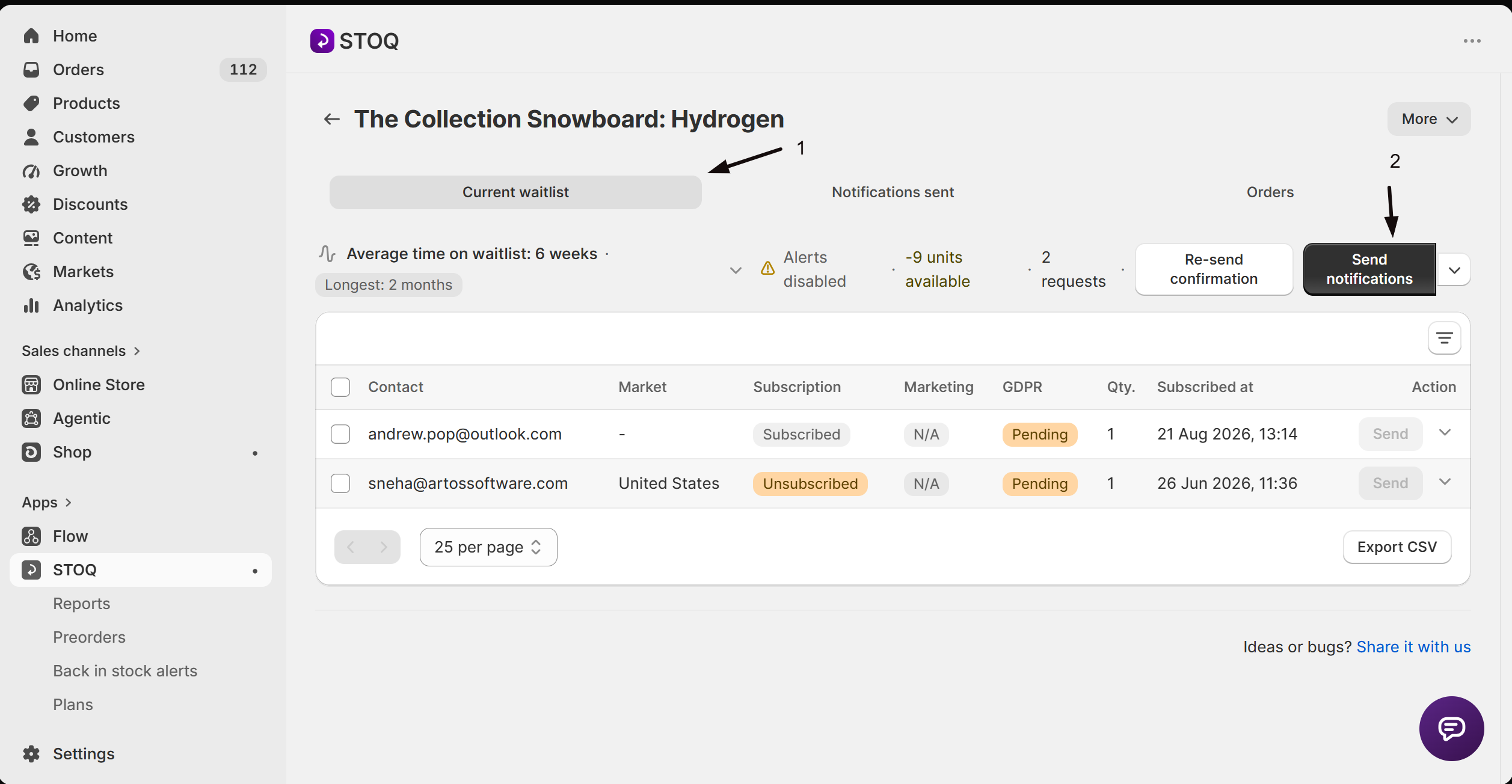
Click a product or variant name from the Products, Current waitlist, or Notifications sent tab to open its detail page.
On its unsent view, click Send notifications, or the arrow next to it for Send email or Send SMS only. On its sent view, click Re-send all, or the arrow next to it for Re-send email or Re-send SMS. Either opens a modal where you choose:
- Send all: notify every available signup.
- Send a specific set of notifications: enter a number in Enter the number of notifications to send, and STOQ sends to only that many.
If the product or variant is out of stock, a prompt asks “Are you sure you want to notify customers? This product is out of stock.” before it sends.
-
Re-send from Notifications sent
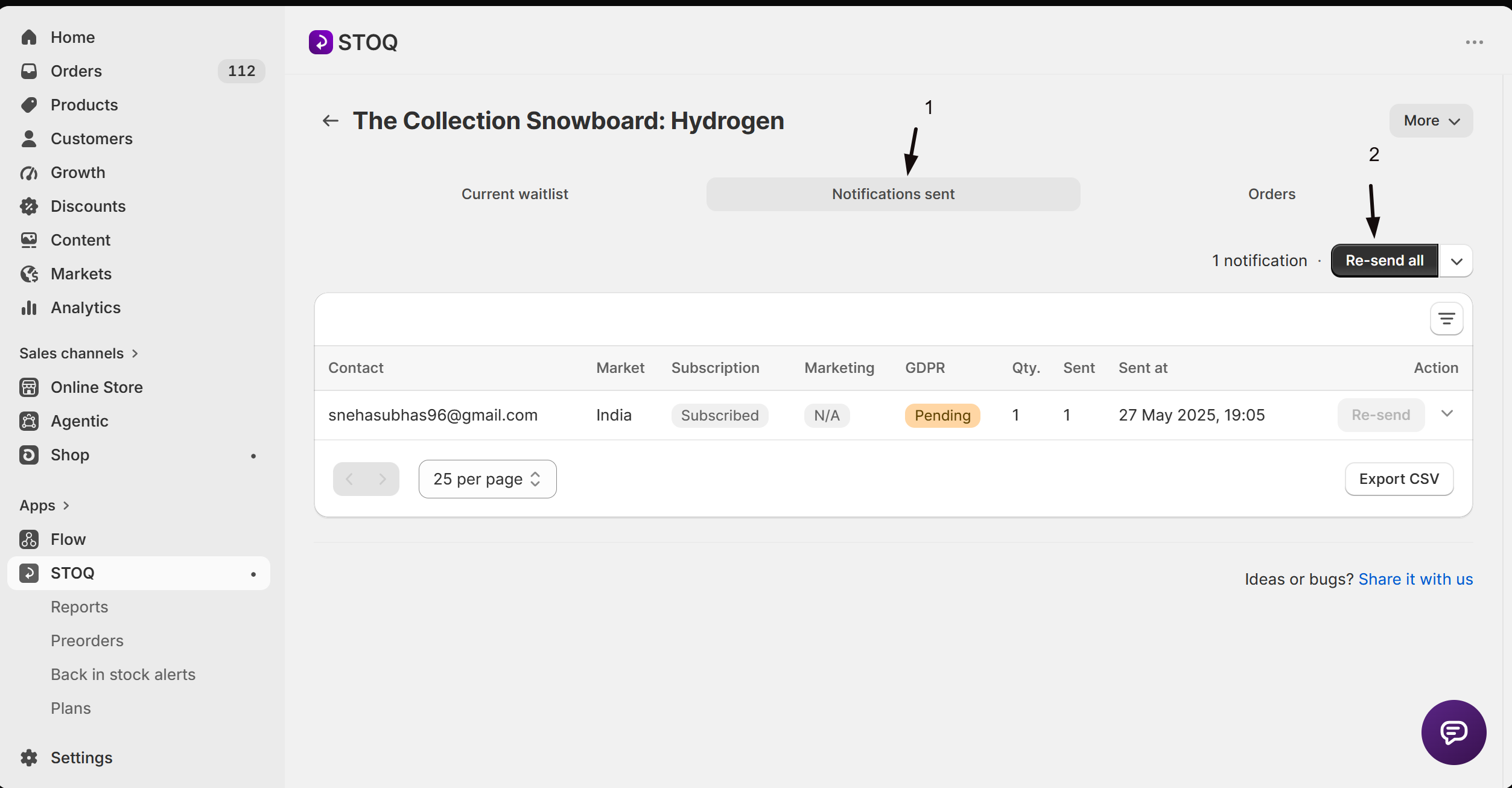
- In the left menu of the STOQ app, click Reports.
- Click the Back in stock tab at the top.
- Click the Notifications sent sub-tab.
Click Re-send notifications to re-send to everyone matching your filters, or click the small arrow next to it for Re-send email or Re-send SMS only. To re-send to one customer, click Re-send on their row.
Check your setup
Section titled “Check your setup”A bulk send from Current waitlist or Notifications sent shows a Notifications queued banner with a Track progress link, which opens the sending progress page. A bulk send from the Products tab shows its own Notifications queued banner naming how many variants were queued, with a Dismiss action instead. A single row send shows a brief “Notification sent” confirmation.
Once sent, open the Notifications sent tab, find the customer, click the arrow next to their Re-send button, then Why was this sent? to confirm the source, for example Manual send, Bulk send, or Bulk re-send, along with the delivery status for each channel.
Troubleshooting
Section titled “Troubleshooting”A customer's Send button is greyed out
Their GDPR confirmation is Pending, or the product or variant has been deleted.
The Products tab bulk action won't open a confirmation modal
You’ve selected more than 10 variants. Reduce your selection and try again.
A bulk send doesn't arrive right away
Bulk sends are processed in the background. Click Track progress, or check the Notifications sent tab after a few minutes, rather than assuming it failed.
A Products tab bulk send fails
A Bulk send failed banner lists the reason for each variant that couldn’t be sent; fix it and try again.
What's the difference between Send notifications and Send email or Send SMS?
Send notifications sends on every channel the customer signed up with. The arrow next to it lets you restrict a send to just email or just SMS.
Why can't I select more than 10 variants on the Products tab?
Bulk sending from the Products tab is capped at 10 variants per action. To notify more at once, use the Current waitlist or Notifications sent tabs instead, which send to everyone matching your filters in a single action.
Can I re-send an alert to someone who already got one?
Yes. Use the Re-send button on their row in Notifications sent, Re-send notifications in bulk from that tab, or Re-send all from the product’s or variant’s own page.
What does a Follow-up reminder entry mean in Why was this sent?
It means that notification went out automatically as part of a multi-stage reminder sequence, shown with a Stage badge, rather than a manual or bulk send you triggered.
Does a GDPR-Pending customer ever get skipped permanently?
No. Once they confirm their signup, their GDPR status updates and their row’s Send button becomes available, whether you send manually or STOQ sends automatically on restock.
Does sending manually change what happens on the next restock?
No. A manual or bulk send just notifies the customer now; it doesn’t change whether they’re eligible for STOQ’s automatic alert the next time the product restocks.
The email in the editor shows a different product. Did my customers get that?
No. Manually sent alerts use each customer’s real restocked product and variant. The sample product shown in the email editor preview (by default a placeholder like “Floral Shirt - Medium”) is only for previewing and test emails, never what customers receive.
Does each product send a different email based on its template?
No. There’s no per-product email template. Every product uses the same store-wide back in stock email (plus a separate one for each reminder stage), automatically filled with that product’s title, image, price, and link. The Template column on the Products tab only changes the storefront Notify me button and signup form, not the email. See Customize the Notify me widget for specific products.
Related guides
Section titled “Related guides”Thanks for letting us know.
Still stuck? Ask Quinn or chat with support