Set up report notifications and data
Choose where reports are sent, get usage summaries, control deleted products, and refresh stored data.
Last updated
The Settings page behind your reports controls the housekeeping around them: the email address exports are sent to, the summary emails STOQ sends you, whether deleted products clutter your tables, and a way to refresh stale product data. Set these once and your reports stay clean and land in the right inbox.
Open report settings
Section titled “Open report settings”-
Open the Settings page
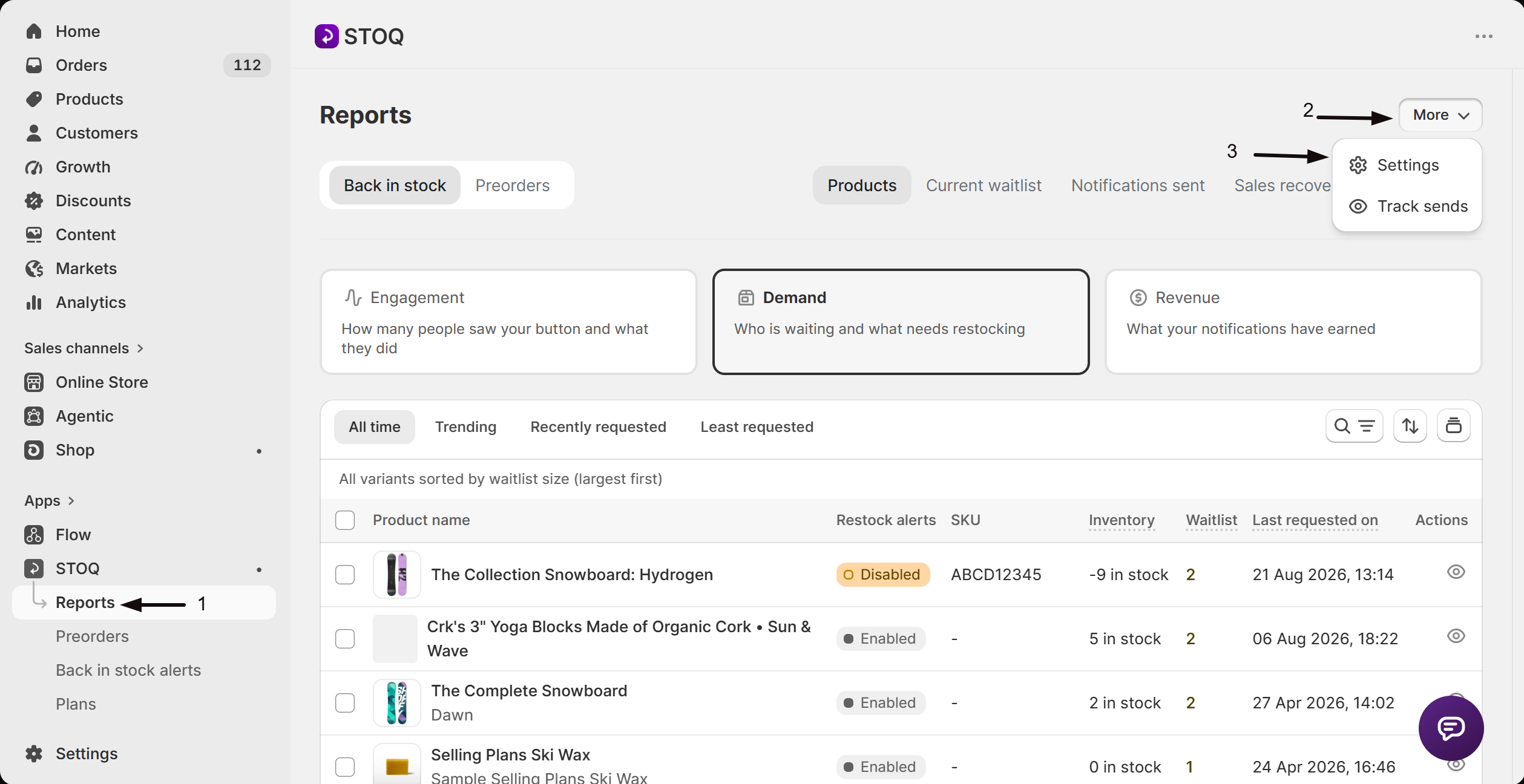
- In the left menu of the STOQ app, click Reports.
- Click More in the top right of the Reports page, then click Settings.
Waitlist signup alerts and order tagging also live on this page. They have their own guides: Get alerted about signups and demand and Tag orders from back in stock alerts.
Set where reports are sent
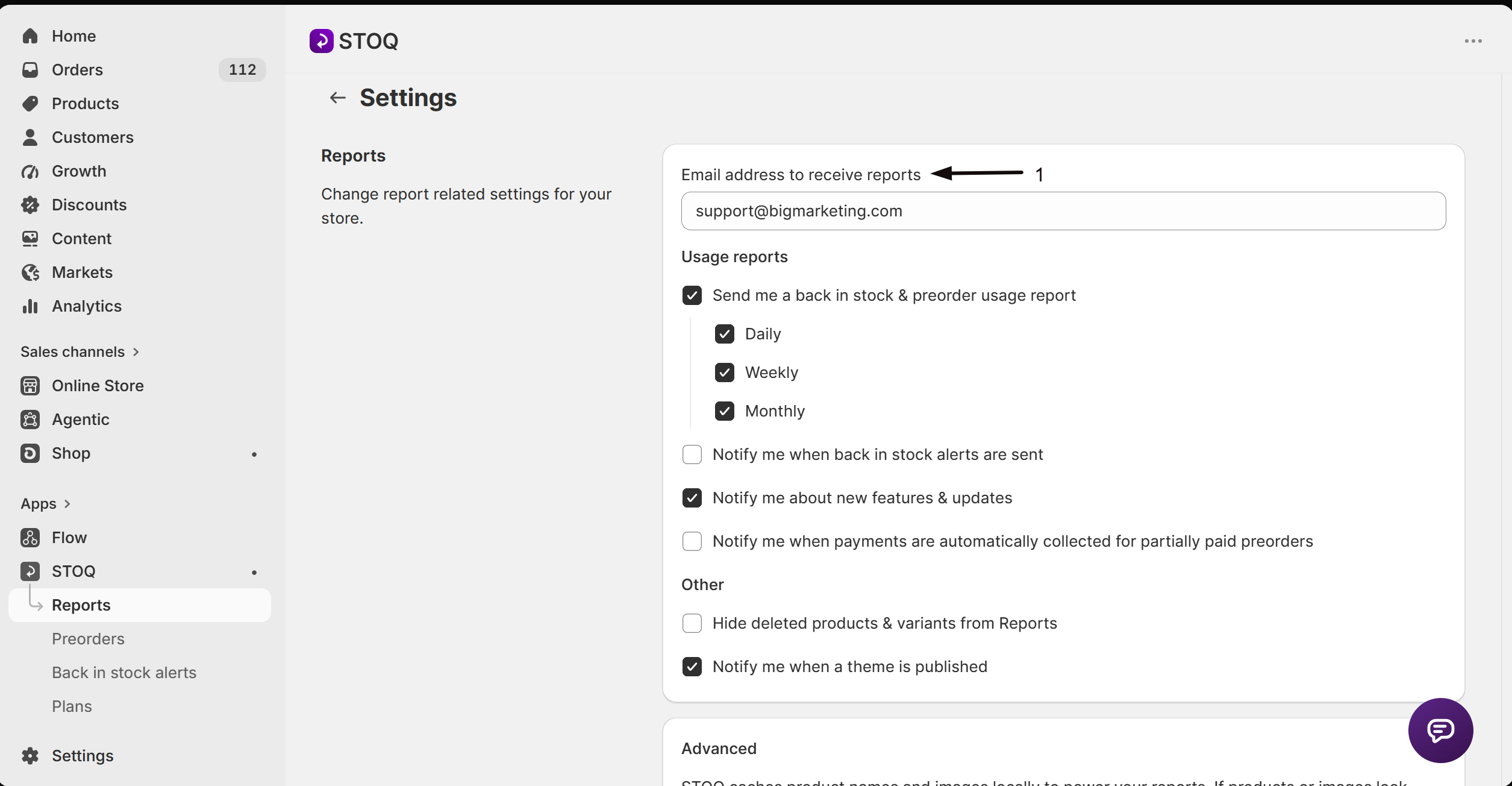
Section titled “Set where reports are sent”Under Email address to receive reports, enter the address that should receive your CSV exports and usage summary emails, for example you@yourstore.com. To send them to more than one person, enter several addresses separated by commas, for example you@yourstore.com, ops@yourstore.com. This is the destination for every Export CSV button in your reports, since STOQ emails the file rather than downloading it in the browser.
Get usage summary emails
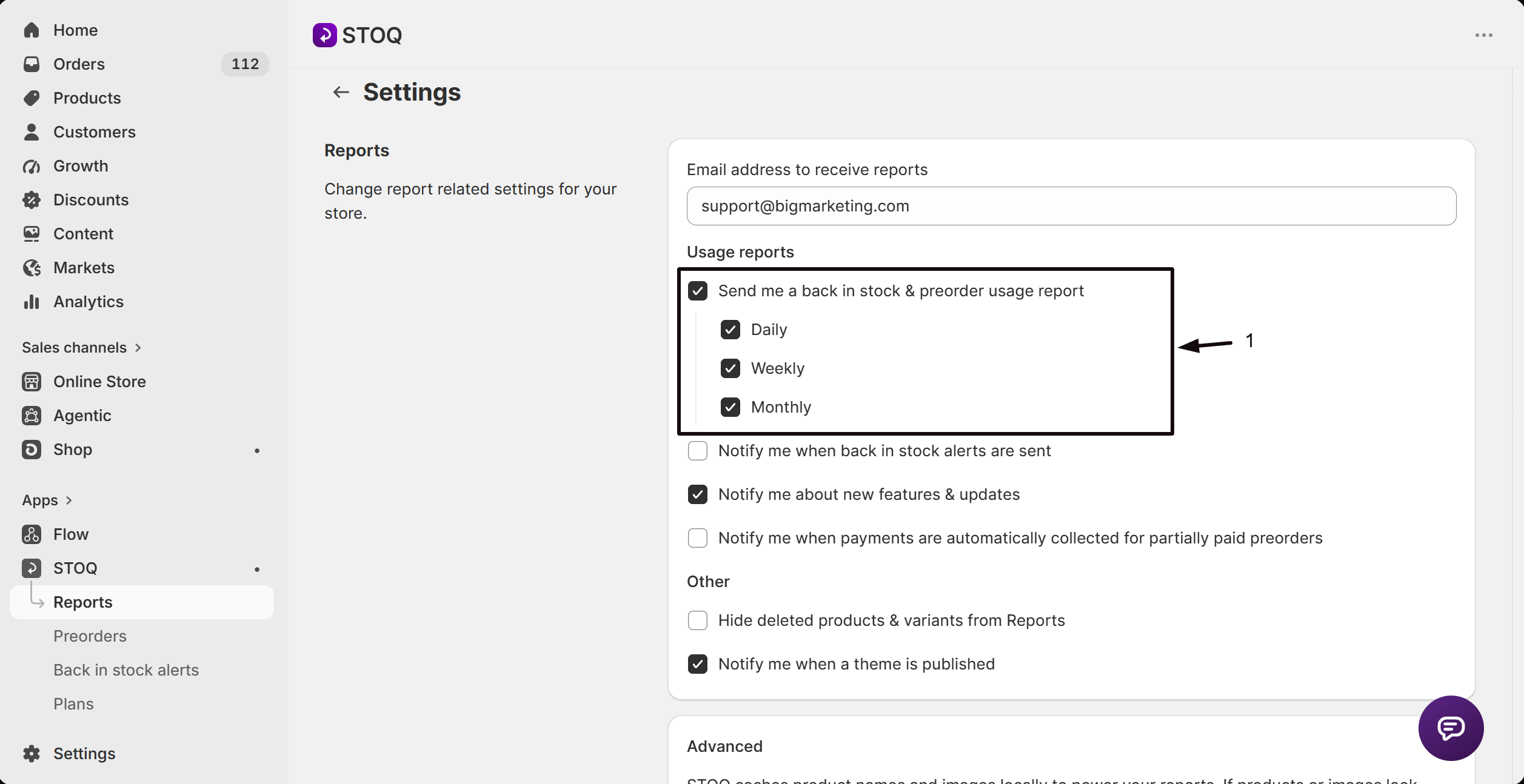
Section titled “Get usage summary emails”Under Usage reports, turn on Send me a back in stock & preorder usage report to get a recurring summary of your activity. Choose how often it arrives:
- Daily: a summary every day.
- Weekly: a summary every week.
- Monthly: a summary once a month.
The report is sent to the address in Email address to receive reports above. It’s a fixed system email STOQ sends to you as the merchant; you choose how often it arrives and where it goes, but its content isn’t editable.
Choose which email notifications you get
Section titled “Choose which email notifications you get”STOQ can email you when key events happen. Turn on only the ones you want:
| Notification | When it emails you |
|---|---|
| Notify me when back in stock alerts are sent | Whenever STOQ sends restock alerts to your customers |
| Notify me about new features & updates | When STOQ ships something new |
| Notify me when payments are automatically collected for partially paid preorders | When STOQ successfully charges the remaining balance on a partially paid preorder. See Collect remaining preorder payments. |
| Notify me when a theme is published | When a new theme goes live, so you can re-check your widget placement |
Hide deleted products
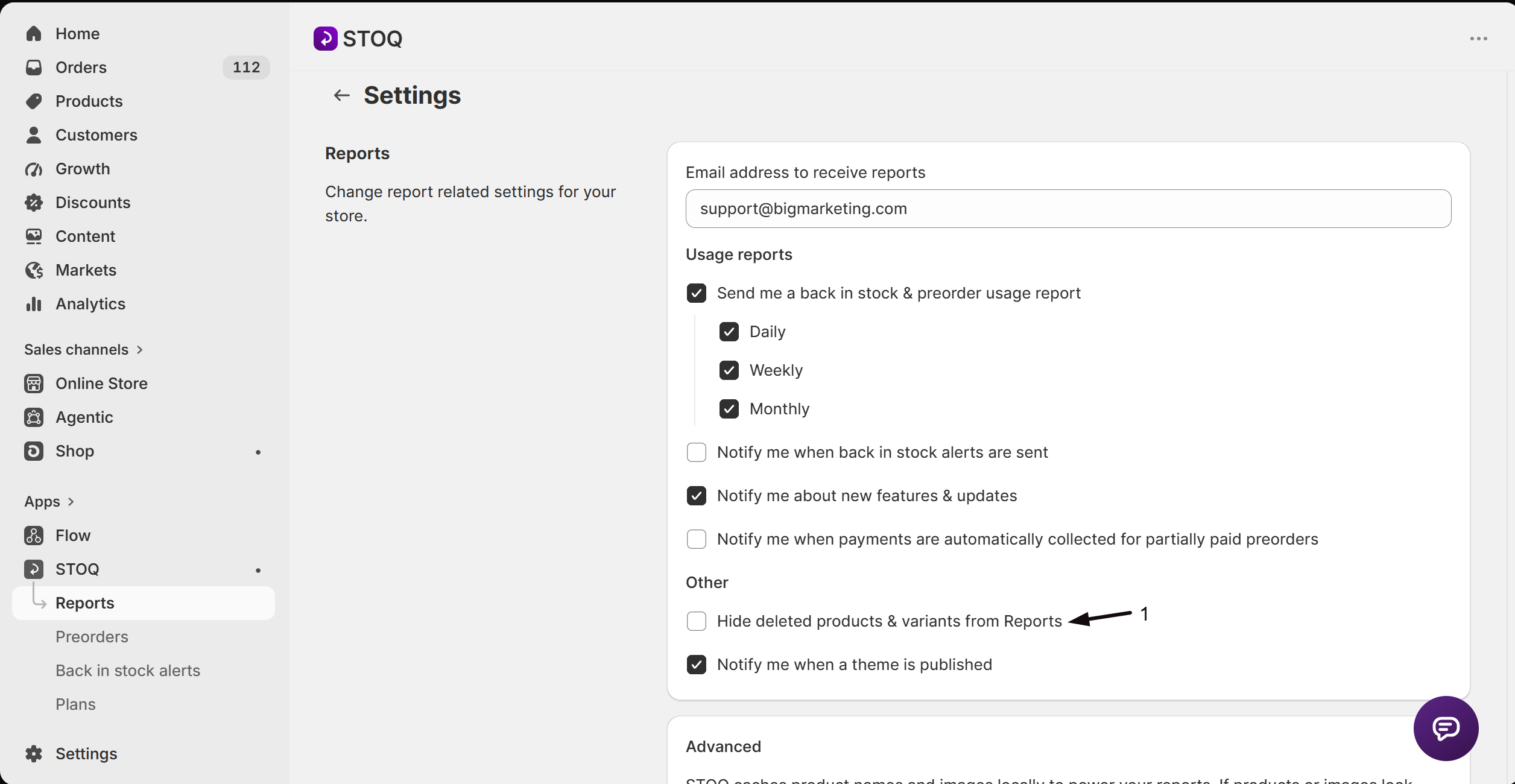
Section titled “Hide deleted products”Turn on Hide deleted products & variants from Reports to keep products and variants you’ve deleted in Shopify out of your report tables. This clears out old rows for items you no longer sell so your reports only show what’s live.
This setting only hides items that no longer exist in Shopify. A product that’s still in Shopify but disabled, unpublished, draft, or archived isn’t “deleted”, so it stays in your reports, and there’s no separate setting to hide those. To keep such an item out of reports, delete it in Shopify, or leave it as-is since it still exists.
Refresh stored data
Section titled “Refresh stored data”STOQ stores a copy of your product names and images to build reports quickly. If they look out of date, or a report row shows “Product deleted or variant unavailable”, open the Advanced section, click Show to expand it, then click Refresh stored data. See Refresh stored product data for the full guide.
Troubleshooting
Section titled “Troubleshooting”A report row shows "Product deleted or variant unavailable"
The product or variant was removed or changed in Shopify. Refresh your stored data to re-sync, then turn on Hide deleted products & variants from Reports to keep deleted items out. See Refresh stored product data.
Your CSV export never arrives
Check the address in Email address to receive reports, and look in your spam folder. Exports are emailed, not downloaded.
You're not getting usage summaries
Confirm Send me a back in stock & preorder usage report is on and that the report email address is correct.
You still see deleted products in a report
Turn on Hide deleted products & variants from Reports, then refresh stored data so the tables rebuild without them.
Disabled or unavailable products still show, even with hiding on
That’s expected. Hide deleted products & variants only removes items that no longer exist in Shopify. A product that’s disabled, unpublished, draft, or archived still exists, so it isn’t hidden, and refreshing stored data won’t remove it either. There’s no setting to hide products that still exist in Shopify. Delete the product in Shopify if you want it out of reports.
Where do CSV exports get sent?
To the Email address to receive reports set on this page. Every Export CSV button emails the file to that address rather than downloading it in your browser, so keep the address current.
What does Refresh stored data actually do?
STOQ keeps a stored copy of your product details to render reports fast. Refreshing re-pulls that copy from Shopify, which fixes rows showing old names, images, or “Product deleted or variant unavailable”. It doesn’t change your Shopify products or your waitlist.
Does hiding deleted products remove their data?
No. It only hides deleted products and variants from your report tables. The underlying signups, notifications, and order data are unaffected, and turning the setting back off shows those rows again.
How often is the usage report sent?
Daily, weekly, or monthly, whichever you choose under Usage reports. It’s a summary of your back in stock and preorder activity, sent to your report email address.
Can I send reports to a different address than my account email?
Yes. The report email address is set separately on this page and can be any inbox you like, so exports and usage summaries can go to a shared or team address.
Related guides
Section titled “Related guides”Thanks for letting us know.
Still stuck? Ask Quinn or chat with support