Test your setup
Walk through a full test cycle before you rely on Back in Stock alerts.
Last updated
Back in Stock alerts run on your live, published storefront, not inside the STOQ admin. Before you trust the feature to catch every out-of-stock customer, walk through one full cycle yourself: see the button, sign up, restock the product, and confirm the alert arrives.
Before you begin
Section titled “Before you begin”| Requirement | Where to check |
|---|---|
| Back in Stock alerts turned on | Back in Stock alerts > Settings > Signup widget |
| App embed active in your theme | A Turn on app embed badge next to the STOQ page title prompts you to enable it if it isn’t |
| A test product that’s actually out of stock (or set to always show the button) | Back in Stock alerts > Products tab |
| At least one notification channel enabled (email and/or SMS) | Back in Stock alerts > Settings > Notifications |
| A minimum restock quantity set (alerts only send once inventory restocked meets or exceeds this) | Back in Stock alerts > Settings > Notifications |
| No storefront password, or Send alerts while your store is password protected ticked (alerts are held while a password is on) | Back in Stock alerts > Settings > Delivery settings, in the Notify when restocked card |
What customers will see
Section titled “What customers will see”When a signed-up customer’s product restocks, they receive the email and/or SMS alert you’ve designed in Settings > Notifications, using the contact details they submitted through the “Notify me” form. They do not need to return to your store on their own: the alert links them back to the product.
Set it up
Section titled “Set it up”-
Pick or prepare a test product
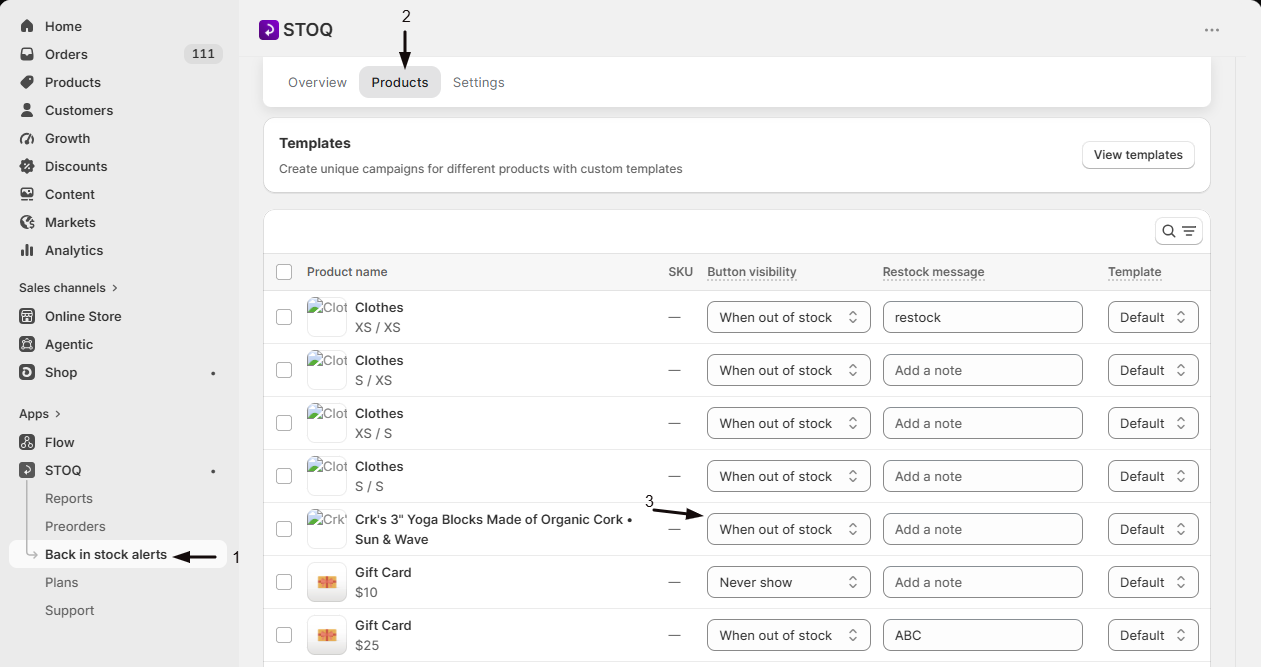
In Back in Stock alerts > Products, find a product/variant and check its Button visibility column. By default it’s set to When out of stock, meaning the button only shows automatically once Shopify inventory hits zero for that variant. For testing, either:
- Use a product/variant that’s genuinely out of stock, or
- Temporarily set Button visibility to Always show so you can see and test the button regardless of stock.
Note that setting a variant to Never show hides the button even if it’s out of stock, so make sure your test product isn’t set that way.
-
Visit the live storefront
- Open your published theme in a real browser tab (not the Shopify admin preview).
- Go to the test product’s page.
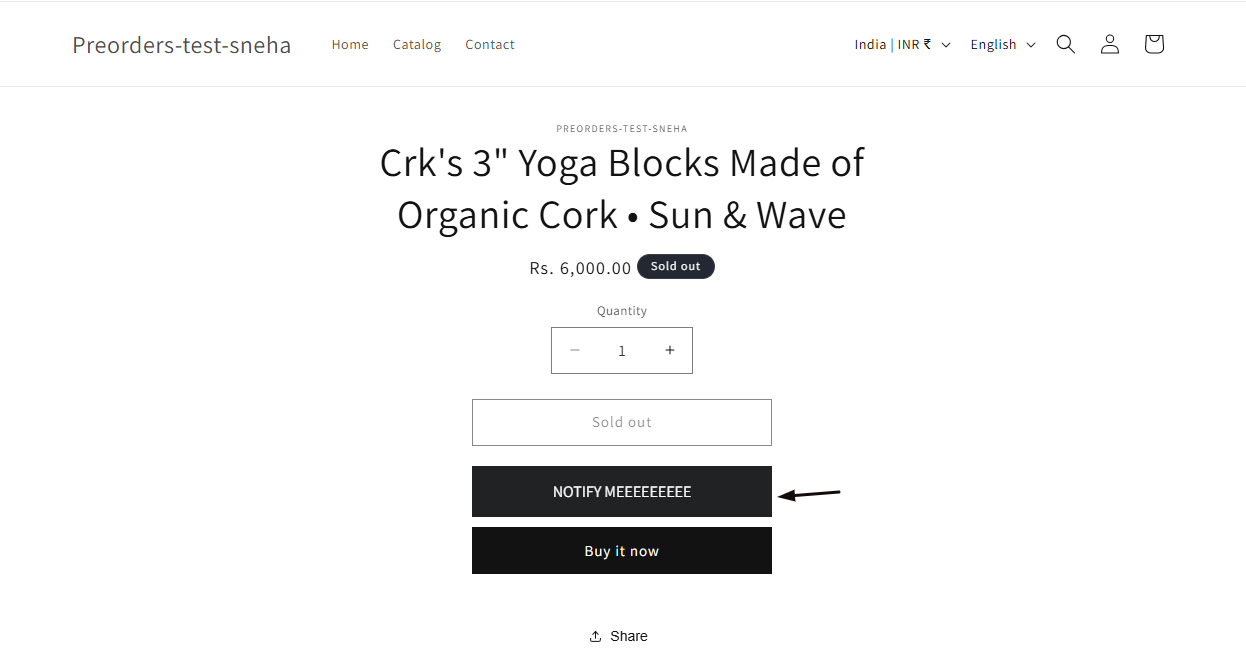
- Confirm the “Notify me” button appears where you expect (this also confirms the app embed is active and your button styling from Settings > Signup widget looks right).
-
Submit a test signup
- Click the button.
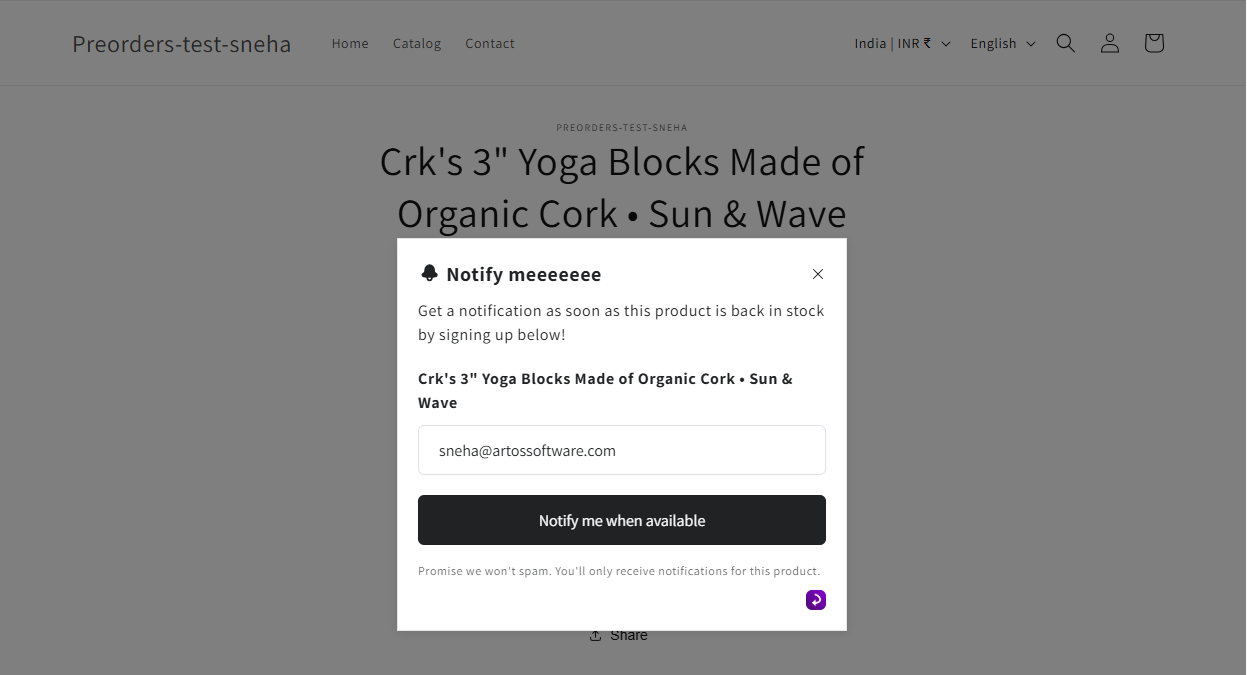
- Submit the signup form using an email address (and phone number, if SMS is enabled) that you control. Use a real inbox, not a placeholder like test@example.com or a disposable inbox like mailinator.com. STOQ blocks those addresses and the form shows its email error.
- Confirm the form submits without an error and shows its success state.
-
Confirm the signup was captured
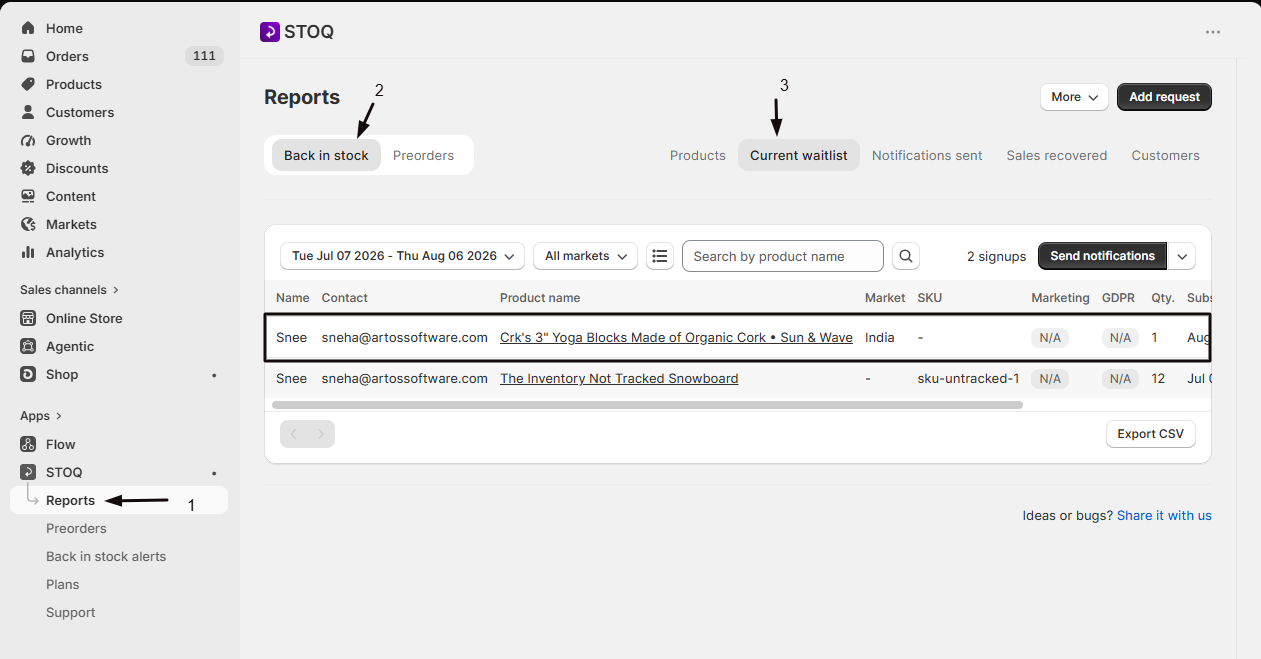
In STOQ, go to Reports > Back in Stock > Current waitlist. Your test signup should appear here, linked to the product/variant you tested. If you don’t see it, the signup didn’t reach STOQ, so recheck the app embed and button setup before continuing.
-
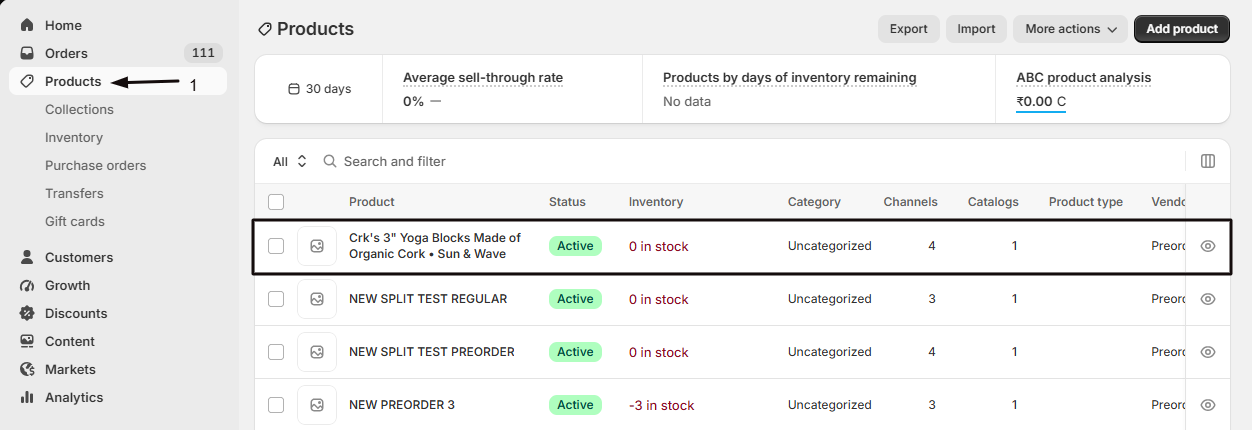
Restock the product
In Shopify Admin, raise the tested variant’s inventory so it meets all of these, then Shopify notifies STOQ of the change automatically:
- At or above your Minimum restock quantity, set in Back in Stock alerts > Settings tab > Notifications.
- At a location included in your delivery settings, if location filtering applies to your plan.
- On a product that is active and published to the Online Store sales channel.
-
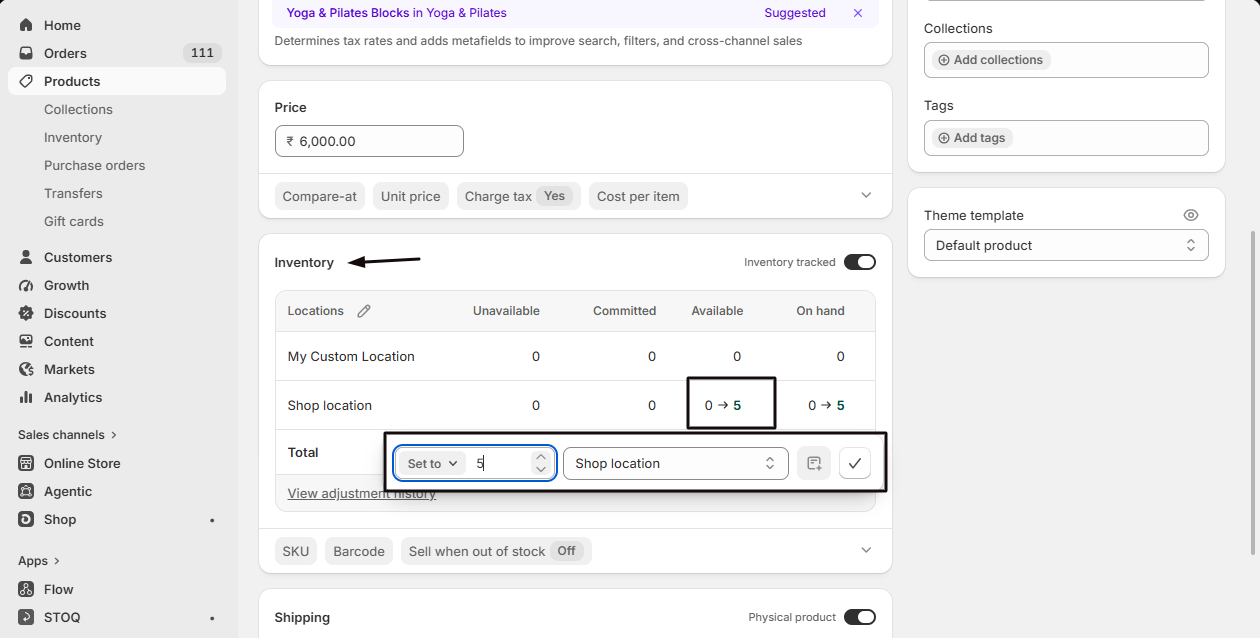
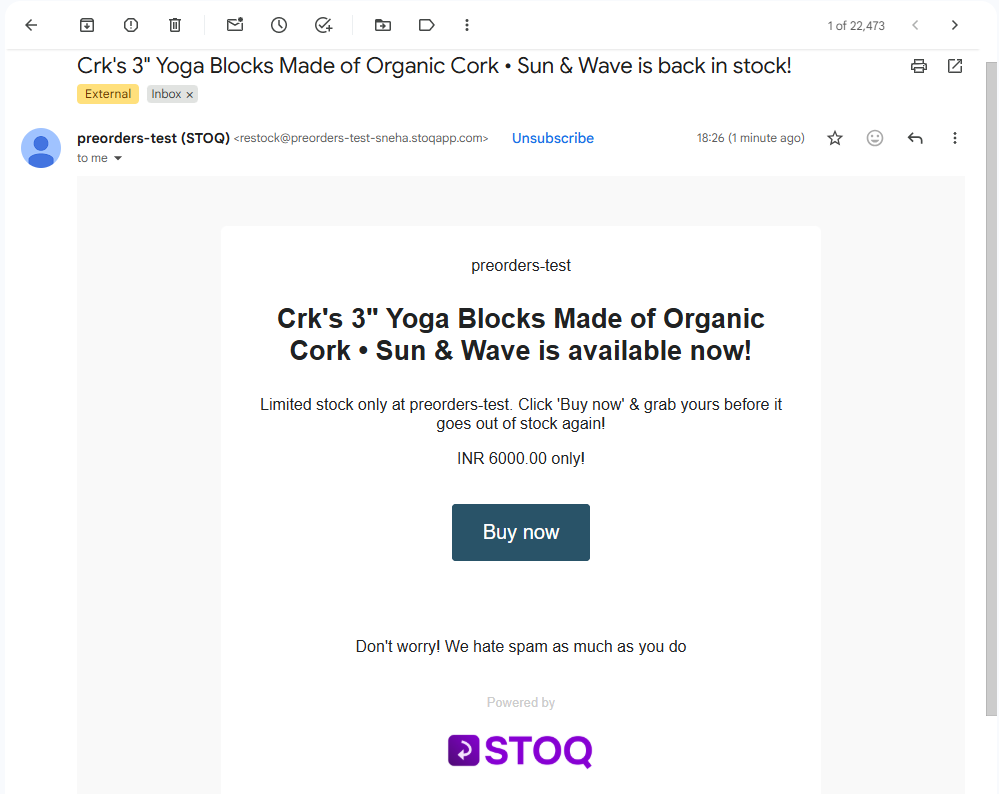
Check the alert arrives
Give it a few minutes, then check the inbox (and/or phone) you signed up with. If batching is enabled in Settings > Delivery settings, the alert may not send immediately.
-
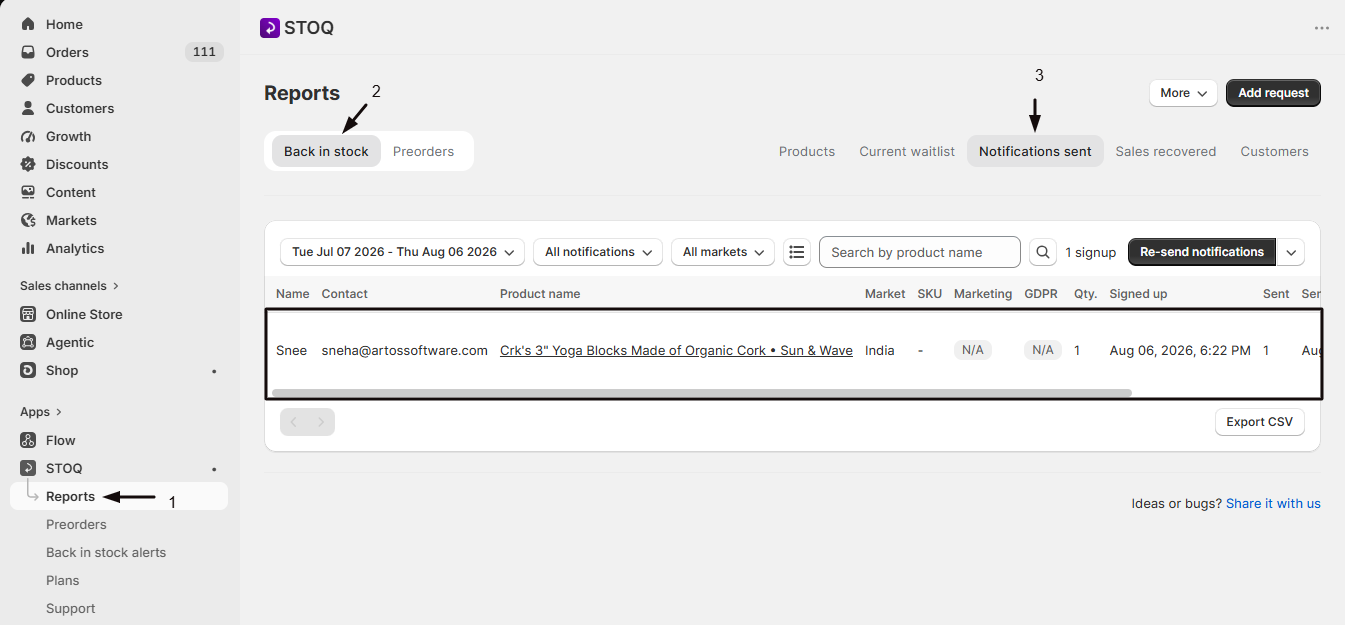
Verify in STOQ
Go to Reports > Back in Stock > Notifications sent and confirm your test notification is listed. This is the definitive record that STOQ attempted delivery, separate from whether the email/SMS physically landed in your inbox.
Check your setup
Section titled “Check your setup”- Reports > Back in Stock > Current waitlist: shows signups still waiting for a restock.
- Reports > Back in Stock > Notifications sent: shows signups STOQ has already notified.
Troubleshooting
Section titled “Troubleshooting”Nothing shows up in STOQ after a storefront signup
Confirm the following.
- The app embed is active for your published theme (STOQ shows a Turn on app embed badge next to the page title if it’s off).
- Back in Stock alerts is turned on in Settings -> Signup widget.
- You’re testing the published theme, not a draft.
You restocked the product but no alert was sent
A signup that stays in the waitlist after a restock is usually caused by one of these.
- The new inventory quantity is below your Minimum restock quantity.
- The restock happened at a location not included in your delivery settings (on plans with location filtering).
- The product isn’t active and published to the Online Store channel.
- Your storefront is password protected. STOQ holds alerts until you remove the password, or until you tick Send alerts while your store is password protected in Settings > Delivery settings (details).
If batching is enabled in Settings > Delivery settings, the alert waits for the next batch window instead of sending immediately.
The button doesn't appear even though the product is out of stock
Check the following.
- The product’s Button visibility setting under Back in Stock alerts -> Products (it may be set to Never show).
- The app embed is active.
- You’re viewing the published theme.
The signup form shows an email error for your test address
STOQ blocks known test, placeholder and disposable addresses on every store, so they never reach your waitlist. This includes test@example.com, any address at example.com or test.com, and disposable inboxes like yopmail.com and mailinator.com. The form shows the same error it shows for an invalid email. Sign up again with an email you actually receive mail at. If you also entered a phone number, the SMS signup still goes through and only the email is dropped.
Can I trigger a test alert without actually changing inventory?
Yes. In Reports > Back in Stock > Current waitlist, you can select your test signup and send its notification manually, without waiting for a real inventory change. Your restock email template also has a separate “Send test email” option in the template editor, which sends a sample using placeholder data rather than testing your live signup.
Does testing use up my plan's alert limit?
Yes. A test signup and its resulting alert count the same as any real customer notification toward your plan’s monthly limit.
Can I resend an alert to a customer who already signed up?
Yes. In Reports > Back in Stock > Notifications sent, each notification has a Re-send action, and you can re-send to multiple selected notifications at once.
Do I need to test SMS separately from email?
Yes, email and SMS are configured and sent independently. If both channels are enabled, submit the test signup with a phone number as well as an email so you can confirm both deliver.
Related guides
Section titled “Related guides”Thanks for letting us know.
Still stuck? Ask Quinn or chat with support