Sync signups to Omnisend
Add every back in stock signup to your Omnisend contacts automatically.
Last updated
STOQ can add each customer who signs up for a back in stock alert to your Omnisend contacts, as soon as they register. Use this if you run campaigns from Omnisend and want new signups added automatically.
Before you begin
Section titled “Before you begin”| Requirement | Detail |
|---|---|
| A paid plan | The sync toggle is disabled on the free plan. |
| An Omnisend API key | Generate one from your Omnisend account and have it ready to paste in. |
Get your Omnisend API key
Section titled “Get your Omnisend API key”Before you connect STOQ to Omnisend, generate a private API key in your Omnisend account. You’ll paste it into STOQ in the next section.
-
Log in to Omnisend
Log in to your Omnisend account.
-
Open your account menu
Click the profile icon in the bottom-left corner.
-
Open Integrations & API
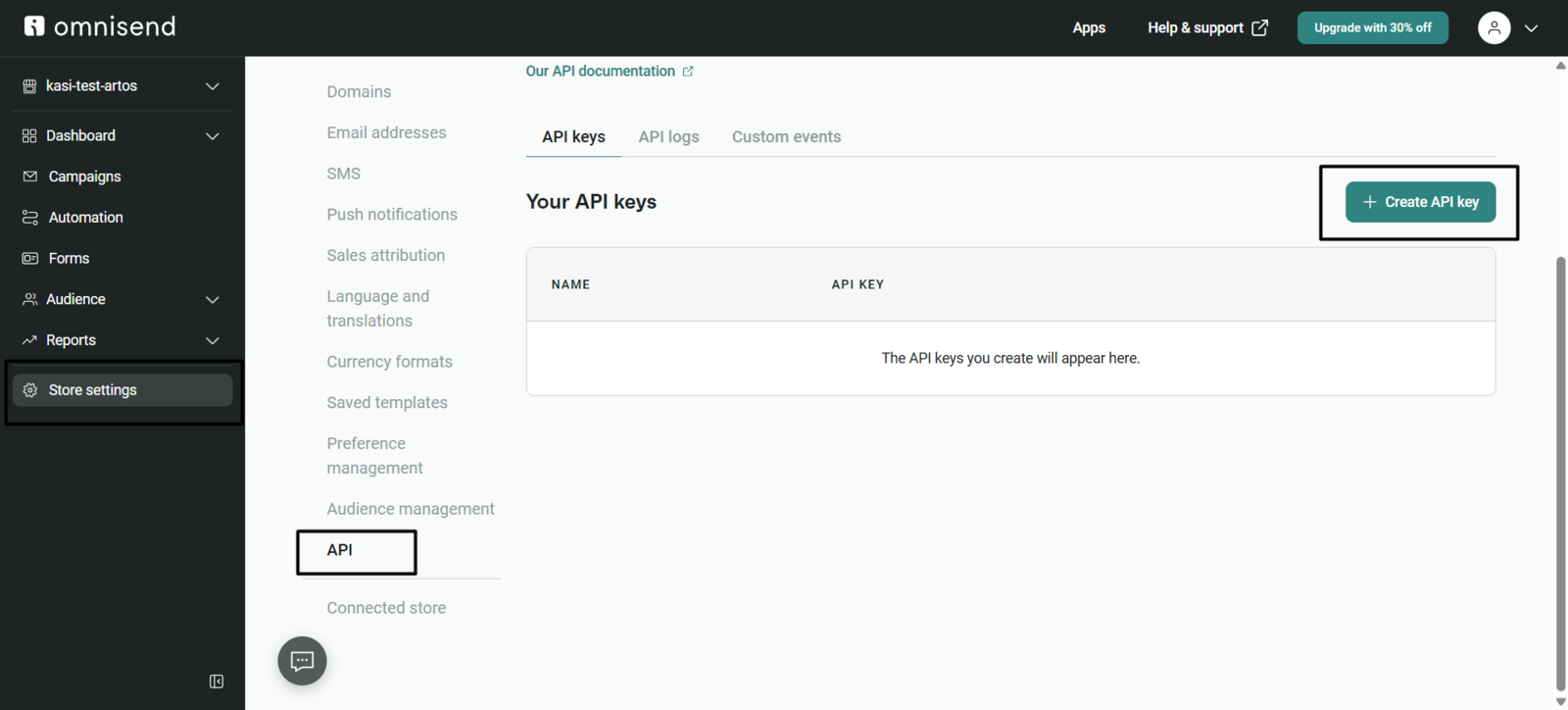
Go to Store Settings > Integrations & API.
-
Create an API key
Click API keys, then click Create API Key.
-
Name the key
Give the key a name (for example, “Restock-private-key”) so you can identify it later.
-
Select the Contacts permission
Make sure the Contacts permission is selected. STOQ needs this permission to create and update contacts.
-
Create and copy the key
Click Create and copy the generated API key. Keep it somewhere safe; you’ll need it in the next section.
Set it up
Section titled “Set it up”On a phone, this menu is collapsed. In the Shopify mobile app, tap the STOQ logo at the top of the screen to open it, then choose the section named below. There is no hamburger icon. See Finding the STOQ menu.
-
Open the Omnisend integration
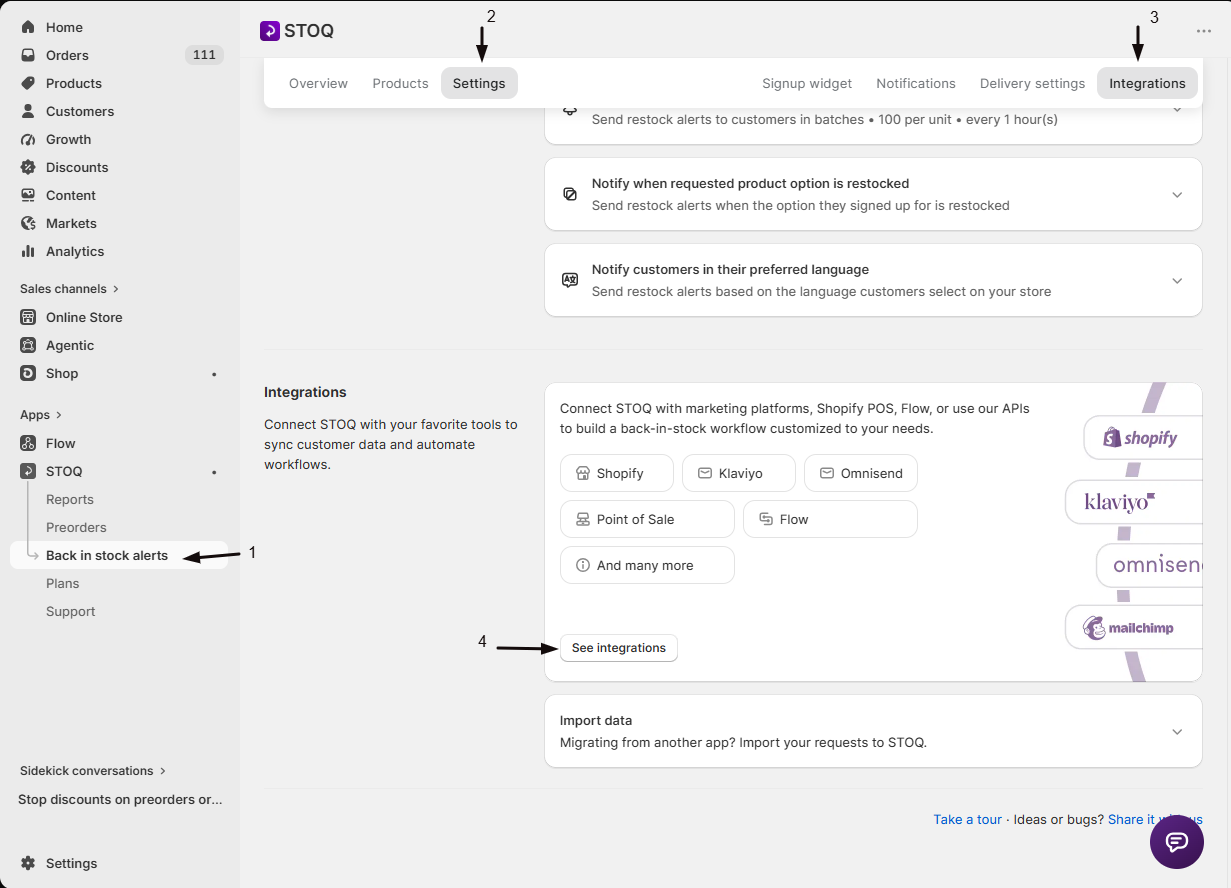
- In the left menu bar of the STOQ app, click Back in stock alerts.
- Click the Settings tab, then open the Integrations sub-tab.
- Click See integrations to open the full Integrations page.
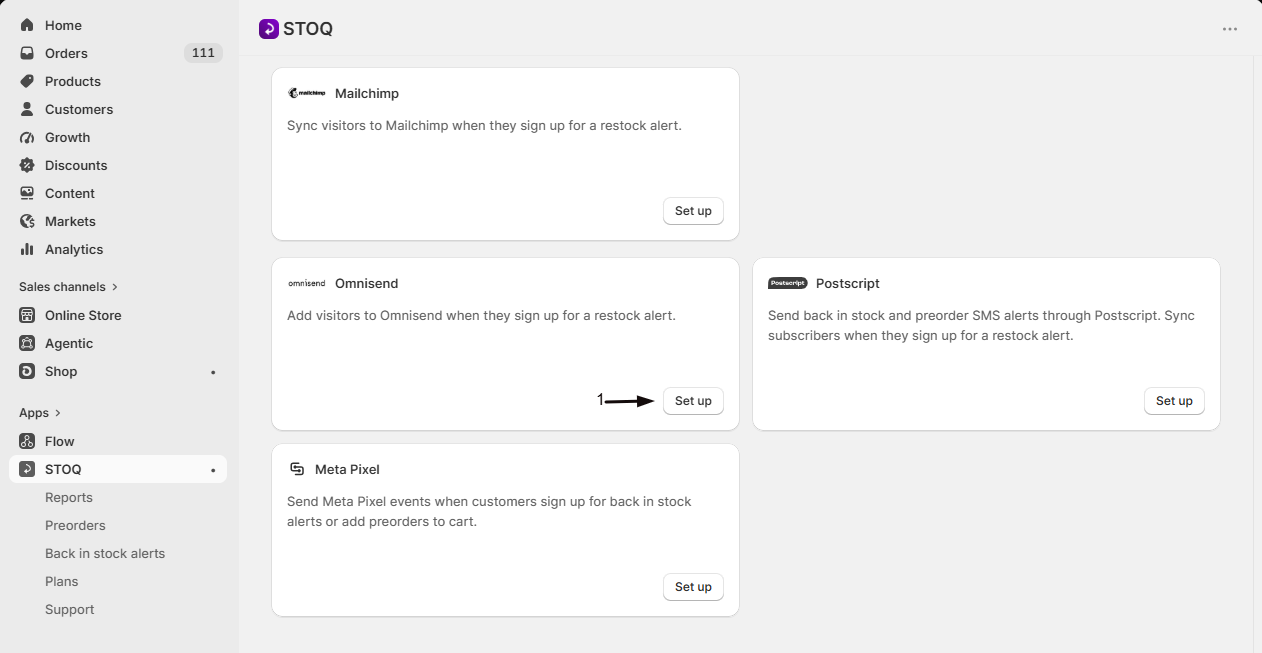
- In the Marketing section, find the Omnisend card and click Set up.
-
Turn on the sync toggle
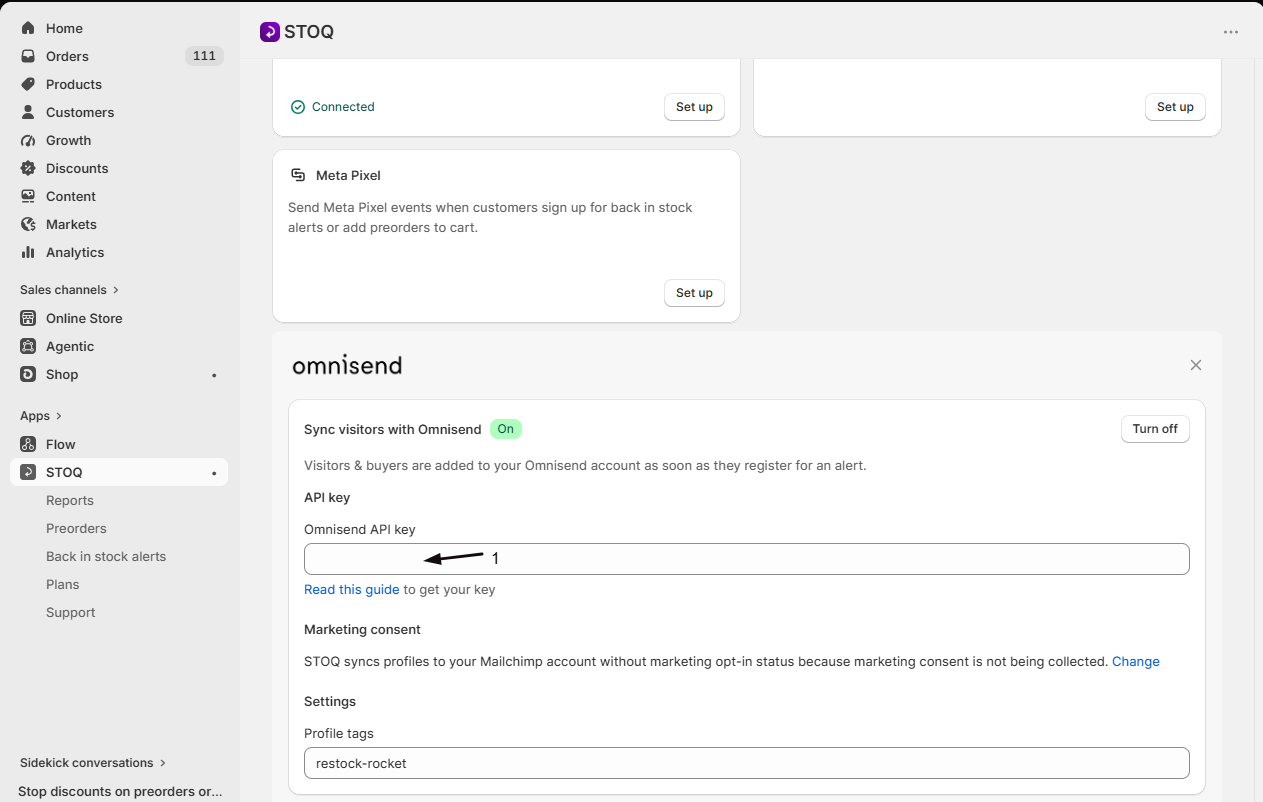
Enable Sync visitors with Omnisend.
-
Add your Omnisend API key
Paste your key into the Omnisend API key field. A green checkmark confirms it’s saved, with a Change link to update it later. If you don’t have a key yet, see Get your Omnisend API key above.
-
Set a profile tag (optional)
Enter a tag in the Profile tags field, shared with Shopify, Klaviyo, and Mailchimp.
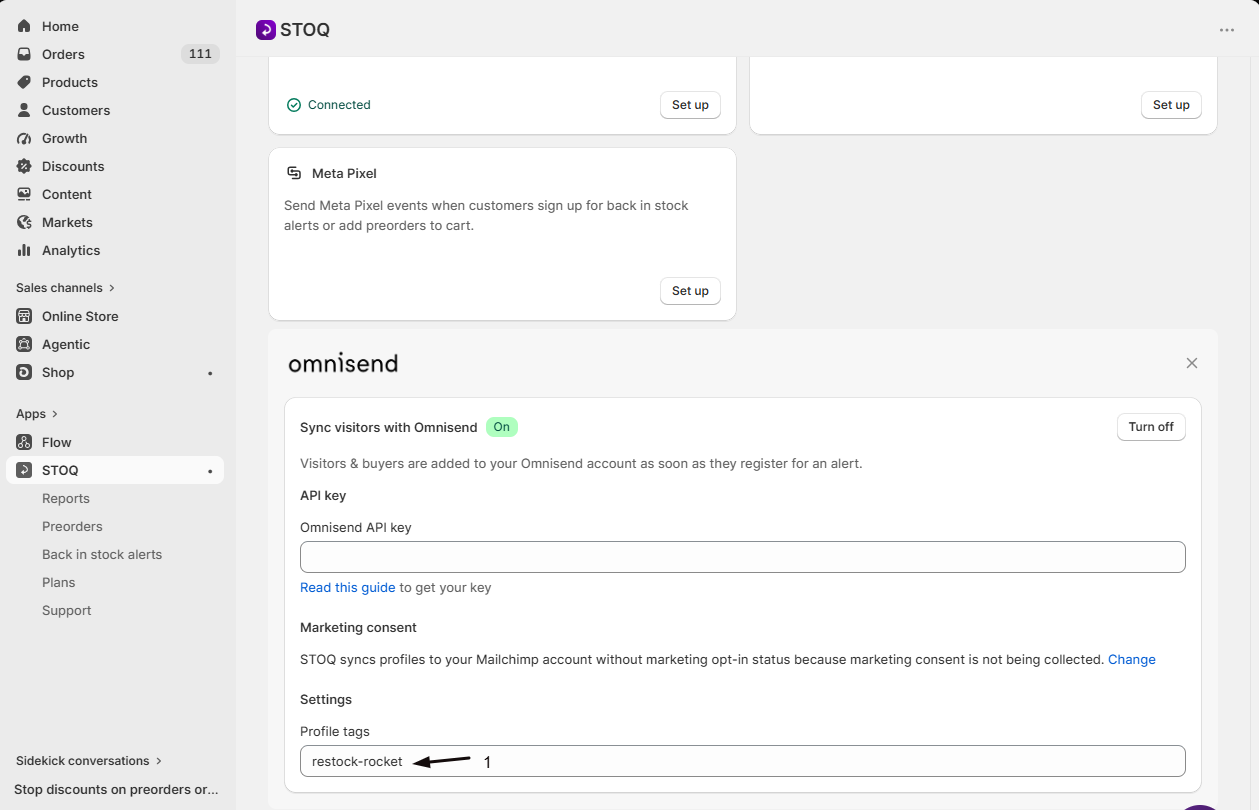
Once connected, the card shows a Marketing consent summary. If you collect marketing consent on the signup form, Omnisend treats the profile as subscribed only when the customer opted in.
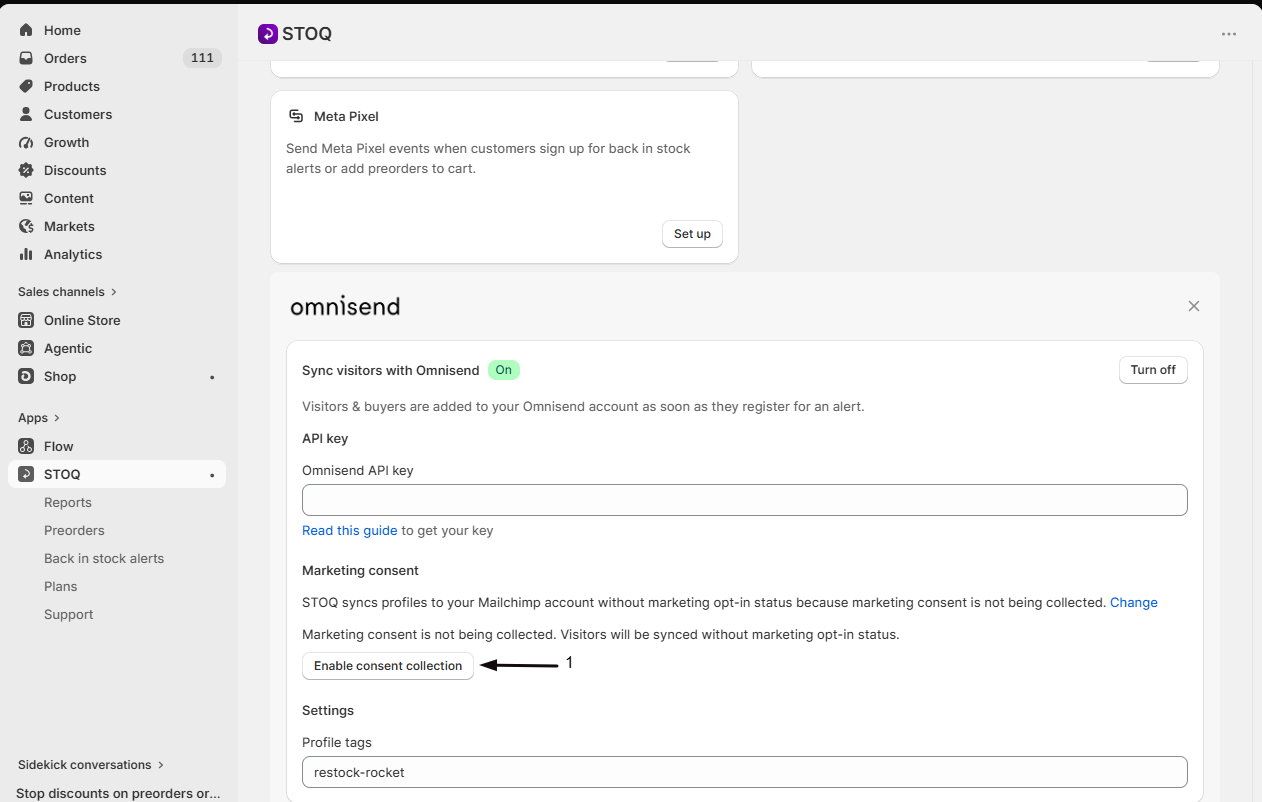
Check your setup
Section titled “Check your setup”- Sign up for a restock alert yourself with a test email. See Test back in stock alerts.
- Open your Omnisend contacts and confirm the test contact appears.
Troubleshooting
Section titled “Troubleshooting”A signup didn't sync
Confirm the toggle is on and saved, and that the API key still shows the green checkmark rather than needing to be re-entered.
The toggle is greyed out
It’s a paid-plan feature. Upgrade to unlock it.
Does this sync my existing waitlist too?
No. Only new signups sync, from the moment you turn the toggle on. Contact STOQ support to backfill existing customers.
Do I need an Omnisend account already?
Yes. You need an active account and an API key before you can connect it.
Does a customer need to opt in to marketing first?
No. Every signup syncs. Consent only affects whether Omnisend treats the profile as subscribed to campaigns.
Related guides
Section titled “Related guides”Thanks for letting us know.
Still stuck? Ask Quinn or chat with support