View your reports
What each of the five Back in stock report tabs shows and how to use it.
Last updated
STOQ tracks every step of a Back in Stock alert, from a customer joining a waitlist to the order it eventually recovers. The Back in stock reports are split into five tabs, each focused on one part of that journey: who’s waiting, who’s been notified, and how much revenue it’s brought back.
Open your reports
Section titled “Open your reports”-
Open Back in stock reports
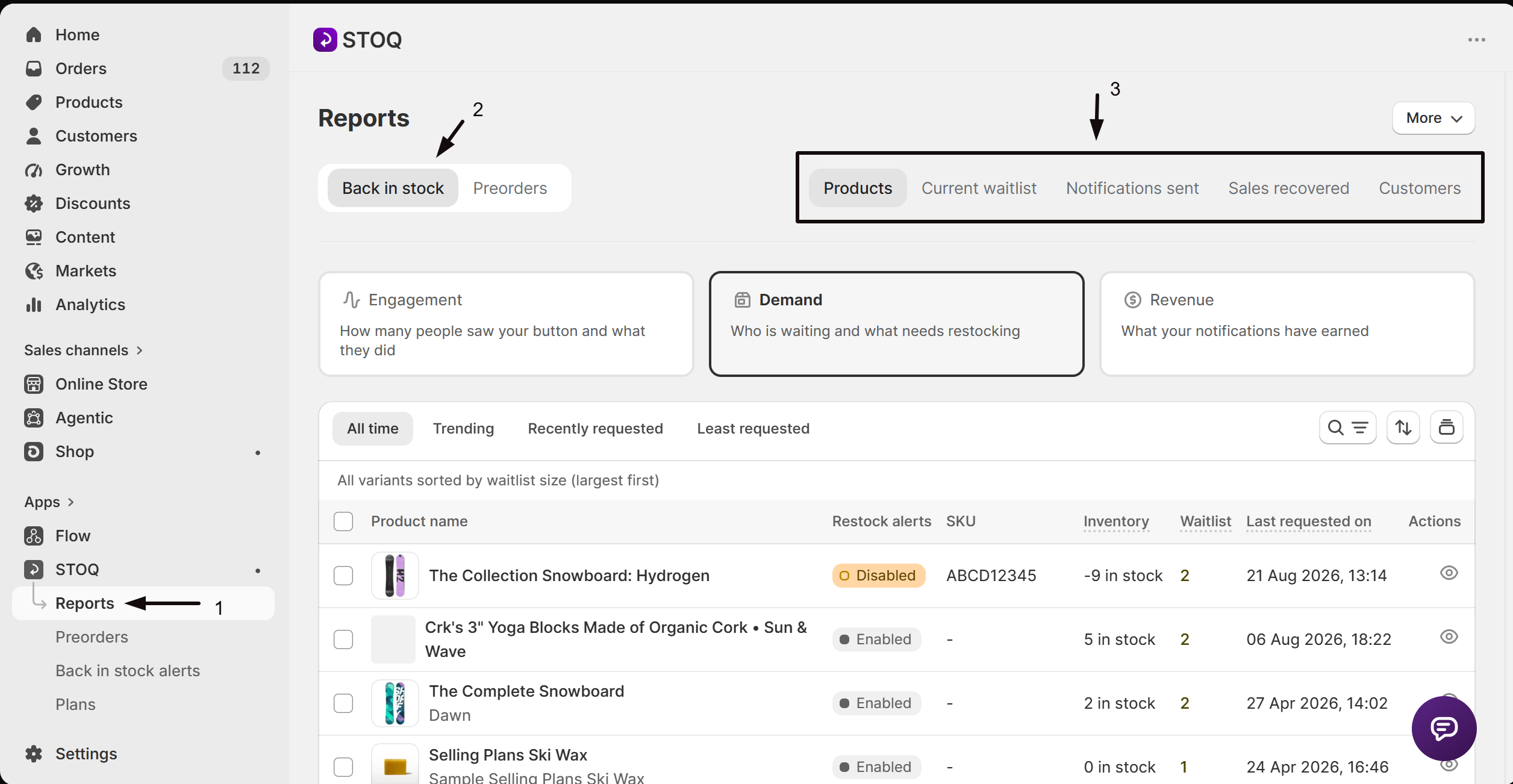
- In the left menu of the STOQ app, click Reports.
- Click the Back in stock tab at the top.
- Click one of the five sub-tabs: Products, Current waitlist, Notifications sent, Sales recovered, or Customers.
The More button in the top right of the Reports page opens a menu with Settings, which opens report settings, including the email address CSV exports are sent to.
Products
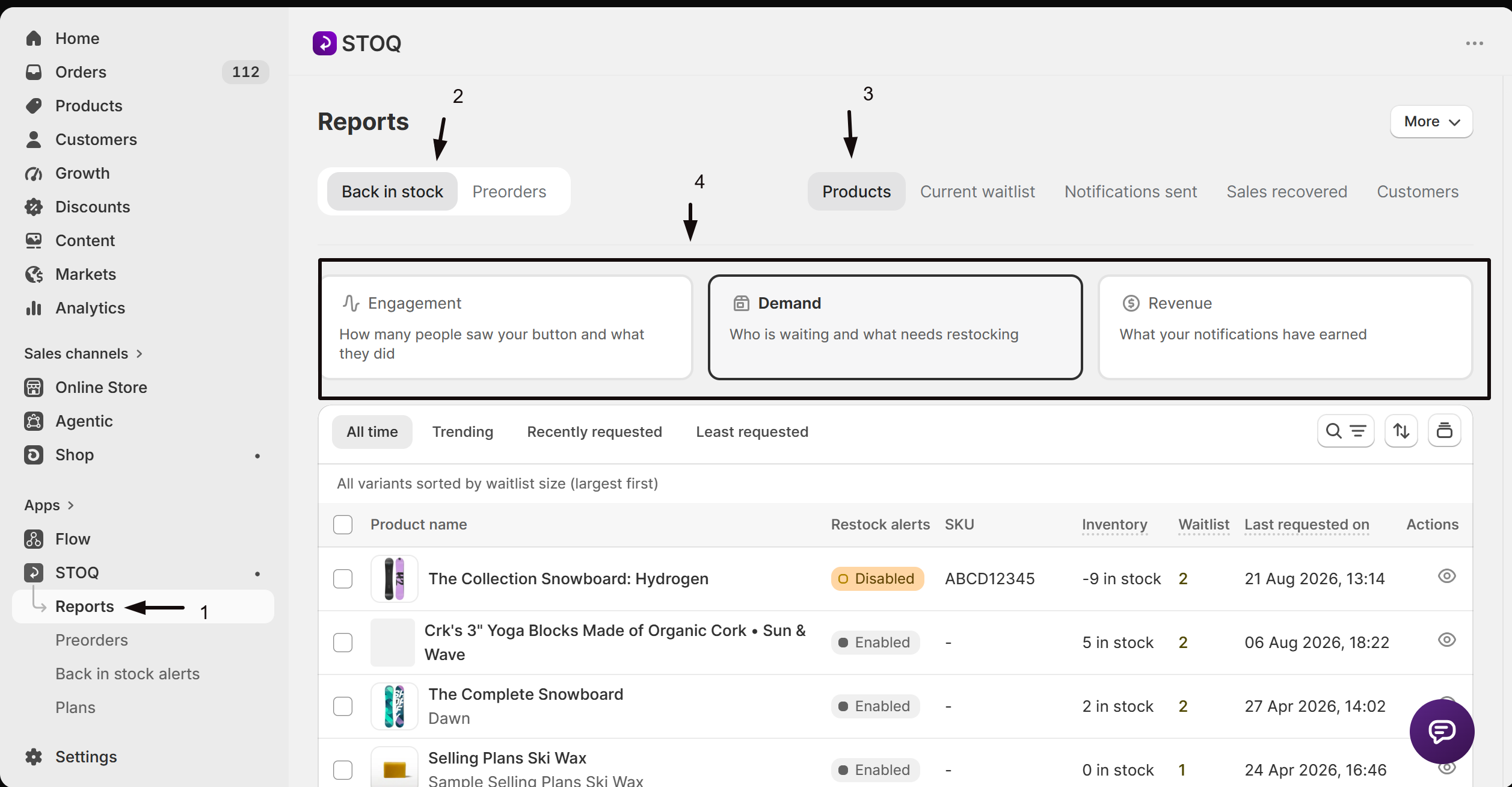
Section titled “Products”The Products tab shows waitlist demand at the product and variant level. At the top you can switch between three views:
| View | What it shows |
|---|---|
| Demand (default) | Every product or variant that’s ever received a back in stock request, with a Waitlist count (customers still waiting), Notified count, Total requests, and the date of the last requested alert. Switch between grouping by variant or by product. |
| Engagement | How shoppers interact with the Notify me button itself: Impressions, Clicks, click rate, Signups, and signup rate, as summary cards and a per-variant table. Requires STOQ’s analytics pixel to be active. See Measure your Notify me funnel. |
| Revenue | Units sold, average order value, and revenue recovered per product or variant from back in stock orders. |
Filter any view by date range, and on the Demand view also by market, vendor, or tag. Click a product or variant to open its detail page, where you can see how long people have waited, move the waitlist, turn alerts on or off, and send alerts. See Manage a product’s waitlist. Exporting to CSV requires a paid plan; the file is emailed to your report address rather than downloaded.
If both email and SMS alerts are on, the Demand view’s Waitlist and Total count Customers by default, so a shopper who signed up by email and SMS counts once. To count each signup separately instead, open the Count filter and choose Signups. STOQ remembers your choice.
Current waitlist
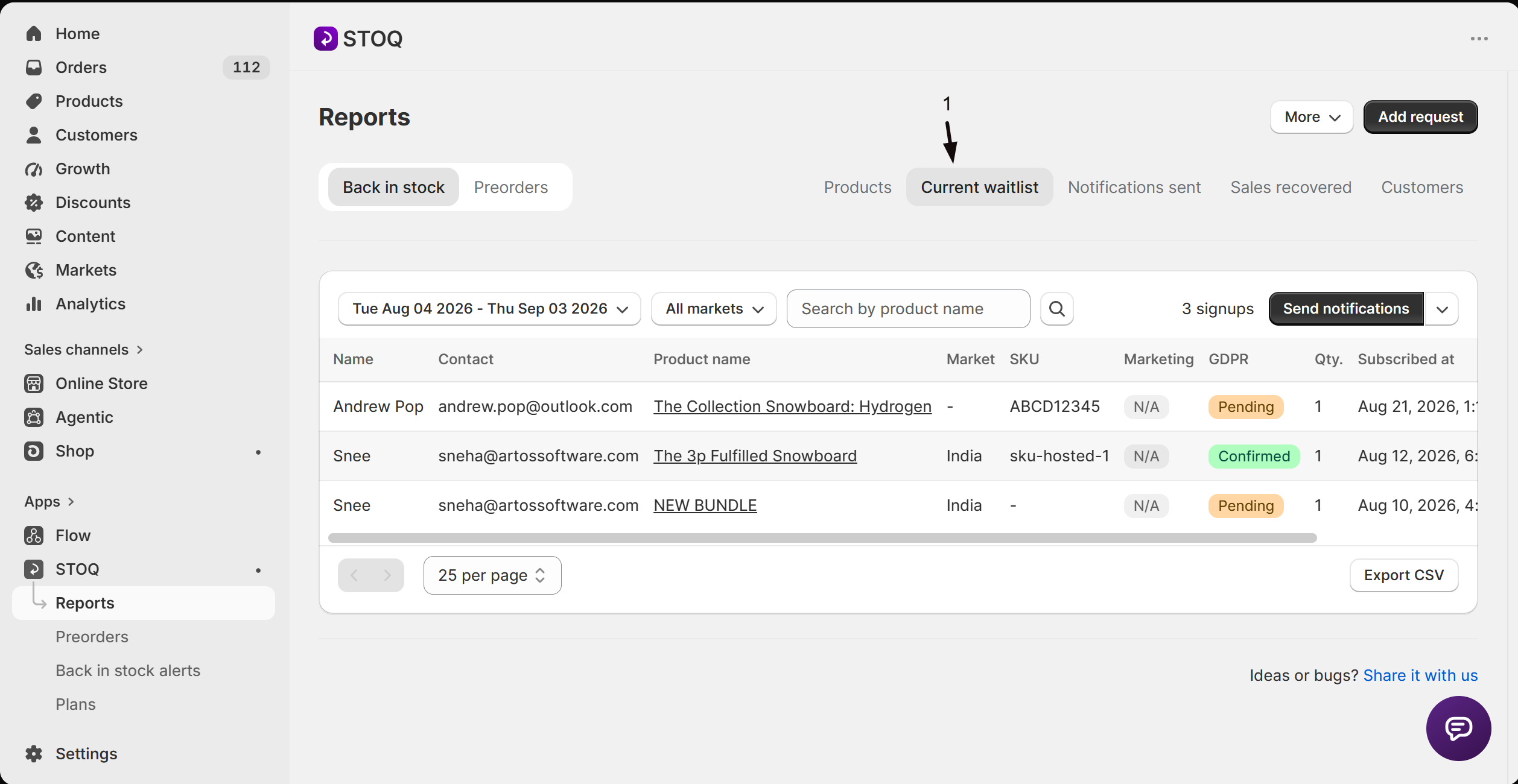
Section titled “Current waitlist”The Current waitlist tab lists every customer who signed up for a Back in Stock alert but hasn’t been notified yet, so you can see who’s waiting and follow up manually if you want to.
Each row shows the customer’s name and contact (email or phone), the product, market, SKU, marketing consent, GDPR confirmation status, and quantity requested, plus when they subscribed. From here you can:
- Click Send notifications to notify everyone currently matching your filters, or use the dropdown next to it to send by email or SMS only.
- Click Send on an individual row to notify just that customer.
- Delete a signup you no longer want to track.
A customer whose GDPR confirmation is still Pending won’t receive an alert if you restock, since they haven’t confirmed their signup yet. Filter by date range, market, or product name; export to CSV requires a paid plan.
Notifications sent
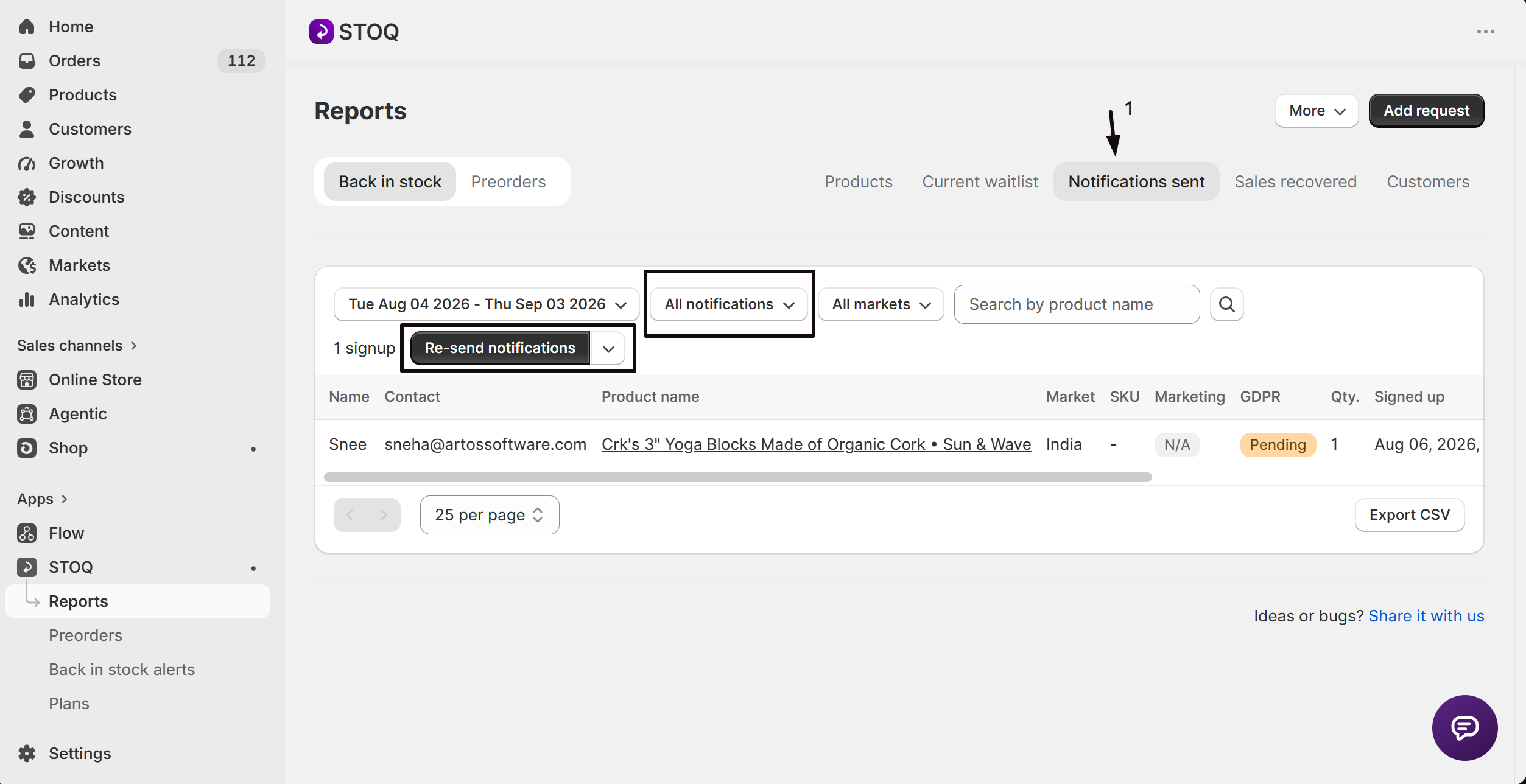
Section titled “Notifications sent”The Notifications sent tab lists every alert STOQ has already sent, so you can track delivery and re-send if needed. It shows the same customer and product columns as Current waitlist, plus Signed up date and how many times each customer has been sent an alert (Sent).
Use the All notifications / Without orders filter to isolate customers who were notified but haven’t placed an order yet, a useful follow-up list. From the row actions you can Re-send an alert (by email or SMS), and open Why was this sent? to see the notification’s history: what triggered it (auto restock, bulk send, bulk re-send, Flow automation, or a manual send) and its delivery status per channel (sent, delivered, opened, clicked, or bounced). See Track sent alerts and delivery for the full picture, and Send restock alerts manually to send or re-send yourself.
Sales recovered
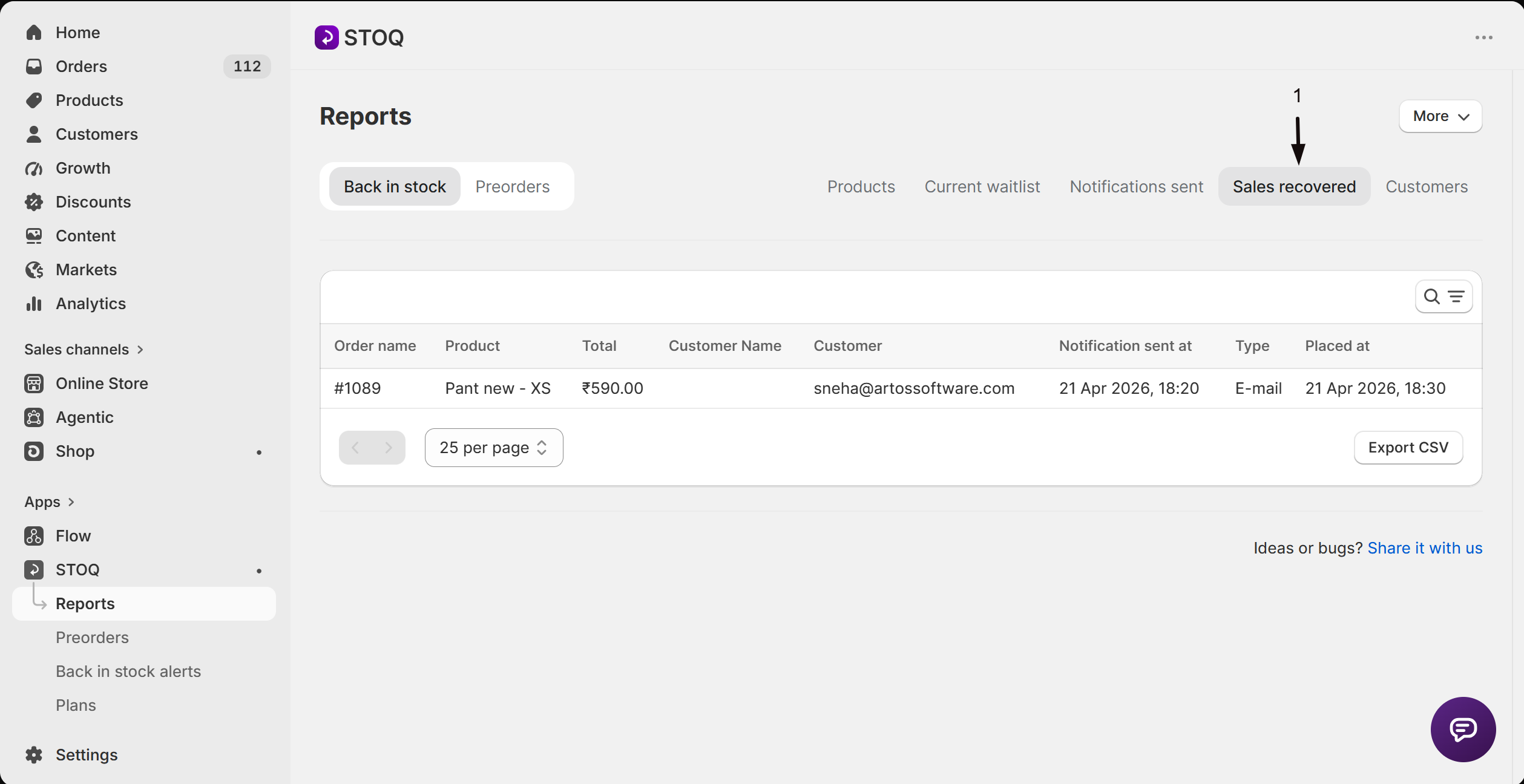
Section titled “Sales recovered”The Sales recovered tab lists orders placed by customers who received a Back in Stock alert, with the order name, product, order total, customer, when the notification was sent, its type (E-mail or SMS), and when the order was placed.
An Order matching filter controls which orders count:
- All attributed orders (default): any order from a customer who received an alert, regardless of what they bought.
- Exact variant match only: only orders where the customer bought the exact variant they were notified about.
Filter by date range or search; export to CSV requires a paid plan.
Customers
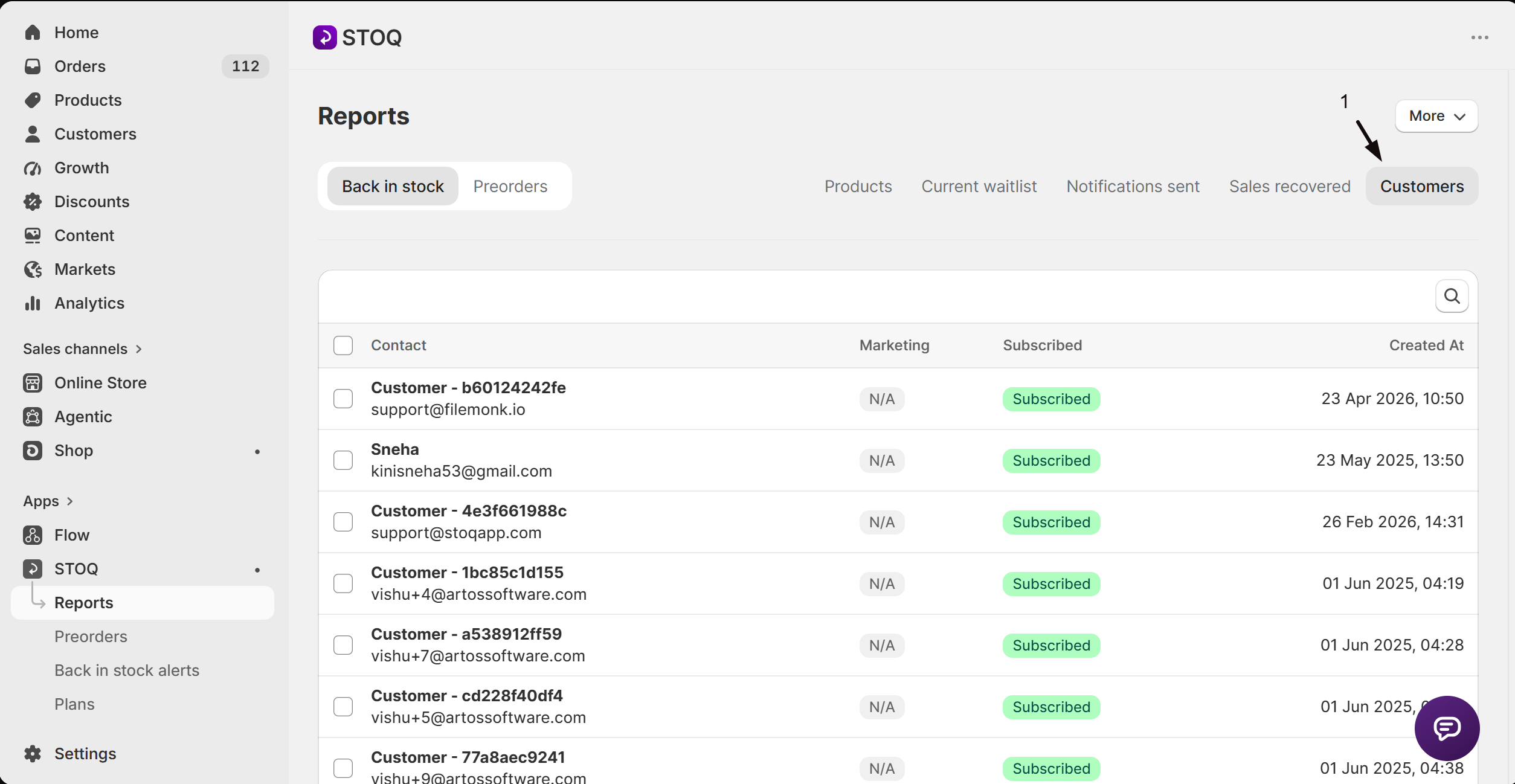
Section titled “Customers”The Customers tab lists everyone who’s ever signed up for a Back in Stock alert, with their contact details, marketing consent, whether they’re currently subscribed to notifications, and when they were created. Click a customer to open their detail page, which shows their current outstanding waitlist requests and lets you subscribe, unsubscribe, or delete them. To see alerts already sent to a customer, use the Notifications sent tab.
Select one or more customers to Delete them, which also removes any preorders, requests, notifications, and analytics linked to them, so use it carefully. Search by email or phone number; the export button (paid plans only) emails a CSV rather than downloading it. See Manage customers and subscriptions for the full customer detail page.
Why does a customer stay on the Current waitlist tab after I restock?
If their GDPR confirmation is still Pending, STOQ won’t send them an alert until they confirm their signup, so they’ll keep showing as waiting. Alerts also don’t fire until whatever restock rule you’ve set (minimum quantity, batching, and so on) is met.
What's the difference between the Products tab's Demand view and Current waitlist?
The Demand view on the Products tab is a per-product or per-variant summary (how many are waiting, notified, and total requests). Current waitlist is a per-customer list of everyone still waiting, so you can see and act on individual signups.
A variant shows Disabled under Alerts status. What does that mean?
It means automatic back in stock alerts are off for that variant. Most often the variant had its alerts turned off directly, so open its page and click Enable alerts. It can also happen if the variant’s button visibility is Always show or the store-wide automatic alerts toggle is off. See Why does a variant show Disabled in the Alerts status column? for all three causes and the fix.
Why don't my Sales recovered numbers match my Products tab's Revenue view?
Sales recovered lists individual attributed orders; the Revenue view aggregates units sold and revenue per product or variant. Switching Order matching from “All attributed orders” to “Exact variant match only” on Sales recovered will also change which orders count, which can explain a difference.
Can I export any of these reports?
Yes, every tab has an Export CSV (or Email CSV) button, but it requires a paid plan. The file is emailed to the report address set in report settings rather than downloaded directly.
Does deleting a customer also delete their order history in Shopify?
No. Deleting a customer from the Customers tab only removes their STOQ data: preorders, requests, notifications, and analytics linked to them. Their Shopify customer record and past orders are unaffected.
Why do I see a Waitlist distribution chart when I click into a product?
Clicking a product or variant on the Products tab opens its detail page, which includes a chart of how long customers have currently been waiting, so you can spot products with unusually long wait times before they restock.
Related guides
Section titled “Related guides”Thanks for letting us know.
Still stuck? Ask Quinn or chat with support