Tag orders from back in stock alerts
Automatically add a Shopify tag to orders STOQ credits to a back in stock alert, so you can filter and segment them.
Last updated
Use this guide if you want orders that came from a back in stock alert to carry a Shopify tag, so you can filter, segment, or report on them in Shopify admin. By the end, STOQ tags matching orders automatically going forward.
Before you begin
Section titled “Before you begin”This only tags orders placed after you turn the setting on. It doesn’t retag orders placed earlier.
What customers will see
Section titled “What customers will see”Nothing changes for the customer. The tag is added to the order in Shopify admin only; it doesn’t appear on the storefront, checkout, or in any customer-facing email or SMS.
Set it up
Section titled “Set it up”-
Open the Order tracking setting
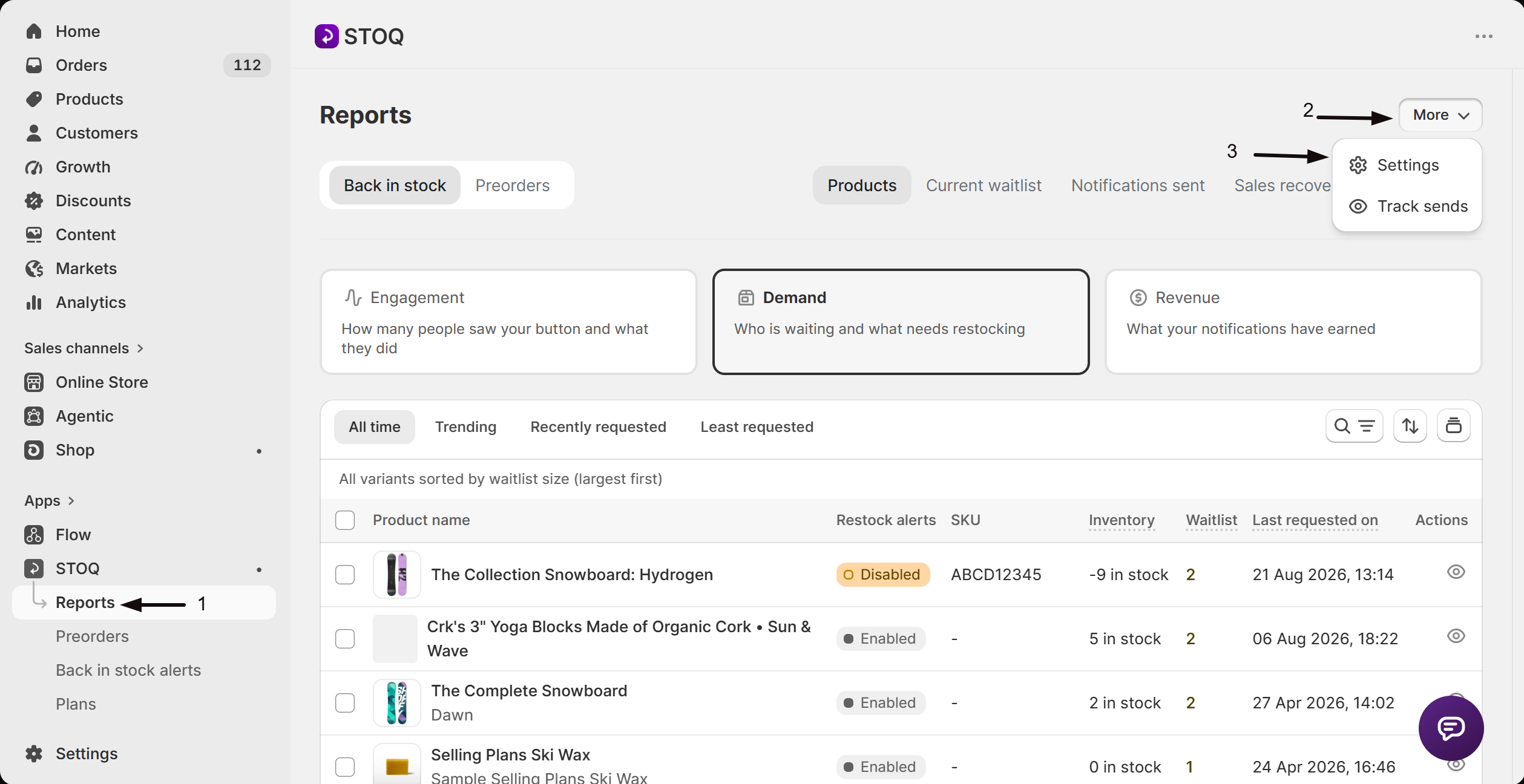
- In the left menu of the STOQ app, click Reports.
- Click More in the top right of the Reports page, then click Settings in the dropdown.
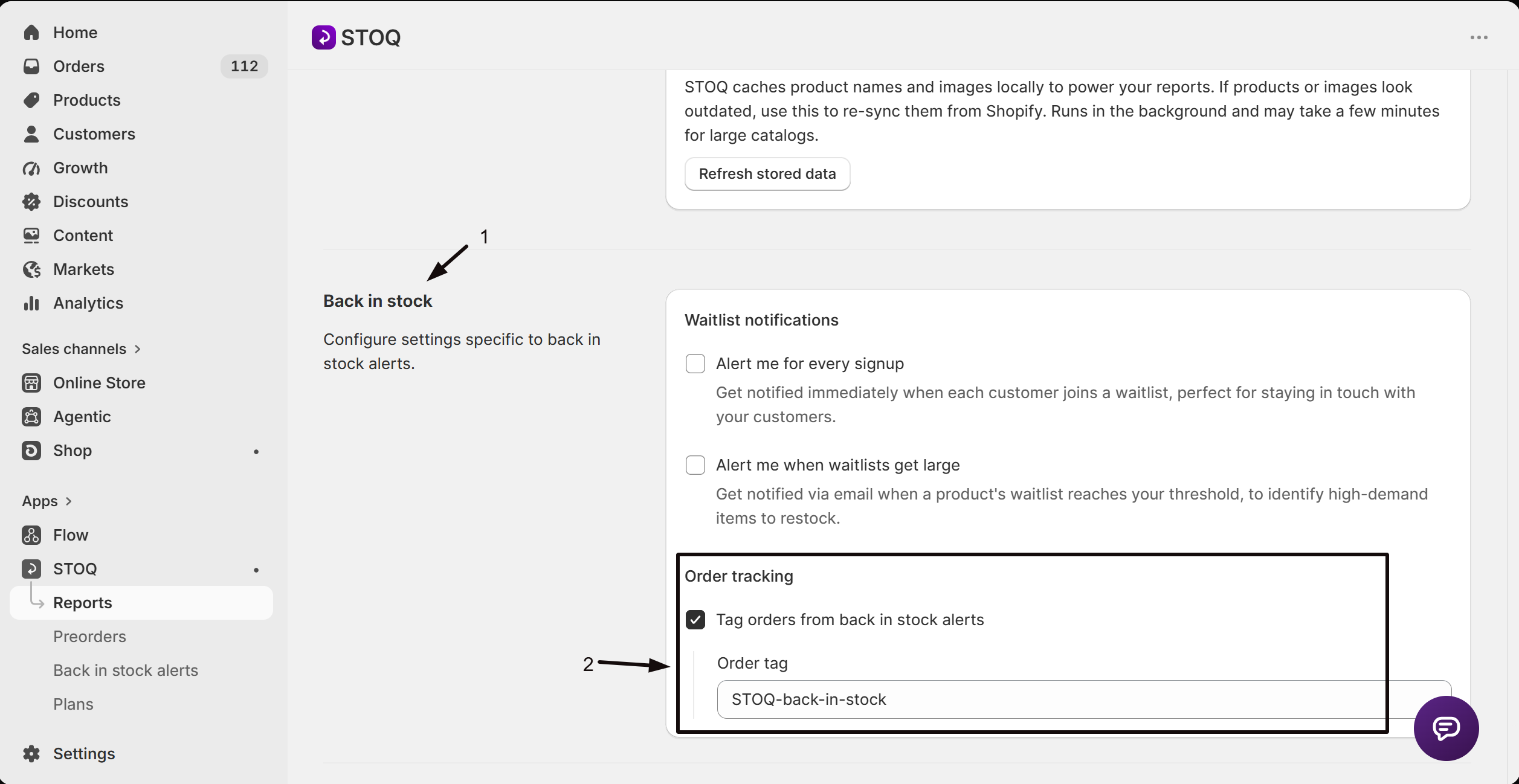
- On the report settings page, find the Back in stock section and scroll to the Order tracking box.
-
Turn on tagging
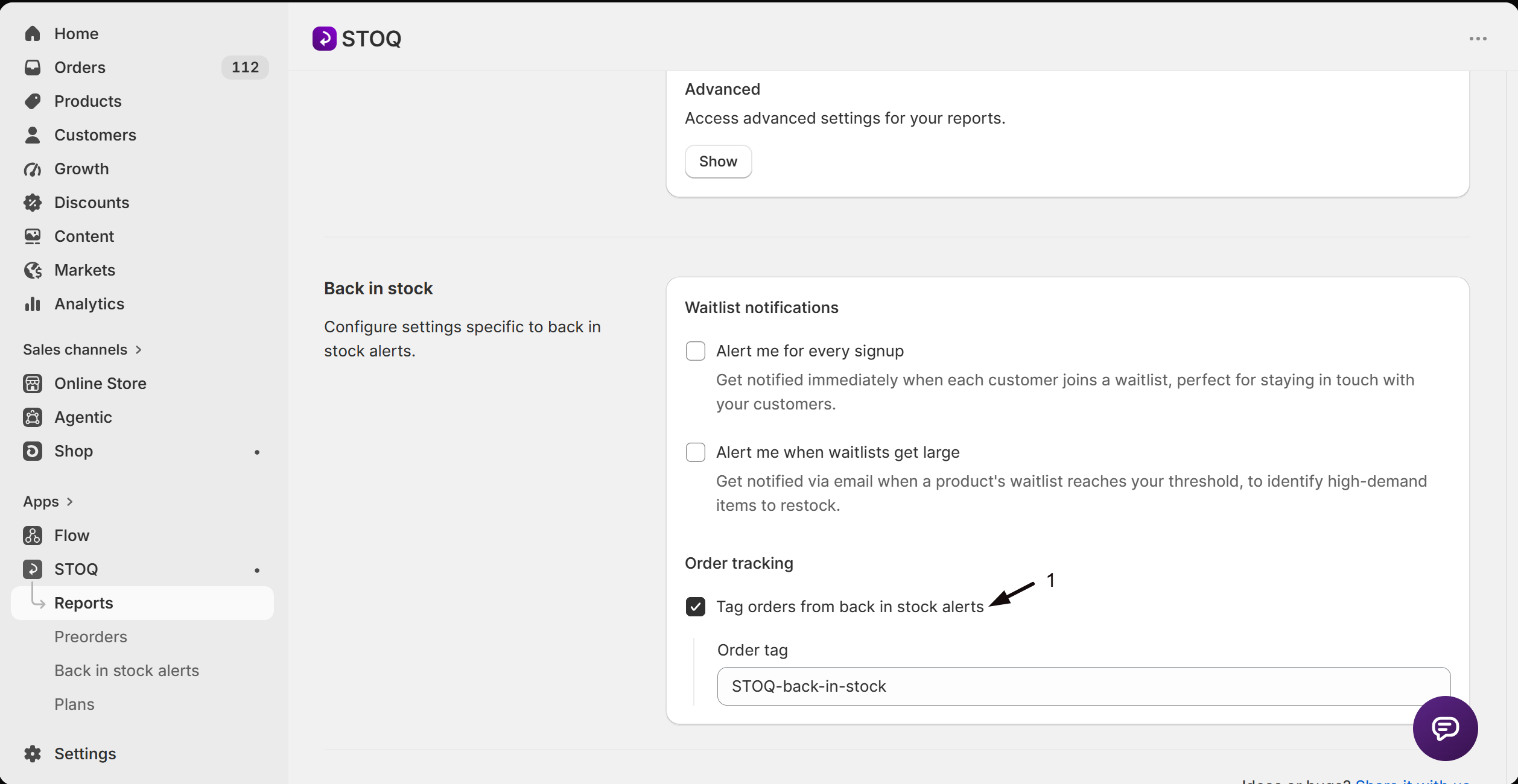
Check Tag orders from back in stock alerts. This is on by default.
-
Set the tag
In Order tag, enter the tag you want applied, for example
STOQ-back-in-stock(the default). This is the exact tag added to matching orders in Shopify.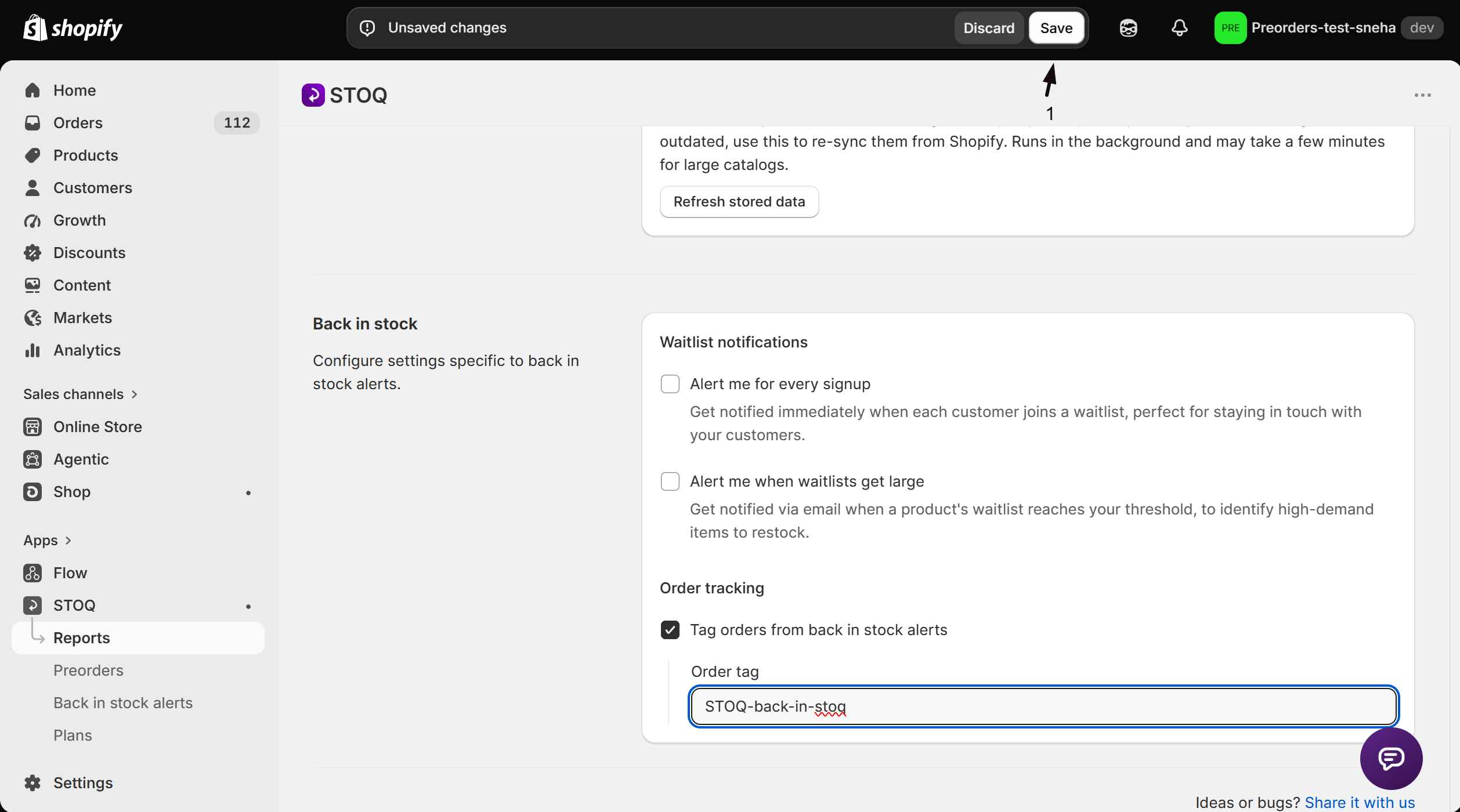
-
Save
Click Save. The tag is applied to orders STOQ attributes to a back in stock alert from now on.
Check your setup
Section titled “Check your setup”Place a test order after clicking a back in stock notification link (for example from a test alert email or SMS). Once the order is created, open it in Shopify admin and confirm your tag appears in the order’s tags. You can also filter your Shopify Orders list by that tag to see all back in stock orders at once.
Troubleshooting
Section titled “Troubleshooting”A recent order isn't tagged
STOQ only tags orders it’s confident came from a back in stock alert, for example a customer who clicked through from their notification email or SMS. An order placed without going through that link won’t be tagged even if the customer was on the waitlist.
No orders are tagged at all
Confirm Tag orders from back in stock alerts is checked on the report settings page, and that Order tag has a value.
You don't see the tag in Shopify
Search or filter your Shopify Orders list by the exact tag text in Order tag; tags are case-sensitive.
Does this affect existing orders?
No. Turning this on, or changing the tag text, only applies to orders placed from that point forward. Orders placed before the change keep whatever tags they already had.
Can I change the tag text later?
Yes. Update Order tag on the report settings page and save. The new text applies to orders tagged after the change; already-tagged orders keep the old tag text.
Will this tag every order from a customer who's on a waitlist?
No. It only tags an order when STOQ can attribute it to a back in stock alert, typically a customer clicking through from their notification email or SMS. Being on a waitlist alone doesn’t tag a later, unrelated order.
Can I use this tag to filter my Shopify orders?
Yes. Once tagged, the tag behaves like any other Shopify order tag: you can filter or search your Orders list by it, or use it in Shopify Flow.
Related guides
Section titled “Related guides”Thanks for letting us know.
Still stuck? Ask Quinn or chat with support