Add a signup to the waitlist manually
Add a single customer to a product's back in stock waitlist yourself, so they get alerted when it restocks.
Last updated
Sometimes a customer asks you directly to be told when something comes back, by email, on a call, or in person. You can add them to a product’s waitlist by hand so they get the same restock alert as anyone who signed up on your storefront. To bring in many signups at once instead, see Import a waitlist.
Before you begin
Section titled “Before you begin”- You need the product and variant the customer wants, plus their email address or phone number.
- The customer must genuinely want the alert. Only mark marketing consent if they’ve actually agreed to it.
Add a signup
Section titled “Add a signup”-
Open the Add signup form
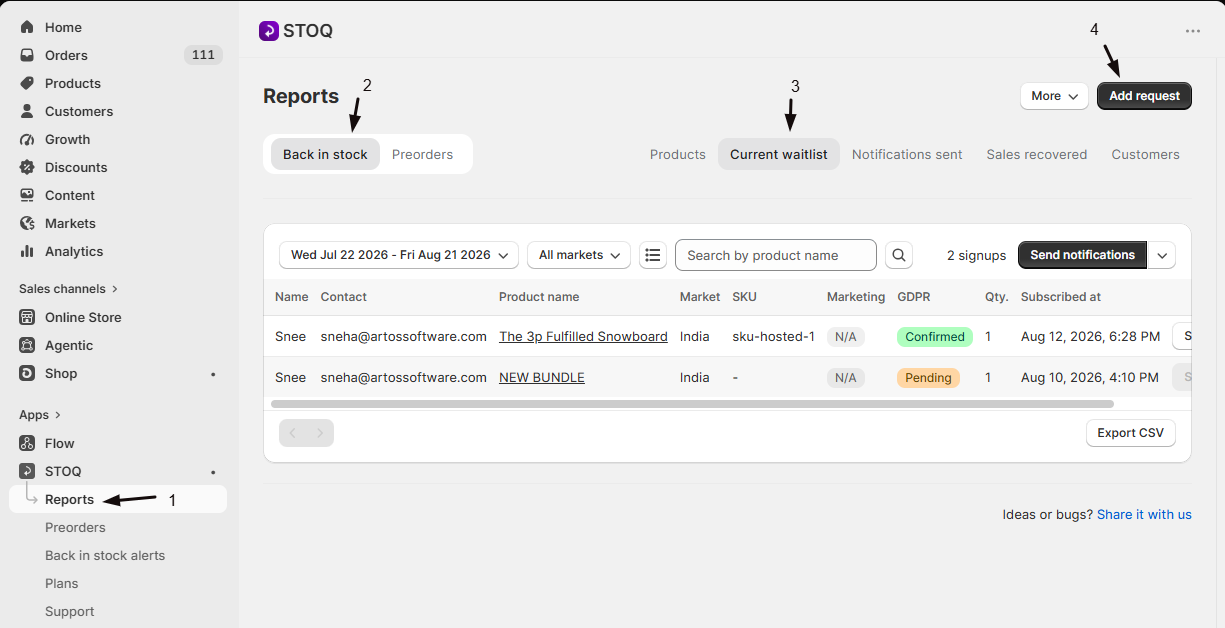
- In the left menu of the STOQ app, click Reports.
- Click the Back in stock tab, then the Current waitlist sub-tab.
- Click Add request in the top right to open the Add signup form.
-
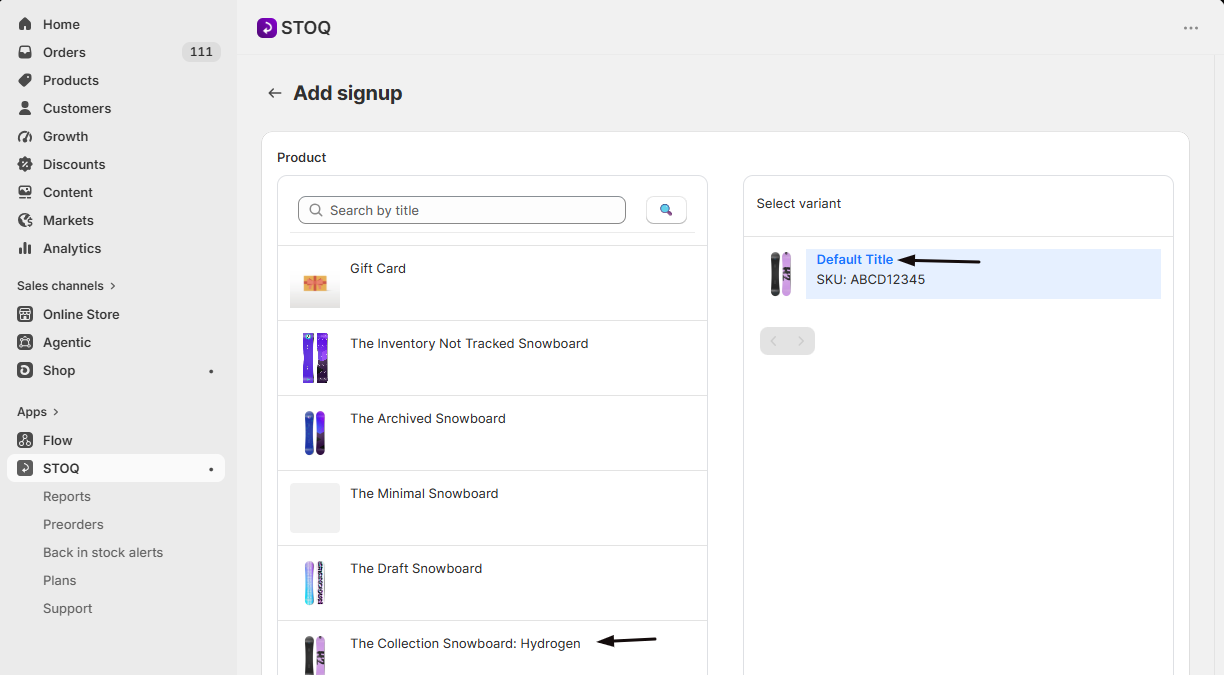
Choose the product
Under Product, select the product and the specific variant the customer is waiting for. A product and variant must both be selected.
-
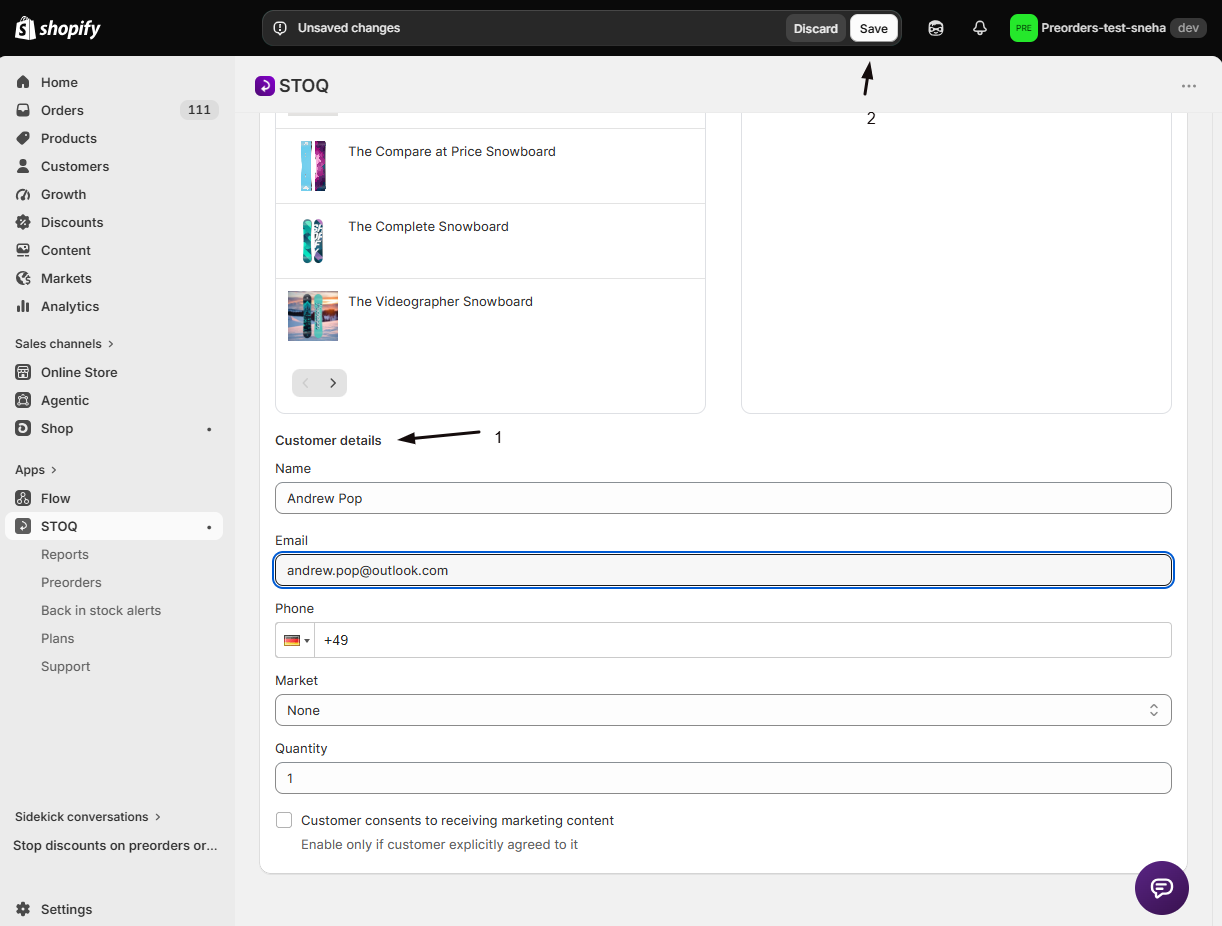
Enter the customer’s details
Under Customer details, fill in:
- Name (optional).
- Email or Phone. At least one is required, and it’s how the customer will be alerted.
- Market (optional): pick a market, or leave it as None.
- Quantity: how many units they want.
-
(Optional) Set marketing consent
Turn on Customer consents to receiving marketing content only if the customer has explicitly agreed to it. Leave it off otherwise.
-
Save
Click Save in the top bar. The customer now appears on the Current waitlist and will be alerted when the variant restocks, following your usual delivery rules.
Check your setup
Section titled “Check your setup”Open Reports → Back in stock → Current waitlist and confirm the customer appears against the right product and variant. When that variant restocks and your delivery rules are met, they’ll receive an alert on the channel you entered (email or SMS).
Troubleshooting
Section titled “Troubleshooting”Save is blocked
A product and variant must be selected, and the customer needs a valid email or phone number. Fill in whatever’s flagged and save again. If the banner says “Email address is blocked”, STOQ rejected a test or disposable address like test@example.com or a mailinator.com inbox, so use the customer’s real email. If you also entered a phone number, the SMS signup was still saved.
The customer isn't alerted after a restock
Manual signups follow the same rules as storefront signups. Check:
- The variant is genuinely back in stock.
- Any minimum quantity, batching, or double opt-in requirement is met.
The name doesn't show on the alert
Capturing the customer’s name is a paid-plan feature. On the free plan the name isn’t stored. See Collect the customer’s name.
What's the difference between adding a signup and importing a waitlist?
Adding a signup is for one customer at a time from the Current waitlist tab. Import a waitlist brings in many signups at once from a CSV file, which is better for migrating an existing list.
Do I need both an email and a phone number?
No. Either one is enough to save. The channel you enter is how the customer gets alerted, so add the one they want to be contacted on.
Will the customer get an alert straight away?
No. They’re added to the waitlist and alerted only when the variant restocks and your delivery rules are met, exactly like a storefront signup.
Should I turn on marketing consent for every signup?
Only when the customer has clearly agreed to receive marketing. The setting is for consent you actually have, not a default to switch on for everyone.
Related guides
Section titled “Related guides”Thanks for letting us know.
Still stuck? Ask Quinn or chat with support