Find and organize STOQ profiles in Klaviyo
Identify the profiles STOQ syncs, build segments from their properties, and add new signups to any Klaviyo list with a flow.
Last updated
Every profile STOQ syncs to Klaviyo is tagged so you can find it, group it into a segment, and feed it into your lists and flows. STOQ doesn’t add profiles to a specific list on its own. To route new signups onto a list automatically, build a Klaviyo flow triggered by STOQ’s signup metric, shown below.
How STOQ tags profiles
Section titled “How STOQ tags profiles”STOQ sets a source property on each synced profile, equal to your profile tag (default restock-rocket), plus these:
| Property | Meaning | Example |
|---|---|---|
source |
Profile origin (your STOQ tag) | restock-rocket |
StoqBackInStock |
Opted into STOQ alerts | true |
StoqAcceptsMarketing |
Marketing consent | true or false |
StoqCountry |
Customer country | United States |
StoqCountryCode |
Two-letter country code | US |
StoqLocaleCountry |
Locale and country combined | en-US |
You can view or change the tag in STOQ under Back in stock alerts > Settings > Integrations > Klaviyo > Profile tags.
Add new signups to a list automatically
Section titled “Add new signups to a list automatically”STOQ emits a metric each time a customer signs up, so you can trigger a Klaviyo flow on it and add those profiles to any list.
-
Create a flow
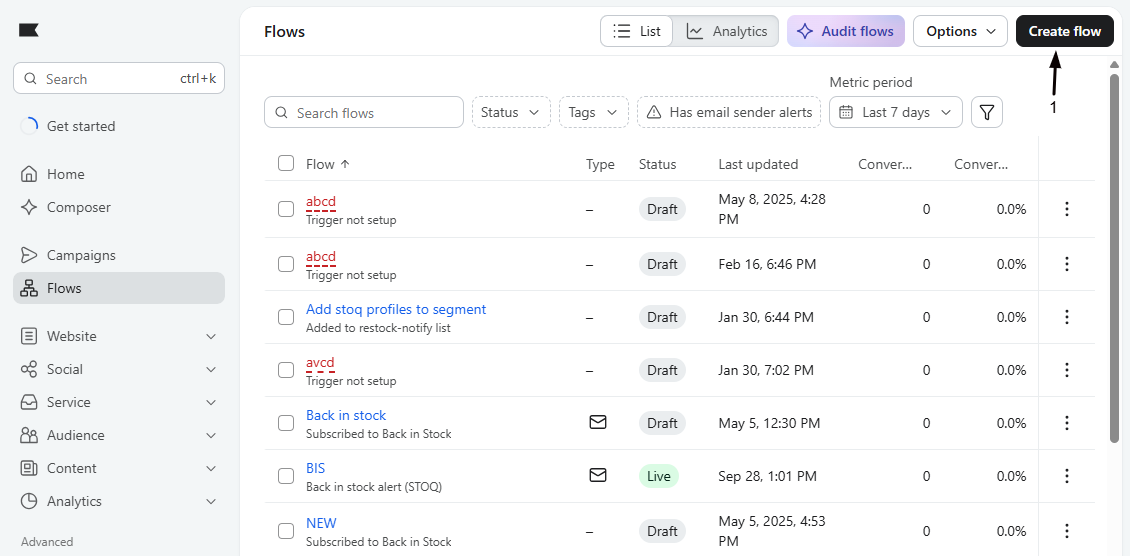
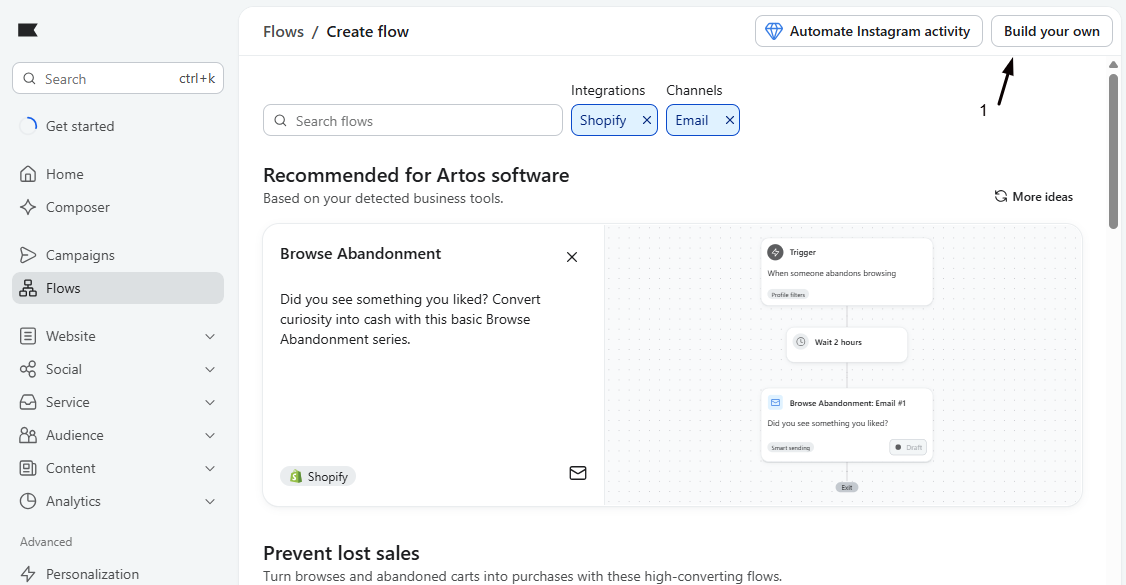
In Klaviyo, go to Flows, click Create flow, and choose Build your own.
-
Set the signup trigger
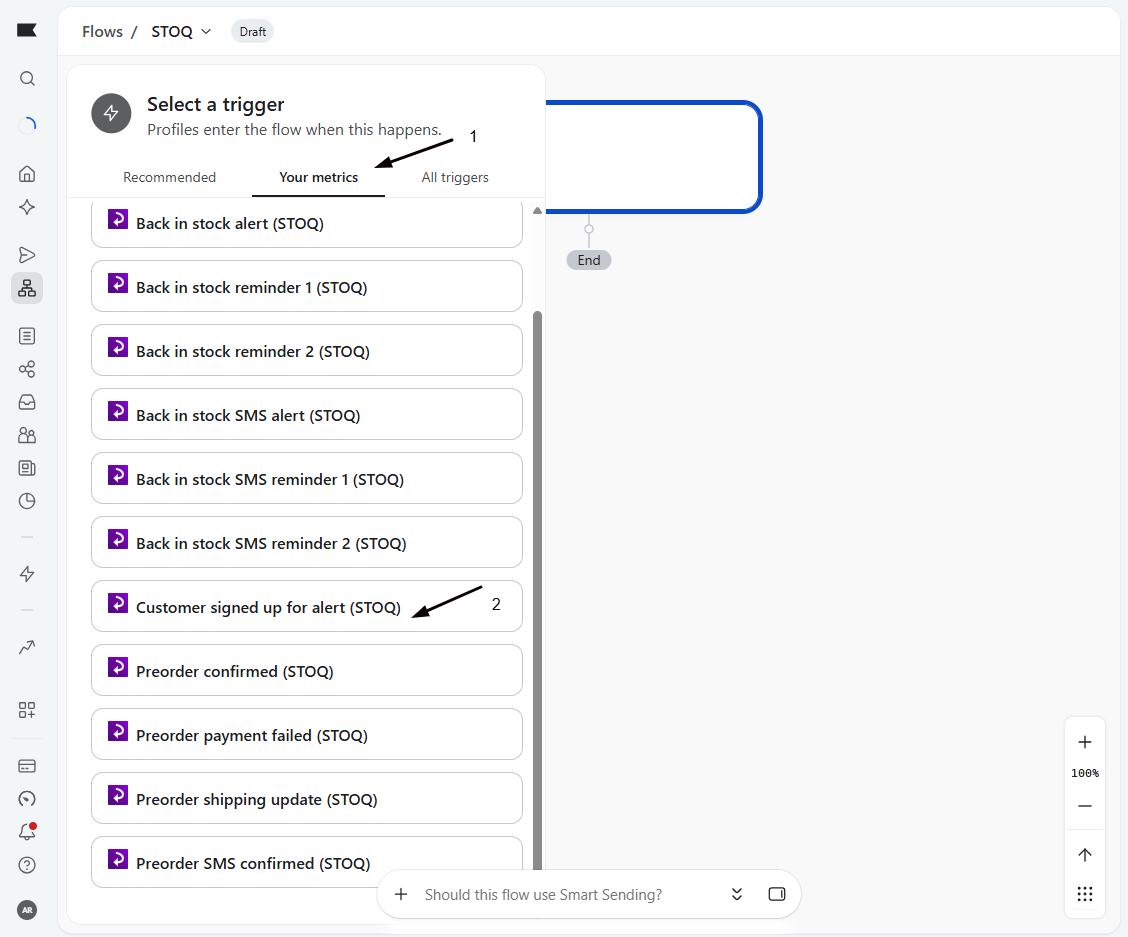
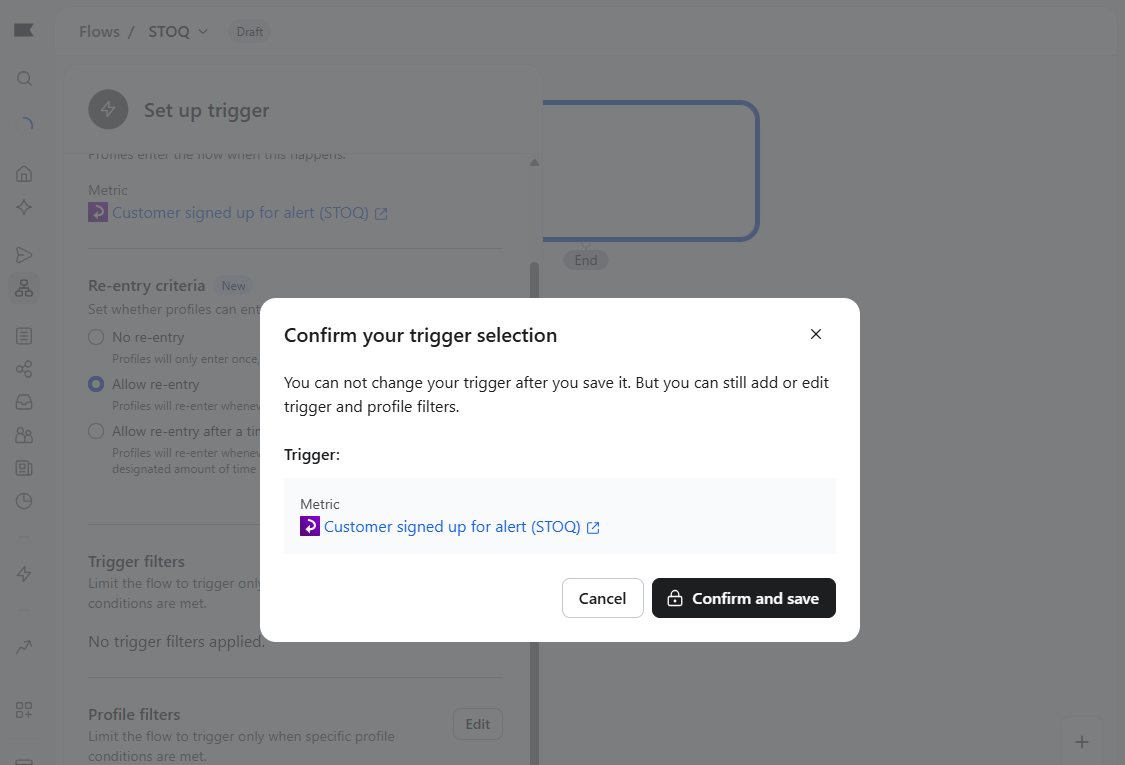
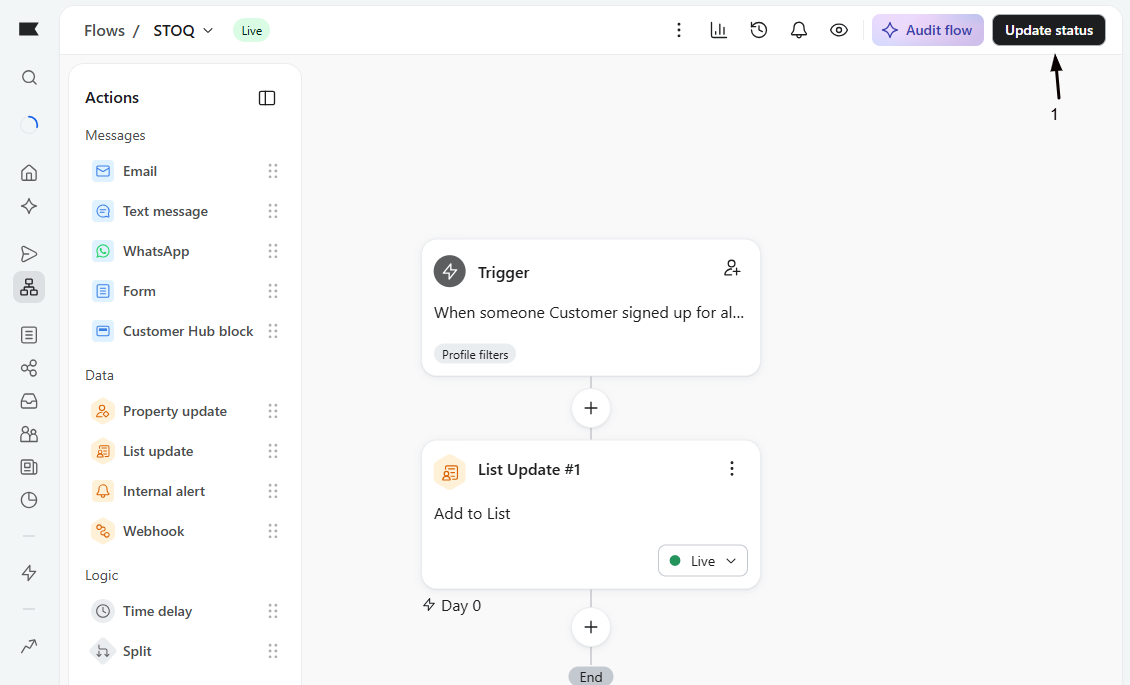
Set the trigger to the metric Customer signed up for alert (STOQ). On older connections that use a private API key, the metric is named Stoq - Customer signed up for alert. A flow’s trigger can’t be changed after the flow is created.
-
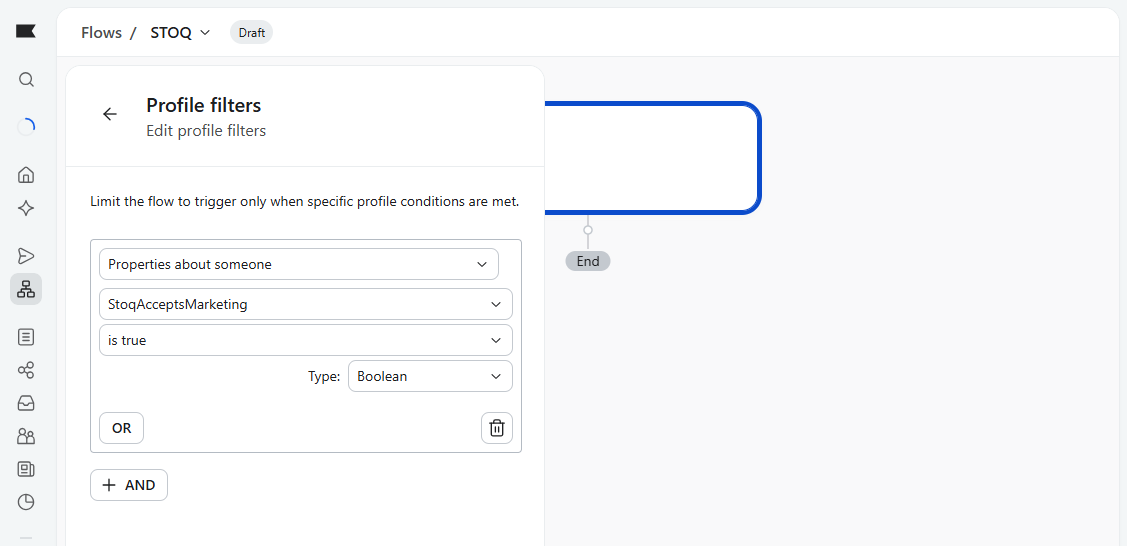
(Optional) Filter by marketing consent
Add a profile filter of
StoqAcceptsMarketingis true to keep only customers who consented to marketing. Skip it to include everyone.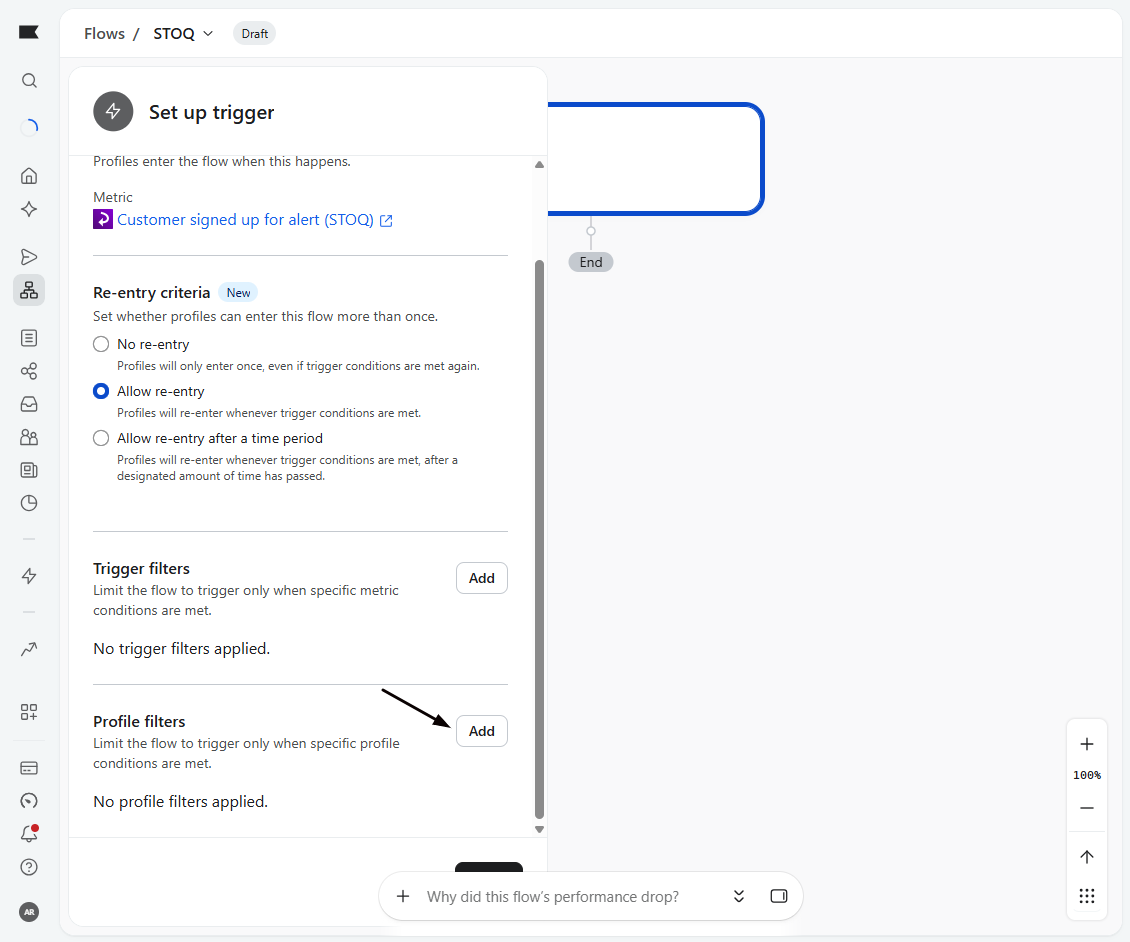
-
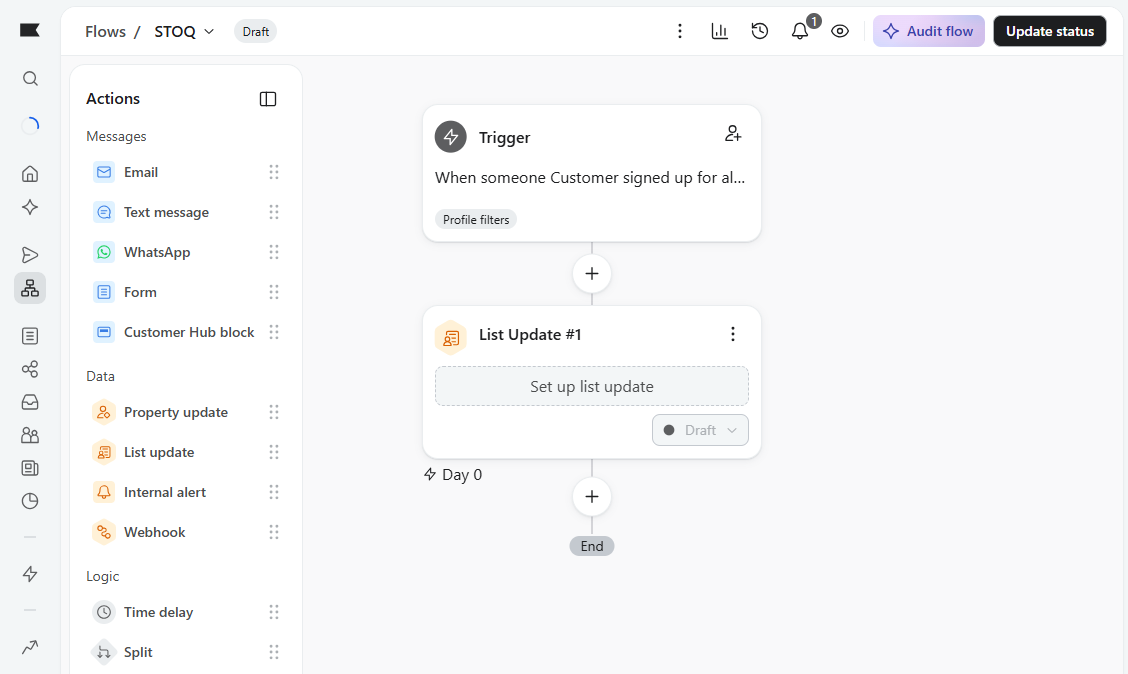
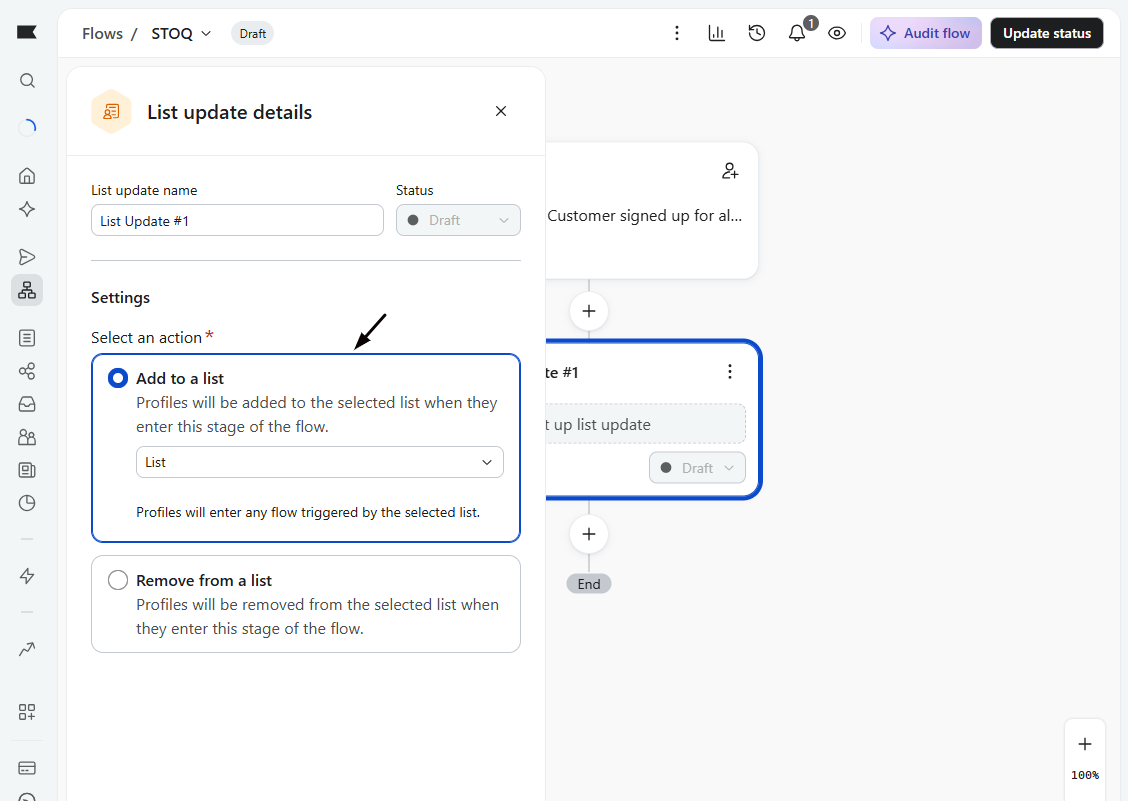
Add a List update action
Drag in a List update action, choose Add to a list, and pick your target list. The list must already exist in Klaviyo.
-
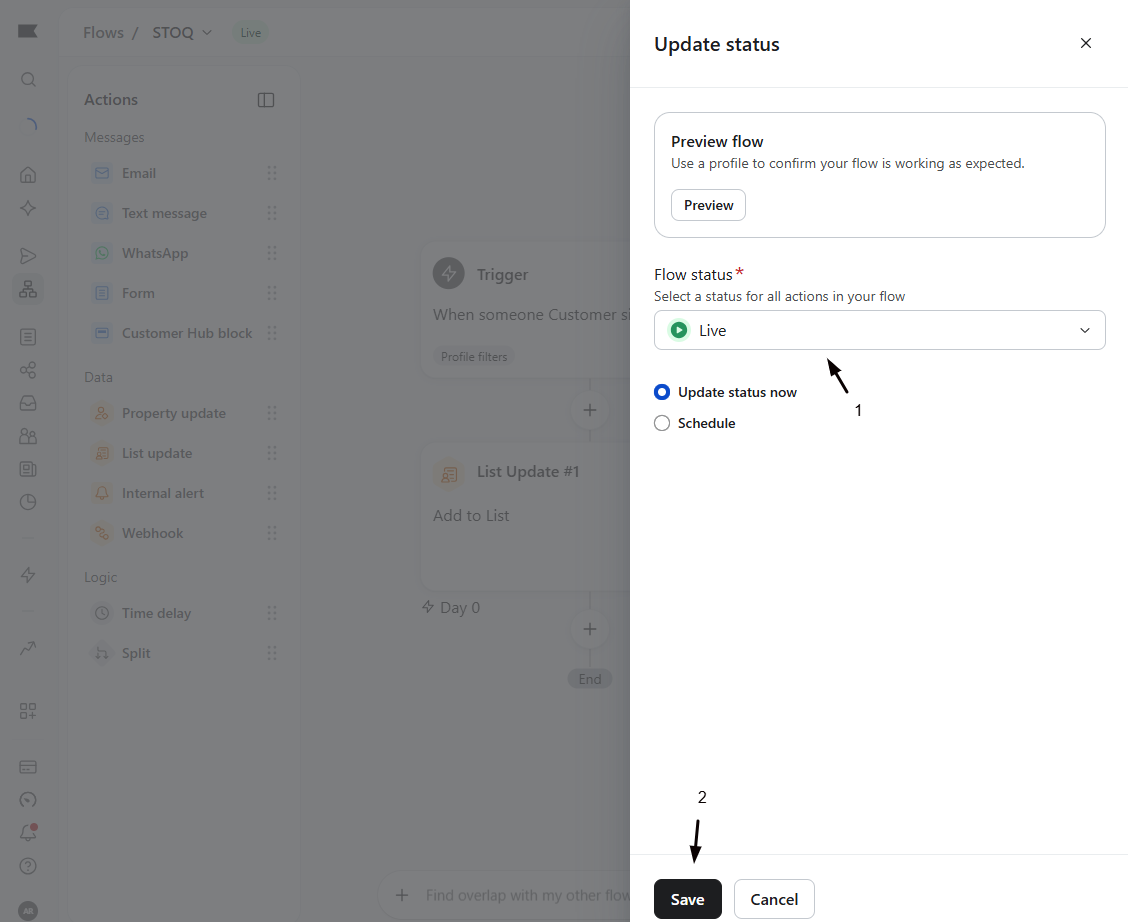
Set the flow live
Set the flow to Live. New STOQ signups now join the list automatically.
To find or group profiles you already synced, build a Klaviyo segment on the properties above, for example source equals your profile tag, or StoqBackInStock equals true.
Troubleshooting
Section titled “Troubleshooting”No one is entering the flow
The trigger metric must be Customer signed up for alert (STOQ), or Stoq - Customer signed up for alert on a private-key connection. Confirm Klaviyo shows as connected in STOQ and that new signups are syncing.
The flow runs but no one lands on the list
The List update action is likely disconnected or the flow isn’t live. Reconnect the action, confirm it’s set to Add to a list with the right list, and set the flow to Live.
A segment on STOQ properties is empty
The source value in your condition must match your STOQ profile tag exactly. Check the tag under Back in stock alerts > Settings > Integrations > Klaviyo > Profile tags, and confirm Klaviyo shows as connected. If you changed the tag after syncing, older profiles keep the previous value, so match on StoqBackInStock equals true instead.
New signups take a while to appear
STOQ syncs the profile and emits the metric shortly after signup, and Klaviyo then processes the flow. Give it a few minutes.
Can I add STOQ profiles to more than one list?
Yes. Add multiple List update actions in one flow, or build a separate flow per list.
Does the flow respect marketing consent?
Only if you add the StoqAcceptsMarketing is true filter. Without it, everyone who signs up enters the flow regardless of consent.
Can I add profiles who signed up before I built the flow?
Yes. Open the flow and use Klaviyo’s option to add past profiles, or build a segment from the properties above and add its members to the list in bulk.
Can I export a segment of STOQ profiles?
Yes. Build a segment on the STOQ properties, then from the segment’s menu choose to export it as a CSV.
Where do I change the profile tag?
Under Back in stock alerts > Settings > Integrations > Klaviyo > Profile tags in STOQ.
Related guides
Section titled “Related guides”Thanks for letting us know.
Still stuck? Ask Quinn or chat with support