Test checkout fails when you're signed in to Shop Pay
Why a test preorder won't go through when checkout recognizes your Shop Pay account, and how to test it properly.
Last updated
Use this guide if your test preorder gets stuck at checkout: you click Pay now and nothing happens, or checkout shows a payment error, but the same checkout works once you remove the preorder product. This is almost always because checkout recognized you as signed in to Shop Pay, not because STOQ is broken. By the end, you’ll have placed a test order that goes through.
Why it happens
Section titled “Why it happens”If you’ve ever paid with Shop Pay in this browser, Shopify checkout recognizes you, fills in your details, and pays with the card saved in your Shop account. Two Shopify rules then block a test preorder:
- Shop Pay can’t pay for preorders. Shopify doesn’t let customers buy preorders with Shop Pay, Apple Pay, or Google Pay. See Shopify’s pre-order requirements. With a preorder in the cart, a Shop Pay checkout can’t complete.
- Test mode doesn’t take real cards. If your store is in Shopify Payments test mode or uses the Bogus Gateway, real cards are declined, and the card saved in Shop Pay is a real card.
STOQ adds the preorder terms to the cart. It doesn’t control which payment methods checkout offers.
Test checkout the right way
Section titled “Test checkout the right way”-
Open a private window, or sign out of Shop Pay
Open a private or incognito window in your browser (in Chrome, press Ctrl+Shift+N on Windows or Cmd+Shift+N on Mac). Shop Pay doesn’t recognize you there, so checkout opens as a guest.
To test in your normal browser instead, sign out of Shop Pay first:
- Go to shop.com and sign in to your Shop account.
- Click the Account icon, then Sign in & security.
- Click Sign out of all devices, then click Log out to confirm.
This signs you out of Shop Pay on every device, including the Shop app, so you’ll sign in again the next time you use it. See Shop’s guide to signing out everywhere.
-
Add the preorder product to the cart
- Go to the product page on your live storefront and click the Preorder button.
- In the cart, click Check out.
Don’t use Buy it now or an express button such as Shop Pay, Apple Pay, or Google Pay.
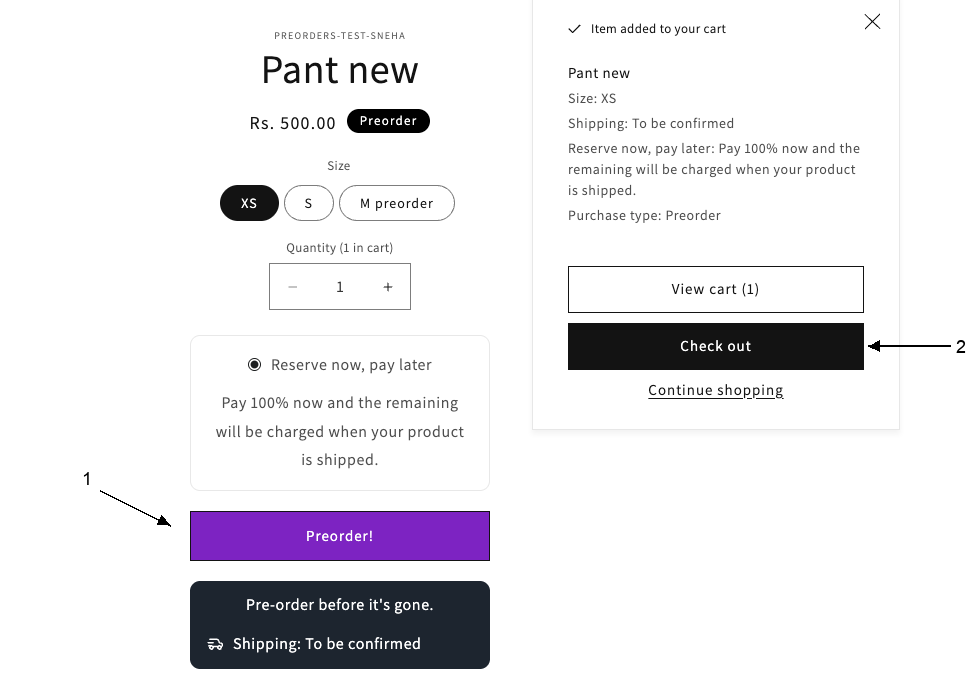
-
Pay without Shop Pay
At checkout:
- Enter your email and address by hand. If a Shop Pay prompt appears, close it and fill in the form yourself.
- To avoid a real charge, enter a 100% discount code in Discount code or gift card and click Apply.
- Or, if the Bogus Gateway is on, enter 1 as the Card number, any future expiration date, and any 3-digit security code.
See Test your offer for how to set up either one.
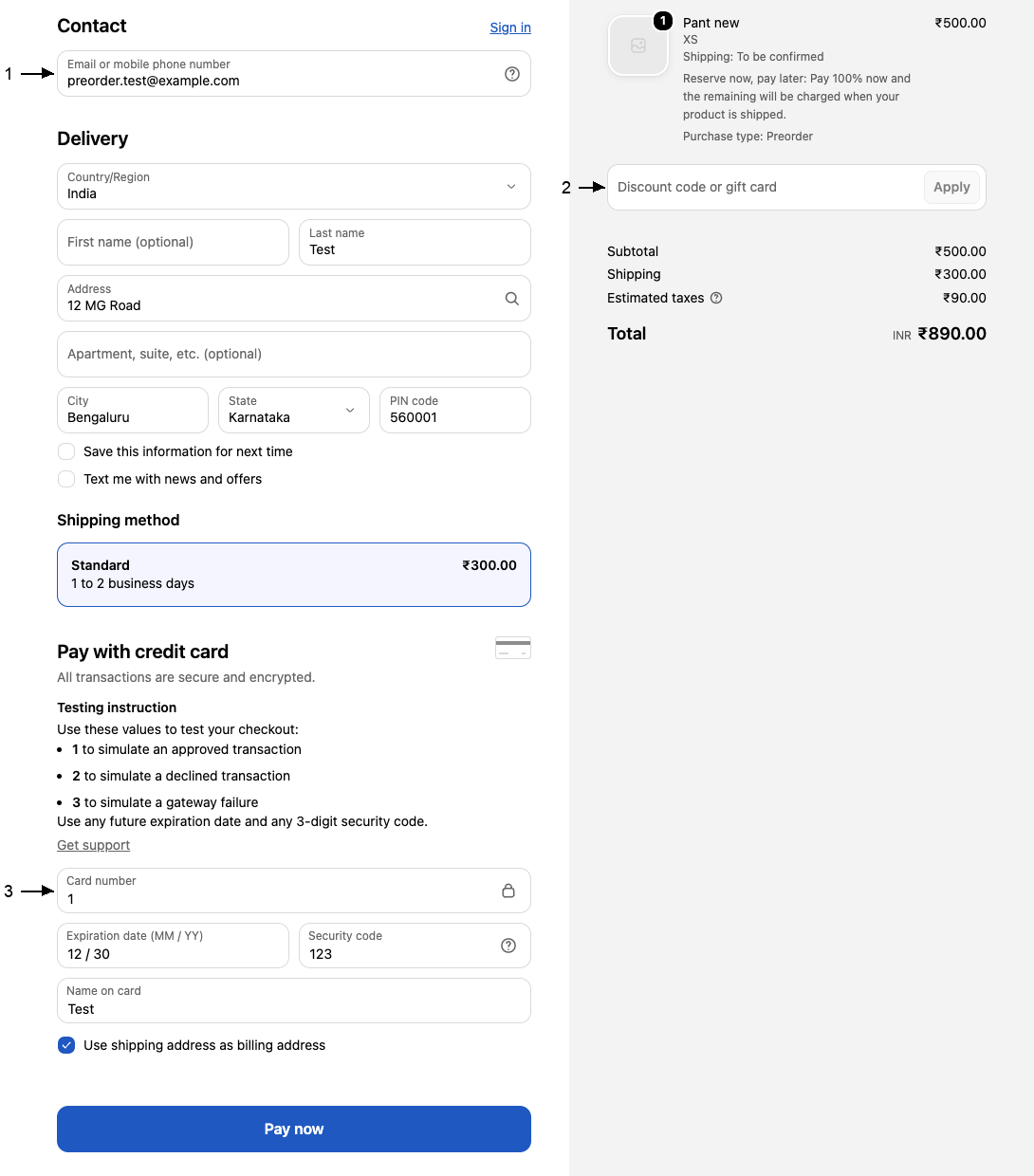
-
Confirm the order
Click Pay now (or Complete order if the total is zero). Then check the order in STOQ:
- Click Reports in the left menu, then the Preorders tab.
- Click Orders.
- Find your test order at the top of the list.
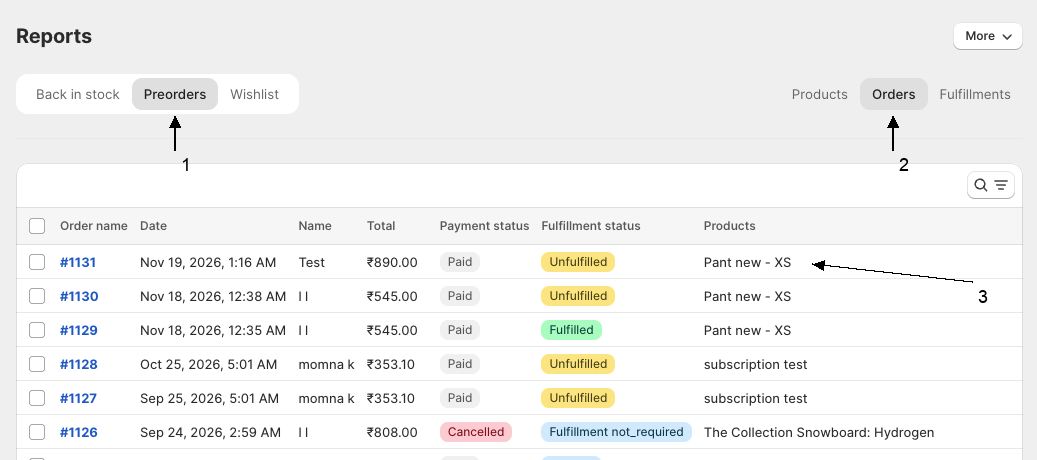
What customers will see
Section titled “What customers will see”Real customers follow the same rules. A shopper who is signed in to Shop Pay can still preorder, but has to pay another way, such as entering a card. On the product page, STOQ hides Buy it now and the express buttons that sit in the same block, so customers go through the cart. STOQ doesn’t hide express buttons on the cart page or in checkout itself. See How STOQ hides the Buy It Now button on preorders.
Troubleshooting
Section titled “Troubleshooting”Pay now does nothing, but the order works without the preorder product
Checkout is trying to pay with Shop Pay. Place the test order in a private window, or sign out of Shop Pay first, as described above. Then enter your card or a discount code by hand.
The test order is declined even in a private window
Check the payment you used matches your test setup:
- In Shopify Payments test mode, use a Shopify test card number, not a real card.
- With the Bogus Gateway, enter 1 as the card number for an approved payment.
- With a 100% discount code, confirm the order total is 0 before you click Complete order.
The order went through, but it isn't in Reports → Preorders
The order was placed through an express button, so it skipped the preorder terms. Place it again through Preorder, then the cart, then Check out. See Test your offer.
Shop Pay still appears in the private window
You signed in to Shop Pay inside the private window during an earlier test. Close every private window, open a new one, and don’t sign in when Shop Pay asks.
Is STOQ broken if Shop Pay won't complete a preorder?
No. Shopify doesn’t allow preorders to be paid with Shop Pay, Apple Pay, or Google Pay, with or without STOQ. Paying another way at checkout works.
Do I have to sign out of my Shop account?
No, a private window is enough, because Shop Pay can’t recognize you there. Signing out works too, but it signs you out on every device. Either way, your Shop account and saved cards stay as they are.
Will my customers run into this?
Only if they try to pay for a preorder with Shop Pay. They can complete the order by paying another way at checkout, such as with a card.
Can I let customers pay for preorders with Shop Pay?
Yes, if you switch the offer’s Purchase option to Use without purchase option under Advanced in the offer editor. Shopify then treats the item as a normal product. This turns off partial payments, preorder-only discounts, and the Scheduled fulfillment status. See Advanced settings.
Related guides
Section titled “Related guides”Thanks for letting us know.
Still stuck? Ask Quinn or chat with support