Set up preorders
Create and publish your first preorder offer so the Preorder button goes live.
Last updated
This is the quickest path to a live preorder: create an offer, add products, name it and customize the Preorder button, set how customers pay and how orders fulfill, then enable it and place a test order. For what each piece means first, see Preorders: Overview.

Before you begin
Section titled “Before you begin”| Requirement | Detail |
|---|---|
| STOQ app embed enabled | The Preorder button shows on your storefront through the STOQ theme app embed. If a Turn on app embed badge shows next to the page title, see Enable STOQ on your theme |
| Products to sell | Decide which products (or upcoming products) you’ll offer for preorder |
Choose your setup
Section titled “Choose your setup”Two choices matter most before your offer goes live:
- How customers pay: full payment (the default, no extra setup), a partial payment or deposit, or both together with the customer choosing at checkout. See Set up payment for preorders.
- How orders fulfill: Unfulfilled (fulfillable right away, like a normal order), Scheduled (auto-releases on a date you set), or On hold (you release it manually). See Choose a fulfillment setup.
If you’re not sure, full payment with Unfulfilled status is the simplest setup: it behaves like a normal order and needs no extra configuration.
What customers will see
Section titled “What customers will see”Once you enable the offer, the Preorder button appears on the product page for every product in it. At checkout, customers pay based on the payment type you chose: the full price, or a deposit now with the remaining balance collected later.
Depending on which notifications you turn on, customers may get an email when their preorder is confirmed, when there’s a shipping update, or if a payment collection attempt fails.
Set it up
Section titled “Set it up”On a phone, this menu is collapsed. In the Shopify mobile app, tap the STOQ logo at the top of the screen to open it, then choose the section named below. There is no hamburger icon. See Finding the STOQ menu.
-
Add a new offer
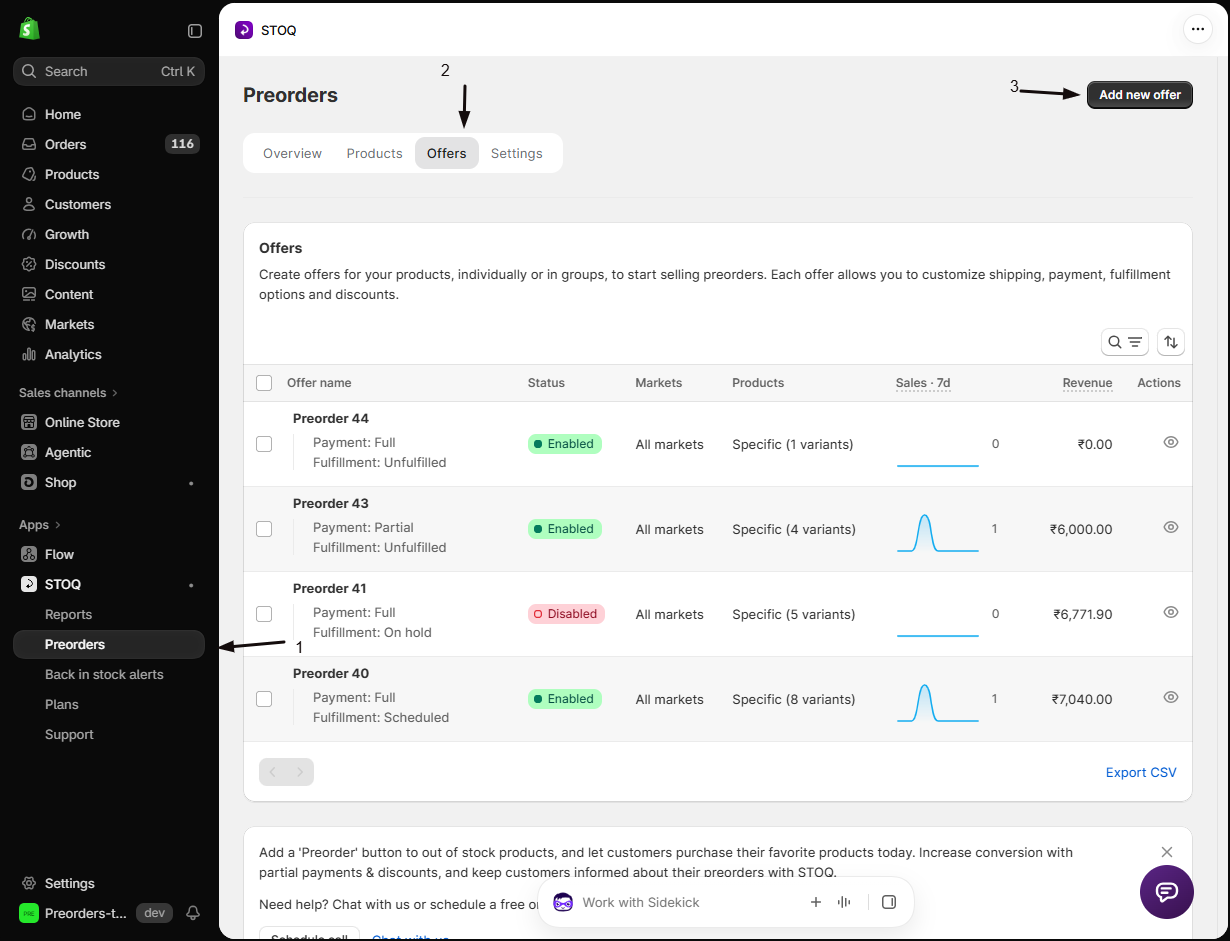
- In the left menu bar of the STOQ app, click Preorders.
- Click the Offers tab.
- Click Add new offer (STOQ creates the offer and opens its Overview tab).
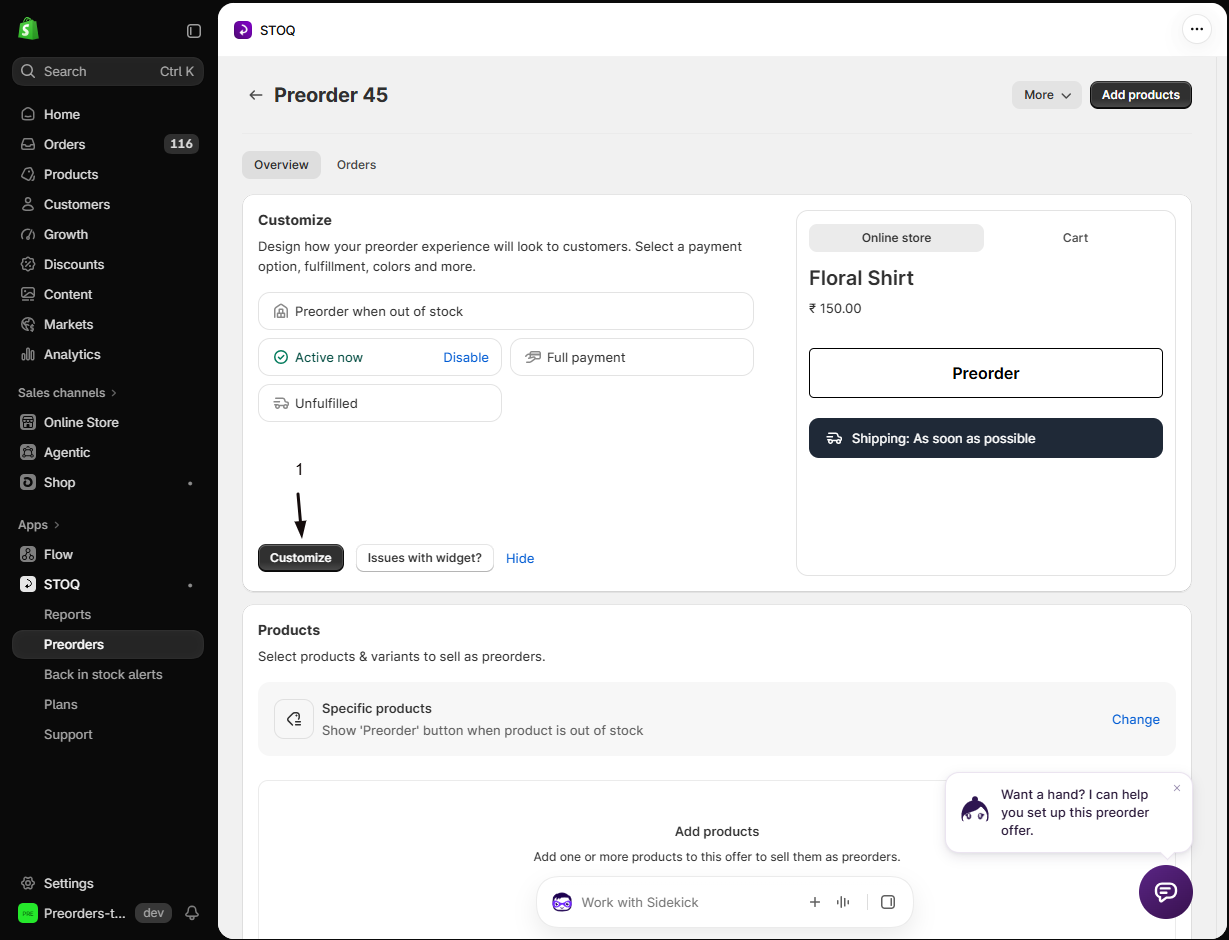
- Click Customize to open the offer editor, with a control panel and a live preview of the storefront, cart, and fulfillment.
-
Add products and enable continue-selling
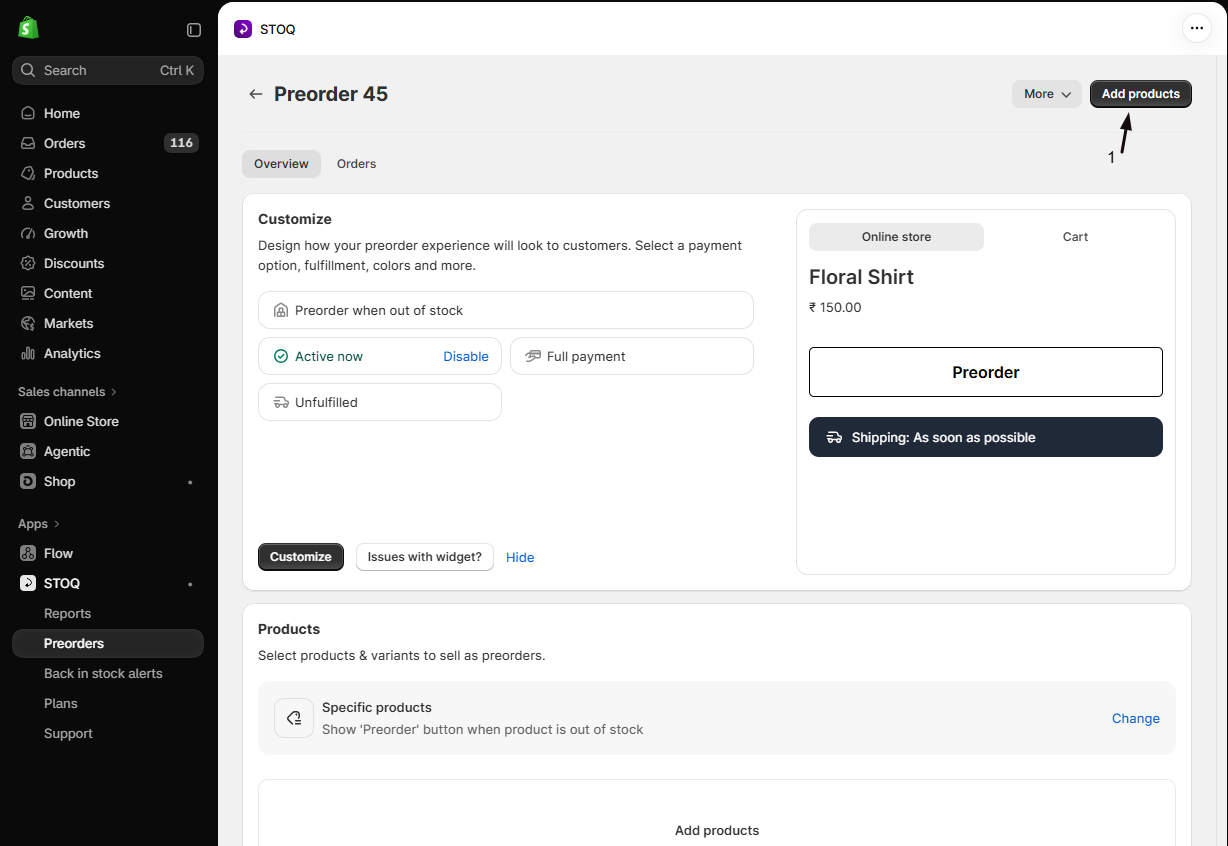
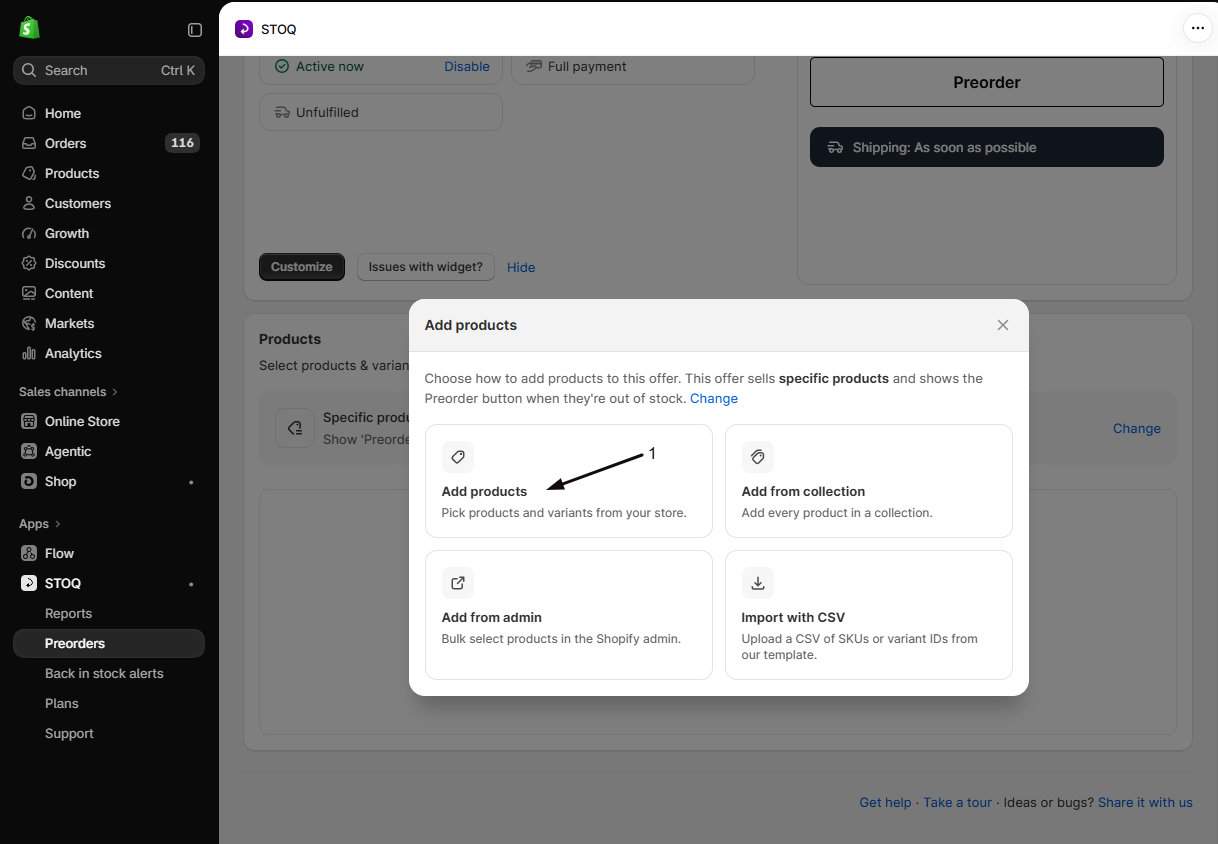
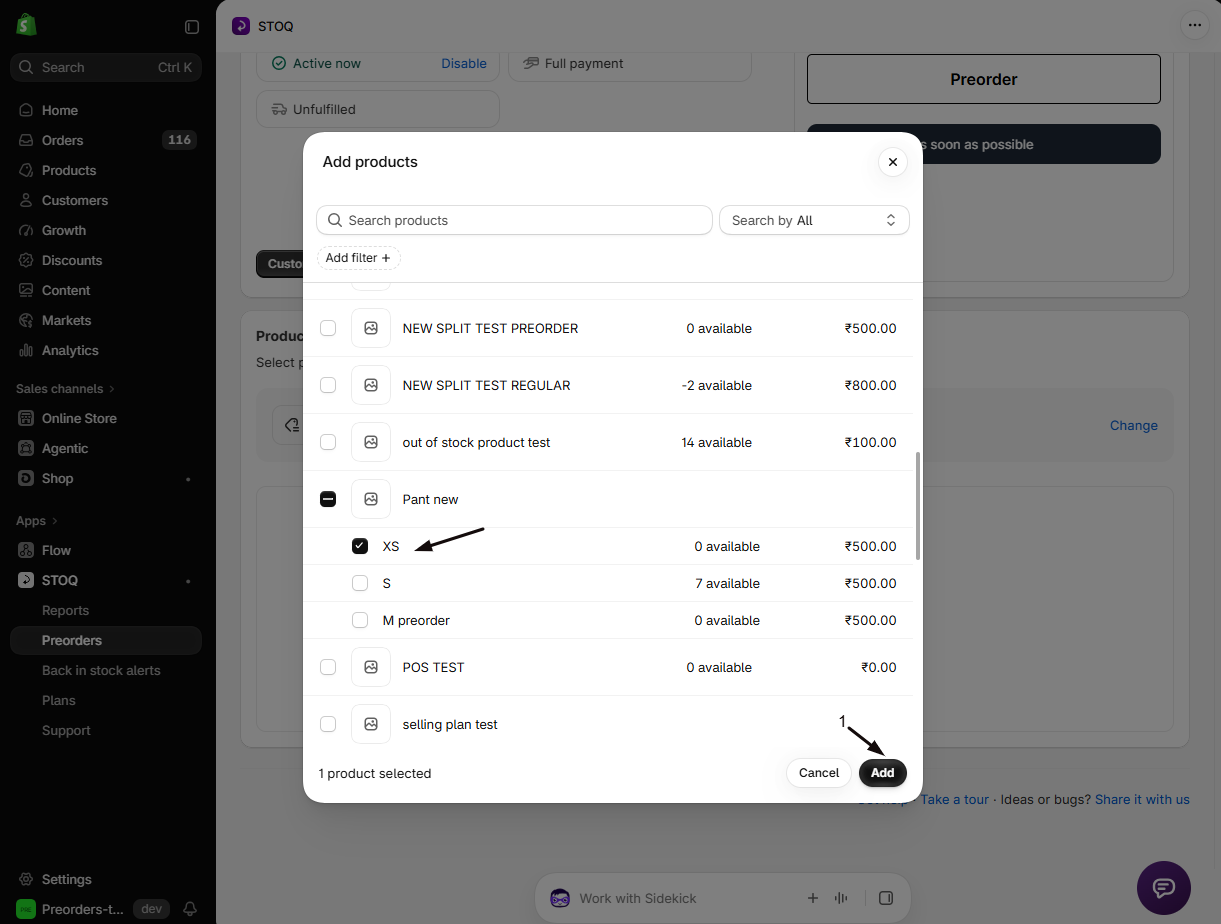
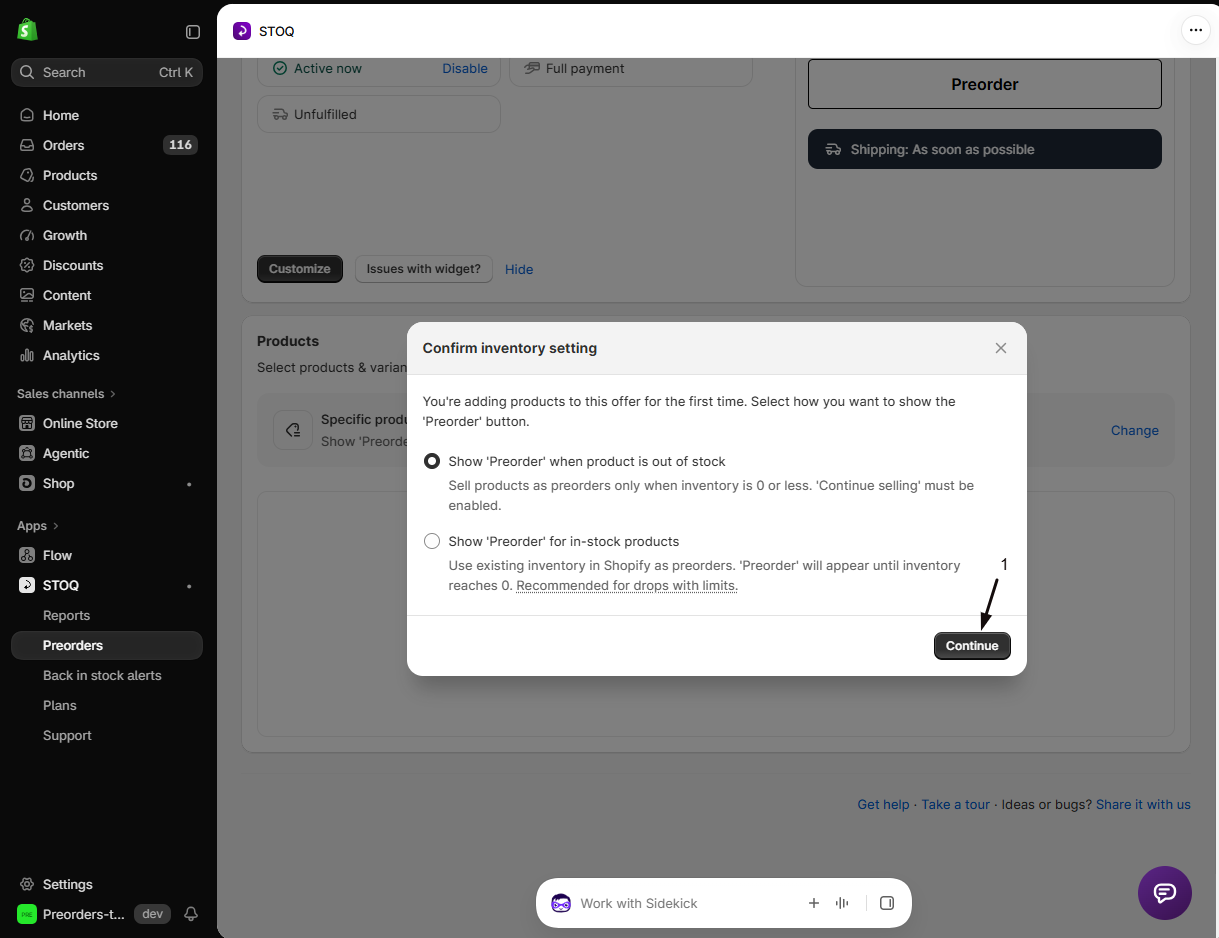
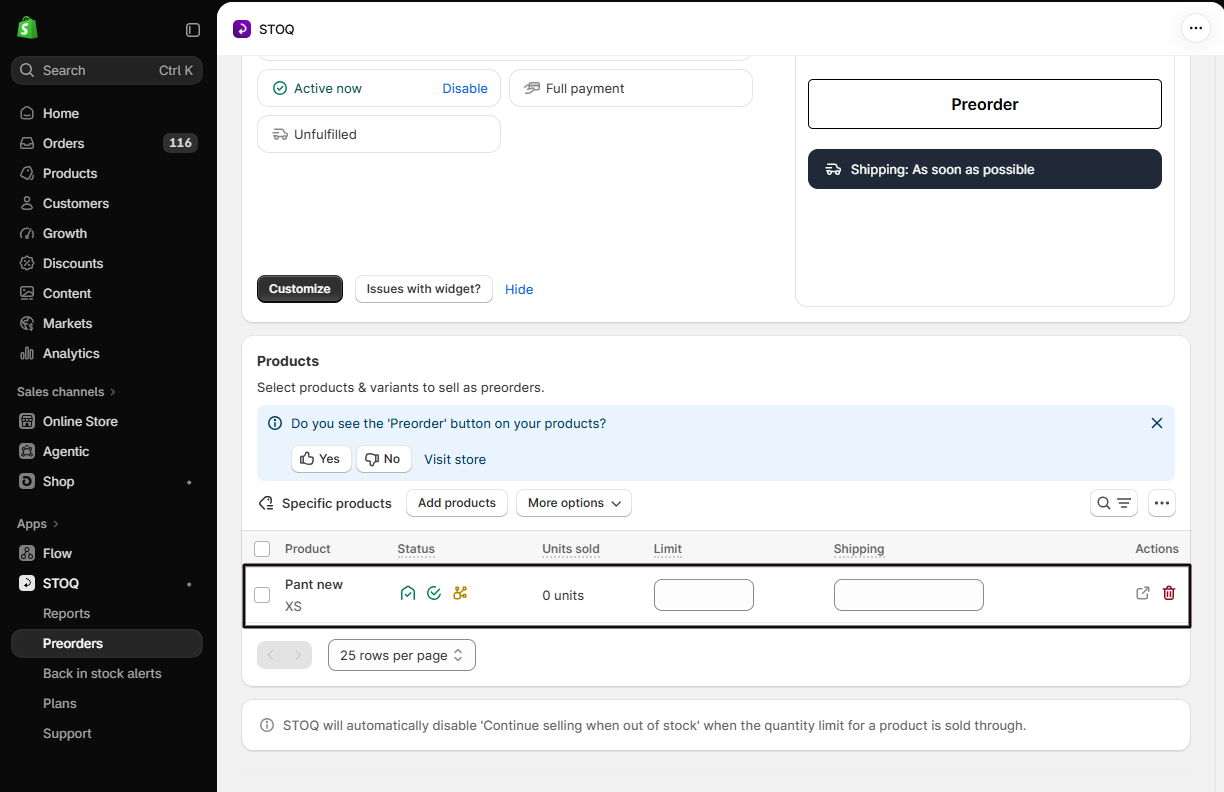
- On the offer’s Overview tab, open its Products section and click Add products to pick the products this offer applies to. More options also lets you Add from collection, Add from admin, or Import with CSV. See Add products to an offer.
- As it adds them, STOQ checks each variant for Continue selling when out of stock and offers to turn it on for you. Leave it enabled so the Preorder button can appear on out-of-stock items.
-
Name the offer
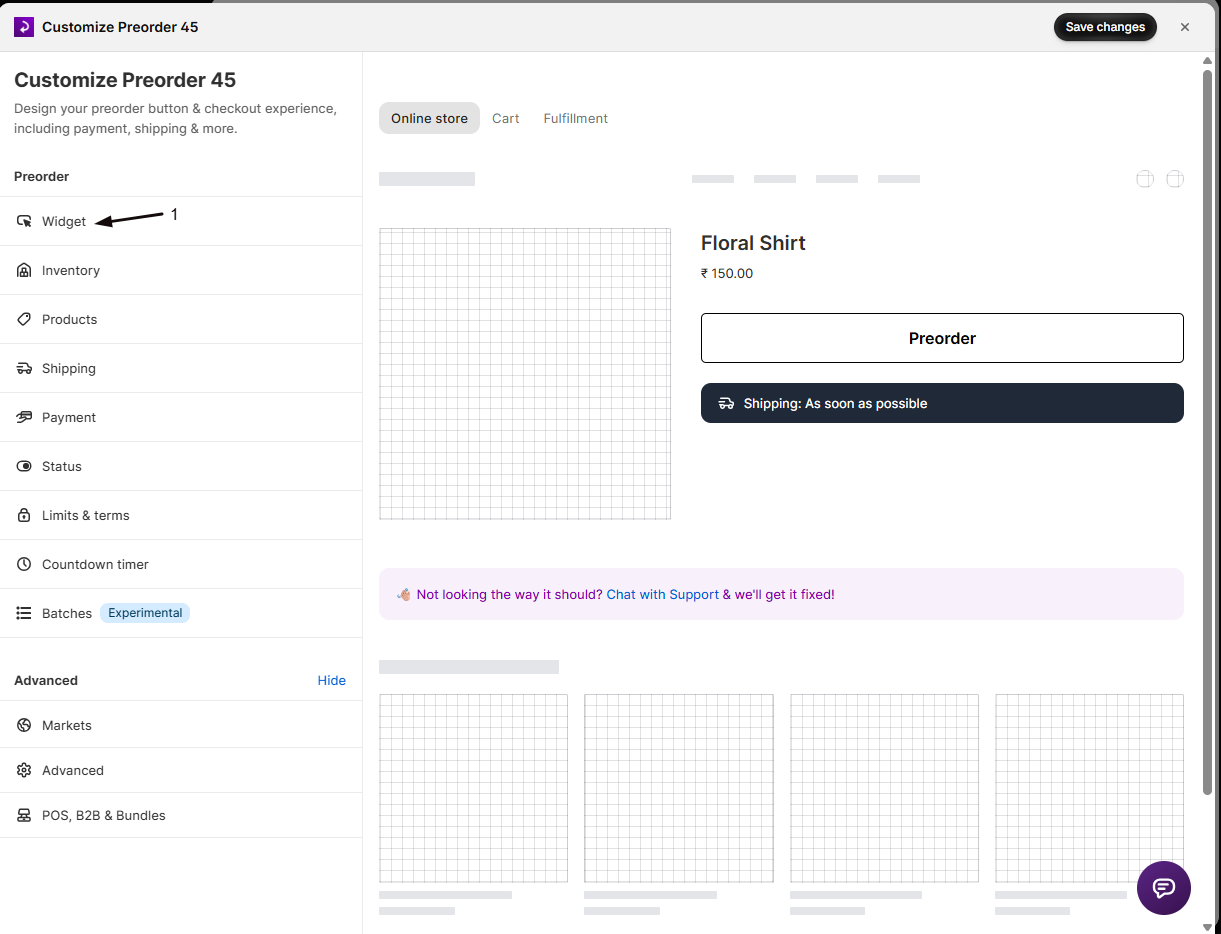
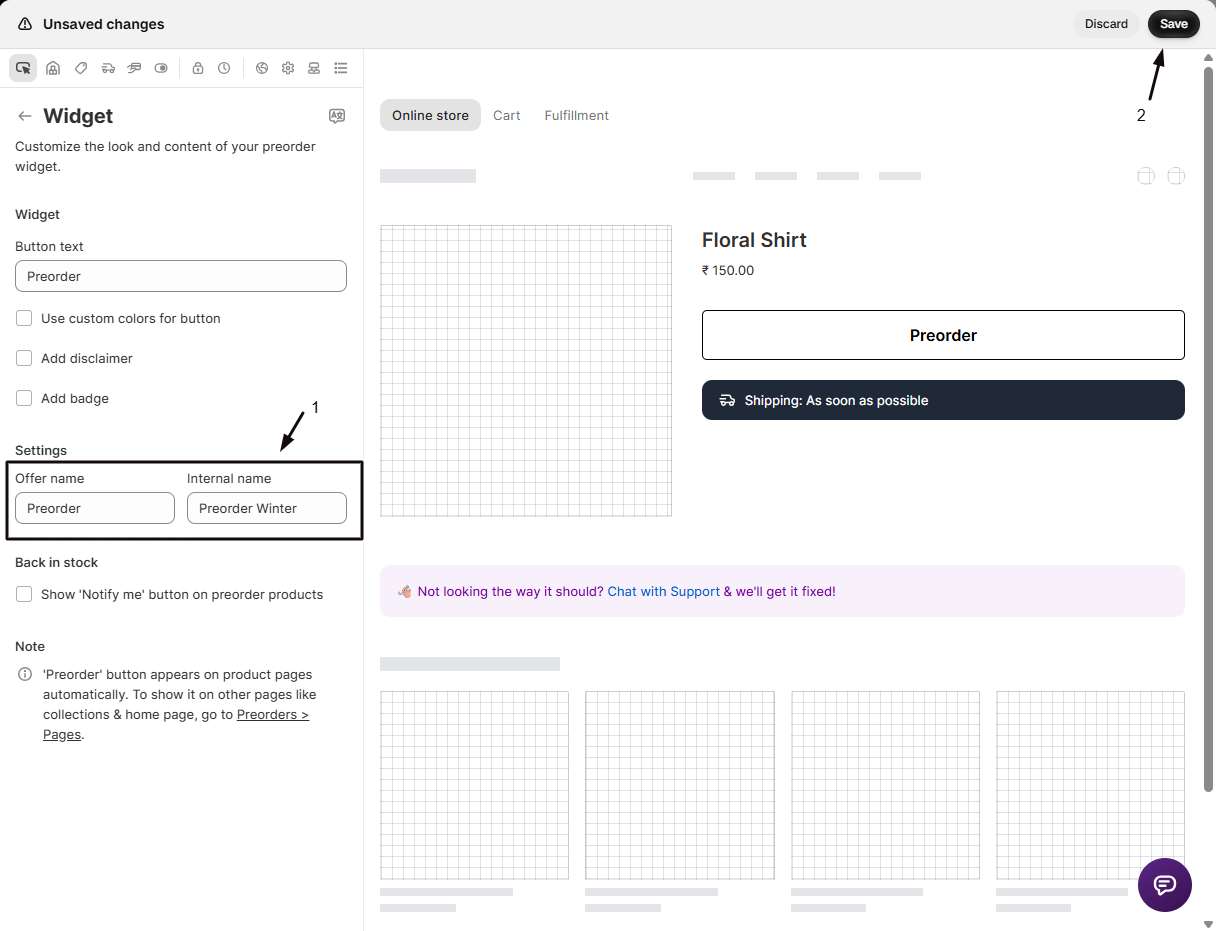
- In the editor sidebar, click Widget. The panel has two groups: Widget (button and colors) and Settings (names).
- Under Settings, enter the Offer name customers see in cart and at checkout, for example “Preorder”.
- Enter an Internal name if you want a clearer label in your own Offers list. Customers never see it. See Rename a preorder offer.
-
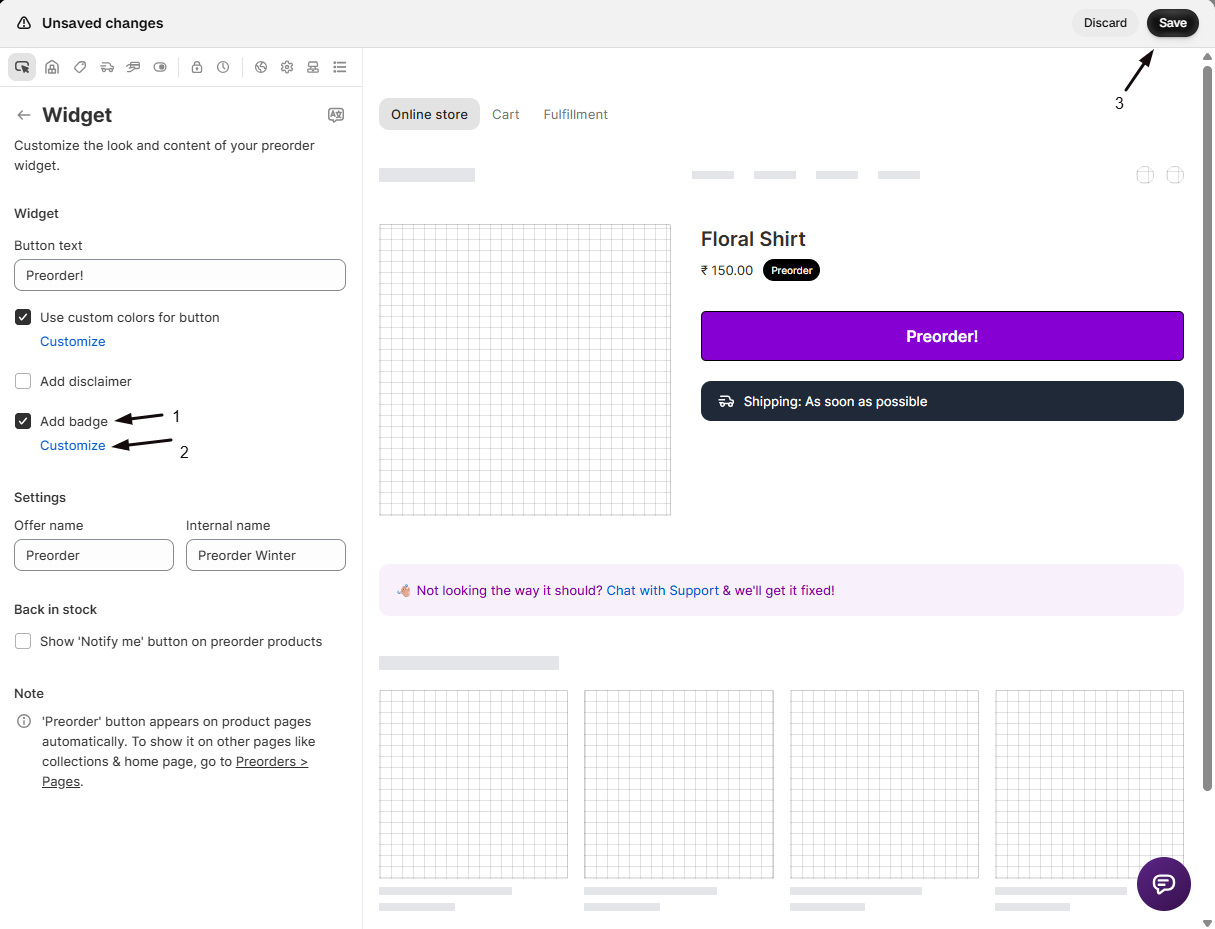
Customize the Preorder button
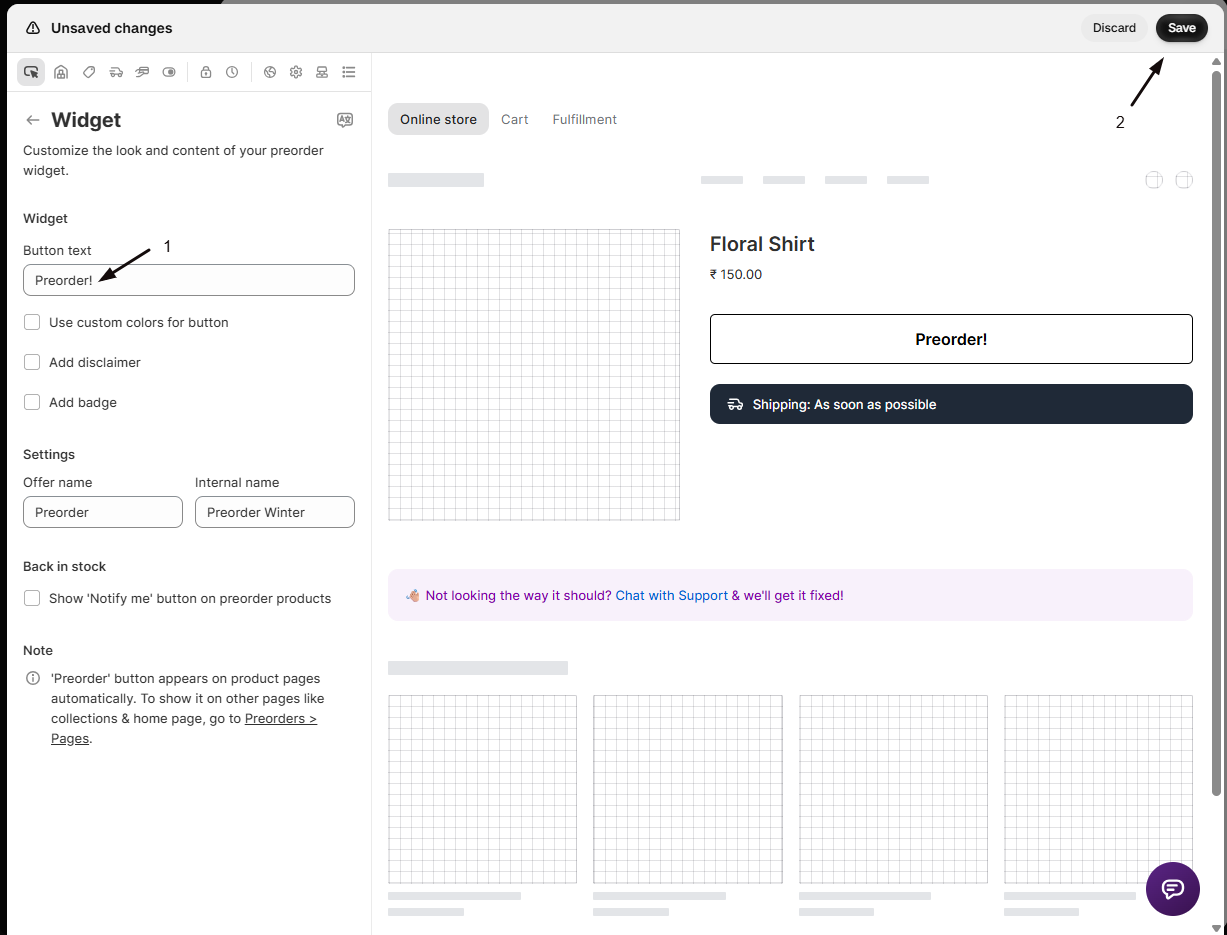
Still in the Widget section:
- Enter your text in the Button text field. The default is Preorder, and it replaces “Add to cart” on the offer’s products.
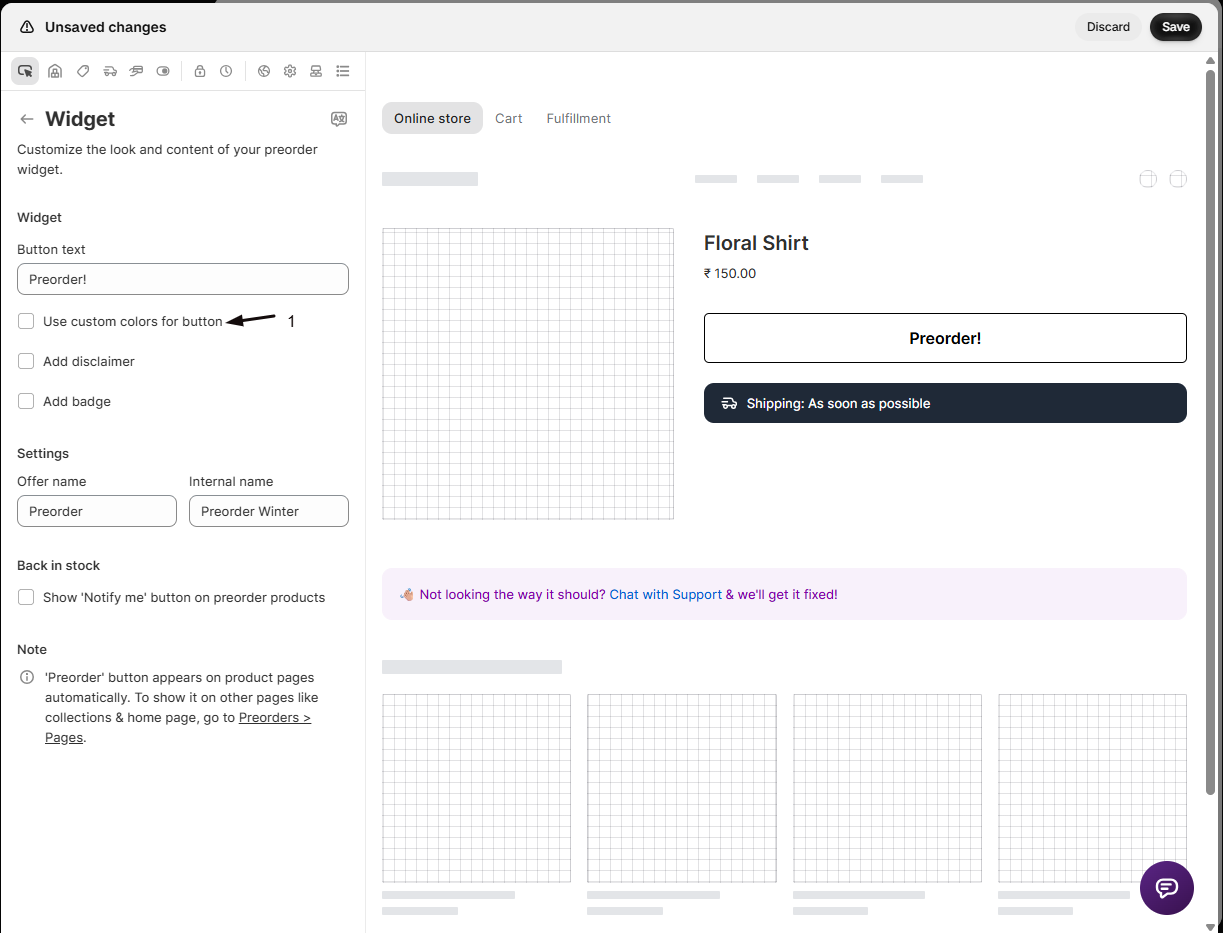
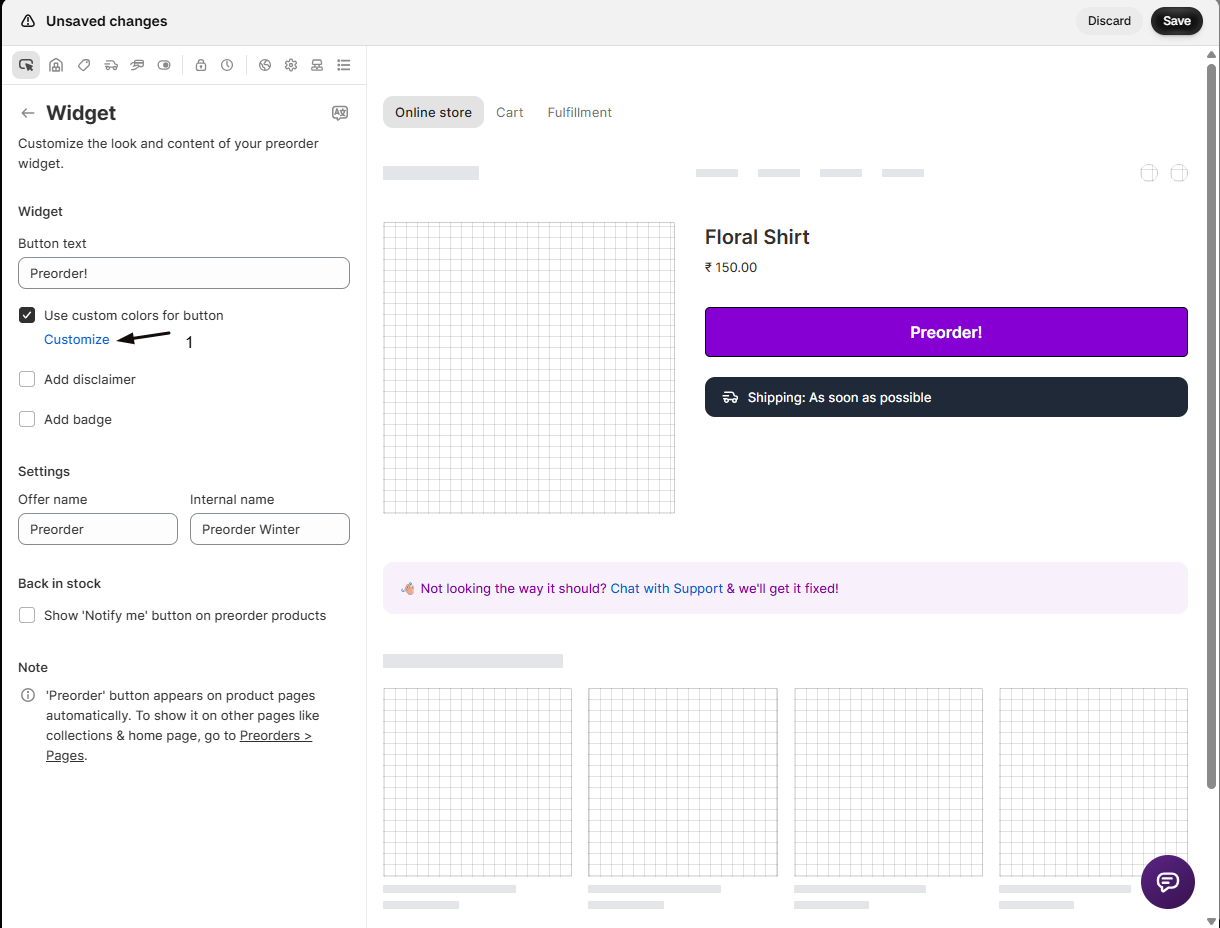
- To change its colors, check Use custom colors for button, click the Customize link, and set the Text and Background colors.
- To label the product with a badge, check Add badge and click Customize to set the badge text and colors.
See Design the preorder widget for every option.
-
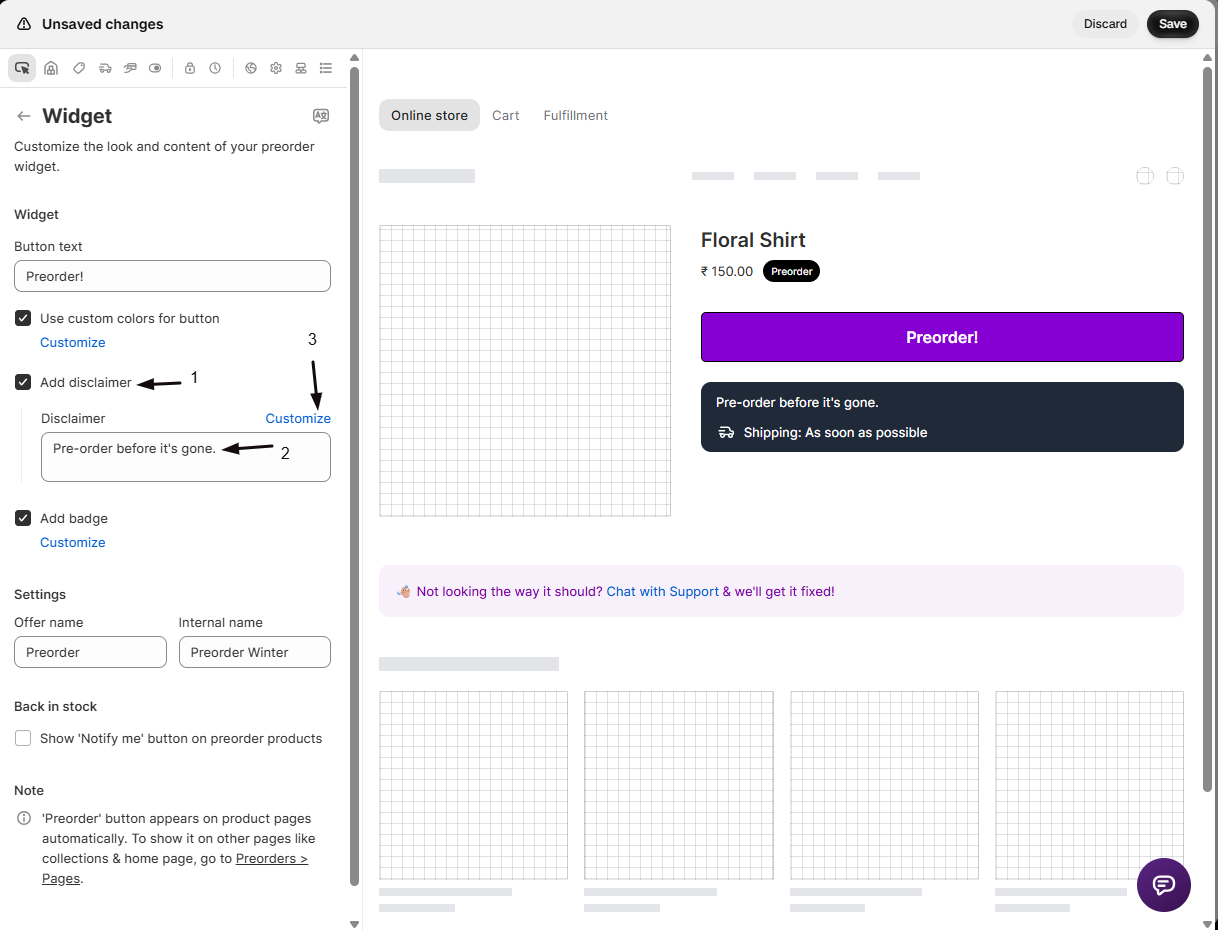
(Optional) Add a disclaimer
In the Widget section, check Add disclaimer and enter your message in the Disclaimer field, for example “This item ships 30 days after you place the order”. Click Customize next to the disclaimer label to set its border radius, text color, and background color.
Use this to set expectations before customers buy. To show a shipping date instead, use the shipping timeline in the next step.
-
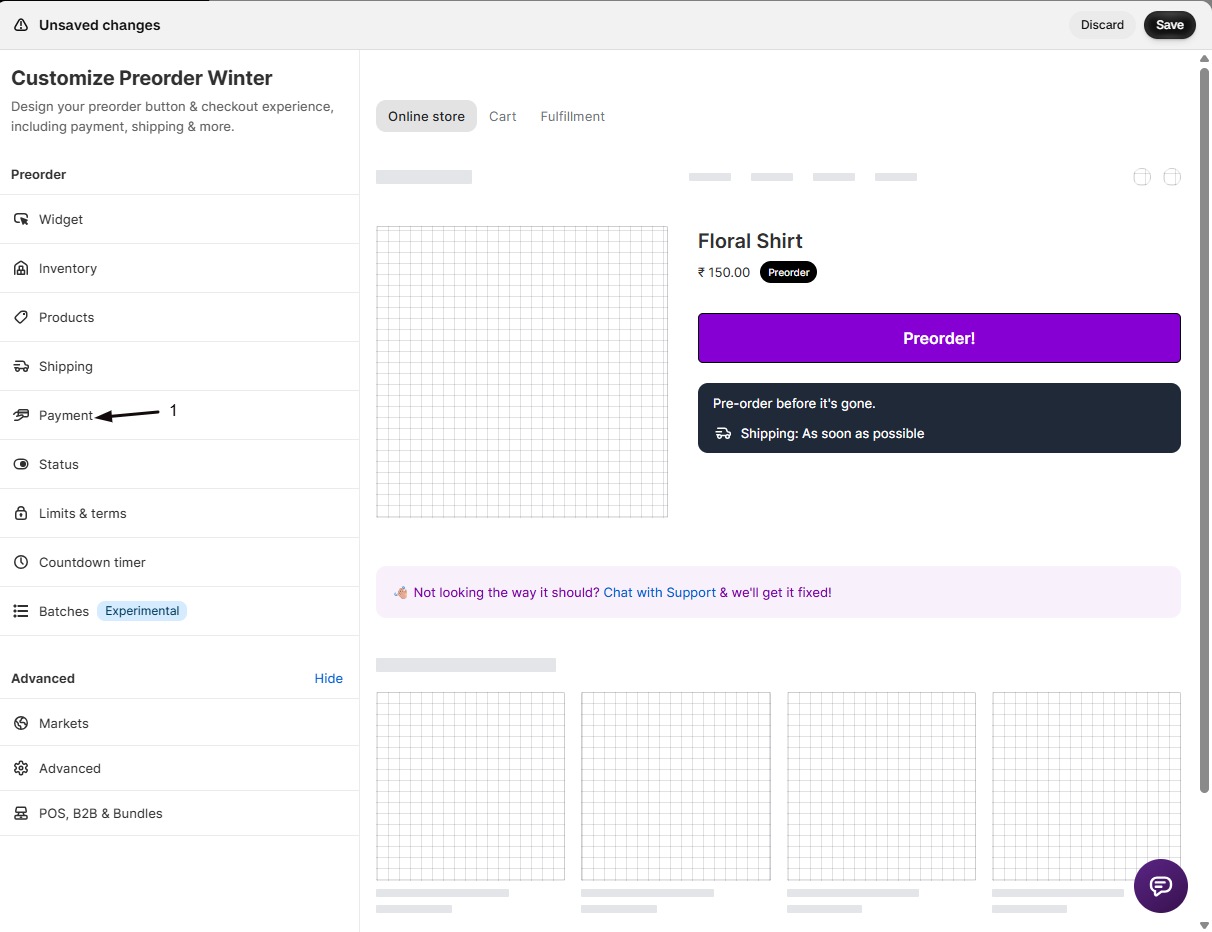
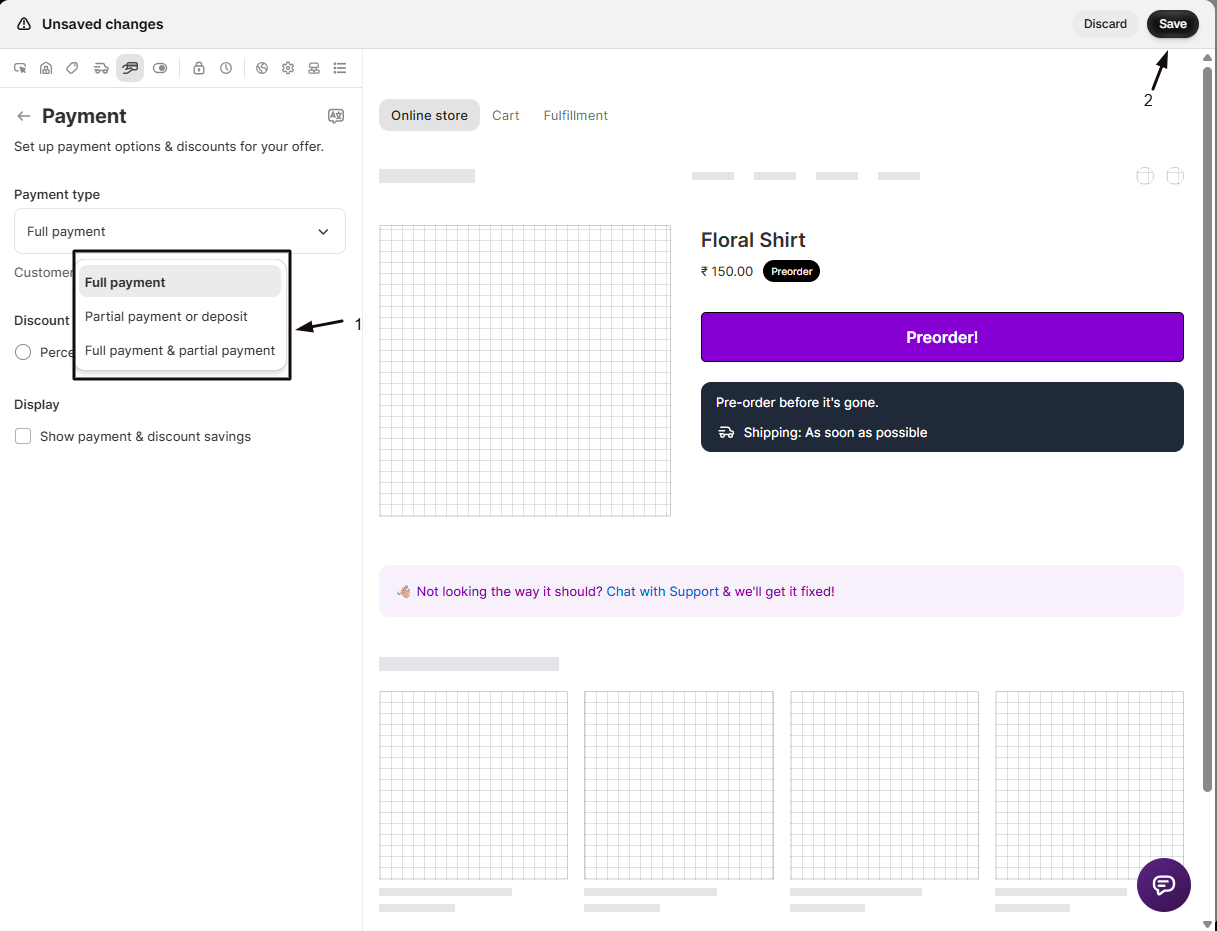
Set how customers pay
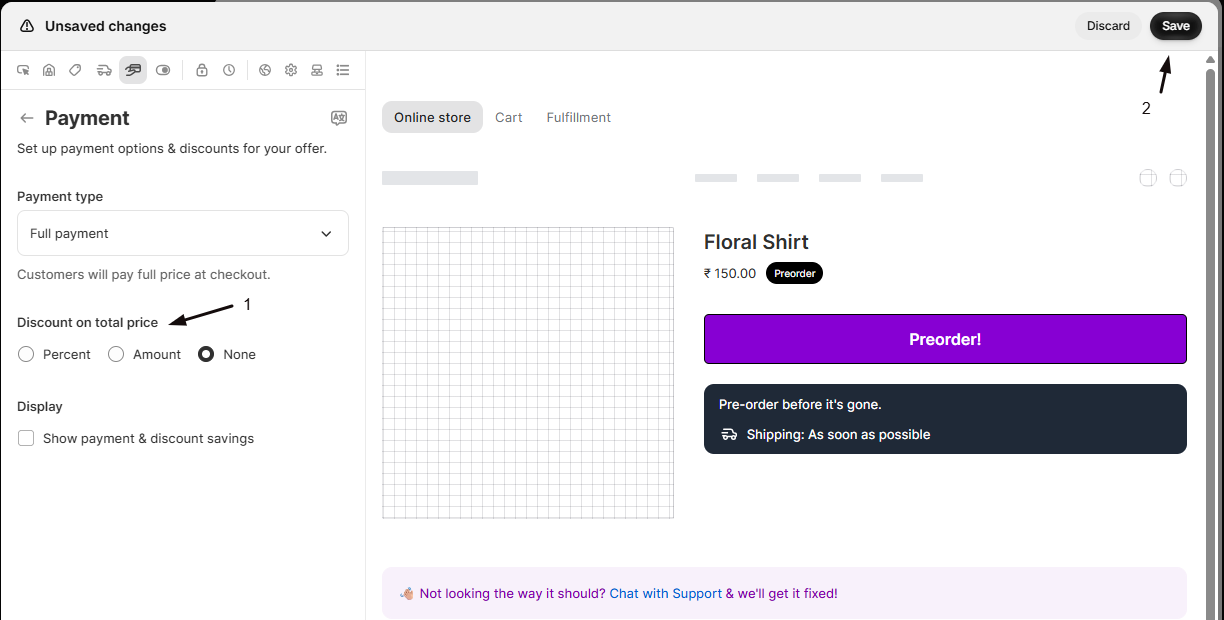
- In the editor sidebar, click Payment.
- Choose a payment type: full payment, a partial payment or deposit, or both with the customer choosing at checkout. See Set up payment for preorders for the full walkthrough.
-
Set how orders fulfill and when they ship
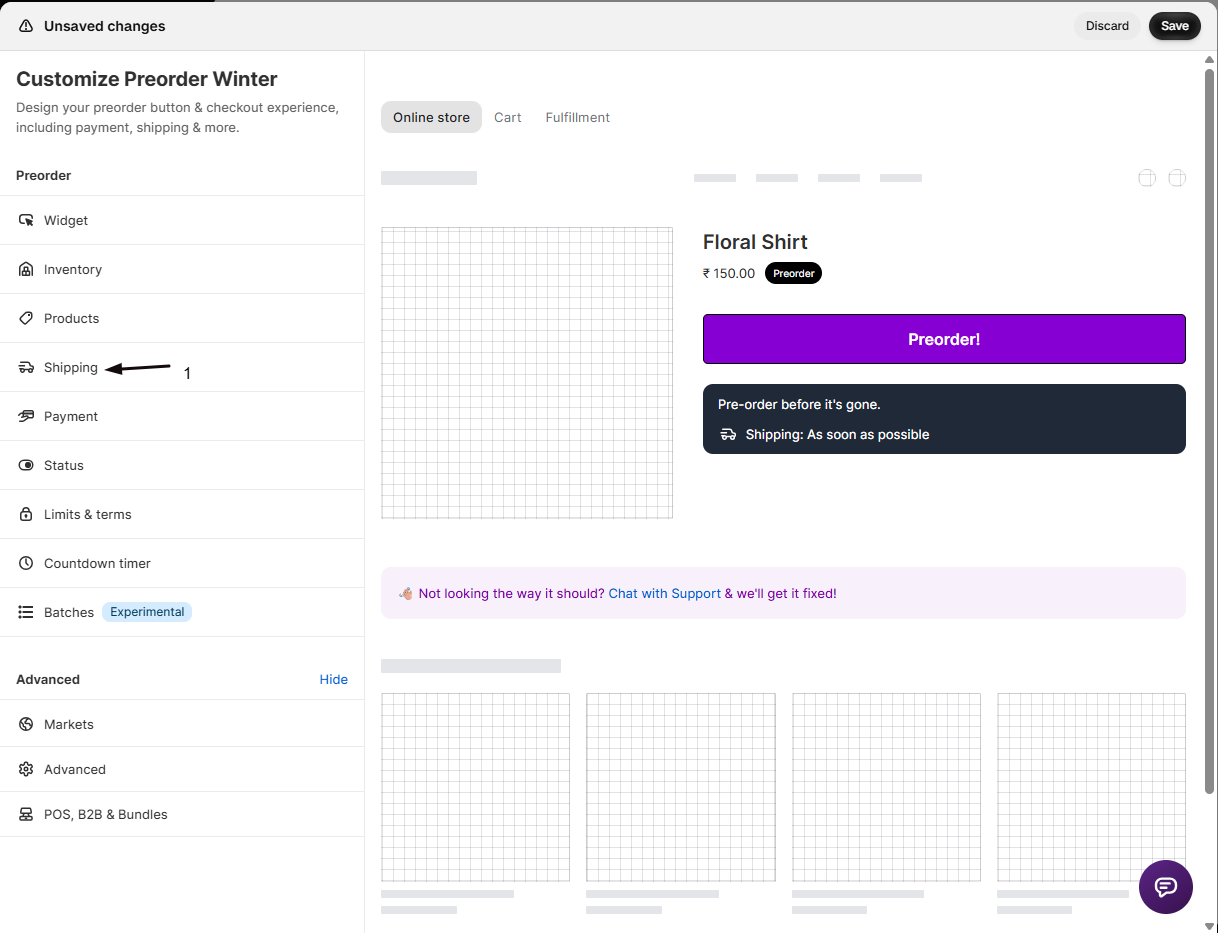
- In the editor sidebar, click Shipping.
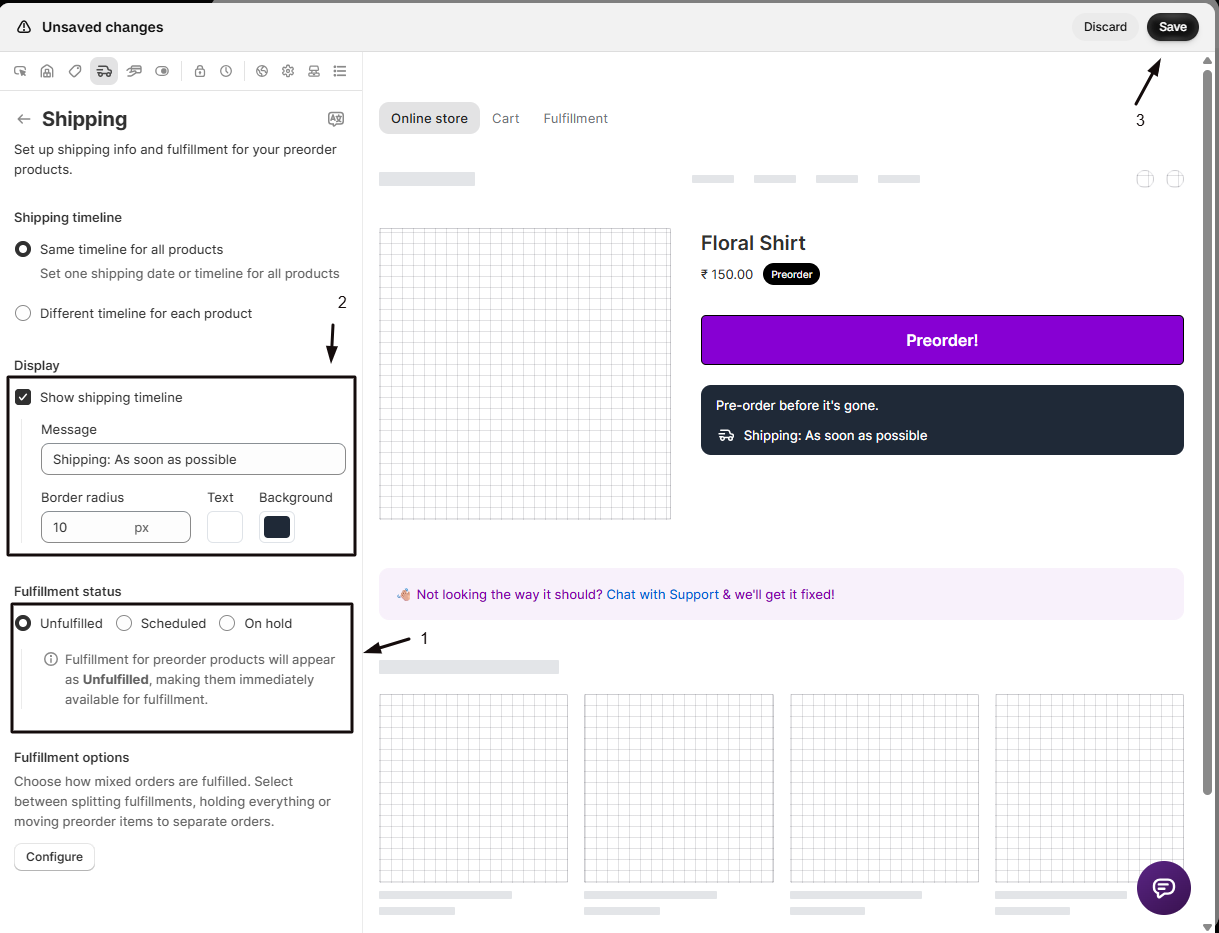
- Choose a fulfillment status: Unfulfilled, Scheduled, or On hold. See Choose a fulfillment setup.
- Choose a fulfillment option if this offer will include mixed orders (a preorder item bought together with an in-stock item).
- To tell customers when the item ships, check Show shipping timeline and enter your message. It appears below the Preorder button on the product page. See Show a shipping timeline.
-
(Optional) Add a discount, schedule, limits, or a countdown
Still in the editor sidebar, you can add a preorder discount from Payment, set start and end dates from Status, cap how much customers can order from Limits, or show a countdown timer from Countdown timer.
-
Enable the offer
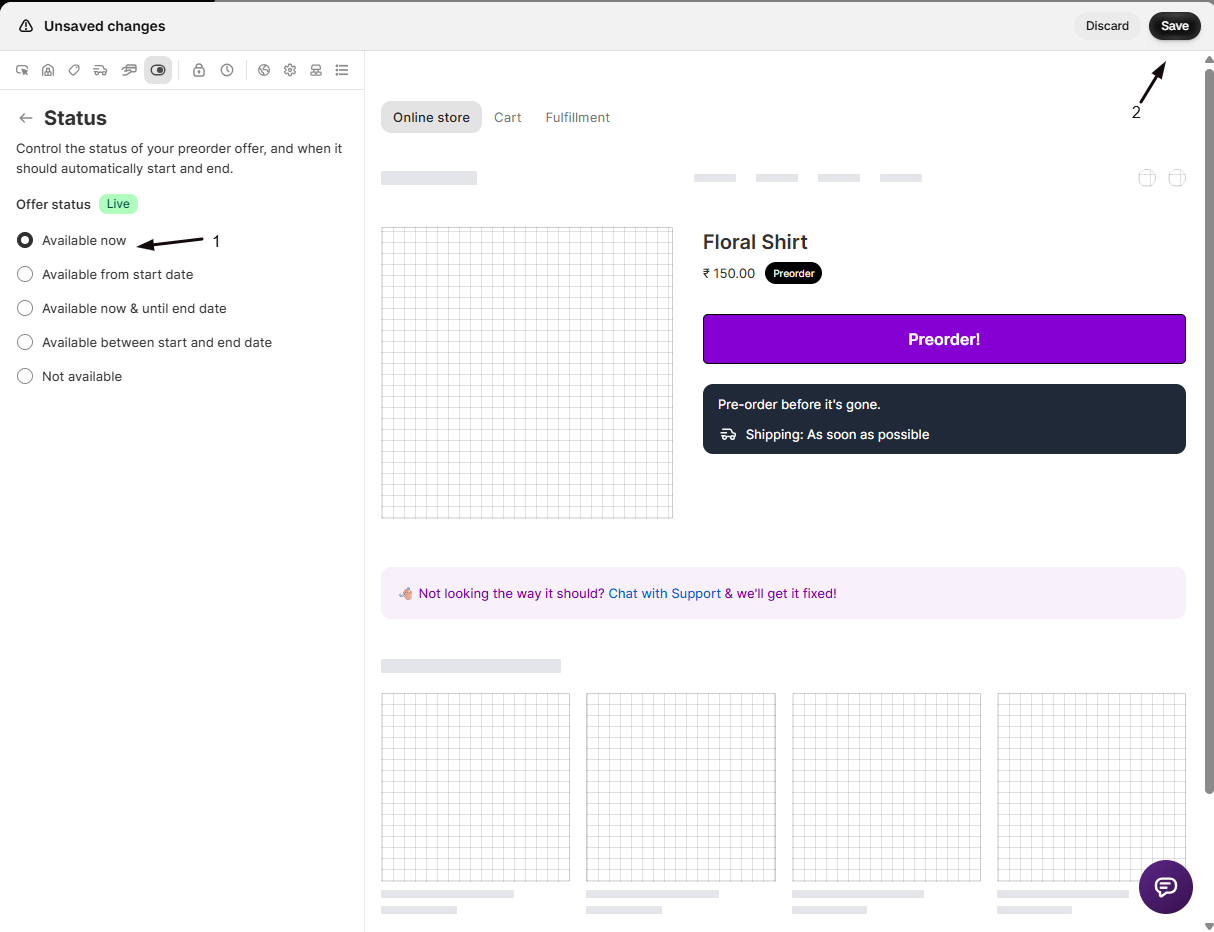
- In the editor sidebar, click Status and choose Available now.
- Click Save changes. The Preorder button goes live for the products in this offer.
-
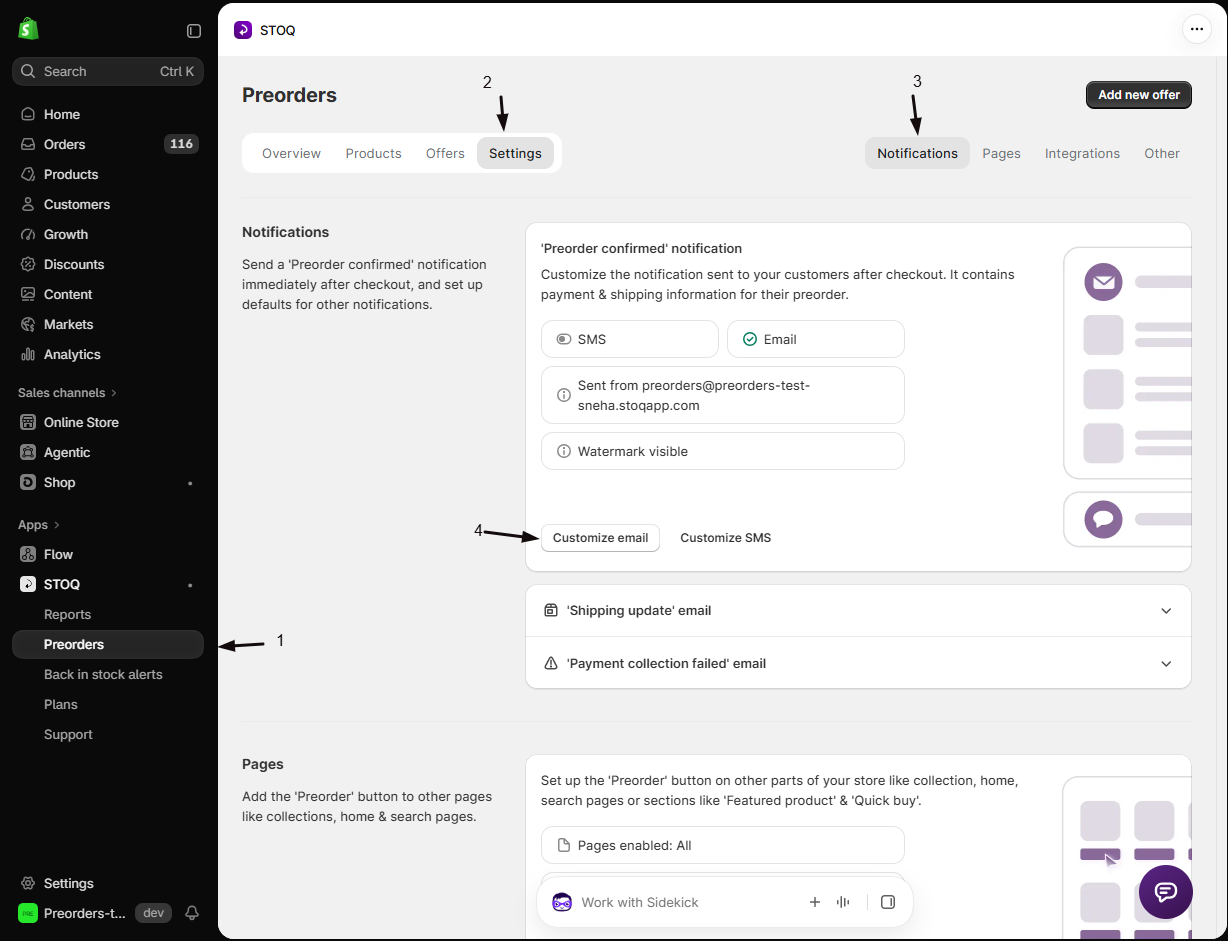
Set up notifications
- In the left menu, click Preorders.
- Click the Settings tab.
- Click the Notifications sub-tab.
Review these messages so customers are kept informed:
Check your setup
Section titled “Check your setup”-
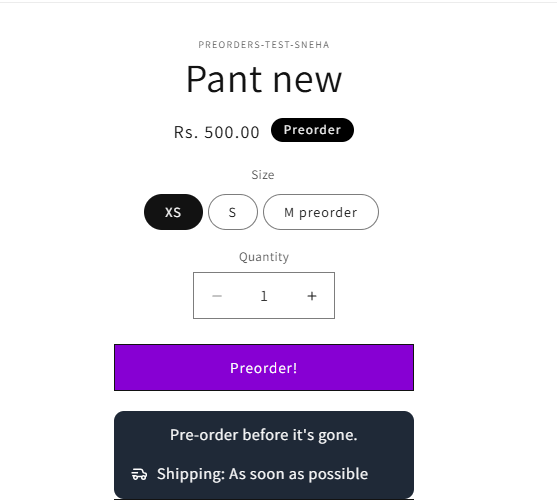
Check the button on your storefront
- Open one of the offer’s products on your live storefront, in an incognito window so you’re not seeing a cached or admin preview.
- Confirm the Preorder button has replaced “Add to cart”, with the button text, colors, badge, disclaimer, and shipping timeline you set.
If the button is missing, see Troubleshooting the preorder button.
-
Place a test order
- Buy the product yourself through the storefront, using the standard Add to cart then Checkout flow. Accelerated buttons like Shop Pay or Buy it now bypass the preorder purchase option, so the order won’t count as a preorder. To avoid a real charge, use a 100% discount code or turn on Shopify’s Bogus Gateway.
- Confirm the charge matches the payment type you chose: the full price, or the deposit amount.
- Go to Reports → Preorders → Orders in the STOQ dashboard and confirm the order is listed.
- Open the order in your Shopify admin and confirm its fulfillment status matches what you configured.
- Refund and cancel the test order when you’re done so it doesn’t skew your reports.
See Test your preorder offer for the full checklist.
Troubleshooting
Section titled “Troubleshooting”The Preorder button isn't showing
Check these:
- The STOQ app embed is enabled in your theme.
- Continue selling when out of stock is on for the product. See Fix preorder product warnings.
- The product is added to an offer.
- The offer’s status is Available now.
See Troubleshooting the preorder button if it’s still missing.
A payment option you expect is missing
Partial payment requires Shopify Payments and the Shopify purchase option, and letting customers choose between full and partial payment requires a paid plan. See Set up payment for preorders.
Fulfillment doesn't behave the way you expected for a mixed order (a preorder item bought together with an in-stock item)
Set a fulfillment option under Shipping, it decides what happens to the rest of the order. See Choose a fulfillment setup, or Separate orders for mixed preorders to split them into two orders.
Can I preorder in-stock products?
Yes. An offer can apply to in-stock products too, for example to take a deposit or sell ahead of a launch. Turn on Show ‘Preorder’ for in-stock products in the editor’s Inventory section. See Preorder inventory settings.
Can I schedule an offer to start later?
Yes. Use the offer’s schedule with start and end dates; until it starts, the offer shows as Scheduled. See Schedule when an offer runs.
Can one offer cover many products?
Yes. Add as many products as you like to an offer; they all share its payment, fulfillment, and display settings. See Add products to an offer.
Do I have to take a deposit?
No. Full payment is the default. Customers pay the whole amount at checkout. Deposits and partial payments are optional.
Related guides
Section titled “Related guides”Thanks for letting us know.
Still stuck? Ask Quinn or chat with support