
Schedule fulfillments
Use this guide if you want preorder fulfillments to become ready to ship on their own, without you checking dates and releasing them by hand. By the end, each preorder item's fulfillment status changes from Scheduled to Unfulfilled automatically on the date or number of days you set, while in-stock items in the same order still ship right away.
Before you begin
| Requirement | Detail |
|---|---|
| Shopify purchase option on | Required for Scheduled. Turning it off resets the status to Unfulfilled |
| Same timeline for all products | Scheduled is unavailable with per-product timelines, which offer only Unfulfilled or On hold |
| An existing preorder offer | Set the status on the offer, not on individual orders |
Some warehouse and 3PL systems import only Unfulfilled orders, so Scheduled fulfillments may not sync until they become Unfulfilled. Confirm your WMS or 3PL handles scheduled fulfillments before going live.
Choose your setup
Scheduled and On hold both delay a preorder fulfillment, but they release differently.
| Becomes fulfillable | In-stock items in the same order | |
|---|---|---|
| Scheduled | Automatically, on the date or days-after-purchase you set | Ship right away |
| On hold | When you release it manually, or on a date if you enable automatic release | Ship right away |
Use Scheduled when you know the date and want it to release itself. Use On hold when you want to control release yourself.
What customers will see
Scheduled is a backend/fulfillment setting, it does not change the storefront button, badge, or checkout flow. The only customer-visible piece is your shipping message, if you turn it on.
| Where | What appears |
|---|---|
| Product page | Normal preorder button and description. If Show shipping timeline is on, a shipping line with an icon shows under the description using your Customer-facing shipping info text, for example a date or "days after checkout" message with {{ date }} or {{ days }} filled in |
| Cart / checkout / order line item | If Show shipping timeline is on, the same shipping text is also added as a line item property, so it's visible on the cart, checkout, and order pages |
| Checkout | Normal Shopify checkout, Scheduled does not add steps, holds, or a different payment flow |
| Order status right after purchase | Not shown to the customer directly. Internally in Shopify the preorder item's fulfillment is Scheduled, and it changes to Unfulfilled automatically on the date or days you set |
Exact placement and styling of the shipping line follow your theme's product template.
Set it up
On a phone, this menu is collapsed. In the Shopify mobile app, tap the STOQ logo at the top of the screen to open it, then choose the section named below. There is no hamburger icon. See Finding the STOQ menu.
Open the offer's Shipping section
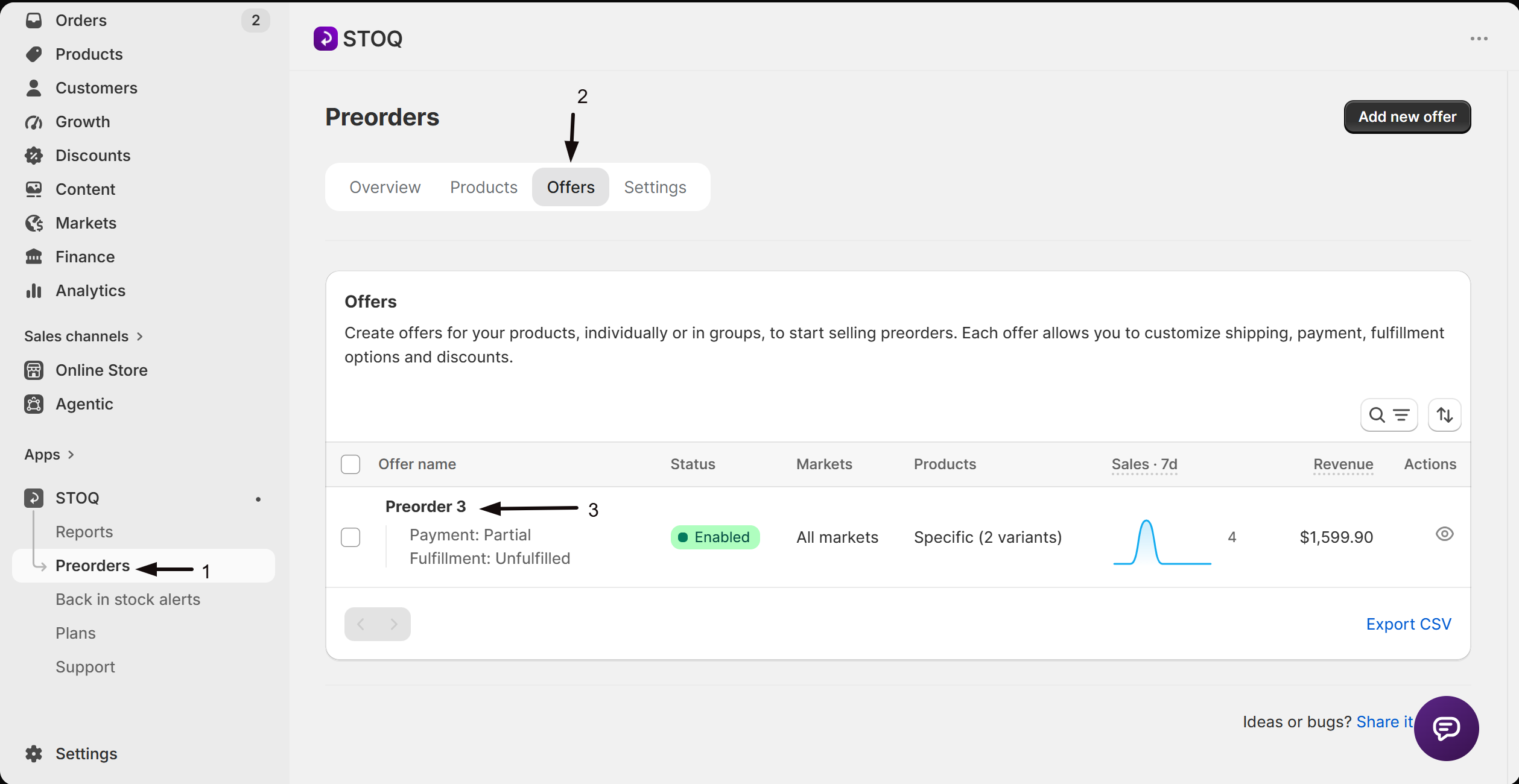
- In the left menu bar of the STOQ app, click Preorders.
- Click the Offers tab.
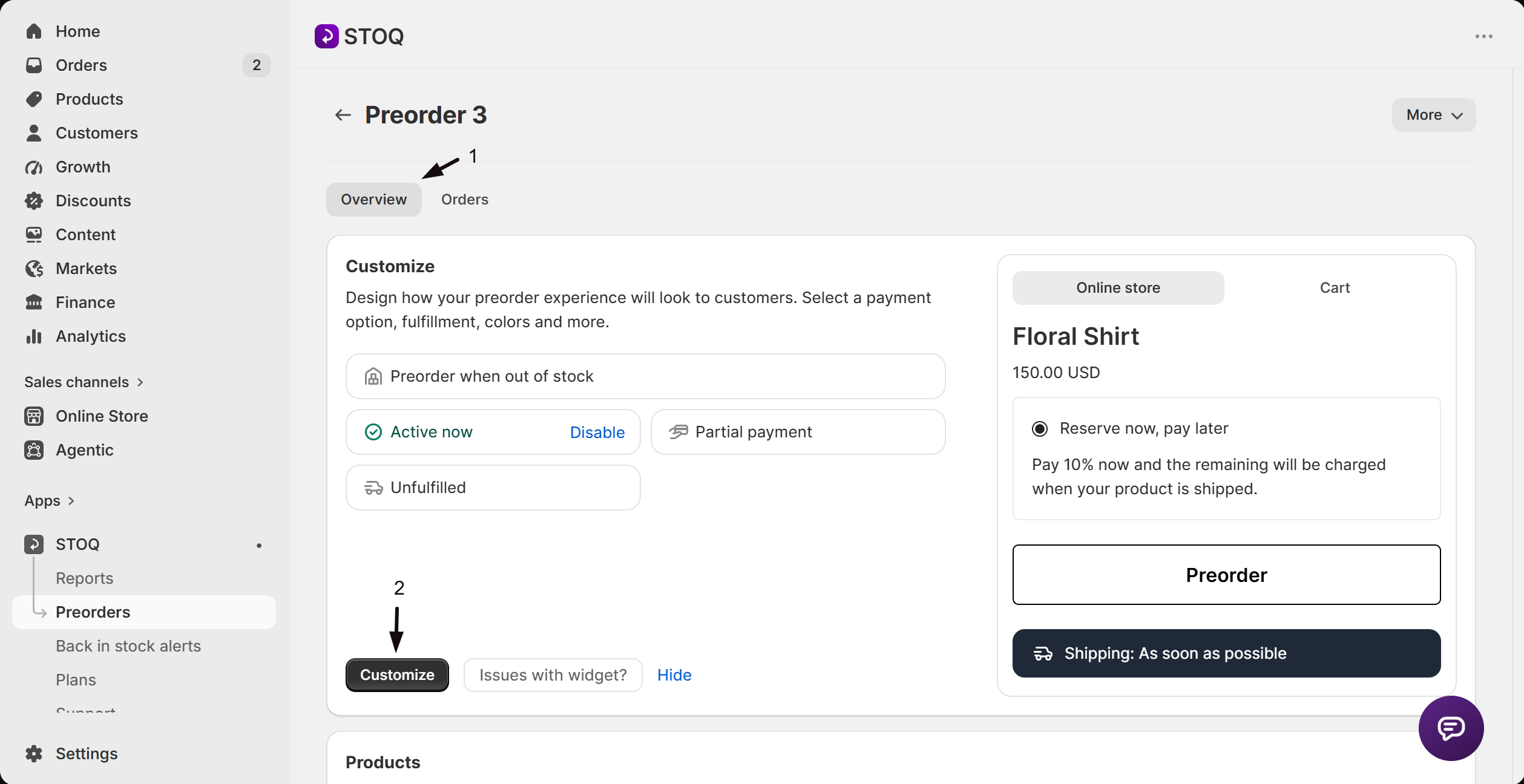
- Click the offer you'd like to edit to open its Overview tab (this shows the Customize button, a live preview, and the offer's Products section).
- Click Customize to open the editor.
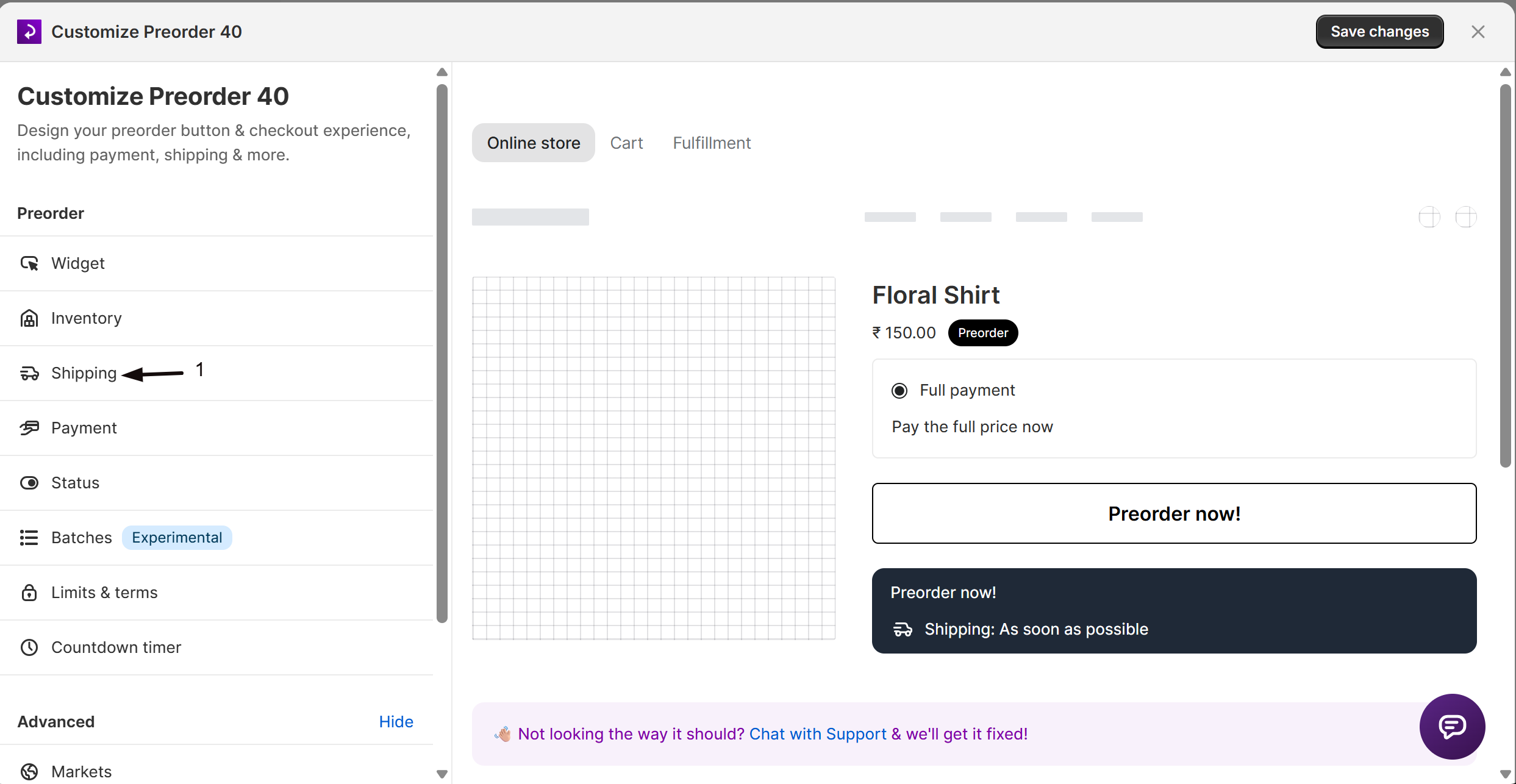
- In the editor's sidebar, click Shipping.
Use one timeline for all products
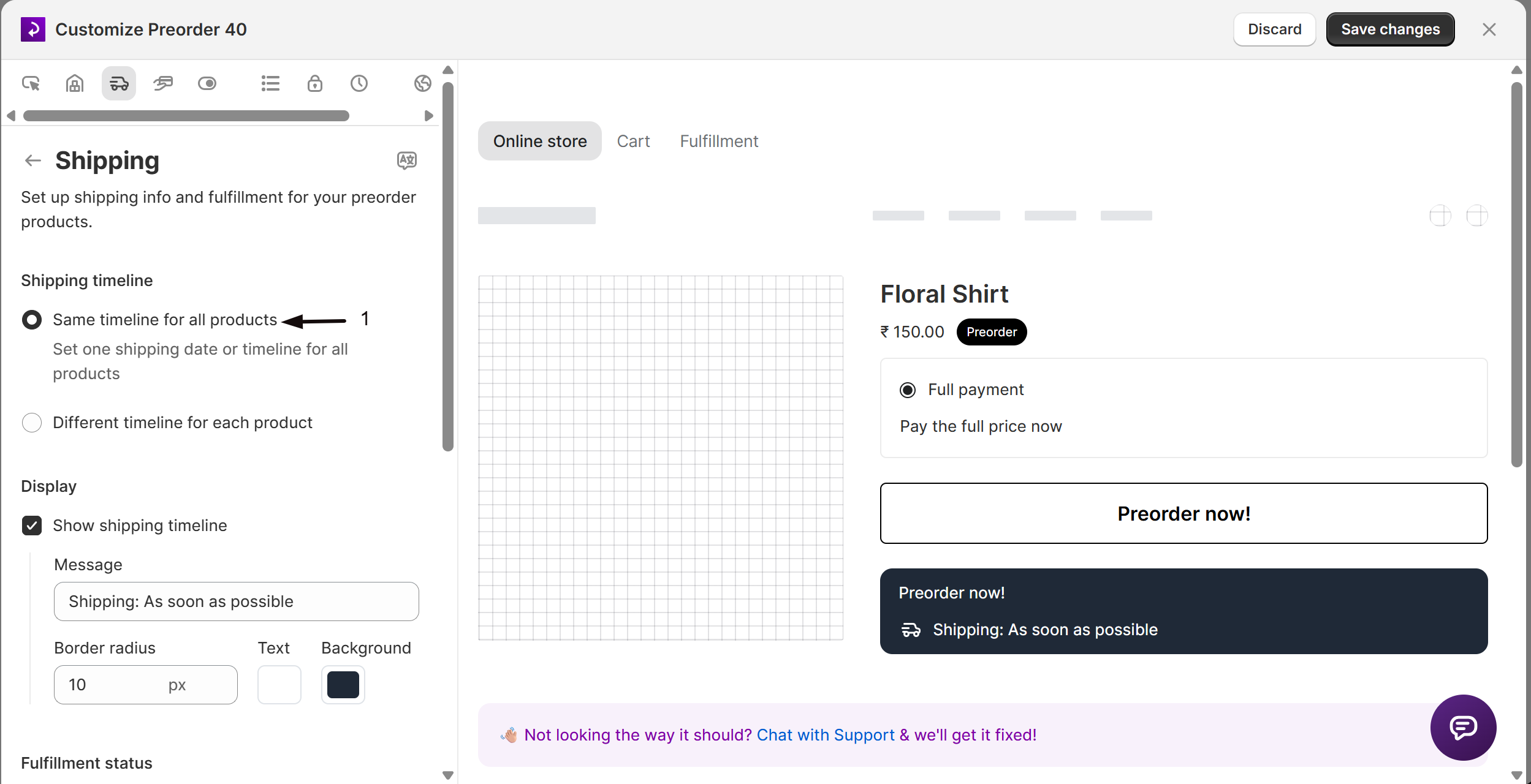
Under Shipping timeline, select Same timeline for all products. Scheduled is not available with per-product timelines.
Set the fulfillment status
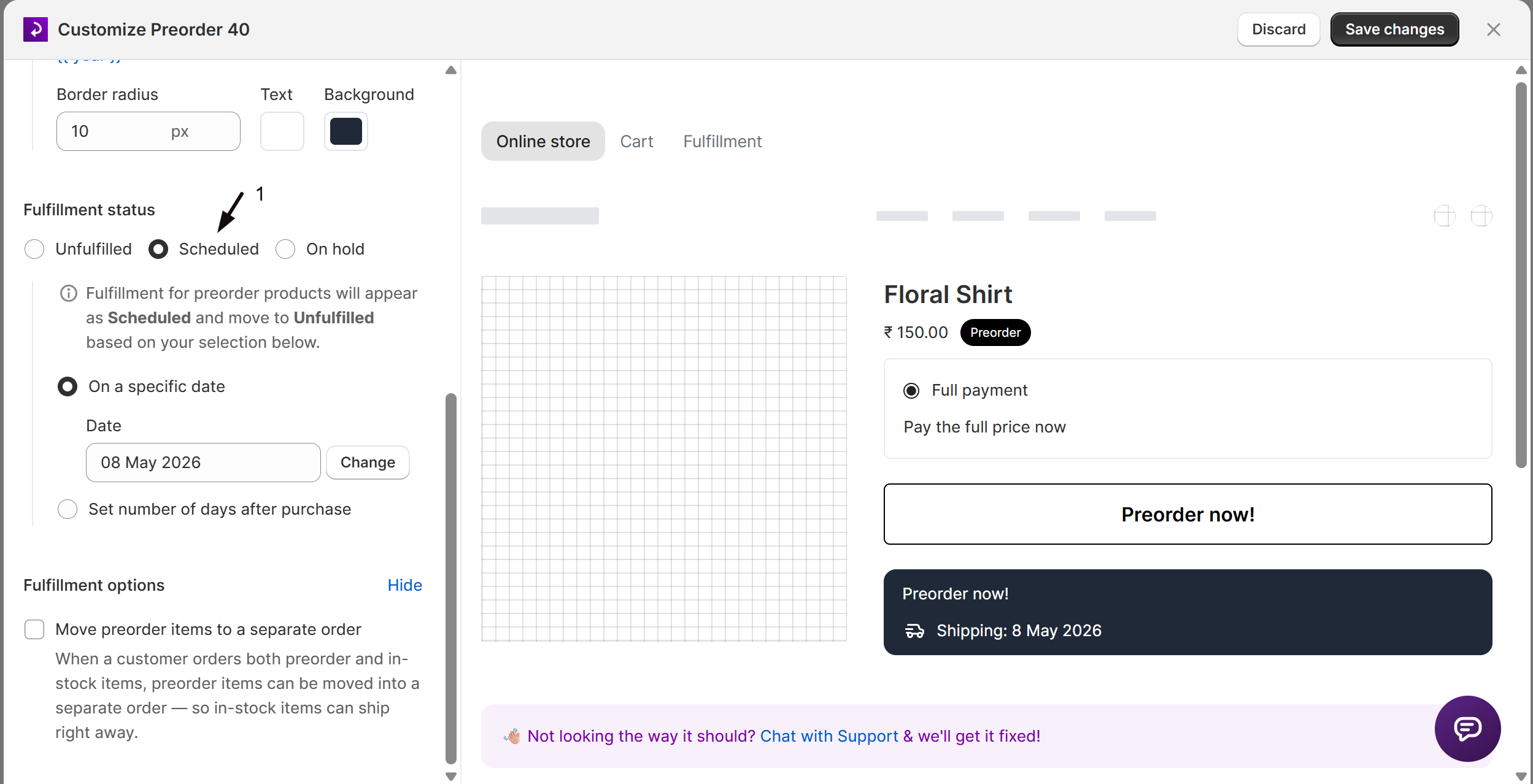
Under Fulfillment status, select Scheduled. A note confirms the fulfillment will appear as Scheduled and move to Unfulfilled based on the date you set.
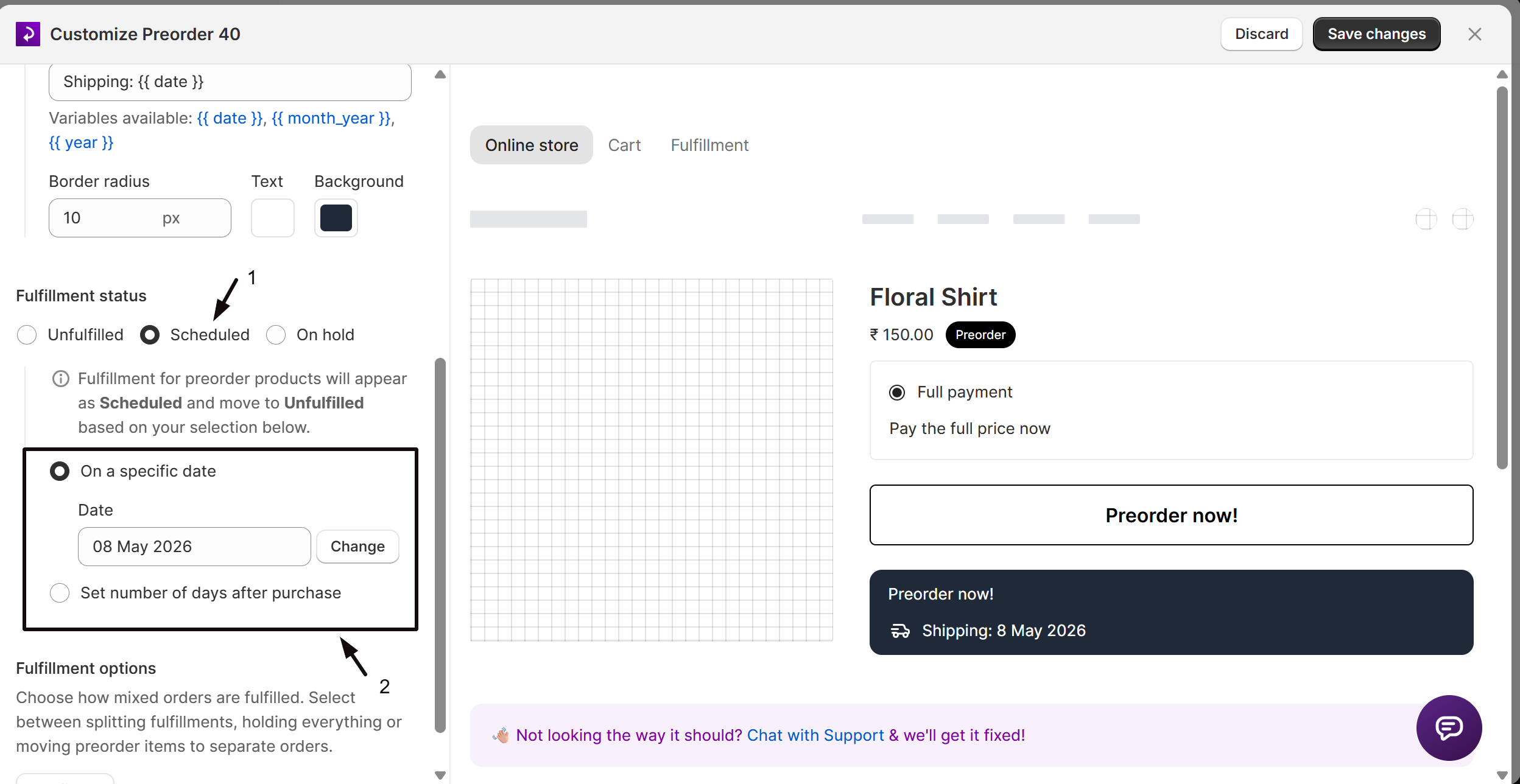
Choose when it becomes fulfillable
Pick one:
- On a specific date: choose the date the fulfillment becomes Unfulfilled.
- Set number of days after purchase: enter the number of days after checkout, for example 7.
Save changes
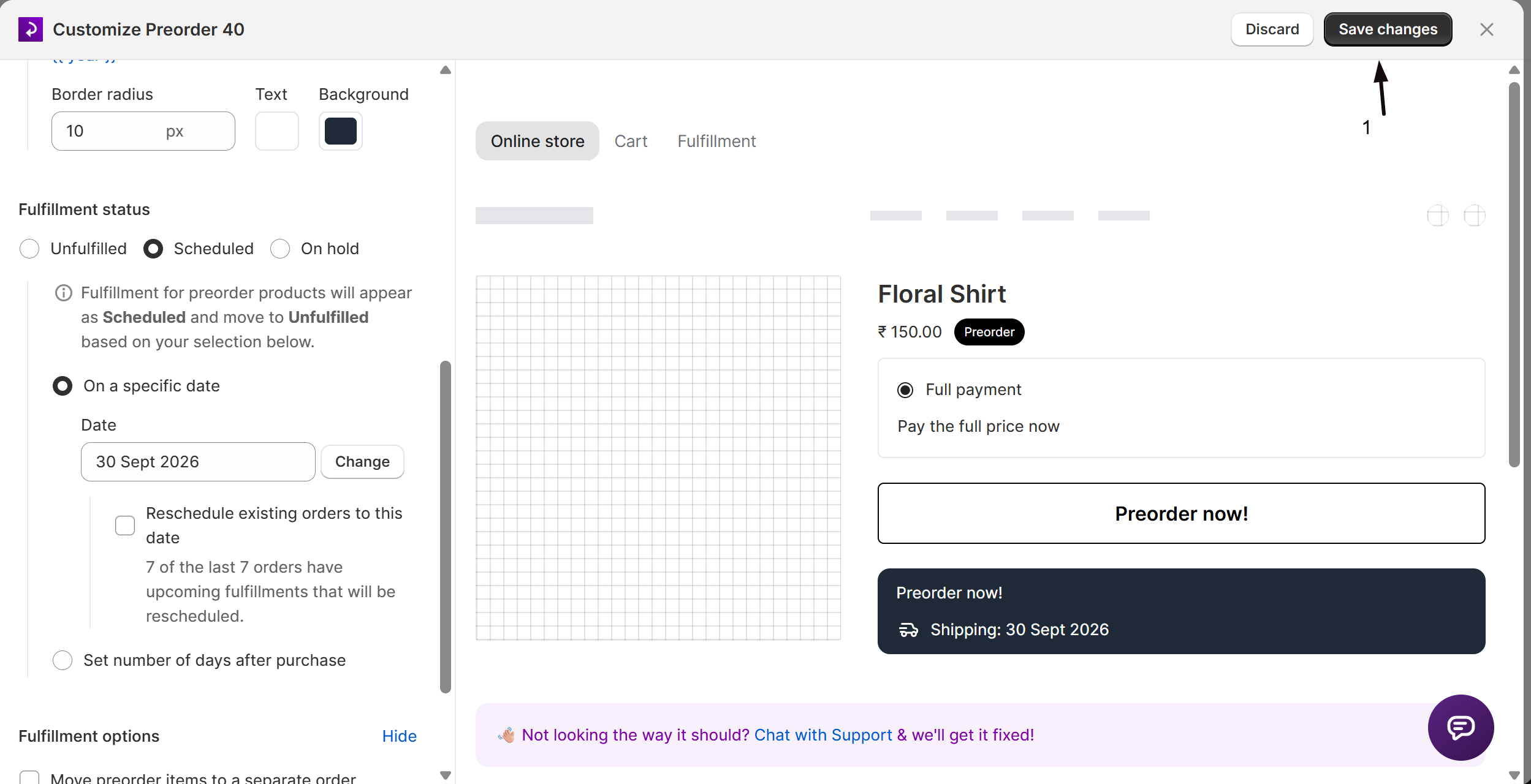
Click Save changes at the top right of the editor. The status applies to orders placed after you save, not to existing orders.
The date or day count you set is the automatic release, not a restriction: you can still fulfill an order any time before then. Once a fulfillment is Unfulfilled, either automatically or because you fulfilled it early, ship it like a normal order.
Check your setup
Save the offer with Scheduled status and a near-term date, or a short days-after-purchase window, so you don't have to wait long to see it release. Place a test order (a 100% discount code or Shopify's Bogus Gateway avoids a real charge) and confirm in Shopify admin, under Orders, that its fulfillment shows as Scheduled. Wait for your date or day count to pass, or fulfill the item directly, and confirm the fulfillment updates as expected.
You can also track scheduled orders in STOQ under Reports → Preorders → Orders, filtered by fulfillment status, or from a single offer's own Orders tab (Preorders in the left menu → Offers tab → open the offer → Orders).
Troubleshooting
Scheduled isn't available as an option
Turn on the Shopify purchase option, and set Shipping timeline to Same timeline for all products. Scheduled doesn't appear with the purchase option off or with per-product timelines.
Your warehouse or 3PL isn't picking up scheduled orders
Many WMS and 3PL systems import only Unfulfilled orders. Confirm yours supports Scheduled, or expect the order to sync once the fulfillment flips to Unfulfilled.
You need to split or hold the whole order
Split fulfillments and Hold all fulfillments aren't available while using Scheduled. Use Unfulfilled with Split fulfillments to split an order, or switch to On hold to hold the whole thing.
An order needs to ship before its scheduled date
Fulfill it directly at any time, or release a batch early with the Open scheduled fulfillments bulk action. See Release held fulfillments.
You need to move the date for orders already placed
Reschedule from the orders report, or update the offer's date and tick "Reschedule existing orders to this date." See Reschedule preorder fulfillments.
FAQ
Does turning on Scheduled affect orders I've already placed?
No. It applies only to orders placed after you save; existing orders keep the fulfillment status they were created with.
Do in-stock items in the same order wait until the scheduled date?
No. Scheduled affects only the preorder items. In-stock items in the same order ship right away.
Is the date the same for every order, or does it depend on when the customer bought?
It depends which option you pick. On a specific date gives every order the same fixed date. Set number of days after purchase rolls the target date forward each day, so an order placed later gets a later date, roughly that many days out from when it was placed. Orders placed on the same day share the same date.
Does the scheduled date charge the customer?
No. The fulfillment date only controls when the item becomes fulfillable. Payment timing, including any balance due date, is set separately in the offer's Payment section.
Can I change the scheduled date after orders are placed?
Yes. Reschedule existing orders from the orders report, or change the offer's date and tick "Reschedule existing orders to this date." See Reschedule preorder fulfillments.
