How to exclude specific products from “All Products” preorder flow

When your preorder offer is set to track all products, STOQ automatically monitors every product in your store and enables preorders when items go out of stock. But some products may not be suitable for preorders — like discontinued items, gift cards, or bundles. You can exclude products from the all products preorder flow using tags or by choosing specific products so they are never offered as preorders.


How Product Exclusions Work


Product exclusions let you prevent specific products from being tracked by an "All products" preorder offer. STOQ provides two ways to exclude products:


  • Exclude specific products — Manually pick individual products or variants to exclude from the offer.
  • Exclude by tag — Enter one or more Shopify product tags. Any product with a matching tag is automatically excluded.


Both methods can be used together. Excluded products will not appear as preorder items, even when they go out of stock.


Note: Exclusion settings are only available when the offer's product source is set to All products. If you use "Specific products" or "Collection" as the source, exclusions are not needed since you already control which products are included.


Requirements


Before you can set up exclusions, make sure:


  • You have an existing preorder offer with the product source set to All products.
  • You are on a paid STOQ plan (required for the All products tracking mode).


Exclude Specific Products


Follow these steps to manually choose products to exclude from the all products preorder flow.


Steps


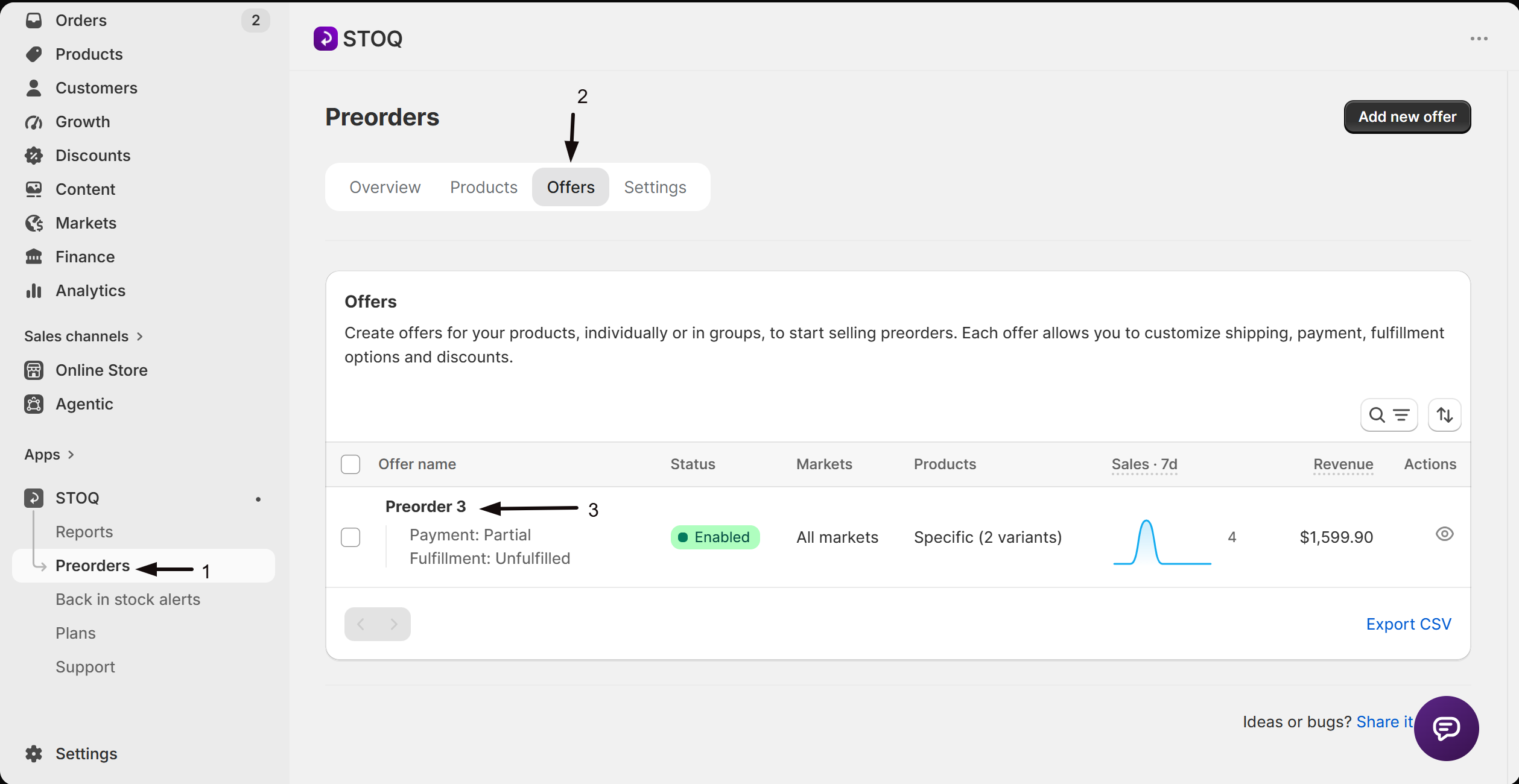
  1. Open the STOQ app in your Shopify admin.
  2. Go to Preorders > Offers.
  3. Click on the offer that uses All products as its product source.
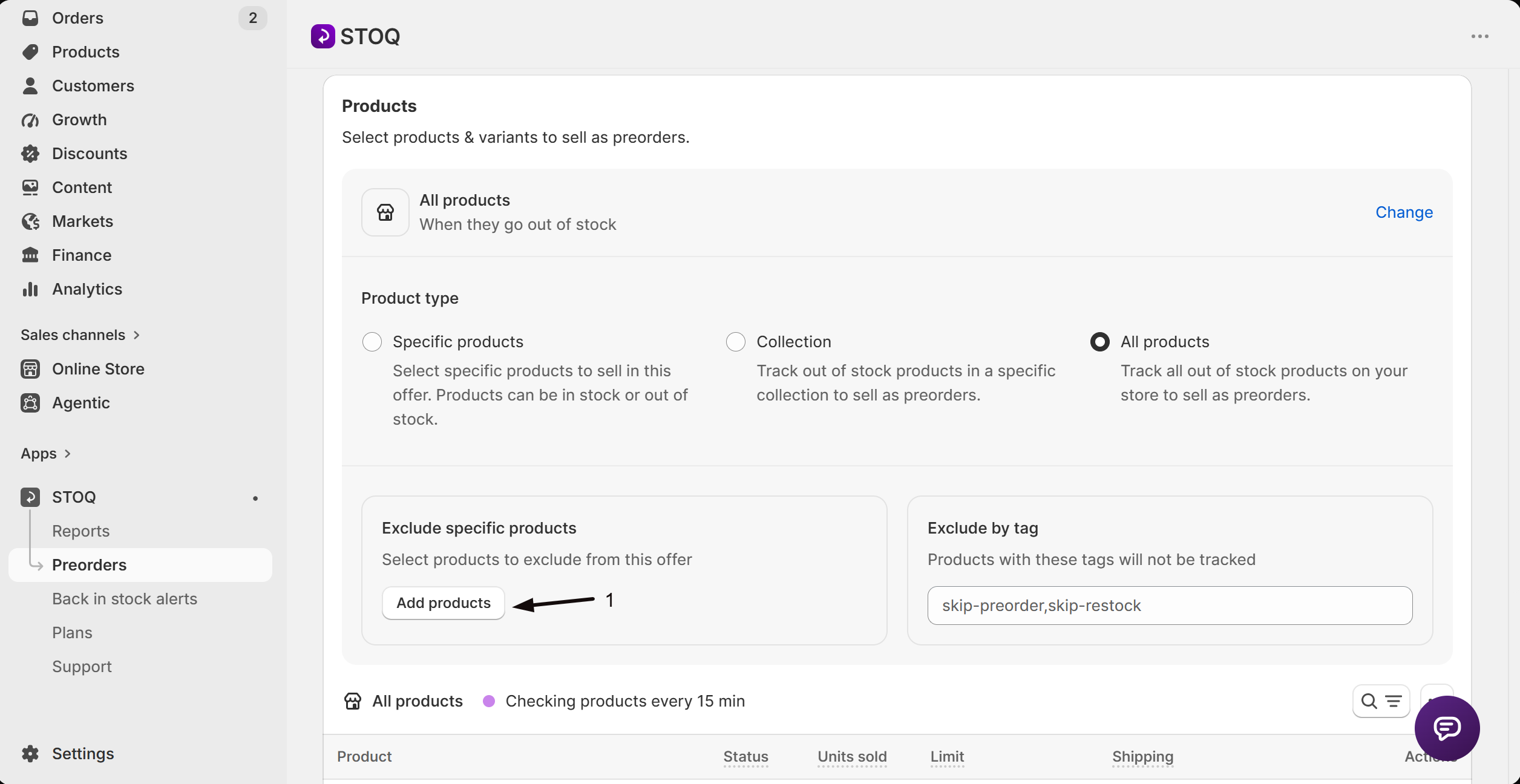
  4. In the offer editor, open the Products tab.
  5. Click the Settings button to expand the product source settings.
  6. Scroll down to the exclusion settings section (below the product source options).
  7. Under Exclude specific products, click Add products.
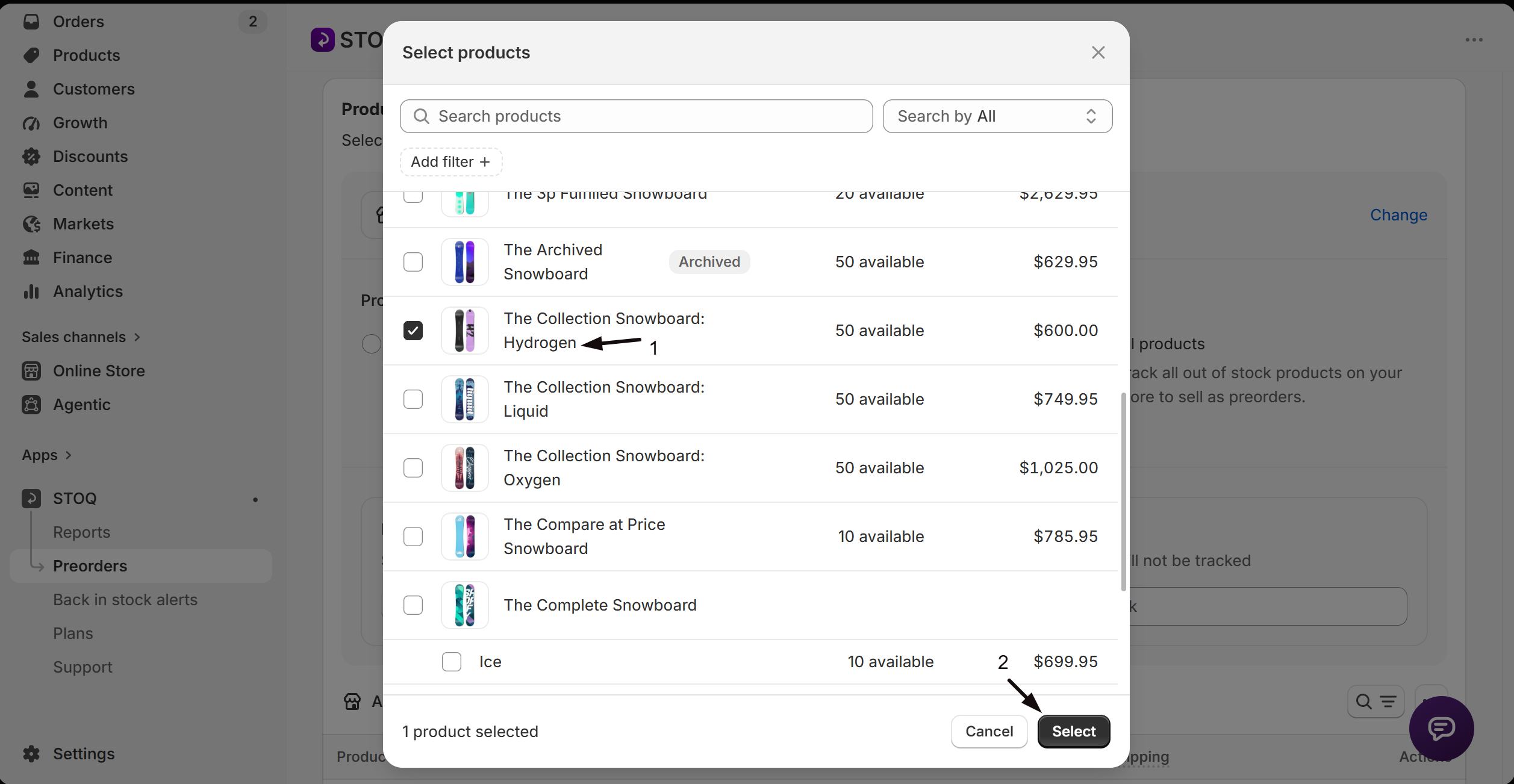
  8. In the product picker, select the products you want to exclude.
  9. Click Select to confirm.
  10. Click Save to apply the changes.


Once saved, the selected products and their variants will be excluded from tracking. They will not be made available for preorder even when out of stock.


View and Remove Excluded Products


After you have excluded specific products, you can view and manage the list.


View Excluded Products


  1. In the offer's Products tab, expand the Settings section.
  2. Under Exclude specific products, click View.
  3. A modal opens showing all excluded variants with their product names and images.


Remove a Single Product from Exclusions


  1. Open the excluded products modal by clicking View.
  2. Find the variant you want to stop excluding.
  3. Click Remove next to that variant.


The variant is immediately removed from the exclusion list and will be tracked for preorders again after you save.


Clear All Exclusions


  1. Open the excluded products modal by clicking View.
  2. Click Clear all in the modal header.


This removes all manually excluded products at once.


Exclude Products by Tag


You can also exclude products from the all products preorder flow using Shopify product tags. This is useful when you want to exclude a large group of products without picking them one by one.


Steps


  1. Open the STOQ app in your Shopify admin.
  2. Go to Preorders > Offers.
  3. Click on the offer that uses All products as its product source.
  4. In the offer editor, open the Products tab.
  5. Click the Settings button to expand the product source settings.
  6. Scroll down to the exclusion settings section.
  7. Under Exclude by tag, enter one or more product tags in the Product tags field.
  8. Separate multiple tags with commas (e.g., skip-preorder,skip-restock).
  9. Click Save to apply the changes.


Any product in your Shopify store that has a matching tag will be automatically excluded from this preorder offer.


Tip: To add tags to products in Shopify, go to Products in your Shopify admin, select the products, and add the tag (e.g., skip-preorder). STOQ checks for matching tags when scanning your store.


Use Both Exclusion Methods Together


You can combine both methods for maximum flexibility:


  • Use tags for broad categories of products you never want on preorder (e.g., all gift cards tagged skip-preorder).
  • Use specific products for individual items that do not fit a tagging pattern.


STOQ merges both exclusion lists automatically. A product is excluded if it matches either method.


What Happens When You Change the Product Source


Exclusion settings are tied to the All products product source. If you change the offer's product source from "All products" to "Specific products" or "Collection," all exclusion settings (both tags and specific products) are automatically cleared.


If you switch back to "All products" later, you will need to set up exclusions again.


Troubleshooting


Problem

Solution

Exclusion settings are not visible

The exclusion section only appears when the offer's product source is set to All products. Check the product source in the Settings section of the Products tab.

Excluded product still shows as preorder

Make sure you clicked Save after adding the exclusion. STOQ updates tracking after the offer is saved.

Tag-based exclusion is not working

Verify the tag on the product in Shopify matches exactly what you entered in STOQ (tags are case-sensitive). Also confirm the offer is saved.

Cannot find the "Add products" button

Expand the Settings section in the Products tab first. The exclusion options are inside the settings panel, below the product source radio buttons.

Exclusions disappeared after changing product source

Exclusion settings are cleared when you switch away from "All products." If you switch back, you will need to re-add your exclusions.


FAQs


Q : Can I exclude products from a "Specific products" or "Collection" offer?

A : No. Exclusion settings are only available for offers with the product source set to All products. For "Specific products" or "Collection" offers, you control inclusion directly by choosing which products or collections to add.


Q : Do exclusions apply to all variants of a product?

A : When you exclude a product using the Add products picker, all variants of that product are excluded. When using tags, any product with the matching tag is excluded along with all of its variants.


Q : Can I use multiple tags to exclude products?

A : Yes. Enter multiple tags separated by commas in the Product tags field (e.g., skip-preorder,skip-restock). Any product that has any of the listed tags will be excluded.


Q : Will excluded products still appear in my STOQ reports?

A : Excluded products are not tracked for preorders, so they will not generate preorder data in STOQ reports. If a product was previously tracked before being excluded, its historical data remains.


Q : How often does STOQ check for tag-based exclusions?

A : STOQ checks your product tags when scanning your store for out-of-stock products (approximately every 15 minutes). Tag changes in Shopify are picked up during the next scan cycle.


Updated on: 23/04/2026

Was this article helpful?

Share your feedback

Cancel

Thank you!