Articles on: Alerts

Turn off SMS alerts

STOQ lets customers sign up for back in stock alerts via SMS in addition to email. If you no longer want to send text message notifications, you can turn off SMS alerts from the Channels settings. Turning off SMS alerts removes the phone number field from your signup popup and stops all outgoing SMS notifications for back in stock products.


Why Turn Off SMS Alerts


There are several reasons you may want to disable SMS notifications for your store.


  • Cost control. SMS alerts incur per-message charges that vary by country. If costs are adding up, disabling SMS reduces your monthly bill immediately.
  • Low SMS adoption. If most of your customers sign up with email and very few use SMS, you may prefer to simplify the signup form by removing the phone number field.
  • Carrier verification delays. STOQ requires carrier verification before SMS alerts can be sent. If verification is taking longer than expected, you may want to disable SMS until it completes.
  • Seasonal or temporary pause. During slow periods or when your store is closed, turning off SMS prevents unnecessary charges while you are not fulfilling orders.
  • Switching to email only. If you decide to consolidate your notification strategy to email, disabling SMS keeps your signup form clean and focused.


Prerequisites


Before turning off SMS alerts, confirm the following.


  • The STOQ app is installed and active on your Shopify store.
  • You are on a paid STOQ plan (Lite, Standard, or Pro). The SMS toggle is only available on paid plans. If you are on the free plan, SMS is already disabled.


How to Turn Off SMS Alerts


Follow these steps to disable SMS notifications for back in stock alerts.


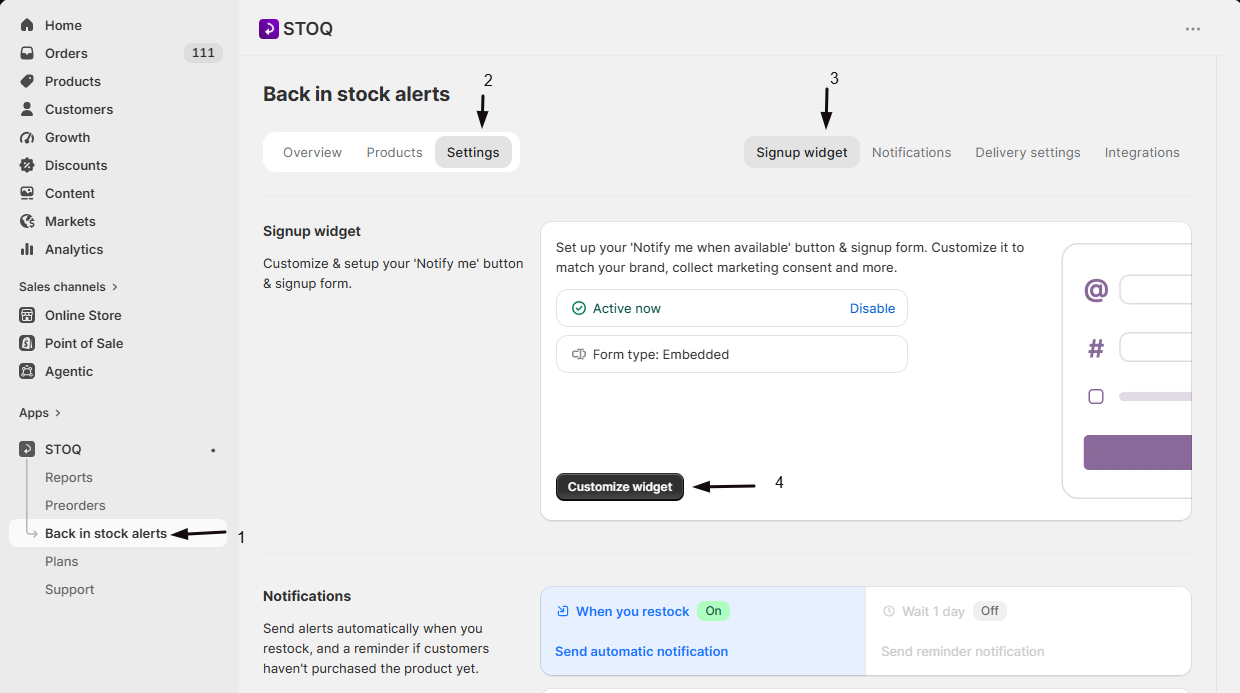
  1. Open the STOQ app from your Shopify admin.
  2. Click Back in stock alerts in the left menu bar.
  3. Click the Signup widget tab.
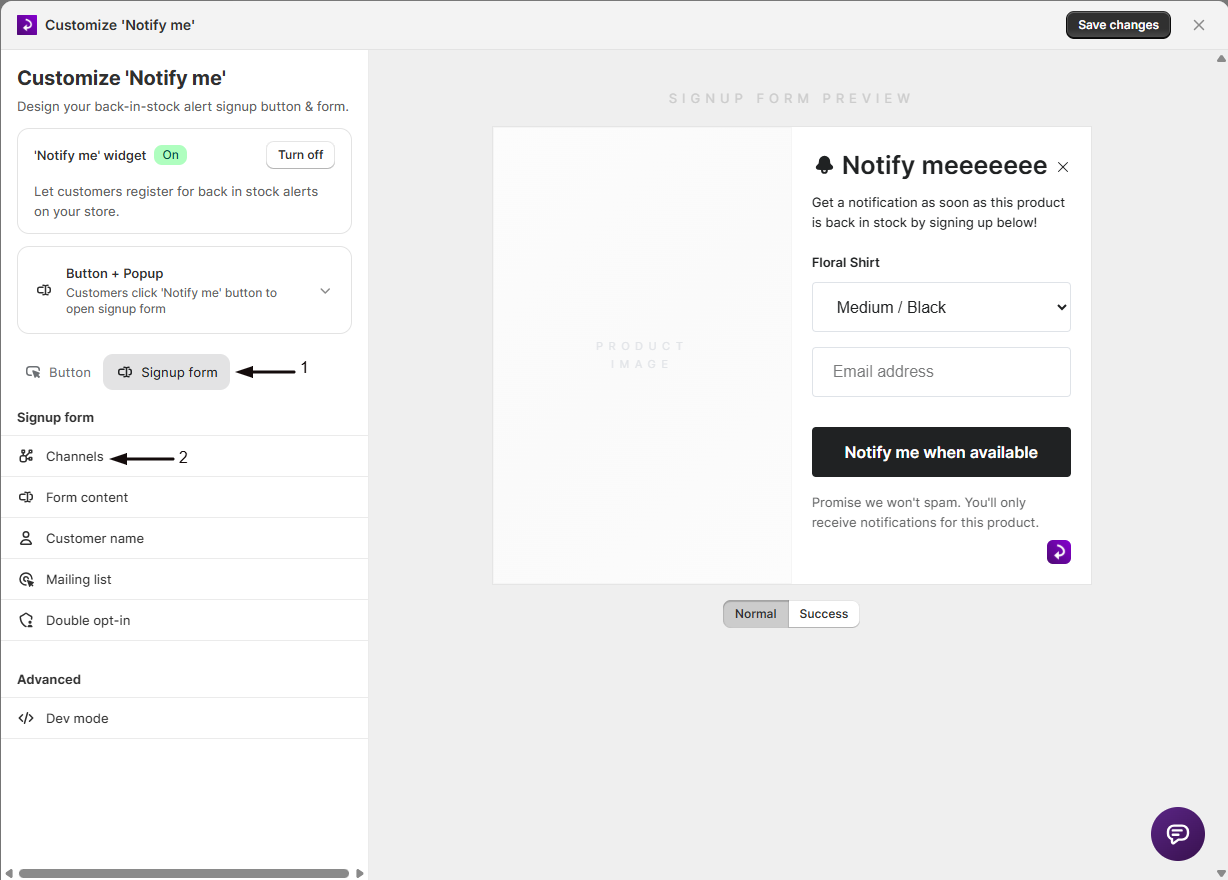
  4. Click the Customize form button.
  5. In the form customization panel on the left, click the Channels section.
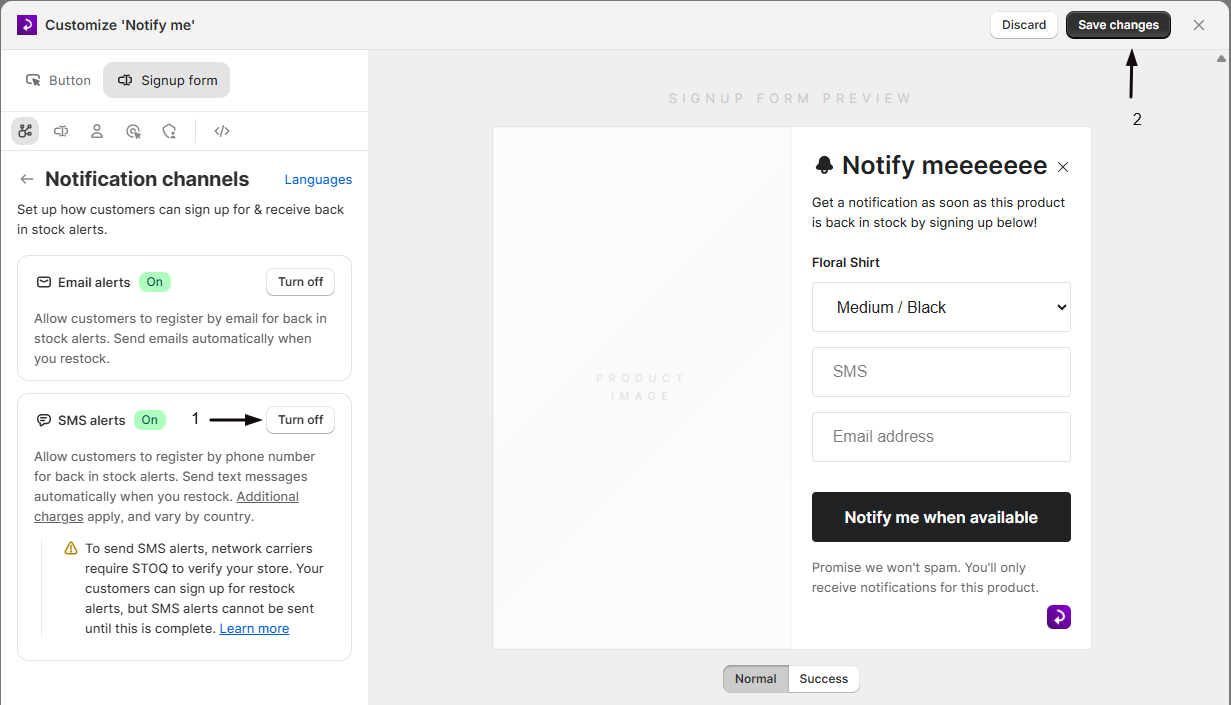
  6. Find the SMS alerts toggle and switch it to off.
  7. Click the Save button at the top of the page.


Tip: After saving, visit your storefront and confirm that the phone number field no longer appears in the signup popup on an out-of-stock product page.


What Happens When SMS Alerts Are Turned Off


When you disable SMS alerts, the following changes take effect immediately after saving.


  • Phone number field is removed. Customers will no longer see a phone number input in the signup popup. Only email (and push, if enabled) will be available as signup options.
  • No new SMS signups. Customers cannot register their phone number for back in stock alerts while SMS is disabled.
  • No SMS notifications sent. STOQ will not send any text message notifications when products are restocked, even if customers previously signed up with their phone number.
  • Existing signups are preserved. Customer phone number signups are not deleted. If you re-enable SMS later, those signups will still be in your Reports and can receive notifications.
  • Email alerts are not affected. Disabling SMS has no impact on email alerts. Customers who signed up with their email will continue to receive email notifications as usual.
  • SMS charges stop. You will not incur any new SMS charges once the toggle is off and the setting is saved.


Important: Turning off SMS alerts does not cancel SMS notifications that are already queued or in progress. If alerts were triggered just before you disabled SMS, they may still be delivered.


How to Re-enable SMS Alerts


If you want to start sending SMS alerts again, follow the same steps and toggle SMS alerts back to on.


  1. Open the STOQ app from your Shopify admin.
  2. Click Back in stock alerts in the left menu bar.
  3. Click the Signup widget tab.
  4. Click the Customize form button.
  5. Click the Channels section.
  6. Switch the SMS alerts toggle to on.
  7. Click the Save button.


When you re-enable SMS alerts:


  • The phone number field reappears in the signup popup on your storefront.
  • Customers can sign up for SMS alerts again.
  • Back in stock SMS notifications will resume for future restocks.
  • Previously saved phone number signups will be eligible to receive notifications on the next restock.


Note: If your store has not yet completed carrier verification, a warning banner will appear after enabling SMS. Customers can sign up with their phone number during this time, but SMS alerts will not be sent until verification is complete.


SMS Alerts and Plan Changes


Your STOQ plan affects whether SMS alerts are available.


  • Paid plans (Lite, Standard, Pro). SMS alerts can be enabled or disabled from the Channels section.
  • Free plan. SMS alerts are not available. The toggle is disabled and cannot be turned on. If you downgrade from a paid plan to the free plan, SMS alerts are automatically turned off.
  • Usage charge limits. If your store exceeds the SMS usage charge limit, STOQ may automatically disable SMS alerts to prevent unexpected costs. You will receive an email notification if this happens. Re-enable SMS from the Channels section once the issue is resolved.


Known Limitations


Keep these points in mind when turning off SMS alerts.


  • Turning off SMS alerts is a global setting. It applies to all products. You cannot disable SMS for specific products while keeping it on for others.
  • Disabling SMS does not delete existing phone number signups. To remove customer data, you must do so manually from the Reports page.
  • SMS alerts for preorders are managed separately. Turning off SMS in the Channels section only affects back in stock alerts. Preorder SMS has its own toggle in the Preorders section.
  • If you re-enable SMS, you may need to wait for carrier verification before alerts can be sent. Customers can still sign up during verification.
  • The Email alerts toggle is separate from SMS. Turning off SMS does not affect email, and vice versa.
  • SMS charges are based on the number of message segments sent. Turning off SMS stops new charges but does not refund charges for messages already sent.


Troubleshooting


If you are having trouble with the SMS alerts toggle, use this table to find a fix.


Symptom

Likely Cause

Fix

SMS alerts toggle is greyed out

You are on the free plan

Upgrade to a paid plan (Lite, Standard, or Pro) to access SMS alerts

Phone number field still appears after turning off SMS

Changes were not saved

Click Save at the top of the page after toggling SMS off

SMS alerts were turned off automatically

Store exceeded the SMS usage charge limit, or plan was downgraded to free

Check your email for a notification from STOQ, then re-enable SMS in Channels if needed

Verification banner appears after enabling SMS

Carrier verification is required before SMS alerts can be sent

Wait for verification to complete. Customers can sign up in the meantime. Contact support if verification takes more than a few days

Customers say they are not receiving SMS

SMS alerts are disabled, or store is not verified

Check the SMS alerts toggle in Channels and confirm your store has completed carrier verification

Existing SMS signups disappeared after disabling

Signups are not deleted, but phone number signups may not be visible if filtered

Check the Reports page and clear any active filters to see all signups


FAQs


Common questions about turning off SMS alerts in STOQ.


Q: Does turning off SMS alerts delete customer phone numbers?

A: No. Disabling SMS alerts only stops new signups and outgoing SMS notifications. All existing phone number signups are preserved in your Reports. If you re-enable SMS later, those customers can be notified on the next restock.


Q: Will I still be charged for SMS after turning it off?

A: No. Once SMS alerts are off and saved, no new SMS messages will be sent, so no new charges will be incurred. However, any messages sent before you disabled SMS may still appear on your current billing cycle.


Q: Does turning off SMS also turn off email alerts?

A: No. SMS and email are separate channels. Disabling SMS has no effect on email alerts. Your customers will continue to receive email notifications as usual.


Q: Does this affect preorder SMS notifications?

A: No. The SMS alerts toggle in the Channels section only controls back in stock SMS alerts. Preorder SMS notifications are managed separately in the Preorders > Notifications section.


Q: Can I turn off SMS for specific products only?

A: No. The SMS alerts toggle is a global setting that applies to all products in your store. You cannot enable or disable SMS on a per-product basis.


Q: What happens to customers who already signed up via SMS?

A: Their signups remain in your system. If you re-enable SMS later, those customers will be eligible to receive back in stock SMS notifications the next time their product is restocked. You can also send notifications to them manually from the Reports page (if SMS is re-enabled).


Q: Do I need a paid plan to use SMS alerts?

A: Yes. SMS alerts require a paid STOQ plan (Lite, Standard, or Pro). The toggle is disabled on the free plan. If you downgrade to the free plan, SMS alerts are automatically turned off.


Q: Why was SMS turned off automatically on my store?

A: STOQ may automatically disable SMS alerts if your store exceeds the SMS usage charge limit. You will receive an email notification when this happens. To re-enable SMS, go to the Channels section and toggle SMS alerts back on. You can also contact support for more details about usage limits.


Updated on: 25/02/2026

Was this article helpful?

Share your feedback

Cancel

Thank you!