Preorders on Shopify POS
Use STOQ's Shopify POS tile to take preorders at the register at your physical retail locations.
Last updated
Use this guide to add STOQ’s Add preorder to cart tile to your Shopify POS devices so staff can take a preorder at the register. It adds a preorder item to the POS cart with all its preorder details attached, so staff complete checkout as normal. It works entirely on the POS device, with no extra configuration in the Shopify admin beyond adding the tile.
Before you begin
Section titled “Before you begin”| Prerequisite | Details |
|---|---|
| Shopify POS app | Shopify POS must be installed on your device. Get it from apps.shopify.com/shopify-pos. |
| STOQ installed | Restock Rocket (STOQ) must be installed on your Shopify store. |
| Active preorder offer (for preorders) | You must have at least one enabled preorder offer before the preorder tile can add products to a POS cart. See Set up preorders. |
| Offer POS setting enabled (for preorders) | Each preorder offer has a per-offer Sell preorders on POS toggle (enabled by default). Confirm it is on for the offers whose products you want to sell at POS. See Preorders on POS, B2B, and with Bundles. |
What customers will see
Section titled “What customers will see”| Situation | What happens |
|---|---|
| Preorder line item | If the offer has a shipping or delivery timeline configured, that text appears on the order’s line item details, visible in the order receipt. |
| No native selling plan | Shopify POS doesn’t support selling plans at checkout, so a POS preorder never shows the subscription-style selling plan block customers see on an online preorder. STOQ still tracks and manages the order as a preorder internally. |
| Deposit at checkout | Not available. POS always collects full payment; see Limitations. |
Set it up
Section titled “Set it up”Add the preorder tile to your POS device
Section titled “Add the preorder tile to your POS device”-
Open the Shopify POS app
On your POS device, open the Shopify POS app so you’re on the home screen (the smart grid of tiles).
-
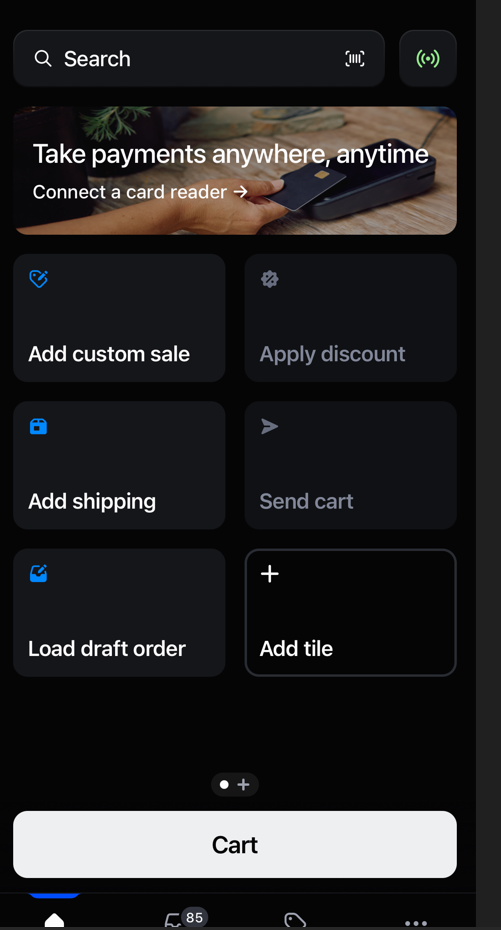
Tap Add tile
Tap Add tile on the POS home screen.
-
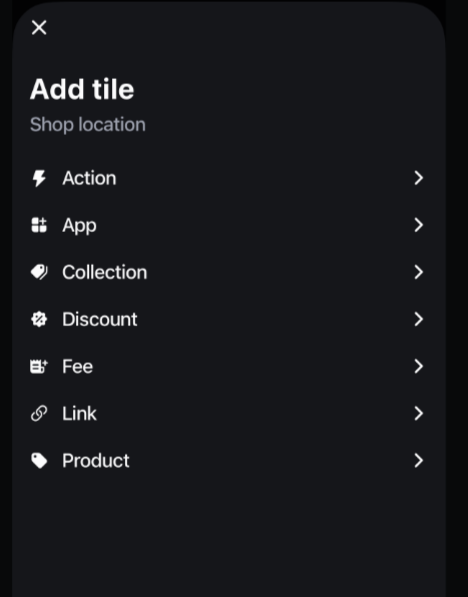
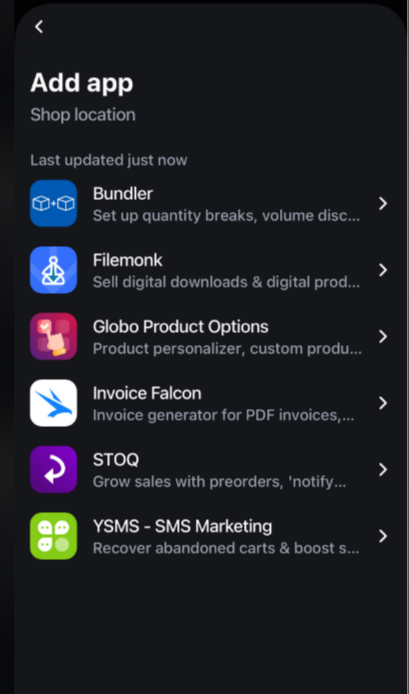
Choose App, then STOQ
- Tap App.
- Choose STOQ from the app list.
-
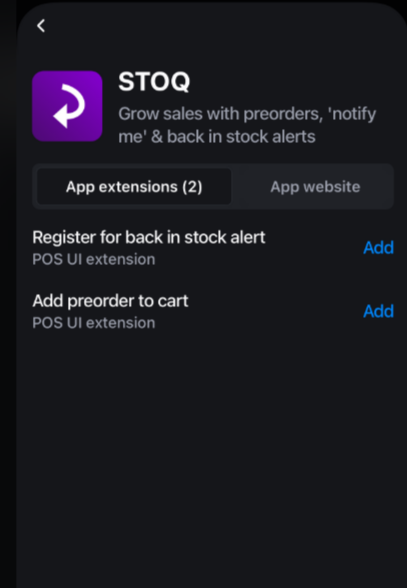
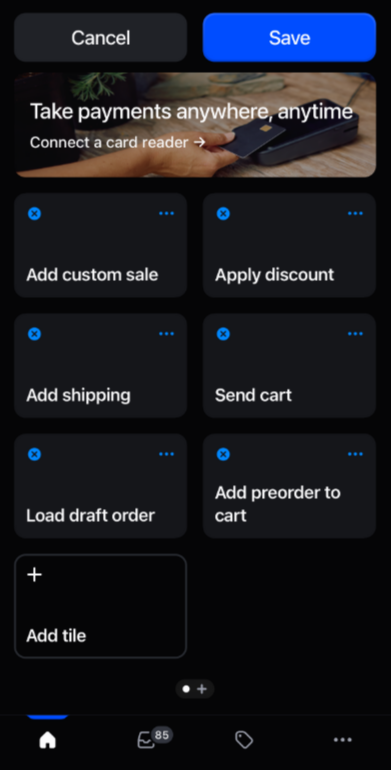
Add the ‘Add preorder to cart’ tile
Tap Add next to Add preorder to cart, then tap Save.
-
Confirm the tile is on your POS home screen
The Add preorder to cart tile now appears on your POS home screen and is ready to use.
Enable POS selling on the offer
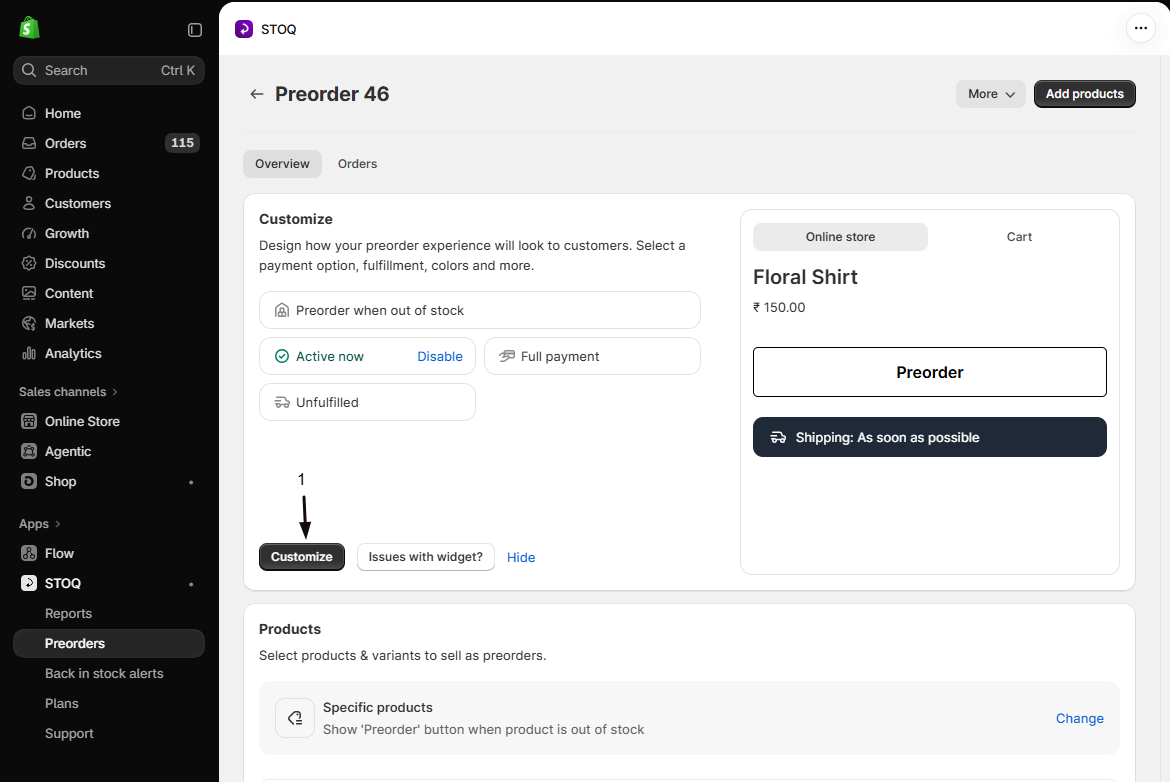
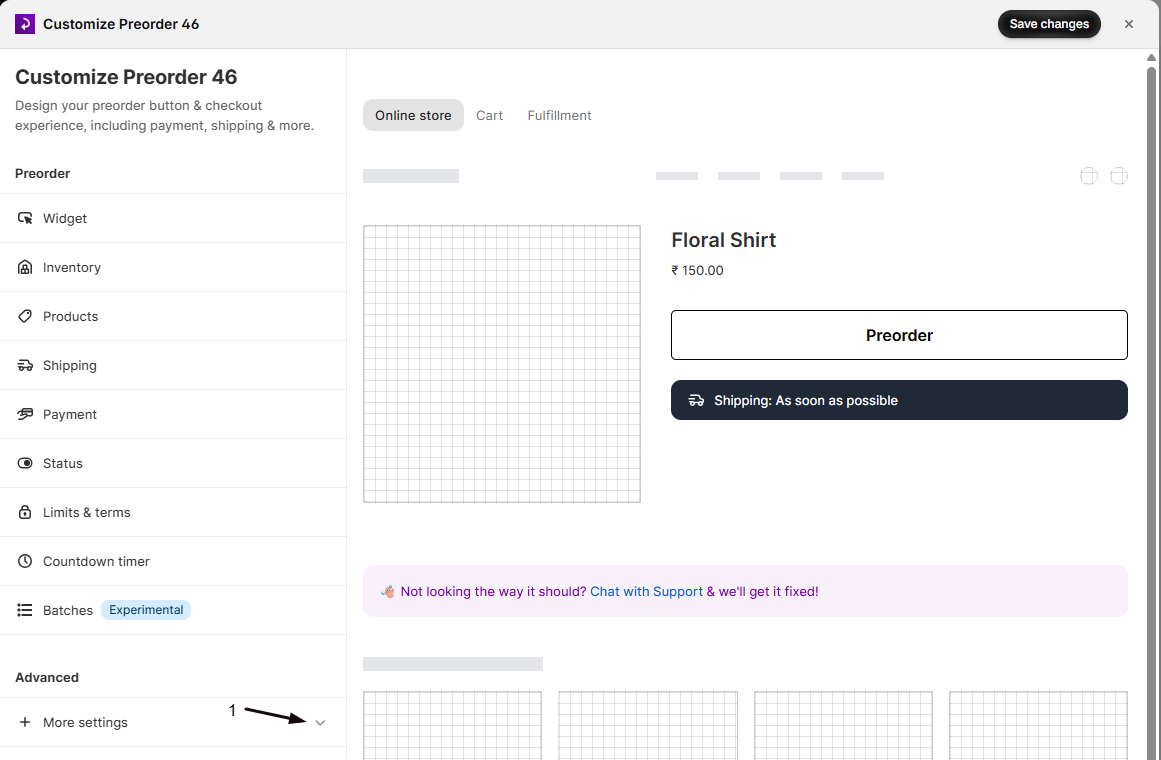
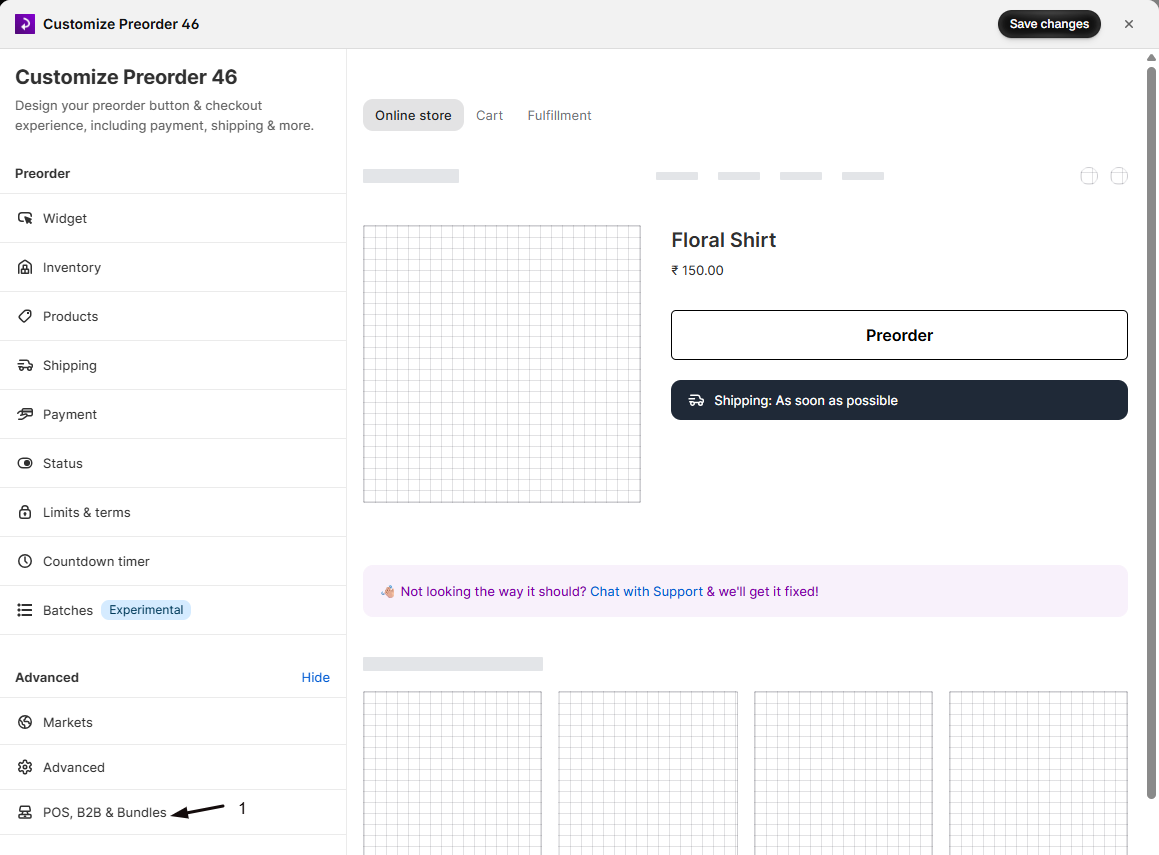
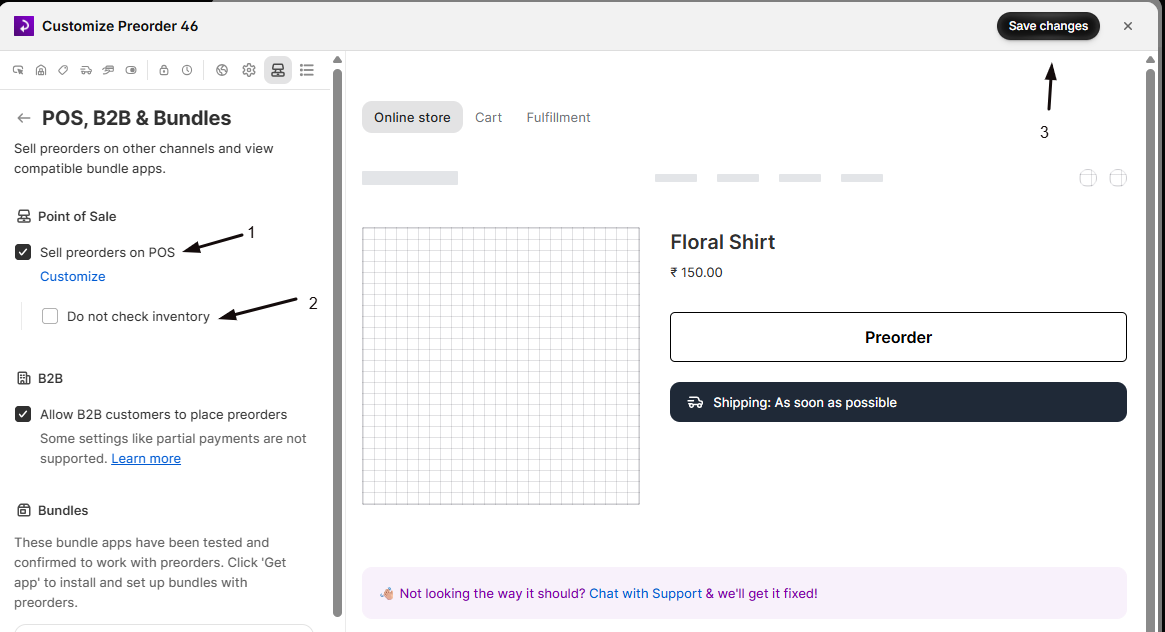
Section titled “Enable POS selling on the offer”Before staff can add an offer’s products to a POS cart, the offer itself must allow POS selling. Open the offer editor (Preorders in the left menu, the Offers tab, open the offer, then Customize), and in the editor sidebar click POS, B2B & Bundles.
Under Point of Sale you’ll find two settings:
- Sell preorders on POS: on by default. Leave it checked so this offer’s products can be sold at the register. When it’s off, POS treats the variant as having no preorder offer and can’t add it to the cart.
- Do not check inventory: click Customize under Sell preorders on POS to reveal it. By default (unchecked), a variant can be preordered at POS only when it’s out of stock and set to continue selling when out of stock, the same rule as your online store. Check it to let staff take a POS preorder even when the variant still shows stock, which is useful when inventory is shared across your Online Store and POS.
Click Save changes after changing either setting.
Take a preorder at POS
Section titled “Take a preorder at POS”Once the tile is installed and the offer allows POS selling, any staff member can take a preorder at the register.
-
Tap ‘Add preorder to cart’
On the POS home screen, tap the Add preorder to cart tile. The Select a product screen opens.
-
Search for and select the product
- Type the product name in Search products. Results appear once you pause typing.
- Tap the product to continue.
-
Select the variant
If the product has options such as size or color, the Select variant screen opens. Tap the correct variant. If you picked the wrong product, tap Choose a different product at the bottom of the screen.
Products without options skip this screen and go straight to the Confirm Preorder screen.
-
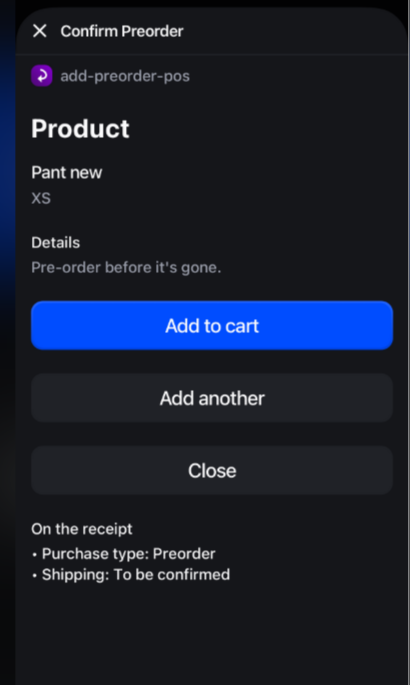
Review eligibility and confirm
The Confirm Preorder screen shows:
- The product name and variant
- Remaining preorder availability (if a preorder limit is set on the offer)
- Line item details that will be visible to the customer on their order receipt (such as estimated shipping text, if configured on the offer)
If the variant is not eligible, an error message is shown and the Add to cart button is disabled. The most common reasons are: the variant is in stock and Do not check inventory is off (standard behavior requires the variant to be out of stock and allow orders when out of stock), or all preorder slots are taken.
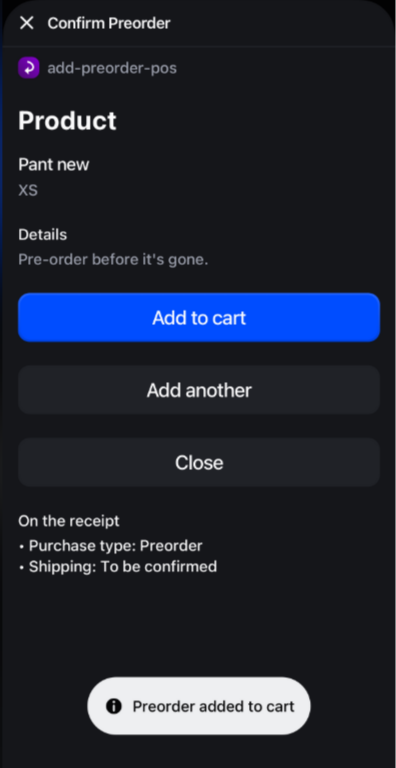
Tap Add to cart to add the preorder item to the POS cart. A Preorder added to cart toast confirms it. To take another preorder, tap Add another to go back to product search, or tap Close to close the tile.
-
Complete checkout normally
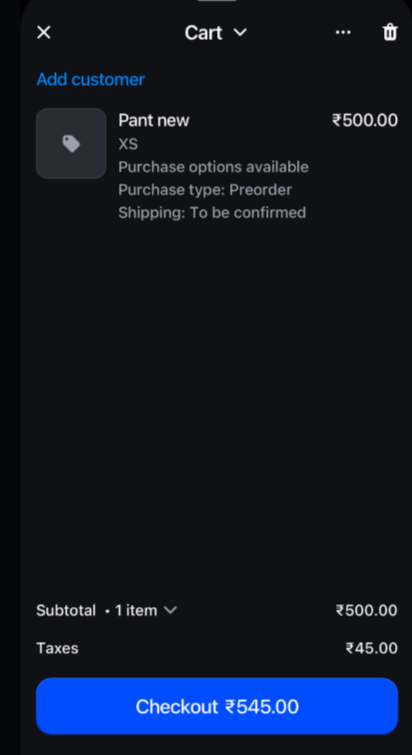
The preorder item now appears in the POS cart. Complete the sale through Shopify POS as you would any other order. Shopify controls payment processing, receipts, and taxes. STOQ adds the preorder designation and details to the line item.
What STOQ attaches to the cart
Section titled “What STOQ attaches to the cart”When the item is added to the cart, STOQ sets a Purchase type: Preorder property on the line item, plus the shipping text if the offer has one configured, and its own internal tracking properties so it can identify the the order as a preorder and where it came from. These carry through to the completed order, where STOQ uses them to track and manage the preorder, and they’re what you’ll see in the order details in Shopify admin.
If the offer has a custom cart attribute, POS shows that text instead of Purchase type: Preorder. POS fills in only the {{ name }}, {{ date }}, and {{ disclaimer }} variables; if the attribute uses any other variable, POS keeps Purchase type: Preorder. See Change or translate the “Purchase type: Preorder” cart text.
Check your setup
Section titled “Check your setup”After taking a POS preorder, go to Orders in Shopify admin. The new order should appear with the line item properties STOQ attached (Purchase type: Preorder, etc.) visible in the order details. Then in STOQ, go to Reports → Preorders → Orders. The order should appear there as a tracked preorder order. To check a single offer, open Preorders in the left menu, click the Offers tab, open the offer, and go to its Orders tab.
Troubleshooting
Section titled “Troubleshooting”The Confirm Preorder screen says the variant has no preorder offer
The tile searches your whole catalog, so it can find products that aren’t in a POS-ready offer. Check these:
- The variant is in a preorder offer.
- The offer is active. See Schedule when an offer runs.
- Sell preorders on POS is turned on for the offer. See Preorders on POS, B2B, and with Bundles.
Search results don't appear while typing
Results appear once you stop typing for a moment. The list shows up to 20 products, so if the one you want isn’t there, type more of its name. If the line under Search products says Could not search products, change the search text to try again, or close the tile and open it again.
The Add to cart button is disabled, or the confirmation screen shows the variant as not eligible
Check these:
- The variant is out of stock and set to allow orders when out of stock (unless the offer’s Do not check inventory setting is on).
- The offer hasn’t reached its total or per-variant preorder limit.
- The offer is active and not paused.
The customer doesn't get a preorder confirmation email or SMS
Confirm you have a preorder confirmation notification configured in STOQ and that it triggers on order creation. Place a POS test order to verify. See Preorder confirmation notification.
Limitations
Section titled “Limitations”POS preorders don’t support a deposit or partial payment: Shopify POS always collects the full payment at checkout, since STOQ’s deposit option relies on Shopify selling plans, which POS checkout doesn’t support natively.
Where do I find the STOQ preorder tile in the POS app?
On the POS home screen, tap Add tile, tap App, then choose STOQ. Tap Add next to Add preorder to cart, then Save to add it to your POS home screen.
Does the POS preorder charge the customer a deposit at checkout?
No. Shopify POS always collects the full payment at checkout; see Limitations above. Plan accordingly if your offer has a deposit option: POS customers always pay in full.
Can I add more than one preorder to the same sale?
Yes. After you tap Add to cart, tap Add another, search for the next product, and tap Add to cart again. Each preorder goes into the same POS cart, so you check out once.
Do I need to do anything in STOQ after taking a POS preorder order?
No extra STOQ-side steps are needed for a standard POS preorder. Once the Shopify order is created, STOQ processes it automatically and the order appears in your STOQ preorders list. You then manage it the same way as any other preorder: releasing fulfillment holds, communicating with the customer, etc. See Handle orders after receiving preorder inventory.
Related guides
Section titled “Related guides”Thanks for letting us know.
Still stuck? Ask Quinn or chat with support