
Register back in stock signups on Shopify POS
Use this guide to add STOQ's tile to your Shopify POS devices so staff can register a customer for a back in stock alert at the counter, for a product that isn't available to buy today. By the end, a customer signed up in person gets notified automatically, by email or SMS, the same way an online "Notify me" signup does.
Before you begin
| Requirement | Detail |
|---|---|
| Shopify POS app | Installed on the device, from apps.shopify.com/shopify-pos |
| STOQ installed | Restock Rocket (STOQ) must be installed on your Shopify store |
| A channel turned on | At least Email alerts or SMS alerts must be turned on in Back in stock alerts, or the registration won't save. See Turn on email and SMS channels |
What customers will see
A POS signup behaves exactly like an online "Notify me" signup once it's saved:
| Situation | What happens |
|---|---|
| Product restocks | The customer is notified automatically through your Back in stock alerts delivery settings, the same as anyone who signed up on your storefront |
| Notification link | The alert links to the product on your Online Store, since that's where the customer completes the purchase, not at POS |
| Double opt-in enabled | If Double opt-in is on for email signups, the customer receives the same confirmation email as an online signup and must confirm before they're notified. See Require double opt-in |
| SMS-only signup | SMS signups don't go through a confirmation step; they're confirmed automatically |
Set it up
Add the tile to your POS device
You can also find the Shopify POS setup instructions inside STOQ: click Back in stock alerts in the left menu, click the Settings tab, open the Integrations sub-tab, click See integrations to open the full Integrations page, and open the Shopify POS card.
Open the STOQ section in the POS app
- On your POS device, open the Shopify POS app.
- Tap Apps (or the tile grid icon).
- Find the STOQ section.
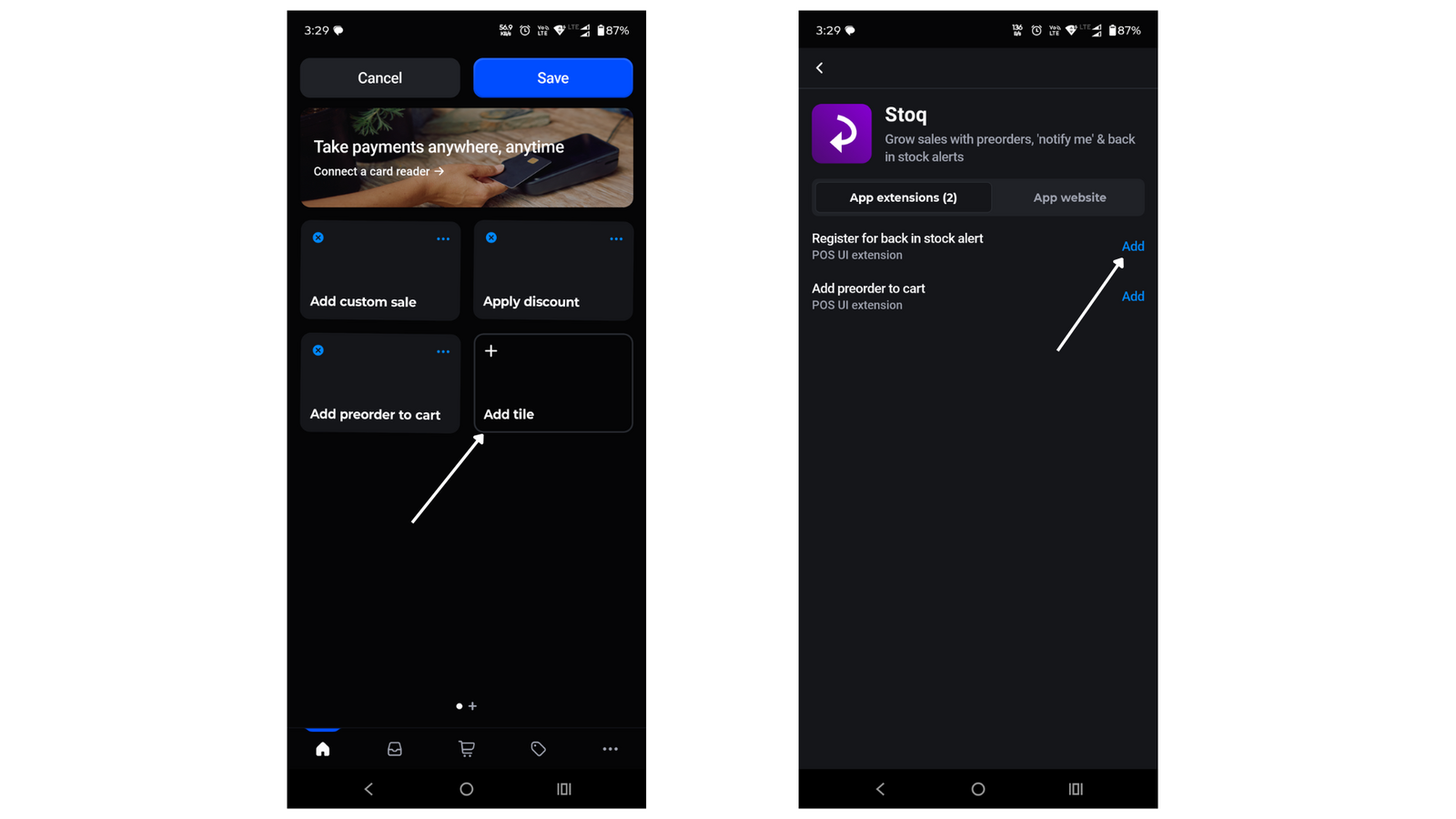
Add the 'Register for back in stock alert' tile
Locate and add the tile named Register for back in stock alert. The navigation path shown in STOQ is App > STOQ > Register for back in stock alert.
Confirm the tile is on the POS home screen
The tile should now appear on your POS home screen or tile grid, ready for staff to use.
Register a customer at the counter
Tap the tile
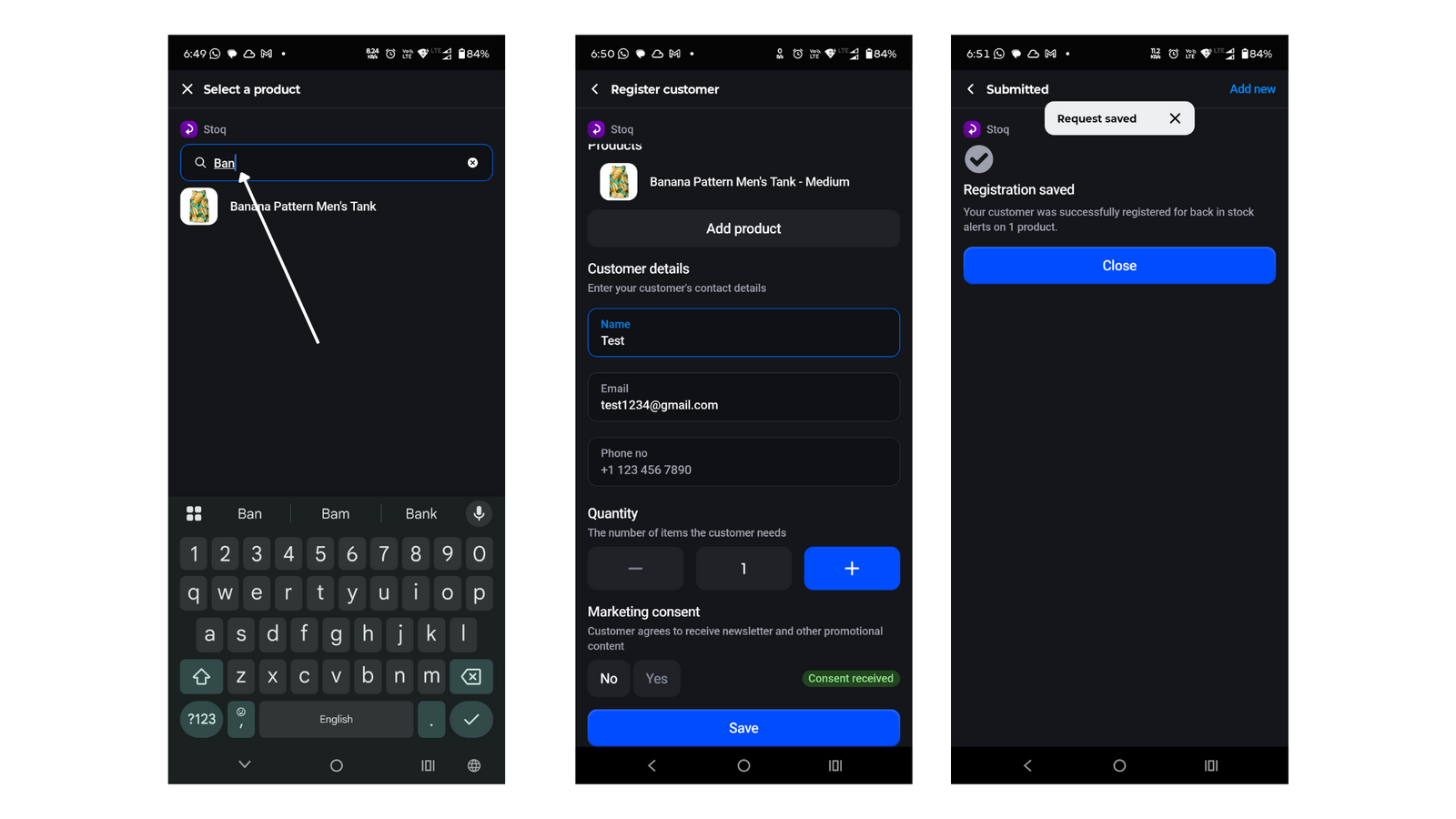
On the POS home screen, tap Register for back in stock alert. A Select a product screen opens with a search bar.
Search for and select the product
Type the product name in Search products, then tap it. Results appear once you pause typing.
Select the variant
On the Select variant screen, tap the specific variant the customer wants to be notified about. If you picked the wrong product, tap Choose a different product at the bottom of the screen.
Products without options such as size or color skip this screen and open the Register customer screen directly.
Fill in customer details
This opens the Register customer screen. Fill in:
- Name, if you've turned on Collect customer's name in your signup form settings (requires a paid plan). See Collect the customer name at signup.
- Email, the customer's email address.
- Phone no, in international format starting with
+, for example+1 123 456 7890. - Quantity, using the stepper, the number of units the customer needs (defaults to 1).
- Market, if your store is set to Multiple markets and has more than one configured, select the market the request belongs to. See Filter alerts by location or market.
- Marketing consent, turn on the Customer consents switch if the customer agrees to receive promotional content. A Consent received badge appears beside it.
At least an email or a phone number is required before you can save. If you enter both, and both Email alerts and SMS alerts are turned on, the customer is registered for alerts on both channels.
(Optional) Add more products for the same customer
Tap Add product below the Products list to search for another product before saving, so one customer can be registered for several products in a single visit without re-entering their details. To take a product off the list, tap it, then tap Remove product.
Tap Save
Tap Save. STOQ shows a Request saved toast, then the Done screen confirms Registration saved.
Add another customer or close
On the Done screen, tap New customer at the top to register a different customer, starting back at product search, or tap Close to close the tile.
Check your setup
Register a test signup using your own email or phone number, then check the Products tab in Back in stock alerts and confirm the product's signup count went up. For a full walkthrough that also confirms the notification actually sends, see Test Back in Stock alerts.
Troubleshooting
Save stays disabled
A product must be selected, and either the email or phone field must be filled with a validly formatted value: email needs an @ and a domain, phone must start with + and include a country code.
The Done screen says Registration failed
None of the products were saved. The usual causes:
- The channel the customer used, Email alerts or SMS alerts, is turned off for your store. Turn it on (see Turn on email and SMS channels), then tap New customer and register the customer again.
- The customer is already signed up for that product with the same contact details. Their existing signup still stands, so there's nothing to fix.
Search results don't appear while typing
Results appear once you stop typing for a moment. The list shows up to 20 products, so if the one you want isn't there, type more of its name. If the line under Search products says Could not search products, change the search text to try again, or close the tile and open it again.
The Name field doesn't appear on the form
It only shows when Collect customer's name is turned on, which requires a paid plan. See Collect the customer name at signup.
The Market field doesn't appear
It only shows when your store's Market setup is set to Multiple markets and you have more than one market configured. See Filter alerts by location or market.
A customer registered at POS never gets a confirmation email
Check whether Double opt-in is turned on for email signups; the customer needs to click the confirmation link before alerts go out. See Require double opt-in.
Limitations
The product search on the tile isn't limited to out-of-stock items: staff can search for and register a customer on any product or variant in your catalog, whether or not it's currently in stock.
FAQ
Where do I find the STOQ tile in the POS app?
In the Shopify POS app, tap Apps (or the tile grid icon), then find the STOQ section and add the Register for back in stock alert tile to your home screen.
Do I need to set anything up in STOQ besides adding the tile?
No. A POS registration uses the same Back in stock alerts settings as your online signup form: whichever channels, name field, market setup, and double opt-in rules you've already configured apply to POS signups too.
Can I register the same customer for more than one product in one visit?
Yes. Tap Add product on the Register customer screen to search for additional products before tapping Save; all selected products are registered for that customer in one submission.
What if I pick the wrong product?
On the Select variant screen, tap Choose a different product to go back to search. If the product is already on the Register customer screen, tap it in the Products list, then tap Remove product.
Will a customer notified about a restock need to come back to the store to buy it?
No. The alert links to the product on your Online Store, so the customer completes the purchase there. The POS registration only captures their intent to be notified.
Can staff register a customer for a product that's currently in stock?
Yes, the tile's product search isn't restricted to out-of-stock items, so it's possible to register one by mistake. The customer will still only be notified according to your Back in stock alerts delivery settings.
Related guides
Set up alerts
Turn on the "Notify me" widget and configure delivery channels.
Turn on email and SMS channels
Choose which channels customers can sign up and be notified with.
Collect the customer name at signup
Add a name field to the signup form, online and on POS.
Filter alerts by location or market
Set up Multiple markets so the POS Market field appears.
Preorders on Shopify POS
Use STOQ's other POS tile to take a preorder at the register.
