
Sync back in stock signups to Klaviyo
Connect Klaviyo so that everyone who signs up for a back in stock alert is added to your Klaviyo account as a profile, as soon as they register. You can then build segments, campaigns, and automations in Klaviyo from that audience. This guide covers the connection and the visitor sync only. To send the restock alerts themselves through Klaviyo instead of STOQ's built-in email and SMS, see Send back in stock alerts through Klaviyo.
Before you begin
| Requirement | Detail |
|---|---|
| Paid STOQ plan | Turning on visitor syncing requires a paid plan. |
| Klaviyo account | You need an active Klaviyo account. The integration uses OAuth, so no API key is required. |
Klaviyo connects once for your whole shop, and the same connection is shared with preorders. Syncing works whether or not you also route your alerts through Klaviyo.
What gets synced
With the sync on, both visitors and buyers are added to your Klaviyo account as profiles as soon as they register for a back in stock alert. Each profile carries the customer's details (name, email, phone) so you can segment and market to them in Klaviyo.
Set it up
On a phone, this menu is collapsed. In the Shopify mobile app, tap the STOQ logo at the top of the screen to open it, then choose the section named below. There is no hamburger icon. See Finding the STOQ menu.
Open the Klaviyo card
- In the left menu bar of the STOQ app, click Back in stock alerts.
- Click the Settings tab.
- Open the Integrations sub-tab.
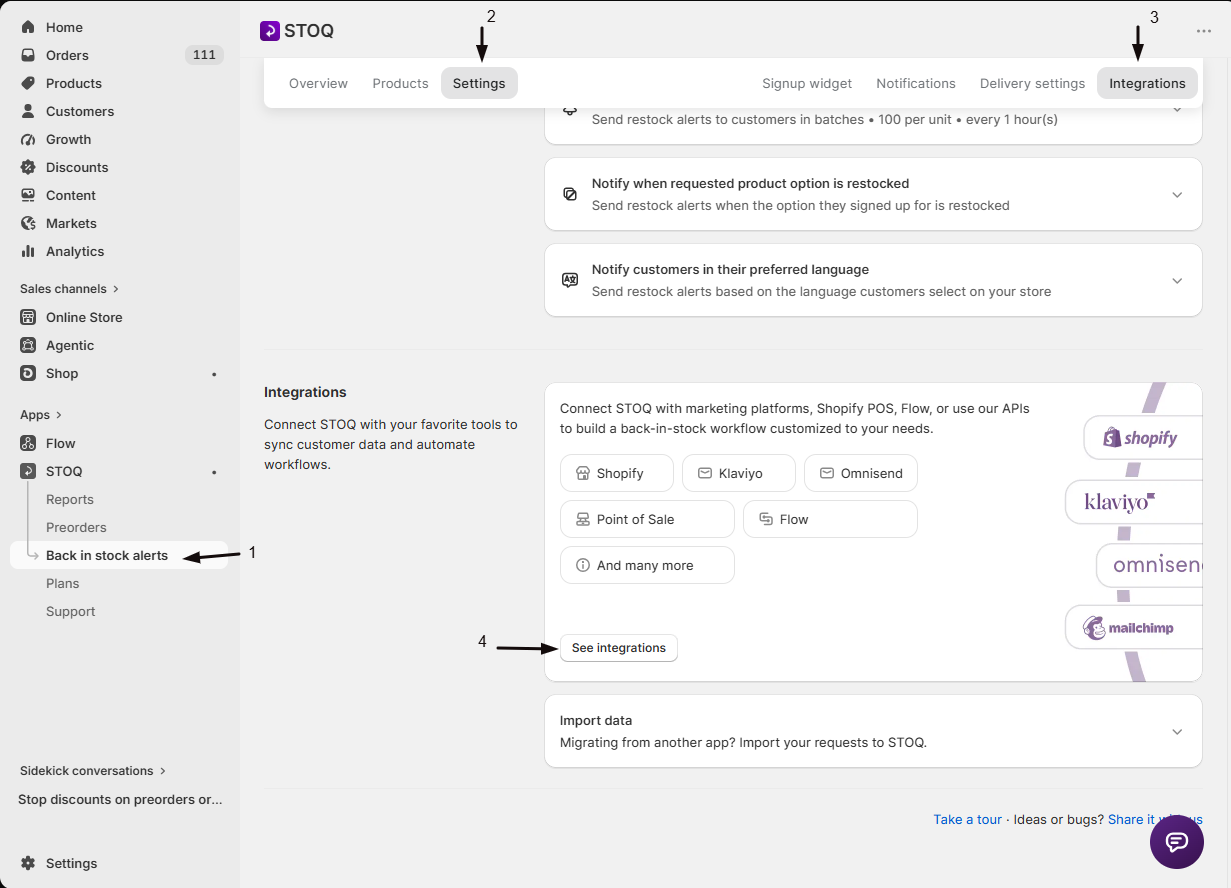
Then click See integrations to open the full Integrations page, find the Klaviyo card, and click Set up to expand it.
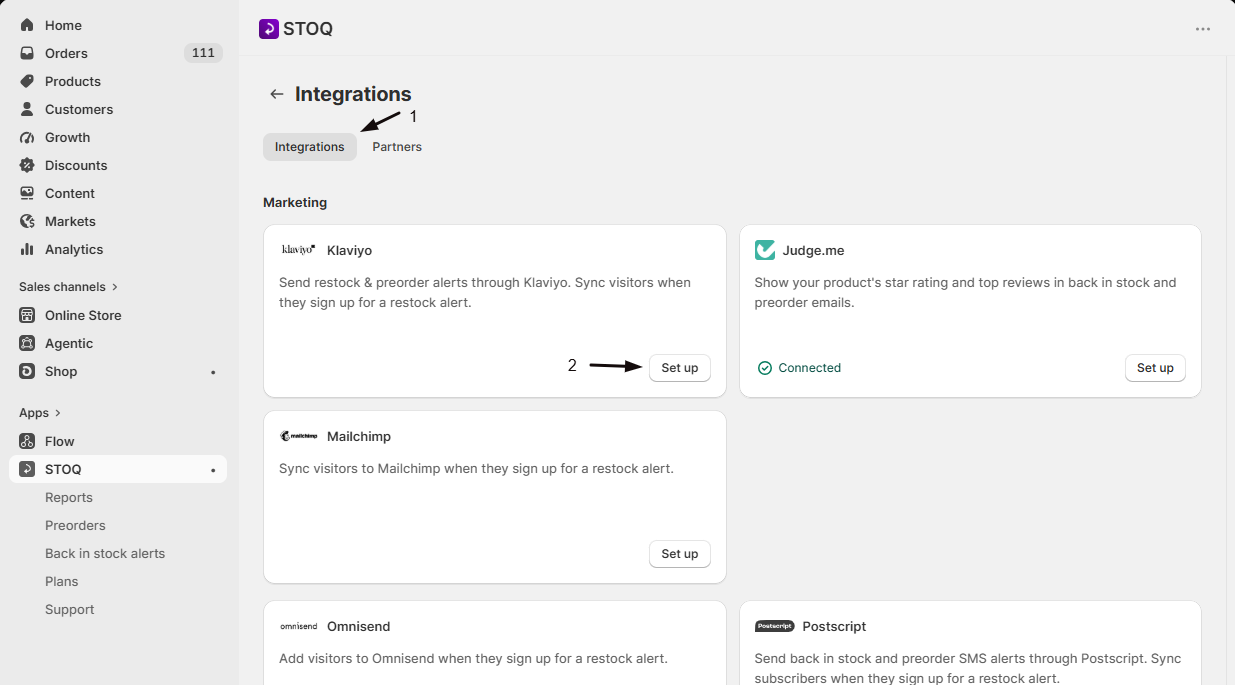
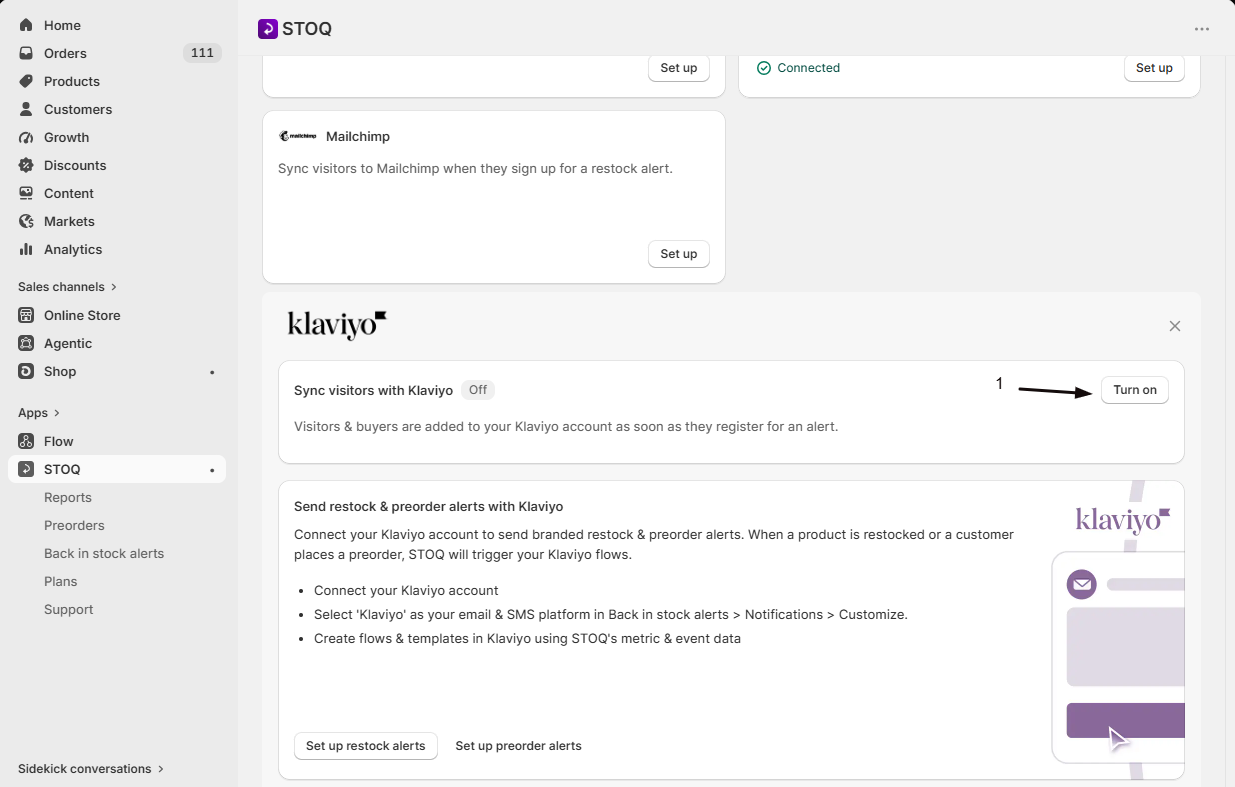
Turn on visitor syncing
Switch on Sync visitors with Klaviyo. This requires a paid plan. Turning it on reveals the Klaviyo app connection section below: the Connect button only appears once this toggle is on, so you switch it on first, then connect.
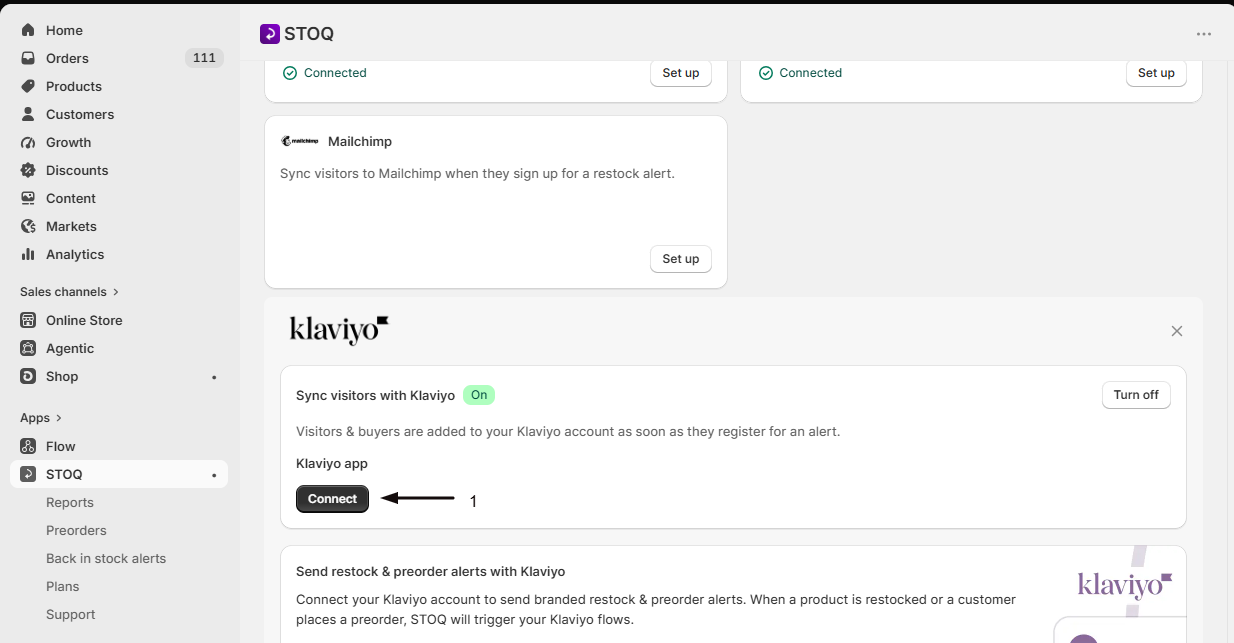
Connect your Klaviyo account
In the Klaviyo app section, click Connect.
Allow access in Klaviyo
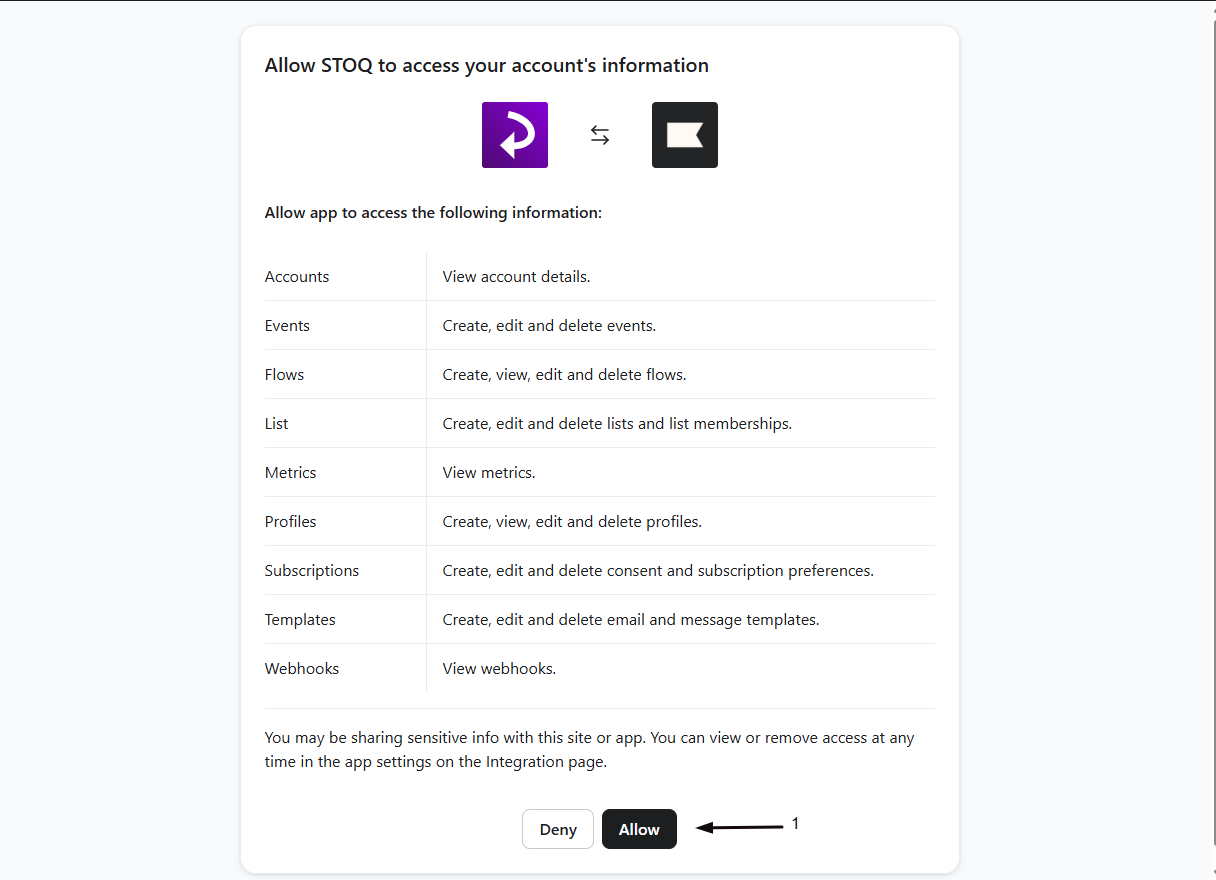
In the Klaviyo tab that opens, log in if prompted and click Allow to grant STOQ access. You're returned to STOQ.
If you previously connected with a private API key, click Connect app in the "Your Private API key is configured" notice to switch to the more secure Klaviyo app connection.
Confirm the connection
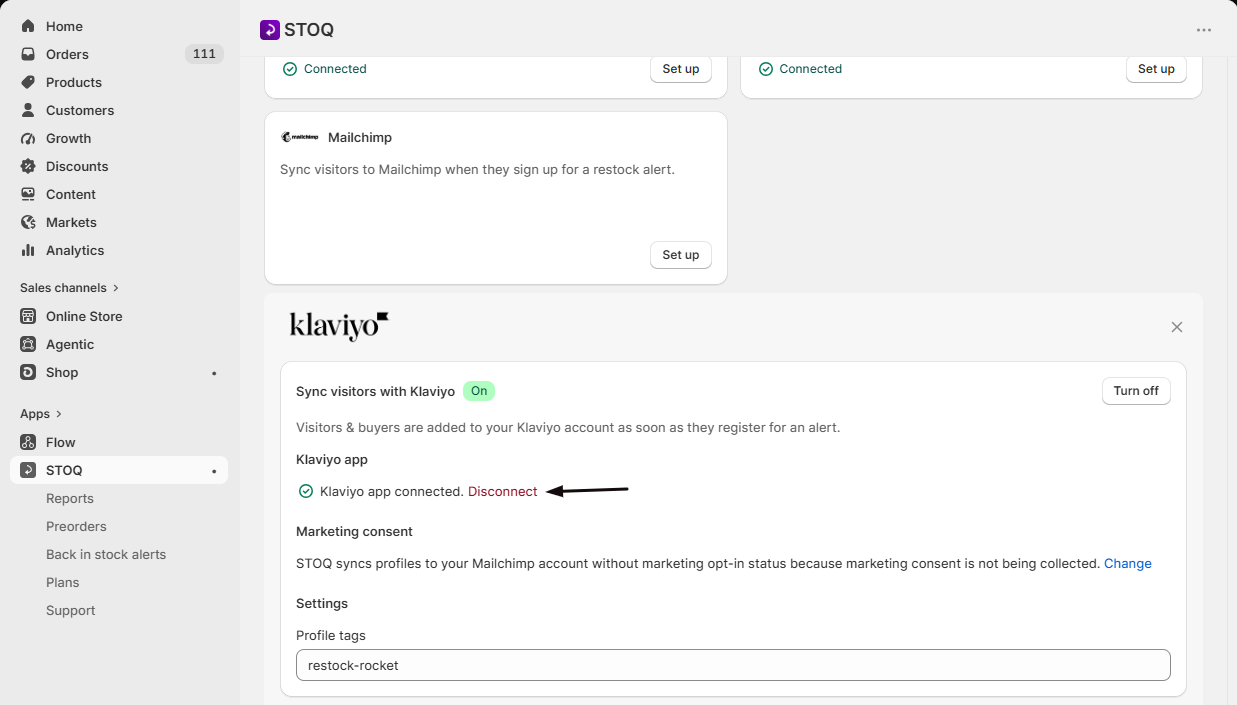
The Klaviyo app section shows a green checkmark next to Klaviyo app connected. with a Disconnect option. Refresh the page if it doesn't update right away.
(Optional) Add a profile tag
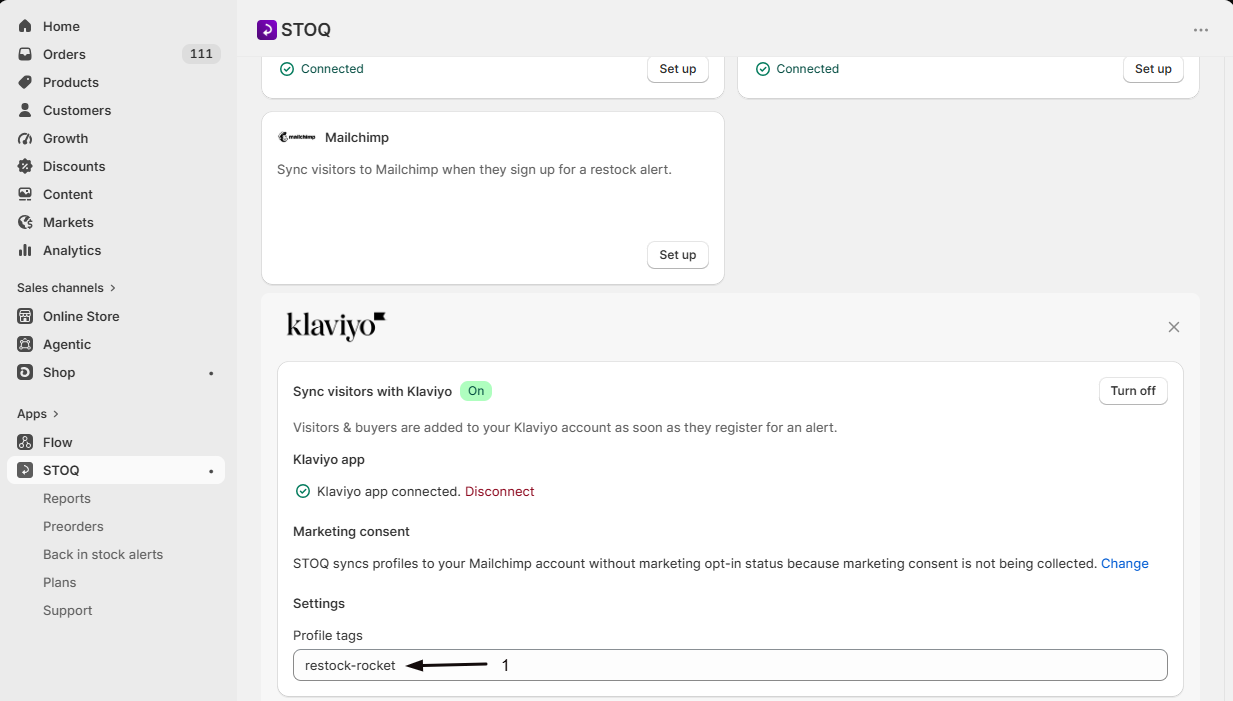
In the Profile tags field, enter a tag to apply to every profile synced to Klaviyo, so you can find and segment STOQ signups. The same tag is shared across Klaviyo, Shopify, Mailchimp, and Omnisend syncing.
Check your setup
- Sign up for a back in stock alert on your storefront with a test email or phone number.
- In your Klaviyo dashboard, open Profiles and confirm the new profile appears, with your profile tag if you set one.
Troubleshooting
Visitor syncing isn't adding profiles to Klaviyo
Confirm Sync visitors with Klaviyo is on and the card shows Connected. Syncing works independently of whether you also send alerts through Klaviyo.
The Sync visitors toggle is greyed out
Visitor syncing requires a paid plan. Upgrade to turn it on.
The Klaviyo connection disconnected on its own
The STOQ app was likely removed from your Klaviyo account, or the OAuth grant was revoked, which invalidates the connection. Reconnect from the Klaviyo card. Note that disconnecting also turns off visitor syncing.
FAQ
Do I need a Klaviyo API key to connect?
No. STOQ connects using OAuth, so no API key is required. If you previously connected with a private API key, the card prompts you to switch to the OAuth app; connecting that way removes the old key from STOQ's settings.
Can I sync visitors to Klaviyo without sending my alerts through it?
Yes. Turning on Sync visitors with Klaviyo only adds profiles to Klaviyo. STOQ keeps sending the restock alert itself unless you separately choose Klaviyo as your sending platform. See Send back in stock alerts through Klaviyo.
Does connecting Klaviyo here also affect preorders?
The Klaviyo connection is shared across your whole shop, so it's the same account for preorders. The visitor sync described here applies to back in stock signups.
What happens to synced profiles if I disconnect?
Disconnecting stops new signups from syncing and turns the sync off. Profiles already in Klaviyo stay in your Klaviyo account.
Related guides
Send back in stock alerts through Klaviyo
Route the restock email and SMS through your own Klaviyo flows.
Sync signups to your marketing tool
Sync back in stock signups to Mailchimp, Omnisend, or Shopify instead.
Import a waitlist
Bring an existing list of signups into STOQ in bulk.
Manage your customers
View, subscribe, unsubscribe, and export your signups.
