Set up B2B in Shopify admin
Enable Shopify's B2B features so you can run preorder offers for wholesale companies.
Last updated
Before you can offer preorders to wholesale customers, Shopify’s B2B needs to be set up in your admin. B2B is a Shopify Plus feature. Once your companies and login are configured, you set up the preorder side in STOQ.
Enable customer login
Section titled “Enable customer login”-
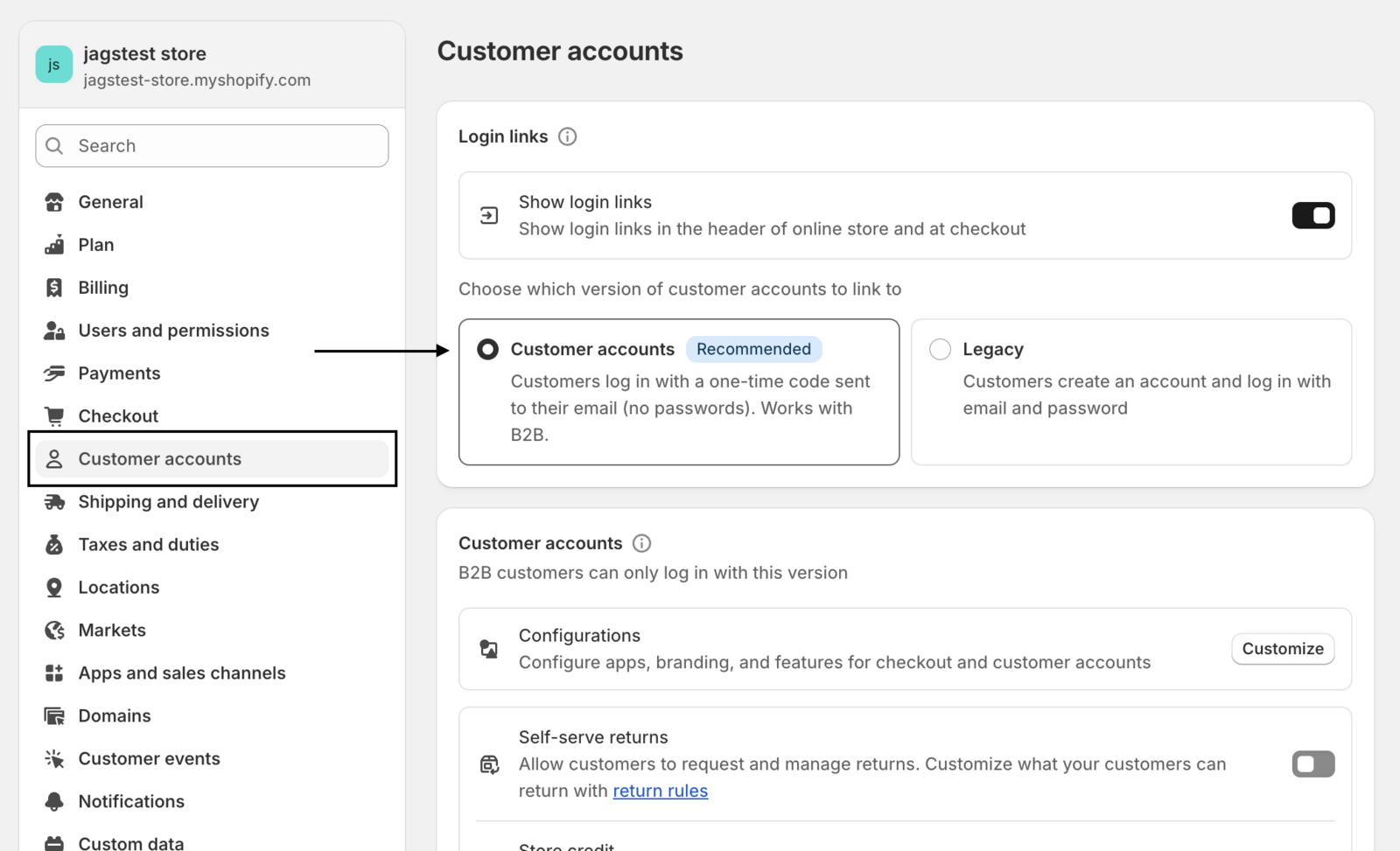
Open customer accounts settings
In Shopify admin, go to Settings > Customer accounts.
-
Turn on login
Enable the login link and choose Customer accounts, so B2B customers can sign in (for example with one-time email codes) and see their company pricing.
Add a company
Section titled “Add a company”-
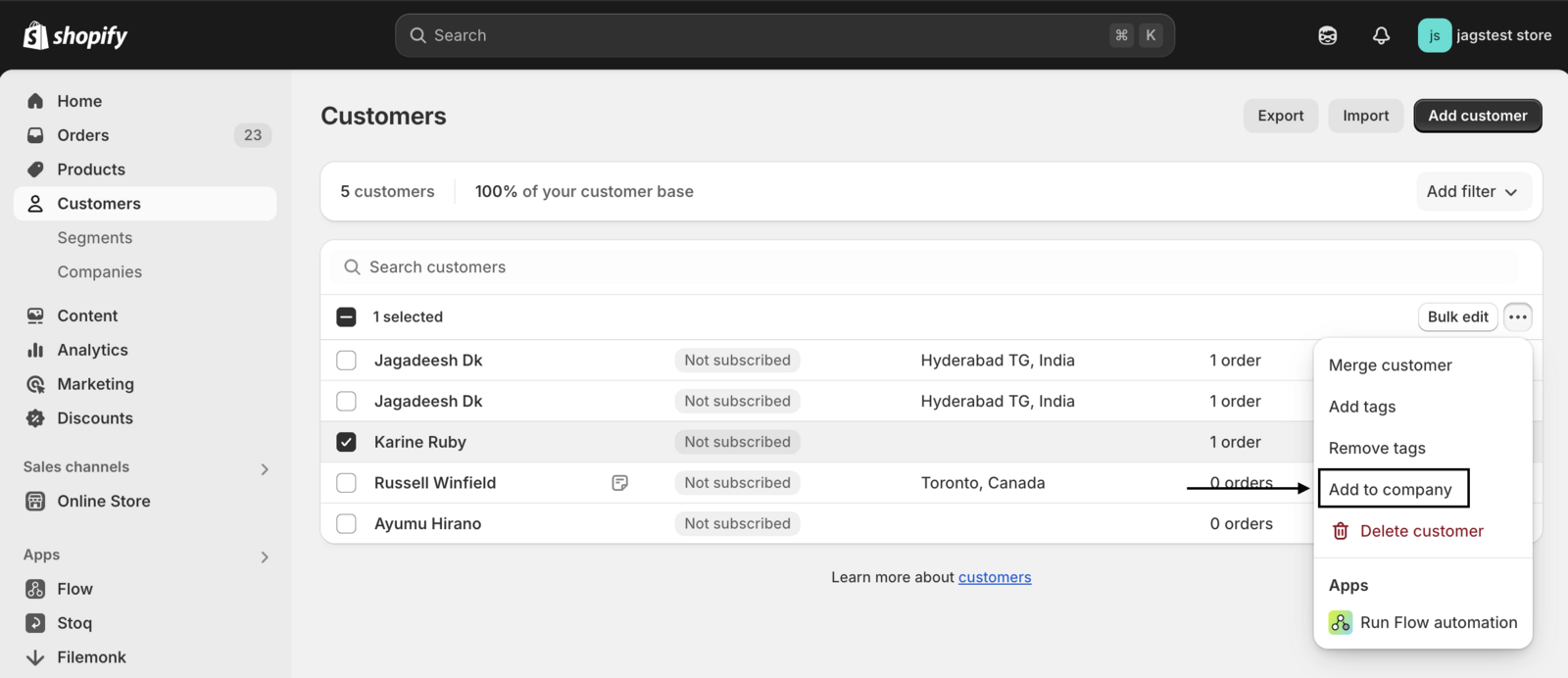
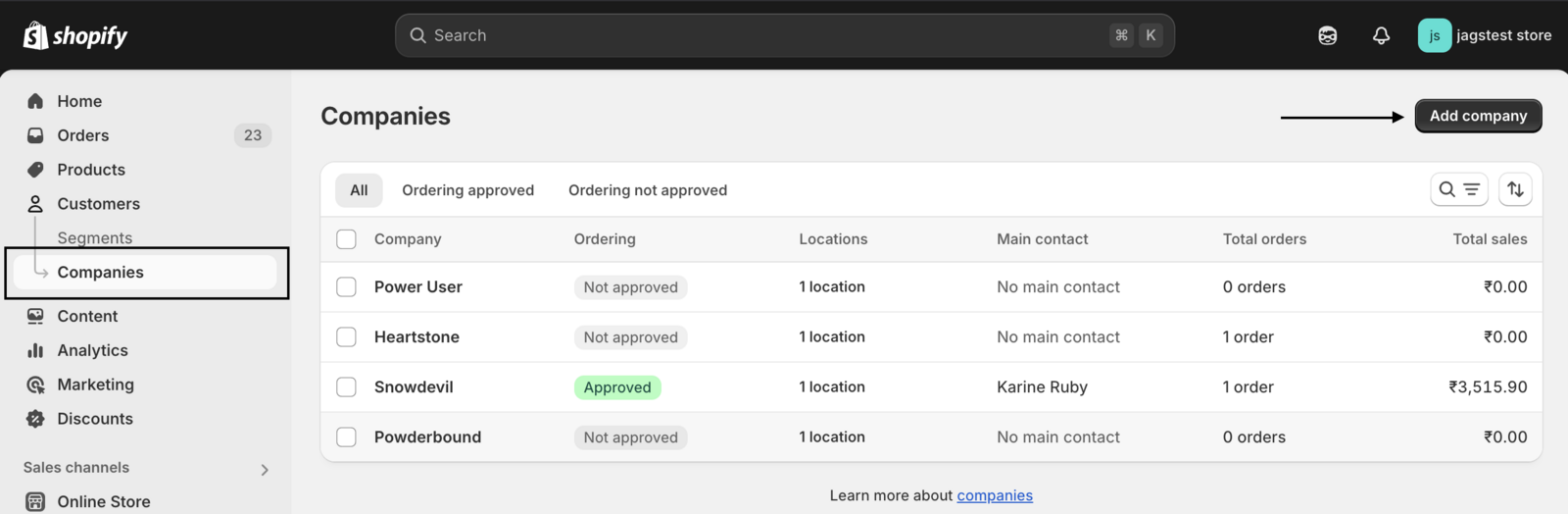
Open Companies
In Shopify admin, go to Customers. To convert an existing customer, open them and assign them to a company. To create a new one, open Companies and click Add company.
-
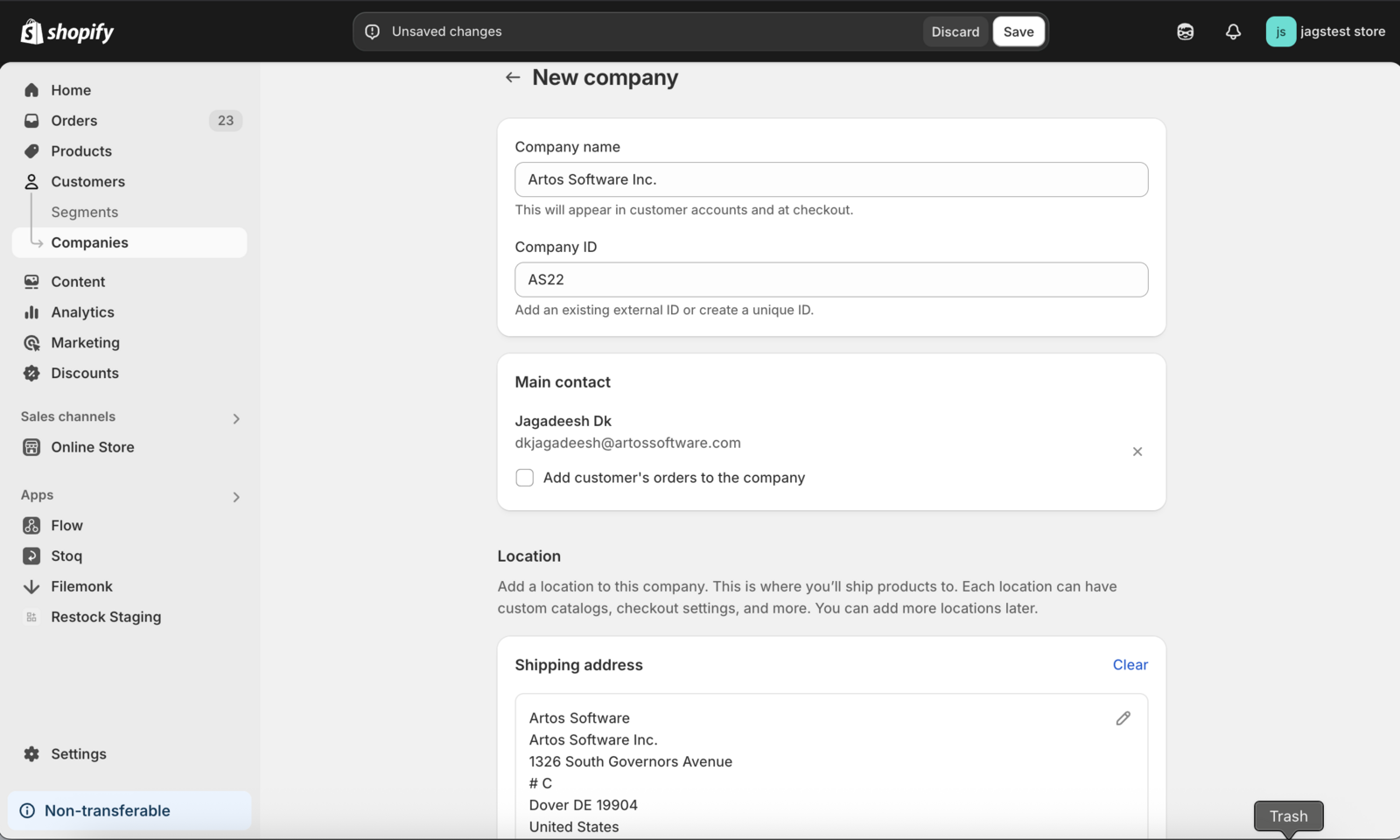
Fill in the company details
Enter the company name and primary contact, and add a shipping address (optional at setup, can be added at checkout).
-
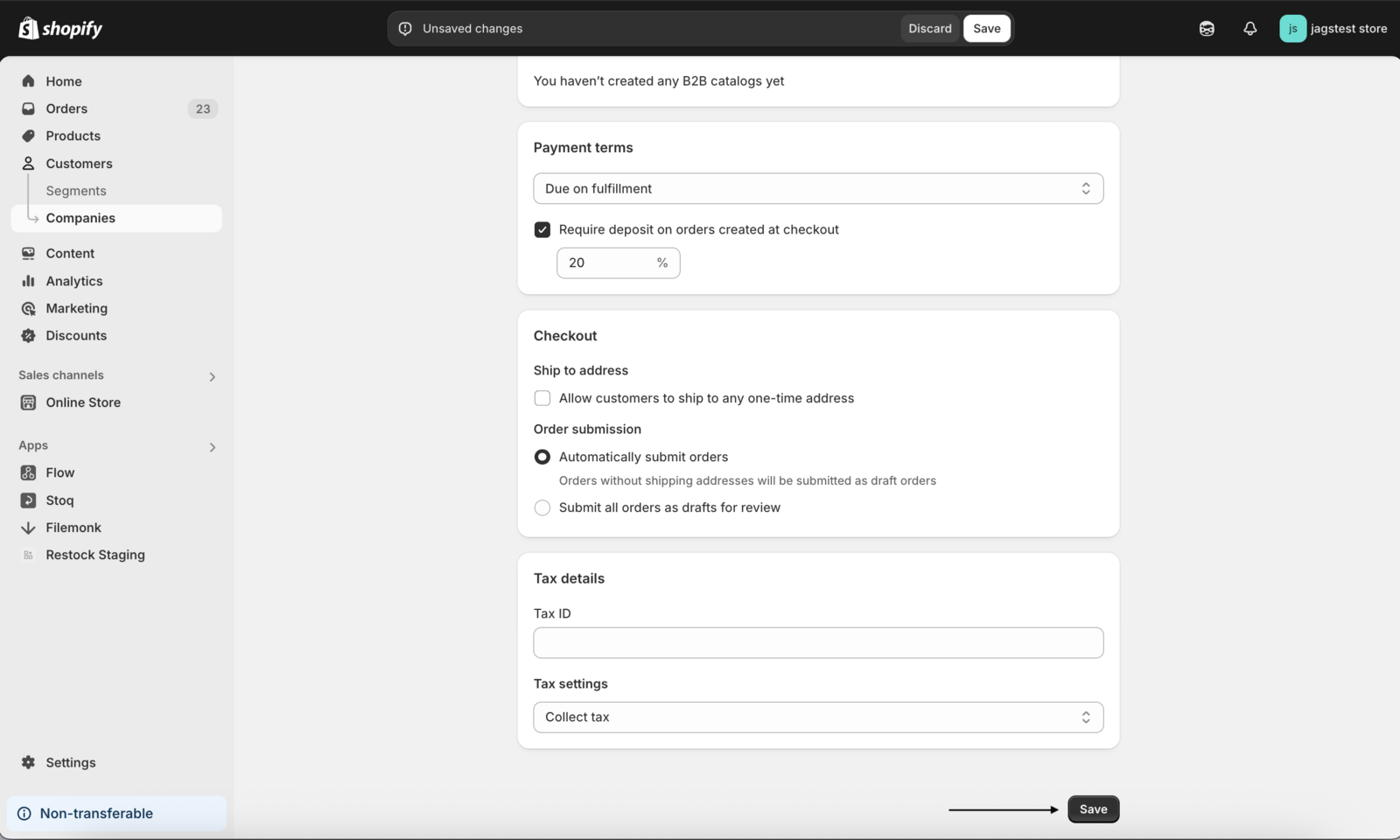
Set payment and ordering preferences
Choose payment terms and any deposit amount, and whether orders are placed automatically or submitted as drafts for review. Save.
Next: set up B2B preorders in STOQ
Section titled “Next: set up B2B preorders in STOQ”With Shopify B2B in place, configure the preorder offer for your B2B customers in STOQ. See Preorders on POS, B2B, and bundles.
Do I need Shopify Plus?
Yes. Shopify B2B is only available on the Shopify Plus plan.
Where do I configure the preorder part?
In STOQ, once the company and login are set up in Shopify. See Preorders on POS, B2B, and bundles.
Related guides
Section titled “Related guides”Thanks for letting us know.
Still stuck? Ask Quinn or chat with support